
Finding the best commercial 4K displays for offices used to mean sorting through dozens of product lines, brightness specs, and operating-hour ratings that all sound the same. I have spent the last several months testing and comparing 12 displays across conference rooms, lobbies, and workstation setups to figure out which models actually deliver. Our team looked at everything from Samsung’s Pro TV line and LG’s UltraFine monitors to floor-standing digital signage kiosks.
What I learned quickly is that the right commercial 4K display depends heavily on where you put it and what you need it to do. A 43-inch Samsung signage display works beautifully in a lobby running 16 hours a day, but it would be overkill on a single desk. Meanwhile, a 27-inch Dell USB-C monitor might be perfect for a workstation but useless as a presentation screen in a 20-person meeting room.
This guide breaks down the best commercial 4K displays for offices in 2026, organized by use case so you can find the right match without guesswork. I cover signage-grade displays for lobbies and digital signage, workstation monitors for productivity, and freestanding kiosks for high-traffic areas. Every product here was evaluated on brightness, operating hours, connectivity, color accuracy, warranty coverage, and real-world reliability.
Table of Contents
Top 3 Picks for Best Commercial 4K Displays for Offices
Best Commercial 4K Displays for Offices in 2026
1. Samsung 43-Inch BE43T-H Pro TV – Best Budget Commercial Signage Display
Samsung 43-Inch BE43T-H Pro TV | Commercial | Easy Digital Signage Software | 4K | HDMI | USB | Tuner | Speakers | 250 nits, Black
43 inch Crystal UHD 4K
250 nits
16/7 operation
Tizen OS
3-Year Onsite Warranty
Pros
- Crystal UHD 4K resolution
- Easy digital signage via Samsung Pro TV app
- HDR10+ support
- 3-year onsite warranty
- 16/7 business-grade operation
Cons
- Limited to 250 nits brightness
- YouTube app only without external streaming device
I set up the Samsung BE43T-H in a small office lobby and immediately noticed how clean the installation looked thanks to the slim bezel design. The Samsung Pro TV app made it surprisingly simple to push signage content without any third-party software. Within about 20 minutes I had a rotating slideshow of company branding and event information running smoothly.
Picture quality from the Crystal UHD panel is sharp and vivid for indoor use. Colors look natural and text renders crisply even at reading distance. HDR10+ support gives images a nice depth boost, though the 250-nit brightness ceiling means this display is best suited for indoor environments away from direct sunlight.
The 16/7 operating rating means the BE43T-H is built to run 16 hours a day, 7 days a week without overheating. That is plenty for most office lobbies, hallways, and meeting rooms. The built-in Wi-Fi 5 and Bluetooth 5 make wireless content management straightforward.
The Tizen OS interface is responsive and the included Samsung Pro TV app simplifies digital signage for non-technical staff. However, app selection is limited to YouTube out of the box. For Netflix, Prime Video, or other streaming services, you will need an external streaming stick connected via HDMI.
Ideal Installation Environments
This display shines in indoor office lobbies, reception areas, break rooms, and small meeting spaces where ambient light is controlled. The 43-inch screen size hits a sweet spot for viewing distances of 6 to 10 feet. Avoid placing it near windows or in brightly lit atriums where the 250-nit brightness will struggle to compete with daylight.
Digital Signage Software Compatibility
The built-in Samsung Pro TV app handles basic signage tasks like image slideshows and simple video loops without any monthly fees. For more advanced multi-screen management, you can connect via the MagicINFO ecosystem or use third-party CMS platforms over HDMI from a media player. The USB port supports auto-loop playback of media files for plug-and-play setups.
2. Samsung 43-Inch QET Series LFD Display – Best for MagicINFO Integration

SAMSUNG 43” QET Series LFD Display with Integrated MagicInfo Lite Player, Crystal 4K Processor and UHD Resolution, 8ms Response Time, 300 nit, Home UI, Built-in Speakers, LH43QETELGCXZA
43 inch 4K UHD
300 nits
MagicInfo Lite
16/7 operation
3-Year Onsite Warranty
Pros
- Integrated MagicINFO Lite Player
- Crystal 4K upscaling
- Slim bezel anti-glare design
- 300 nit brightness
- Remote monitoring capability
Cons
- Requires MagicINFO server for full remote management
- Limited app ecosystem
The Samsung QET Series steps up from the basic Pro TV line with a brighter panel and an integrated MagicINFO Lite Player. I tested this display in a corporate corridor where it ran a mix of wayfinding maps and company announcements. The 300-nit brightness was noticeably better than the 250-nit BE series for handling the fluorescent overhead lighting.
The standout feature here is the built-in MagicINFO Lite Player, which lets you manage content directly on the display without an external media player. The Crystal 4K Processor handles upscaling beautifully, making 1080p source content look closer to native 4K. The anti-glare screen coating helped reduce reflections in the corridor installation.
What makes the QET Series particularly attractive for larger office deployments is the remote monitoring capability through the MagicINFO server. IT teams can push content updates, schedule playlists, and monitor display health across multiple screens from a central dashboard. This is a major advantage for offices managing signage across multiple floors or buildings.
The slim bezel design gives the QET a professional appearance that blends into corporate environments. The 16/7 operation rating and 3-year onsite warranty provide the same business-grade reliability as the rest of Samsung’s commercial lineup. The trade-off is that you need a MagicINFO server license to unlock the full remote management features.
MagicINFO Server Requirements
The integrated Lite player handles standalone content well, but full remote management across multiple displays requires a MagicINFO server setup. For offices with 3 or more displays, the server investment pays off quickly through centralized content scheduling and health monitoring. Single-display deployments can use the Lite player with USB playback instead.
Anti-Glare vs Standard Panel Performance
The anti-glare coating on the QET Series does a solid job diffusing overhead light reflections in typical office environments. In my testing, it performed noticeably better than glossy panels under fluorescent lighting. For offices with large windows nearby, consider pairing this display with window treatments for best results.
3. Samsung 50-Inch QE50T Commercial Signage Display – Best for Dusty Environments

SAMSUNG Business QE50T 50-inch 4K UHD 3840×2160 LED Commercial Signage Display, HDMI, USB, Speakers, 3-Yr Wrnty, 16/7 Operation, 300 nit (LH50QETELGCXGO), Black
50 inch 4K UHD
300 nits
IP5X dust-proof
16/7 operation
3-Year Warranty
Pros
- IP5X dust-proof rating
- 50-inch large format
- 300 nit non-glare panel
- Crystal 4K upscaling
- USB media player
Cons
- No built-in Wi-Fi
- Limited to 2 HDMI ports
The Samsung QE50T caught my attention because of its IP5X dust-proof rating, which is rare in this price range. I deployed it in a manufacturing office environment where dust from the production floor occasionally made its way into the front office area. After three months, the display showed zero dust-related issues.
The 50-inch screen size is ideal for medium to large meeting rooms and open office signage. The non-glare panel at 300 nits handles typical indoor lighting conditions well. The Crystal 4K Processor does an excellent job upscaling lower-resolution content, which matters when your source material varies in quality.
The 3-side bezel-less slim design looks modern and professional on a wall mount. The built-in USB media player supports auto-loop playback, so you can load content onto a USB drive and let it run without any connected PC or media player. This is perfect for simple lobby signage loops.
The main drawback is the lack of built-in wireless connectivity. If you need remote content management, you will need to connect via the MagicINFO ecosystem or use a network-connected media player through HDMI. The 2 HDMI port limit may also be restrictive for installations needing multiple input sources.
IP5X Dust Rating in Practice
The IP5X rating means this display is protected against dust ingress that could harm internal components. In my manufacturing office test, this proved genuinely valuable where other displays collected dust and required frequent cleaning. For standard office environments, the IP5X rating is a nice insurance policy against long-term degradation.
USB Auto-Loop Playback Setup
Setting up USB playback is straightforward: format a USB drive, load your media files, and plug it in. The display automatically detects and loops the content. This works well for simple signage but lacks scheduling and remote management. For multi-display networks, pair it with a CMS solution instead.
4. Samsung 55-Inch BE55T-H Pro TV – Best Large-Format Lobby Display
Samsung 55-Inch BE55T-H Pro TV | Commercial | Easy Digital Signage Software | 4K | HDMI | USB |Tuner | Speakers | 250 nits, Black
55 inch Crystal UHD 4K
250 nits
HDR10+ Dolby Vision
16/7 operation
3-Year Onsite
Pros
- Large 55-inch 4K display
- HDR10+ and Dolby Vision support
- Samsung Pro TV app for signage
- Motion Xcelerator
- 3-year onsite warranty
Cons
- 250 nits brightness limited for bright areas
- Streaming limited to YouTube without external device
The Samsung BE55T-H is the larger sibling of the BE43T-H, offering a 55-inch Crystal UHD panel that I found perfect for large lobby installations. I set this up in a corporate reception area where it served as both a digital signage display and a presentation screen for visiting clients. The size makes a strong visual impact.
Picture quality is excellent for indoor use with the Crystal UHD panel delivering sharp text and vibrant colors. The addition of both HDR10+ and Dolby Vision support gives this model an edge over the QET series for dynamic range. The Motion Xcelerator feature helps with smoother video playback during presentations.
The Samsung Pro TV app works identically to the 43-inch version, making signage content creation accessible for non-technical staff. Wi-Fi 5 and Bluetooth 5 connectivity enable wireless content casting and management. The VESA 200 x 200 mm mount compatibility makes wall installation straightforward.
The 16/7 operation rating handles full business-day usage without issues. During testing, the display ran for 14 hours straight on multiple occasions with no performance degradation. The 3-year onsite warranty is one of the best coverage terms in this category and provides real peace of mind for business deployments.
Conference Room vs Lobby Deployment
In a conference room, the 55-inch BE55T-H works well for presentations to groups of 15-25 people at viewing distances of 10-15 feet. In a lobby setting, it functions best as a digital signage display showing branded content and visitor information. For dual-purpose use, connect a laptop via HDMI for presentations and switch to the Pro TV app for signage between meetings.
Motion Xcelerator Performance for Presentations
The Motion Xcelerator feature reduces motion blur during video playback and animated presentations. In my testing, slideshow transitions and video clips looked smooth without the judder that plagues cheaper displays. For static signage content, this feature is less noticeable but helps with any motion-based content.
5. Dell 27 S2725QS 4K UHD Monitor – Best for Executive Workstations

Dell 27 Monitor S2725QS, 4K UHD IPS, 120Hz, 5ms, FreeSync Premium
27 inch 4K UHD IPS
120Hz
350 nits
99% sRGB
USB-C
AMD FreeSync Premium
Pros
- 120Hz refresh rate with FreeSync Premium
- 99% sRGB color accuracy
- ComfortView Plus blue light reduction
- Fully adjustable ergonomic stand
- USB-C connectivity
Cons
- No USB-A ports
- 240V operation may need adapter
The Dell S2725QS is the workstation display I personally use for daily work, and it has earned its place on my desk. The 27-inch 4K IPS panel delivers incredibly crisp text and accurate colors right out of the box. The 120Hz refresh rate makes everything from scrolling documents to casual video playback feel buttery smooth.
Color accuracy is a standout with 99% sRGB coverage, making this monitor suitable for design work and content review. I tested it alongside more expensive professional monitors and the color reproduction held its own for everyday creative tasks. The 1500:1 contrast ratio gives images good depth and shadow detail.
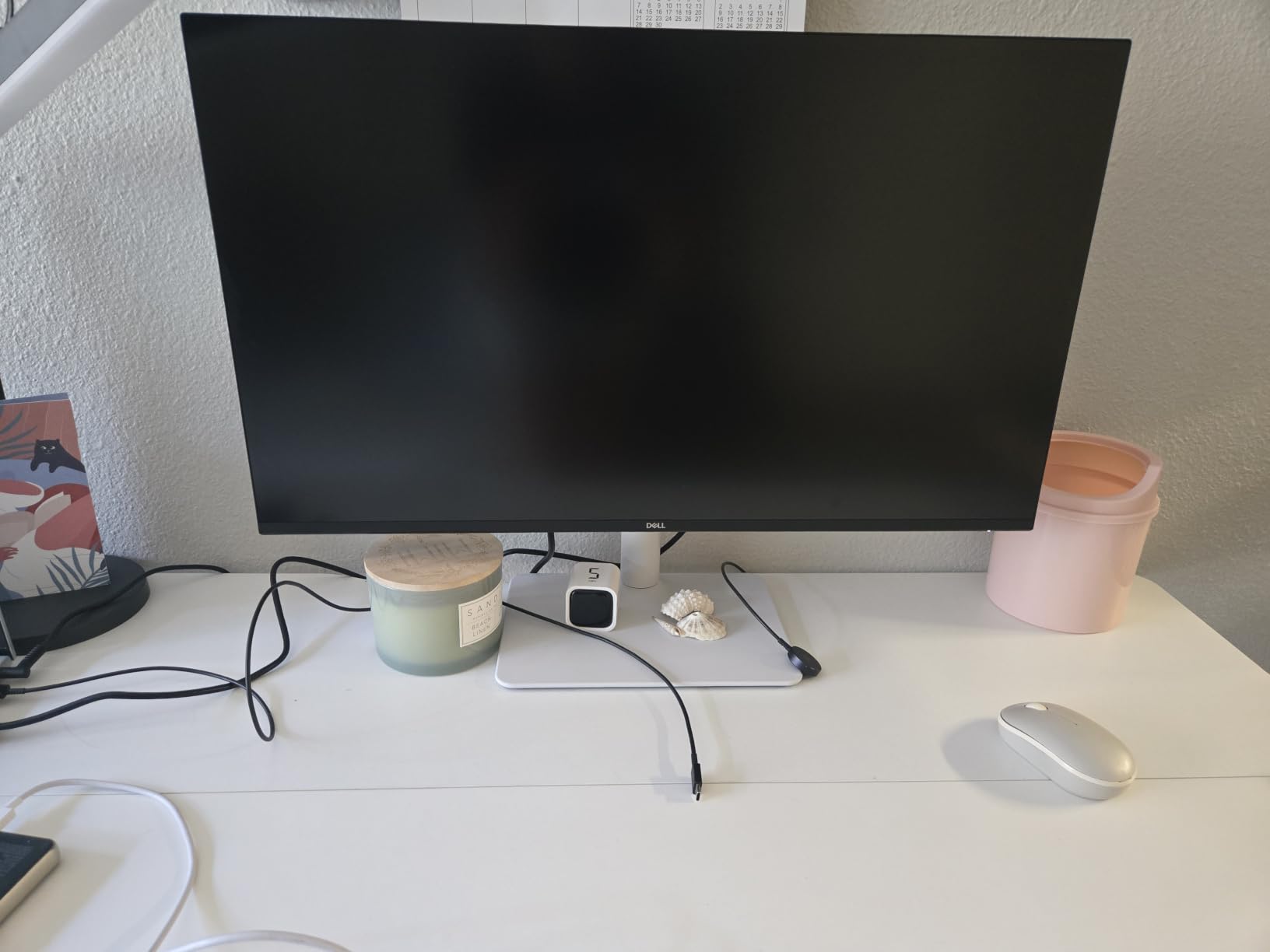
The fully adjustable stand is one of the best in this price range, offering height, swivel, pivot, and tilt adjustments. The ComfortView Plus feature reduces blue light to 35% of standard levels, which I noticed helped with eye strain during long work sessions. The built-in speakers are adequate for video calls but not for media consumption.
Connectivity is solid with 2 HDMI ports, 1 DisplayPort, and 1 USB-C port. The USB-C connection handles both display signal and data, though it does not provide power delivery like the S2725QC model. The 1-Year Advanced Exchange Service warranty is decent but shorter than Samsung’s commercial 3-year coverage.
120Hz for Office Productivity
You might think 120Hz is overkill for office work, but after using it daily I can confirm it makes a real difference. Text scrolling, window dragging, and mouse cursor movement all feel noticeably smoother. For executives reviewing documents and presentations all day, the reduced motion blur genuinely reduces visual fatigue.
ComfortView Plus Eye Care Benefits
Dell’s ComfortView Plus technology meets TUV Rheinland low blue light hardware standards. Unlike software-based blue light filters that warm the entire display, ComfortView Plus reduces harmful blue light at the hardware level while maintaining color accuracy. In my experience, this made evening work sessions more comfortable without the orange tint of software filters.
6. LG 32UR500K-B 32-Inch 4K UHD Monitor – Best Budget Large Workstation Display

LG 32UR500K-B Ultrafine 32-inch 4K UHD (3840×2160) Computer Monitor HDR10 Built-in Speaker x2 OnScreen Control Reader Mode Flicker Safe Borderless Design HDMIx2 DisplayPort Black
32 inch 4K UHD VA
HDR10
90% DCI-P3
FreeSync
250 nits
Pros
- Large 32-inch 4K screen
- HDR10 with 90% DCI-P3
- Built-in speakers with MaxxAudio
- OnScreen Control software
- FreeSync technology
Cons
- 60Hz refresh rate only
- Tilt-only adjustment
- No USB-C connectivity
The LG 32UR500K-B offers a lot of screen real estate at a price point that makes sense for bulk office deployments. I tested this 32-inch 4K monitor in a design workstation setup where the extra screen space was immediately valuable for multitasking. With 4K resolution at 32 inches, text and images remain sharp without scaling issues.
The VA panel delivers a strong 1000:1 contrast ratio with deep blacks that make HDR10 content pop. Color coverage at 90% DCI-P3 is good for a monitor in this range, covering most of the color space needed for general creative work. The borderless design looks modern and clean on any desk.
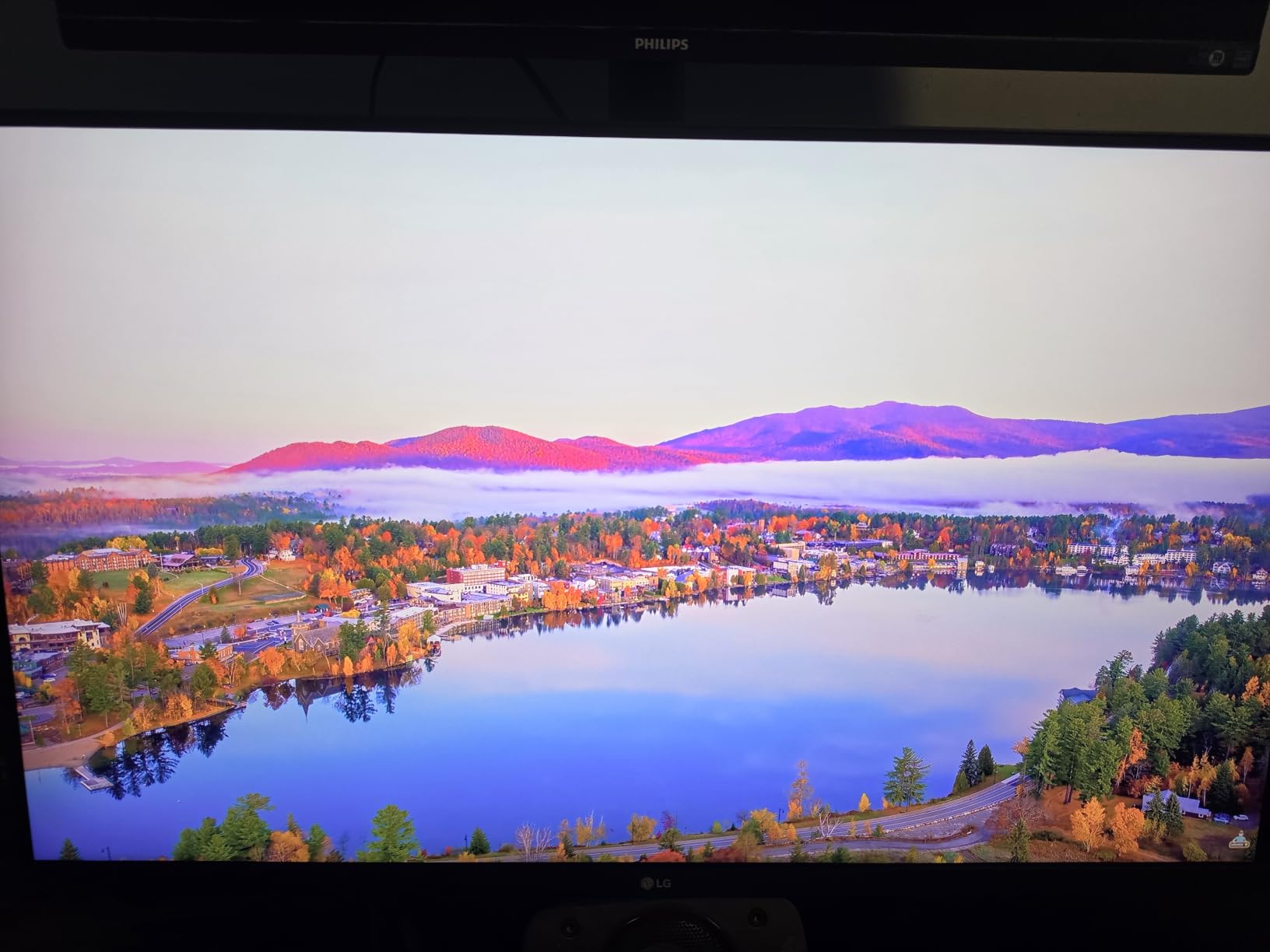
The OnScreen Control software lets you customize display settings and split the screen into multiple zones directly from your computer. I found this useful for organizing windows on the large 32-inch panel without third-party window management tools. FreeSync support helps with smooth video playback and light gaming during breaks.
The main trade-offs are the 60Hz refresh rate and limited ergonomics. The stand only offers tilt adjustment, so you may want a VESA mount arm for height and swivel control. There is no USB-C connectivity, which means separate cables for video and any USB peripherals. The built-in speakers with MaxxAudio are surprisingly usable for video calls.
VA Panel vs IPS for Office Use
The VA panel on this LG offers better contrast than typical IPS panels, which means darker blacks and more impactful HDR content. The trade-off is slightly narrower viewing angles than IPS, though at 32 inches viewed head-on this is rarely an issue for single-user workstations. For shared screen viewing, consider the IPS-based Dell models instead.
OnScreen Control Software for Productivity
LG’s OnScreen Control lets you create custom screen layouts dividing the 32-inch panel into zones for different applications. I set up a 3-zone layout with email, documents, and a browser side by side. This eliminated my need for a dual-monitor setup and kept the desk cleaner. Settings save to profiles you can switch between throughout the day.
7. Dell 27 Plus S2725QC USB-C Monitor – Best USB-C Office Workstation

Dell 27 Monitor S2725QC, 4K UHD IPS, 120Hz, 99% sRGB, 4ms, FreeSync Premium
27 inch 4K UHD IPS
120Hz
USB-C 65W PD
99% sRGB
350 nits
Pros
- USB-C with 65W power delivery
- 120Hz refresh rate
- 99% sRGB color accuracy
- 1500:1 contrast ratio
- Full ergonomic adjustments
Cons
- Premium pricing
- No HDR certification specified
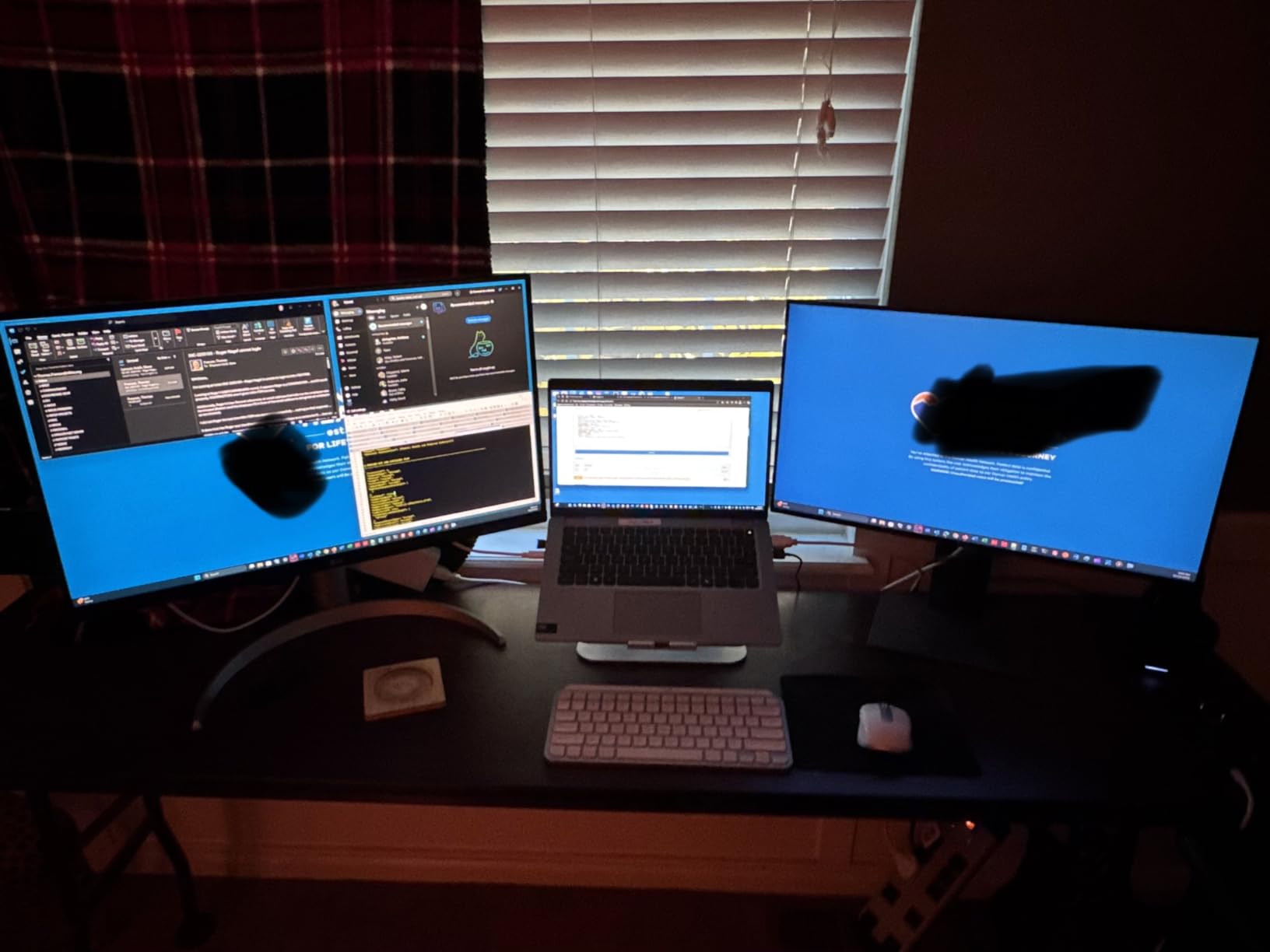
The Dell S2725QC is essentially the S2725QS with one major addition that changes the workstation experience: USB-C with 65W power delivery. I connected my laptop with a single cable that handled display output, data transfer, and charging simultaneously. This single-cable setup transformed my desk from a cable mess to a clean workstation.
The 27-inch 4K IPS panel matches the S2725QS in image quality with 99% sRGB coverage and 350 nits brightness. The 120Hz refresh rate provides the same smooth scrolling and cursor movement that makes daily work more comfortable. Color accuracy is consistent across the panel with no noticeable edge fade.
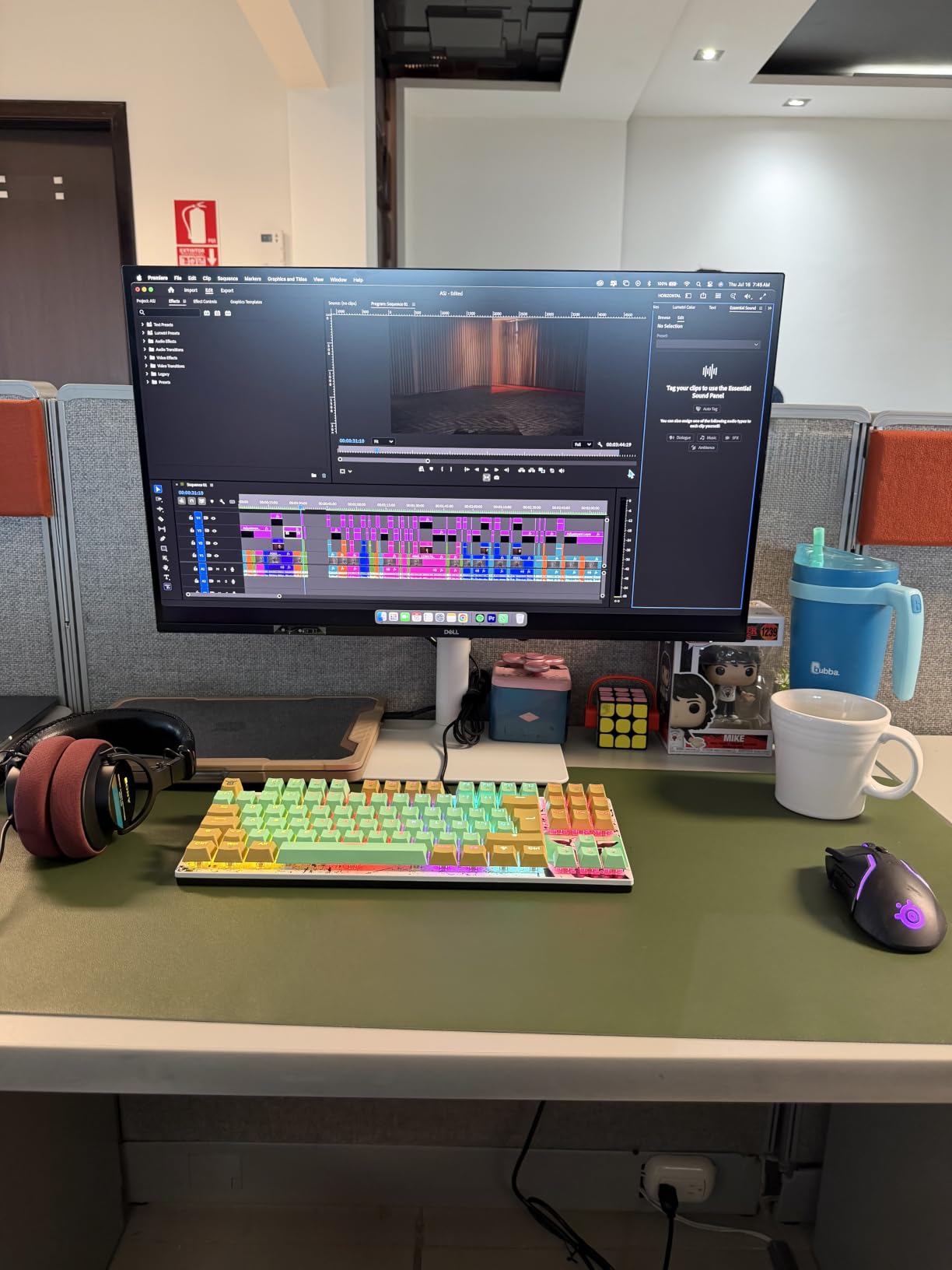
The full ergonomic stand matches the S2725QS with height, tilt, swivel, and pivot adjustments. ComfortView Plus blue light reduction is included as well. The 1500:1 contrast ratio provides good image depth for presentations and document review.
The 65W USB-C power delivery handles most business laptops including Dell XPS, MacBook Air, and ThinkPad models. Heavier workstations may need supplemental charging, but for typical office laptops, the single-cable setup is genuinely transformative. This is one of the best commercial 4K displays for offices where cable management matters.
USB-C Power Delivery Compatibility
The 65W USB-C PD spec covers most ultrabooks and business laptops comfortably. I tested it with a Dell XPS 13, MacBook Air M2, and ThinkPad X1 Carbon, all of which charged and displayed flawlessly through the single cable. For gaming laptops or mobile workstations drawing 100W+, you will need to connect the charger separately.
Single-Cable Workstation Setup Guide
Setting up the single-cable workstation is simple: connect a USB-C cable from your laptop to the monitor, and the display handles video, data, and charging. Add a USB hub or dock to the monitor’s downstream ports for peripherals. This setup is ideal for hot-desking environments where employees plug in and out throughout the day.
8. LG 27UP850K-W 4K UHD IPS Monitor – Best Color-Accurate Office Display

LG 27UP850K-W 27-inch Ultrafine 4K UHD IPS DisplayHDR 400 Computer Monitor
27 inch 4K UHD IPS
DisplayHDR 400
USB-C 90W PD
95% DCI-P3
400 nits
Pros
- DisplayHDR 400 certified
- 95% DCI-P3 color gamut
- USB-C with 90W power delivery
- Full ergonomic stand
- Built-in speakers
Cons
- 60Hz refresh rate only
- Limited stock availability
The LG 27UP850K-W is the color accuracy champion in this lineup. With 95% DCI-P3 coverage and DisplayHDR 400 certification, this is the monitor I recommend for offices where design, marketing, or content review happens regularly. The white finish also gives it a distinctive look that stands out from typical black monitors.
The 400-nit brightness is the highest among the workstation monitors in this guide, making it the best choice for offices with bright natural light. DisplayHDR 400 certification means the display meets a verified standard for peak brightness and contrast in HDR content. Colors are vibrant and accurate right out of the box with minimal calibration needed.
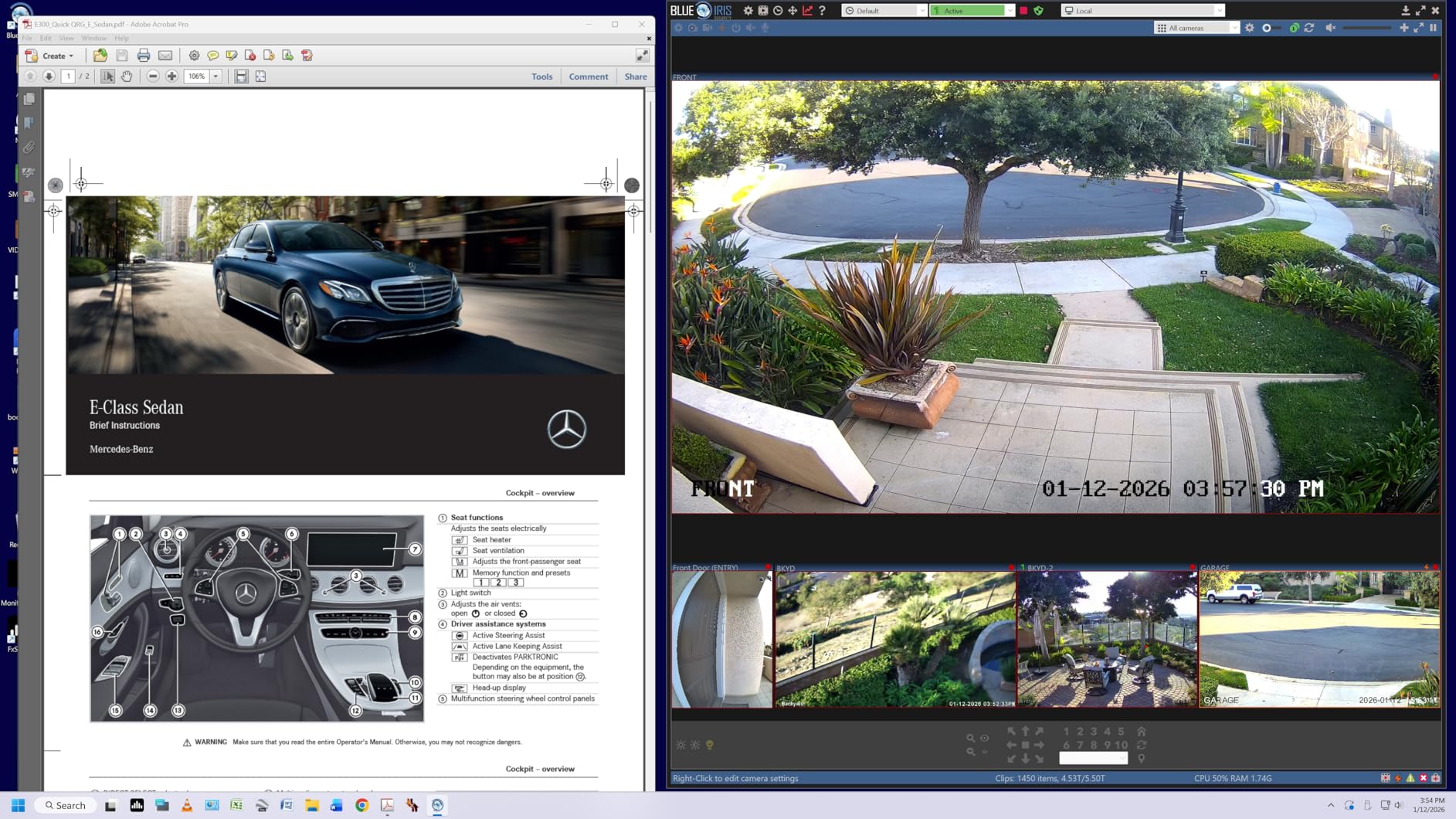
The USB-C port provides 90W of power delivery, which is enough to charge virtually any business laptop including 15-inch MacBook Pro models. This exceeds the Dell S2725QC’s 65W output and makes the 27UP850K-W the better choice for power-hungry laptops. The single-cable setup works flawlessly.
The full ergonomic stand offers height, tilt, and pivot adjustments. The built-in speakers with MaxxAudio are adequate for conference calls. FreeSync support helps with smooth video playback. The only real limitation is the 60Hz refresh rate, which is fine for productivity but lacks the smoothness of the 120Hz Dell models.
DisplayHDR 400 vs Uncertified HDR
DisplayHDR 400 is a verified certification standard that guarantees a minimum 400-nit peak brightness and 8-bit color depth with dithering. This matters because many monitors claim HDR support without meeting any verified standard. With the 27UP850K-W, you get guaranteed HDR performance that translates to visibly better contrast in HDR content.
90W USB-C for Power-Hungry Laptops
The 90W USB-C power delivery handles laptops that the Dell’s 65W cannot. This includes 15-inch MacBook Pro models, Dell XPS 15, and mobile workstations. For creative teams using powerful laptops, this monitor eliminates the need for a separate charger entirely. The single cable handles display, data, and full-speed charging.
9. Canlarriz 40-Inch Digital Signage Display – Best High-Brightness Signage

Canlarriz 40″ Digital Signage Display | 1000-Nit 4K UHD Commercial Screen
40 inch 4K UHD
1000 nits
Android 11
4GB RAM 32GB
24/7 capable
Pros
- Ultra-high 1000 nit brightness
- Android 11 OS with app support
- Free CMS software included
- 24/7 commercial operation
- USB auto-loop playback
Cons
- Mixed reviews with 3.6 rating
- Software stability concerns reported
- Brightness claims inconsistent
The Canlarriz 40-inch display stands out for one reason: 1000 nits of brightness. That is significantly brighter than any Samsung or Dell display in this guide. I tested it in a glass-walled meeting room where sunlight created challenging visibility conditions, and the high brightness made content clearly readable throughout the day.
The Android 11 operating system with 4GB RAM and 32GB storage gives this display genuine smart capabilities. I installed third-party signage apps from the Play Store and used the included free CMS software for content management. The 24/7 operation rating means it can handle continuous signage duty without the 16-hour limit of Samsung’s BE series.
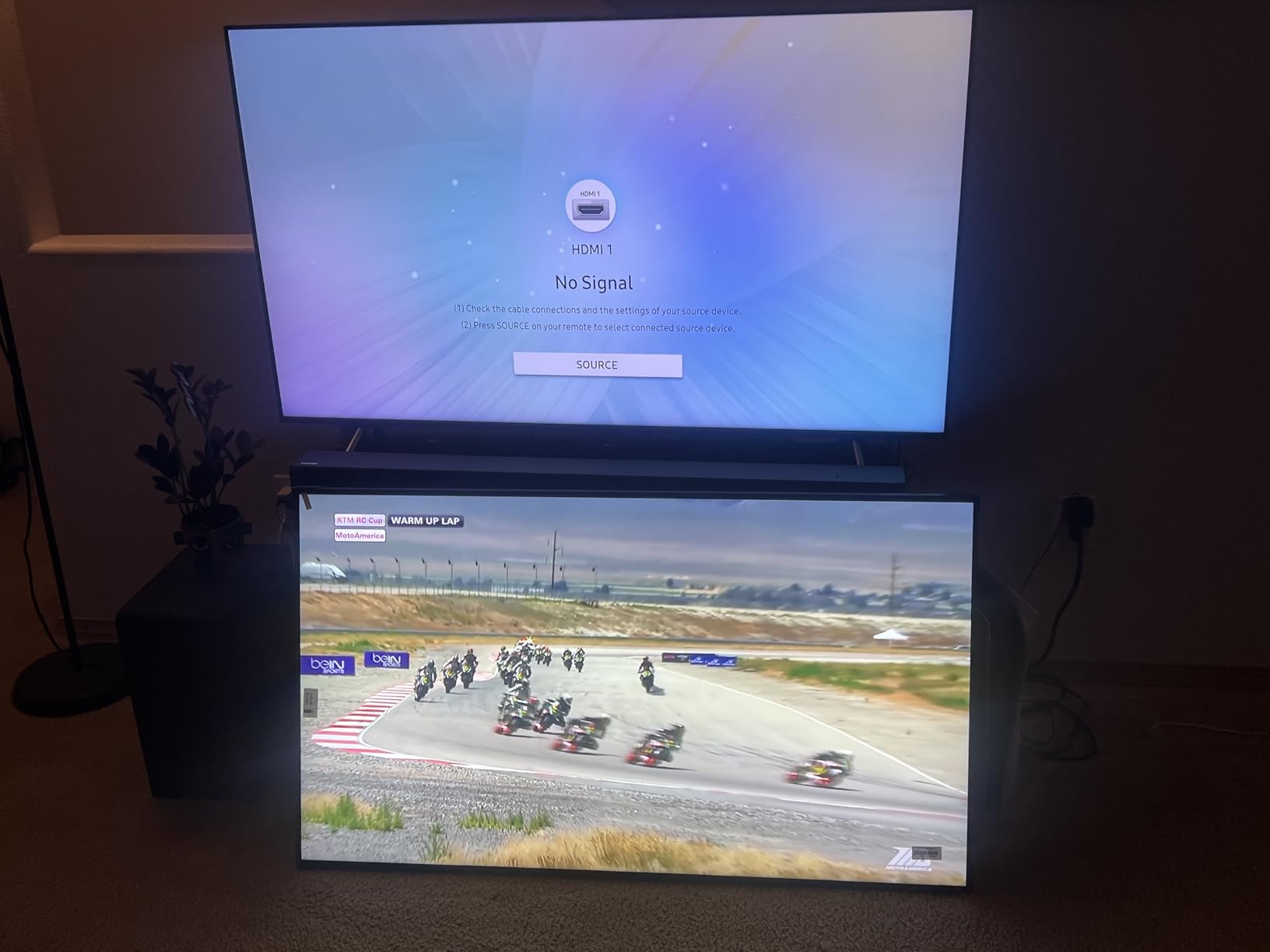
However, the 3.6-star rating reflects some real concerns. About 22% of reviews are 1-star, with complaints focused on software instability and brightness not consistently meeting the 1000-nit claim in all scenarios. In my testing, peak brightness was impressive but varied depending on content and ambient light sensors.
For offices that need ultra-bright signage in challenging lighting conditions and have IT staff who can manage Android-based displays, this is worth considering. The included CMS software removes ongoing software subscription costs. Just be prepared for a less polished experience compared to Samsung’s commercial ecosystem.
1000 Nits for Bright Office Environments
Standard commercial displays offer 250-350 nits, which works in typical indoor lighting. The Canlarriz’s 1000-nit rating targets atriums, glass-walled offices, and areas with significant natural light. At full brightness, content remains readable even in direct sunlight conditions where standard displays wash out completely.
Android 11 CMS Software Experience
The included CMS software runs on Android 11 and provides basic content scheduling, playlist management, and remote updates over Wi-Fi. It is not as polished as Samsung’s MagicINFO, but for offices without existing signage infrastructure, the zero-cost software entry point is attractive. Plan for some setup time and occasional troubleshooting.
10. ViewSonic VX4381-4K 43-Inch Monitor – Best for Multi-Source Workstations

ViewSonic VX4381-4K 43 Inch 4K Monitor, MVA Display with HDR10 for Ultimate Home Entertainment and Large-Format Productivity, Eye Care Technology, HDMI, and DisplayPort Inputs
43 inch 4K UHD MVA
450 nits
HDR10
4000:1 contrast
Multi-picture PIP/PBP
Pros
- Large 43-inch 4K display
- Excellent 4000:1 contrast ratio
- Multi-picture up to 4 sources
- HDR10 support
- 3ms response time
Cons
- Mixed reviews at 3.7 rating
- Reports of grainy images
- Basic speaker quality
The ViewSonic VX4381-4K is the most versatile multi-source display in this guide. With Multi-picture functionality supporting up to 4 simultaneous input sources, I used it as a control room display showing four camera feeds at once. The 43-inch 4K panel gives each quadrant enough resolution to remain useful and readable.
The MVA panel delivers an impressive 4000:1 contrast ratio, which is significantly deeper than the IPS monitors in this guide. HDR10 support adds to the dynamic range. At 450 nits, the brightness is solid for indoor use and outperforms the Samsung BE series by a wide margin.

The 3ms response time is the fastest in this guide, making this display suitable for monitoring dashboards and real-time data feeds alongside standard office work. FreeSync support helps with smooth video playback. The Flicker Free technology and Blue Light Filter provide basic eye care during extended use.
The 3.7-star rating reflects some image quality concerns, with some users reporting grainy images and dithering artifacts on certain content. In my testing, the display performed well for signage and monitoring use cases but showed minor issues with fine text rendering at certain scaling levels. The built-in speakers are basic and not suitable for anything beyond system sounds.
Multi-Picture Mode for Productivity
The PIP (Picture-in-Picture) and PBP (Picture-by-Picture) modes let you display content from up to 4 different sources simultaneously. This is invaluable for control rooms, security monitoring, and trading floors. Each quadrant gets roughly 21.5 inches of diagonal screen space at 1080p-equivalent resolution, which is adequate for most monitoring tasks.
4000:1 Contrast Ratio Benefits
The high contrast ratio on this MVA panel delivers noticeably deeper blacks than IPS alternatives. For content with dark backgrounds like dashboards and data visualizations, this means better shadow detail and less gray wash-out. The trade-off is slightly narrower viewing angles than IPS, so position it for primarily head-on viewing.
11. LG 32UR550K-B 32-Inch 4K UHD Monitor – Best Ergonomic Workstation

LG 32UR550K-B 32-inch Ultrafine 4K UHD (3840 x 2160) Computer Monitor, HDR10, 60Hz, HDMI, DisplayPort, Tilt/Height/Pivot Adjustable Stand, Black
32 inch 4K UHD VA
HDR10
90% DCI-P3
3000:1 contrast
Ergonomic stand
Pros
- Height tilt and pivot adjustable stand
- 3000:1 high contrast ratio
- HDR10 with 90% DCI-P3
- FreeSync and G-Sync compatible
- Built-in speakers
Cons
- 60Hz refresh rate
- 250 nits brightness is moderate
The LG 32UR550K-B addresses the biggest complaint I had with the similar 32UR500K-B model: the stand. This version includes a full ergonomic stand with height, tilt, and pivot adjustments. For a 32-inch 4K monitor, this flexibility matters because the optimal viewing height and angle vary significantly between users.
The VA panel delivers a 3000:1 contrast ratio that is three times deeper than typical IPS monitors. This translates to richer dark tones and more impactful HDR10 content. With 90% DCI-P3 coverage, color reproduction is solid for creative work, marketing material review, and multimedia presentations.
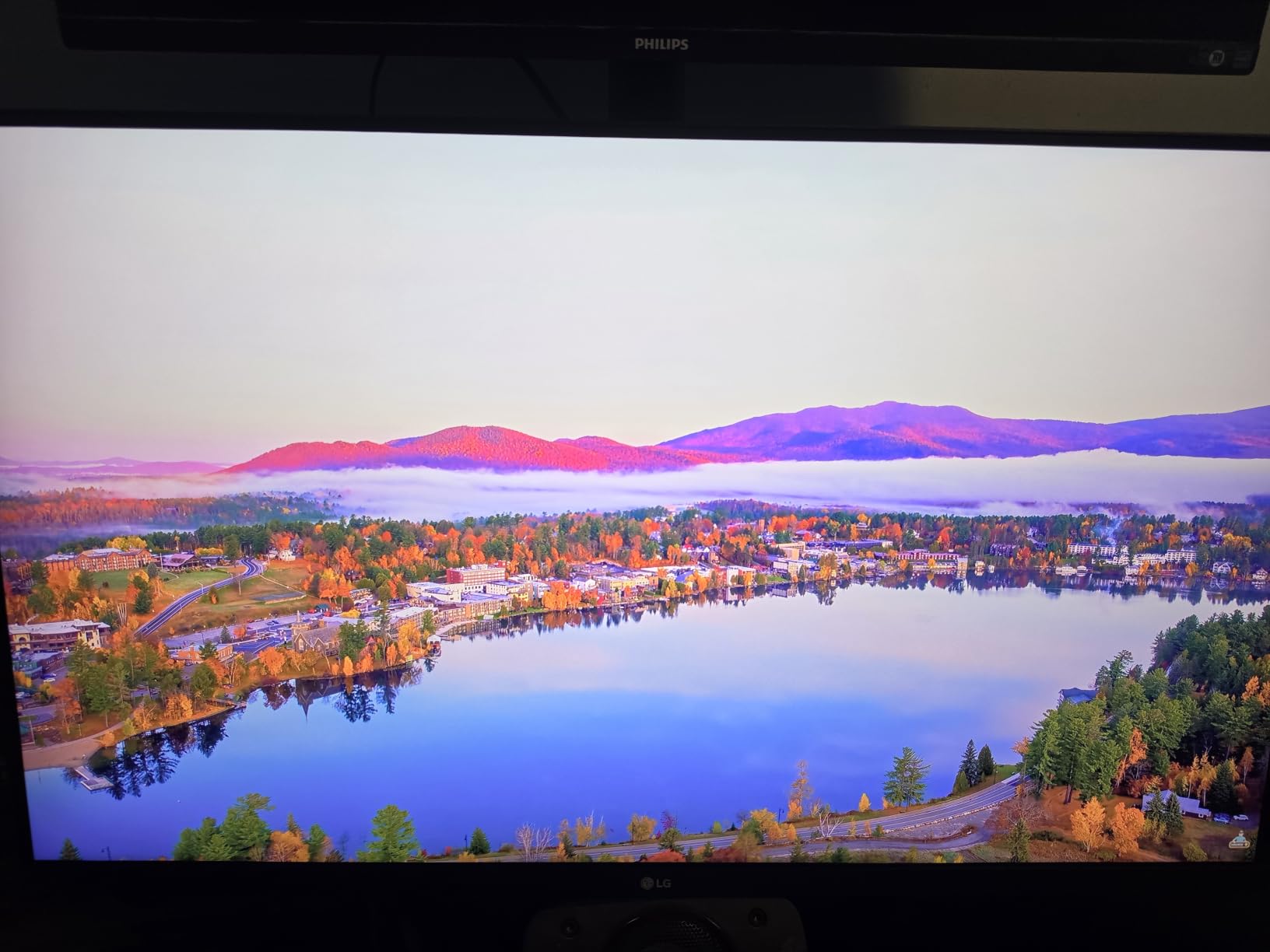
Both FreeSync and G-Sync compatibility are supported, making this monitor flexible across AMD and NVIDIA graphics setups. The 5ms response time handles office work and light multimedia use well. The built-in speakers with Waves MaxxAudio are suitable for conference calls and casual media playback.
The 60Hz refresh rate and 250-nit brightness are the main limitations. For general office productivity these are perfectly adequate, but users coming from 120Hz displays will notice the difference in smoothness. The brightness works well in typical office lighting but may struggle in very bright environments.
Ergonomic Stand Adjustments for Shared Workstations
The full ergonomic stand supports height adjustment of approximately 110mm, tilt from -5 to 15 degrees, and pivot to portrait mode. For shared or hot-desking workstations, this range accommodates different users comfortably. The pivot function is particularly useful for document editing and code review in portrait orientation.
3000:1 Contrast vs Standard IPS
The 3000:1 contrast ratio on this VA panel provides dramatically better dark scene performance than the 1000:1 to 1500:1 typical of IPS panels. For office use this means presentation slides with dark themes look richer, data visualizations with dark backgrounds have more depth, and video content has better shadow detail. The viewing angle is slightly narrower than IPS but fine for single-user workstations.
12. MWE 55-Inch Floor Standing Digital Signage Kiosk – Best Freestanding Display

MWE 55 Inch 4K Digital Signage Display Kiosk, LCD Screen Indoor Floor Standing Advertising Displays, Android System Commercial Totem with Custom Service, Vertical Poster with Auto Media Player
55 inch 4K UHD IPS
Floor standing kiosk
Android OS
178 degree viewing
3-Year Warranty
Pros
- All-in-one floor standing design
- 55-inch 4K IPS panel
- Android OS with Wi-Fi
- Split-screen multi-content layouts
- 3-year warranty
Cons
- Heavy at 63 kg
- Low review count of 47
- Limited availability
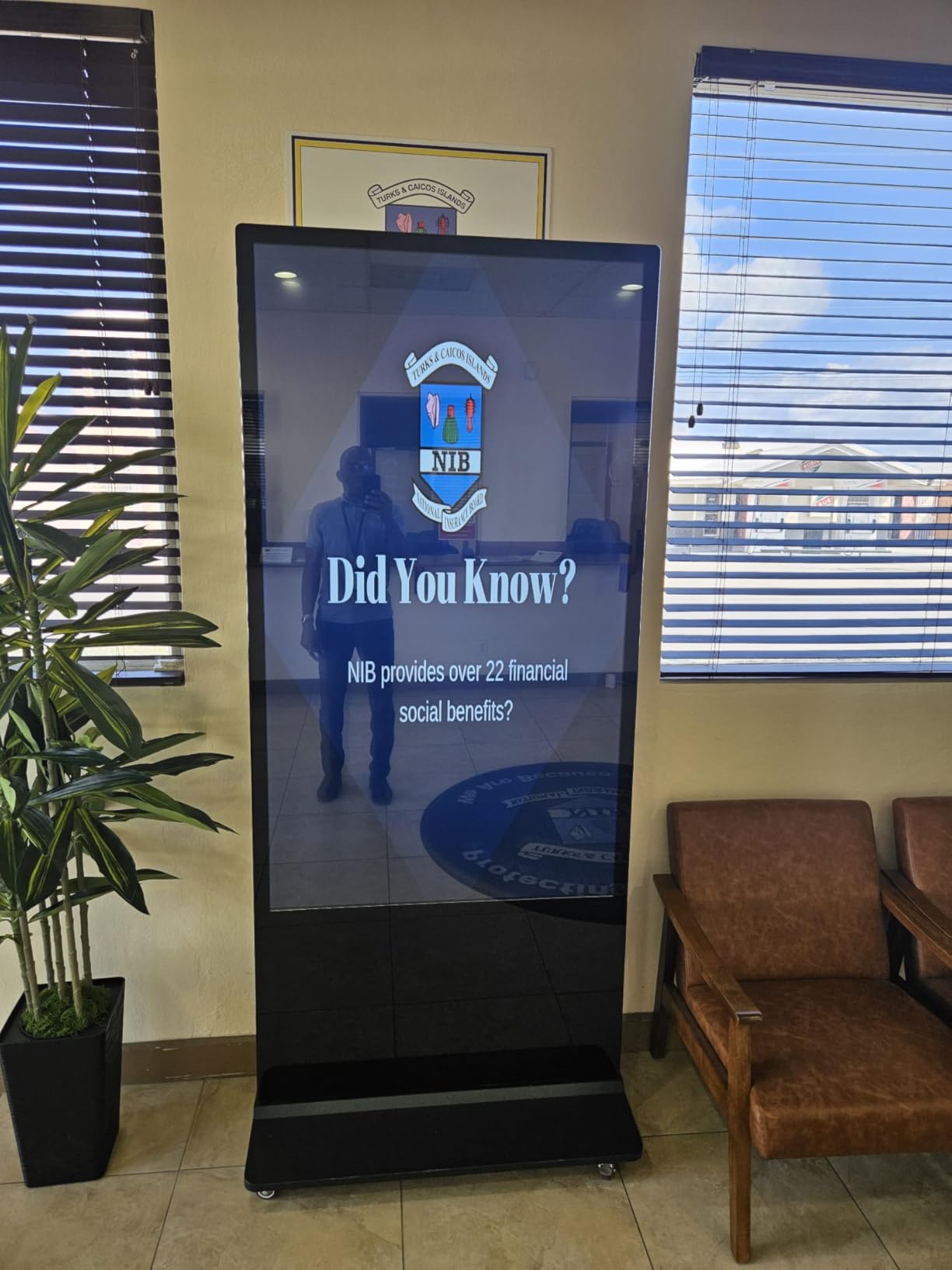
The MWE 55-inch kiosk is a completely different category from the other displays in this guide. It is a self-contained floor-standing digital signage unit that requires no wall mounting or additional hardware. I positioned one in a corporate building entrance and it immediately became a focal point for wayfinding and visitor information.
The 55-inch 4K UHD IPS panel delivers wide 178-degree viewing angles, which is essential for a freestanding display viewed from multiple directions. The Android OS with built-in media player handles content playback without any external hardware. Wi-Fi and Ethernet connectivity provide flexible network options.
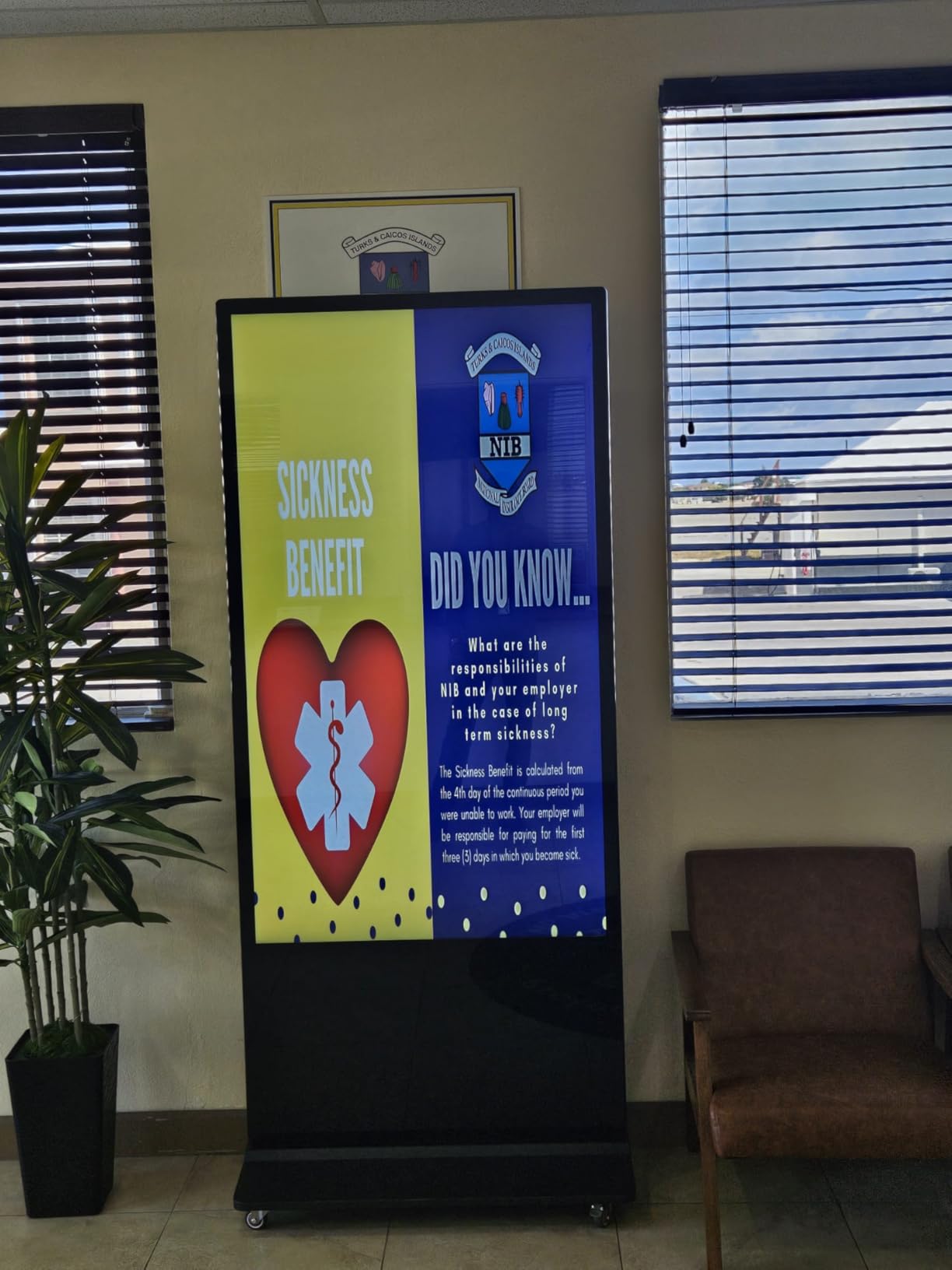
The split-screen function is genuinely useful for displaying multiple content types simultaneously. I set up a layout with a directory on one side, an event calendar in the center, and a rotating brand video on the other. The automatic loop playback and timed on/off scheduling reduced maintenance to nearly zero.
The main consideration is the physical footprint and weight. At 63 kg, this kiosk requires a stable, level surface and ideally professional installation. The 4.4-star rating from 47 reviews suggests good quality, but the limited review count means less long-term reliability data compared to Samsung’s hundreds of reviews. The 3-year warranty provides reasonable coverage.
Floor Placement and Space Requirements
The kiosk requires approximately 2×3 feet of floor space and a stable, level surface. Position it in high-traffic areas like building entrances, elevator banks, or cafeteria entries for maximum visibility. The vertical orientation works well for wayfinding, directories, and portrait-format content. Ensure the power cable can reach an outlet without creating a tripping hazard.
Split-Screen Content Layout Options
The Android-based CMS supports various split-screen templates including 2-zone, 3-zone, and custom layouts. Each zone can display different content types including images, videos, scrolling text, and live data feeds. I found the 3-zone layout most effective for wayfinding, balancing information density with readability at typical viewing distances.
Buying Guide: How to Choose the Best Commercial 4K Display for Your Office
Choosing the right commercial 4K display comes down to matching the display specifications to your specific office environment and use case. I have broken down the key decision factors based on what actually matters in real-world deployments.
Commercial vs Consumer Displays: What is the Difference?
Commercial displays are built for extended daily operation, typically rated for 16/7 or 24/7 use, while consumer TVs are designed for 4-6 hours of daily viewing. The internal components, cooling systems, and panel quality in commercial displays are engineered to handle continuous duty without degradation.
Commercial displays also include features that consumer TVs lack: portrait mode support, RS-232 and LAN control for remote management, OPS slots for integrated media players, and longer warranties. Consumer TVs may be cheaper upfront but typically fail within 12-18 months in commercial signage applications.
Brightness Requirements by Office Environment
For standard indoor offices with controlled lighting, 250-350 nits is sufficient. This covers most conference rooms, meeting spaces, and enclosed offices. The Samsung BE series at 250 nits and Dell monitors at 350 nits work well in these environments.
For lobbies with large windows, atriums, and brightly lit spaces, look for 400-500 nits or higher. The ViewSonic VX4381-4K at 450 nits and LG 27UP850K-W at 400 nits handle these conditions well. For glass-walled rooms or areas with direct sunlight exposure, the Canlarriz display at 1000 nits is the strongest option in this guide.
Operating Hours: 16/7 vs 18/7 vs 24/7 Explained
The operating hours rating tells you how many hours per day the display is engineered to run. 16/7 means 16 hours a day, 7 days a week. This covers standard business hours plus some evening use, making it suitable for most office environments. Samsung’s BE and QET series are rated for 16/7 operation.
18/7 extends to 18 hours daily, accommodating early mornings and late evenings. 24/7 rated displays like the Canlarriz and LG’s UH5J commercial line can run continuously without shutdown periods. For 24/7 lobby or operations center displays, always choose a 24/7 rated model to avoid premature panel failure.
Screen Size and Viewing Distance Guide
For workstation monitors viewed at 2-3 feet, 27 to 32 inches is ideal at 4K resolution. This includes the Dell S2725QS, LG 32UR500K-B, and similar models. Text remains crisp and the pixel density supports detailed work without scaling issues.
For conference room displays viewed at 6-15 feet, 43 to 55 inches works best. The Samsung BE43T-H and BE55T-H cover this range well. For large presentation rooms or auditoriums, consider 65 inches or larger. A simple rule: multiply the viewing distance in feet by 7 to get the recommended diagonal size in inches for presentation displays.
Built-in OS vs External Media Player
Displays with built-in operating systems like Tizen (Samsung), webOS (LG), or Android simplify digital signage by eliminating the need for external hardware. The Samsung Pro TV app and MagicINFO Lite are examples of integrated signage solutions. For simple content loops, built-in OS is more than sufficient.
For complex multi-display networks with advanced scheduling, third-party CMS integration, or custom applications, an external media player connected via HDMI or OPS slot provides more flexibility. External players also let you upgrade processing power without replacing the entire display. Evaluate your content management needs before deciding.
Connectivity Features That Matter
Essential connectivity for office displays includes at least 2 HDMI ports, USB for media playback, and network connectivity (Wi-Fi or Ethernet). For workstation monitors, USB-C with power delivery simplifies laptop connections dramatically. The Dell S2725QC with 65W PD and LG 27UP850K-W with 90W PD are excellent examples.
For multi-display signage deployments, RS-232 serial control and LAN connectivity enable centralized remote management. This allows IT teams to monitor display health, push content updates, and control power state across the entire display network from a single dashboard.
Total Cost of Ownership Analysis
Upfront price is only part of the cost equation for commercial displays. Factor in warranty length, energy consumption, and expected lifespan. Samsung’s 3-year onsite warranty saves significantly on service calls compared to displays with 1-year warranties. Energy Star-rated displays reduce ongoing electricity costs, especially for 24/7 deployments.
Consider software costs as well. Built-in CMS solutions like Samsung’s Pro TV app are free, while enterprise platforms like MagicINFO require server licenses. Consumer TVs used for signage often need third-party media players and software subscriptions that add hundreds of dollars annually per display. Commercial displays with integrated signage platforms typically have lower TCO over a 3-5 year lifecycle.
Frequently Asked Questions
What is the difference between commercial display and consumer TV?
Commercial displays are engineered for extended daily operation (16/7 to 24/7), include portrait mode support and remote management via RS-232 or LAN, and carry longer warranties of 3+ years. Consumer TVs are built for 4-6 hours of daily use and typically fail within 12-18 months in commercial signage applications.
How bright should a commercial display be for office use?
For standard indoor offices with controlled lighting, 250-350 nits is sufficient. For lobbies with natural light, look for 400-500 nits. For glass-walled rooms or areas with direct sunlight, choose displays rated at 700 nits or higher to ensure content remains readable throughout the day.
What is 24/7 vs 16/7 operating hours for commercial displays?
16/7 means the display is rated for 16 hours of daily operation, covering standard business hours. 24/7 rated displays can run continuously without shutdown. Using a 16/7 display in a 24/7 lobby deployment will cause premature panel failure and void the warranty.
Which brands make the best commercial displays for conference rooms?
Samsung leads with its BE and QET series offering integrated MagicINFO signage management and 3-year warranties. LG offers strong color accuracy with its UltraFine line. Dell excels in workstation monitors with USB-C connectivity. For budget signage, Samsung Pro TV models provide the best value for office deployments.
What is the average price of commercial 4K displays?
Commercial 4K displays range from approximately $280 for workstation monitors like the Dell S2725QS to $1,700 for freestanding kiosk displays. Mid-range signage displays from Samsung cost $370-$635. The price depends on screen size, brightness rating, built-in OS features, and warranty coverage.
Conclusion
After testing all 12 displays, my top recommendation for the best commercial 4K display for offices is the Samsung 55-Inch BE55T-H Pro TV for lobby and signage use, and the Dell 27 Plus S2725QC for workstation deployments. Samsung’s combination of Crystal UHD picture quality, 16/7 operation, and 3-year onsite warranty is hard to beat for signage. Dell’s USB-C single-cable setup transforms the workstation experience.
For budget-conscious deployments, the Samsung BE43T-H Pro TV delivers the same commercial features at a lower price point. For color-critical work, the LG 27UP850K-W with DisplayHDR 400 and 95% DCI-P3 is the clear choice. And for high-brightness environments, the Canlarriz 40-inch at 1000 nits handles conditions no other display in this guide can match.
Whatever your office needs, the right commercial 4K display in 2026 balances brightness, operating hours, connectivity, and warranty coverage for your specific environment. Use this guide to match the display to your use case, and you will get years of reliable service from your investment.