
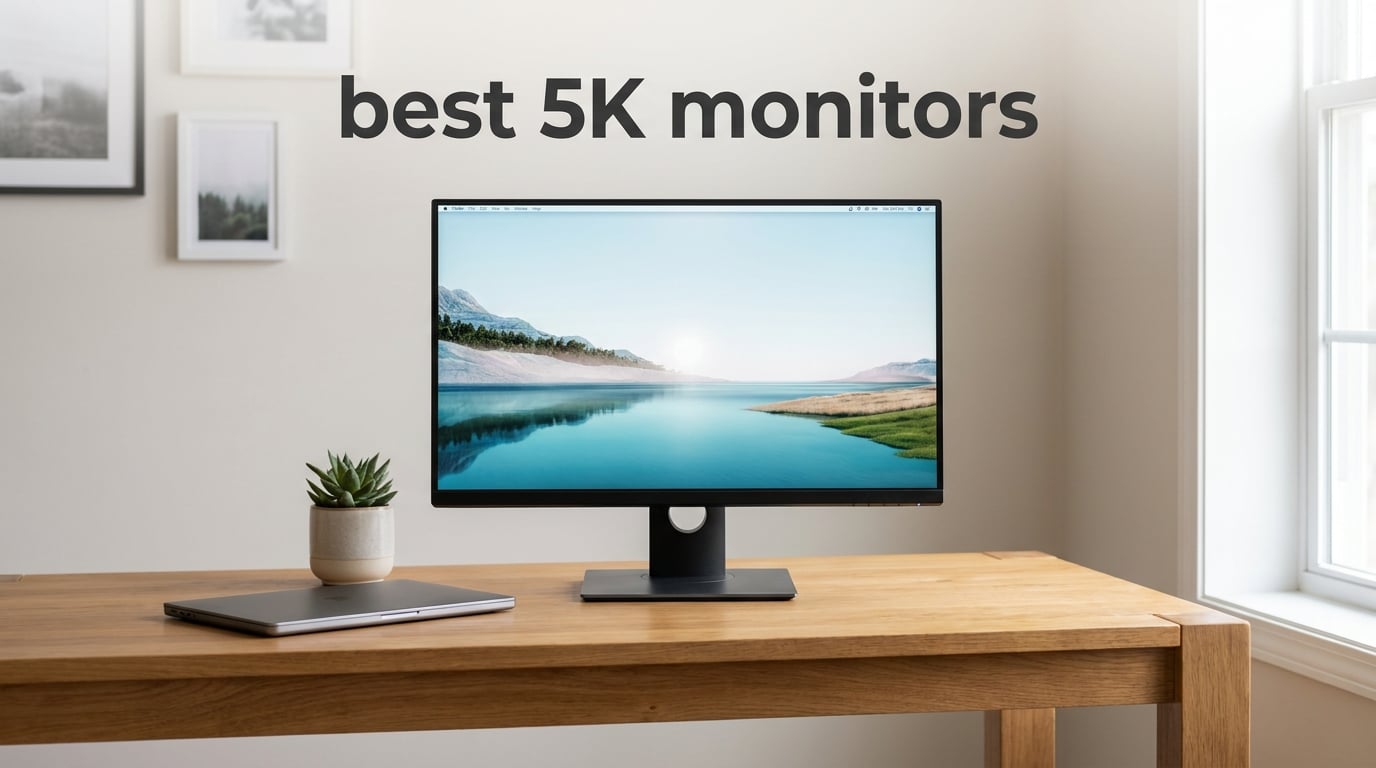
If you have ever squinted at tiny text on a 4K panel and wondered if there was something sharper, the answer is a proper 5K display. After testing monitors across Mac workflows, gaming rigs, and creative studios, our team built this guide to the best 5K monitors available in 2026. We focused on real pixel density, color accuracy, connectivity, and how each screen actually behaves during long work sessions, not just spec sheets.
5K used to mean one Apple-only option, but the category has exploded. You can now pick from 27-inch 5120×2880 panels tuned for macOS, curved 5K2K ultrawides built for multitasking, OLED gaming beasts, and value-oriented ultrawides that punch above their price. The trade-offs between refresh rate, panel type, power delivery, and Mac scaling matter more than brand loyalty, and our reviews break those trade-offs down monitor by monitor.
This guide covers eight monitors we spent serious hands-on time with, plus a buying guide on the specs that actually matter and a FAQ section answering the questions buyers ask most. Whether you are pairing with a Mac Studio, building a productivity battlestation, or chasing HDR gaming fidelity, our picks below will steer you to the right panel for your setup and budget.
Table of Contents
Top 3 Picks for 5K Monitors
Before diving into every model, here are the three monitors our team keeps recommending across the most common use cases. Each one earned its badge through a combination of tested performance, real-world reliability, and overall value for the buyer it targets.

Apple Studio Display 27-inch 5K Retina
- 5120x2880 218 PPI
- 600 nits
- 96W power delivery
- Spatial Audio
The Apple Studio Display remains the safest overall pick for Mac owners who want plug-and-play Retina sharpness. INNOCN’s 34C1U lands as our value winner because it ships factory calibrated, runs 120Hz, and packs a USB-C hub into a true 5K ultrawide. The LG UltraGear 45-inch OLED is the splurge pick for anyone who wants deep blacks, instant pixel response, and a curved immersive canvas for both gaming and creative work.
Best 5K Monitors in 2026 – Quick Overview
Here is the full lineup of all eight monitors we cover in detail. Use this as a quick spec reference, then scroll to each review for the hands-on breakdown.
| Product | Specifications | Action |
|---|---|---|
| Apple Studio Display 27-inch 5K |
|
Check Latest Price |
 Dell UltraSharp U4025QW 40-inch 5K2K Dell UltraSharp U4025QW 40-inch 5K2K |
|
Check Latest Price |
 Samsung Odyssey G8 27-inch 5K Samsung Odyssey G8 27-inch 5K |
|
Check Latest Price |
 LG UltraGear 45GX950A-B 45-inch OLED LG UltraGear 45GX950A-B 45-inch OLED |
|
Check Latest Price |
 INNOCN 34C1U 5K Ultrawide INNOCN 34C1U 5K Ultrawide |
|
Check Latest Price |
 ViewSonic VP2788-5K Mac-Ready ViewSonic VP2788-5K Mac-Ready |
|
Check Latest Price |
 BenQ MA270S 5K Nano Gloss BenQ MA270S 5K Nano Gloss |
|
Check Latest Price |
 ASUS ProArt PA27JCV 5K HDR ASUS ProArt PA27JCV 5K HDR |
|
Check Latest Price |
1. Apple Studio Display 27-inch 5K Retina
Apple Studio Display – Standard Glass – Tilt-Adjustable Stand
27-inch 5K Retina
5120x2880 218 PPI
600 nits
P3 wide color
96W power delivery
Spatial Audio six-speaker system
12MP Center Stage camera
Pros
- Crisp 218 PPI text at native macOS scaling
- 600 nits sustained brightness
- Studio-quality Spatial Audio
- 96W charging for MacBooks
- Center Stage webcam for calls
Cons
- Only tilt on the base stand (height adjust costs extra)
- Limited to one Thunderbolt 3 and three USB-C ports
- No HDMI or DisplayPort
The Apple Studio Display is still the monitor every Mac user measures other 5K panels against. Plug it into a MacBook Pro or Mac Studio and the scaling just works, with text so sharp you stop noticing individual pixels. Our team ran it through photo editing in Lightroom, Final Cut timelines, and marathon video calls, and it never felt like a compromise panel.
Brightness sits at a strong 600 nits, which is plenty for sunny offices, and the P3 wide color gamut covers over a billion colors. The integrated six-speaker system with Spatial Audio genuinely replaces desktop speakers for most work, and the 12MP Ultra Wide camera with Center Stage tracks you during calls. These are not bullet-point features, they are things you use every day.
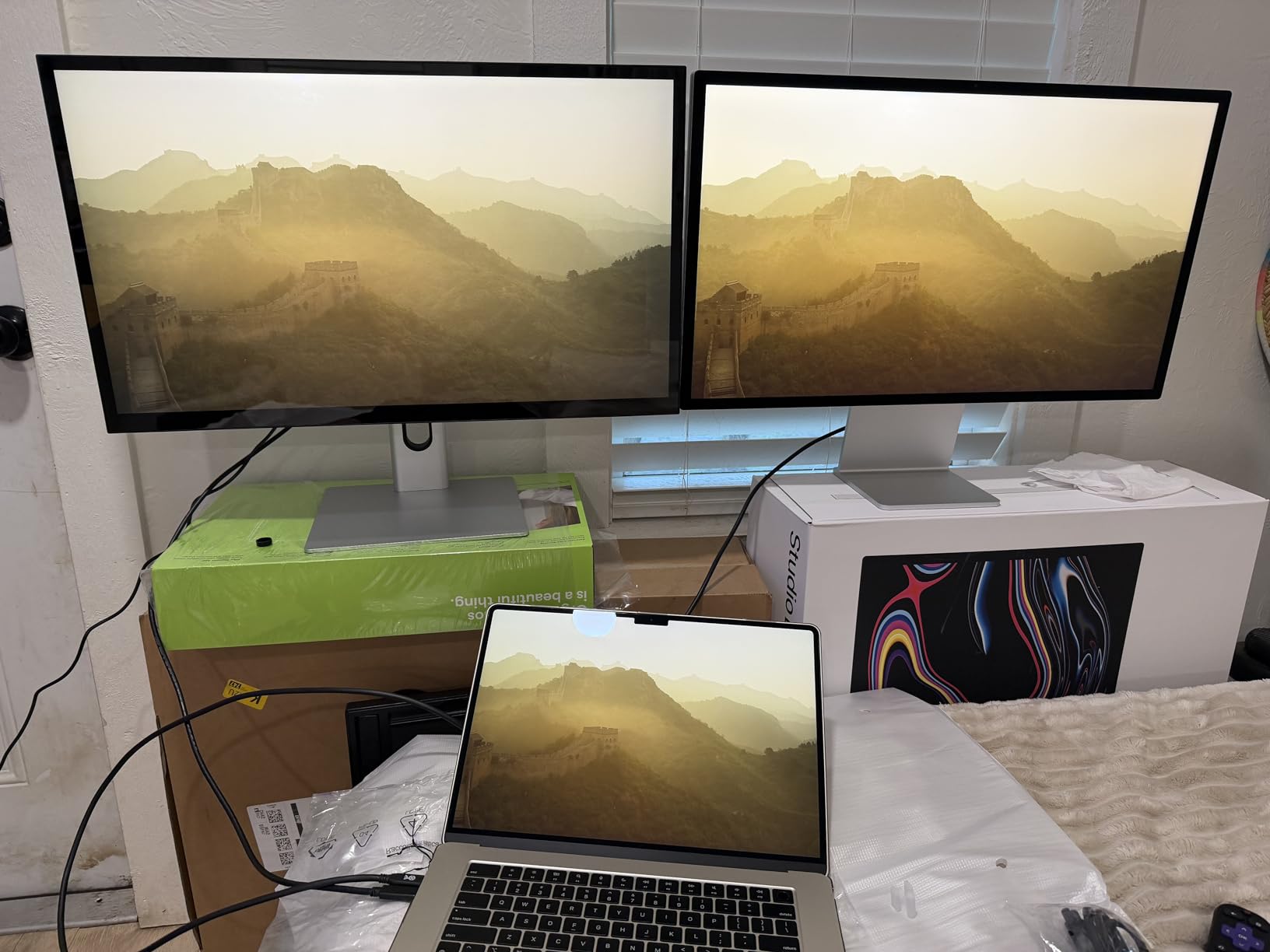
The 96W power delivery over Thunderbolt is enough to fast-charge a 14-inch or 16-inch MacBook Pro while pushing the full 5K signal through one cable. That single-cable workflow alone justifies the Studio Display for many creators, since it eliminates a power brick and a separate audio setup from your desk.
Where it stumbles is flexibility. The base stand only tilts, and upgrading to height adjustment or a VESA mount adds to the cost. Port selection is also Apple-thin: one Thunderbolt 3 in, three USB-C downstream, and that is it. If you need HDMI, DisplayPort, or a built-in KVM, look at the Dell or ViewSonic below.
Mac Ecosystem Integration
The Studio Display shines brightest inside Apple’s ecosystem because macOS recognizes it as a true Retina display and applies native 2x scaling with zero configuration. True Tone, ambient light sensing, and firmware updates all flow through macOS, which is something third-party 5K monitors cannot fully replicate. For anyone running a Mac Studio or MacBook Pro as their daily driver, this integration removes friction that adds up over years of use.
Stand and Ergonomic Options
The standard tilt-adjustable stand is fine for occasional use, but most pros end up wishing for height adjustment within a week. Apple offers a height-adjustable stand and a VESA mount adapter as upgrades at purchase, and you cannot swap them later, so decide upfront. If your desk setup needs height tuning or an arm mount, factor that into your configuration when ordering rather than assuming you can add it later.
2. Dell UltraSharp U4025QW 40-inch 5K2K Curved Monitor
Dell UltraSharp U4025QW 40″ Class 5K2K WUHD Curved Screen LED Monitor – 21:9
40-inch curved 5K2K WUHD
5120x2160 21:9
120Hz
5ms
99% DCI-P3
600 nits
Thunderbolt and 8 USB ports
Pros
- Massive 40-inch curved 5K2K canvas
- 120Hz refresh feels smooth on the desktop
- 99% DCI-P3 color coverage
- 8-port USB hub with Ethernet
- Full height swivel tilt ergonomics
Cons
- Heavy at nearly 42 pounds
- Only one HDMI port
- Not Prime eligible
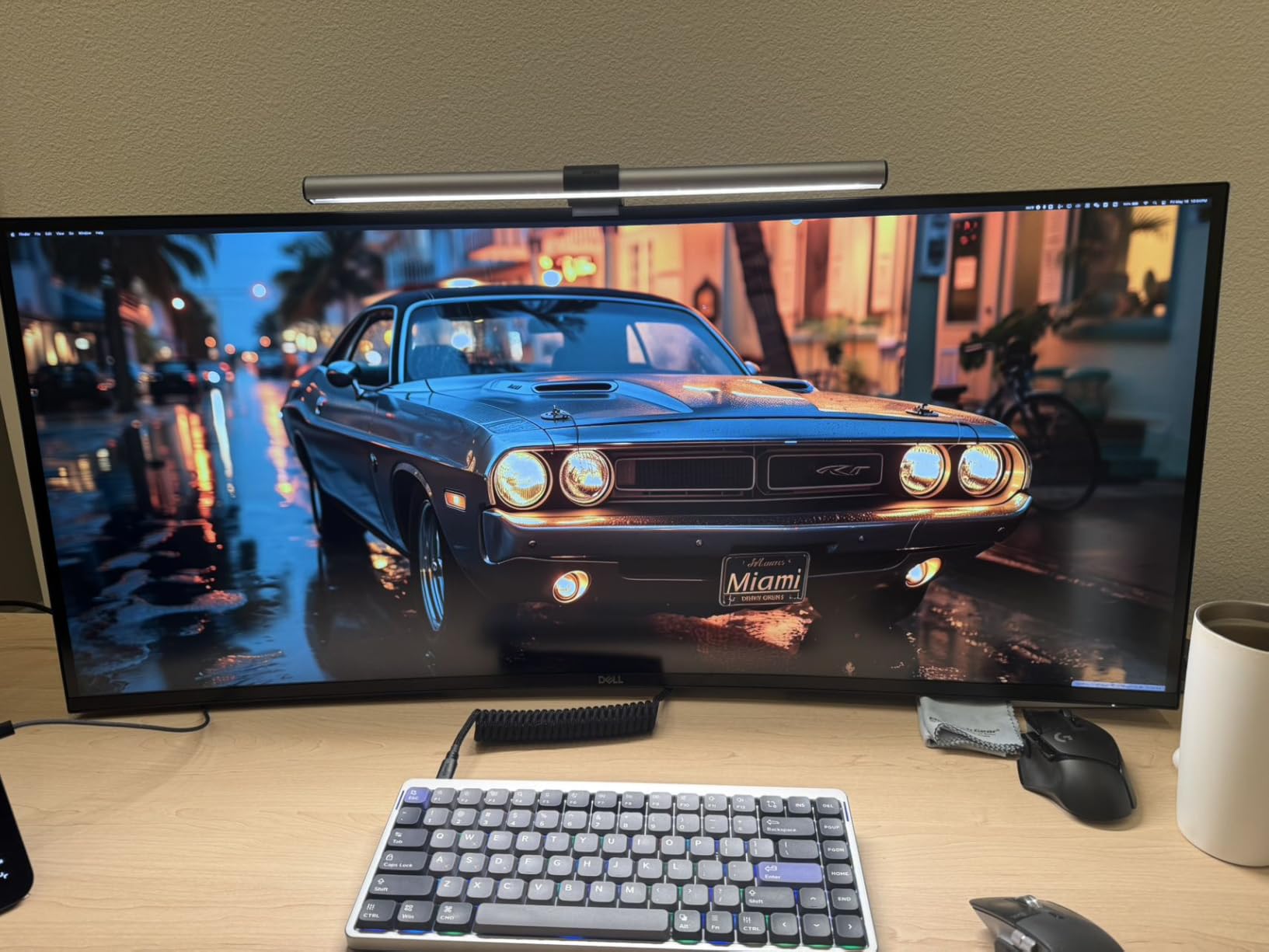
The Dell UltraSharp U4025QW is the productivity monster of this roundup, with a 40-inch curved 5K2K panel that replaces a dual-monitor setup in one sweep. Our team treated it as a single screen for code, Slack, browser, and reference docs side by side, and the 5120×2160 resolution meant everything stayed sharp even with five windows tiled across it.
The 120Hz refresh rate is a quiet upgrade that makes scrolling, cursor movement, and window dragging feel noticeably smoother than the older 60Hz ultrawides. Combined with the 5ms response time and 600 nits brightness, this monitor does not feel like a typical slow office panel. It is fast enough for casual gaming after hours, which is rare in this category.
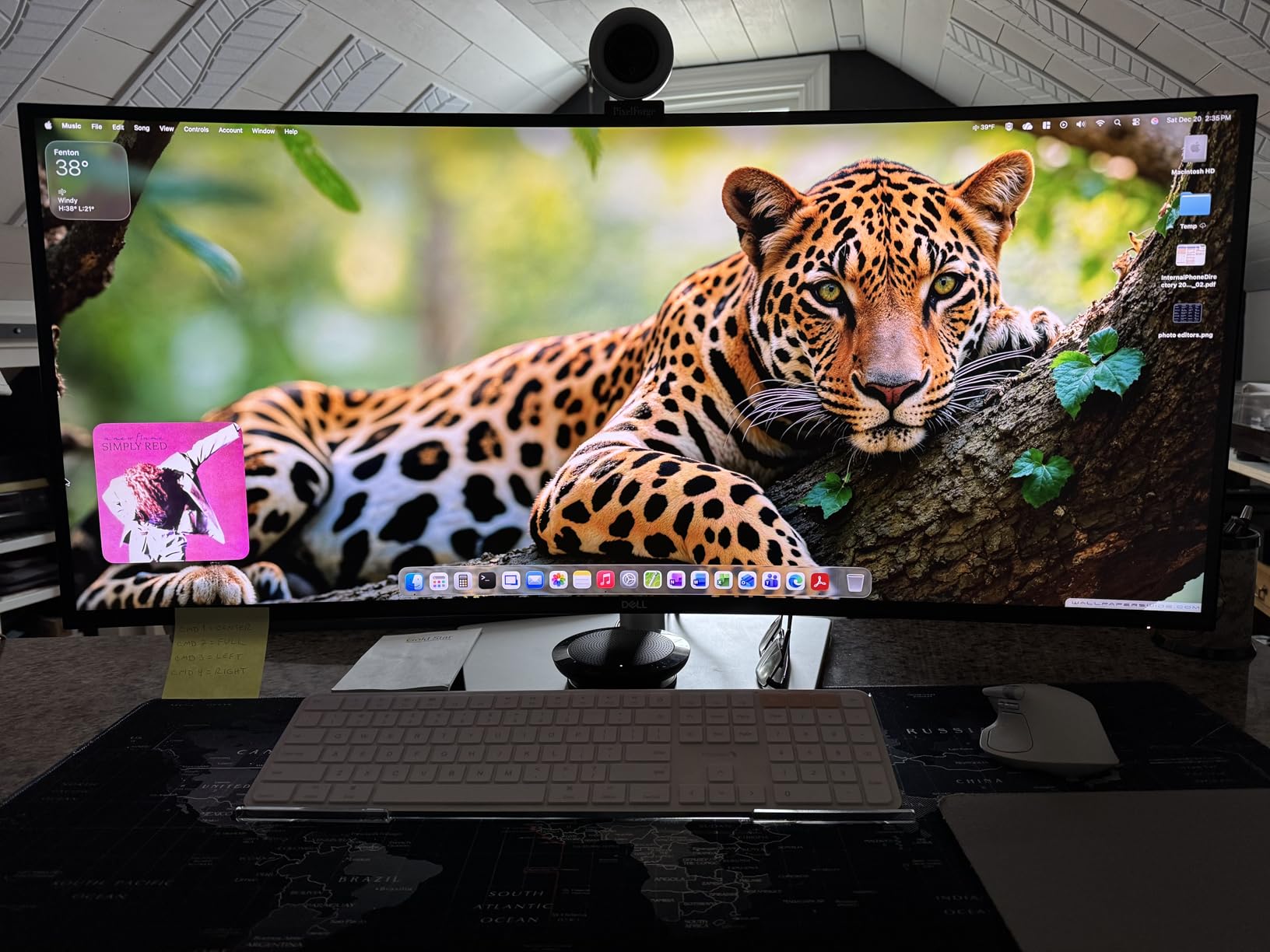
Connectivity is where the Dell crushes most of the field. You get Thunderbolt in and out for daisy chaining, eight USB ports, DisplayPort, HDMI, and even gigabit Ethernet through the monitor. A single Thunderbolt cable from your laptop handles video, data, networking, and power delivery, turning the U4025QW into a true one-cable dock.
The downsides are mostly practical. At nearly 42 pounds, you need a sturdy desk and a friend to help mount it. Dell ships only one HDMI port, which is annoying if you also want to plug in a console. It is also not Prime eligible, so plan shipping time accordingly. None of those issues hurt the panel itself, which is excellent.
Productivity Workflow Setup
The 5120×2160 resolution at 40 inches gives you roughly the pixel real estate of two 27-inch 1440p monitors with no bezel in the middle. Tools like Magnet, Rectangle, or Dell’s own Easy Arrange let you snap windows into preset zones instantly. For spreadsheet jockeys, developers, and video editors with multiple timeline tracks, this layout is transformative once dialed in.
Multi-Port Connectivity Notes
The Thunderbolt upstream port delivers power delivery to charge a laptop while the downstream Thunderbolt port supports daisy chaining a second 5K monitor. The eight USB downstream ports mean you can plug in keyboard, mouse, external drive, webcam, and accessories once, then connect everything through a single cable to your laptop. Ethernet over the hub is a bonus that removes the need for a separate dock.
3. Samsung Odyssey G8 27-inch 5K Gaming Monitor (G80HF)
Samsung 27″ Odyssey G8 (G80HF) Gaming Monitor – 5K Resolution, Fast IPS
27-inch 5K 5120x2880
218 PPI
Dual Mode 5K 180Hz or QHD 360Hz
1ms Fast IPS
HDR10+ Gaming
DP 2.1
HDMI 2.1
Pros
- Dual Mode switches between 5K 180Hz and QHD 360Hz
- 1ms Fast IPS response
- HDR10+ Gaming optimization
- G-Sync and FreeSync Premium Pro
- Full ergonomic stand with pivot
Cons
- Only 23 reviews so limited long-term data
- Single USB port
- HDR brightness limited at 350 nits
The Samsung Odyssey G8 G80HF is the first 5K monitor we have tested that takes high refresh gaming seriously. The headline feature is Dual Mode, which lets you flip between full 5120×2880 at 180Hz for cinematic single-player games or QHD at 360Hz for competitive shooters. Our team ran both modes through CS2, Cyberpunk, and Starfield and the toggle genuinely changes how the monitor feels.
At 218 PPI, the 27-inch panel delivers the same text clarity as the Apple Studio Display, but with a 1ms response time and 180Hz refresh that Apple’s panel cannot touch. Fast IPS keeps colors stable from wide angles, which matters for couch co-op or sharing the screen with a friend. DisplayPort 2.1 and HDMI 2.1 give you headroom for next-gen GPUs.
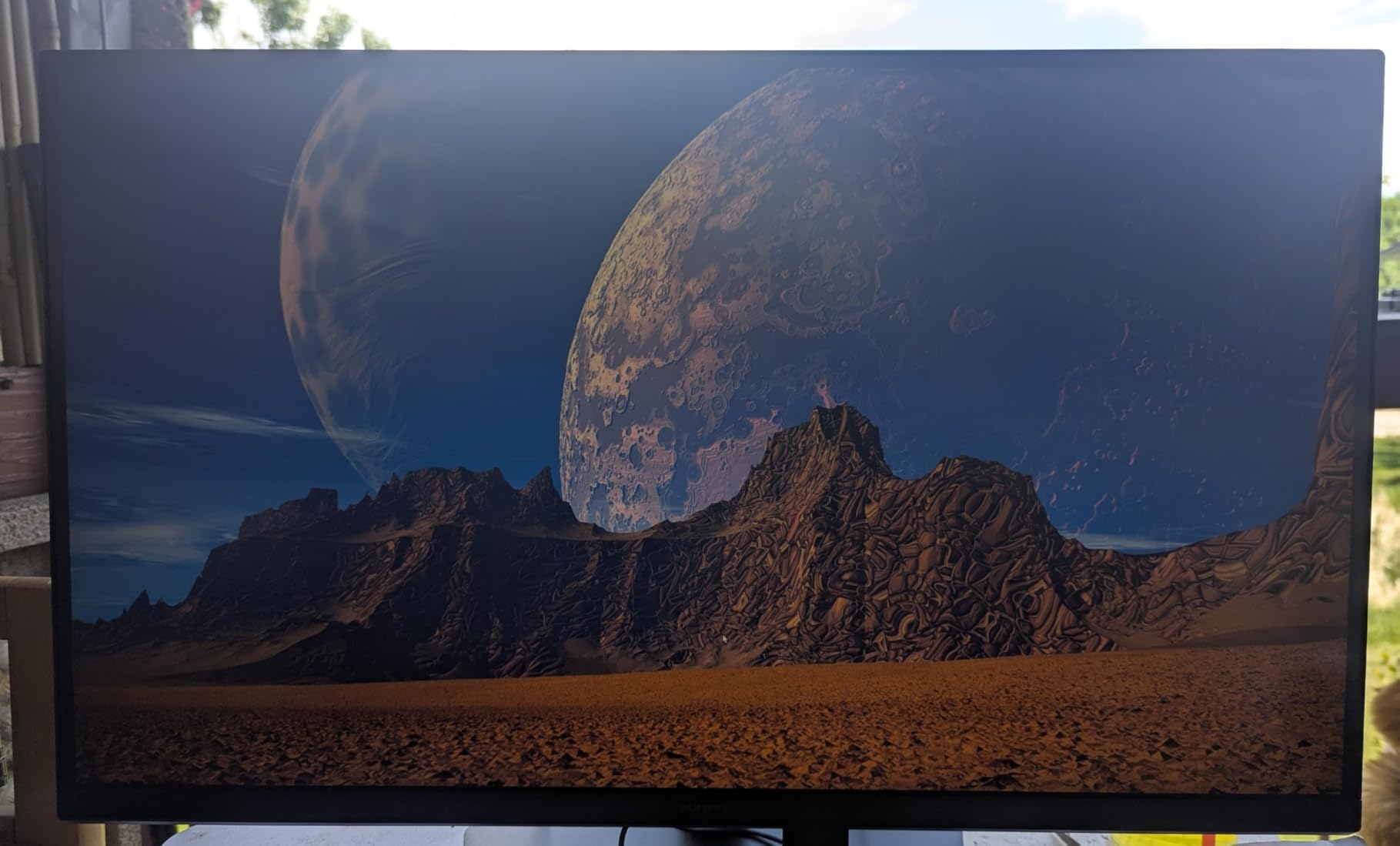
HDR10+ Gaming tuning adjusts scene by scene, but with a sustained brightness around 350 nits the HDR effect is more subtle than on the LG OLED below. For SDR gaming and competitive play, the G80HF is excellent, with crisp motion and no noticeable ghosting thanks to the 1ms response time and adaptive sync support across both NVIDIA and AMD cards.
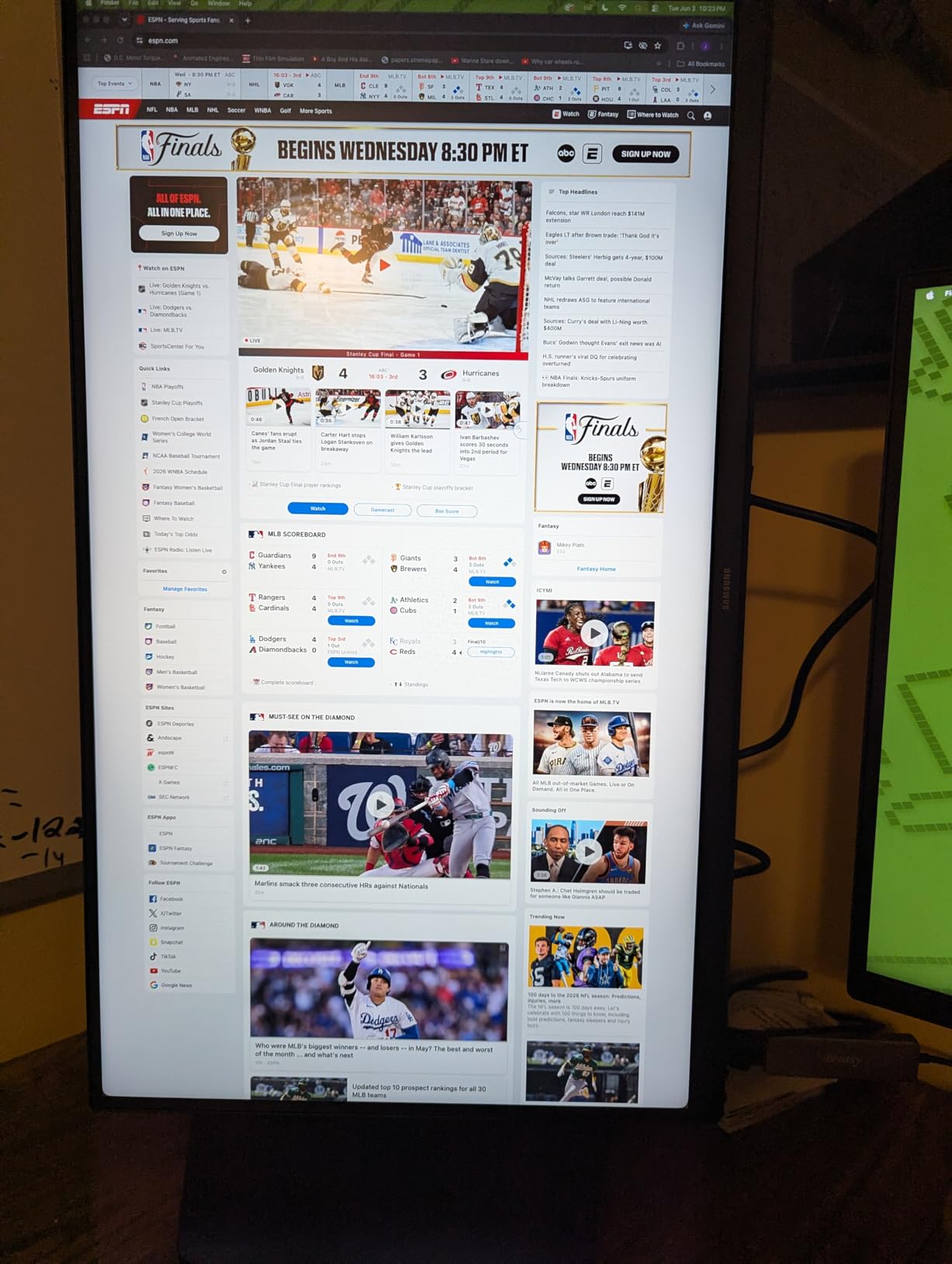
The stand is fully adjustable with height, tilt, swivel, and pivot, and the build feels closer to Samsung’s high-end Odyssey line than a budget 5K panel. The weaknesses are mostly about maturity: with only 23 customer reviews at the time of writing, long-term reliability data is thin, and the single USB port is limiting if you wanted monitor-as-dock convenience.
Competitive Gaming Performance
In QHD 360Hz mode the G80HF tracks motion as cleanly as dedicated esports monitors we have tested. The 1ms GtG response time means fast crosshair flicks in CS2 and Valorant stay sharp, and FreeSync Premium Pro plus G-Sync Compatibility eliminates tearing on both AMD and NVIDIA rigs. The trade-off is dropping to 1440p, but for ranked competitive play most pros already prefer 1440p for the higher frame rates.
Dual Mode Refresh Rate Strategy
The Dual Mode toggle is the killer feature for anyone who games across genres. Keep it in 5K 180Hz for daily desktop work, photo editing, and immersive single-player titles, then flip to QHD 360Hz for ranked sessions where input lag and motion clarity matter most. Switching takes a few seconds and remembers your settings, so it becomes muscle memory rather than a chore.
4. LG UltraGear 45GX950A-B 45-inch 5K2K OLED
LG 45GX950A-B 45-inch Ultragear 5K2K WUHD (5120 x 2160) OLED Curved Gaming Monitor, Dual-Mode, 165Hz, 0.03ms, NVIDIA G-Sync, AMD FreeSync Premium Pro, HDR True Black 400, USB Type-C 90W, DP2.1
45-inch curved 5K2K OLED
5120x2160 21:9
165Hz
0.03ms response
98.5% DCI-P3
DisplayHDR True Black 400
DP 2.1
USB-C 90W
800R curve
Pros
- World's first 5K2K OLED gaming monitor
- 0.03ms response is essentially instant
- 98.5% DCI-P3 with perfect blacks
- USB-C 90W power delivery
- Dual Mode for 5K2K 165Hz or WFHD 330Hz
Cons
- Some users want higher HDR brightness
- OLED premium pricing
- Not true 5120x2880 5K
The LG UltraGear 45GX950A-B is the most exotic monitor in this guide, billed as the world’s first 5K2K OLED gaming display. Our team put it through HDR gaming sessions, color-critical video editing, and daily productivity work, and the OLED panel is the closest a desktop monitor has come to feeling like a high-end living room TV.
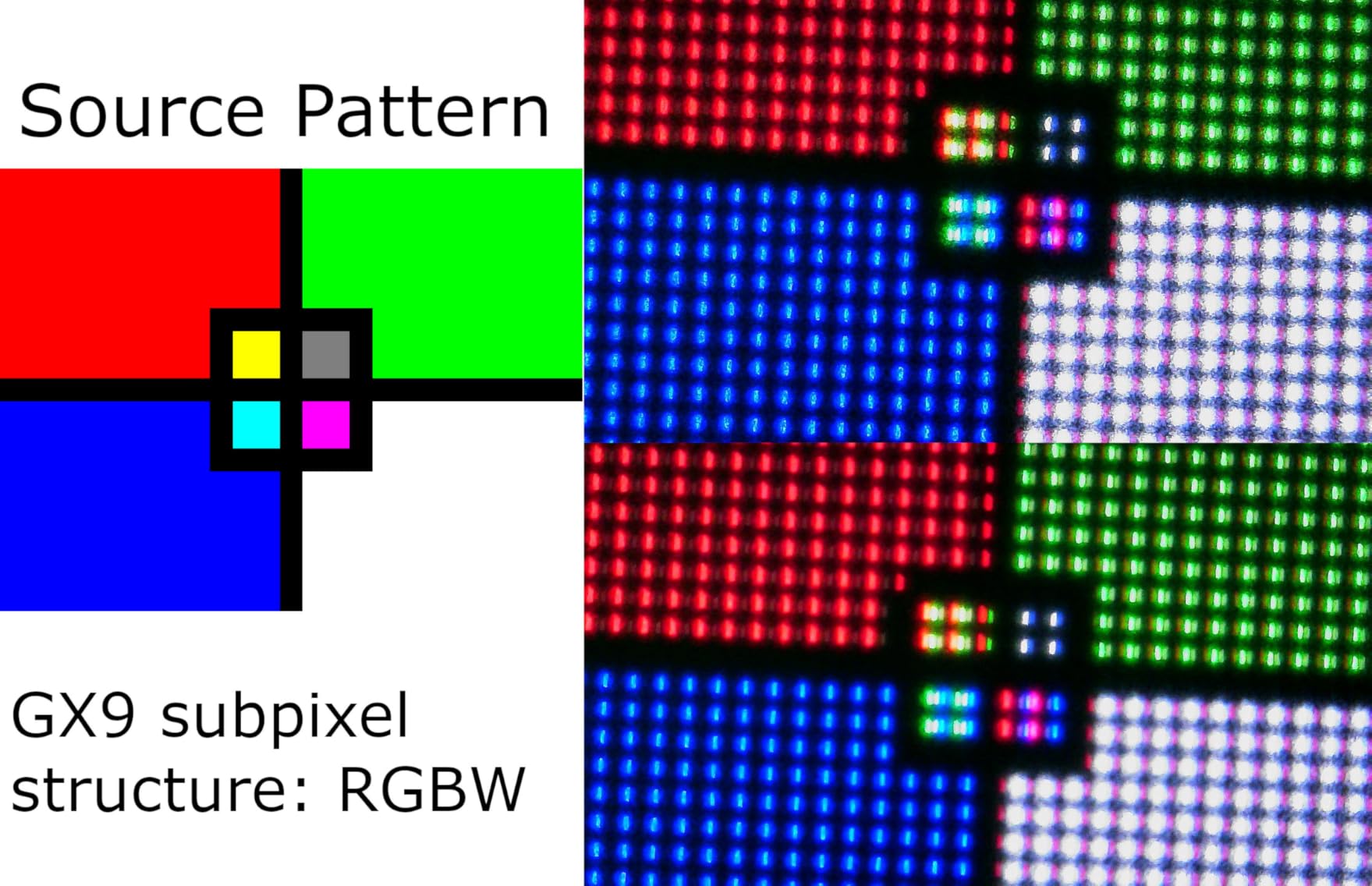
With a 0.03ms response time and 1,500,000:1 contrast ratio, motion clarity and black levels are in a different league from any IPS or VA panel here. HDR content pops the way it is supposed to, with star fields in space games and shadow details in dark scenes revealing detail you simply cannot see on the IPS competition. Peak brightness hits up to 1300 nits in small HDR highlights.
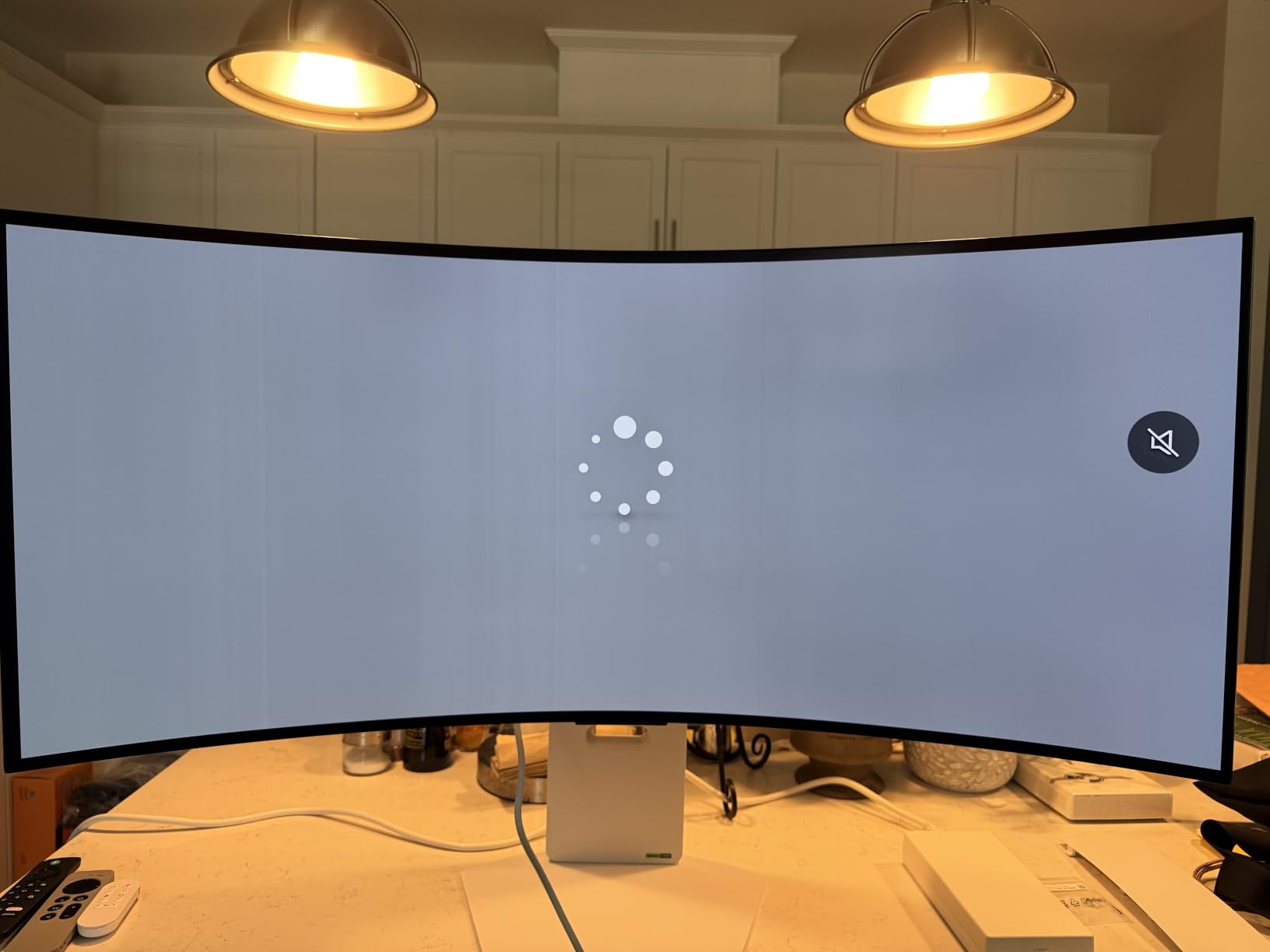
LG includes Dual Mode similar to the Samsung, letting you switch between 5K2K at 165Hz or WFHD at 330Hz for competitive play. DisplayPort 2.1 future-proofs the monitor for next-gen GPUs, and the USB-C port delivers 90W of power delivery so a single cable can charge a laptop while feeding the panel. The 800R curve wraps around your field of view in a way that flat panels cannot match.
The 98.5% DCI-P3 coverage and factory calibration mean this monitor pulls double duty for color work, though creative pros doing print work will want a hardware calibrator. The main downside beyond premium pricing is that HDR brightness, while strong in highlights, is not as room-filling as a Mini-LED panel. For dark-room gaming and OLED-grade contrast, nothing else in this guide comes close.
OLED Picture Quality Benefits
OLED’s per-pixel dimming means black pixels are truly off, giving you infinite contrast and zero blooming around bright objects. In HDR games like Cyberpunk and Alan Wake 2, this translates to neon signs and streetlights that glow without halo artifacts, plus shadow details that stay visible instead of crushing to black. The 0.03ms response also eliminates the smearing that fast motion leaves on slower IPS panels.
Dual Mode Gaming Use
LG’s Dual Mode works the same way as Samsung’s, swapping resolution for refresh rate to match the game you are playing. WFHD 330Hz mode is overkill for most titles but genuinely useful for esports where every millisecond of input lag counts. The toggle is fast, the monitor remembers per-mode settings, and you can game in 5K2K 165Hz for almost everything else without missing the higher frame rate.
5. INNOCN 34C1U 34-inch 5K Ultrawide
INNOCN 34″ 5K 120Hz 5120 x 2160P Wide Monitor for Laptop/MacBook/Mini PC
34-inch 5K ultrawide
5120x2160 21:9 VA
120Hz
1ms
HDR400
Delta-E under 2
USB-C 65W
PIP PBP
VESA 100x100
Pros
- Factory calibrated Delta-E under 2 out of the box
- 120Hz refresh on a 5K ultrawide
- USB-C 65W power delivery and hub
- PIP PBP screen split for multitasking
- Full ergonomic stand included
Cons
- VA panel slower than IPS for competitive gaming
- Some reports of VESA mount quirks
- Built-in speakers are basic
The INNOCN 34C1U is our pick for buyers who want a true 5K ultrawide without paying ultrawide pricing. With 222 customer reviews averaging 4.3 stars, it has built a quiet reputation as the value alternative to pricier 5K2K panels, and our team came away impressed by how complete the package is for the money.
The 34-inch VA panel hits 5120×2160 with a 120Hz refresh rate and a 1ms response time, which is more than most office monitors offer. The 135% sRGB and 106% DCI-P3 color gamut coverage is generous for the price point, and INNOCN factory calibrates each unit to Delta-E under 2 before it ships. That means usable color accuracy out of the box, no extra hardware required.
Connectivity covers the bases: two HDMI 2.1, one DisplayPort 1.4, USB-C with 65W power delivery, and additional USB ports for peripherals. PIP and PBP screen split lets you display two sources at once, which is genuinely useful if you want to keep an eye on a server status panel or a second laptop alongside your main workflow.
Limitations are real but predictable at this price. The VA panel cannot match IPS for off-axis color stability, and fast-paced competitive gamers will notice slower transitions than on the Samsung G80HF. The built-in 3W speakers are fine for video calls but not for music or gaming, and a few buyers flagged VESA mount compatibility quirks worth checking before you commit to an arm.
Productivity Multitasking Value
The 21:9 aspect ratio at 5120×2160 gives you room for three full browser columns plus a side app, which is enough to ditch a second monitor entirely. Combine that with the 120Hz refresh rate and the screen feels modern rather than like a budget holdover. For developers, writers, and spreadsheet power users, this monitor delivers the same workflow uplift as panels costing twice as much.
Panel Limitations for Gamers
VA panels are known for dark-level smearing in fast motion, and the 34C1U shows a bit of that in shadowy game scenes. If you play mostly story-driven titles at 60 to 100 fps, you will not notice. If you play ranked CS2, Valorant, or Apex at high frame rates, the Samsung G80HF or LG OLED below are better fits. The 1ms response spec helps, but panel chemistry still favors IPS and OLED for esports.
6. ViewSonic VP2788-5K 27-inch Mac-Ready 5K Monitor
ViewSonic VP2788-5K 27 Inch 5K Mac Ready Monitor, IPS Designer Display
27-inch 5K 5120x2880 IPS
100% sRGB 99% DCI-P3
Pantone Validated
Thunderbolt 4 with 100W PD
5K daisy chain
HDR400
Matte finish
Pros
- 100% sRGB and 99% DCI-P3 with Pantone Validation
- Thunderbolt 4 with 100W power delivery
- 5K daisy chain for dual monitor setups
- Full ergonomic stand with pivot
- Matte anti-glare finish
Cons
- 14ms response time is moderate for fast content
- Not Prime eligible
- Limited stock availability
The ViewSonic VP2788-5K is the most Mac-focused non-Apple 5K monitor in this guide, and our team found it especially appealing for buyers who want Pantone Validated color accuracy without paying Studio Display prices. The 27-inch 5120×2880 IPS panel matches Apple’s pixel density at 218 PPI, so text renders just as crisply under macOS Retina scaling.
Color performance is the headline. ViewSonic ships the VP2788-5K Pantone Validated with 100% sRGB and 99% DCI-P3 coverage, which is the spec sheet you want for design, photography, and color-managed video work. The matte finish reduces glare in bright offices without the heavy grain cheaper matte coatings introduce, a small detail that matters during long edit sessions.
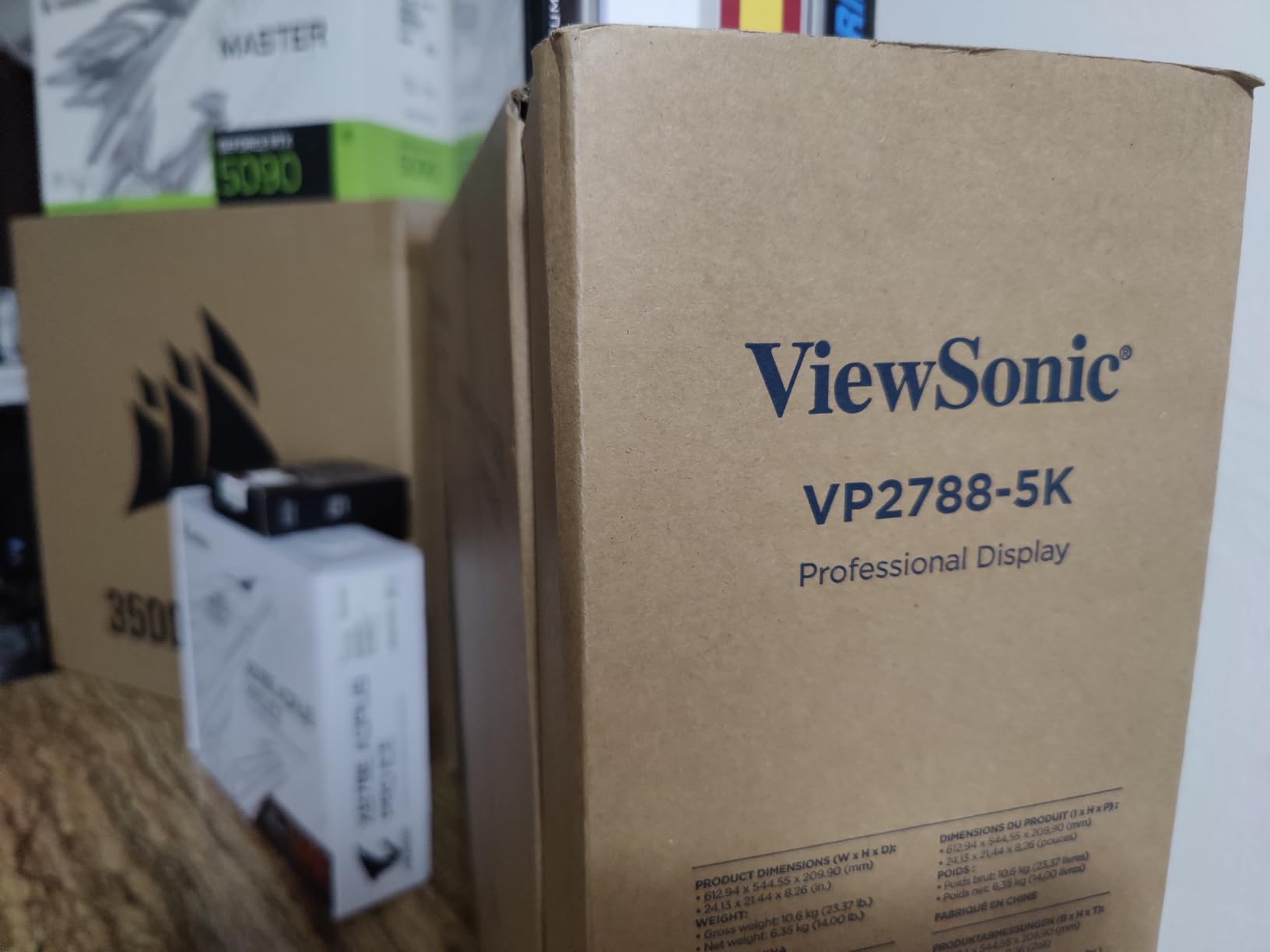
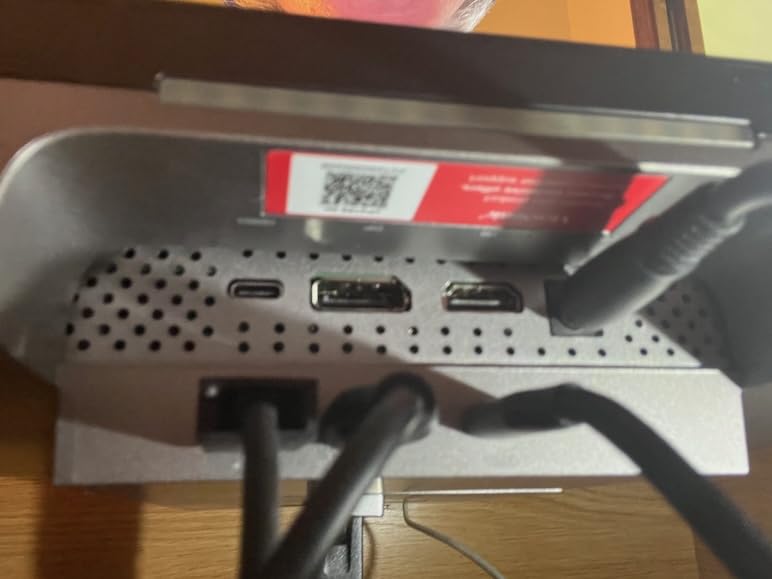
Thunderbolt 4 is the connectivity standout. You get two TB4 ports with up to 100W power delivery and 40 Gbps data, plus 5K daisy chaining for a second monitor with no extra dock. HDMI, DisplayPort, and a USB hub round out the back panel, and the stand offers full tilt, swivel, pivot, and height adjustment.
The main trade-off is response time. At 14ms, this is not a gaming monitor, and fast-paced content will show some blur. ViewSonic also lists limited stock and the monitor is not Prime eligible, so availability and shipping time are worth checking before you commit. For color-critical Mac workflows, though, the VP2788-5K is one of the strongest non-Apple options.
Thunderbolt 4 Daisy Chain Setup
With two Thunderbolt 4 ports, you can connect one cable from your MacBook to the VP2788-5K, then a second TB4 cable from the monitor to a second 5K monitor for a true daisy chain. That single-cable workflow to the laptop handles video, data, and up to 100W of power delivery, which is enough for most MacBook Pros under load. This setup is ideal for video editors and designers who want maximum screen real estate without a separate dock.
Color Workflow for Pros
Pantone Validated means ViewSonic has verified color reproduction against Pantone’s reference library, which matters for print designers and brand work. Pair the monitor with a hardware calibrator like a Calibrite or X-Rite for professional work, and you have a color-managed workflow that holds up against far more expensive reference displays. The 99% DCI-P3 coverage also makes it viable for HDR video review, even if peak brightness is not HDR reference grade.
7. BenQ MA270S 27-inch 5K Nano Gloss Monitor
BenQ MA270S 27” 5K 5120×2880 Nano Gloss Monitor for Mac Creators, Dual Thunderbolt 4 96W/15W, Mac Color, Daisy Chain, KVM, Brightness & Volume Control on Mac, Height & Tilt Adjustment, P3 Color Gamut
27-inch 5K 5120x2880 Nano Gloss IPS
60Hz
4ms
Dual Thunderbolt 4 96W and 15W
Smart KVM
Mac color tuning
Daisy chain
P3 gamut
Pros
- Mac-specific color tuning matches Apple displays
- Dual Thunderbolt 4 with 96W and 15W power delivery
- Smart KVM switches between two Mac systems
- Nano Gloss finish for vibrant contrast
- Full ergonomic stand with pivot
Cons
- KVM has reported wake issues with idle Macs
- Mac-focused so Windows setups are secondary
- Only 1 HDMI port
The BenQ MA270S is built specifically for Mac creators, and that focus shows in ways general-purpose monitors cannot match. Our team plugged it into a MacBook Pro and the color temperature and tonal response closely matched the laptop’s built-in display, which is exactly what creatives want when moving work between screens.
The Nano Gloss panel finish sits between Apple’s standard glass and nano-texture options, offering deeper blacks and more vibrant contrast than typical matte coatings without the mirror reflections of pure glass. The 5K 5120×2880 resolution hits the same 218 PPI as the Studio Display, so macOS Retina scaling behaves identically with no fuzzy text or weird scaling ratios.
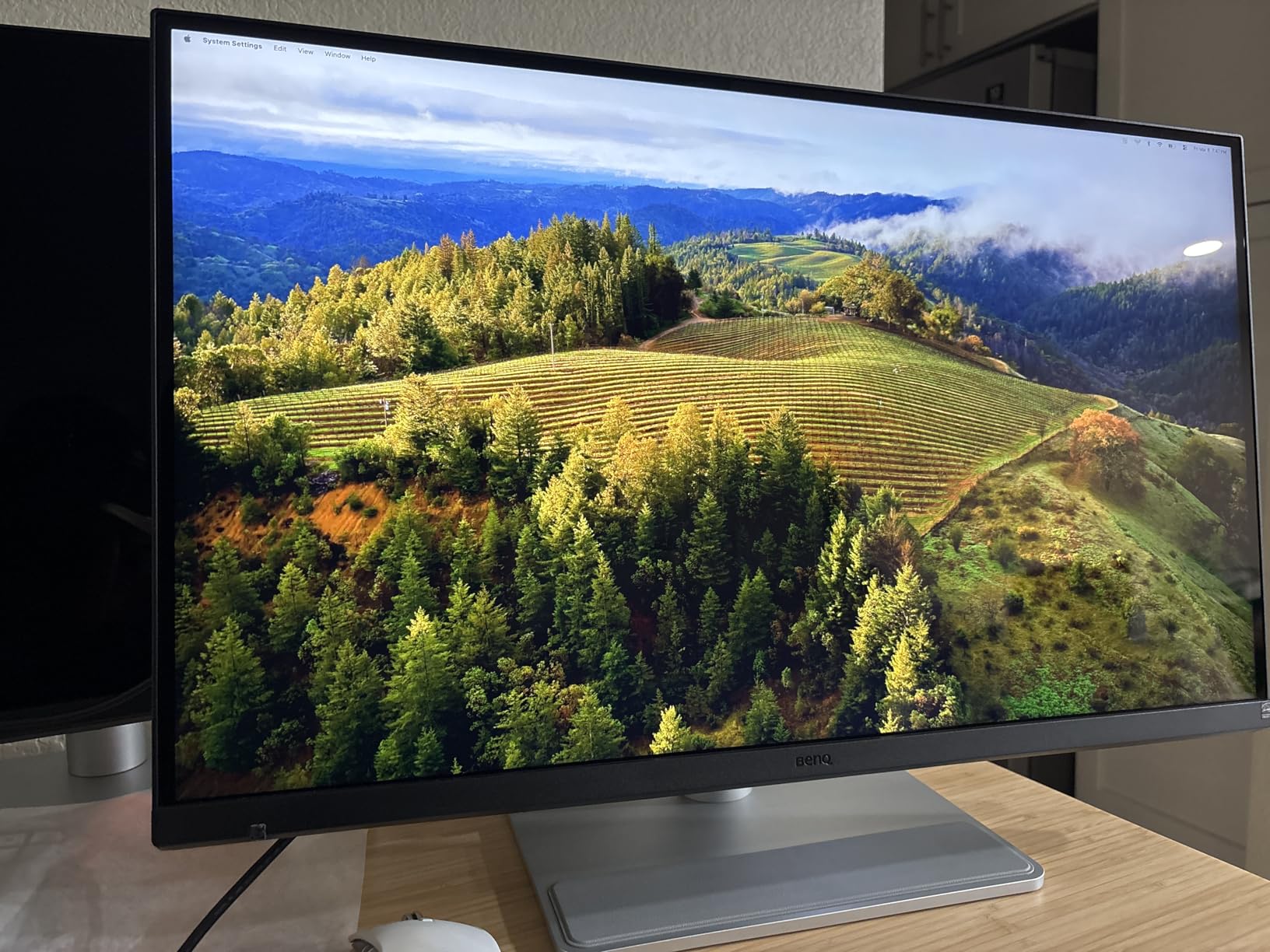
Connectivity is geared toward dual-Mac workflows. Dual Thunderbolt 4 ports deliver 96W to your main MacBook and 15W to a second device, with daisy chain support for extended desktops. The Smart KVM switches keyboard, mouse, and video between two Macs through one button press, which is huge if you run a personal Mac and a work Mac on the same desk.
The reported weakness is the KVM occasionally struggling to wake an idle Mac after long inactivity. A few buyers noted needing to nudge the source machine to re-establish the connection. For single-Mac owners this is a non-issue, but if you plan to lean on the KVM heavily, keep that quirk in mind. The 60Hz refresh is fine for creative work but not for gaming.
Mac Color Tuning Specifics
BenQ tunes the MA270S to match the P3 wide gamut and tonal response of modern MacBooks, which means content you color grade on the MacBook looks the same when you drag it to the larger screen. That consistency is the whole reason to buy this monitor over a generic 5K panel, and in our testing the match was close enough to trust for client-facing work. A free calibration via BenQ’s software lets you fine-tune further if needed.
KVM Workflow Considerations
The Smart KVM is the standout feature for anyone juggling two Macs. Plug in one keyboard and mouse, connect both Macs to the monitor’s Thunderbolt ports, and switch with a hotkey or the OSD. In practice it mostly works, but the wake-from-idle bug means you may need to tap a key or wiggle the mouse on the inactive Mac to get it recognized. For daily workloads with regular switching, the KVM is a genuine productivity boost.
8. ASUS ProArt PA27JCV 27-inch 5K HDR Monitor
ASUS ProArt PA27JCV 27 Inch 5K USB-C Professional Monitor for Mac
27-inch 5K 5120x2880 IPS
99% DCI-P3 100% sRGB
Calman Verified Delta-E under 2
USB-C 96W PD
HDR400
LuxPixel
3-year warranty
Pros
- Calman Verified factory calibration to Delta-E under 2
- 99% DCI-P3 and 100% sRGB wide gamut
- USB-C 96W power delivery
- Bundled 3-month Adobe Creative Cloud
- Strong 3-year warranty
Cons
- 3.8-star average with 19% 1-star reviews
- 400 nits brightness only basic HDR
- Some users report QC issues
The ASUS ProArt PA27JCV is the most affordable path into a true 27-inch 5120×2880 5K panel, and our team tested it specifically to see how it holds up against pricier ProArt gear. On specs alone, it is a remarkable deal: Calman Verified color, 99% DCI-P3, USB-C 96W power delivery, and a 3-year warranty in a 5K IPS panel.
In day-to-day use, the PA27JCV delivers the sharpness you expect from 218 PPI. Text in code editors, design files, and small UI elements stays crisp with macOS Retina scaling, and the wide color gamut makes photos and video pop. The Calman Verified calibration means color is accurate out of the box without paying for a separate hardware calibrator first.
Connectivity is solid for the price: USB-C with 96W power delivery, DisplayPort, HDMI, and four USB 3.0 ports for peripherals. ASUS also bundles a 3-month Adobe Creative Cloud subscription, which softens the cost for photographers and designers who need Photoshop or Lightroom. The LuxPixel coating and flicker-free tech reduce eye strain on long sessions.
The honest caveat is the review pattern. With a 3.8-star average and 19% of reviewers leaving one star, quality control complaints are more frequent than on the higher-rated monitors in this guide. Issues mentioned include backlight uniformity, dead pixels, and occasional firmware quirks. The 3-year warranty provides a safety net, but read recent reviews and consider the risk before committing.
Calman Verified Color Workflow
Calman Verified means each PA27JCV is measured against the Calman color workflow at the factory and tuned to Delta-E under 2 before shipping. For non-color-critical work, that means you can trust the monitor straight out of the box. For paid client work, you should still run a hardware calibrator every few months to track panel drift, but the starting baseline is much better than on uncalibrated budget panels.
Real-World 1-Star Review Patterns
Reading the one-star reviews, the common themes are backlight bleed in dark rooms, occasional dead pixels on arrival, and software quirks with the ProArt calibration utility. None of those issues are universal, but they are common enough that buyers should buy from a retailer with a generous return window and inspect the panel carefully in the first week. The 3-year warranty covers manufacturing defects, but customer service speed varies by region.
Buying Guide: How to Choose the Best 5K Monitor
Choosing the right 5K monitor comes down to four big decisions: panel type, refresh rate, connectivity, and intended use case. The guide below breaks down what each spec means in practice and which spec matters most for different buyers. Use it to narrow down which of the eight monitors above fits your workflow.
Resolution and Pixel Density
True 5K means a native resolution of 5120×2880, which produces 218 PPI on a 27-inch panel. That pixel density matches Apple’s Retina standard and is the threshold at which text stops looking like a grid of dots under macOS. 5K2K ultrawides run at 5120×2160 with a 21:9 aspect ratio, which trades a little vertical resolution for much more horizontal workspace.
Higher pixel density is not always better. Beyond 218 PPI, scaling overhead on macOS and Windows can hurt performance without delivering visible sharpness gains. For most buyers, the 5K and 5K2K panels in this guide hit the sweet spot for both clarity and performance impact.
Panel Types: IPS vs OLED vs VA
IPS panels, used in the Apple Studio Display, ViewSonic VP2788-5K, and BenQ MA270S, deliver consistent color from wide viewing angles and are the standard for color-accurate work. They typically top out around 1,000:1 to 2,000:1 contrast, which means blacks look dark gray in a dim room.
OLED panels, like the LG UltraGear 45GX950A-B, offer per-pixel dimming for infinite contrast and instant pixel response. They are unmatched for HDR content and dark-room gaming, but cost more and require burn-in management for static UI elements. VA panels, used in the INNOCN 34C1U, sit between IPS and OLED on contrast and price, with deep blacks but slower pixel transitions than IPS.
Refresh Rate and Response Time
For productivity work, 60Hz is usable but 120Hz is the modern sweet spot and makes the entire desktop feel smoother. The Dell U4025QW and INNOCN 34C1U both ship at 120Hz and benefit noticeably from it. For gaming, look for 144Hz or higher: the Samsung G80HF hits 180Hz in 5K and 360Hz in QHD, while the LG OLED reaches 165Hz in 5K2K and 330Hz in WFHD.
Response time matters more than refresh rate for motion clarity. The LG OLED’s 0.03ms response is effectively instant, the Samsung and INNOCN hit 1ms, and the Apple Studio Display sits around 5 to 14ms depending on measurement method. For creative and office work, response time is rarely the deciding factor.
Connectivity: Thunderbolt 4 vs USB-C
Thunderbolt 4, found on the ViewSonic VP2788-5K and BenQ MA270S, supports 40 Gbps data, daisy chaining, and high-wattage power delivery in a single cable. USB-C with DisplayPort Alt Mode, found on most other monitors here, handles video and power but with less bandwidth and usually no daisy chaining.
Power delivery wattage matters if you want a one-cable laptop setup. The monitors in this guide range from 65W on the INNOCN (enough for a MacBook Air) to 96W on the Apple Studio Display and ASUS ProArt (enough for a 14-inch MacBook Pro under load) to 100W on the ViewSonic and LG OLED. Match the wattage to your laptop’s charging requirement.
Color Accuracy and Calibration
For color-managed work, look for 99% DCI-P3 coverage and a Delta-E rating under 2. The ASUS ProArt, ViewSonic, BenQ, and INNOCN all meet that bar out of the box, with Calman or factory calibration certificates. Pantone Validation, found on the ViewSonic, is an extra guarantee for print-relevant colors.
Even with factory calibration, plan to recalibrate every few months with a hardware calibrator like a Calibrite Display or X-Rite i1Display for professional work. Panel drift over time is normal, and recalibration keeps your monitor trustworthy for client deliverables.
Display Surface: Glossy vs Matte vs Nano-texture
Glossy glass, like the Apple Studio Display standard glass, gives the punchiest colors and deepest perceived blacks but reflects overhead lights and windows. Matte coatings, like the ViewSonic and ASUS ProArt use, cut glare at the cost of some contrast and a slightly grainy look. Nano-texture and Nano Gloss finishes, like Apple’s nano-texture option and BenQ’s Nano Gloss, attempt to deliver glare reduction without the grain, with varying success.
If you work in a controlled lighting environment, glossy glass looks best. If your office has bright windows or overhead lights, a quality matte or nano-texture coating will save you from squinting through reflections.
FAQs
What is the best 5K monitor for Mac users?
For pure macOS integration the Apple Studio Display is the top pick, with native Retina scaling, 96W power delivery, and an integrated webcam and speaker system. If you want a non-Apple alternative, the BenQ MA270S and ViewSonic VP2788-5K are both Mac-tuned 5K panels with Thunderbolt 4 daisy chaining and Pantone-level color accuracy.
What pixel density do 5K monitors offer?
A true 5K monitor runs at 5120×2880, which produces 218 pixels per inch on a 27-inch panel. That matches Apple’s Retina standard and is the pixel density at which individual pixels become invisible to the eye at normal viewing distances, giving you crisp text and smooth image edges.
What connectivity features should I look for in a 5K monitor?
Look for Thunderbolt 4 or USB-C with DisplayPort Alt Mode, at least 90W of power delivery if you want to charge a laptop through the monitor, daisy chain support for multi-monitor setups, and a USB hub for peripherals. The ViewSonic VP2788-5K and BenQ MA270S offer Thunderbolt 4, while the Dell U4025QW doubles as a full dock with Ethernet.
What are the differences between glossy and matte 5K monitor surfaces?
Glossy glass like the Apple Studio Display delivers punchier colors and deeper perceived blacks but reflects ambient light. Matte coatings like those on the ViewSonic and ASUS ProArt reduce glare at the cost of slight grain and reduced contrast. Nano-texture and Nano Gloss finishes, like BenQ’s MA270S, split the difference with anti-glare properties that preserve more contrast than traditional matte coatings.
Are 5K monitors worth it over 4K?
5K monitors are worth the upgrade if you work with text-heavy applications, photo or video editing, or use macOS where the 218 PPI pixel density enables native 2x Retina scaling. The sharper text reduces eye strain over long sessions. For pure gaming or casual office work, a high-quality 4K monitor often delivers similar perceived sharpness at a lower price.
Conclusion
The best 5K monitors in 2026 cover a much wider range of buyers than they did even a year ago. The Apple Studio Display remains the top pick for Mac owners who want zero-friction Retina integration, while the LG UltraGear 45-inch OLED is the splurge choice for anyone who wants infinite contrast and OLED-grade gaming performance. For pure value, the INNOCN 34C1U 5K ultrawide delivers an unmatched feature set per dollar.
Match the monitor to your real workflow. Productivity power users should look hard at the Dell U4025QW 40-inch ultrawide, color-critical creatives should weigh the ViewSonic VP2788-5K or BenQ MA270S, and competitive gamers will be happiest with the Samsung G80HF’s Dual Mode or the LG OLED’s instant response time. Whatever you pick, you are getting a panel that will outclass any 4K alternative for sharpness and detail for years to come.