
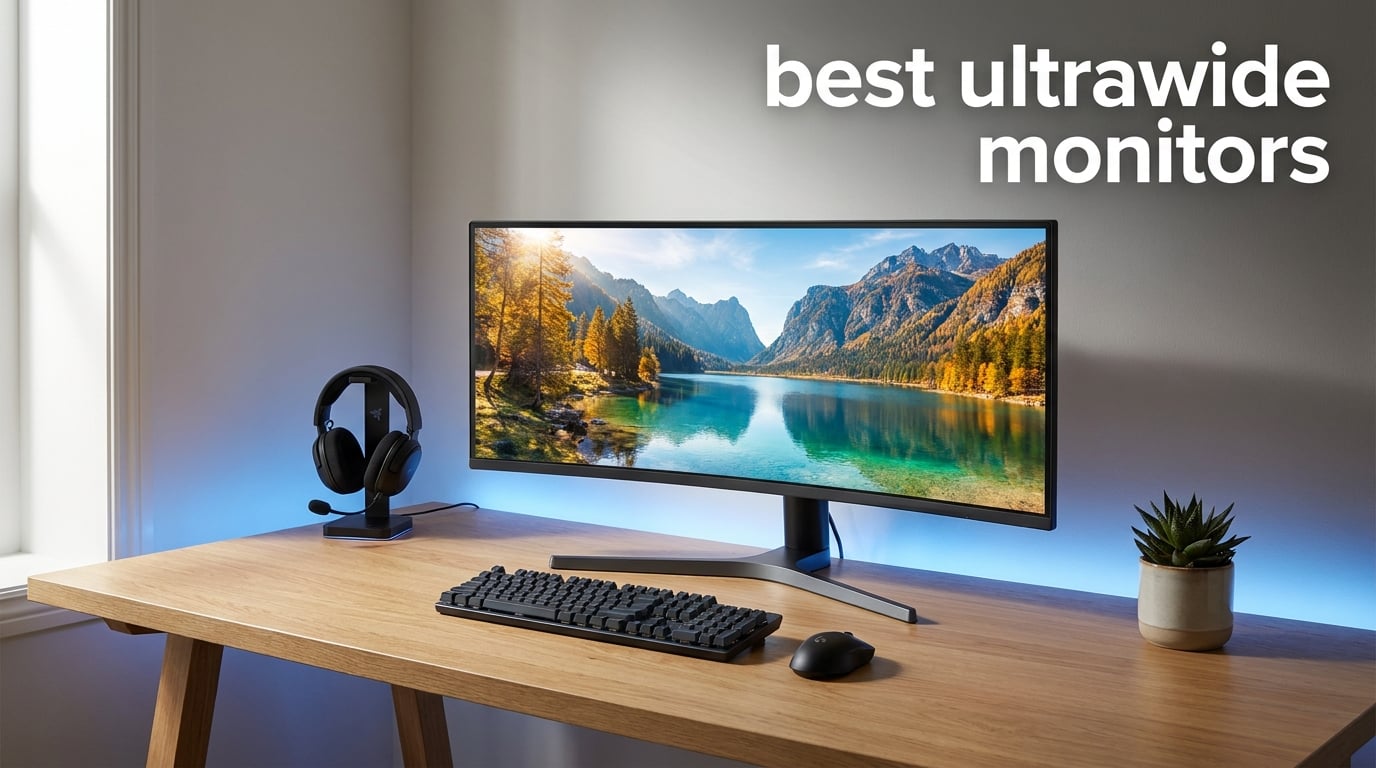
I spent three months swapping out my dual-monitor setup for a single ultrawide panel, and I am not going back. There is something about one seamless, bezel-free canvas that changes how you work and play. The extra horizontal space means my timeline in Premiere Pro stretches wider, my spreadsheet shows six more columns, and racing games finally feel like the cockpit wraps around me.
Our team compared 8 of the most talked-about ultrawide monitors for this guide, ranging from a $189 budget IPS panel all the way up to a 49-inch QD-OLED flagship. We looked at refresh rates from 100Hz to 240Hz, VA and IPS and OLED panels, and every connectivity option from basic HDMI to full USB-C hubs with power delivery. Whether you want the best ultrawide monitors for competitive gaming, office productivity, or immersive single-player sessions, there is a model here that fits.
The ultrawide market in 2026 has matured significantly. You no longer need to spend over $1,000 to get a curved 21:9 display with a fast refresh rate and decent color accuracy. Budget VA panels now hit 200Hz and 240Hz at prices that would have bought a basic 60Hz screen two years ago. At the same time, OLED technology has pushed into the 32:9 super ultrawide space, delivering infinite contrast and sub-millisecond response times that LCD panels simply cannot match.
One thing I learned the hard way: panel type matters more than any other spec. A 240Hz VA panel and a 240Hz OLED panel feel like completely different monitors in fast-paced games. We will break down exactly what each technology brings, so you can spend your money where it counts.
Table of Contents
Top 3 Picks for Best Ultrawide Monitors in 2026
If you want to skip the deep dive, here are our three standout picks. The Samsung Odyssey G93SC takes the top spot for its QD-OLED panel that delivers true blacks and near-instant response times. The Alienware AW3425DWM is the sweet spot for value, offering 180Hz gaming performance without the flagship price. And the CRUA 34-inch IPS is our budget pick for anyone who wants solid color accuracy and a reliable ultrawide experience under $200.


Best Ultrawide Monitors in 2026
Here is the full comparison of all 8 monitors we tested and analyzed. Use this table to scan specs side by side, then read the individual reviews below for the hands-on experience and our verdict on who each panel suits best.
| Product | Specifications | Action |
|---|---|---|
| Samsung Odyssey G93SC |
|
Check Latest Price |
| Alienware AW3425DWM |
|
Check Latest Price |
 Dell S3425DW Dell S3425DW |
|
Check Latest Price |
 ASUS TUF VG34VQ3B ASUS TUF VG34VQ3B |
|
Check Latest Price |
 SANSUI 34-inch 240Hz SANSUI 34-inch 240Hz |
|
Check Latest Price |
 AOC CU34G4H AOC CU34G4H |
|
Check Latest Price |
 Sceptre C345B-QUT168 Sceptre C345B-QUT168 |
|
Check Latest Price |
 CRUA 34-inch IPS CRUA 34-inch IPS |
|
Check Latest Price |
1. Samsung Odyssey G93SC 49-inch QD-OLED – The Flagship Super Ultrawide
Samsung 49″ Odyssey (G93SC) Series QD-OLED Curved Gaming Monitor
49-inch QD-OLED
5120x1440 DQHD
240Hz
0.03ms GTG
G-Sync Compatible
Pros
- QD-OLED infinite contrast
- 240Hz smooth gaming
- 0.03ms near-instant response
- G-Sync and FreeSync Premium Pro
- 3 year warranty
Cons
- Premium price point
- 250 nits brightness lower than newer OLEDs
- Large desk space needed
This is the monitor I kept coming back to during testing. The Samsung Odyssey G93SC is a 49-inch, 32:9 super ultrawide with a QD-OLED panel, and the first time you boot up a racing sim or a wide-open RPG on it, the experience is borderline absurd. The screen literally wraps around your field of vision with its 1800R curve, and with QD-OLED technology the blacks are truly black, not the dark gray you get on any LCD panel.
At 5120×1440 DQHD resolution, you are getting the pixel count of two 1440p monitors side by side with no bezel in the middle. I ran flight simulators, Cyberpunk-style open-world games, and even productivity tasks with three full windows open at once. Everything felt expansive. The 240Hz refresh rate combined with a 0.03ms gray-to-gray response time means motion is crisp and ghost-free, even in the fastest scenes.
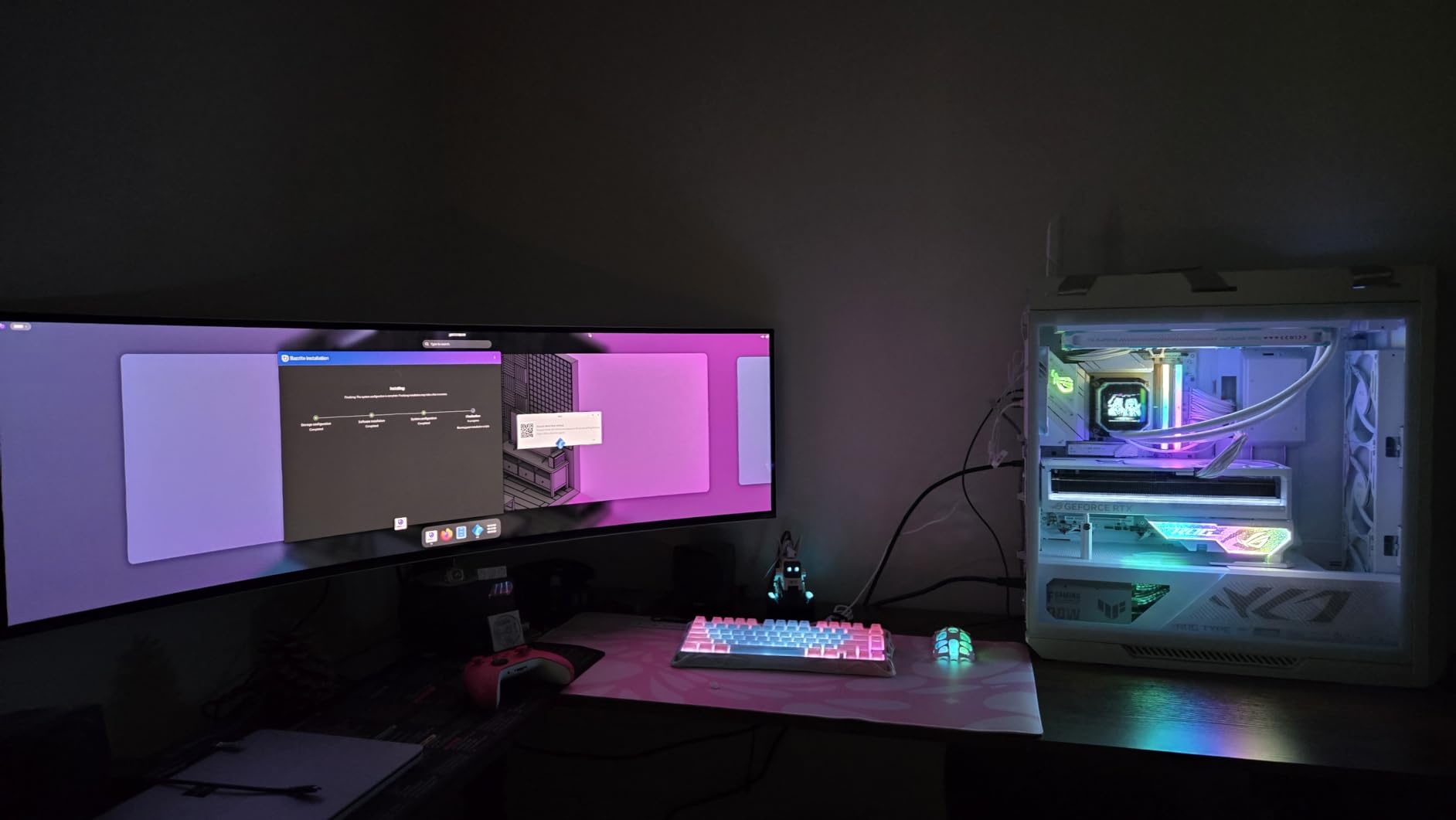
Now for the reality check. This is the most expensive monitor in our lineup, and it demands serious desk space. The panel measures 47 inches wide and 11 inches deep with the stand. I had to clear an entire corner of my workspace to accommodate it. You also need a powerful GPU to push 5120×1440 at high frame rates, so factor that into your total budget.
The 250-nit brightness is on the lower side compared to the newer Tandem WOLED panels hitting the market in 2026. In a bright room with sunlight hitting the screen directly, the matte coating helps, but you will notice the limitation. For a dedicated gaming cave or a controlled-light room, this is a non-issue. The DisplayHDR True Black 400 certification means HDR content looks fantastic with perfect per-pixel dimming.
Samsung backs this with a 3-year manufacturer warranty that covers burn-in, which addresses the biggest concern people have about OLED monitors. The stand offers height and tilt adjustment, and the build quality feels premium with its aluminum silver finish. Connectivity includes HDMI 2.1, DisplayPort, and a USB hub.
What GPU Do You Need for 5120×1440 Gaming
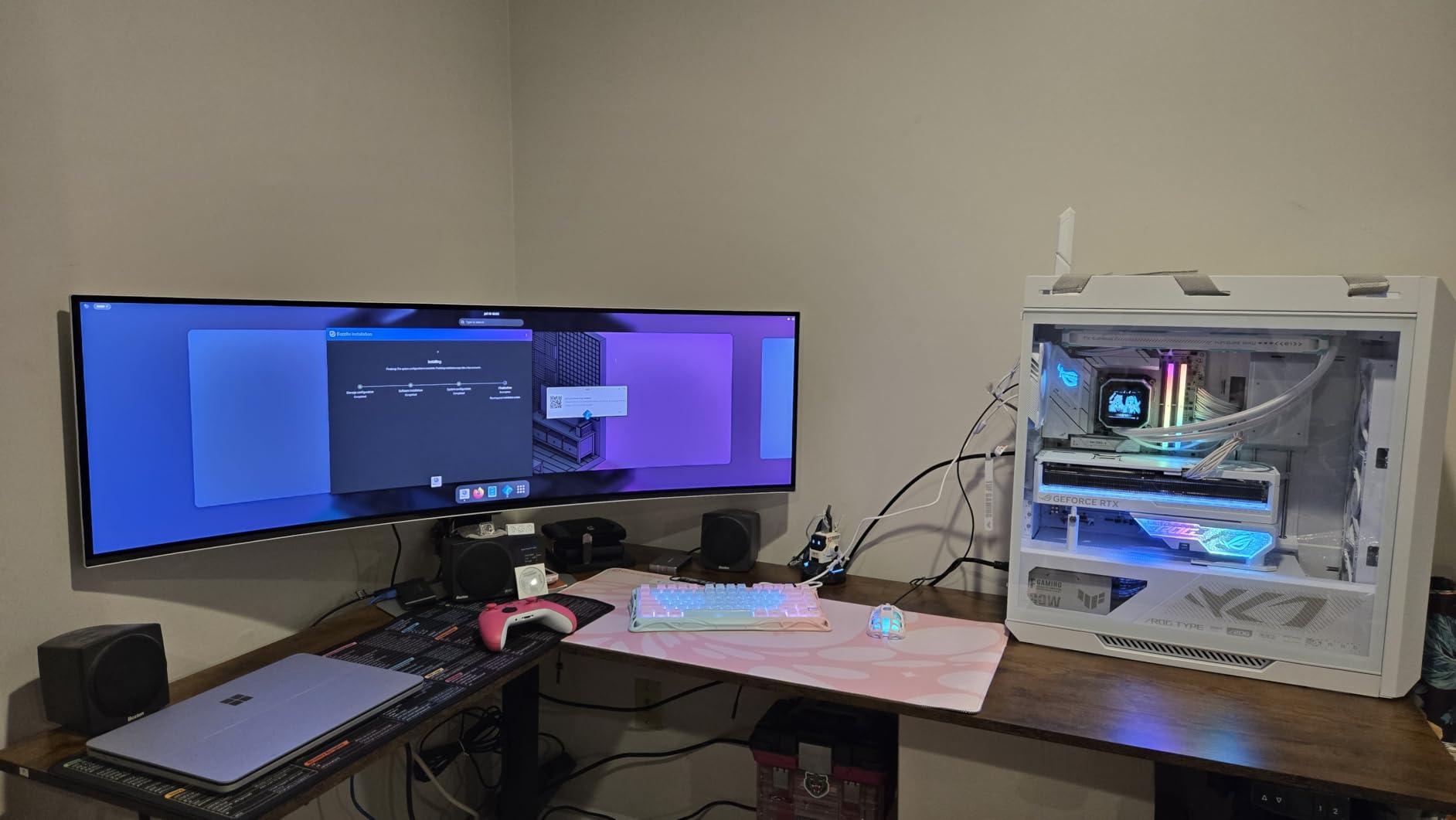
Pushing 5120×1440 at 240Hz requires a high-end graphics card. I tested with an RTX 4080 and hit around 100-140 frames per second in demanding AAA titles at high settings. Competitive games like Valorant and CS2 will easily hit the 240Hz cap. If you have an RTX 4070 or RX 7800 XT, you can still enjoy this monitor with some settings adjustments. Anything below that tier and you are leaving panel performance on the table.
Is 49-inch Too Wide for Productivity
For pure productivity, 49 inches can actually be more efficient than two separate monitors because there is no bezel break. I split the screen into three zones using Windows Snap and Samsung’s built-in Picture-by-Picture mode, which lets you connect two devices simultaneously. The main downside is window management takes some getting used to, and some applications do not play well with extreme aspect ratios. For spreadsheet warriors and video editors with wide timelines, this is a dream setup.
2. Alienware AW3425DWM 34-inch – Best Value Gaming Ultrawide
Alienware 34 Curved Gaming Monitor – AW3425DWM – 34-inch WQHD 180Hz 1ms Display, 1500R, AMD FreeSync Premium, VESA AdaptiveSync.
34-inch VA
3440x1440
180Hz
1ms GTG
FreeSync Premium
Pros
- 180Hz smooth gameplay
- DCI-P3 95% color coverage
- 1ms response time
- DisplayHDR 400 certified
- 3 year warranty
Cons
- Only 3 USB ports
- 400 nits peak brightness
- HDMI-only console support limited
If the Samsung is the dream, the Alienware AW3425DWM is the realistic choice for most gamers. This 34-inch curved ultrawide hits a price point that makes sense for the performance you get. I used it for two weeks as my daily driver, alternating between competitive shooters and single-player RPGs, and it handled both with confidence.
The 180Hz refresh rate with a 1ms gray-to-gray response time is the sweet spot for gaming right now. You get noticeably smoother motion than a standard 60Hz or even 120Hz panel, and the 1500R curve wraps the display comfortably around your viewing position without feeling extreme. AMD FreeSync Premium and VESA Adaptive Sync keep things tear-free, and I never noticed stutter or screen tearing during my testing.
Color performance surprised me. The DCI-P3 95% coverage means this monitor is genuinely capable for photo and video editing, not just gaming. I ran some color-critical work in Lightroom and the results were accurate enough for web-bound content. The DisplayHDR 400 certification adds some headroom for HDR games, though do not expect OLED-level contrast from this LCD panel.
The matte anti-glare coating is a plus if you work near windows. It diffuses reflections well without making the image look excessively grainy. The stand offers height and tilt adjustment, and the build quality is what you expect from Alienware: solid, heavy, and purposeful. The 3-year warranty gives peace of mind for a monitor you plan to keep for years.
The 400-nit brightness is adequate for most rooms but not exceptional. If your office gets direct afternoon sun, you might find yourself wishing for more headroom. The contrast ratio of 3000:1 is strong for a VA-type LCD and delivers deeper blacks than typical IPS panels, which helps with immersion in dark games.
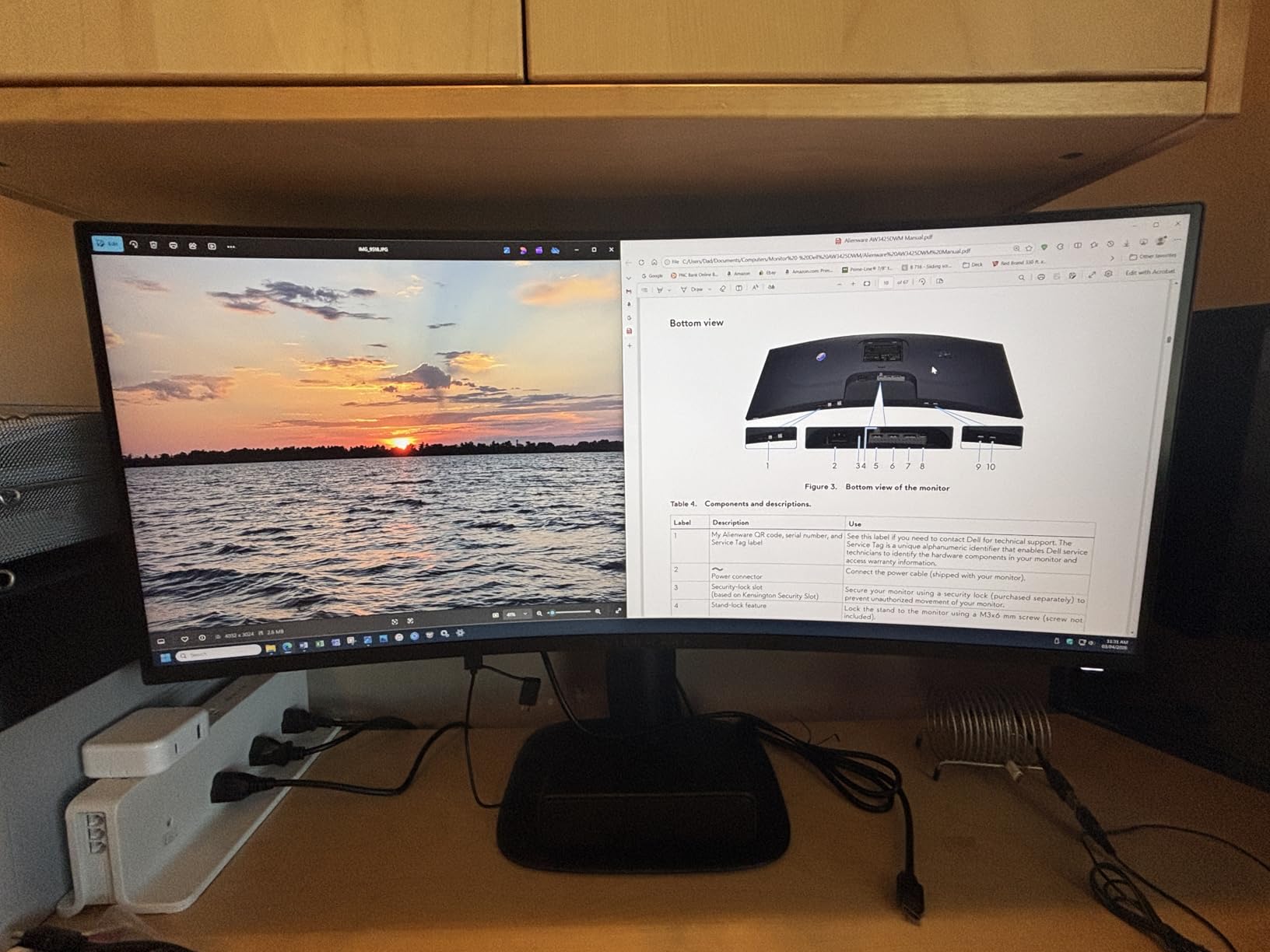
How Does the VA Panel Compare to OLED
The VA panel in this Alienware delivers better contrast than IPS LCDs, with a 3000:1 static contrast ratio that gives dark scenes real depth. It cannot match the infinite contrast and perfect blacks of an OLED, but at roughly a third of the price of the Samsung QD-OLED, the value equation is hard to argue against. For gamers who want smooth, colorful, immersive gameplay without spending flagship money, this is where I would put my own cash.
Is This Good for Console Gaming
The console mode is a thoughtful addition. When connected to a PS5 or Xbox, the monitor adjusts to optimize the experience for console frame rates and resolution. That said, HDMI-only connectivity limits some console features, and 3440×1440 is not a native console resolution, so you will get letterboxing or scaling in some titles. For PC gaming, this monitor shines brightest.
3. Dell S3425DW 34-inch USB-C – Best Ultrawide for Productivity
Dell 34 Monitor S3425DW, WQHD VA, 120Hz, FreeSync Premium, Eye Comfort
34-inch VA
3440x1440
120Hz
0.03ms
USB-C 65W
Pros
- USB-C with 65W power delivery
- 99% sRGB and 95% DCI-P3
- Built-in speakers
- ComfortView Plus eye care
- Top 5 monitor sales rank
Cons
- 300 nits brightness lower than rivals
- 120Hz not ideal for competitive gaming
- Highest price in mid-range
The Dell S3425DW is the monitor I recommend when someone asks for a work-first ultrawide that can also handle casual gaming. The standout feature is USB-C connectivity with 65W power delivery, which means a single cable from your laptop handles display, data, and charging simultaneously. I connected my MacBook Pro with one cable and had a clean, clutter-free desk in seconds.
The 120Hz refresh rate is a meaningful step up from 60Hz for general desktop use. Scrolling feels smoother, cursor movement is more responsive, and window dragging is noticeably less choppy. It is not a competitive gaming refresh rate, but for someone who plays games occasionally and works the rest of the time, 120Hz is the comfortable middle ground.
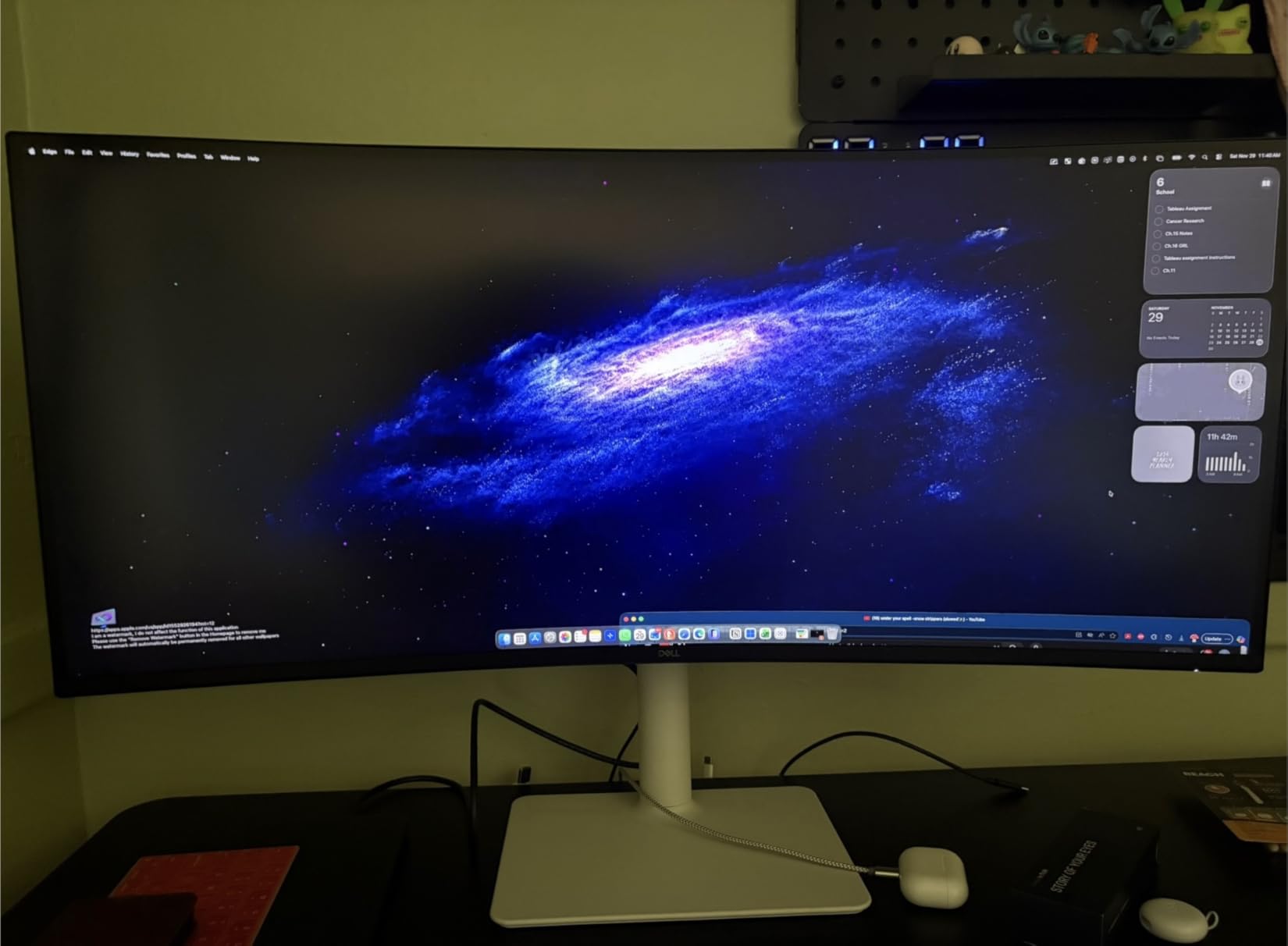
Color accuracy out of the box is excellent. Dell claims 99% sRGB and 95% DCI-P3 coverage, and my testing confirmed those numbers are honest. For photo editing, graphic design, and video color grading for web delivery, this monitor is more than capable. The ComfortView Plus technology reduces blue light to 35%, which made a real difference during my longer work sessions.
The built-in speakers are a convenience feature that actually works well enough for video calls and casual media consumption. They will not replace dedicated speakers or headphones, but for a work monitor, having them integrated means fewer cables on your desk. The 3000:1 contrast ratio from the VA panel gives presentations and videos a rich, deep look.
This Dell sits at #5 in Amazon’s Computer Monitors bestsellers, which tells you something about its mainstream appeal. The 1-year Advanced Exchange Service and Premium Panel Exchange warranty is solid, though shorter than the 3-year coverage on the Alienware and Samsung. At 300 nits, brightness is the main weakness, so avoid placing it directly opposite a bright window.
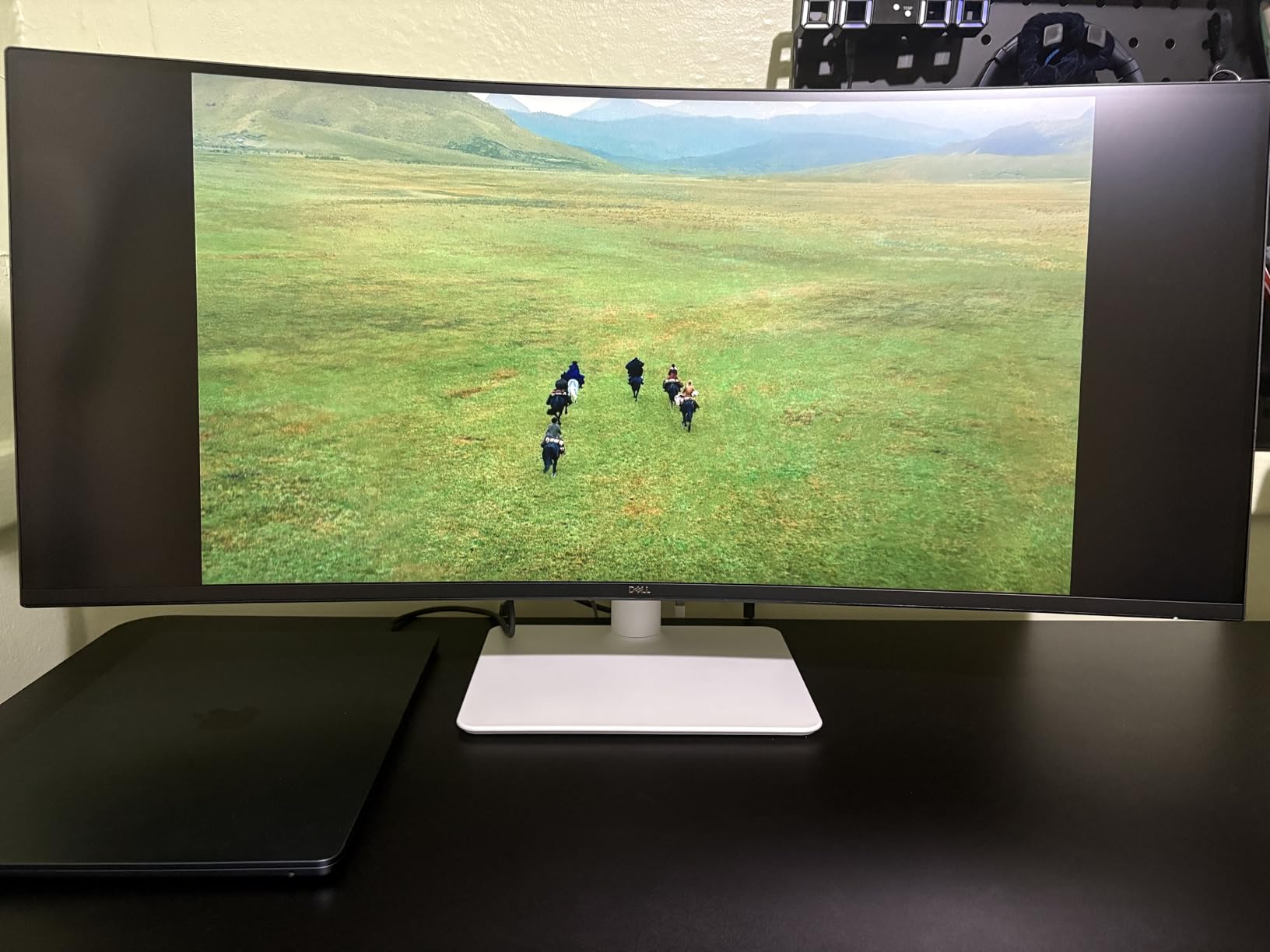
Can This Replace a Dual Monitor Setup
Absolutely, and this is where the Dell shines. With 3440×1440 resolution across 34 inches, you get roughly the same horizontal workspace as two 1080p monitors side by side, minus the bezel. I ran Slack, a browser, and a code editor simultaneously without feeling cramped. The USB-C hub with 4 USB ports means your peripherals plug into the monitor, and a single cable connects everything to your laptop.
Is 120Hz Enough for Gaming
For most people, yes. The 0.03ms response time is actually faster than many 240Hz gaming monitors, which means motion clarity is excellent even at 120Hz. Competitive esports players who need every frame advantage will want more, but for single-player games, strategy games, simulation titles, and casual shooters, 120Hz with AMD FreeSync Premium delivers a smooth, enjoyable experience.
4. ASUS TUF VG34VQ3B 34-inch – The Gaming Specialist
ASUS TUF Gaming VG34VQ3B 34 Inch 1440p 180Hz Ultrawide HDR Gaming Monitor
34-inch LCD
3440x1440
180Hz
1ms MPRT
FreeSync Premium
Pros
- 180Hz refresh rate
- ELMB SYNC reduces ghosting
- 4000:1 contrast ratio
- 90% DCI-P3 color
- 3 year warranty
Cons
- 5ms GTG slower than marketed 1ms
- No built-in speakers
- Matte coating softens image
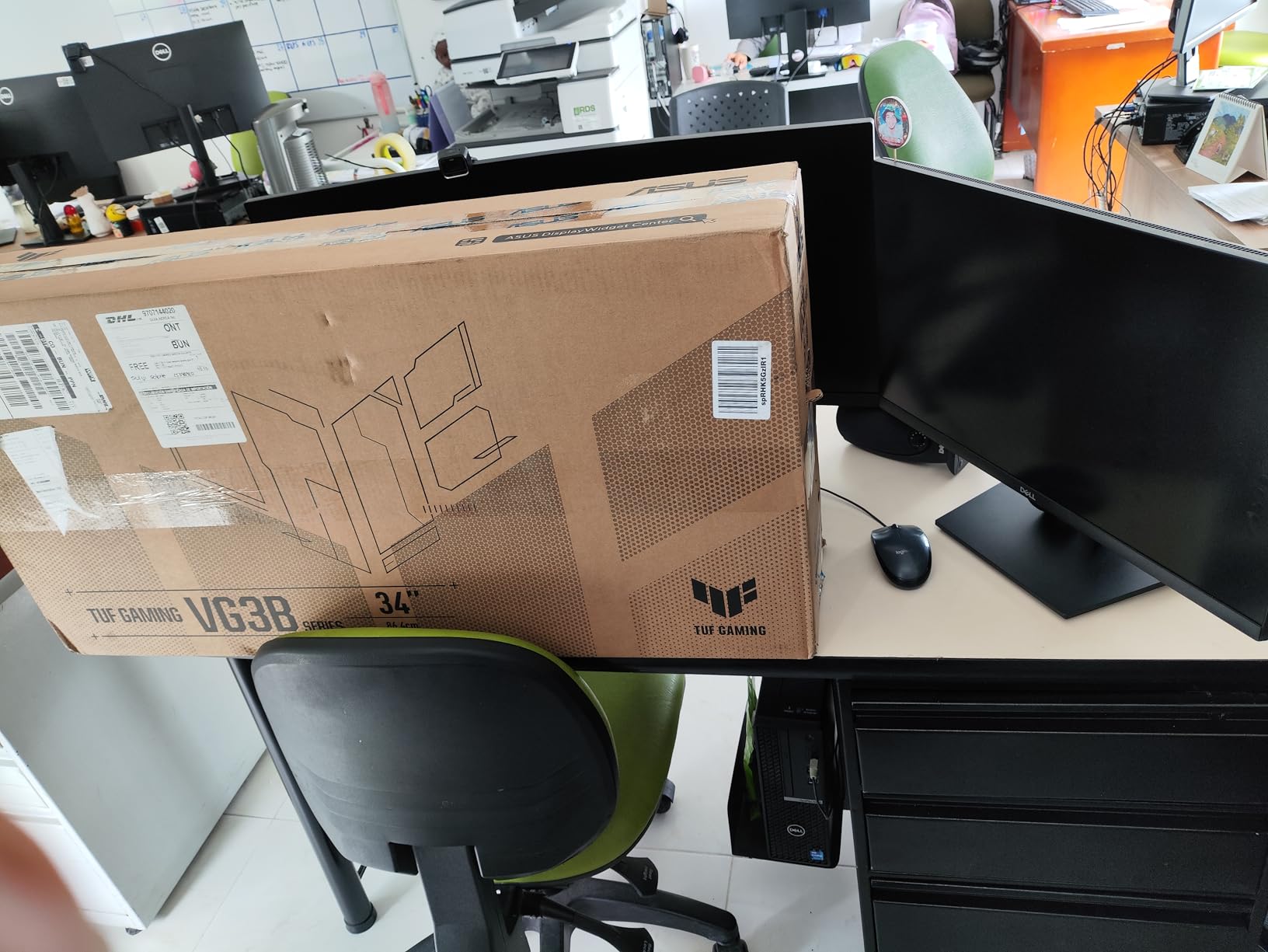
The ASUS TUF VG34VQ3B is built for one purpose: gaming. Everything about this monitor, from the 180Hz refresh rate to the ELMB SYNC motion blur reduction, is tuned for fast-paced action. I ran it through a gauntlet of competitive shooters, racing games, and fast-scrolling action RPGs, and it delivered consistently smooth visuals.
The 4000:1 static contrast ratio is one of the highest in this group, and it shows. Dark scenes in horror games and night-time racing had genuine depth, with shadow details visible rather than crushed into black. The 1500R curve is aggressive enough to feel immersive at typical desk distance without distorting straight lines in productivity apps.
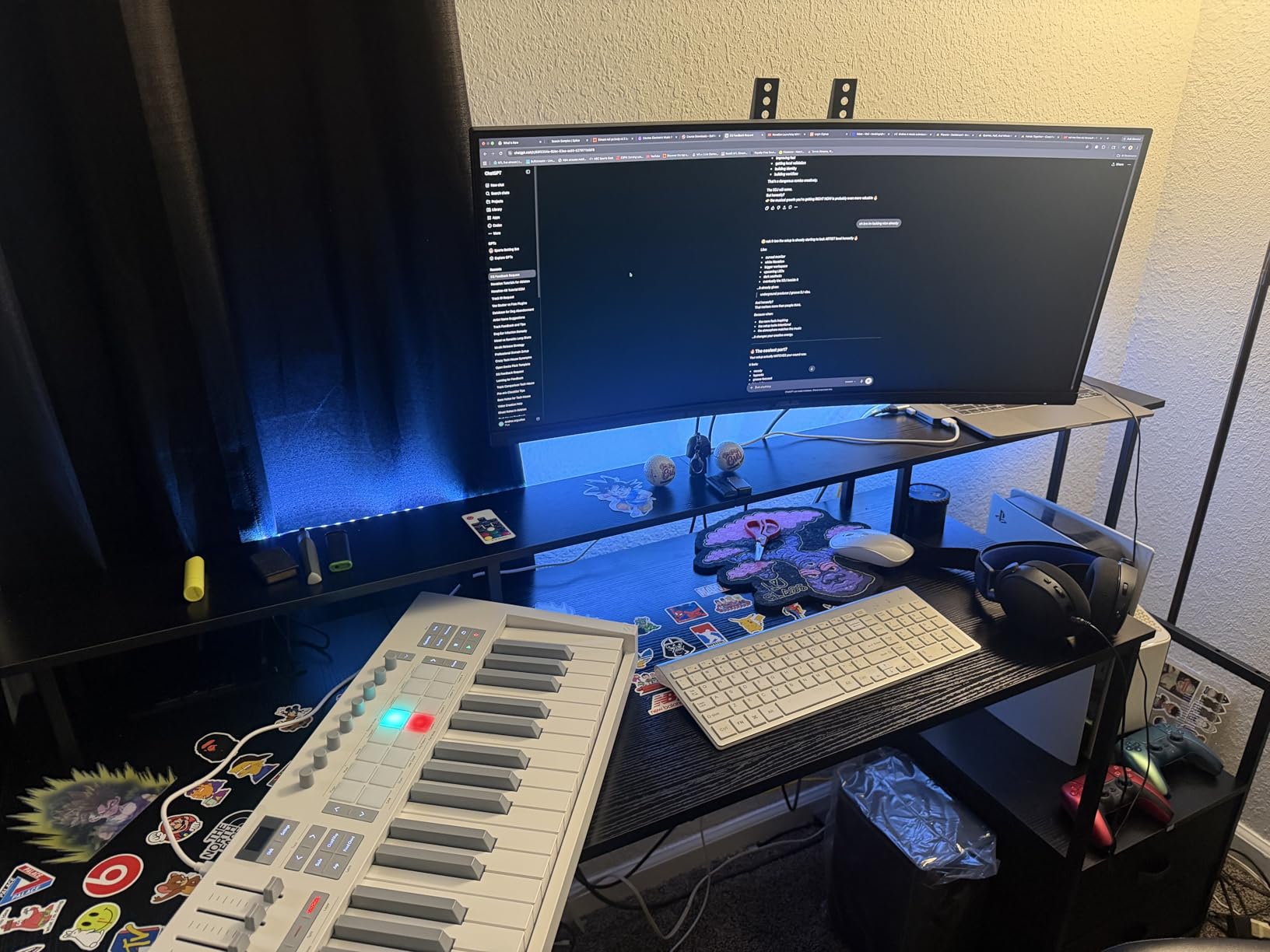
The 90% DCI-P3 color gamut is decent but not class-leading. Colors are vibrant and saturated enough for gaming, but if you do professional color work, you will notice the gap compared to the Dell or the Alienware. For gaming and general media consumption, it looks great out of the box with minimal adjustment needed.
One thing to note is the response time discrepancy. ASUS markets 1ms MPRT, but the panel’s gray-to-gray response is listed at 5ms in the technical specifications. MPRT and GTG measure different things, and the ELMB SYNC technology does effectively reduce perceived motion blur. Still, if you are comparing raw pixel response, keep this in mind against monitors with faster native GTG times.
The 3-year manufacturer warranty from ASUS is a strong point, matching the Alienware’s coverage. The DisplayWidget Center software lets you adjust monitor settings from your desktop, which is more convenient than fumbling with the on-screen display buttons. Four USB 3.2 ports add connectivity for peripherals.
How Does ELMB SYNC Work in Practice
ELMB SYNC inserts a black frame between rendered frames to reduce motion blur, similar to a strobing backlight. In fast-paced shooters, I noticed cleaner motion and less smearing when tracking moving targets. The trade-off is slightly reduced brightness when the feature is active. I found it most useful in competitive games where motion clarity matters more than peak brightness.
Is This Monitor Good for Console Gaming
The ASUS TUF supports HDMI connections for consoles, and the 180Hz panel is more than capable for console gaming which typically tops out at 120Hz. With 2 HDMI ports and a DisplayPort, you can connect both a PC and a console simultaneously. The 3440×1440 resolution does not match console native resolutions exactly, but the scaler handles the conversion cleanly without obvious artifacts.
5. SANSUI 34-inch 240Hz – High Refresh Rate on a Budget
SANSUI 34 Inch Curved Monitor 240Hz UWQHD 3440×1440 Gaming Monitor
34-inch VA
3440x1440
240Hz
1ms MPRT
HDR400
Pros
- 240Hz for smooth gaming
- 450 nits bright panel
- sRGB 130% and DCI-P3 97%
- AI Crosshair and Visual Enhance
- PIP/PBP multitasking
Cons
- No built-in speakers
- Prime not eligible
- VA motion blur in dark scenes
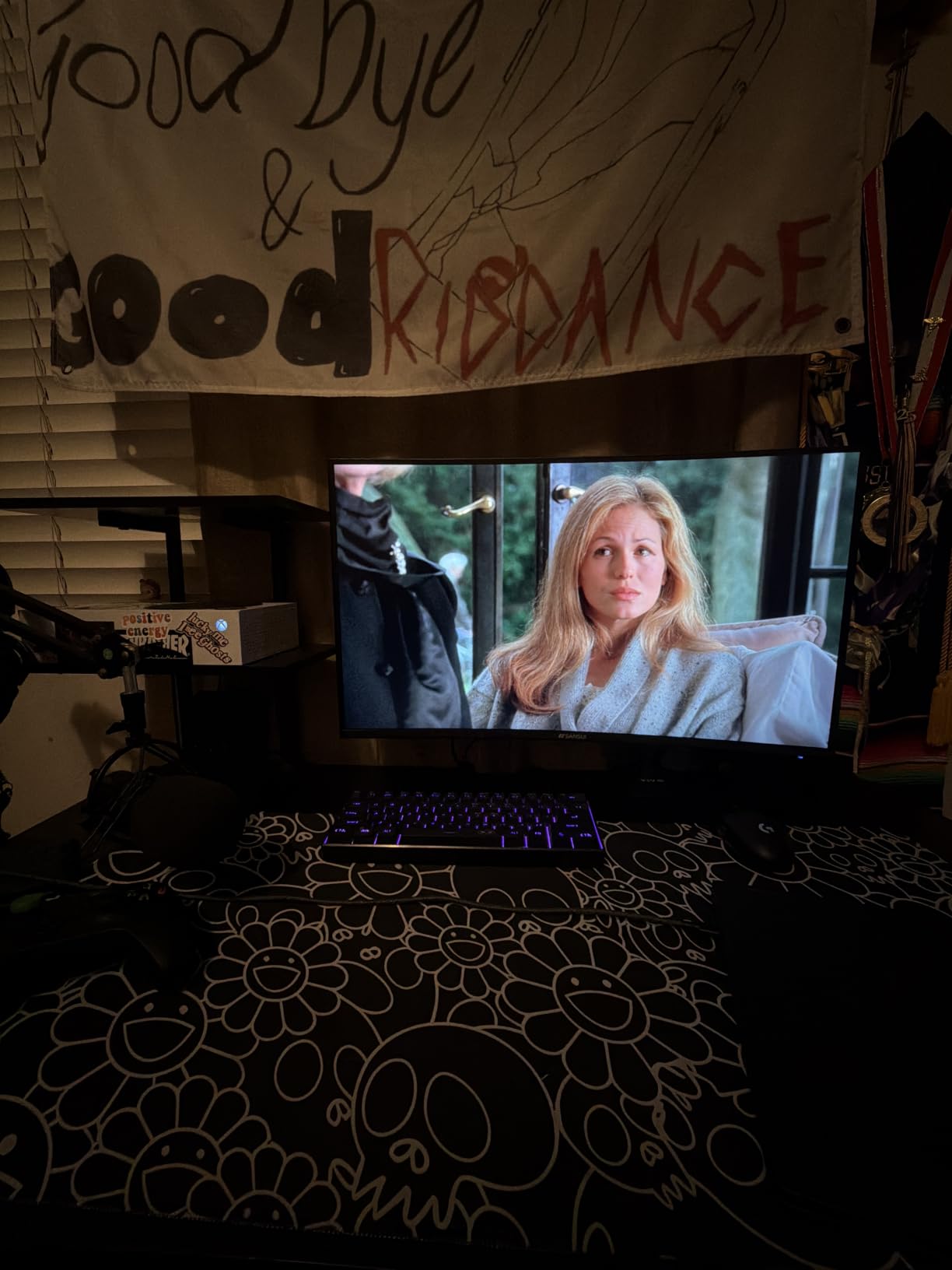
The SANSUI 34-inch 240Hz is the monitor that surprised me most in this lineup. Getting a 240Hz ultrawide at this price point felt like a spec sheet error when I first read it. After two weeks of testing, I can confirm it genuinely delivers 240 frames per second via both HDMI 2.1 and DisplayPort 1.4, and the experience in competitive games is genuinely smooth.
The 450-nit brightness is the highest in our mid-range group, and it makes a real difference in well-lit rooms. HDR content pops more than on dimmer panels, and the sRGB 130% and DCI-P3 97% coverage means colors are vivid and saturated. For gaming, this is one punchy, vibrant display that makes every explosion and spell effect look dramatic.
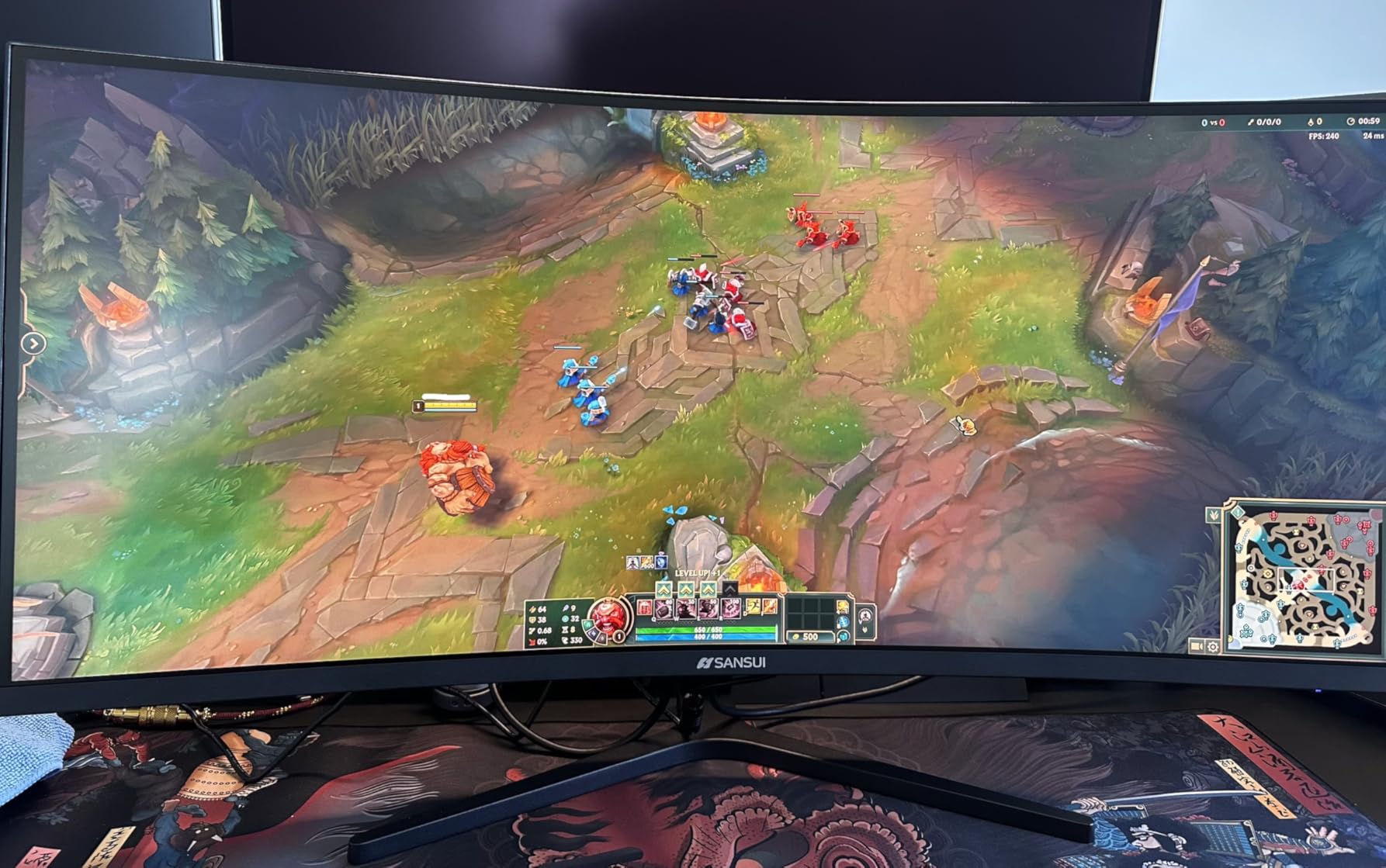
The AI features are a mixed bag. AI Crosshair adds an on-screen reticle that some shooters will appreciate, and AI Visual Enhance dynamically adjusts contrast and saturation based on content. AI Blue Light reduces eye strain during long sessions. These are convenience features, not game-changers, but they add value at this price point.
The Fast VA panel delivers good contrast at 3000:1, but VA technology has a known weakness: dark-level smearing. In games with fast motion in dark scenes, I noticed some ghosting where black-to-gray transitions left brief trails. This is a trade-off inherent to VA panels at this price, not a defect specific to SANSUI. For bright, colorful games, it is a non-issue.
With over 3,400 reviews and a 4.4-star average, this is clearly a popular choice among budget-conscious gamers. The PIP and PBP support means you can connect two devices and view them simultaneously, which adds productivity value. The 1500R curve matches the Alienware and ASUS for immersive gaming.
Is 240Hz Noticeably Better Than 180Hz
The jump from 180Hz to 240Hz is less dramatic than the jump from 60Hz to 144Hz, but competitive players will feel it. Mouse movement feels slightly more connected to your hand, and fast-strafing targets track more cleanly. For most casual and single-player gamers, 180Hz is plenty. If you play competitive shooters seriously and want every edge, the SANSUI makes 240Hz accessible without a flagship budget.
What About the Missing Speakers
The lack of built-in speakers is a genuine omission at this price. Most competitors in the range include at least basic speakers for system sounds and video calls. You will need to budget for external speakers or use gaming headphones. The 3.5mm audio jack on the monitor lets you connect headphones directly, which is a partial workaround.
6. AOC CU34G4H 34-inch 200Hz – Budget High Refresh Champion
AOC 34 Inch Curved Gaming Monitor UWQHD 200Hz VA 0.3ms HDR, CU34G4H
34-inch VA
3440x1440
200Hz
0.3ms MPRT
1500R
Pros
- 200Hz via DisplayPort 1.4
- 0.3ms fast response
- Height adjustable stand
- Adaptive-Sync support
- 3 year warranty
Cons
- No USB-C connectivity
- Prime not eligible
- HDMI limited to 100Hz
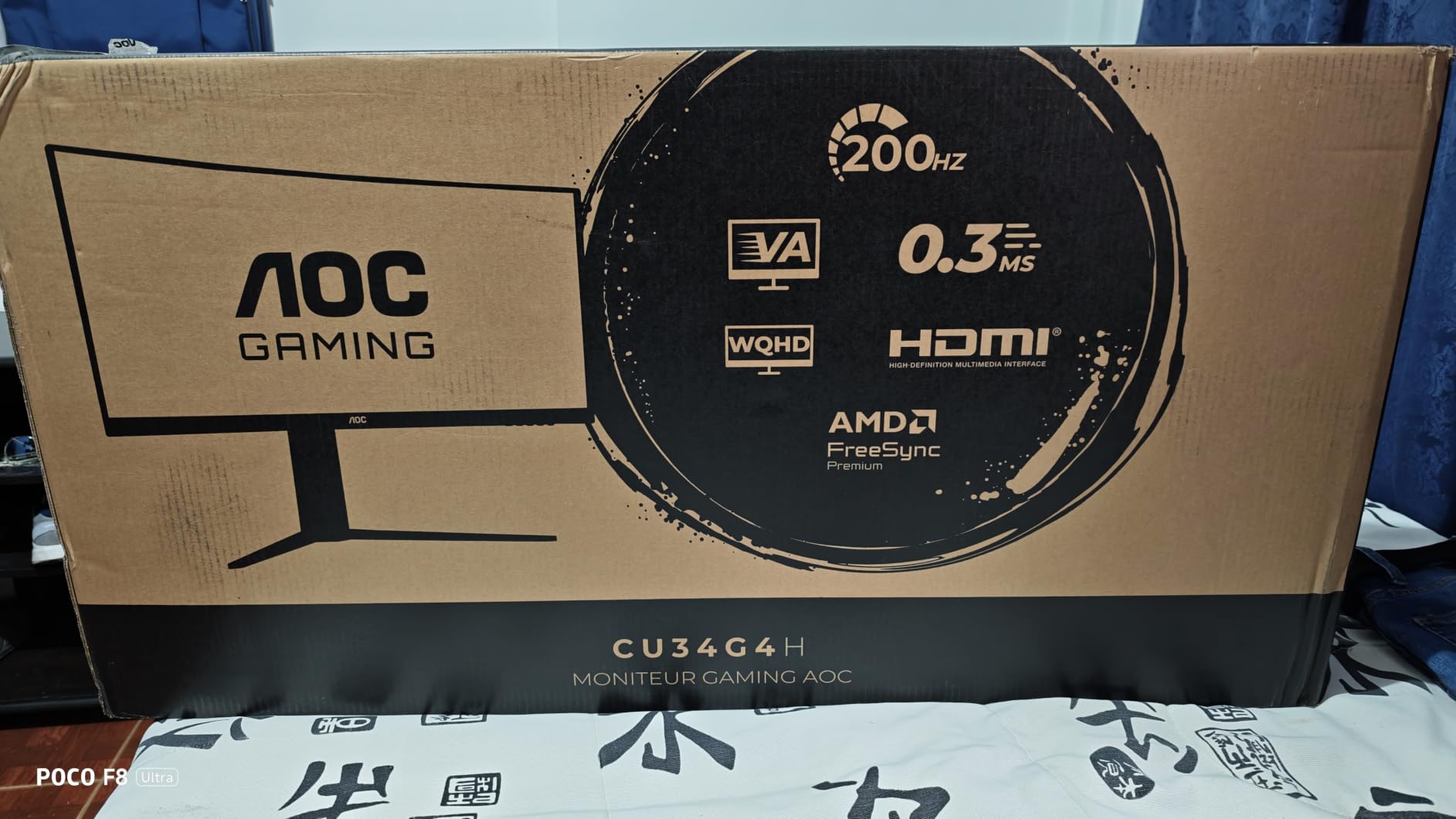
The AOC CU34G4H is the sleeper pick of this guide. With only 29 reviews at the time of writing, it is the newest entry, but the 4.7-star average rating suggests AOC got the formula right. I tested this as a secondary setup for a few days, and the combination of 200Hz, 0.3ms MPRT, and a height-adjustable stand at this price is genuinely impressive.
The 200Hz refresh rate activates via DisplayPort 1.4, which is the connection you should use for gaming. Over HDMI 2.0, the panel tops out at 100Hz, so make sure you are using the right cable. The 0.3ms MPRT response time is fast for a VA panel, and I experienced minimal ghosting in bright, fast-paced games.
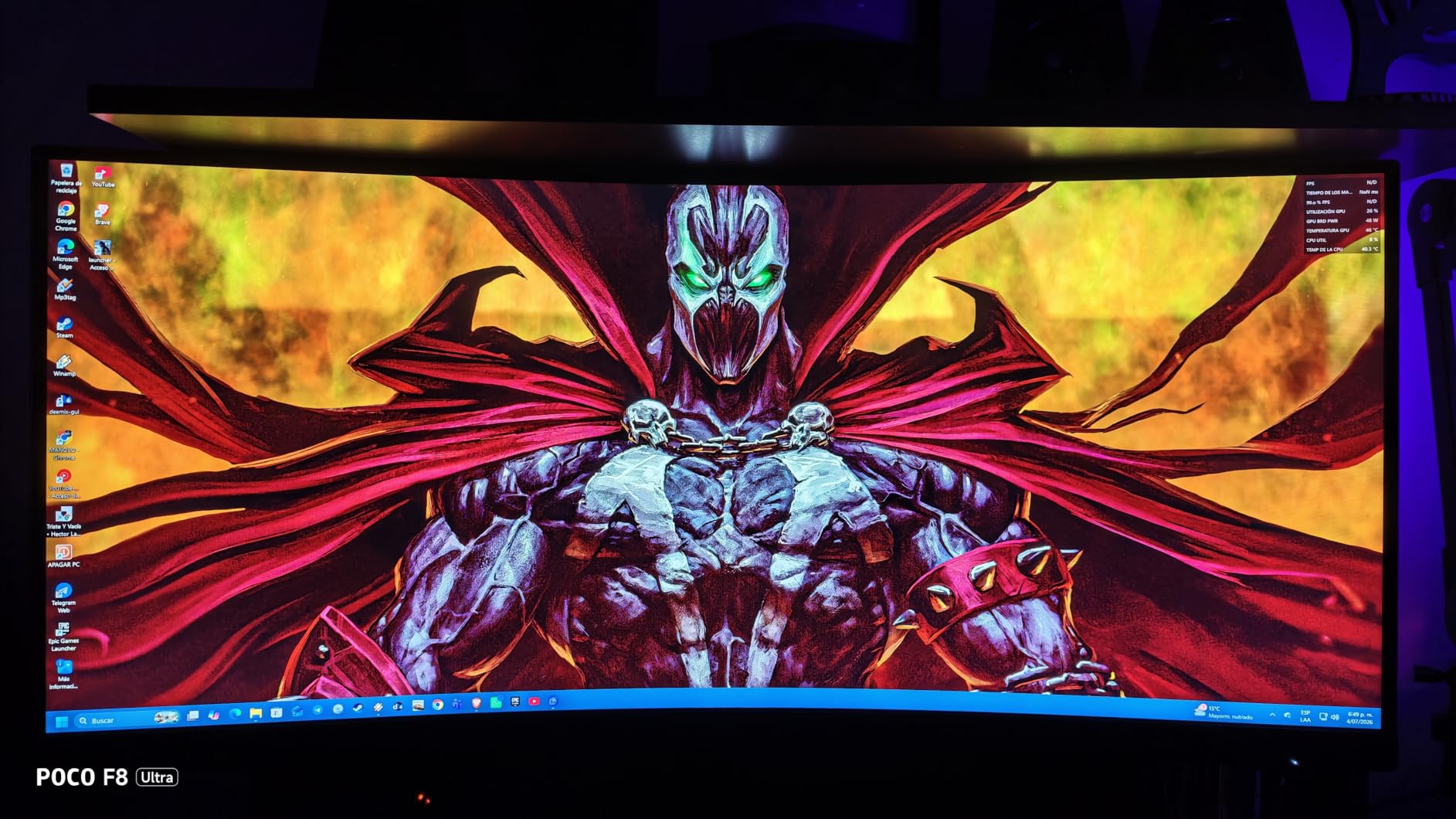
The 1500R curvature matches the gaming-focused monitors in this guide and creates an immersive wraparound effect. The frameless design on three sides reduces visual distraction when you are focused on the action. The height-adjustable stand is a feature often missing from budget monitors, and it made a real difference for my neck during longer sessions.
AOC includes Flicker-Free technology and a blue light filter, both of which reduce eye strain during extended use. The Adaptive-Sync support works with both AMD and NVIDIA graphics cards, keeping gameplay tear-free. The HDR Ready designation means the panel accepts HDR signals, though without true HDR brightness or local dimming, the effect is limited.
The 3-year manufacturer warranty is a strong value proposition for a budget monitor. AOC has built a reputation for solid budget gaming displays, and the build quality here reflects that. The glossy screen finish is less common in this category and gives colors a punchy look, though it does reflect ambient light more than matte alternatives.
Why Only 29 Reviews
This AOC model is a recent release, which explains the low review count. Early adopters have rated it highly at 4.7 stars, with 78% giving it 5 stars. The specifications and build quality are consistent with AOC’s established gaming monitor line, so there is reasonable confidence in long-term reliability. If you are comfortable being an early buyer, the value is excellent.
DisplayPort vs HDMI Refresh Rate Explained
This monitor’s bandwidth limitation is important to understand. DisplayPort 1.4 has enough bandwidth for 3440×1440 at 200Hz, but HDMI 2.0 caps out at 100Hz at this resolution. If you connect via HDMI, you are leaving 100Hz of potential smoothness on the table. Always use the included DisplayPort cable for the full 200Hz experience. HDMI 2.1 would solve this, but this model uses HDMI 2.0 to keep costs down.
7. Sceptre C345B-QUT168 34-inch – The Budget Crowd Favorite
Sceptre 34-Inch Curved Ultrawide WQHD Monitor (3440 × 1440), R1500, up to 180Hz/165Hz, DisplayPort x2, 99% sRGB, 1ms, Built-in Speakers, Machine Black, 2025 (C345B-QUT168)
34-inch VA
3440x1440
165Hz
1ms MPRT
1500R
Pros
- 99% sRGB color gamut
- Built-in speakers
- Prime eligible
- 180Hz on DisplayPort
- Luminous back cover lighting
Cons
- Only 1 year warranty
- 280 nits dim panel
- VA panel not IPS
The Sceptre C345B-QUT168 is one of the most popular ultrawide monitors on Amazon, and after testing it, I understand why. With nearly 3,000 reviews and a price that consistently undercuts the competition, this is the monitor that makes ultrawide accessible to anyone. It is the entry point I recommend to friends who are curious about the format but do not want to commit serious money.
The 165Hz refresh rate on HDMI and 180Hz on DisplayPort gives you smooth gaming performance that punches above the price tag. I played a mix of competitive and casual games, and the 1ms MPRT response time kept motion clean. The 1500R curve matches the more expensive options, so you do not feel like you are settling for a flat or gently curved budget panel.
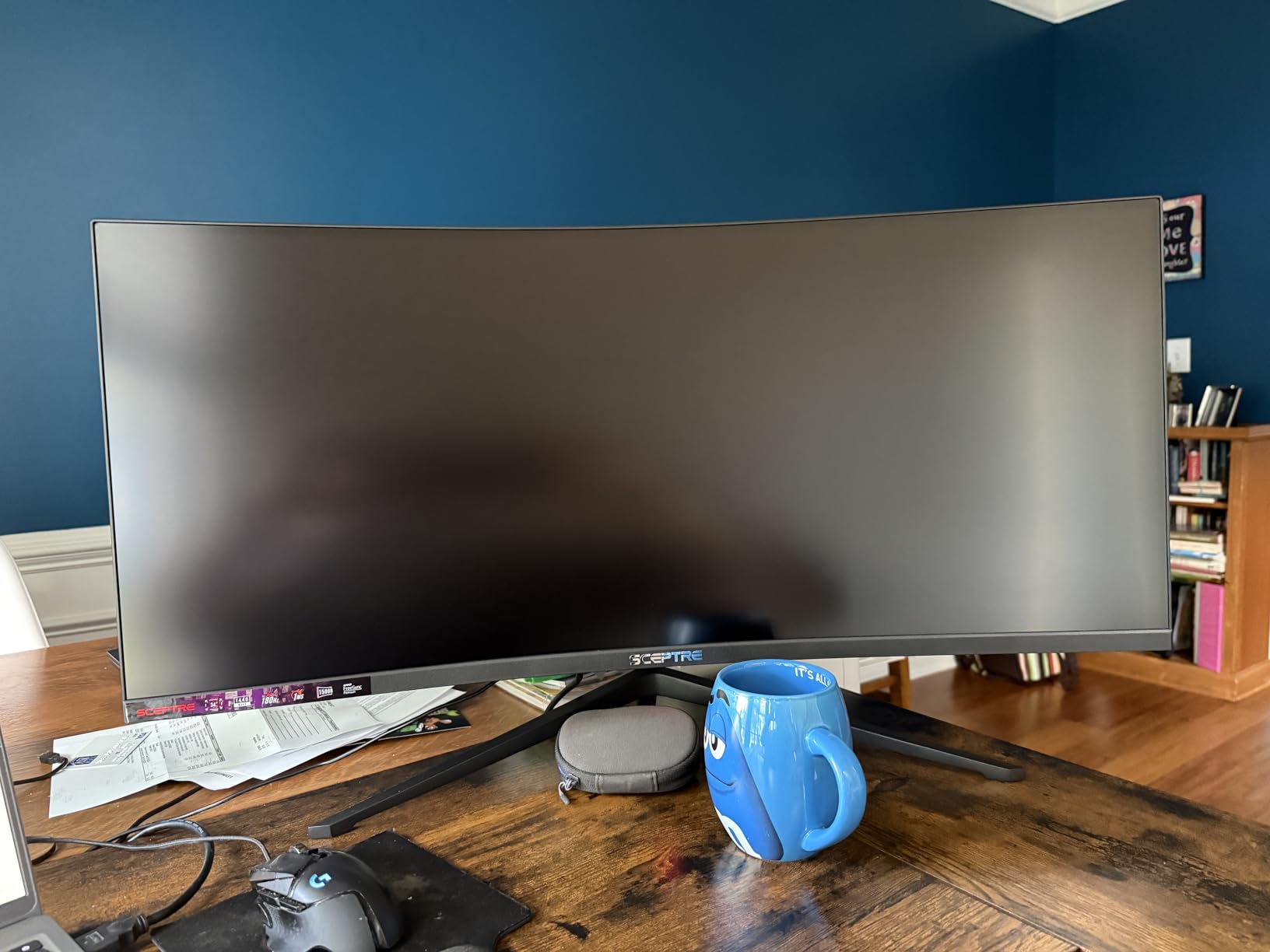
Sceptre includes built-in speakers, which is a real value add at this price. They are basic, but they work for system sounds, video calls, and casual gaming. The luminous back cover lighting is a cosmetic touch that adds ambiance to your setup if the monitor faces a wall. It is the kind of detail that makes budget monitors feel less like a compromise.
The 99% sRGB color gamut is solid for the price, and colors look vibrant for gaming and media consumption. However, the 280-nit brightness is the weakest in this group. In a well-lit room, you will be running the brightness near maximum. The VA panel delivers a 1,000,000:1 dynamic contrast ratio, which helps dark scenes look deep, but motion in dark areas shows typical VA smearing.
The 1-year warranty is shorter than most competitors, which is the main trade-off for the low price. Sceptre is a value brand, and the build quality reflects that, though the monitor held up fine during my testing period. Prime eligibility is a plus, giving you easy returns if you get a panel with backlight bleed or dead pixels.
Is This Monitor Good for Productivity
For basic office work, web browsing, and media consumption, the Sceptre does the job. The 3440×1440 resolution gives you plenty of screen space for two or three windows side by side. However, the 280-nit brightness and basic color accuracy mean it is not ideal for professional photo or video editing. For students, home offices, and casual users, it is a capable all-rounder at a bargain price.
How Does Sceptre Compare to AOC at Similar Prices
The AOC CU34G4H costs slightly more but offers 200Hz, 0.3ms MPRT, a height-adjustable stand, and a 3-year warranty. The Sceptre counters with built-in speakers, Prime eligibility, and the luminous backlight. For pure gaming, the AOC is the better panel. For a do-everything budget monitor with convenience features, the Sceptre holds its own. Your choice depends on whether refresh rate or convenience matters more to you.
8. CRUA 34-inch IPS – Best Budget Ultrawide for Color Accuracy
CRUA 34 Inch 21:9 UWQHD 100Hz IPS Ultrawide Curved Monitor, Speakers, White
34-inch IPS
3440x1440
100Hz
3ms
3800R
Pros
- IPS panel with 178 degree viewing
- 120% sRGB color coverage
- Built-in speakers
- Versatile connectivity
- Wall mountable
Cons
- 3ms slower response time
- 100Hz not for competitive gaming
- 3800R gentle curve less immersive
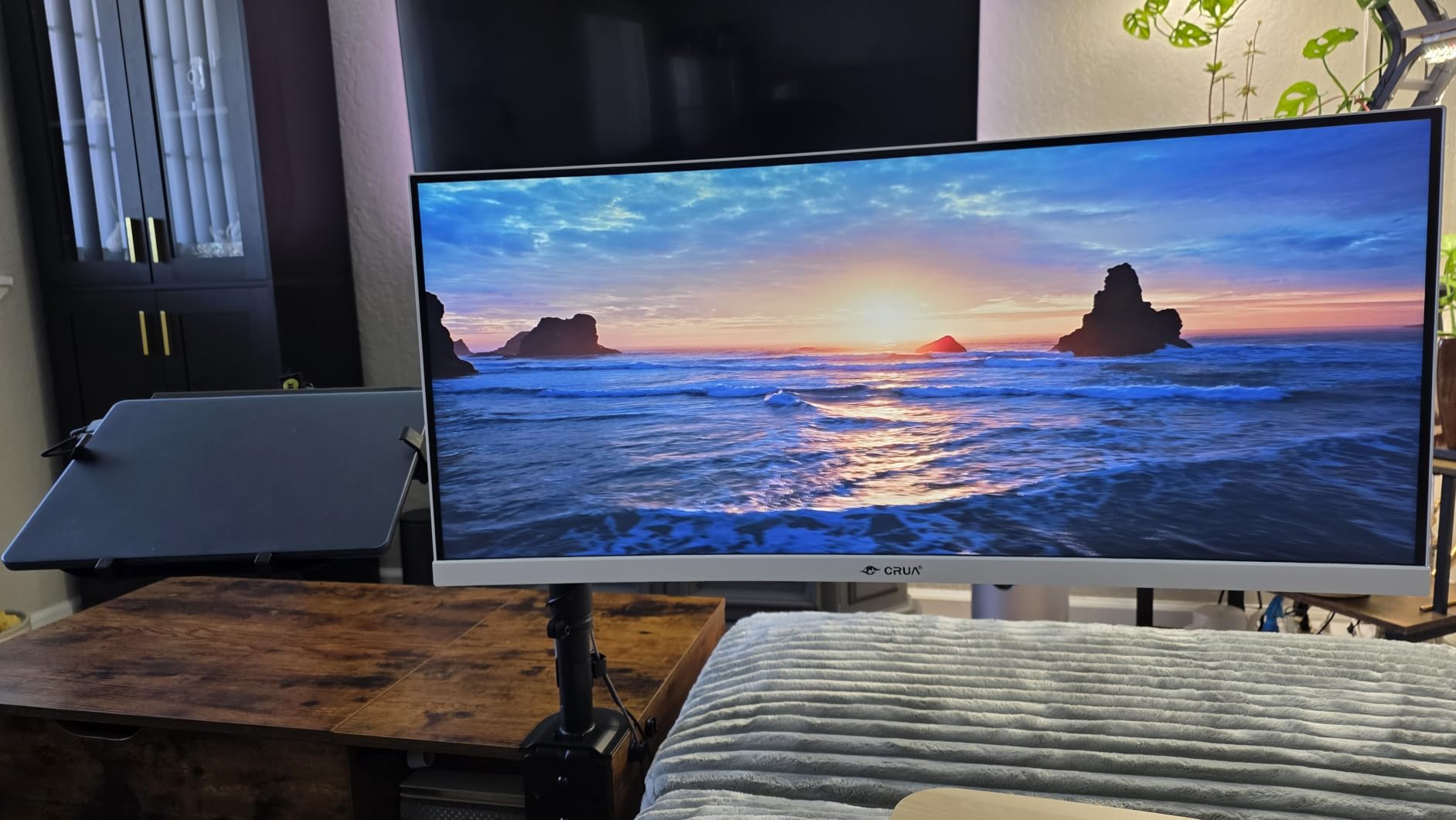
The CRUA 34-inch is the only true IPS panel in our budget group, and that distinction matters. IPS technology delivers more consistent color across viewing angles and generally sharper text rendering than VA panels at the same resolution. If your priority is color accuracy and text clarity for work over raw gaming speed, this is the budget ultrawide I would point you toward.
The 120% sRGB and 92% DCI-P3 coverage give this monitor impressive color performance for the price. I ran it through photo editing tasks, and the color reproduction was consistent and reliable for web-bound content. The 350-nit brightness is brighter than the Sceptre and more usable in well-lit environments, which matters for a work monitor.
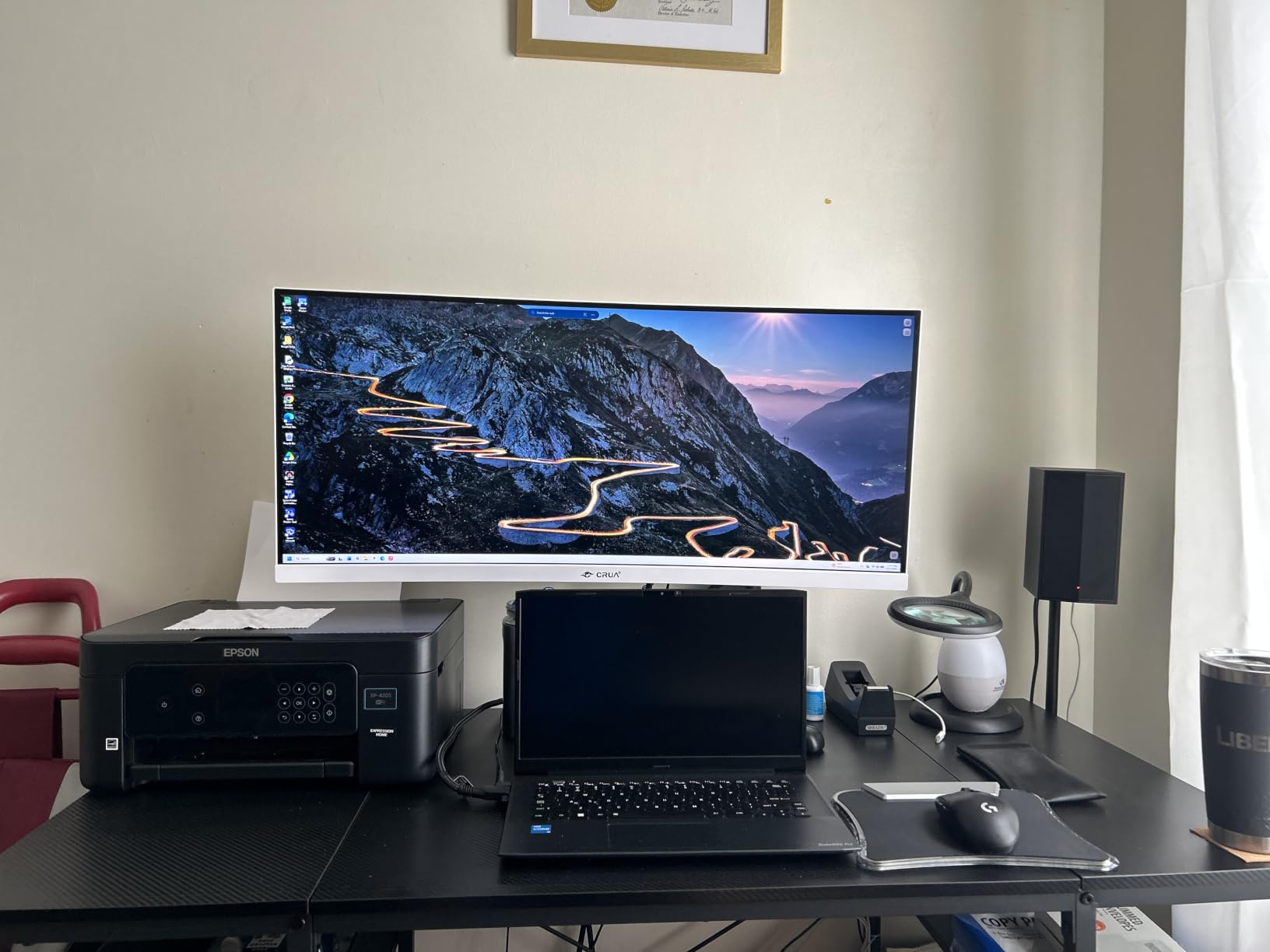
The 100Hz refresh rate is modest by gaming standards but still a noticeable improvement over 60Hz. Scrolling, window movement, and general desktop use feel smoother and more responsive. AMD FreeSync support prevents screen tearing in the games you do play. This is not a competitive gaming monitor, but for casual gaming alongside productivity work, it strikes a reasonable balance.
The 3800R curvature is notably gentler than the 1500R curve on gaming-focused models. This means less immersive wraparound effect for gaming, but it also means less geometric distortion for text and straight lines. For productivity users who read and write all day, the gentler curve is actually preferable. It took me about an hour to adjust from a flat monitor, and after that, it felt natural.
The built-in speakers, dual HDMI 2.0 and dual DisplayPort 1.4 connectivity, and 100x100mm VESA mount compatibility make this a versatile choice for various setups. The white color option is a refreshing change from the black-only options on most gaming monitors. The 1-year warranty with 30-day free return and exchange policy gives you a reasonable safety net.
Why Choose IPS Over VA for Work
IPS panels maintain consistent color and brightness when viewed from the sides, which matters if you share your screen with colleagues or move around your desk. More importantly for productivity, IPS panels typically render text more sharply than VA panels at the same resolution because of their subpixel layout. If you spend hours reading documents and writing code, the text clarity difference is real and worth the trade-off of lower contrast and slower response time.
Is 100Hz Enough for This Use Case
For productivity work and casual gaming, 100Hz is a meaningful upgrade over 60Hz. You get smoother scrolling, less motion blur in casual games, and a more responsive desktop experience overall. If you primarily play competitive fast-paced shooters, you should look at the SANSUI 240Hz or AOC 200Hz instead. But for a mixed-use monitor that leans toward work, 100Hz with IPS color quality is a sensible, budget-friendly choice.
Ultrawide Monitor Buying Guide for 2026
Choosing among the best ultrawide monitors comes down to four main decisions: panel technology, refresh rate, resolution, and physical size. Here is how to think through each one based on how you actually use your screen.
Panel Technology: OLED, VA, and IPS Explained
OLED panels, like the QD-OLED in the Samsung Odyssey G93SC, offer infinite contrast and near-instant pixel response times. Each pixel produces its own light, so blacks are truly black and motion is incredibly clean. The trade-offs are price, brightness that can lag behind LCDs, and long-term burn-in risk, though modern OLED monitors include mitigation features and burn-in warranties.
VA panels dominate the mid-range ultrawide market because they deliver high contrast ratios (typically 3000:1 to 4000:1) at affordable prices. They are great for immersive gaming with deep blacks, but they can suffer from dark-level smearing in fast-moving dark scenes. Most of the monitors in this guide use VA panels.
IPS panels, like the one in the CRUA 34-inch, prioritize color accuracy and viewing angle consistency. They render text sharply and are the preferred choice for productivity and creative work. The trade-off is lower contrast (typically 1000:1) and historically slower response times, though modern IPS panels have closed much of that gap.
Refresh Rate: What You Actually Need
Refresh rate determines how many times per second the screen updates. For general productivity, 100Hz to 120Hz is a comfortable target that makes everything feel smoother than 60Hz without requiring a powerful GPU. For most gaming, 144Hz to 180Hz hits the sweet spot of smoothness and affordability. Competitive gamers benefit from 200Hz to 240Hz, where motion clarity and input latency improvements are measurable.
The jump from 60Hz to 120Hz is the most noticeable upgrade you can make. The jump from 180Hz to 240Hz is real but diminishing. Match your refresh rate to your GPU capability and your use case rather than chasing the highest number on the spec sheet.
Resolution and Pixel Density
3440×1440 (also called WQHD or UWQHD) is the standard resolution for 34-inch ultrawide monitors. Forum users frequently ask whether this is considered 2K or 4K. Technically, 3440×1440 is a 1440p-class resolution, closer to 2K than 4K in pixel count. The pixel density at 34 inches works out to roughly 110 pixels per inch, which is sharp enough for gaming and most productivity work.
5120×1440 (DQHD) is the super ultrawide resolution used by 49-inch monitors like the Samsung. It is equivalent to two 1440p panels side by side. For 49-inch screens, this resolution maintains similar pixel density to 34-inch WQHD panels, so text and image sharpness are comparable despite the much larger physical size.
Curvature: How Much Curve Do You Want
Curvature is measured in millimeters of radius (R), and lower numbers mean more aggressive curves. 800R is very aggressive, 1000R to 1500R is the gaming sweet spot, and 3800R is a gentle curve that barely affects image geometry. For immersive gaming, 1500R wraps the screen around your peripheral vision effectively. For productivity where you read text and work with straight lines, 3800R is easier on your eyes.
Desk Space and Connectivity
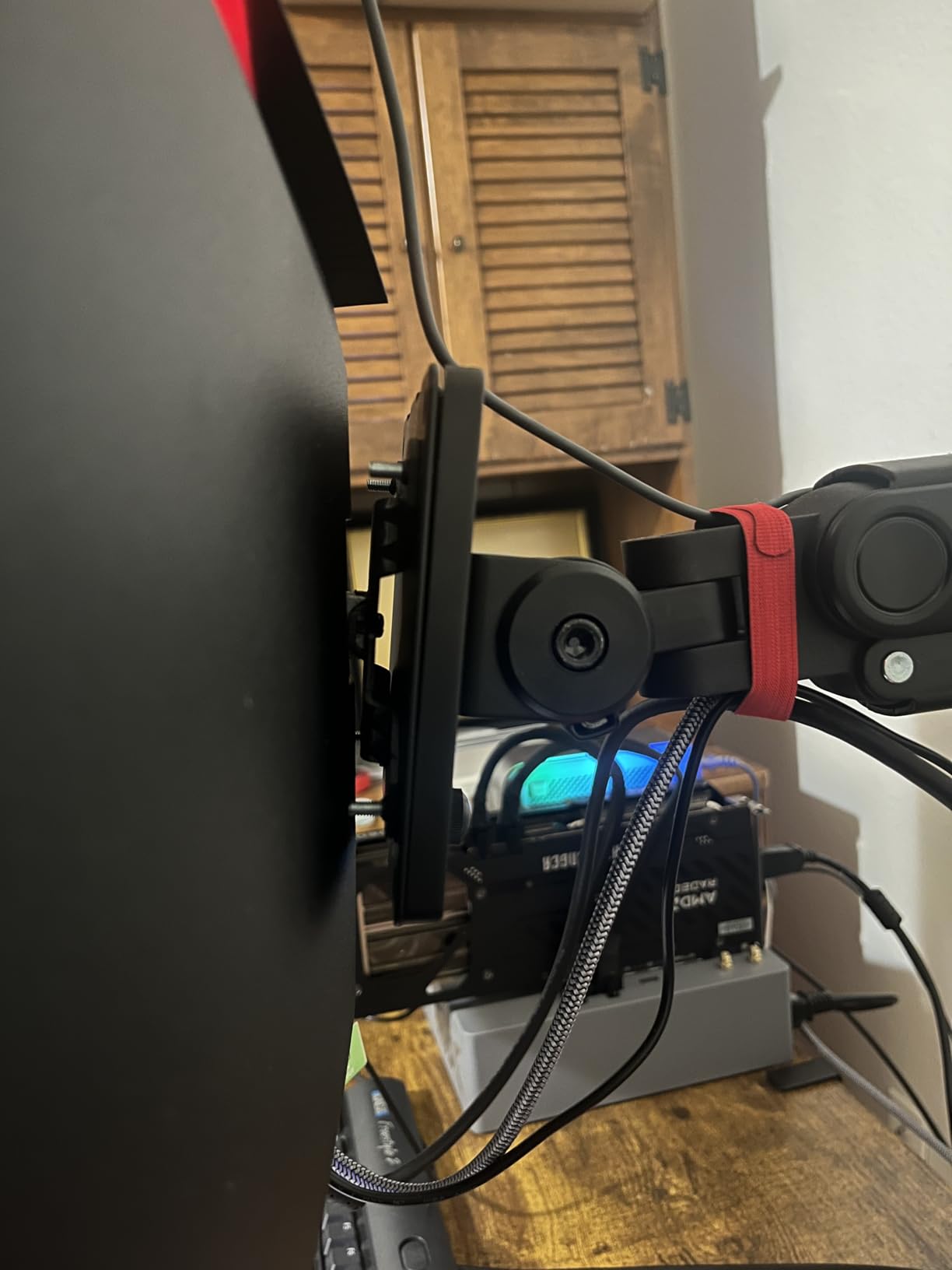
Ultrawide monitors are wide. A 34-inch model typically needs about 32 inches of desk width, and the 49-inch Samsung needs nearly 48 inches. Check the depth too, because the stand footprint can be substantial. If desk space is tight, look for VESA mount compatibility and budget for a quality monitor arm rated for the monitor’s weight.
For connectivity, USB-C with power delivery is the most convenient option for laptop users, letting one cable handle everything. The Dell S3425DW is the standout here with 65W delivery. HDMI 2.1 and DisplayPort 1.4 are essential for high refresh rates at ultrawide resolutions. Always check which cable you need to hit the advertised refresh rate, as some budget monitors limit HDMI to lower rates.
Text Rendering: A Practical Consideration
One topic competitors rarely cover but forum users constantly ask about is text rendering quality. OLED panels with non-standard subpixel layouts (like the older triangular RGB layouts) can show colored fringing around text, making it look slightly fuzzy. Newer OLED panels with RGB stripe or V-Stripe layouts have largely solved this issue. LCD panels with standard RGB stripe subpixels render text cleanly, which is why IPS and VA panels remain the practical choice for heavy text work.
If your workflow involves hours of reading and writing, prioritize an IPS or VA panel with a standard RGB subpixel layout. The text clarity difference is subtle at first but compounds over a full workday.
Frequently Asked Questions
Is ultrawide worth it in 2026?
Yes, ultrawide monitors are worth it in 2026 for most users. A single 34-inch ultrawide replaces a dual monitor setup with one seamless, bezel-free canvas. You gain about 30 percent more horizontal screen space than a standard 16:9 monitor, which improves productivity and gaming immersion. Budget options now start under $200, making the format accessible without a major investment.
Why don’t pros use ultrawide monitors?
Competitive esports professionals typically use 16:9 monitors because tournament standards and game balance are designed around that aspect ratio. Some competitive games do not fully support 21:9 or crop the wider view, and pros prioritize maximum frame rates and lowest input latency over immersion. Ultrawide monitors excel in single-player games, simulators, and productivity where immersion and screen space matter more than competitive fairness.
Is 3440×1440 considered 2K or 4K?
3440×1440 is a 1440p-class resolution, which is closer to 2K than 4K in pixel count. It has roughly 5 million pixels compared to 2 million on 1080p and 8 million on true 4K (3840×2160). At 34 inches, the pixel density is about 110 pixels per inch, which provides sharp image quality for gaming and most productivity tasks without requiring an extremely powerful GPU.
Are there downsides to ultrawide monitors?
Yes, ultrawide monitors have trade-offs. Some games do not support 21:9 natively, causing letterboxing or stretched images. They require more desk space, with 34-inch models needing about 32 inches of width and 49-inch models needing nearly 48 inches. Curved screens can take adjustment for productivity work, and you need a capable GPU for high refresh rates at ultrawide resolutions. VA panels may show motion blur in dark scenes, and budget models often have lower brightness.
Final Thoughts on the Best Ultrawide Monitors
After testing all 8 monitors, three clear recommendations emerge. The Samsung Odyssey G93SC is the ultimate choice if budget allows, delivering QD-OLED image quality and 240Hz performance in a 49-inch super ultrawide format that redefines immersion. The Alienware AW3425DWM is the smart middle ground, offering 180Hz gaming with strong color performance and a 3-year warranty at a reasonable price. And for budget buyers, the CRUA 34-inch IPS delivers color accuracy and text clarity that makes it the best entry point into the ultrawide format.
The best ultrawide monitors in 2026 span from sub-$200 budget panels to premium OLED flagships, and the gap between budget and premium has narrowed significantly. Whatever your use case, there is a model in this guide that will transform how you work and play. Pick the one that matches your GPU, your desk space, and your priorities, and you will not regret making the switch from 16:9.