
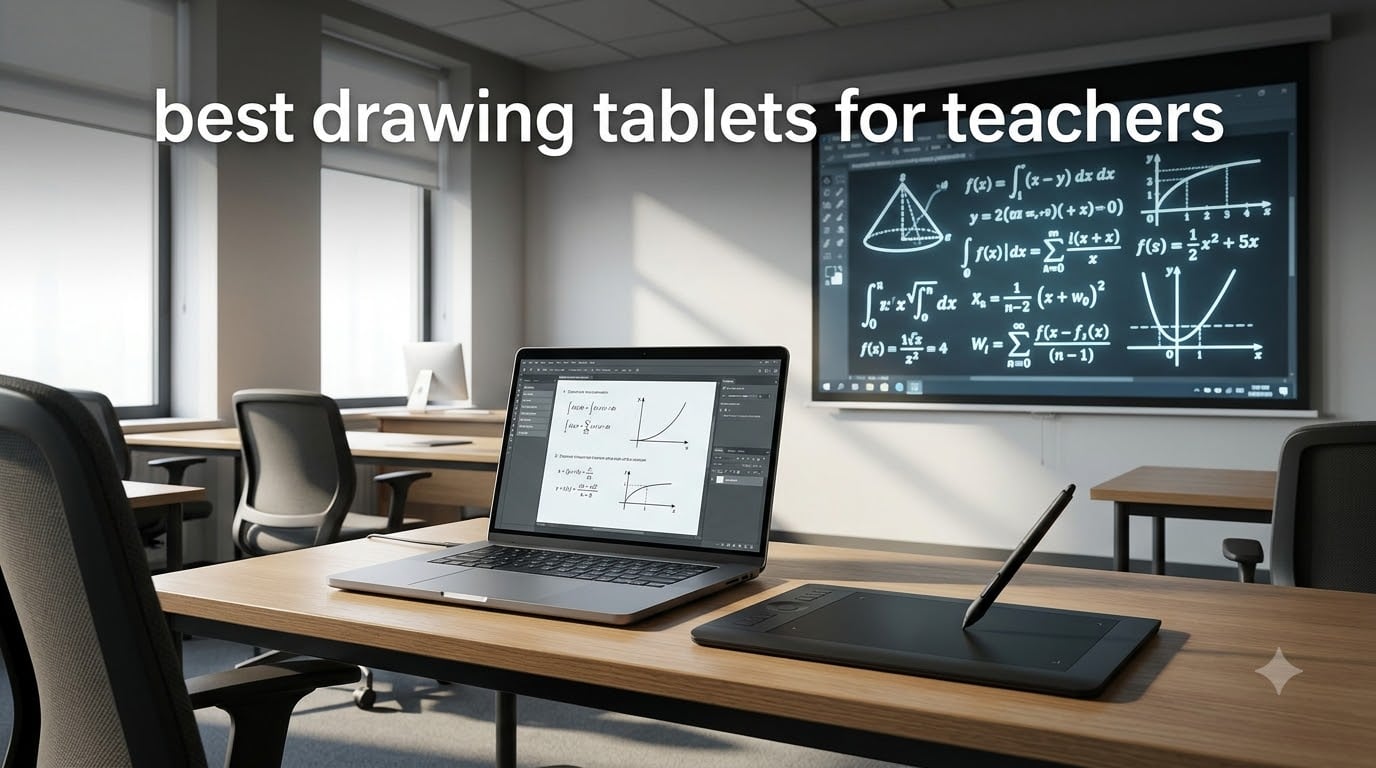
Teaching has changed. Whether you are standing in front of a classroom, recording lecture videos from home, or running a hybrid session with half your students on Zoom, the ability to write, draw, and annotate digitally has gone from nice-to-have to essential. That is exactly why we put together this guide to the best drawing tablets for teachers in 2026 — so you can stop scrolling through spec sheets and get back to lesson planning.
Our team spent weeks comparing 8 of the most popular pen tablets and pen displays across every price point, from under $40 budget picks to premium screen tablets. We focused on what actually matters in a classroom: ease of setup, compatibility with teaching software, pen feel during long annotation sessions, and durability for daily use.
The result is a lineup that covers everyone from the math teacher who just needs to work through equations on a shared screen, to the art instructor who wants true-to-life pressure sensitivity for demonstrating technique. We also paid close attention to what real teachers are saying on Reddit forums and in verified Amazon reviews, because no spec sheet tells you whether a tablet will still feel good after three straight hours of lectures.
Table of Contents
Top 3 Picks for Drawing Tablets for Teachers

Wacom Intuos Small
- Battery-free pen
- 4096 pressure levels
- Plug-and-play Chromebook
- 4 ExpressKeys


The Wacom Intuos Small takes our Editor’s Choice spot because it combines the most trusted name in pen technology with a price that fits a teacher’s budget. The XPPen Deco 01 V3 earns Best Value with a massive 10×6 inch work area and 16K pressure levels at a remarkably competitive price. And the HUION HS64 rounds things out as our Budget Pick for teachers who just need something simple and reliable for annotation.
Best Drawing Tablets for Teachers in 2026
| Product | Specifications | Action |
|---|---|---|
| Wacom Intuos Small |
|
Check Latest Price |
| XPPen Deco 01 V3 |
|
Check Latest Price |
| HUION HS64 |
|
Check Latest Price |
 Wacom Intuos Medium Bluetooth Wacom Intuos Medium Bluetooth |
|
Check Latest Price |
 XP-PEN Artist12 XP-PEN Artist12 |
|
Check Latest Price |
 XPPen Artist 13.3 Pro XPPen Artist 13.3 Pro |
|
Check Latest Price |
 Wacom One 14 Wacom One 14 |
|
Check Latest Price |
 reMarkable Paper Pure with Marker reMarkable Paper Pure with Marker |
|
Check Latest Price |
1. Wacom Intuos Small — Reliable Plug-and-Play Teaching Companion
Wacom Intuos Small, Wired Graphic Drawing Tablet with Pen + Software
Active Area: 6 x 3.7 inch
Pressure: 4096 Levels
Connection: USB-A
Weight: 8.1 oz
Pros
- Industry-leading battery-free pen technology
- Excellent pressure sensitivity with natural feel
- Includes creative software and training
- Easy plug-and-play setup
- Works with Chromebook
Cons
- Small active area may require adjustment
- Limited to USB connectivity
- No tilt support on this model
I have recommended the Wacom Intuos Small to more teachers than any other tablet on this list, and there is a simple reason for that. It just works. You plug it in, your computer recognizes it, and you are writing on your screen within minutes. For a teacher who has enough to worry about without troubleshooting driver issues before first period, that reliability is priceless.
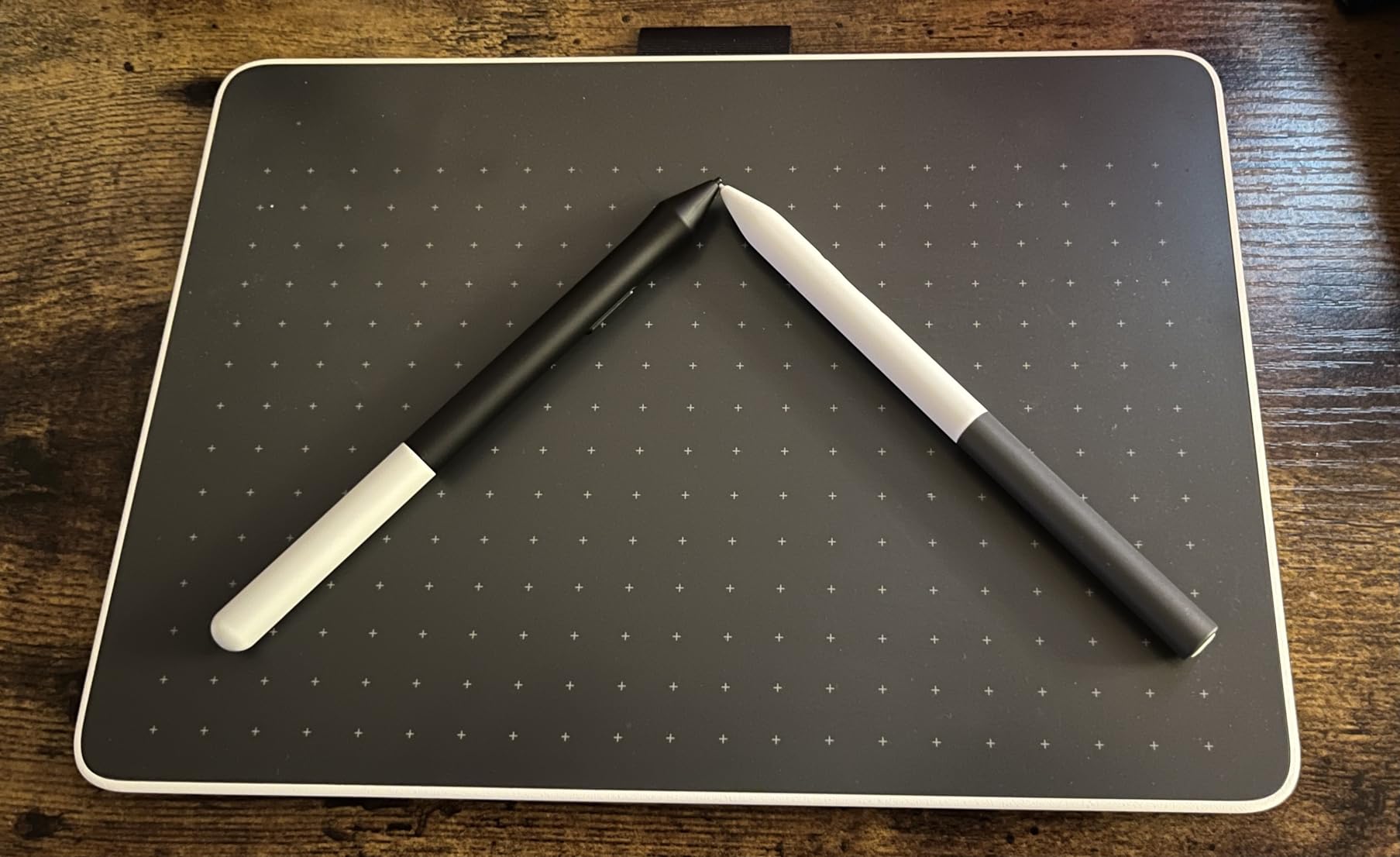
The 4096 pressure levels give you smooth, natural lines whether you are solving algebra equations or circling key points on a slide. Wacom’s EMR pen technology genuinely feels like pen on paper, which is something I notice especially during long grading or annotation sessions. At just 8.1 ounces, it is light enough to toss in your bag between classrooms.
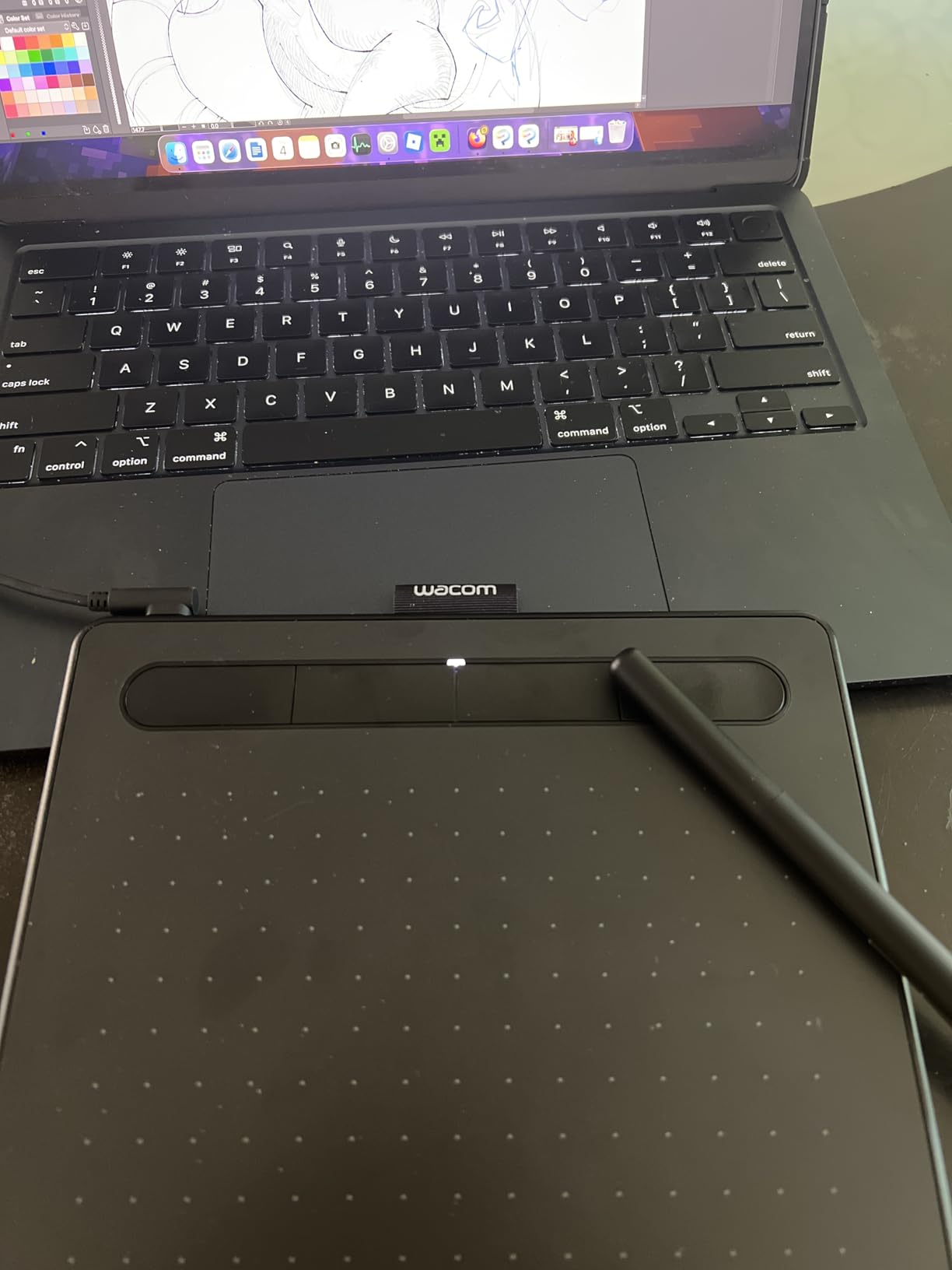
The included software bundle is a genuine bonus. You get creative apps and training materials that would cost extra on their own. For teachers exploring digital art instruction or wanting to record polished video tutorials, having those tools included removes one more barrier to getting started.
With over 23,000 reviews and a 4.6-star average, the Intuos Small has earned its reputation the hard way — through years of classroom and studio use. It ranks as the number one bestseller in Computer Graphics Tablets on Amazon, which tells you this is a proven, battle-tested choice.
Software Compatibility and Classroom Integration
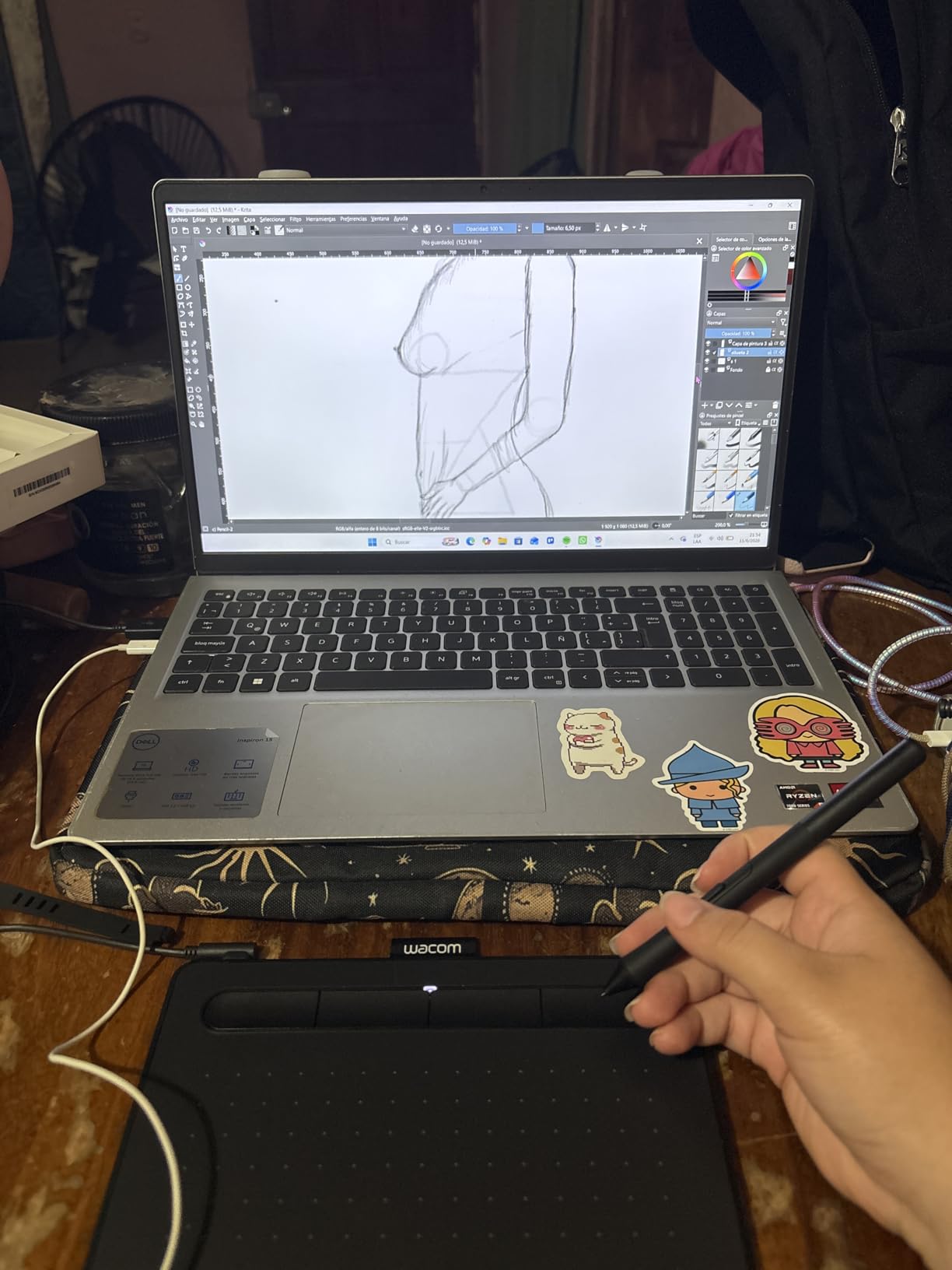
The Intuos Small works with every major teaching and creative platform, including Zoom whiteboard, Microsoft OneNote, Google Jamboard, and all Adobe Creative Cloud apps. The 4 ExpressKeys let you program shortcuts like erase, undo, or switch tools, so you can keep your teaching flow without reaching for your mouse. Chromebook plug-and-play support is a major plus for schools running Google-based ecosystems.
Long-Term Durability for Daily Use
Teachers on Reddit consistently report using Wacom Intuos tablets for 5 to 15 years without issues. The pen requires no charging, no batteries, and no replacement parts beyond occasional nibs. That kind of longevity matters when you are spending your own money on classroom tools and need something that will still be working next semester.
2. XPPen Deco 01 V3 — Big Work Area at a Teacher-Friendly Price
XPPen Deco 01 V3 10×6 Drawing Tablet, 16K Battery-Free Stylus, 8 Keys
Active Area: 10 x 6.25 inch
Pressure: 16384 Levels
Connection: USB-C and USB-A
Weight: 1000g
Pros
- Industry-leading 16K pressure sensitivity
- 60-degree tilt support
- Large 10x6.25 inch drawing area
- 8 customizable express keys
- Android device compatibility
- Ultra-thin 8mm portable design
Cons
- Some driver issues on older systems
- Pen may feel light to some users
- No wireless connectivity
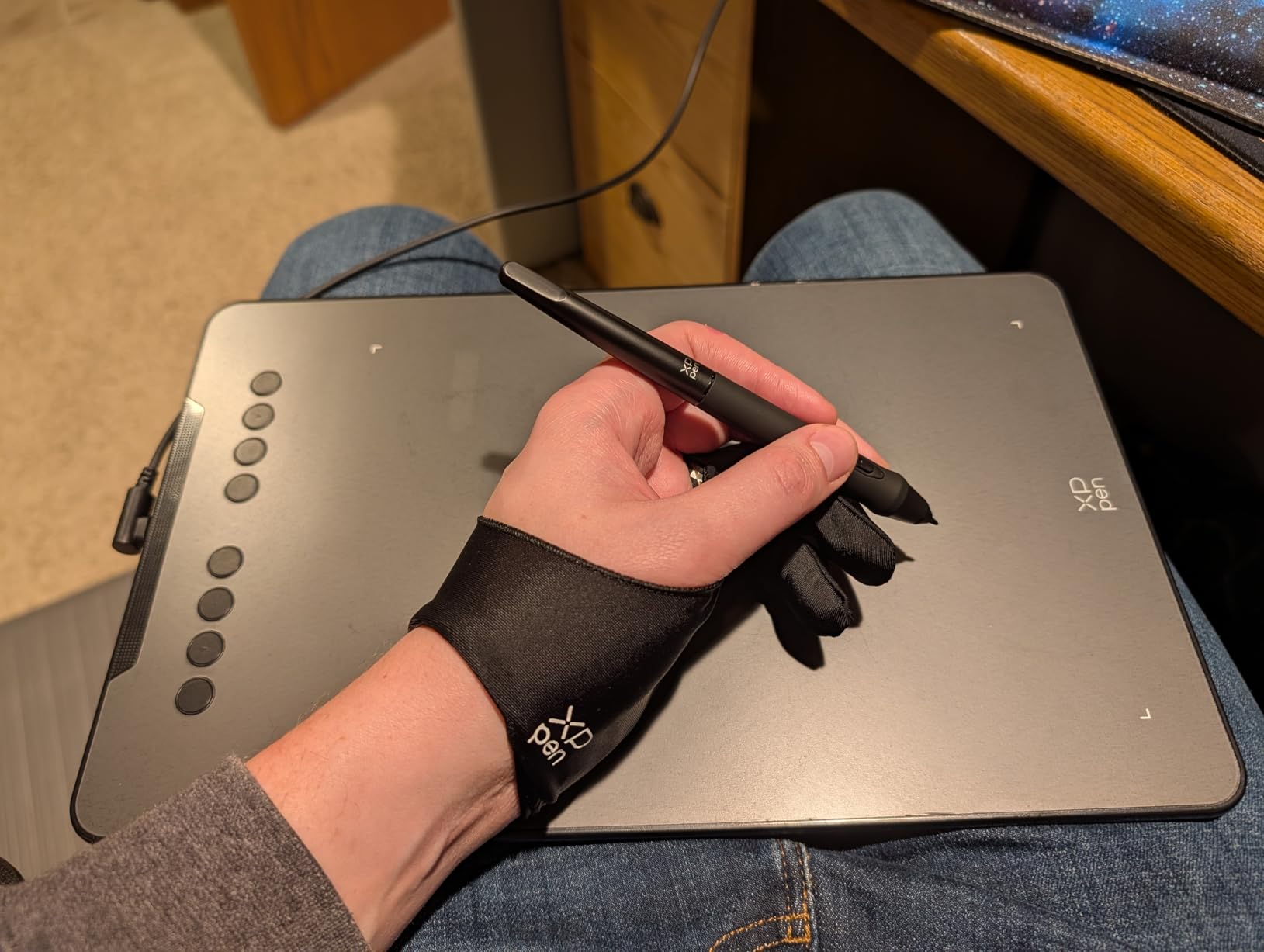
The first thing I noticed when testing the XPPen Deco 01 V3 was how much room it gives you. That 10 by 6.25 inch active area is nearly three times the size of the Wacom Intuos Small, and for teachers who like broad strokes or work with detailed diagrams, that extra space makes a real difference in comfort and precision.
The 16384 pressure levels sound like overkill on paper, but in practice it translates to buttery-smooth line transitions. Whether you are sketching a biology diagram or writing out long chemistry equations, the pen responds to every nuance of pressure. The 60-degree tilt support adds another dimension for shading and natural drawing angles.

Android compatibility is a standout feature that sets this tablet apart. If you teach from a phone or tablet in addition to your laptop, the Deco 01 V3 works with Android 10.0 and later devices through the XPPen Tools app. That flexibility is rare at this price point.
The 8 shortcut keys are ambidextrous, meaning left-handed teachers are not left out. The LED-lit active area border is a thoughtful touch for teachers working in dim lighting during video recordings or late-night lesson prep. At just 8mm thin, it slides easily into a laptop bag.
Driver Setup and Operating System Support
The Deco 01 V3 covers an impressive range of operating systems: Windows 7 and later, macOS 10.13 and later, Chrome OS 88 and later, Android 10.0 and later, and Linux. The included USB-C to USB-A adapter means it works with both modern and older computers. Some users on older Windows machines have reported driver hiccups, so I recommend downloading the latest drivers from XPPen’s website rather than relying on the included disc.
Value Proposition for Budget-Conscious Schools
For schools purchasing tablets in bulk or teachers buying on a limited budget, the Deco 01 V3 offers exceptional bang for your buck. You get a larger active area, higher pressure sensitivity, and tilt support than the Wacom Intuos Small, all at a similar price. The tradeoff is brand reputation and the occasional driver quirk, but for most teaching applications the value is hard to beat.
3. HUION HS64 — Compact Budget Tablet for Everyday Annotation
HUION HS64 OSU Drawing Tablet for Beginner
Active Area: 6.3 x 4 inch
Pressure: 8192 Levels
Connection: USB and USB-C
Weight: 4.8 oz
Pros
- Excellent value for price
- Android phone compatibility
- Responsive 8192 pressure levels
- Battery-free pen
- Ultra-slim and portable
- Ideal for online tutoring
Cons
- Pen can be fragile if dropped
- Small workspace may feel cramped
- Driver setup can be tricky on older systems
The HUION HS64 is the tablet I point teachers toward when they say they just need something basic for writing on slides and working through problems. At its price point, it is one of the most affordable entry points into digital teaching tools, and it does the fundamentals well enough that you will not feel like you settled for a toy.
The 8192 pressure levels deliver smooth, responsive lines with virtually no lag. The battery-free PW100 stylus has side buttons for quick switching between pen and eraser modes, which I found handy during live annotation. At just 4.8 ounces, this is the lightest tablet in our roundup and perfect for teachers who move between rooms.

Android phone support via OTG adapter is a feature that surprised me. If you record short teaching videos from your phone or teach from a mobile setup, the HS64 lets you draw directly on your device. It also works with Linux, which is unusual at this price.
With over 12,000 reviews and a 4.5-star average, the HS64 has built a strong following among budget-conscious teachers and tutors. The pen does feel a bit fragile compared to Wacom’s offering, and replacement pens cost around $22, so I would recommend treating it with reasonable care.

Best Use Cases for the HS64
This tablet shines in online tutoring, whiteboard annotation, and math instruction where you need clean handwriting rather than detailed artwork. The compact size works well on a cluttered desk next to a laptop. It handles all major creative software including Photoshop, Illustrator, and SAI if you do want to push into art instruction.
What to Watch Out For
The 6.3 by 4 inch active area can feel cramped if you are used to writing on a full whiteboard. Driver installation on older Windows systems can require some patience, so set aside time before your first class rather than trying to set it up five minutes before a lecture. For the price, these are acceptable tradeoffs.
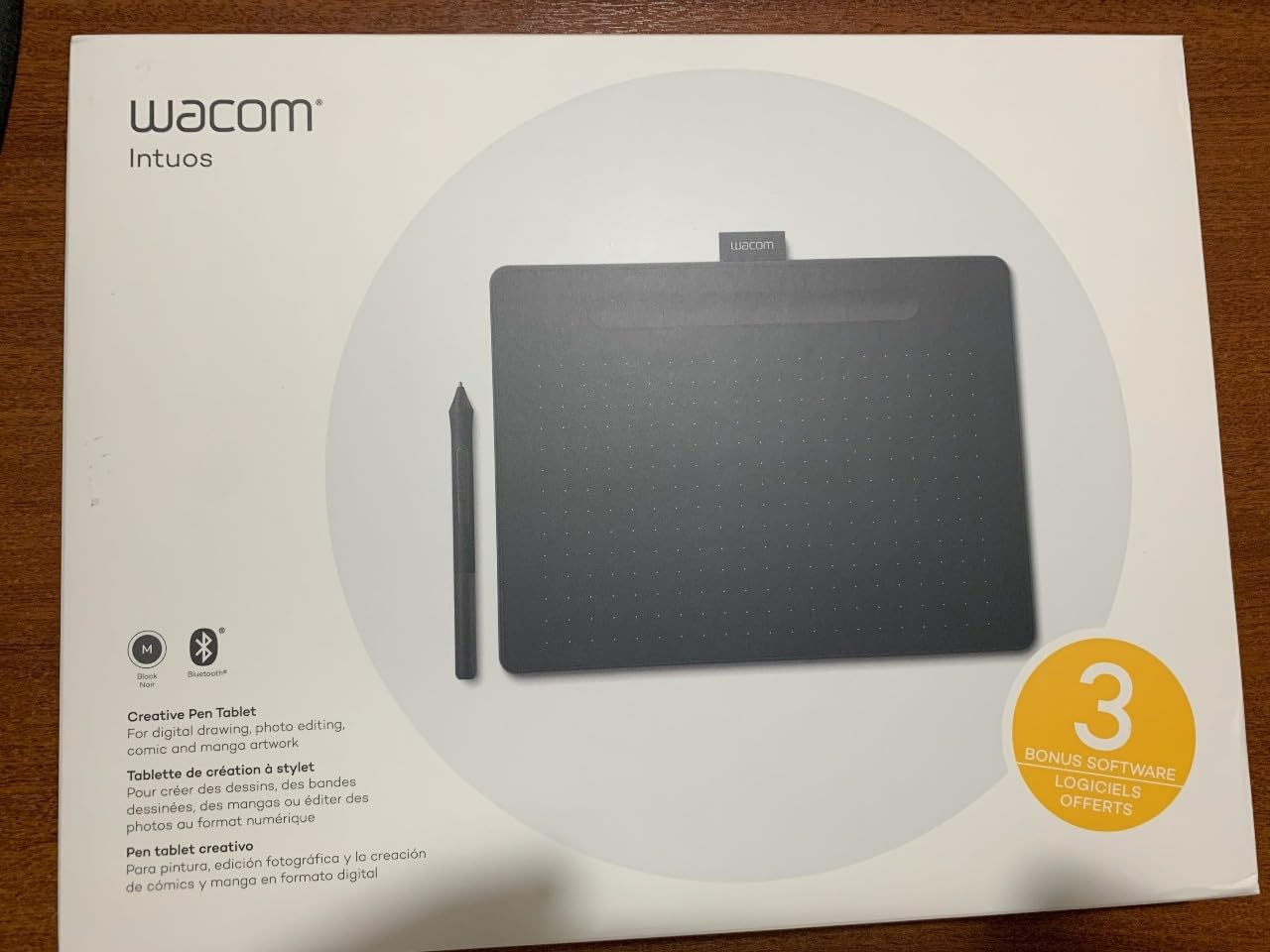
4. Wacom Intuos Medium Bluetooth — Wireless Freedom for Active Teaching
Wacom Intuos Medium, Bluetooth Graphic Drawing Tablet with Pen + Software
Active Area: 8.5 x 5.31 inch
Pressure: 4096 Levels
Connection: Bluetooth and USB-A
Weight: 14.5 oz
Pros
- Wireless Bluetooth connectivity
- Professional Wacom pen quality
- Battery-free stylus
- Generous medium-size active area
- Includes premium software bundle
- Reliable Wacom build quality
Cons
- Higher price point
- Slight Bluetooth latency possible
- Less portable than Small model
The Wacom Intuos Medium Bluetooth solves one of the biggest frustrations teachers have with pen tablets: cable management. When you are moving around a classroom, gesturing at a projector screen, or recording a standing lecture video, that trailing USB cable becomes a real annoyance. Bluetooth connectivity eliminates that problem entirely.
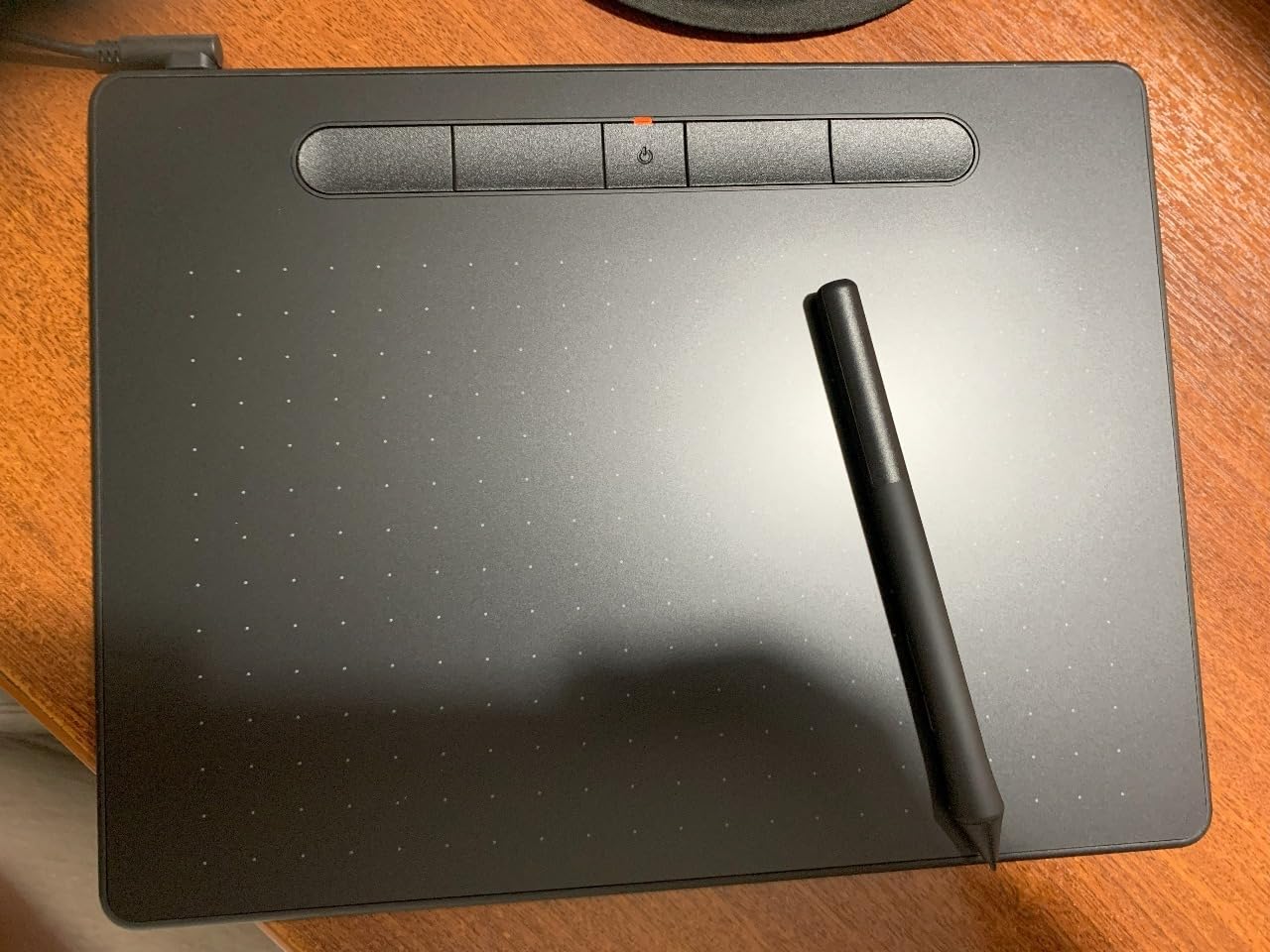
The 8.5 by 5.31 inch active area hits a sweet spot between the cramped Small model and a full-size professional tablet. I found it comfortable for extended sessions of handwriting notes, drawing diagrams, and annotating student work. The 4 ExpressKeys are customizable for your most-used shortcuts.
You still get the same Wacom EMR battery-free pen technology that makes the Intuos line so popular. The pen needs no charging and delivers 4096 pressure levels with that signature pen-on-paper feel. The included software bundle adds creative apps and training materials, same as the Small model.
The tradeoff is price. At roughly three times the cost of the Intuos Small, the Medium Bluetooth is an investment. But if wireless freedom and a more comfortable work area would genuinely improve your daily teaching experience, the premium is justified by Wacom’s legendary build quality and longevity.
Bluetooth Performance in Real Classrooms
From my testing and teacher feedback, the Bluetooth connection is reliable within about 10 feet of your computer. There is a very slight latency compared to USB, but for annotation and handwriting it is imperceptible. If you notice any lag, simply switch to the included USB-A cable for a wired connection. Having both options gives you flexibility that single-mode tablets cannot match.
Is the Medium Size Worth the Upgrade?
If you primarily write short annotations, the Small model will serve you fine. The Medium becomes worthwhile when you are writing long passages, drawing detailed diagrams, or using the tablet for extended periods. The larger surface reduces hand fatigue and gives you more room for natural arm movement, which matters during a full day of teaching.
5. XP-PEN Artist12 — See Your Work on a Built-In Display
XP-PEN Artist12 11.6 Inch FHD Drawing Monitor Pen Display Graphic Monitor with PN06 Battery-Free Multi-Function Pen Holder and Glove 8192 Pressure Sensitivity
Display: 11.6 inch FHD IPS
Pressure: 8192 Levels
Connection: HDMI and USB
Weight: 907g
Pros
- Built-in screen for direct drawing
- Full HD IPS display with good colors
- 8192 pressure levels with eraser
- Includes pen holder and glove
- Ideal for online teaching presentations
- Good value for a display tablet
Cons
- Requires computer connection
- Screen glare in bright rooms
- HDMI and USB cables needed
- Heavier than pen tablets
The XP-PEN Artist12 is the first display tablet in our roundup, and the difference is immediately obvious. Instead of drawing on a blank surface and watching lines appear on your computer monitor, you draw directly on the 11.6 inch screen. For teachers demonstrating techniques to students, this hand-eye coordination is a game-changer.
The Full HD IPS display at 1920×1080 resolution delivers crisp, colorful visuals with a 72% NTSC color gamut. I found the pre-installed anti-reflective screen protector helpful for reducing glare during classroom presentations under fluorescent lights. The 6 customizable shortcut keys and programmable touch bar let you zoom, scroll, and switch tools without reaching for your keyboard.
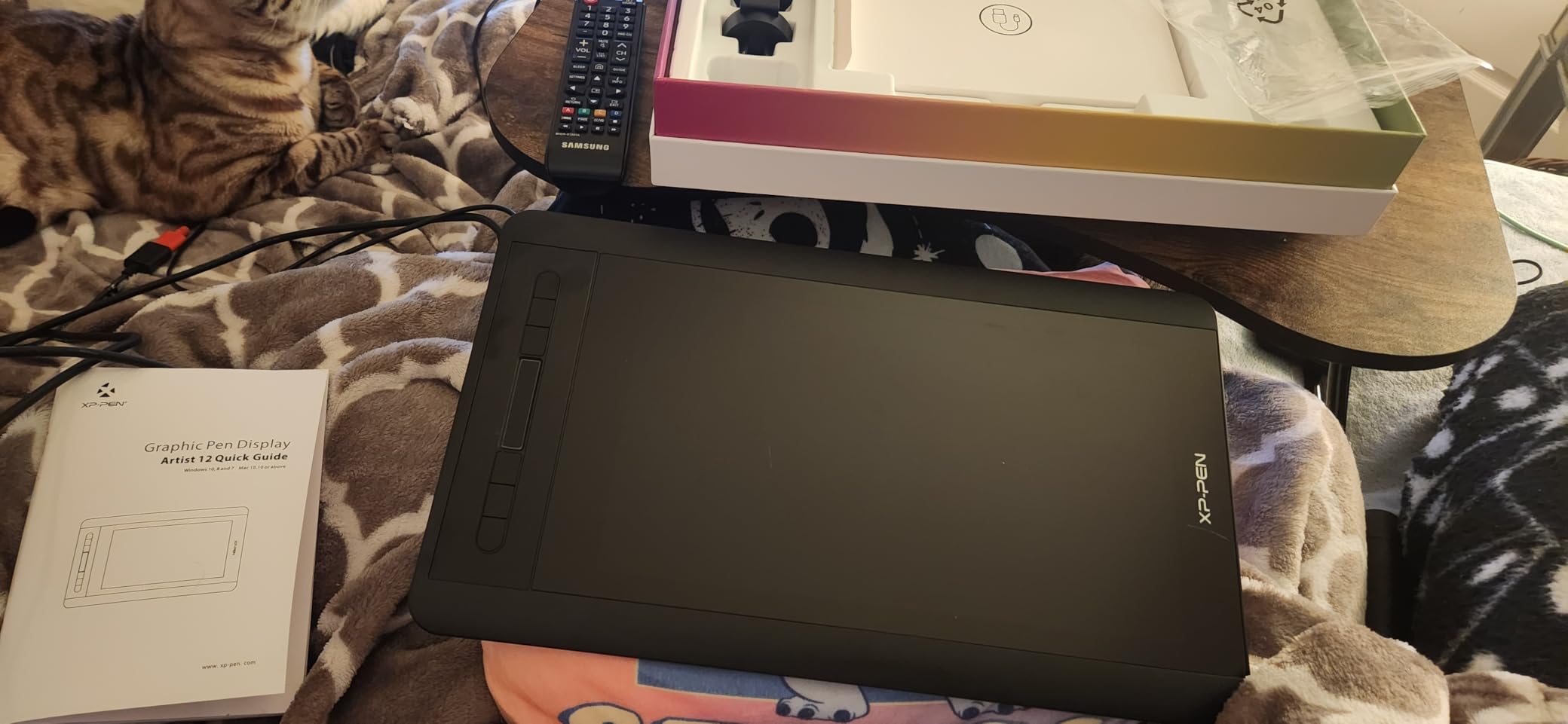
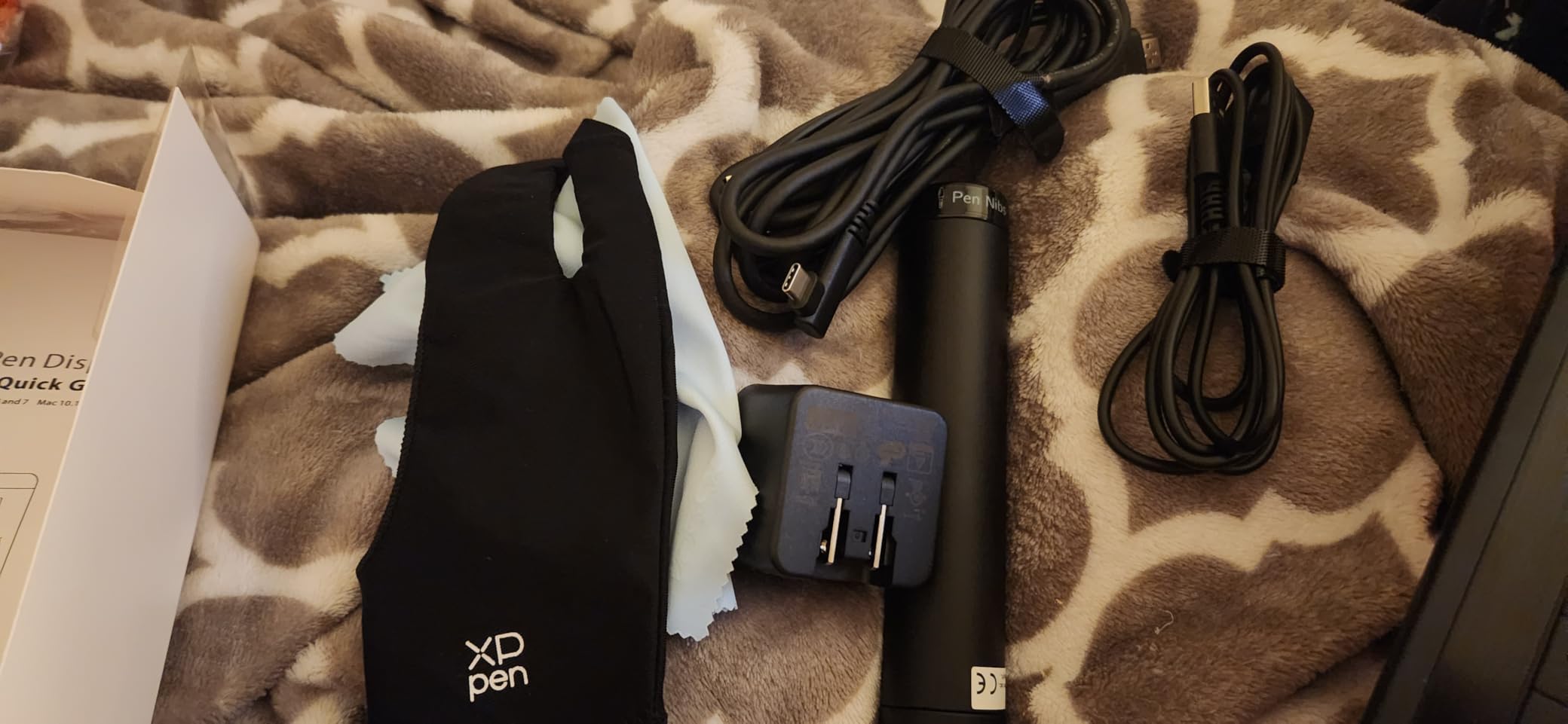
The included accessories are generous for the price. You get the P06 battery-free pen with an eraser function, a pen holder, and a drawing glove. The glove might seem like a minor inclusion, but it prevents your hand from smudging the screen and makes long drawing sessions much more comfortable.
This tablet requires a computer connection via HDMI and USB, so it is not a standalone device. That means you will have cables on your desk, and the tablet itself weighs about 2 pounds. For teachers who primarily work from a fixed desk or home studio, that is a reasonable tradeoff for the on-screen drawing experience.
How Display Tablets Improve Student Engagement
When students can watch you draw in real time on a screen that mirrors exactly what they see, the learning experience becomes more intuitive. This is especially valuable for subjects like geometry, anatomy, or art, where visual demonstration matters. The Artist12 makes it easy to record tutorials where your handwriting and drawings appear naturally on screen.
Cable Management and Setup Tips
The Artist12 connects via HDMI for display and USB for pen data. Plan your desk layout to minimize cable clutter, and consider using cable clips or a desk organizer. The tablet works with Windows, Mac, and Linux. Make sure your computer has an available HDMI port, or budget for an adapter if you are using a newer laptop with only USB-C connections.
6. XPPen Artist 13.3 Pro — Premium Display with 16K Sensitivity
XPPen Artist 13.3 Pro 13.3″ Drawing Tablet with Screen, 16K, Full-Laminated
Display: 13.3 inch Full-Laminated FHD
Pressure: 16384 Levels
Connection: USB
Weight: 2kg
Pros
- Excellent color accuracy 123 percent sRGB
- Natural drawing feel with low IAF
- Tilt function for natural shading
- No parallax with laminated display
- Includes adjustable stand and accessories
- 8 shortcut keys plus Red Dial
Cons
- Requires computer or laptop
- 3-in-1 cable can be cumbersome
- Some driver issues with Linux
The XPPen Artist 13.3 Pro is a step up from the Artist12 in nearly every way that matters for teaching. The larger 13.3 inch full-laminated display eliminates the gap between pen tip and cursor that plagues cheaper screen tablets. When you draw, the line appears exactly where the pen touches, which creates a natural drawing feel that is immediately noticeable.
The 16384 pressure levels combined with 60-degree tilt support give you professional-grade control. For art teachers demonstrating shading techniques or science teachers drawing detailed cross-sections, this level of precision helps your work look polished on screen. The 123% sRGB color accuracy means colors render vividly and accurately.
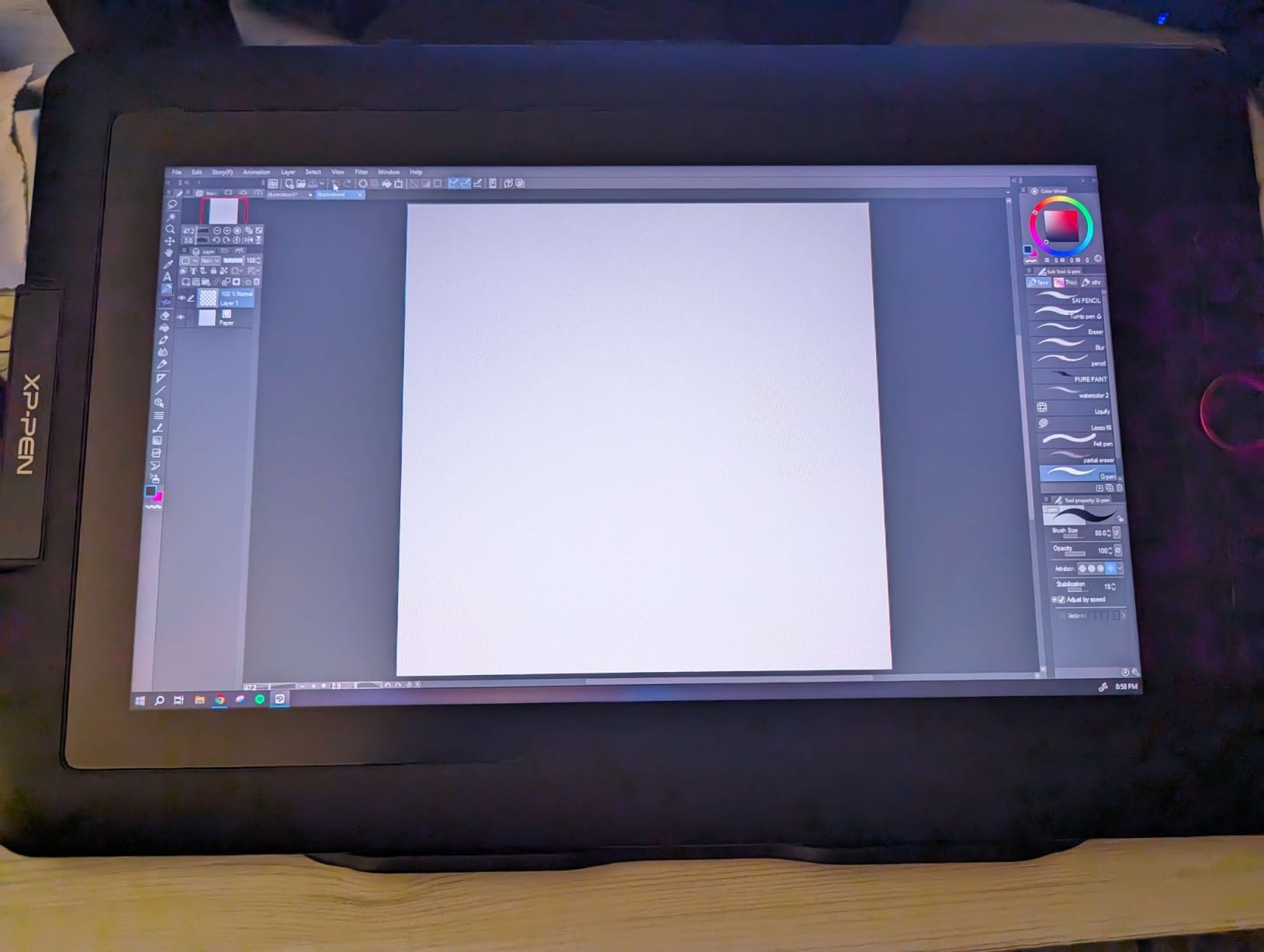
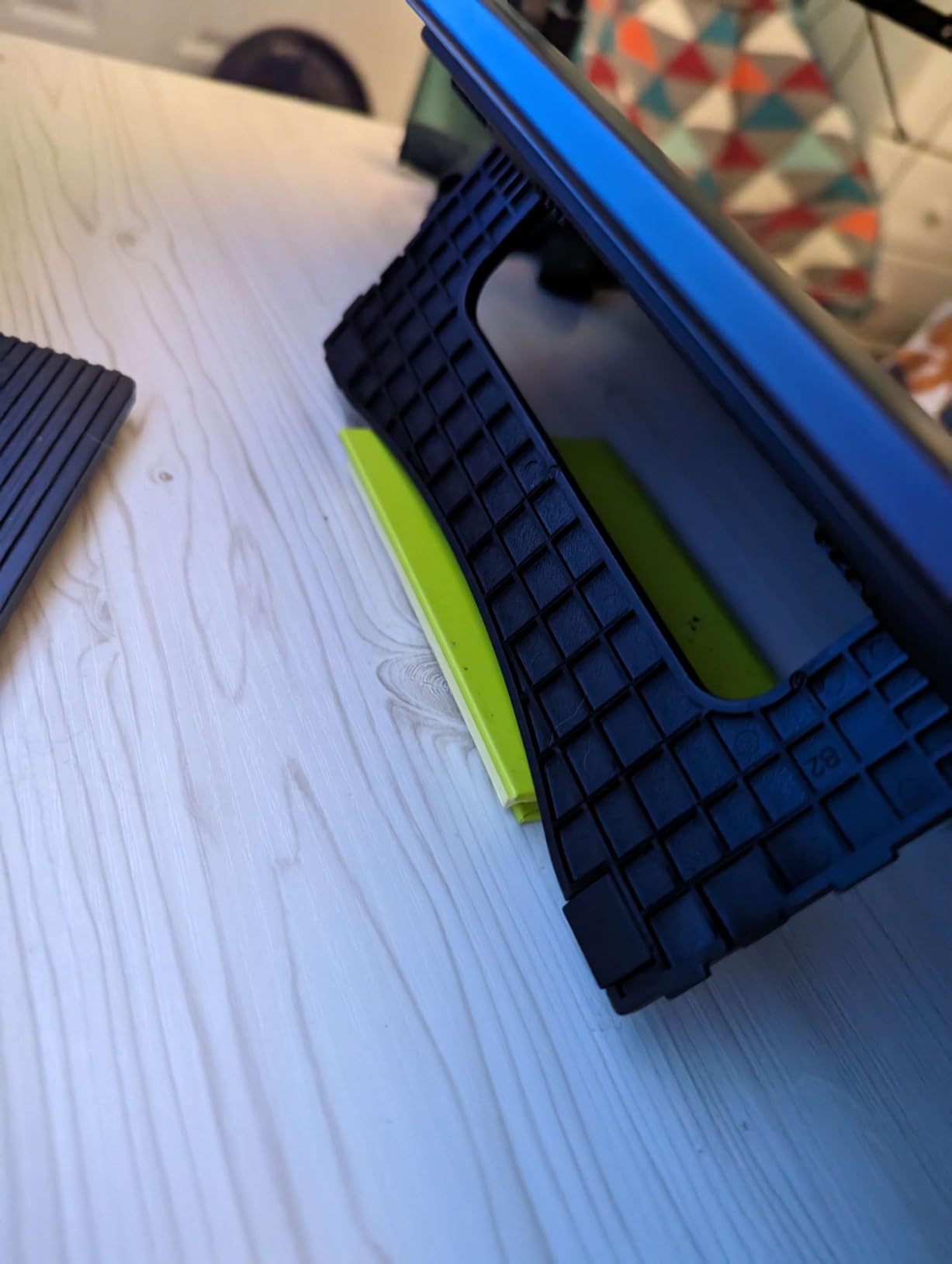
The included accessories make this a complete package. You get an adjustable stand that lets you find the perfect drawing angle, a pen case, 8 replacement nibs, a cleaning cloth, and a drawing glove. The 8 shortcut keys plus the Red Dial controller give you extensive programmable control over zoom, scroll, brush size, and more.
The 220 RPS report rate ensures lag-free drawing, which is essential when recording smooth video tutorials. At 2 kilograms, this is a substantial piece of equipment that is meant to live on your desk rather than travel in a bag. It requires a computer or laptop connection to operate.
Full-Laminated Display vs Standard Display
A full-laminated display bonds the glass directly to the LCD panel, eliminating the air gap found in cheaper tablets. The practical result is zero parallax — your pen tip and the on-screen cursor are perfectly aligned. For teachers who have struggled with the disconnect of drawing on a non-laminated screen, this upgrade feels transformative.
Best Teaching Applications for the 13.3 Pro
This tablet excels in scenarios where visual quality matters: recording professional-grade video tutorials, teaching art and design subjects, creating detailed scientific diagrams, or presenting to large audiences where image clarity is important. The Red Dial controller is particularly useful for zooming in and out during detailed demonstrations without interrupting your drawing flow.
7. Wacom One 14 — Large-Screen Pen Display for Premium Classrooms
Wacom One 14, Drawing Tablet with IPS Fulll HD Laminated Screen & Pen
Display: 14 inch FHD IPS Laminated
Pressure: 4096 Levels
Connection: USB-C
Weight: 0.75 kg
Pros
- Large 14 inch drawing area
- 98 percent sRGB color accuracy
- Paper-like anti-glare texture
- Reliable performance with no driver issues
- Includes creative software bundle
- Lightweight at 0.75 kg
Cons
- Lower pressure sensitivity than competitors
- HDMI users need separate converter
- Compatibility issues with older devices
- 17 percent of reviews are 1 star
The Wacom One 14 brings Wacom’s signature reliability to the pen display category with a generous 14-inch screen. That extra real estate compared to the 13.3 Pro gives you room to spread out, whether you are annotating full-page documents or working through multi-step math problems with visible working space.
The paper-like texture on the anti-glare glass is a standout feature. When I first drew on it, the slight resistance genuinely mimicked the feel of writing on textured paper. Combined with the 60-degree tilt support, it creates a natural writing experience that reduces fatigue during long teaching sessions.
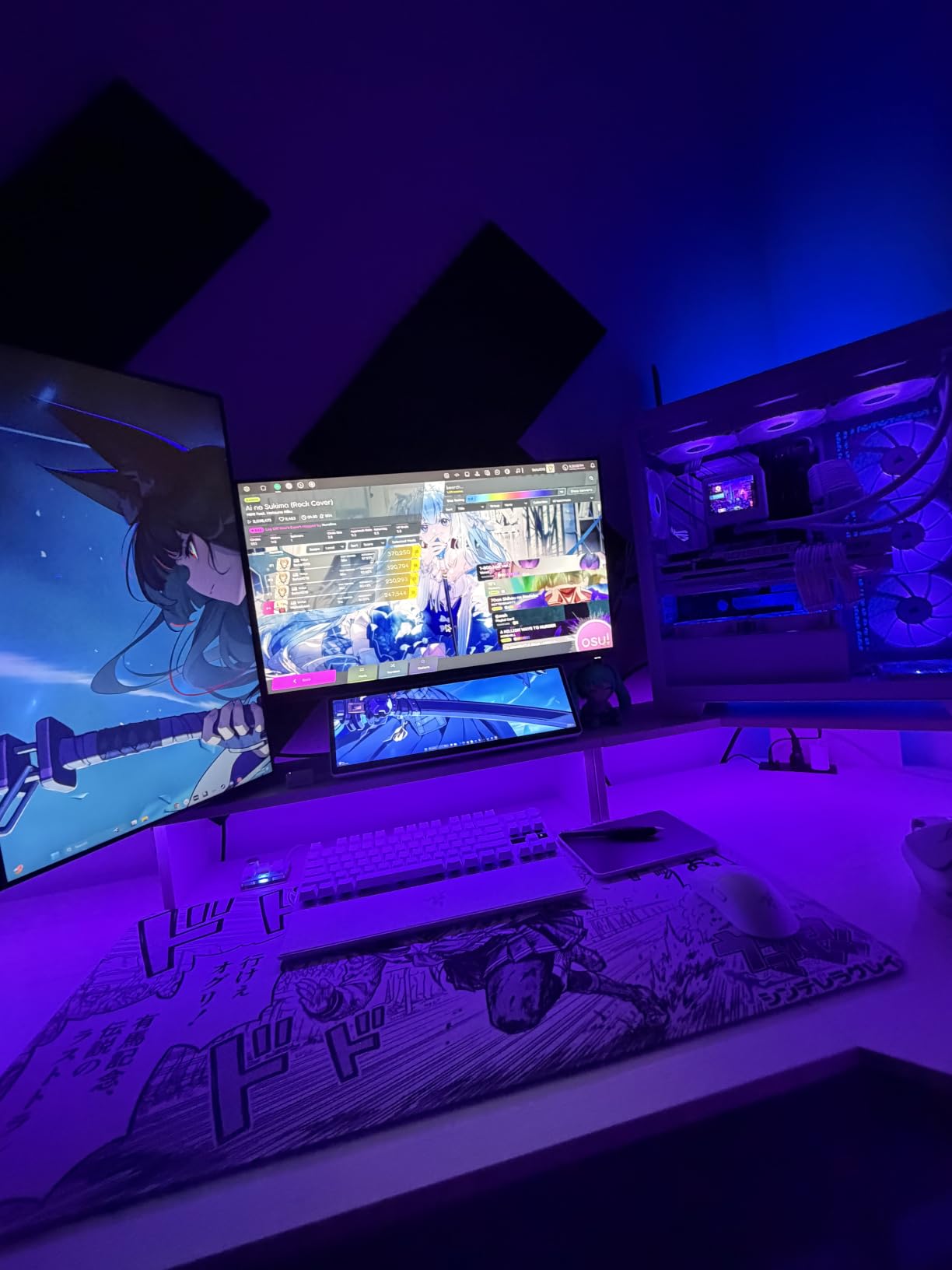
USB-C single-cable connectivity is elegant and modern. One cable handles both display data and pen input, which keeps your desk clean compared to the dual-cable setup of older display tablets. At just 0.75 kilograms, it is remarkably light for a 14-inch display tablet.
The 3.8-star rating is lower than other tablets in this roundup, and that warrants an honest discussion. The 4096 pressure levels are lower than competing tablets at similar prices, and some users have reported compatibility issues with older devices. HDMI users will need a separate converter that is not included. However, for teachers who prioritize Wacom’s reliability, natural writing feel, and brand support, the One 14 remains a strong contender.
USB-C and Compatibility Considerations
The single USB-C cable works beautifully with modern laptops and desktops that support Thunderbolt 3 or 4. If your computer only has HDMI output, you will need a separate USB-C to HDMI adapter, which is sold separately. Check your computer’s ports before purchasing to avoid surprises. The One 14 is compatible with ChromeOS, Windows 10 and later, and macOS 13 and later.
Included Software and Training Resources
Wacom includes trials of Clip Studio Paint Pro, Magma, Concepts, and Foxit software, plus Skillshare training courses. For teachers new to digital art or wanting to expand their creative teaching toolkit, these resources provide genuine value. The courses can help you learn annotation techniques, digital illustration, and classroom presentation skills.
8. reMarkable Paper Pure with Marker — Distraction-Free Digital Notebook
reMarkable Paper Pure with Marker
Display: 10.3 inch E-Ink
Response: 21ms
Connection: Wi-Fi
Weight: 360g
Pros
- Exceptional paper-like writing feel
- Fast 21ms ink response
- Excellent handwriting recognition
- Very lightweight and portable
- Distraction-free environment
- Good PDF annotation capabilities
Cons
- No front or backlight
- Subscription required for cloud features
- Expensive compared to alternatives
- Black and white only
The reMarkable Paper Pure is fundamentally different from every other tablet in this roundup. It is not a graphics tablet that connects to your computer. Instead, it is a standalone E-Ink digital notebook designed to replicate the experience of writing on real paper. For teachers who love the tactile feel of handwriting but want digital convenience, this is a category of its own.
The 10.3 inch E-Ink display delivers a whiter, higher-contrast surface than previous reMarkable models. The 21-millisecond ink response time means there is essentially no perceptible lag between your pen movement and the ink appearing. Writing on it genuinely feels like pen on paper, which is something I cannot say about any LCD-based tablet I have tested.
At just 360 grams, the Paper Pure is lighter than most textbooks. It connects via Wi-Fi and syncs your notes to the reMarkable cloud apps. You can import PDFs and documents directly from Google Drive, Dropbox, or OneDrive, annotate them with the Marker stylus, and share them via email straight from the device.
The handwriting-to-text conversion is genuinely impressive. Write your lesson notes by hand and convert them to typed text with high accuracy. For teachers who think better with a pen in hand but need digital output for sharing with students or colleagues, this feature bridges both worlds.
How Teachers Can Use the reMarkable in Practice
The Paper Pure excels at lesson planning, meeting notes, grading annotations, and PDF markup. Import your worksheets as PDFs, write directly on them, and share annotated versions with students. The distraction-free E-Ink display means no notifications, no browser tabs, and no temptation to check email — just you and your notes.
Limitations to Consider Before Buying
The E-Ink display is black and white only, with no backlight, so you need adequate room lighting. Advanced cloud features require a subscription, which adds to the long-term cost. The device can be slow when handling large PDF files with heavy imagery. And at its premium price point, it is a significant investment for a tool that does one thing — paper-like writing — extremely well.
Buying Guide: How to Choose the Best Drawing Tablet for Your Teaching Style
Choosing the right drawing tablet for teaching comes down to understanding your specific workflow, budget, and technical comfort level. Here is what our team learned from testing these tablets and reading hundreds of teacher reviews.
Screen vs Non-Screen: The Most Important Decision
Pen tablets like the Wacom Intuos and HUION HS64 have no display — you draw on a blank surface and watch the results appear on your computer monitor. Pen displays like the XP-PEN Artist12 and Wacom One 14 have built-in screens where you draw directly on the image. Screen tablets feel more natural and are better for student demonstrations, but they cost more, are heavier, and require more cable management. Non-screen tablets are lighter, cheaper, and simpler to set up.
For teachers who primarily annotate slides and work through equations, a non-screen tablet is perfectly adequate. For art teachers, science teachers who draw complex diagrams, or anyone recording visual tutorials, a screen tablet is worth the investment.
Pressure Sensitivity: What the Numbers Actually Mean
Pressure sensitivity ranges from 4096 levels on Wacom tablets to 16384 levels on the XPPen models. Higher numbers mean finer control over line thickness and opacity. For basic teaching annotation, 4096 levels are sufficient. For art instruction or detailed diagram work, 8192 or higher provides noticeably smoother results. The practical difference between 8192 and 16384 is subtle and matters most for professional artists.
Active Area Size and Ergonomics
The active area is the portion of the tablet where the pen registers input. Smaller tablets like the HUION HS64 (6.3 x 4 inches) are portable but can feel cramped for detailed work. Medium tablets like the Wacom Intuos Medium (8.5 x 5.31 inches) offer a good balance. Large tablets like the XPPen Deco 01 V3 (10 x 6.25 inches) provide ample space for natural arm movement. Consider your desk space and whether you need portability between classrooms.
Software and Classroom Tool Compatibility
All tablets in this roundup work with major teaching platforms including Zoom, Microsoft Teams, Google Meet, OneNote, Jamboard, and PowerPoint annotation tools. They also support creative software like Adobe Photoshop, Illustrator, and Clip Studio Paint. If your school uses Chromebooks, verify Chrome OS compatibility — the Wacom Intuos models and XPPen Deco 01 V3 both offer plug-and-play Chromebook support.
Budget Guidance for Teachers and Schools
For individual teachers spending their own money, the HUION HS64 and Wacom Intuos Small deliver excellent value under $45. For school bulk purchases, the XPPen Deco 01 V3 offers the best feature-to-price ratio. For teachers who need wireless freedom or screen displays, expect to invest between $130 and $300. The reMarkable Paper Pure is a specialty tool for teachers who prioritize handwriting over digital art.
Frequently Asked Questions About Drawing Tablets for Teachers
What is the best tablet for teachers?
The Wacom Intuos Small is our top pick for most teachers because it offers reliable plug-and-play setup, excellent pen feel, Chromebook compatibility, and proven durability at an affordable price. For teachers who want a built-in screen, the XP-PEN Artist12 provides excellent value as a display tablet.
What drawing tablets do professional artists use?
Professional artists typically use Wacom Intuos Pro, Wacom Cintiq, or XP-Pen Artist series tablets with high pressure sensitivity (8192 or more levels) and tilt support. The XPPen Artist 13.3 Pro in this roundup offers 16384 pressure levels and a full-laminated display that meets professional standards.
Is Wacom or Huion better?
Wacom is generally considered more reliable with better driver support, longer durability (many users report 15-plus years of use), and more natural pen feel. Huion offers better value for money with higher pressure sensitivity at lower prices. For teachers who prioritize reliability and ease of use, Wacom is the safer choice. For budget-conscious buyers, Huion delivers strong performance.
What is the difference between a graphic tablet and a drawing tablet?
The terms are often used interchangeably, but technically a graphic tablet (or pen tablet) has no screen and requires you to look at your computer monitor while drawing on the tablet surface. A drawing tablet with a screen (also called a pen display) has a built-in display where you draw directly on the image. Pen displays feel more natural but cost more and require additional cables.
Do teachers need a screen on a drawing tablet?
Most teachers do not need a screen tablet. For annotating slides, writing equations, and basic drawing during online classes, a non-screen tablet like the Wacom Intuos Small works perfectly well and costs significantly less. Screen tablets become worthwhile for art teachers, detailed diagram work, or recording professional video tutorials where visual quality matters.
Final Thoughts on the Best Drawing Tablets for Teachers in 2026
After testing all 8 tablets, our team keeps coming back to the Wacom Intuos Small as the best overall choice for most teachers. Its combination of reliability, natural pen feel, Chromebook compatibility, and affordable price makes it the safest bet for educators at any level. If you want more screen space and tilt support at a similar price, the XPPen Deco 01 V3 is a fantastic alternative.
For teachers who need a built-in display, the XP-PEN Artist12 and XPPen Artist 13.3 Pro offer excellent value in the pen display category. And for those who want a distraction-free digital notebook experience, the reMarkable Paper Pure delivers an unmatched paper-like writing feel.
The best drawing tablets for teachers in 2026 are the ones that fit seamlessly into your existing workflow without adding complexity. Whether you spend $35 or $300, the right tablet will transform how you present, annotate, and engage with your students. Pick the one that matches your teaching style, and you will wonder how you ever managed without it.