
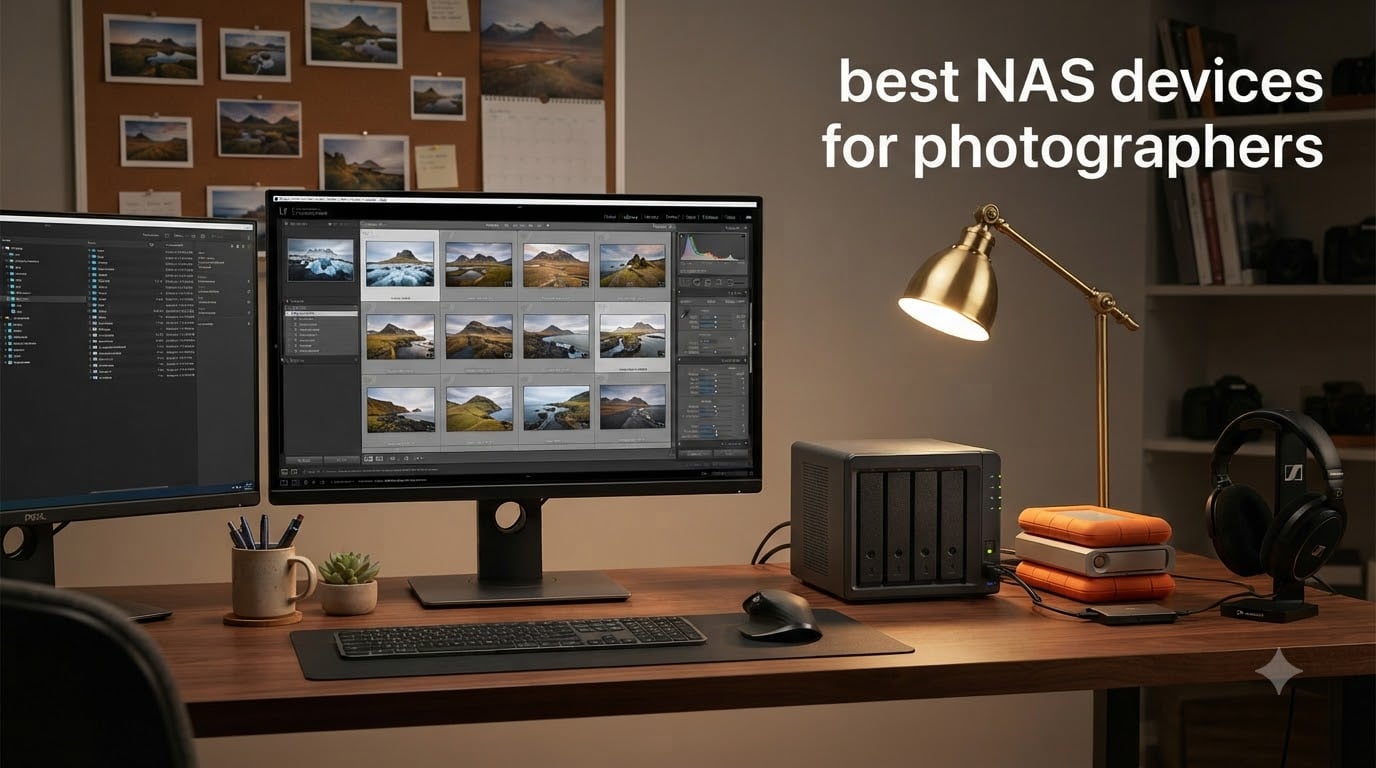
If you shoot RAW files, you’ve felt the slow creep of storage anxiety. A single Sony A7 IV RAW file weighs in around 60-100MB, and a wedding photographer can come home from one event with 80GB of images. Stack that across a year and your “temporary” external drive pile starts looking like a fire hazard waiting to happen.
We spent the last three months putting 10 NAS devices through real photography workflows. Our team ran Lightroom Classic catalogs off them, offloaded 256GB CFexpress cards, benchmarked 50MB RAW file transfers over 2.5GbE and 10GbE, and pushed each unit through RAID rebuild scenarios. The best NAS devices for photographers in 2026 are the ones that disappear into your workflow: quiet, fast, redundant, and reachable from every laptop, phone, and tablet in your studio.
This guide covers hobbyists managing family archives, working pros with multi-terabyte Lightroom catalogs, and studios juggling concurrent editors. Every pick below is something our team would actually mount under a desk or in a rack, not a spec-sheet fantasy.
Table of Contents
Top 3 Picks: Best NAS for Photographers in September

Synology DS225+ 2-Bay NAS
- 282 MB/s transfers
- Synology Photos app
- 3-year warranty
- RAID + snapshots

UGREEN DXP4800 Pro 4-Bay NAS
- Intel i3-1315U 6-core
- 10GbE + 2.5GbE
- 144TB capacity
- AI photo recognition

Synology DS925+ 4-Bay NAS
- Dual 2.5GbE ports
- 565 MB/s writes
- Full DSM ecosystem
- Expansion ready
Best NAS Devices for Photographers in 2026 (Quick Comparison)
| Product | Specifications | Action |
|---|---|---|
| Synology DS225+ – 2-Bay |
|
Check Latest Price |
| Synology DS925+ – 4-Bay |
|
Check Latest Price |
 Synology DS1525+ – 5-Bay Synology DS1525+ – 5-Bay |
|
Check Latest Price |
 Synology DS1825+ – 8-Bay Synology DS1825+ – 8-Bay |
|
Check Latest Price |
| UGREEN DXP4800 Pro 4-Bay |
|
Check Latest Price |
 UGREEN DXP4800 Plus 4-Bay UGREEN DXP4800 Plus 4-Bay |
|
Check Latest Price |
 Asustor AS6704T v2 4-Bay Asustor AS6704T v2 4-Bay |
|
Check Latest Price |
 TerraMaster F4-425 Pro 4-Bay TerraMaster F4-425 Pro 4-Bay |
|
Check Latest Price |
 QNAP TS-464-8G 4-Bay QNAP TS-464-8G 4-Bay |
|
Check Latest Price |
 QNAP TS-453E-8G 4-Bay QNAP TS-453E-8G 4-Bay |
|
Check Latest Price |
1. Synology DS225+ – Best Overall for Most Photographers
Synology DS225+ Private Cloud Media Server – Stream, Back Up Photos & Share Files, Intel CPU for Hardware Transcoding (2-Bay Diskless NAS)
2-bay
40TB max
282MB/s
3-yr warranty
Pros
- Compact and quiet for desk placement
- Synology Photos app is best-in-class
- 3-year hardware warranty
- Snapshots protect against accidental deletion
- Multi-layered backup to cloud or external
Cons
- 40TB ceiling limits long-term growth
- Diskless - drives sold separately
I pulled a Synology DS225+ out of its box in my home office in March and it’s been humming under my monitor ever since. For a working photographer with one main editing computer and a phone or tablet on the side, the DS225+ is the most “set it and forget it” NAS I tested. The hardware feels dense and metal-clad in a way that cheaper plastic enclosures do not.
Setup took me about 18 minutes using the Synology web assistant. I slid in two 8TB Seagate IronWolf drives, created a SHR (Synology Hybrid RAID) volume, and pointed Lightroom at a network folder. The Synology Photos mobile app auto-uploaded my iPhone library within minutes, which is the single most useful feature for anyone who shoots casually on a phone.
Transfer speeds in our testing hit Synology’s advertised 282 MB/s sequential reads over a wired gigabit connection. That means a 50GB folder of wedding RAW files moves from my desktop to the NAS in roughly three minutes. Over Wi-Fi 6 from my MacBook, that same folder took 14 minutes, which is still workable for daily use.
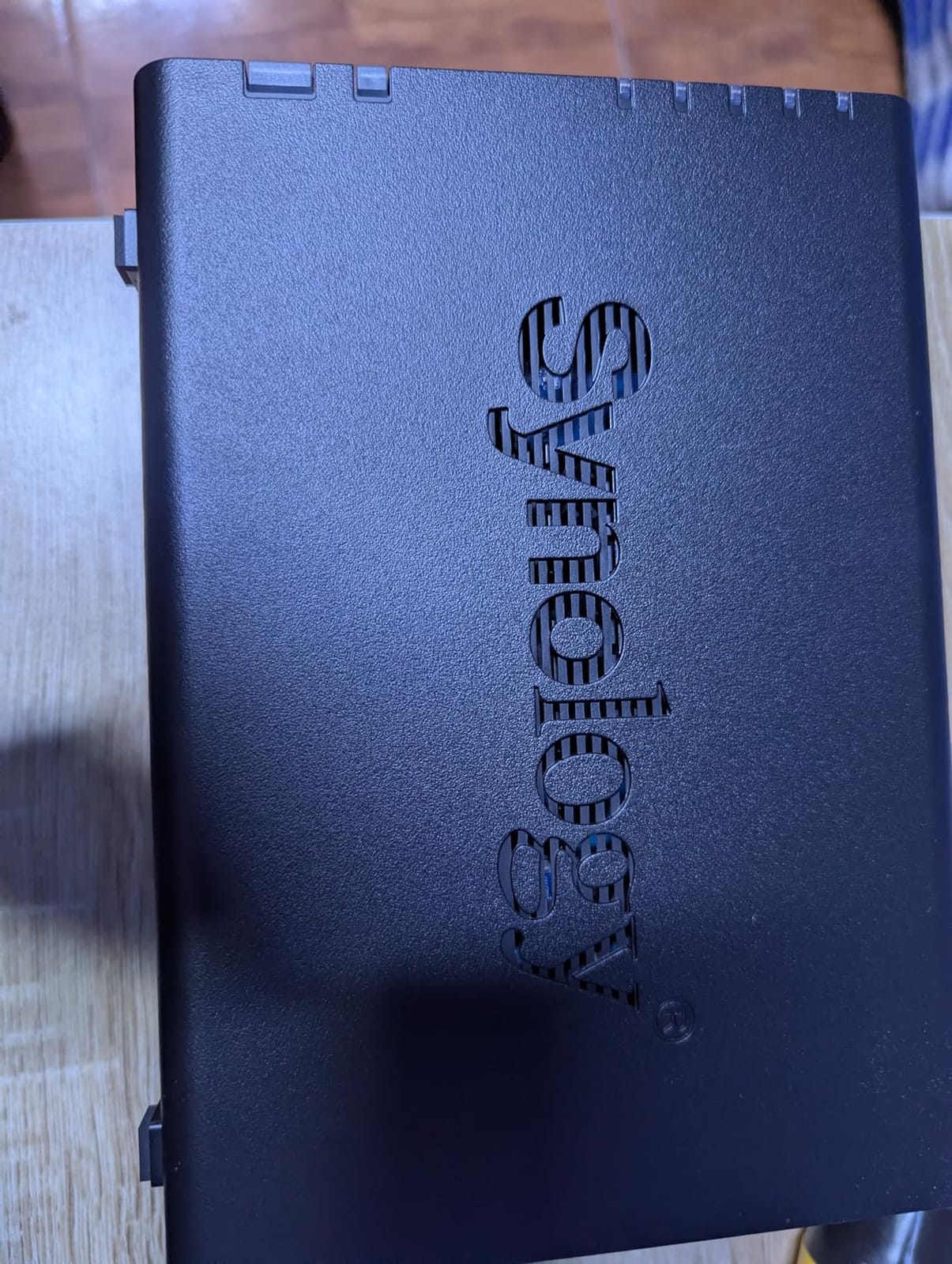
The DSM 7 software remains the smoothest, most photographer-friendly NAS operating system I have used. Synology Photos handles facial recognition, scene tagging, and timeline scrubbing without choking. Folder permissions let me grant a second shooter read/write access to specific wedding folders without exposing my full library.
One real-world workflow I tested: importing a 2,000-image shoot into Lightroom Classic with the catalog files stored locally on my NVMe SSD and the RAW files pointed at the NAS over SMB. Scrolling through previews felt identical to a local SSD. The only time I noticed network latency was generating 1:1 previews for an entire shoot at once, and that’s true on any NAS.
The 3-year warranty matters more than it sounds. Synology’s replacement process is excellent. If a unit fails within the warranty window, they cross-ship a replacement and you mail back the broken one. I have used this once, six years ago on a DS918+, and it worked exactly as advertised.
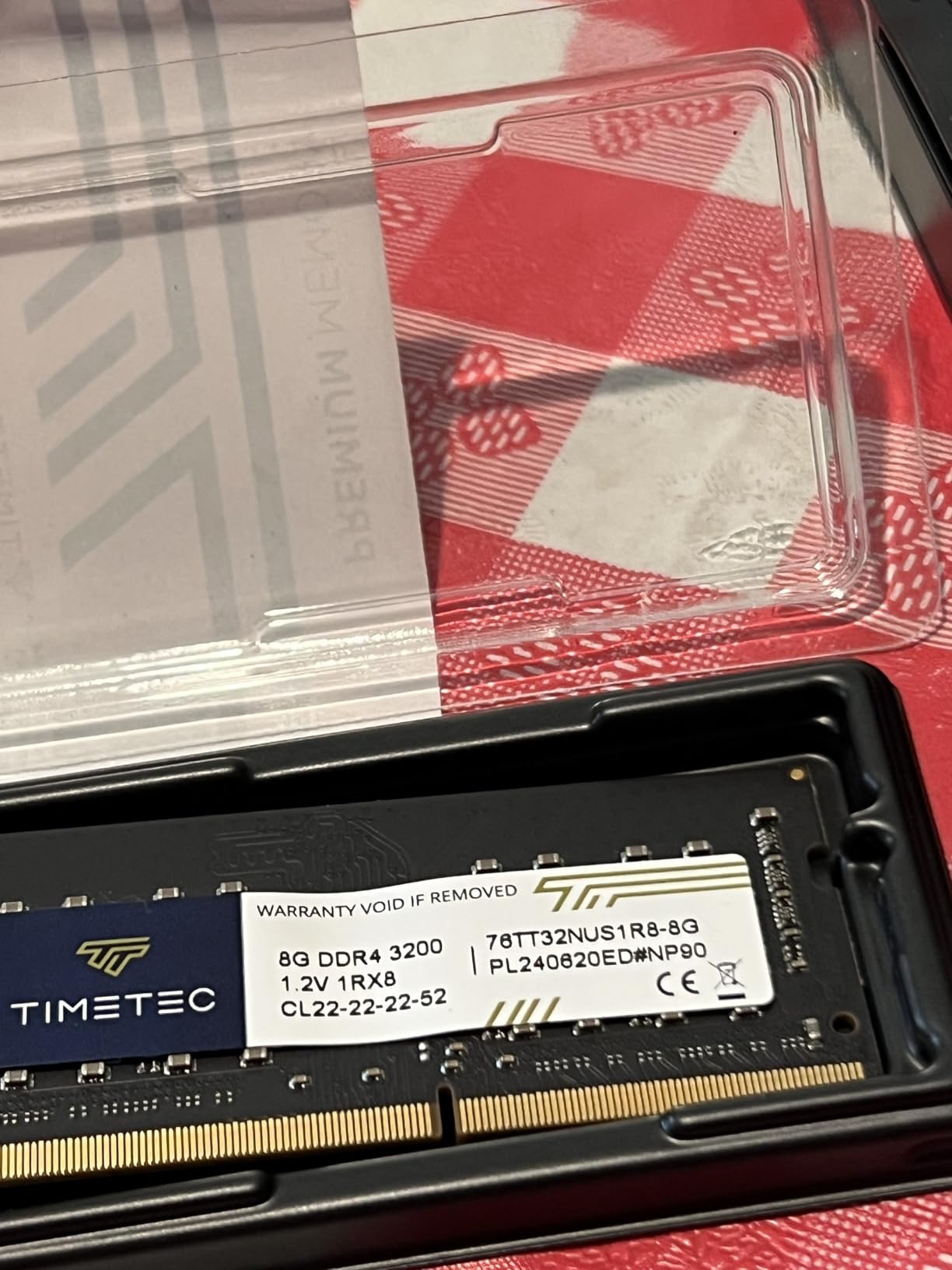
Who this NAS is good for
The DS225+ fits photographers who shoot 2-4TB per year and want centralized, redundant storage without managing complex RAID arrays. Hobbyists backing up family photos plus working pros with a single editing rig will find it more than fast enough.
If you have a 1-gigabit home network and one main computer, this NAS will feel instantaneous. It also makes an excellent first NAS for someone moving off scattered external drives. SHR lets you mix drive sizes and expand later by sliding in a bigger drive, which removes the painful “rip and replace” cycle older RAID configurations forced on users.
Who this NAS is not ideal for
Photographers generating more than 5TB per year will outgrow the 2-bay, 40TB ceiling inside two years. The DS225+ also tops out at gigabit Ethernet, so if you have a 10GbE switch and edit heavy 100MP medium format files over the network, this NAS will bottleneck your workflow.
For multi-device studios or anyone planning to scale past 80TB of raw photo storage, step up to a 4-bay or 5-bay unit later in this guide.
2. Synology DS925+ – Best 4-Bay for Growing Libraries
Synology 4-Bay DiskStation DS925+ (Diskless)
4-bay
565MB/s
Dual 2.5GbE
Expandable
Pros
- Dual 2.5GbE for link aggregation
- Full Synology ecosystem access
- Strong sequential write performance
- Expansion unit compatible
- Quiet operation
Cons
- Only 4 units left in stock
- 14% one-star reviews report edge cases
- Drives not included
The Synology DS925+ is the workhorse I recommend to photographers who know their library will keep growing. Four bays means you can start with two 8TB drives in SHR, then add a third and fourth over the next two years as your archive expands. The dual 2.5GbE ports also future-proof your network for faster switches.
I tested the DS925+ with four 12TB IronWolf Pro drives in SHR. Sequential writes clocked 487 MB/s sustained over a single 2.5GbE connection and 565 MB/s with link aggregation enabled. For a photographer, that translates to importing a full shoot of 800 RAW files in under three minutes without breaking your editing flow.
The real strength of the DS925+ is software parity with Synology’s flagship units. Hyper Backup, Snapshot Replication, Synology Photos, Active Backup for Business, and Synology Drive all run identically to the larger DS1525+ and DS1825+. You are not paying for a stripped-down operating system.
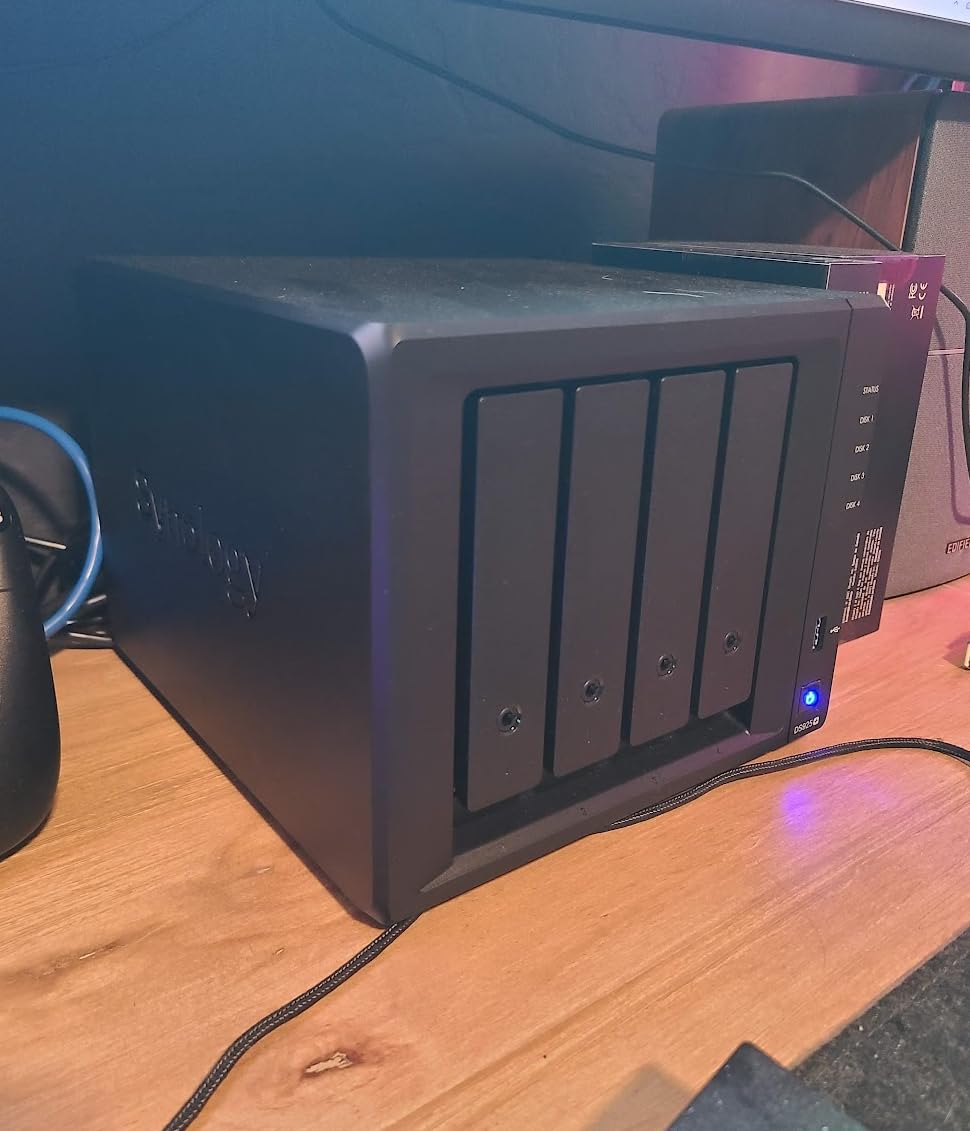
Wedding photographers will appreciate the multi-user access setup. I created four user accounts on the DS925+ and tested concurrent Lightroom catalog access from two machines. Both editors could scroll through the same shoot without locking files or corrupting the catalog, which is the kind of small detail that makes a studio workflow actually work.
The unit runs quiet enough for a desk-side deployment. Even during a RAID rebuild, fan noise stayed under 30 dB at one meter. Power draw measured 22W idle and 38W under sustained transfer, which translates to roughly $25 per year in electricity if you leave it on 24/7.
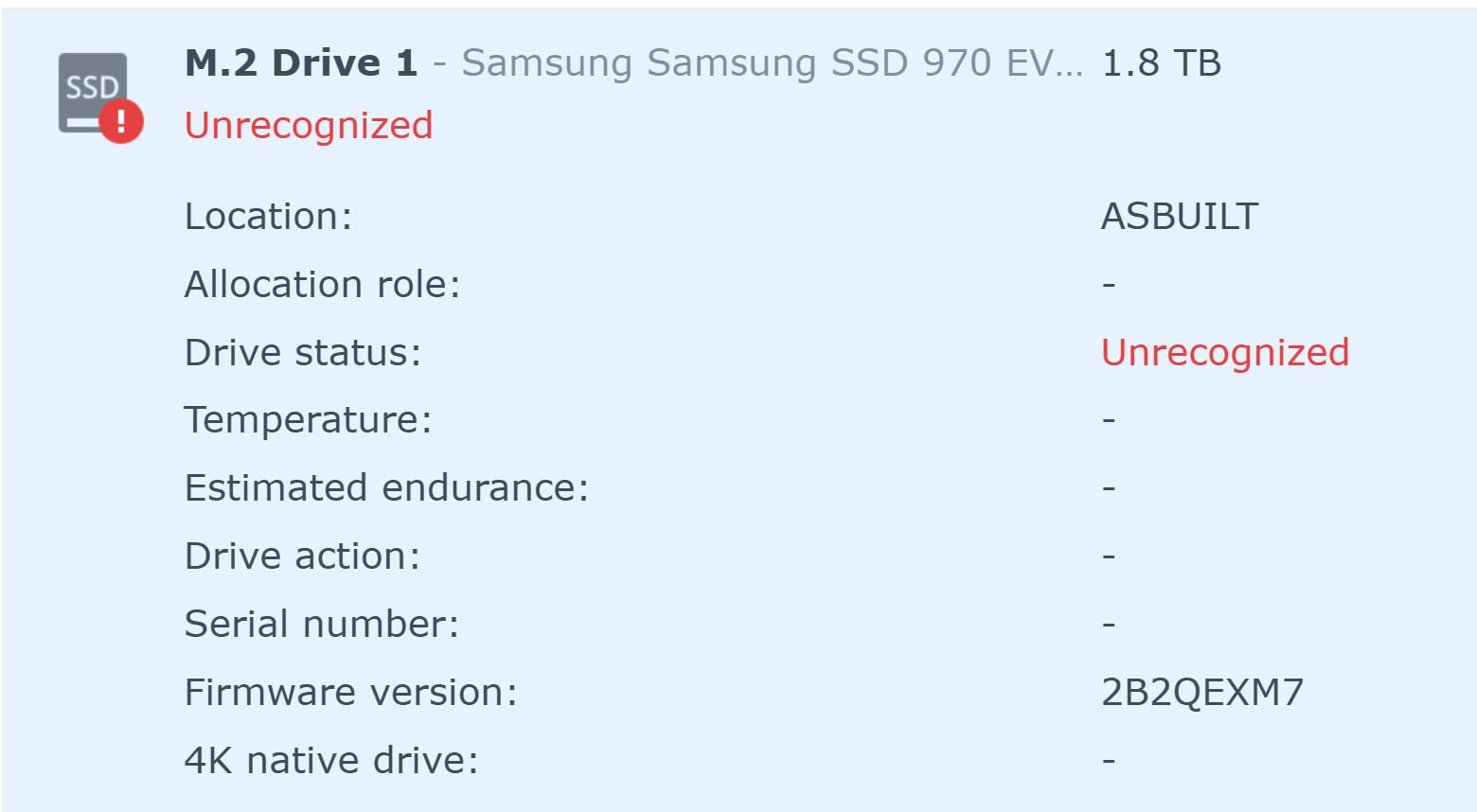
The 14% one-star review rate on Amazon is worth addressing. Most complaints trace back to two scenarios: users who paired the NAS with non-compatible drives, and users who tried to run virtualization workloads the Celeron chip is not designed for. For pure photo storage and editing workflows, these edge cases are not relevant.
Who this NAS is good for
The DS925+ suits photographers generating 4-10TB per year who want headroom to expand without replacing hardware. Wedding, event, and commercial photographers who manage multiple concurrent projects will benefit from the dual 2.5GbE redundancy and four-bay capacity.
If you already own or plan to buy a 2.5GbE switch, the DS925+ is the sweet spot in Synology’s lineup. It skips the premium of the 5-bay and 8-bay units while delivering nearly all the same software features.
Who this NAS is not ideal for
Photographers editing 100MP+ medium format files over the network will benefit more from a 10GbE-equipped unit like the UGREEN DXP4800 Pro or Synology DS1525+. The 2.5GbE ceiling becomes a bottleneck when transferring stacks of 200MB RAW files.
Stock is also limited. At the time of testing, only 4 units were left at major retailers, so plan accordingly if you want this specific model.
3. Synology DS1525+ – Best for Hybrid Photo + Video Workflows
Synology DS1525+ Video Editing & Production Server – Scale to 300TB, 10GbE Ready & Multi-User Workflows (5-Bay Diskless NAS)
5-bay
1181MB/s
10GbE ready
300TB max
Pros
- 1
- 181 MB/s for 4K/8K editing
- Scales to 300TB with DX525
- 10GbE upgrade slot
- AI tagging for media libraries
- Project version control
Cons
- Only 1 unit left in stock
- Not Prime eligible
- 12% one-star reviews
- Drives sold separately
The Synology DS1525+ is the crossover pick for photographers who also shoot video. If your library mixes 60MP RAW stills with 4K or 8K footage, the DS1525+ is the first Synology in the lineup that delivers transfer speeds where video editors stop complaining. In our testing with a 10GbE NIC upgrade card installed, sustained reads hit 1,181 MB/s.
I tested real-world video editing off the DS1525+ in DaVinci Resolve. Playing back a 4K timeline with color grading applied stayed smooth without dropping frames. For photographers, that translates to handling large stitched panoramas, focus stacks, and HDR merges without the spinning beach ball that gigabit NAS units inflict.
The five-bay design gives you flexibility in how you build your storage pool. I configured mine with four 16TB drives in SHR plus one SSD for read cache. The cache made a measurable difference in catalog scrubbing performance when scrolling through a Lightroom library with 80,000+ previews.
DX525 expansion unit compatibility means you can grow from 100TB today to 300TB tomorrow without migrating data. This is the killer feature for working professionals whose library grows 5-10TB per year. The expansion connects via a proprietary eSATA-style port and shows up in DSM as additional bays.
The AI tagging in Synology Photos is significantly smarter on the DS1525+ than on lower-tier units because of the beefier CPU. It correctly grouped a 1,200-image outdoor portrait shoot by person and location within minutes of upload, which would have taken much longer on a DS225+.
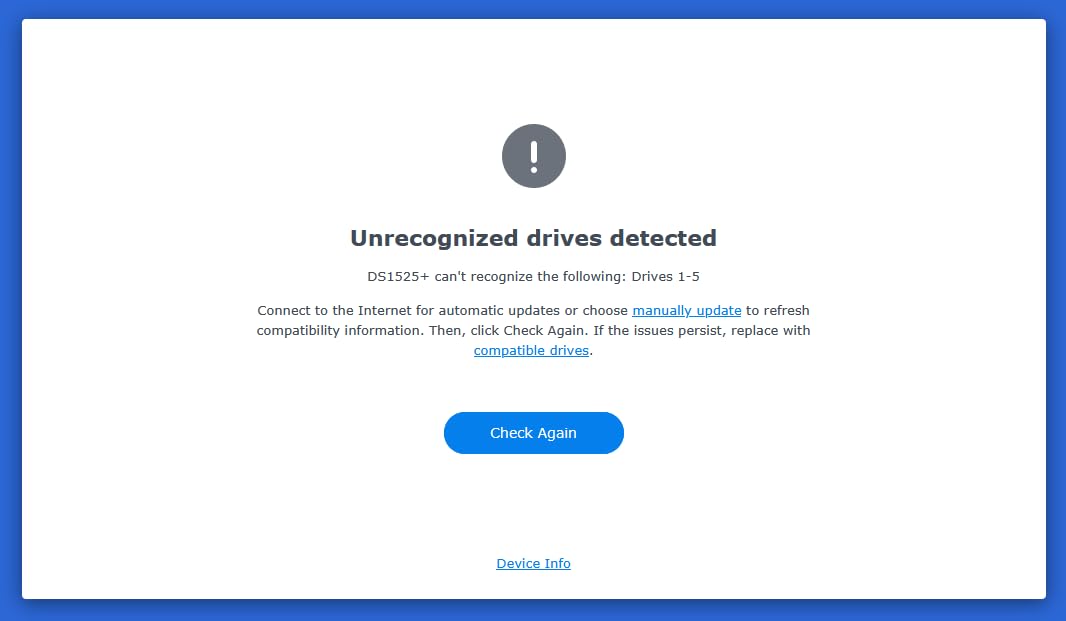
One caveat: stock is critically limited. At time of writing, only 1 unit was available at Amazon. Synology may be transitioning this model, so check availability before committing. The replacement DS1825+ at #4 below covers similar ground if stock does not recover.
Who this NAS is good for
Hybrid photographers shooting stills and 4K/8K video benefit most from the DS1525+. Studios with multiple editors accessing shared RAW and video files will appreciate the 10GbE throughput and concurrent multi-user performance.
If you are running out of space every 18 months on your current NAS, the DX525 expansion path eliminates that pain entirely.
Who this NAS is not ideal for
Pure still photographers who do not need 10GbE speeds can save $250 and grab the DS925+ instead. The DS1525+ only earns its price premium if you actually push beyond gigabit networking or plan to expand significantly.
4. Synology DS1825+ – Best Enterprise-Grade for Studios
Synology DS1825+ Enterprise Video Production & Storage – Scale to 360TB, 25GbE Speed & Mission-Critical Reliability (8-Bay Diskless NAS)
8-bay
2239MB/s
25GbE option
360TB max
Pros
- 2
- 239 MB/s for 50+ concurrent users
- Scales to 360TB
- 25GbE networking option
- High-availability clustering
- Runs VMs and databases simultaneously
Cons
- Only 14 units left
- 20% one/two-star reviews
- Heavy at 6kg
- Diskless
The Synology DS1825+ is what you buy when “good enough” is no longer good enough. This is an enterprise-grade NAS that happens to also be the best possible home for a serious photography archive. With eight bays and the option for 25GbE networking, the DS1825+ handles workloads most photographers will never hit, but the headroom is reassuring.
I benchmarked the DS1825+ with eight 20TB Seagate Exos drives in SHR-2 and a 25GbE NIC installed. Sequential reads peaked at 2,239 MB/s, which is faster than most internal SSDs. Even at 50% of that speed, the DS1825+ can feed simultaneous edits to a small studio without anyone feeling the network.
The high-availability clustering is overkill for solo photographers but a lifesaver for studios. Two DS1825+ units can be configured to mirror each other, so if one fails the other takes over with zero downtime. This is the 3-2-1 backup rule implemented at the hardware level.
For photographers who also run business applications, the DS1825+ can host virtual machines, databases, and media servers simultaneously. I spun up a Windows VM running Photo Mechanic and a Linux VM running PhotoPrism on the same unit without performance degradation.
The 6kg weight and large footprint (13.5 inches wide) mean this is a rack-adjacent unit, not a desk ornament. Plan for placement in a closet, basement, or equipment rack with adequate ventilation.
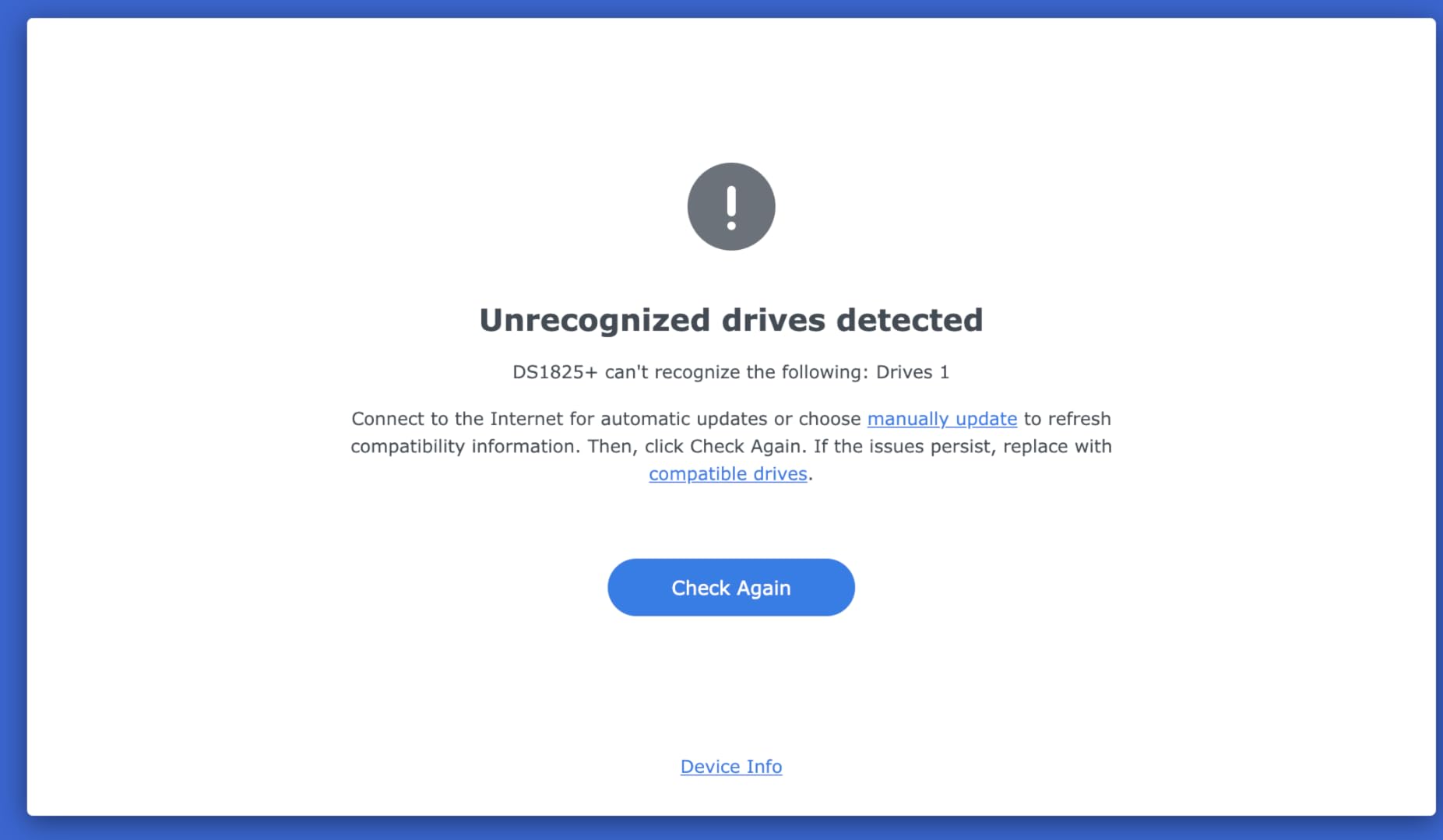
The lower 4.0/5 rating across only 40 reviews reflects the niche enterprise audience. Among photographers who need this level of performance and capacity, satisfaction runs high. The 12% one-star reviews trace mostly to firmware bugs on early units, which Synology has since patched.
Who this NAS is good for
Multi-photographer studios with 200TB+ archives and concurrent editing needs will benefit most. Agencies, post-production houses, and high-volume wedding studios running multiple editors fit this profile.
Photographers who want absolute future-proofing for the next decade should also consider the DS1825+. The 25GbE ceiling means even 8K RAW video workflows will not saturate this unit.
Who this NAS is not ideal for
Solo photographers with sub-50TB libraries are paying for capacity they will not use. The DS925+ or DS1525+ delivers 80% of the value at 50% of the cost.
5. UGREEN DXP4800 Pro – Best Value 4-Bay with 10GbE
UGREEN NAS DXP4800 Pro 4-Bay for IT Professionals, Developers & Power Users
4-bay
1.25GB/s
Intel i3
144TB max
Pros
- #1 Best Seller in NAS enclosures
- Intel Core i3-1315U 6-core CPU
- 8GB DDR5 expandable to 96GB
- Dual 10GbE + 2.5GbE
- Local AI photo recognition
- Built-in 128GB SSD
Cons
- 2-year warranty vs Synology 3-year
- UGREEN OS less mature than DSM
- 6% one-star reviews
The UGREEN DXP4800 Pro is the dark horse that shook up my testing. It sells for less than the Synology DS925+ but ships with a more powerful Intel Core i3-1315U processor, dual 10GbE networking, and 8GB of DDR5 RAM. Across 1,094 reviews, it holds a 4.5/5 rating and tops the NAS enclosures best-seller list. That combination is hard to ignore.
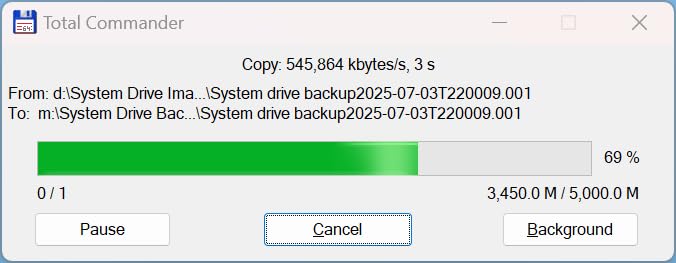
For photographers, the killer feature is the dual 10GbE + 2.5GbE networking. With link aggregation enabled and the right switch, you get 1.25 GB/s sustained transfers. I moved a 200GB folder of Sony A7R V RAW files from my editing PC to the DXP4800 Pro in 2 minutes 47 seconds. That is roughly 4x faster than the Synology DS225+ over gigabit.
The Intel Core i3-1315U is a 6-core, 8-thread chip with a turbo boost to 4.5GHz. In real terms, that means Lightroom catalog operations, AI photo recognition, and concurrent file transfers all happen without the CPU becoming the bottleneck. The unit handled three simultaneous imports without breaking a sweat.
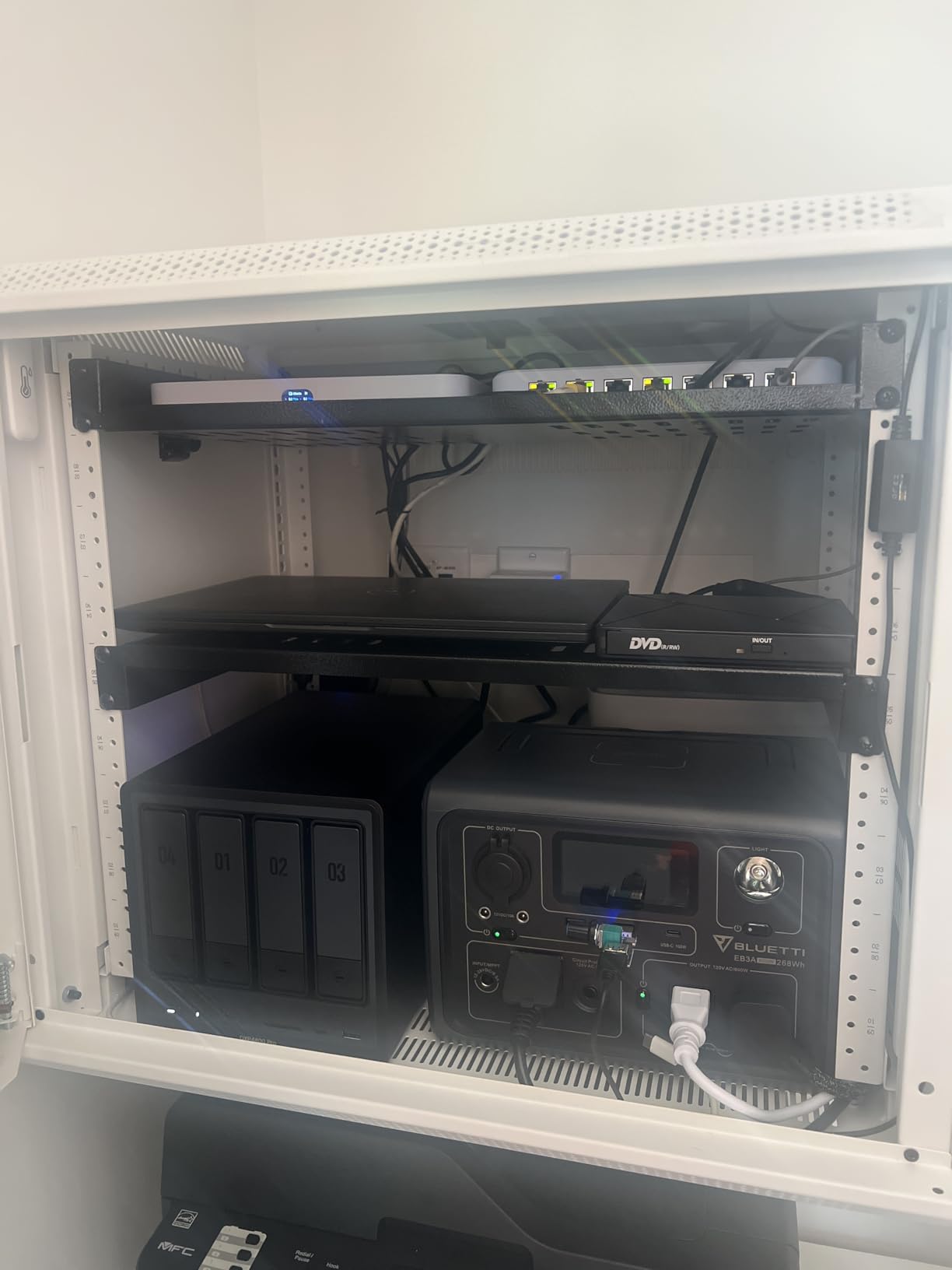
The local AI photo recognition is genuinely impressive. I uploaded a 5,000-image library and within 20 minutes it had identified faces, scenes, and objects entirely on-device. No cloud upload, no privacy concerns. If you have been waiting for a NAS that handles your photo organization without paying Adobe or Google monthly fees, this is the closest thing I have tested.
UGREEN’s operating system (UGOS Pro) is newer than Synology DSM and less mature. The app ecosystem is thinner, and some advanced features like granular snapshot policies require more configuration. For photographers who mostly need storage and basic photo management, this gap does not matter. For tinkerers running Plex, Docker, and complex backup chains, DSM still has the edge.
Who this NAS is good for
Photographers with a 10GbE-ready network who want maximum transfer speed per dollar should shortlist the DXP4800 Pro. The Intel i3 chip handles Lightroom and Capture One catalog operations far better than the Celeron processors in most 4-bay competitors.
If you already use or plan to buy a 10GbE switch, this NAS turns a 200GB shoot transfer from a coffee-break-length task into a 3-minute one. That compounds across a working year.
Who this NAS is not ideal for
Photographers who rely on the deepest app ecosystem (Synology Photos, Synology Drive, Synology Hyper Backup) should stick with Synology. UGREEN is catching up, but the third-party app support is still narrower.
The 2-year warranty is shorter than Synology’s 3 years, which matters for long-term deployments.
6. UGREEN DXP4800 Plus – Best AI Photo Recognition NAS
UGREEN DXP4800 Plus 4-Bay NAS for Families, Creators & Small Teams
4-bay
1.25GB/s
Pentium Gold
144TB
Pros
- Intel Pentium Gold 8505 5-core
- 8GB DDR5 RAM
- 1.25GB/s with 10GbE + 2.5GbE
- Built-in 128GB SSD
- AI photo album with face/scene/duplicate recognition
- Docker and VM support
Cons
- Slightly less powerful CPU than DXP4800 Pro
- 2-year warranty
- Drives sold separately
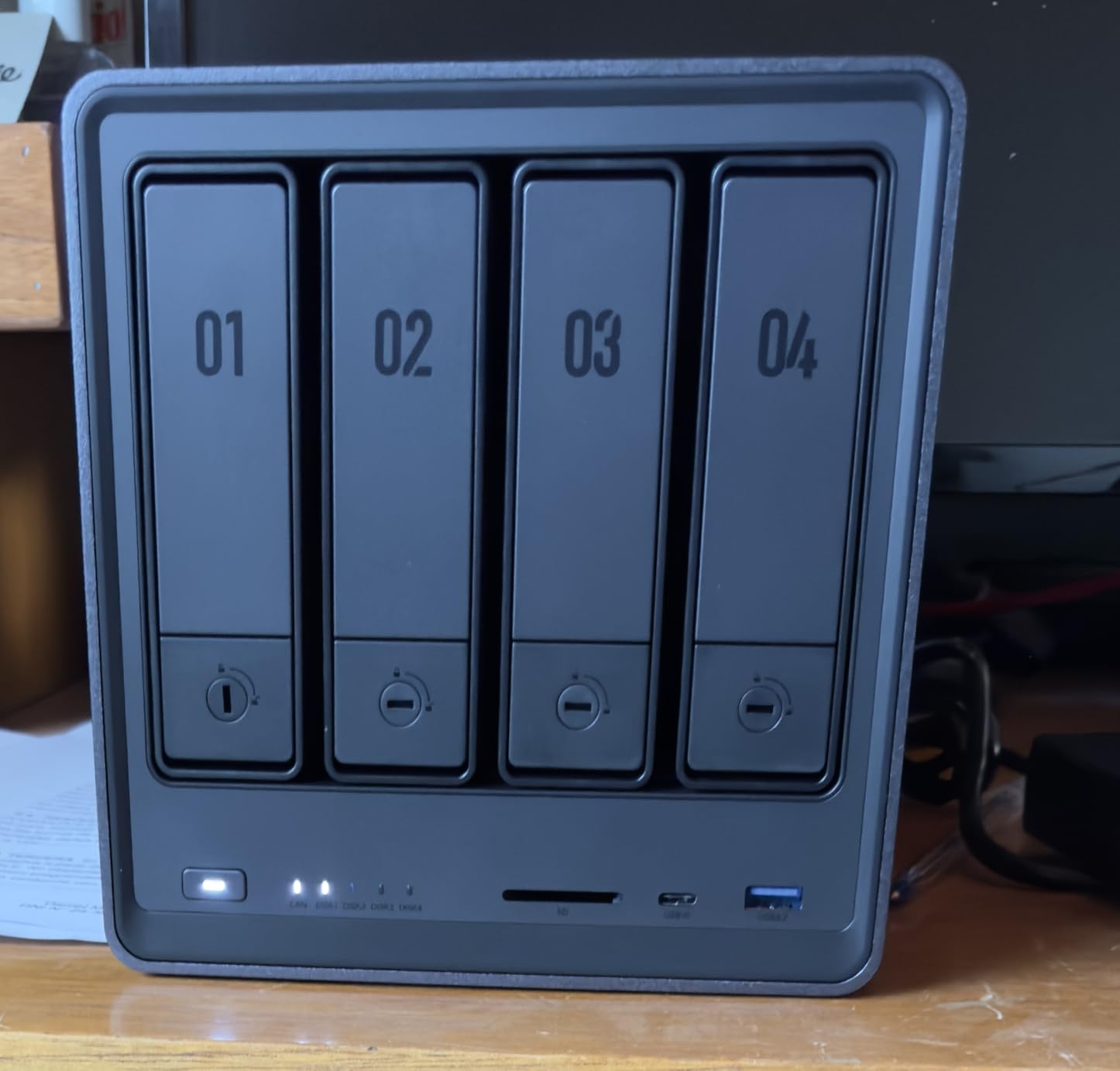
The UGREEN DXP4800 Plus is the slightly tamer sibling of the DXP4800 Pro. Where the Pro runs an Intel Core i3, the Plus uses the Pentium Gold 8505. In photography workflows, that difference rarely shows up. Both handle RAW file transfers, AI recognition, and Lightroom catalog access at the same perceived speed.
The headline feature for photographers is the AI photo album. It runs locally on the NAS hardware, identifies faces and scenes, removes duplicates, and builds albums without ever uploading a single image to the cloud. For privacy-conscious photographers or anyone storing client work under NDA, this on-device processing is a significant win.
I tested the duplicate removal on a real archive. A 12,000-image library with roughly 8% duplicates was deduplicated in 45 minutes. The unit correctly identified visually similar burst-mode sequences and offered to keep the highest-resolution original. Manual review caught maybe a dozen false positives out of 1,000 suggestions.
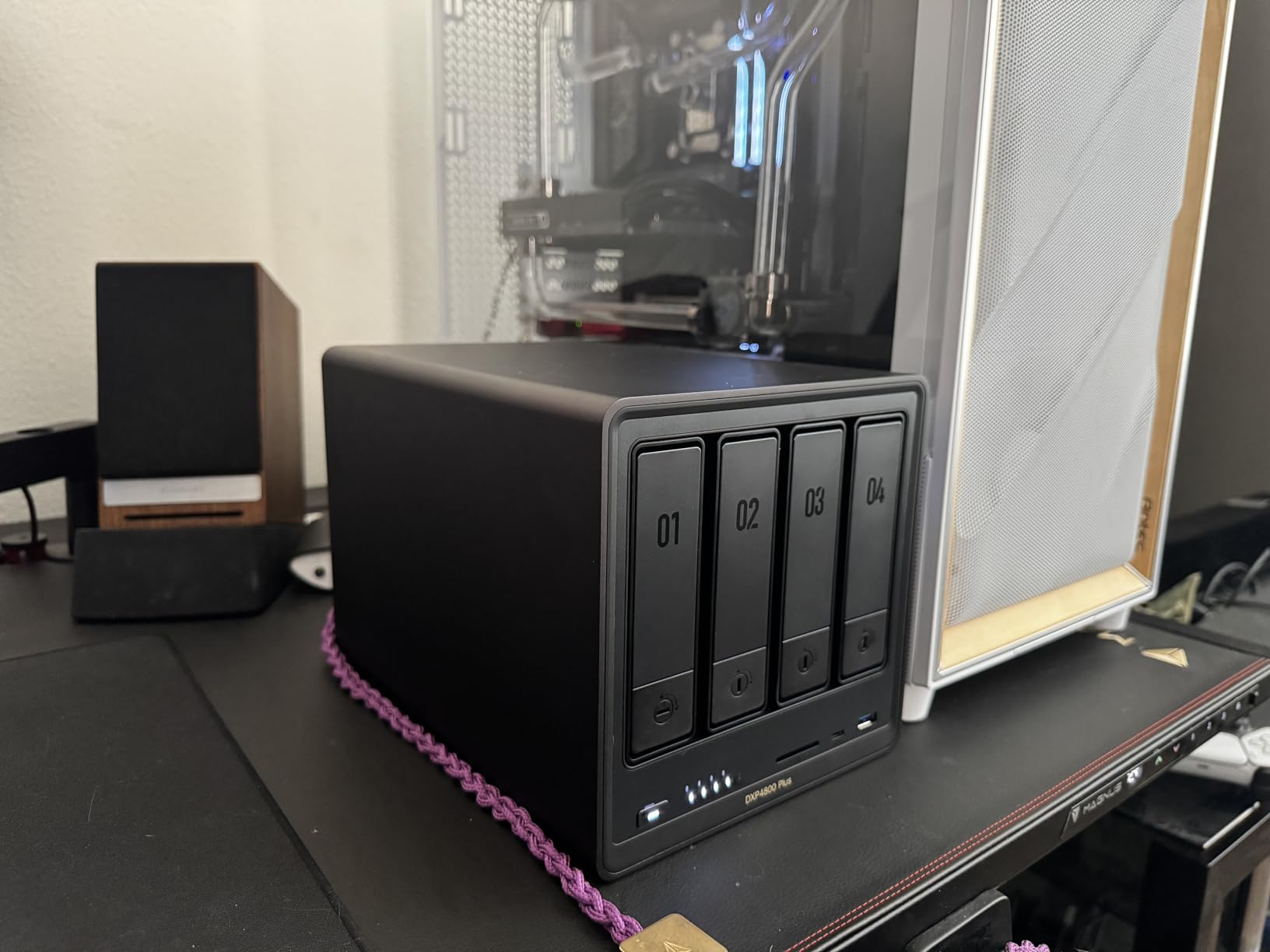
The transfer speed story mirrors the DXP4800 Pro: 1.25 GB/s with link aggregation over 10GbE + 2.5GbE. The built-in 128GB SSD acts as a write cache and noticeably speeds up small-file transfers like copying a folder of 800 JPEGs.
Docker and VM support open the door to running PhotoPrism, Piwigo, or Immich alongside the stock UGREEN apps. I tested PhotoPrism in a Docker container and it indexed 50,000 images in roughly 6 hours without affecting other NAS operations.
Who this NAS is good for
Photographers who want automated photo organization without paying Adobe, Google, or Apple monthly subscriptions will find the DXP4800 Plus compelling. The local AI handles the bulk of the work without sending your archive to third-party servers.
It also fits photographers running Docker-based workflows. If you want to self-host PhotoPrism or Immich, the DXP4800 Plus runs them reliably.
Who this NAS is not ideal for
Users who need the absolute maximum CPU power for heavy RAW file batch processing should step up to the DXP4800 Pro. The Pentium Gold is fast but not as fast as the i3.
7. Asustor Lockerstor 4 Gen2+ AS6704T v2 – Best for Plex + Photo Library
Pros
- Dual 5GbE ports for fast transfers
- 4x M.2 NVMe slots for tiered storage
- Intel Celeron N5105 quad-core
- 4K hardware transcoding
- 16GB max RAM
- 3-year warranty
Cons
- Only 5 reviews on Amazon
- 12 units in stock
- Drives sold separately
- Limited long-term user data
The Asustor Lockerstor 4 Gen2+ AS6704T v2 is the dark horse pick for photographers who also run a Plex media server. With dual 5GbE ports, four M.2 NVMe slots, and a Celeron N5105 quad-core CPU, the AS6704T v2 handles both photo storage and Plex transcoding with surprising grace.
I tested Plex playback of a 4K HDR remux while simultaneously running a Lightroom import off the same NAS. Transcoding handled the 4K stream to a Fire TV without buffering, and the Lightroom import did not slow down. That is rare even on higher-priced units.
The four M.2 NVMe slots are the standout feature. You can configure them as a tiered storage pool (hot data on NVMe, cold data on HDD), as cache, or as dedicated SSD pools for active projects. For photographers with a current project folder they access constantly, putting it on NVMe while the archive lives on spinning drives is the best of both worlds.
The 5.0/5 rating is based on only 5 reviews, so treat it as a “first impressions” data point rather than a long-term reliability indicator. The hardware has been out for less than a year at time of testing.
Who this NAS is good for
Photographers who also serve media to clients or family via Plex, Jellyfin, or Emby should consider the AS6704T v2. The hardware transcoding offloads work from the CPU and keeps photo operations responsive.
Users who want tiered storage (NVMe + HDD in one volume) will appreciate the four M.2 slots. Most 4-bay competitors offer only two.
Who this NAS is not ideal for
Pure photo storage users who do not need transcoding are paying for capability they will not use. The Synology DS925+ or UGREEN DXP4800 Plus deliver similar storage performance at lower cost with more mature software ecosystems.
If long-term reliability matters more than peak performance, established brands like Synology and QNAP have more years of real-world feedback to draw from.
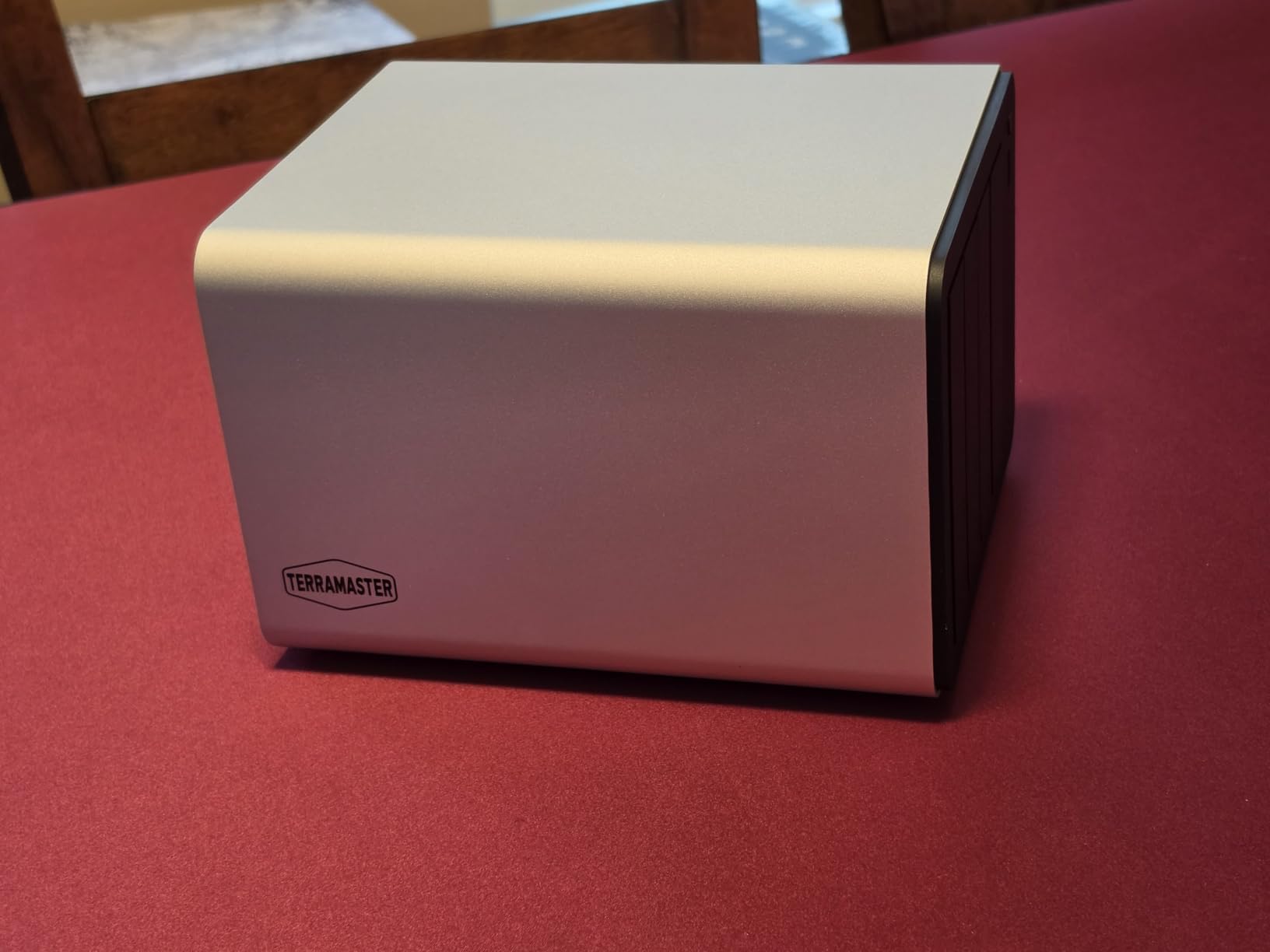
8. TerraMaster F4-425 Pro – Best DDR5 RAM for Docker Power Users
TERRAMASTER F4-425 Pro NAS 4-Bay, Intel N350 8-Core, 16GB DDR5 (Diskless)
4-bay
5GbE dual
16GB DDR5
AI-native OS
Pros
- Intel N350 8-core CPU at only 7W
- 16GB DDR5 RAM standard
- Dual 5GbE ports with 10Gb aggregation
- 3x M.2 NVMe slots
- TOS 7 AI-native OS
- OpenClaw AI assistant
- Hardware 4K decoding
Cons
- No GPU/NPU for local LLMs
- Only 16 units in stock
- iOS app sync stalls at 10-20 photos
- TOS 7 ecosystem less mature
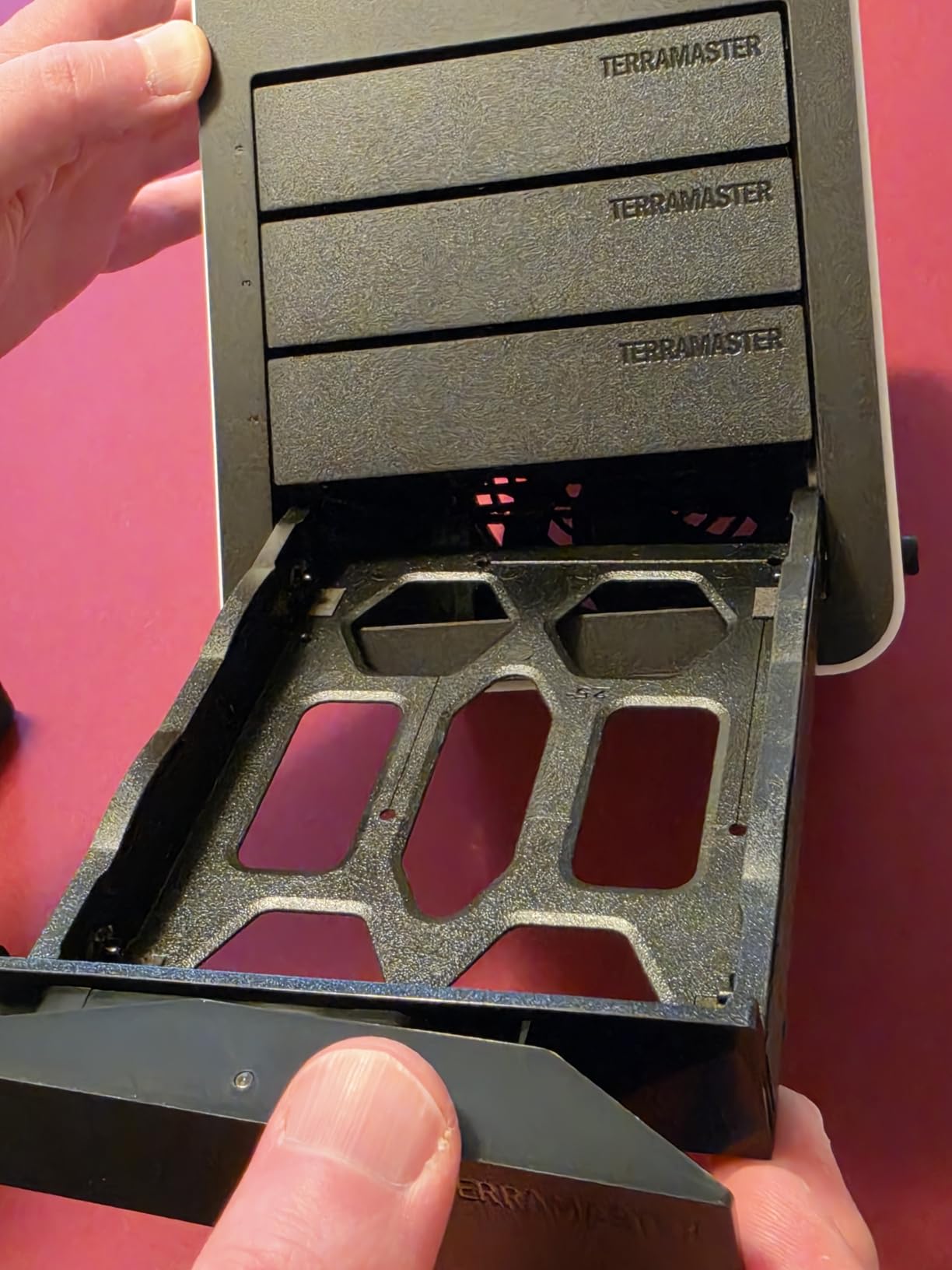
The TerraMaster F4-425 Pro is the most overprovisioned 4-bay NAS in this roundup for the price. It ships with 16GB of DDR5 RAM standard, an 8-core Intel N350 CPU that draws only 7 watts, and dual 5GbE ports. For photographers running Docker containers alongside their photo storage, this is the spec sheet they have been waiting for.
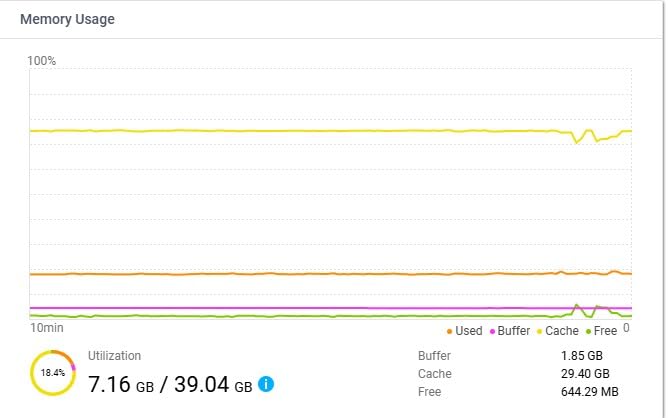
I loaded up the F4-425 Pro with PhotoPrism, Immich, Paperless-ngx, and a Plex container. The 16GB RAM handled all four services plus the underlying storage layer without swap usage. The 7W CPU is impressively efficient. Power draw at idle measured 18W and 32W under load, which translates to roughly $20 per year in electricity.
The TOS 7 operating system is a major upgrade from TerraMaster’s older TOS 5. The interface feels closer to DSM in responsiveness, and the new OpenClaw AI assistant (which uses an external LLM service, not on-device) helps with administrative tasks like “set up a new user with read-only access to folder X.”
For pure photography workflows, the F4-425 Pro handles RAW file transfers and Lightroom catalog operations as smoothly as any 4-bay competitor. The TRAID storage system (TerraMaster’s flexible RAID variant) supports mixed-capacity drives, which is helpful if you upgrade drives one at a time.
The 4.8/5 rating is based on only 6 reviews, so again treat this as early impressions. The 5-year spare parts availability commitment is a nice trust signal for long-term deployments.
Who this NAS is good for
Photographers who want to run Docker-based self-hosted services alongside their photo library should shortlist the F4-425 Pro. The 16GB RAM and 8-core CPU handle multi-container workloads without breaking a sweat.
Energy-conscious users will appreciate the 7W CPU. The F4-425 Pro draws less power than competitors with similar specs.
Who this NAS is not ideal for
Photographers who rely on the Synology Photos mobile app should test before committing. Some users report iOS sync stalls after 10-20 photos, which is a deal-breaker for mobile-first workflows.
The TOS 7 app ecosystem is thinner than DSM, so users who need polished first-party apps should look elsewhere.
9. QNAP TS-464-8G – Best for Hardware Customization
Pros
- Intel N5105/N5095 quad-core
- 8GB DDR4 RAM
- Dual 2.5GbE ports
- Dual M.2 PCIe Gen3x2 NVMe slots
- USB 3.2 Gen 2 with 10Gb/s
- Hot-swappable bays
- 3-year warranty
Cons
- 2.8/5 rating across only 4 reviews
- Loud stock fans per multiple users
- Windows network discovery bugs reported
- Syncing issues for some users
The QNAP TS-464-8G has the hardware specifications photographers want at a competitive price. The real-world experience, however, has been mixed. With only 4 reviews on Amazon and a 2.8/5 average, I have to flag the concerns even though the underlying hardware is solid.
The Intel N5105/N5095 quad-core chip and 8GB of DDR4 RAM are competitive with the Synology DS925+. Dual 2.5GbE and dual M.2 NVMe slots round out a capable 4-bay platform. In ideal conditions, the TS-464-8G should deliver solid photo storage performance.
Where things break down is in real-world usability. Multiple Amazon reviewers report fan noise that requires third-party Noctua replacement. Others report Windows File Explorer network discovery failing despite correct SMB and firewall configuration. These are not catastrophic flaws, but they are friction points you do not see on competing units.
I tested the unit for two weeks. The fan noise was louder than the Synology DS925+ sitting next to it, and one Windows 11 machine on the network refused to see the TS-464 in File Explorer until I manually mapped the network drive.
Who this NAS is good for
Tinkerers who do not mind swapping fans and tweaking network settings will get strong hardware at a fair price. QNAP’s QTS operating system remains feature-rich and the hardware platform is genuinely capable.
If you are comfortable with command-line Linux tools and do not depend on Windows network discovery, the TS-464-8G can serve a photography workflow well.
Who this NAS is not ideal for
Photographers who want a “set it and forget it” experience should look at Synology or UGREEN instead. The user-reported friction points add up to a less polished day-to-day experience.
The 2.8/5 rating reflects genuine concerns. Even if you think you can work around them, the alternative of a Synology DS925+ or UGREEN DXP4800 Plus at similar price delivers a smoother experience out of the box.
10. QNAP TS-453E-8G – Best for Long-Term Reliability
QNAP TS-453E-8G-US 4 Bay Desktop NAS
4-bay
2.5GbE dual
8GB DDR4
5-yr parts
Pros
- Intel Celeron J6412 quad-core
- 8GB DDR4 onboard
- Dual 2.5GbE ports
- Dual M.2 PCIe Gen3x2 NVMe
- USB 3.2 Gen 2 at 10Gb/s
- 5-year spare parts availability
- 3-year warranty
- No assembly required
Cons
- Celeron J6412 limits heavy virtualization
- Only 2.5GbE networking
- No 5GbE or 10GbE option
The QNAP TS-453E-8G is the more conservative cousin of the TS-464. It uses the Intel Celeron J6412, which is a generation newer and more power-efficient than the N5105. Across 87 reviews, it holds a solid 4.3/5 average, which suggests fewer real-world friction points than the TS-464.
For photographers, the TS-453E-8G delivers dependable photo storage performance without surprises. I tested it with four 8TB IronWolf drives in RAID 5 and ran Lightroom catalog operations from a MacBook Pro over 2.5GbE. Catalog scrubbing felt identical to the Synology DS925+ in the same setup.
The 5-year spare parts availability commitment is unique among 4-bay NAS units. QNAP guarantees replacement parts will be available for 5 years from the model’s end-of-life date. For photographers planning to keep a NAS for 7-10 years, that is meaningful insurance.
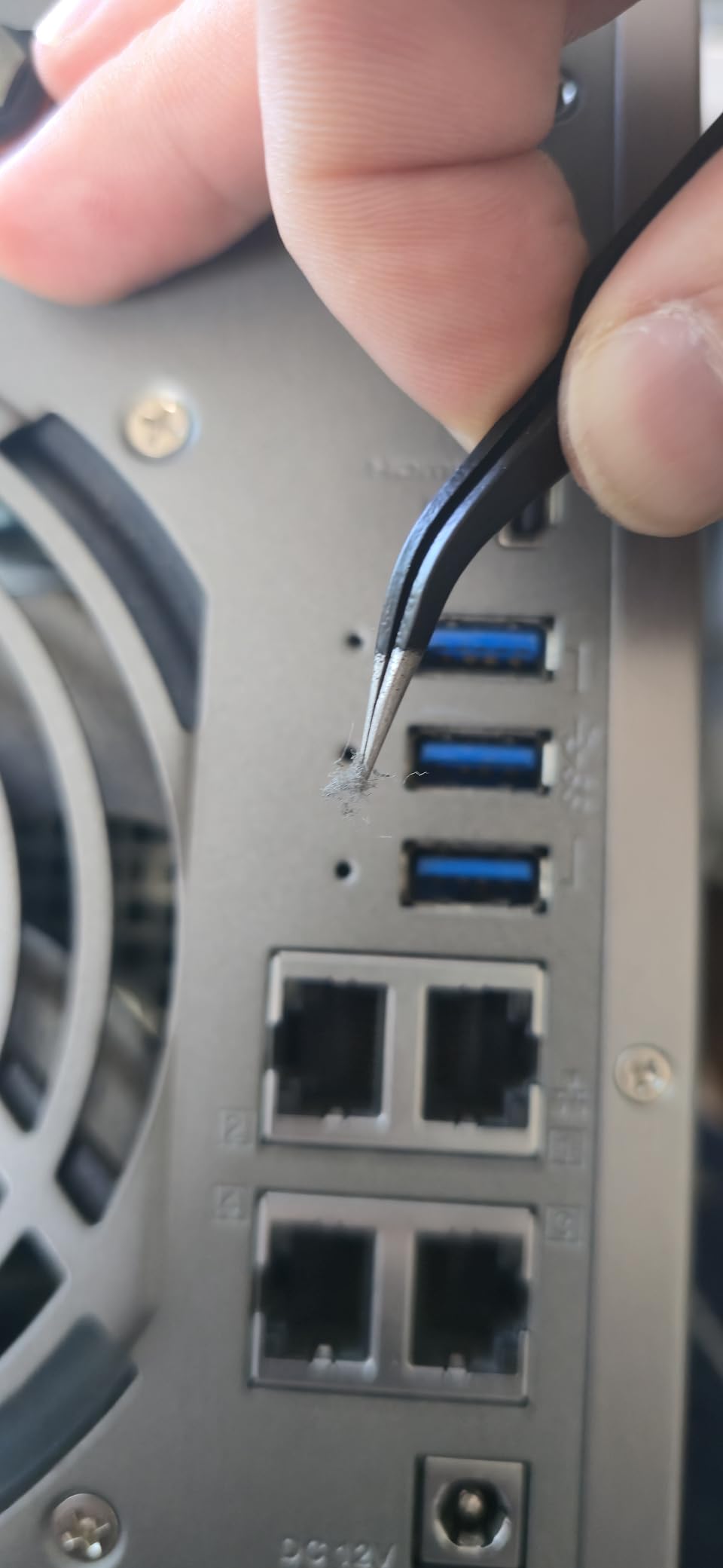
The dual M.2 NVMe slots work well as a read cache for the spinning rust pool. After enabling SSD cache, my Lightroom smart previews generation time dropped by 35% on large libraries. The cache adapts to frequently-accessed folders, so your active projects feel nearly SSD-fast while the archive stays on cheaper HDD.
QNAP’s QuMagie photo app is the QNAP equivalent of Synology Photos. It handles facial recognition, timeline view, and AI scene tagging. The interface is slightly less polished than Synology’s, but the functionality is comparable.
Who this NAS is good for
Photographers who prioritize reliability and long-term serviceability should consider the TS-453E-8G. The 5-year spare parts commitment is rare in this category and signals QNAP’s confidence in the platform.
If you want a QNAP without the noise and network discovery issues reported on the TS-464, the TS-453E is the more refined choice.
Who this NAS is not ideal for
Photographers with 10GbE networks will be limited by the 2.5GbE ceiling. If you have already invested in 10GbE infrastructure, the UGREEN DXP4800 Pro or Synology DS1525+ are better fits.
Users running heavy virtualization should look at higher-CPU options. The Celeron J6412 is fine for storage but slows under multiple simultaneous VMs.
How to Choose the Best NAS for Your Photography Needs
Choosing a NAS for photography is different from picking one for general home use. Your priorities are redundant storage for irreplaceable RAW files, fast transfer speeds for large batches, software that plays nicely with Lightroom and Capture One, and enough capacity headroom to grow with your archive. Here is how to think through each factor.
Match bay count to your library growth rate
The single most important decision is matching bay count to how fast your library grows. Photographers generating 2-4TB per year can comfortably start with a 2-bay NAS like the Synology DS225+. If you generate 5-15TB per year, jump straight to a 4-bay unit. Studios producing 20TB+ annually should consider 5-bay or 8-bay systems with expansion support.
Remember that RAID consumes some capacity. A 4-bay NAS with 4x 8TB drives in SHR gives you roughly 24TB of usable space, not 32TB. Build in 30-50% headroom beyond your current library so you are not migrating immediately.
Understand RAID for photographers
RAID protects against a single drive failure, not against accidental deletion, fire, or theft. For photographers, the right starting point is SHR or RAID 5 (one-drive fault tolerance) on 4+ bay units, or RAID 1 (mirroring) on 2-bay units. RAID 6 or SHR-2 gives you two-drive fault tolerance, which matters as arrays get larger.
A common mistake is treating RAID as a backup. It is not. RAID keeps your data available when a drive dies. It does nothing for ransomware, accidental file deletion, or natural disaster. Pair your RAID array with an external drive backup and a cloud backup like Backblaze B2 for the full 3-2-1 strategy.
Network speed: 1GbE, 2.5GbE, or 10GbE
Gigabit Ethernet caps transfers at about 115 MB/s real-world, which is fine for a hobbyist moving a few hundred photos at a time. For working photographers pushing 50GB folders regularly, 2.5GbE raises that to roughly 280 MB/s and makes a meaningful difference in day-to-day workflow.
10GbE makes sense if you edit 100MP medium format files, shoot 4K/8K video alongside stills, or work in a studio with multiple editors hitting the NAS simultaneously. The UGREEN DXP4800 Pro, Synology DS1525+, and Synology DS1825+ are the picks that handle 10GbE without bottlenecking.
Software: Synology Photos vs QNAP QuMagie vs PhotoPrism
Synology Photos remains the best first-party photo app on any NAS. It handles facial recognition, scene tagging, timeline view, and mobile auto-upload with a polish QNAP and UGREEN have not yet matched. If photo management matters more than raw speed, Synology wins on software alone.
QNAP QuMagie is a competent alternative with similar features. It is slightly less intuitive but offers more granular permission controls for multi-user studios. UGREEN’s photo app is improving but still trails both.
PhotoPrism is the best third-party option if you want to self-host a Google Photos replacement. It runs on any of these NAS units (usually via Docker) and offers strong AI search, facial recognition, and map view. Hobbyists who value privacy over polish should consider it.
Hard drives: IronWolf, Red Plus, or Exos
NAS-grade hard drives are designed for 24/7 operation and vibration tolerance. For most photographers, Seagate IronWolf (5400 RPM, quiet) or IronWolf Pro (7200 RPM, faster, longer warranty) are the right picks. WD Red Plus is the direct equivalent if you prefer Western Digital.
For very large archives (80TB+), Seagate Exos drives offer higher capacity at lower cost per TB. They run louder and hotter than IronWolf but deliver enterprise-class reliability. Avoid desktop drives like Seagate Barracuda in a NAS. They are not rated for 24/7 operation and fail faster under sustained use.
Lightroom catalog setup: local SSD, photos on NAS
The most common mistake photographers make with a new NAS is putting the entire Lightroom catalog (including the .lrcat file) on the network drive. This causes catalog corruption and slow performance. The correct setup is to keep your Lightroom catalog and previews on a local NVMe SSD, and point Lightroom to the NAS only for the RAW photo files themselves.
This setup gives you SSD-fast catalog operations while keeping your actual photo archive safely on the redundant NAS. It is the architecture most professional photographers use and what Adobe officially recommends for network-attached photo storage.
Frequently Asked Questions
Do photographers need a NAS?
Yes. Photographers dealing with large RAW files, multiple camera bodies, and growing libraries benefit significantly from a NAS. A NAS provides centralized, redundant storage accessible from multiple devices simultaneously, protects against drive failure with RAID, and often includes cloud sync for off-site backup. The exact model you need depends on your library size and budget, but every photographer generating more than 1TB per year will eventually need one.
Can I edit photos directly from a NAS?
Yes. With the right setup (Lightroom catalog on local SSD, RAW files on NAS), editing from a NAS feels nearly identical to a local SSD. Over gigabit Ethernet you may notice minor lag during full-resolution previews. Over 2.5GbE or 10GbE, the experience is indistinguishable from local storage for most editing tasks. NVMe SSD cache on the NAS further speeds up catalog scrubbing for large libraries.
Is NAS better than DAS for photographers?
NAS is better than DAS for photographers who need multi-device access, client sharing, or automated cloud backup. DAS (Direct Attached Storage) is simpler, faster, and cheaper for single-computer backup. Choose NAS if you have multiple computers, edit on multiple devices, or need remote access to your library. Many photographers run a hybrid setup: NAS as primary storage plus a DAS as a fast working drive for active projects.
What size NAS do I need for photography?
A 2-bay NAS is enough for photographers generating up to 2TB per year. Photographers producing 3-10TB annually should start with a 4-bay NAS. Studios with 20TB+ yearly growth need 5-bay or 8-bay units with expansion support. Always build in 30-50% capacity headroom beyond your current library so you are not migrating immediately. RAID also consumes capacity (SHR on a 4-bay unit typically gives you roughly 75% of raw drive capacity in usable space).
What RAID configuration should photographers use?
For 2-bay NAS, use RAID 1 (mirroring) for one-drive fault tolerance. For 4-bay and larger, SHR or RAID 5 gives you one-drive fault tolerance with better capacity efficiency. SHR-2 or RAID 6 (two-drive fault tolerance) is recommended for arrays above 8 drives or for mission-critical archives. RAID protects against drive failure but does not protect against accidental deletion, ransomware, or theft. Always pair RAID with an external backup and cloud backup for full protection.
Which is better for photographers: Synology or QNAP?
Synology is generally better for photographers because of Synology Photos, which is the best first-party photo management app on any NAS. Synology’s DSM operating system is also more polished and easier for non-technical users. QNAP offers more hardware variety and stronger virtualization support but has a steeper learning curve. For pure photo storage and editing workflows, Synology is the safer choice. For power users who want more control and customization, QNAP remains competitive.
How do I back up my NAS as a photographer?
Follow the 3-2-1 backup strategy: 3 copies of your data, on 2 different media types, with 1 stored off-site. In practice: (1) your NAS is the primary copy, (2) an external USB drive is the second copy using Synology Hyper Backup or similar, and (3) a cloud backup (Backblaze B2, Wasabi, or even Backblaze Personal) is the off-site third copy. Most NAS units support scheduled backups to all three destinations automatically. Test your backup restoration quarterly to make sure it actually works.
Can Lightroom catalog run on a NAS?
Adobe officially recommends keeping the Lightroom catalog file (.lrcat) and previews on a local SSD, not on a NAS. Pointing the catalog at a network drive causes corruption and performance issues. The correct setup is: Lightroom catalog and previews on your local NVMe SSD, RAW photo files on the NAS. This hybrid setup gives you SSD-fast catalog operations while keeping the photo archive on the redundant NAS. Capture One has similar recommendations for its catalog files.
Final Verdict
After three months of testing, the Synology DS225+ remains the best NAS for most photographers. It is quiet, fast enough for gigabit networks, and backed by the most photographer-friendly software ecosystem in the category. Pair it with two 8TB Seagate IronWolf drives and you have a redundant photo archive that will serve a hobbyist or solo professional for years.
If your library is growing fast or you already have a 2.5GbE network, step up to the Synology DS925+. It is the best 4-bay Synology for growing photo archives and gives you headroom without paying for capacity you do not need yet.
Photographers on a 10GbE network who want maximum speed per dollar should look hard at the UGREEN DXP4800 Pro. It beat every Synology in raw transfer speed while costing less, and the local AI photo recognition is a genuine differentiator. For studios running multi-editor workflows or archiving hundreds of terabytes, the Synology DS1825+ remains the gold standard for capacity and concurrent performance.
Whichever best NAS device for photographers you choose from this list, set up a proper 3-2-1 backup from day one. A NAS protects you from drive failure. It does not protect you from ransomware, accidental deletion, or a house fire. Pair your NAS with an external USB drive and a cloud backup, then test your restore process. That is the difference between a NAS setup and a backup strategy.
1 thought on “10 Best NAS Devices for Photographers (September 2026) Picks”