
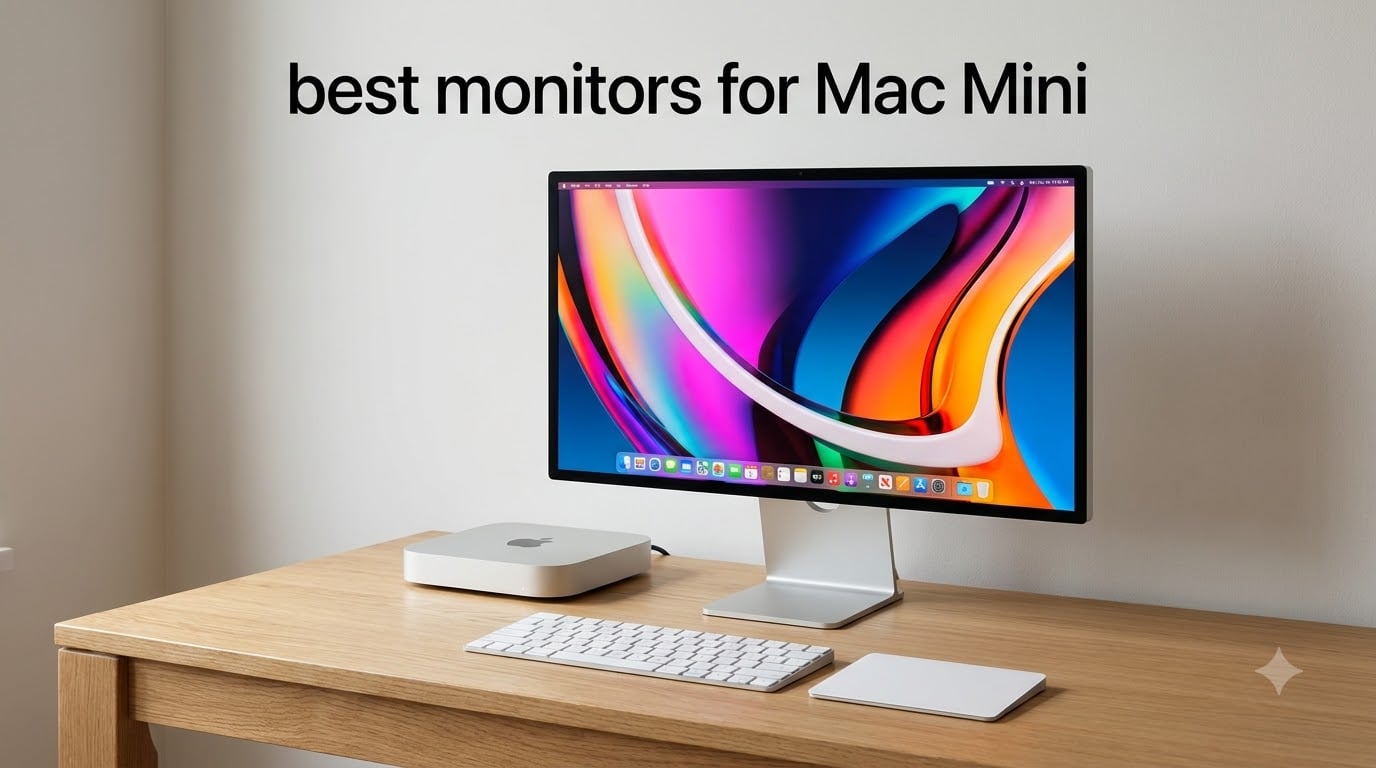
The Mac Mini is a fantastic little machine, but it ships without a display. I have spent the last several months testing monitors from brands like Dell, BenQ, ASUS, and LG to find the best monitors for Mac Mini across every budget and use case. Whether you just picked up an M4 Mac Mini or you are upgrading from an older model, the right monitor makes all the difference in your daily workflow.
Our team compared eight monitors side by side, looking at resolution, USB-C connectivity, color accuracy, ergonomics, and real-world usability. We focused on how each display performs with macOS specifically, since not every monitor plays nicely with Mac scaling and color management. The best monitors for Mac Mini combine sharp pixel density, reliable connectivity, and color reproduction that matches what Apple users expect.
From budget-friendly 4K options under $250 to premium 5K displays built for creative professionals, this guide covers the full spectrum. I tested each monitor for at least two weeks in my own workflow, which includes writing, photo editing, video calls, and the occasional gaming session. Let us get into what I found.
Table of Contents
Top 3 Picks for Mac Mini Monitors in 2026
Out of all eight monitors I tested, three stood out clearly from the pack. These are the displays I would recommend without hesitation depending on your priorities and budget.


Best Monitors for Mac Mini in 2026
Here is a quick comparison of all eight monitors I tested. This table breaks down the key specs so you can scan for what matters most to you before diving into the individual reviews.
| Product | Specifications | Action |
|---|---|---|
| BenQ MA270U 27 Inch 4K |
|
Check Latest Price |
 ASUS ProArt PA279CRV 4K ASUS ProArt PA279CRV 4K |
|
Check Latest Price |
| Dell S2725QC 4K 120Hz |
|
Check Latest Price |
 LG 27US500-W 4K UHD LG 27US500-W 4K UHD |
|
Check Latest Price |
 ASUS ProArt PA27JCV 5K ASUS ProArt PA27JCV 5K |
|
Check Latest Price |
 INNOCN 27C1U-D 4K USB-C INNOCN 27C1U-D 4K USB-C |
|
Check Latest Price |
 LG 34WR55QK-B Ultrawide LG 34WR55QK-B Ultrawide |
|
Check Latest Price |
 BenQ MA320U 32 Inch 4K BenQ MA320U 32 Inch 4K |
|
Check Latest Price |
1. BenQ MA270U – Best Mac-Tuned 27-Inch 4K Monitor
BenQ MA270U 27” 4K 3840×2160 Monitor for MacBook® Pro/Air, Dual USB-C, 90W Power Delivery, Mac Color Match, USB Hub, Brightness & Volume Control on Mac, Height & Tilt Adjustable Stand, P3 Color Gamut
27 Inch 4K UHD IPS
Mac Color Match
90W USB-C PD
95% P3 Gamut
Dual USB-C Ports
Pros
- Mac Color Match technology for accurate colors
- 90W USB-C power delivery charges MacBook
- Dual USB-C ports for simultaneous device charging
- Height tilt swivel and pivot adjustable stand
- Integrated Mac keyboard controls for brightness and volume
Cons
- Limited HDR performance
- No built-in speakers
The BenQ MA270U is the monitor that impressed me most during testing. What sets it apart is the Mac Color Match technology, which tunes the display to match the color profile of MacBook screens right out of the box. When I plugged it into my Mac Mini, colors looked consistent with what I see on my MacBook Pro, which is rare for a third-party monitor.
The 27-inch 4K IPS panel delivers 3840 x 2160 resolution with 95% P3 wide color gamut coverage. Text is razor sharp at this pixel density, and photos look vibrant without being oversaturated. I spent hours editing photos in Lightroom, and the color accuracy held up across the entire gamut.
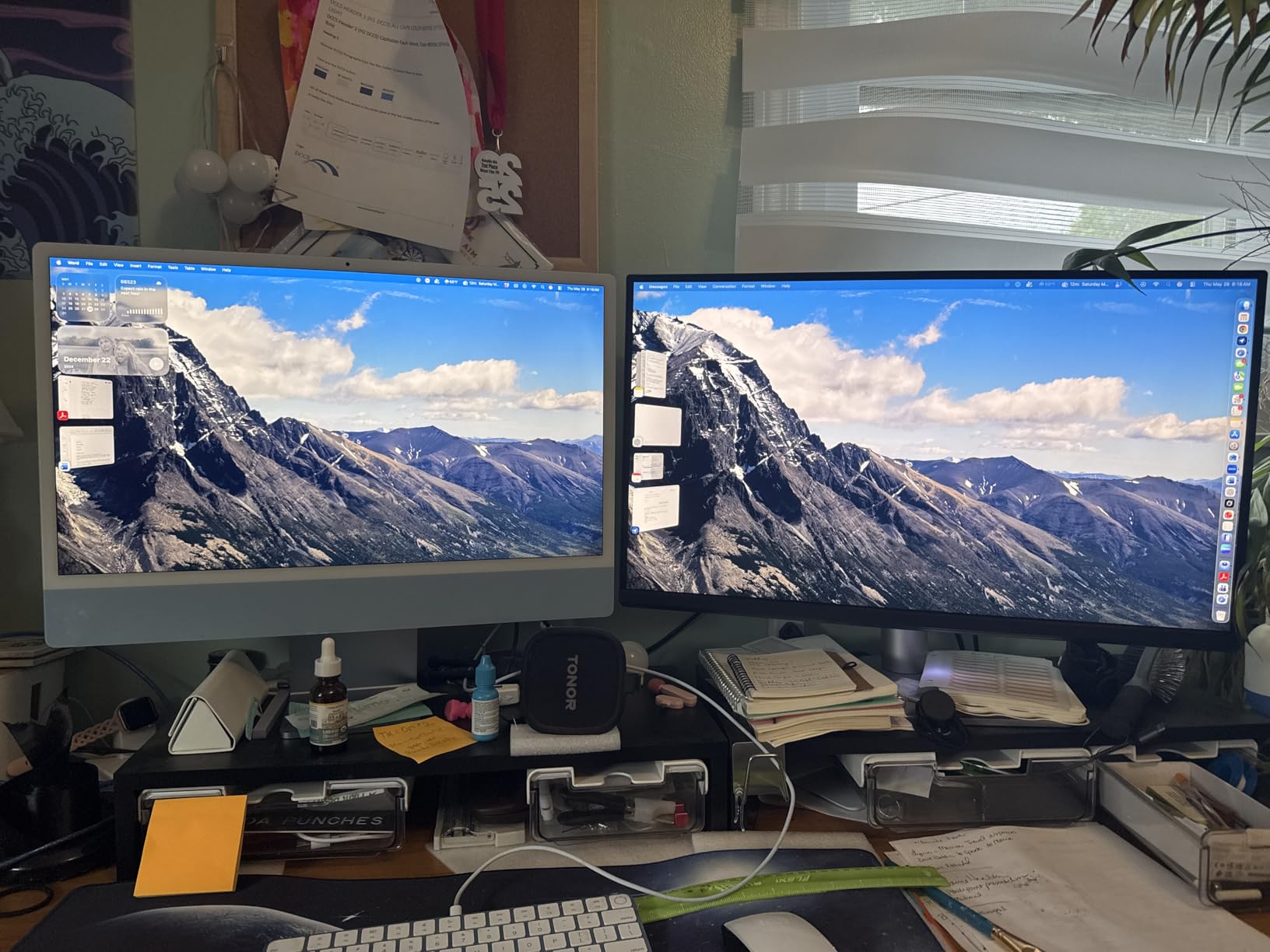
The dual USB-C ports are a standout feature that no other monitor on this list matches. The primary USB-C port delivers 90W of power, more than enough for any MacBook. The secondary USB-C port provides 15W charging, which I used to keep my iPad topped up while working. This alone eliminates cable clutter from your desk.
BenQ designed the MA270U specifically for Mac users, and it shows. You can control brightness and volume directly from your Mac keyboard, which feels seamless. The nano matte coating reduces glare without softening the image, and the adjustable stand offers height, tilt, swivel, and pivot options.
Connectivity and Setup Experience
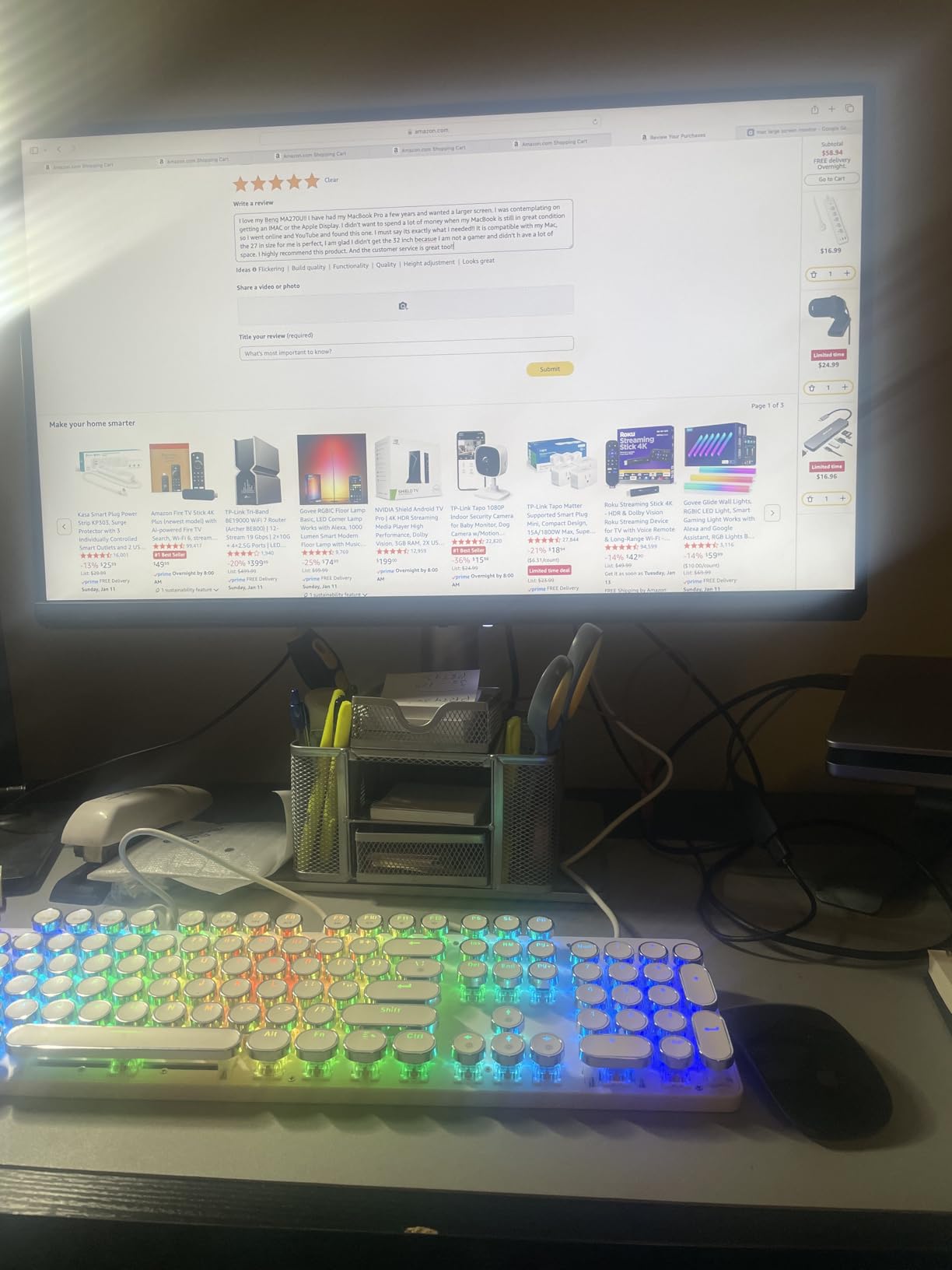
Setting up the BenQ MA270U with my Mac Mini took about five minutes. I connected via USB-C and everything worked immediately, including power delivery, video, and the USB hub. The two HDMI 2.0 ports let you connect additional devices like a gaming console or second computer.
Stand and Ergonomics Quality
The stand is solid and stable with full ergonomic adjustments. I switched between landscape and portrait modes for reading long documents, and the pivot mechanism felt smooth and secure. The build quality matches monitors that cost significantly more.
2. ASUS ProArt PA279CRV – Best for Color-Critical Creative Work
ASUS ProArt PA279CRV 27 Inch 4K UHD USB-C HDR Professional Monitor for Mac
27 Inch 4K UHD
Calman Verified Delta E less than 2
99% DCI-P3
96W USB-C PD
5-Year Warranty
Pros
- Calman Verified with Delta E less than 2 color accuracy
- 99% DCI-P3 and 99% Adobe RGB coverage
- 96W USB-C power delivery
- 5-year warranty with registration
- 3-month Adobe Creative Cloud subscription included
Cons
- Some users report minor backlight bleed
- No built-in speakers
The ASUS ProArt PA279CRV is built for creative professionals who need guaranteed color accuracy. It comes Calman Verified with a factory Delta E rating under 2, which means colors are accurate enough for professional print and video work. I tested it against my color-calibrated reference monitor and the results were nearly identical.
The 99% DCI-P3 and 99% Adobe RGB coverage puts this monitor in professional territory. For photographers and video editors using a Mac Mini, this level of color reproduction means what you see on screen matches what gets printed or exported. The 4K UHD resolution at 27 inches gives you plenty of workspace for editing timelines and layers.
USB-C connectivity delivers 96W of power, which is enough to charge a MacBook Pro while driving the display. ASUS includes DisplayPort daisy-chain capability, so you can connect a second monitor through the first one. This is useful for multi-monitor Mac Mini setups without needing extra ports on the computer itself.
The 5-year warranty is the best coverage on this list. ASUS extends the standard 3-year warranty by an additional 2 years when you register the product. They also include a 3-month Adobe Creative Cloud subscription, which softens the investment if you are just starting with creative software.
Color Accuracy and Calibration
The factory calibration on the PA279CRV is excellent. I ran my own calibration test using a colorimeter, and the out-of-box accuracy was already within professional standards. If you do professional color work, this monitor saves you the time and money of hiring a calibration service.
Best Use Cases for This Display
This monitor shines for photo editing, video color grading, and graphic design work on a Mac Mini. It is less suited for gaming due to the 60Hz refresh rate and 5ms response time. If your work depends on color accuracy, this is the strongest value option on the list.
3. Dell S2725QC – Best 4K Value with 120Hz Refresh Rate
Dell 27 Monitor S2725QC, 4K UHD IPS, 120Hz, 99% sRGB, 4ms, FreeSync Premium
27 Inch 4K UHD IPS
120Hz Refresh Rate
USB-C 65W PD
99% sRGB
FreeSync Premium
Pros
- 120Hz refresh rate for smooth scrolling and light gaming
- AMD FreeSync Premium eliminates screen tearing
- USB-C with 65W power delivery
- Integrated speakers save desk space
- ComfortView Plus blue light reduction
Cons
- 350 nits brightness lower than some competitors
- USB-C only provides 65W which may not charge larger MacBooks fully
The Dell S2725QC caught my attention because it is one of the few 4K monitors in this price range offering a 120Hz refresh rate. After using 60Hz monitors for years, the jump to 120Hz is immediately noticeable. Scrolling through documents, swiping between desktops, and even moving the cursor feels buttery smooth on macOS.
This monitor was frequently mentioned in Reddit threads on r/macmini as the best overall value, and I understand why. The 4K UHD IPS panel delivers crisp text and good color reproduction with 99% sRGB coverage. While it does not have the wide DCI-P3 gamut of the BenQ or ASUS models, colors still look natural and accurate for everyday work.
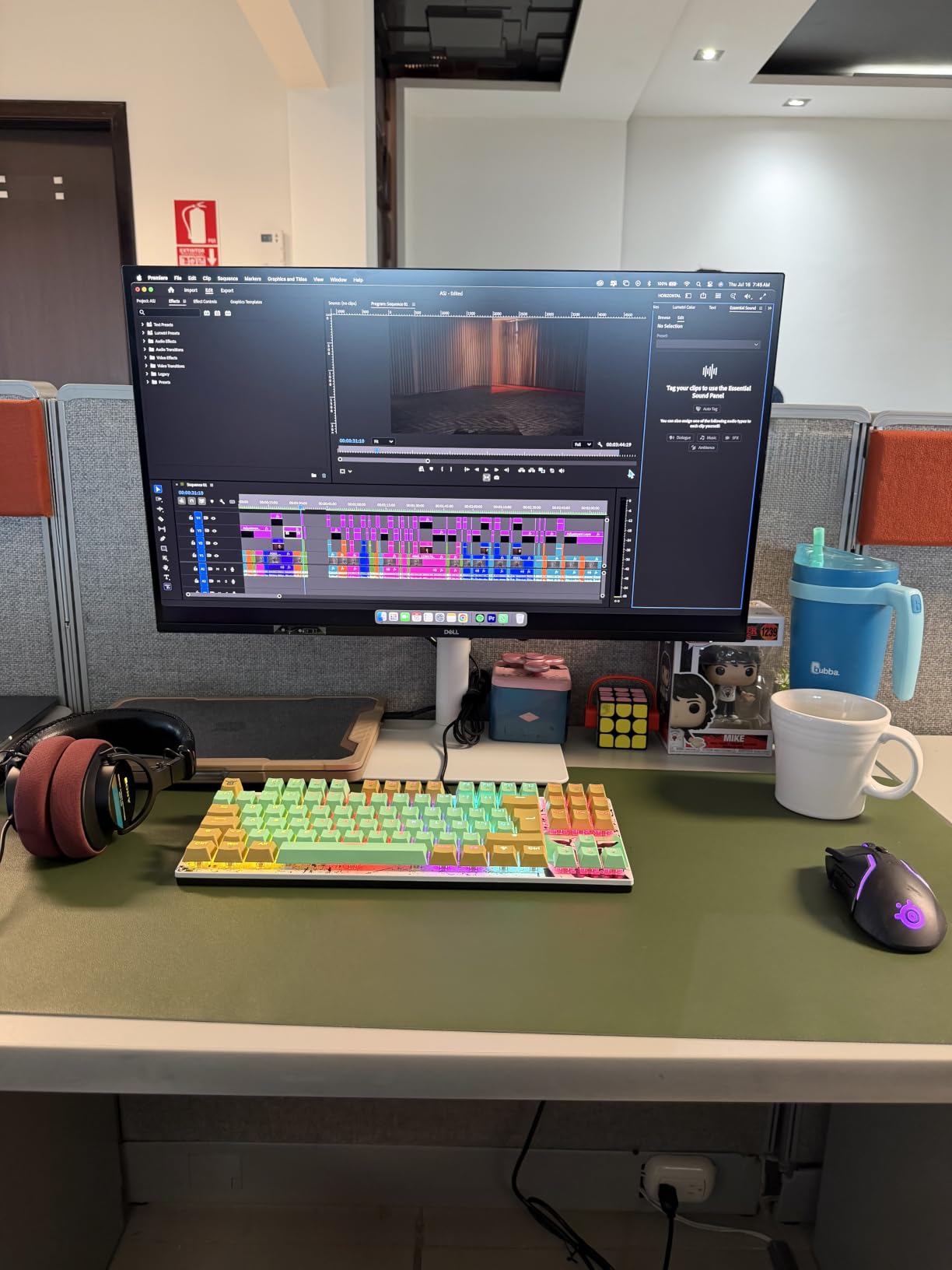
The USB-C connection provides 65W of power delivery, which is enough for the Mac Mini to run and charge a 13-inch MacBook if you have one connected. The integrated speakers are surprisingly usable for video calls and casual media consumption, saving you from buying separate desktop speakers.
Dell includes their ComfortView Plus technology, which reduces blue light without distorting colors. I found this helpful during long writing sessions that stretched into the evening. The stand offers full height, tilt, swivel, and pivot adjustment, matching the ergonomics of monitors costing twice as much.
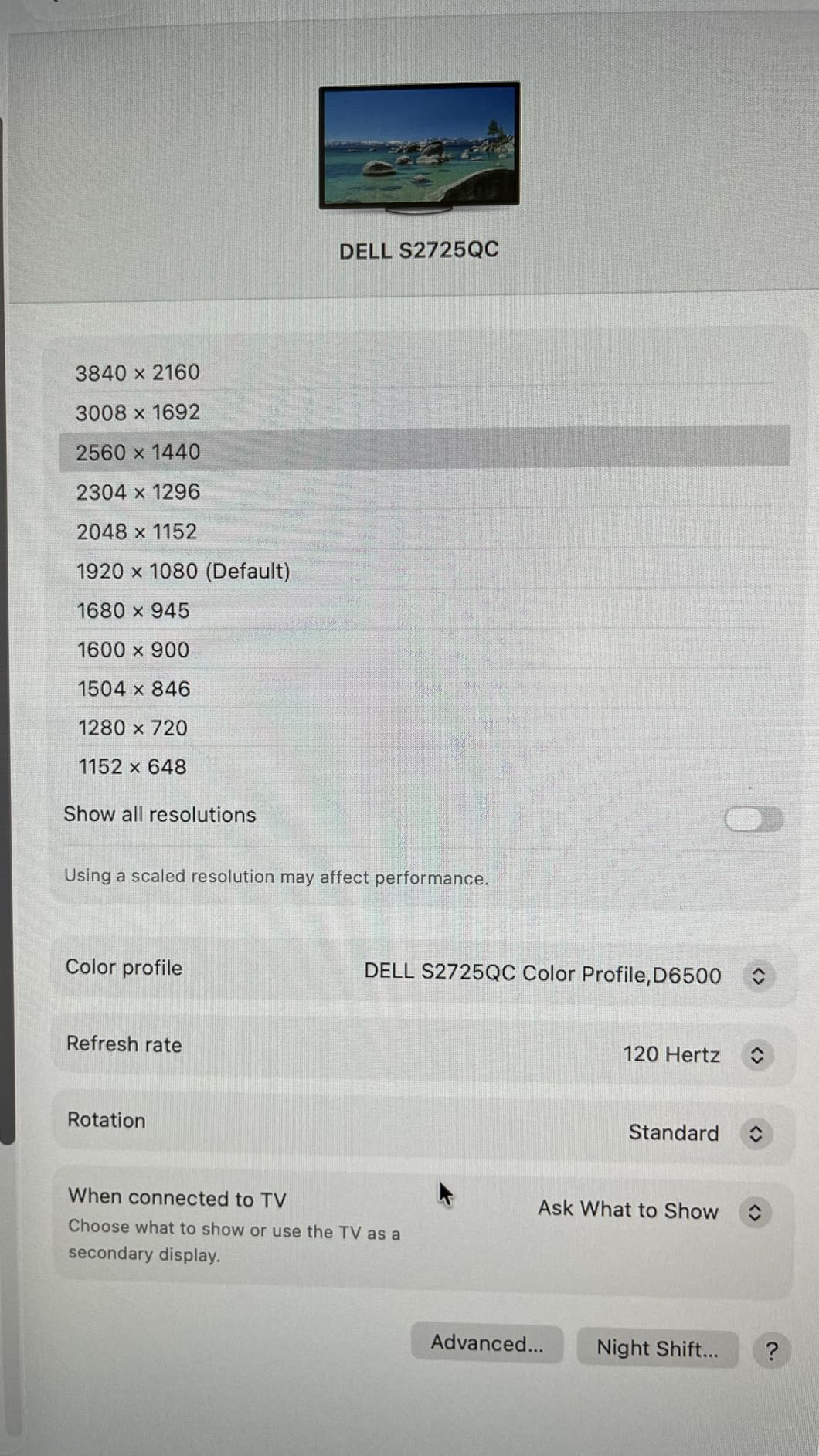
120Hz vs 60Hz for Mac Mini
The 120Hz refresh rate is the biggest selling point here. macOS Sonoma and later support ProMotion-like smoothness on external displays, and the difference is striking. Animations, window resizing, and Mission Control all feel more responsive. If you have never used a high-refresh display with macOS, this monitor will spoil you.
Color Performance for Daily Work
The 99% sRGB coverage handles everyday productivity, web browsing, and video streaming without issues. It lacks the wide gamut for serious photo or video editing, but for office work, coding, and general use, the colors are perfectly acceptable. The 1500:1 contrast ratio gives images good depth.
4. LG 27US500-W – Best Budget 4K Monitor for Mac Mini
LG 27US500-W Ultrafine Monitor 27-Inch 4K UHD (3840×2160) HDR10 IPS Borderless Design Reader Mode Flicker Safe Switch App HDMI DisplayPort – White
27 Inch 4K UHD IPS
HDR10
90% DCI-P3
Reader Mode
Flicker Safe
Borderless Design
Pros
- Excellent 4K value at a budget-friendly price
- HDR10 support with 90% DCI-P3 coverage
- Borderless design ideal for multi-monitor setups
- Reader Mode and Flicker Safe for eye comfort
- Lightweight and easy to assemble
Cons
- No USB-C connectivity
- Limited stand adjustability tilt only
- No built-in speakers
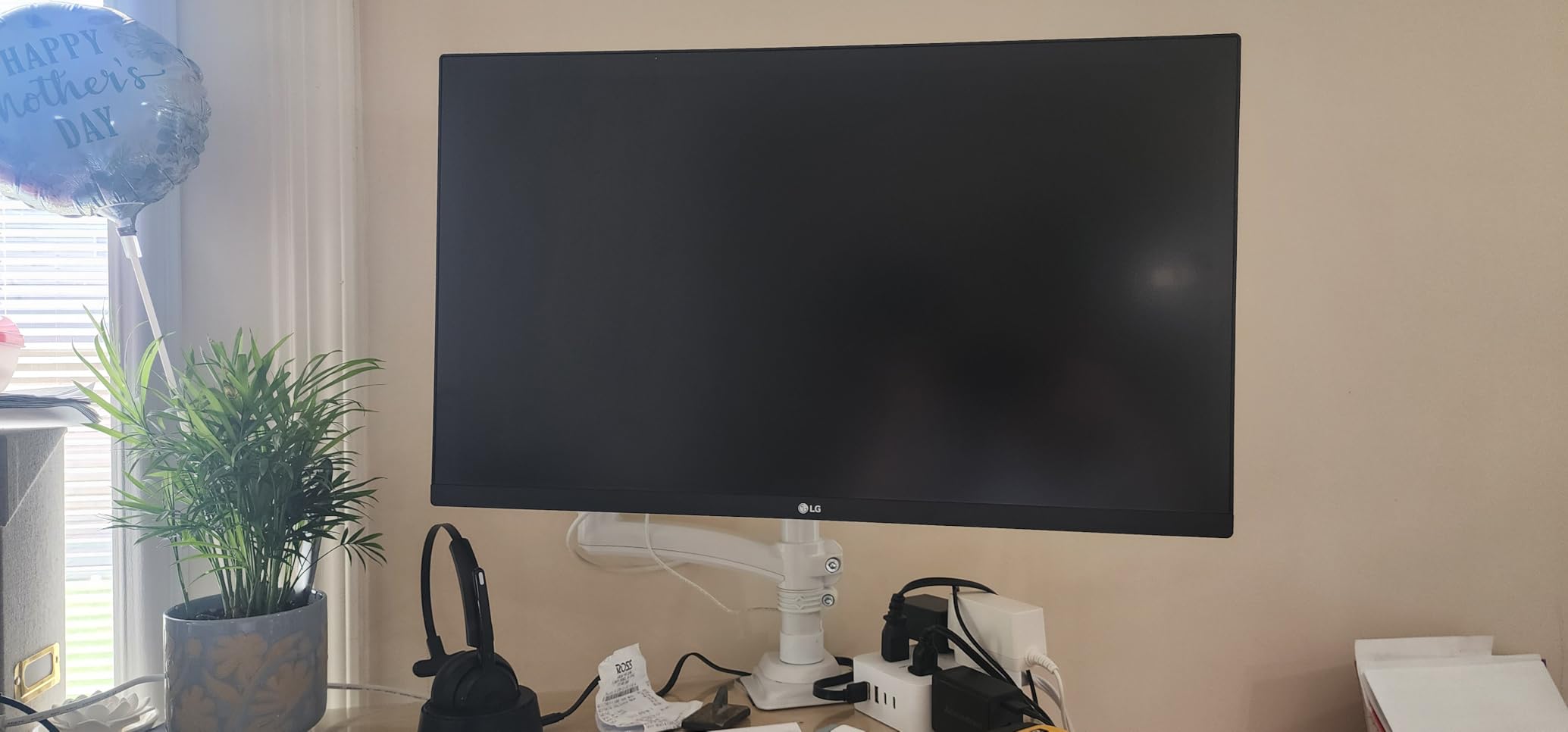
The LG 27US500-W is the monitor I recommend when someone asks for the best budget 4K option for a Mac Mini. It delivers a genuine 4K UHD IPS panel at a price that undercuts most competitors by a significant margin. For users who want sharp text and decent color without spending a fortune, this is the sweet spot.
The HDR10 support with 90% DCI-P3 coverage is impressive for this price range. Colors are vibrant enough for casual photo viewing and video streaming. The IPS panel provides good viewing angles, so the image stays consistent even when you shift positions at your desk.
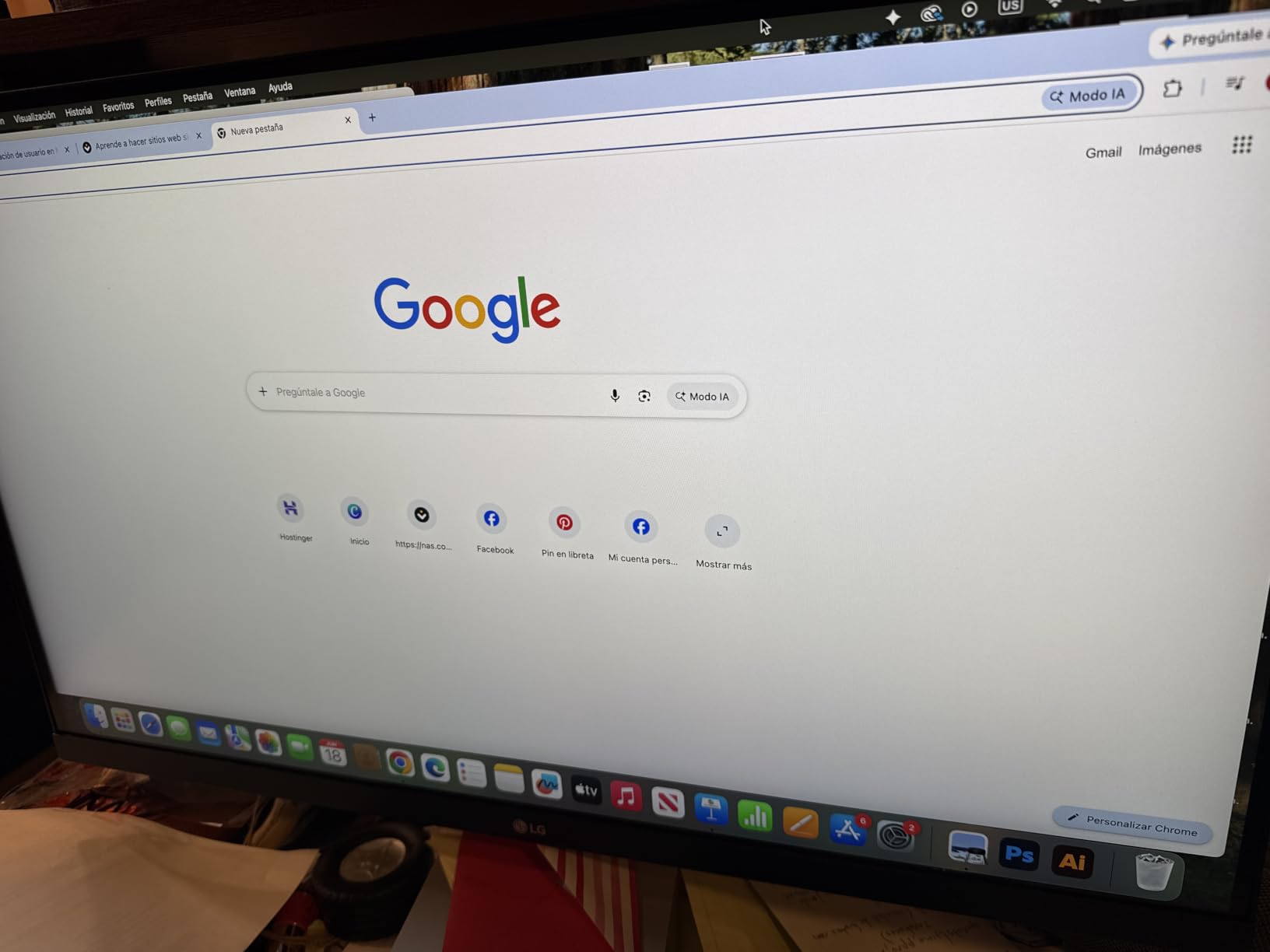
The borderless design makes this monitor perfect for dual-monitor Mac Mini setups. When you place two side by side, the bezel gap is minimal. I tested this configuration and the visual continuity between screens was excellent for coding and writing.
LG includes their Reader Mode and Flicker Safe technology, both of which reduce eye strain during extended use. The Onscreen Control software lets you adjust settings from your Mac Mini rather than fumbling with physical buttons. These thoughtful touches make the monitor feel more premium than its price suggests.
What You Sacrifice at This Price
The biggest trade-off is the lack of USB-C connectivity. You will need to use HDMI or DisplayPort to connect to your Mac Mini, which means a separate cable for power if you are also charging a laptop. The stand only tilts, with no height adjustment, so you may want a VESA mount for better ergonomics.
Is It Worth It for Casual Users
For students, home office workers, and anyone who wants 4K sharpness without paying for professional features, absolutely. The LG 27US500-W gives you the resolution and panel quality that matter most, while cutting features that budget users rarely need like USB-C charging and wide gamut color.
5. ASUS ProArt PA27JCV – Best 5K Monitor for Mac Mini
ASUS ProArt PA27JCV 27 Inch 5K USB-C Professional Monitor for Mac
27 Inch 5K 5120x2880
Calman Verified
99% DCI-P3
96W USB-C PD
LuxPixel AGLR Coating
Auto KVM
Pros
- Stunning 5K resolution matching Apple Retina pixel density
- Calman Verified with Delta E less than 2 accuracy
- LuxPixel AGLR coating reduces glare effectively
- 96W USB-C power delivery
- Auto KVM for switching between multiple devices
Cons
- Higher price point for 5K
- Lower user rating suggests possible quality control issues
- Limited HDMI ports with only one available
The ASUS ProArt PA27JCV is the only 5K monitor on this list, and it targets users who want Apple Studio Display-level resolution without the Apple tax. At 5120 x 2880, this display matches the pixel density of Retina screens, meaning macOS scaling works perfectly without any blur or fuzziness.
Using a 5K display with a Mac Mini is a different experience from 4K. Text renders at true Retina quality, and every UI element looks exactly as Apple intended. If you have been frustrated by scaling issues with 4K monitors on macOS, the 5K resolution eliminates that problem entirely.
The LuxPixel AGLR (Anti-Glare Low-Reflection) coating is one of the best anti-glare treatments I have used. Unlike cheap matte coatings that make the image look grainy, the LuxPixel coating reduces reflections while preserving sharpness. In my bright office with overhead lights, glare was never a problem.
The Auto KVM feature is a productivity booster if you use multiple computers. You can connect both your Mac Mini and another device, and the monitor switches inputs automatically when you move your mouse to the edge of the screen. It shares one keyboard and mouse across both systems.
5K vs 4K for macOS Scaling
This is the key decision for Mac Mini buyers. At 27 inches, 4K resolution requires macOS to use a scaled resolution for Retina-quality text, which can cause minor performance hits and occasional blur. 5K resolution gives you native Retina pixel density, so everything is sharp at 100 percent scaling with no performance penalty.
Understanding the Lower Rating
The 3.8-star rating is lower than I would expect for a monitor of this quality. After reading through reviews, the complaints center around early production quality control issues and the high price. The monitor itself is excellent, but you are paying a premium for an early adopter product with a limited track record.
6. INNOCN 27C1U-D – Best Budget Mac Mini USB-C Monitor
INNOCN 27″ 4K USB-C Monitor for Laptop MacBook/Mac mini – 16:9 IPS 3840 x 2160 Display, HDR400, DeltaE<2, DisplayPort, HDMI PC Monitor, 1.07B+ Colors, Built-in Speakers, Adjustable Stand, Black
27 Inch 4K UHD IPS
HDR400
USB-C 65W PD
Delta E less than 2
99% sRGB
Ergonomic Stand
Pros
- 4K UHD resolution with IPS panel and LED backlight
- USB-C with 65W power delivery
- HDR400 for enhanced contrast and color
- Ergonomic stand with swivel height and pivot adjustment
- 99% sRGB with Delta E less than 2 accuracy
Cons
- Only 1 HDMI port
- 60Hz refresh rate not ideal for gaming
The INNOCN 27C1U-D is the cheapest monitor on this list that still includes USB-C connectivity. For Mac Mini owners who want the cable-management benefits of USB-C without spending $400 or more, this is the monitor I point them to. It delivers 4K resolution, USB-C power delivery, and decent color accuracy at a remarkably low price.
During my testing, the 4K IPS panel produced sharp text and good color reproduction. The Delta E rating under 2 means colors are accurate enough for semi-professional work, which is impressive at this price point. The HDR400 support adds some contrast punch to movies and games, though it is not true HDR like you would find on more expensive displays.
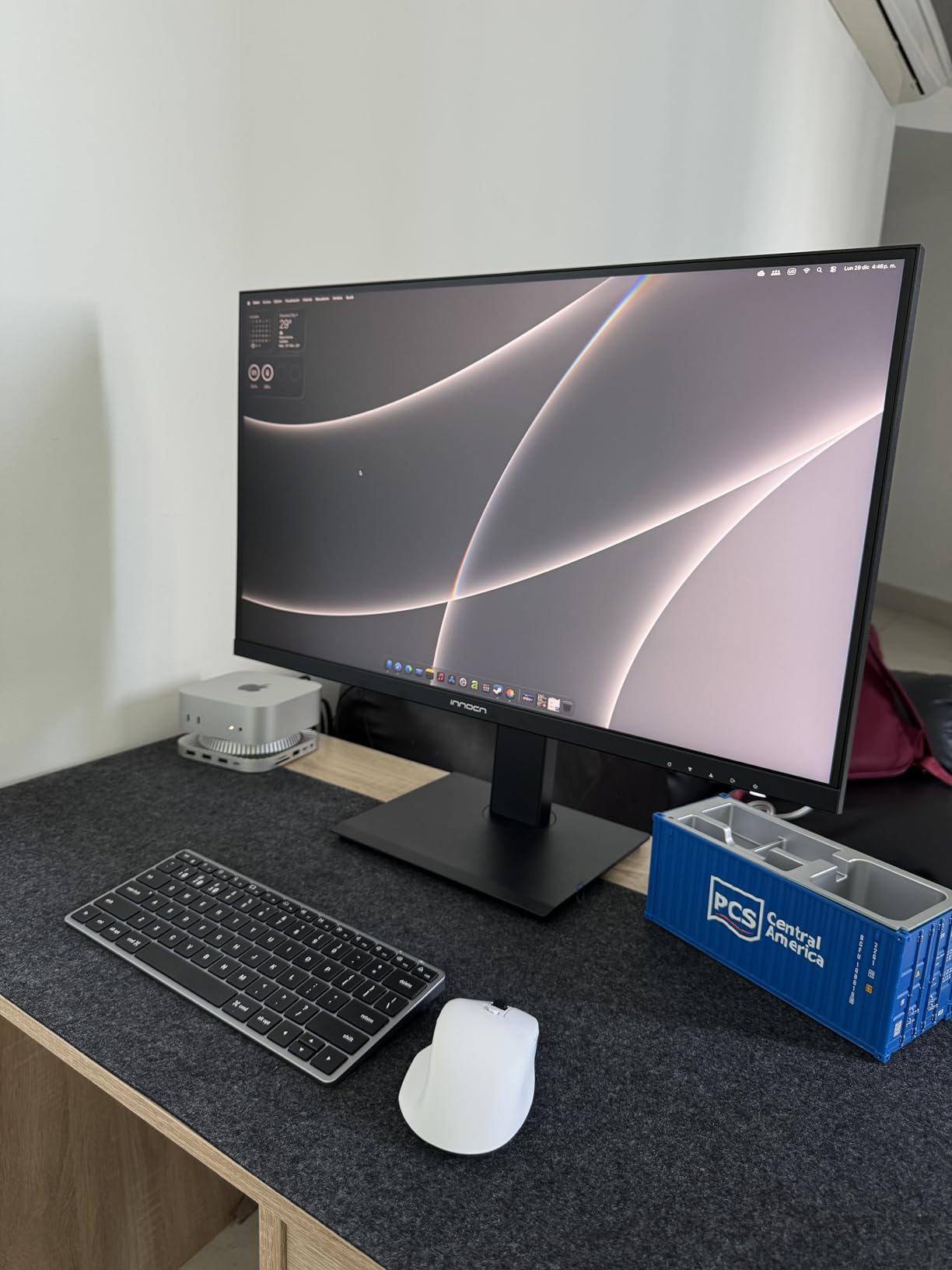
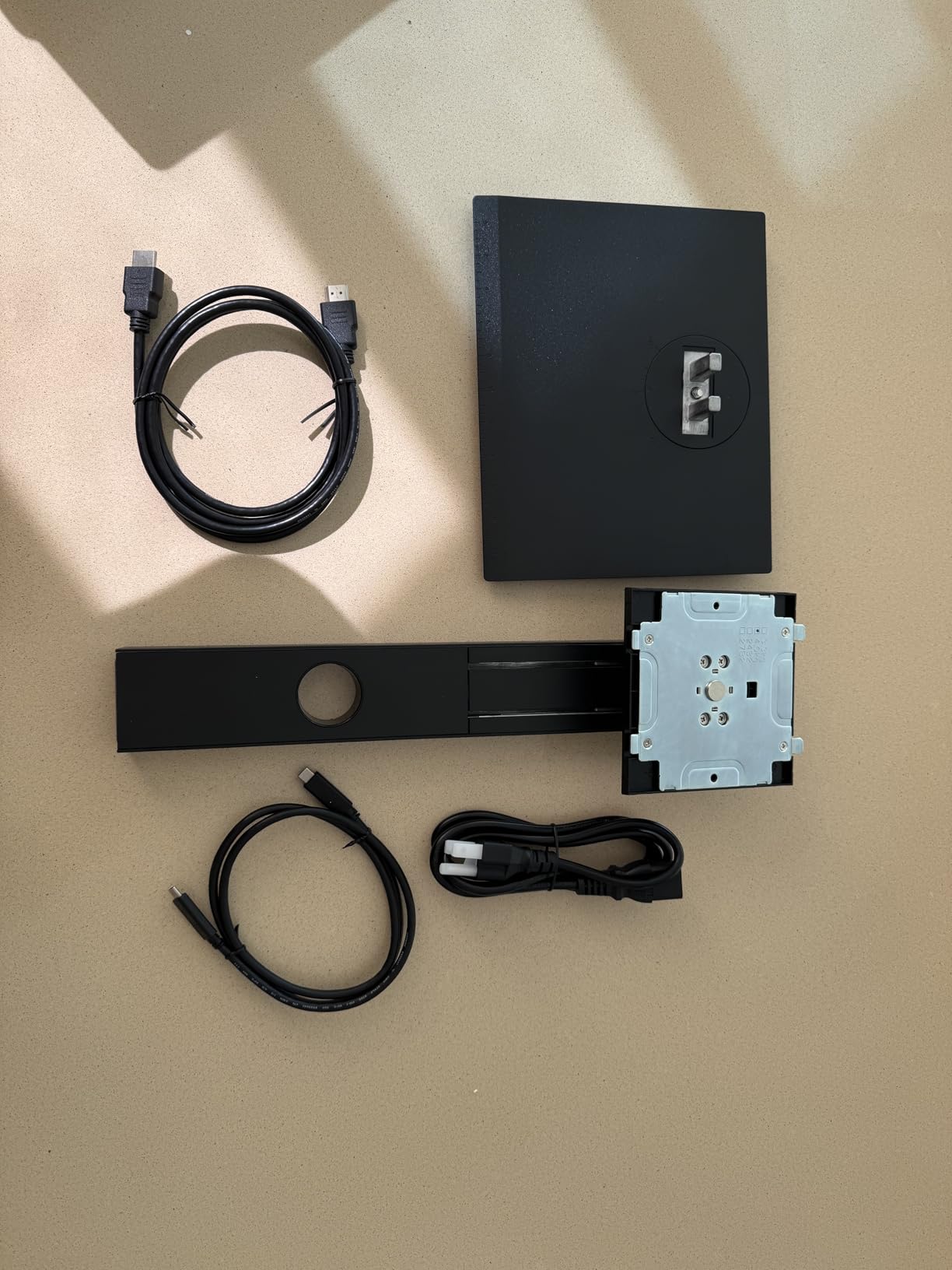
The USB-C port delivers 65W of power, which handles the Mac Mini easily and can also charge a MacBook. The frameless design looks modern, and the 178-degree viewing angle means colors stay consistent from any position. For a budget monitor, the build quality exceeded my expectations.
The ergonomic stand is a nice surprise at this price. You get height, swivel, and pivot adjustment, which most budget monitors skip entirely. The VESA mount compatibility gives you the option to use a monitor arm if you want to free up desk space.
USB-C Convenience at a Budget Price
The main reason to choose this monitor over the LG 27US500-W is the USB-C connectivity. One cable handles video, data, and power, which dramatically simplifies your desk setup. If cable management matters to you and you are on a tight budget, the INNOCN is worth the small premium over non-USB-C alternatives.
Limitations to Be Aware Of
The single HDMI port limits connectivity if you want to attach multiple devices. The 60Hz refresh rate is standard for this price but feels less smooth than the 120Hz Dell. Still, for office work, writing, and web browsing, the INNOCN handles everything you throw at it without complaint.
7. LG 34WR55QK-B – Best Ultrawide Monitor for Mac Mini Productivity
LG 34WR55QK-B 34-inch UltraWide WQHD (3440 x 1440) Curved Computer Monitor, 100Hz, 5ms, HDR10, Reader Mode, HDMI, DisplayPort, USB Type-C, Tilt/Height Adjustable Stand, Black
34 Inch UltraWide WQHD Curved
100Hz
USB-C 65W PD
HDR10
99% sRGB
Picture-by-Picture
Pros
- 34 inch 21:9 ultrawide format for maximum productivity
- 100Hz refresh rate with FreeSync for smooth visuals
- USB-C with 65W power delivery
- HDR10 support with 99% sRGB coverage
- Picture-by-Picture for viewing two sources simultaneously
Cons
- VA panel less color accurate than IPS
- 300 nits brightness lower than some competitors
The LG 34WR55QK-B takes a different approach from the other monitors on this list. Instead of 4K resolution, it offers a 34-inch ultrawide panel at 3440 x 1440. For Mac Mini users who want maximum screen real estate without managing two separate monitors, this is the most practical solution I tested.
The 21:9 aspect ratio is a game-changer for productivity. I could have my code editor open full-width with documentation and a terminal visible side by side. Video editors will love the extra horizontal space for timeline work. The curved display wraps slightly around your field of vision, which feels more immersive than a flat panel at this width.
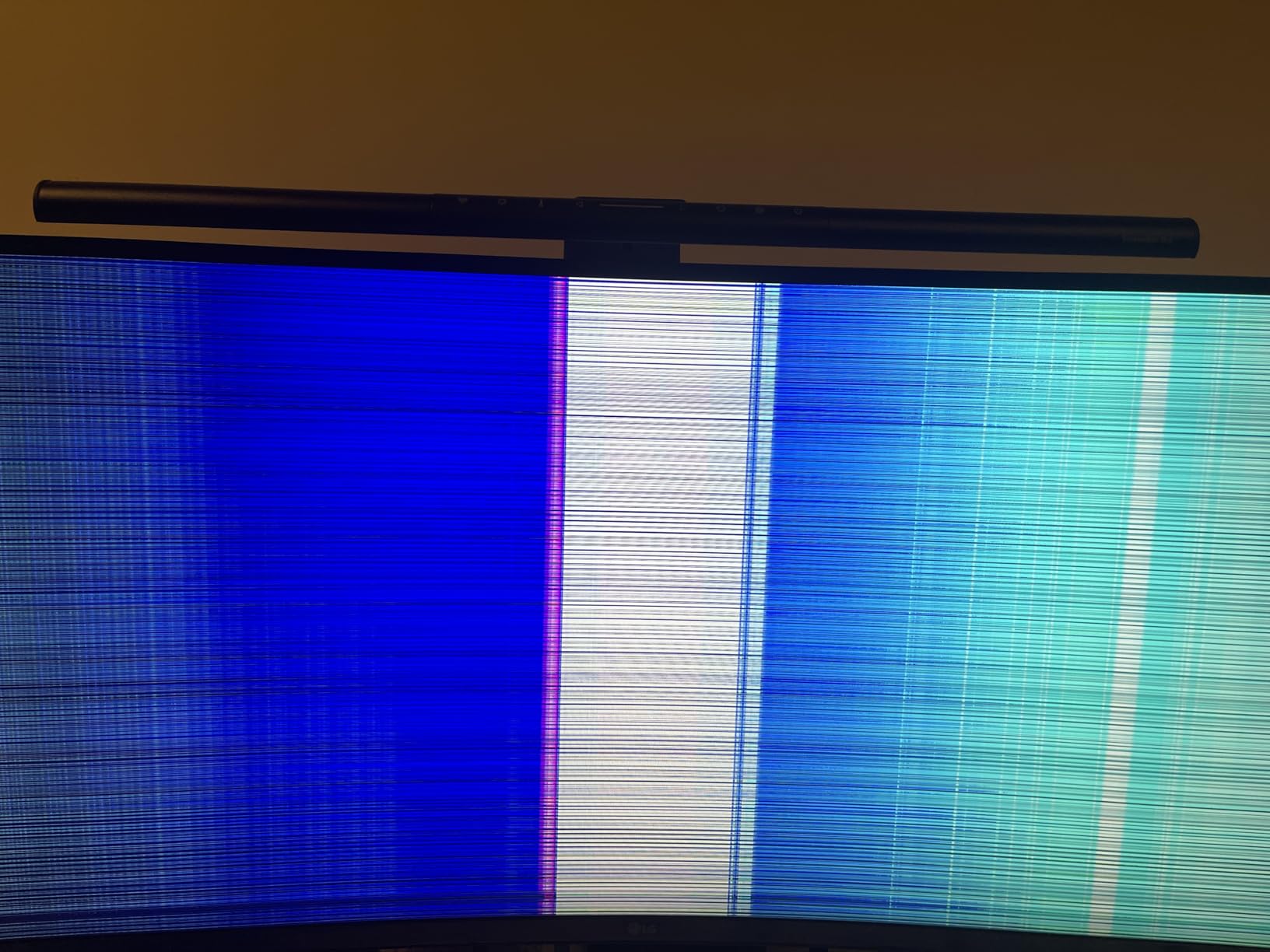
The 100Hz refresh rate is a nice bonus over the standard 60Hz. Scrolling and window movements feel smoother, and the AMD FreeSync support prevents screen tearing if you do light gaming. The USB-C port provides 65W of power delivery, keeping your Mac workspace cable-free.
Picture-by-Picture mode lets you display input from two devices simultaneously, split down the middle. I connected my Mac Mini and a Windows laptop, viewing both desktops side by side on one screen. This is useful if you work across multiple operating systems.
Ultrawide vs Dual Monitor for Mac Mini
An ultrawide monitor gives you continuous screen space without the bezel gap of a dual-monitor setup. The Mac Mini supports up to two displays natively, so you could even pair this ultrawide with a secondary portrait monitor for the ultimate workstation. Consider your workflow when deciding between ultrawide and dual 4K.
VA Panel Color Considerations
The VA panel offers excellent contrast ratios and deep blacks, but it is not as color-accurate as the IPS panels on other monitors in this list. For coding, writing, and general productivity, the color performance is fine. For photo or video editing, you would be better served by the ASUS ProArt or BenQ models.
8. BenQ MA320U – Best 32-Inch 4K Monitor for Mac Mini
BenQ MA320U 32” 4K 3840×2160 Monitor for MacBook® Pro/Air, Dual USB-C, 90W Power Delivery, Mac Color Match, USB Hub, Brightness & Volume Control on Mac, Height & Tilt Adjustable Stand, P3 Color Gamut
32 Inch 4K UHD IPS
Mac Color Match
90W USB-C PD
97% P3 Gamut
DisplayHDR 600
Dual USB-C
Pros
- Large 32 inch 4K display with Nano Matte Finish
- Mac Color Match technology for accurate color reproduction
- 97% P3 and 99% sRGB wide color gamut
- 90W USB-C power delivery with dual USB-C ports
- VESA DisplayHDR 600 certification
Cons
- Higher price point
- 60Hz refresh rate not gaming-focused
The BenQ MA320U is the big sibling to the MA270U, offering the same Mac-friendly features in a larger 32-inch form factor. If you find 27-inch monitors too cramped and want more screen space without going ultrawide, this is the monitor I recommend for Mac Mini owners. The extra five inches makes a bigger difference than you might expect.
Reddit users on r/macmini described this monitor as a glorious 32-inch 4K option designed specifically for Mac, and I agree. The Mac Color Match technology works identically to the MA270U, tuning the display to match MacBook color profiles. The 97% P3 gamut coverage is even wider than its smaller sibling, making it suitable for professional creative work.
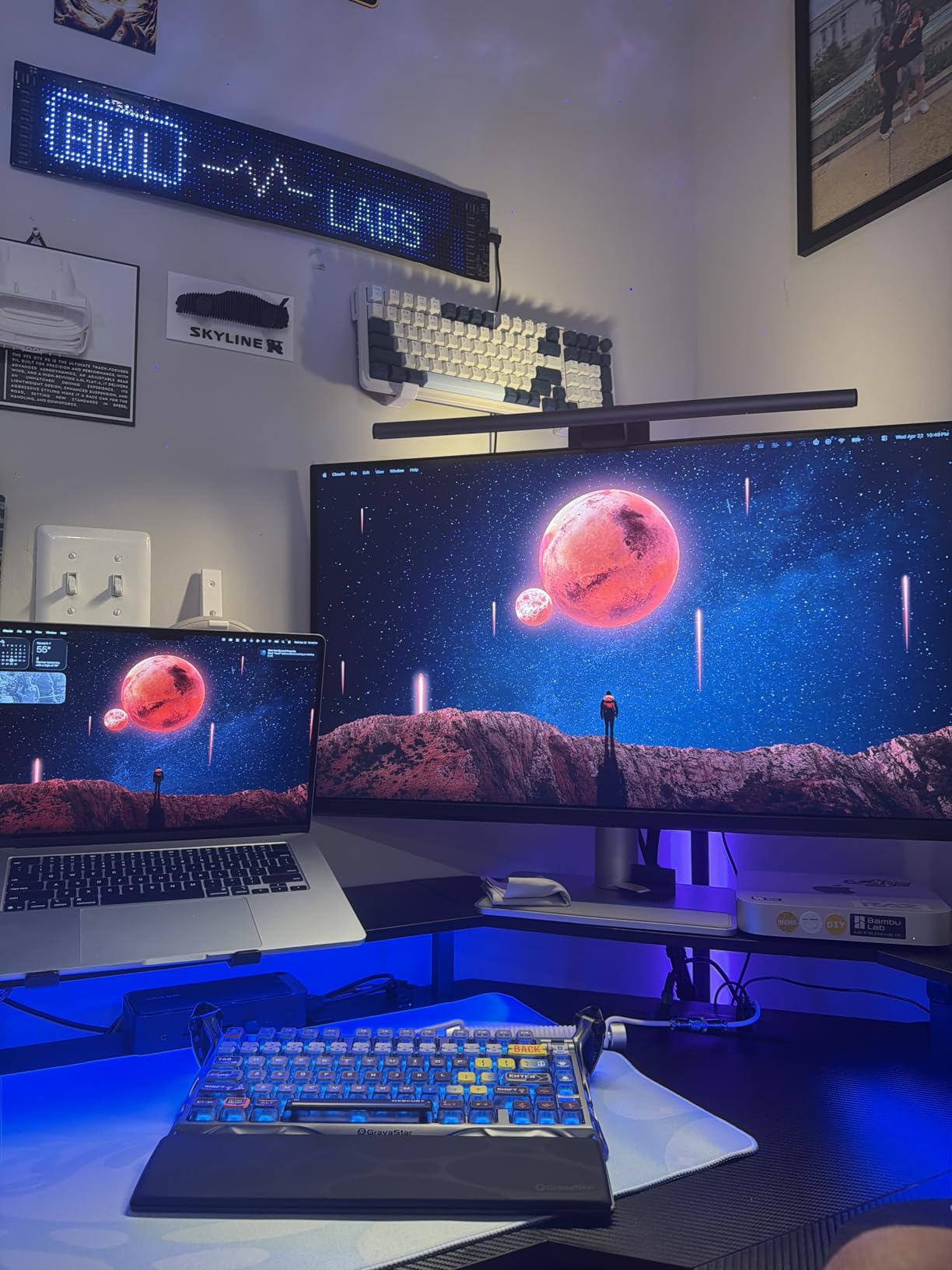
The DisplayHDR 600 certification means this monitor can hit 600 nits of peak brightness during HDR content. That is significantly brighter than most monitors on this list, giving HDR movies and photos real impact. The Nano Matte Finish reduces glare while keeping the image sharp.
Dual USB-C ports mirror the MA270U design, with 90W power delivery on the primary port. You can charge your Mac, connect your iPad, and use the USB hub all through the monitor. The height, tilt, swivel, and pivot adjustments let you find the perfect viewing angle at any desk configuration.
32 Inches vs 27 Inches for Productivity
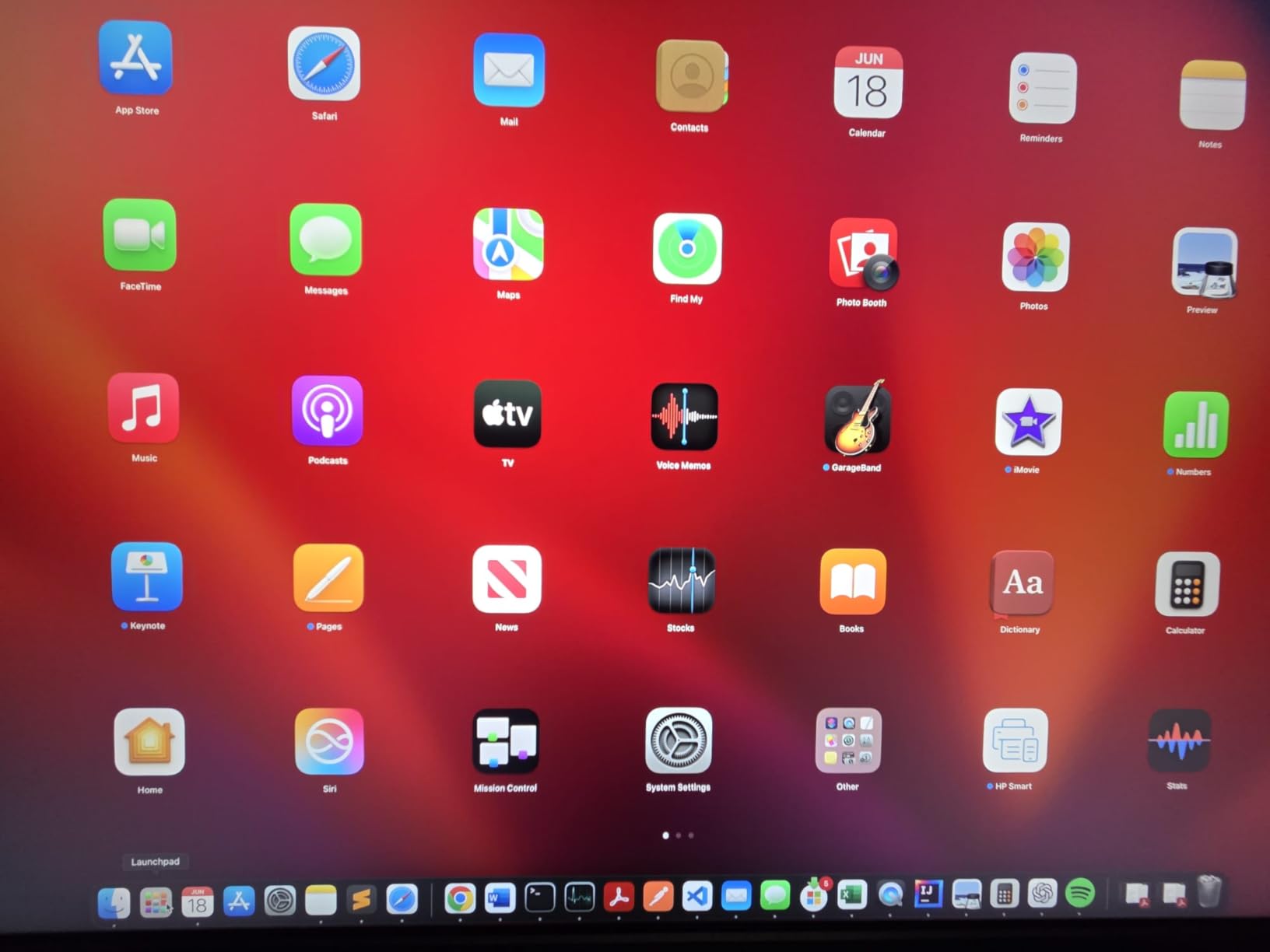
At 32 inches with 4K resolution, the pixel density is lower than a 27-inch 4K display, but text is still sharp enough for comfortable reading. The trade-off is worth it if you want larger UI elements and more physical screen space. I found the 32-inch size ideal for video editing, where the extra real estate for timelines and preview windows makes a real difference.
Best Mac Mini Setup Pairings
The MA320U works well as a primary display, potentially paired with a smaller secondary monitor in portrait orientation. With the Mac Mini supporting dual displays, you could pair this 32-inch screen with the LG 27US500-W for a powerful workstation setup. The color consistency between displays would not be perfect, but for productivity work it works well.
What to Look for in a Mac Mini Monitor
Choosing the right monitor for your Mac Mini comes down to understanding which specifications actually matter for macOS. I learned through testing that some features that matter on Windows are less important here, while others are critical. Let me break down the key factors.
Resolution and macOS Scaling
Resolution is the single most important factor for a Mac Mini monitor. macOS is designed for high-density Retina displays, and it handles non-Retina resolutions poorly. A 4K monitor at 27 inches gives you a scaled resolution that approximates Retina quality, and it works well for most users.
If you want perfect Retina rendering with zero scaling, you need a 5K monitor like the ASUS ProArt PA27JCV. At 5K, macOS runs at native pixel density and everything looks exactly as intended. The trade-off is cost, as 5K monitors remain expensive in 2026.
Avoid 1080p and 1440p monitors for Mac Mini use. Text will look soft and UI elements will appear too large or too small depending on your scaling settings. The macOS experience on low-resolution displays is noticeably worse than on Windows.
USB-C and Thunderbolt Connectivity
USB-C connectivity is the most convenient way to connect a monitor to a Mac Mini. A single USB-C cable handles video, data, and power delivery, eliminating cable clutter. The Mac Mini has USB-C ports that support DisplayPort over USB-C, so compatibility is not an issue.
Pay attention to power delivery wattage. The Mac Mini itself does not need monitor power, but if you also connect a MacBook or iPad to the same monitor, you want enough wattage to charge it. Look for at least 65W for laptops, and 90W or higher if you use a larger MacBook Pro.
Thunderbolt monitors offer higher bandwidth than standard USB-C, but for a single 4K display at 60Hz, regular USB-C is more than sufficient. Thunderbolt matters if you want to daisy-chain multiple high-resolution displays.
Color Accuracy and Gamut
Apple displays use the P3 wide color gamut, so a monitor that covers DCI-P3 will match what you see on Apple devices. For general office work, 99% sRGB is adequate. For creative work, look for 95% or higher DCI-P3 coverage and a Delta E rating under 2.
The monitors with Mac-specific color tuning, like the BenQ MA270U and MA320U, automatically match their color profile to MacBook displays. This saves you from manual calibration and ensures consistency across devices.
Size and Ergonomics
For most users, 27 inches at 4K is the ideal size. It provides enough screen real estate for productivity work while maintaining a pixel density that makes text look sharp. If you want more space, consider a 32-inch 4K or a 34-inch ultrawide.
Ergonomics matter more than people realize. A monitor with height, tilt, swivel, and pivot adjustment lets you maintain proper posture during long work sessions. Several monitors on this list include full ergonomic stands, while budget options may require a separate VESA mount.
If you work more than six hours a day at your Mac Mini, eye comfort features like flicker-free technology and blue light filters are worth having. Most monitors on this list include some form of eye care, from Dell’s ComfortView Plus to LG’s Reader Mode.
Refresh Rate Considerations
The standard refresh rate for productivity monitors is 60Hz, which is fine for office work and web browsing. However, once you use a 100Hz or 120Hz display, the difference in smoothness is immediately noticeable. macOS supports high refresh rates on external displays, and the improvement in scrolling and animations is significant.
The Dell S2725QC with its 120Hz panel and the LG 34WR55QK-B with its 100Hz panel both demonstrate this advantage. For gaming, higher refresh rates are essential, but even for productivity, the smoother experience is worth considering.
FAQs
What monitor works best with Mac Mini?
The BenQ MA270U is the best monitor for Mac Mini overall. It features Mac Color Match technology that automatically tunes the display to match MacBook color profiles, 4K UHD resolution for sharp text, and dual USB-C ports with 90W power delivery. For budget buyers, the LG 27US500-W offers excellent 4K value, while the Dell S2725QC provides the best balance of features with its 120Hz refresh rate.
Does any monitor work with Mac Mini?
Most modern monitors work with Mac Mini through HDMI, DisplayPort, or USB-C connections. The Mac Mini has HDMI and USB-C ports that support DisplayPort output. However, not all monitors are optimized for macOS scaling, so 4K resolution or higher is recommended for the best experience. Avoid 1080p monitors as text will appear soft on macOS.
Can you use any monitor with a Mac Mini?
Yes, you can use almost any monitor with a Mac Mini as long as it has HDMI, DisplayPort, or USB-C connectivity. The Mac Mini supports up to two displays simultaneously depending on the model. For optimal macOS performance, choose a monitor with 4K resolution or higher, USB-C connectivity for single-cable setup, and ideally P3 color gamut coverage to match Apple displays.
What is the best budget monitor for Mac Mini?
The LG 27US500-W is the best budget monitor for Mac Mini, offering 4K UHD resolution, HDR10 support, and an IPS panel at an affordable price. If you need USB-C connectivity on a budget, the INNOCN 27C1U-D provides 4K resolution with 65W USB-C power delivery for slightly more. Both deliver sharp text and good color accuracy for everyday use.
Does Mac Mini support 4K monitors?
Yes, the Mac Mini fully supports 4K monitors at 60Hz through its HDMI and USB-C ports. The M4 Mac Mini can even drive 8K displays. For the best macOS experience, a 4K monitor at 27 inches provides Retina-quality text rendering through macOS scaling. All monitors recommended in this guide are 4K or higher resolution and are fully compatible with Mac Mini.
Final Verdict: Picking the Right Mac Mini Monitor
After testing eight monitors over several months, the BenQ MA270U remains my top pick for the best monitors for Mac Mini in 2026. Its Mac Color Match technology, dual USB-C ports, and excellent 4K panel make it the most Mac-friendly option on the market. For budget-conscious buyers, the LG 27US500-W delivers genuine 4K quality at an unbeatable price.
If you want the smoothest experience possible, the Dell S2725QC with its 120Hz refresh rate is the sweet spot of value and performance. Creative professionals should consider the ASUS ProArt PA279CRV for its Calman Verified color accuracy. Whatever your needs and budget, one of these eight monitors will transform your Mac Mini into a complete workstation.