
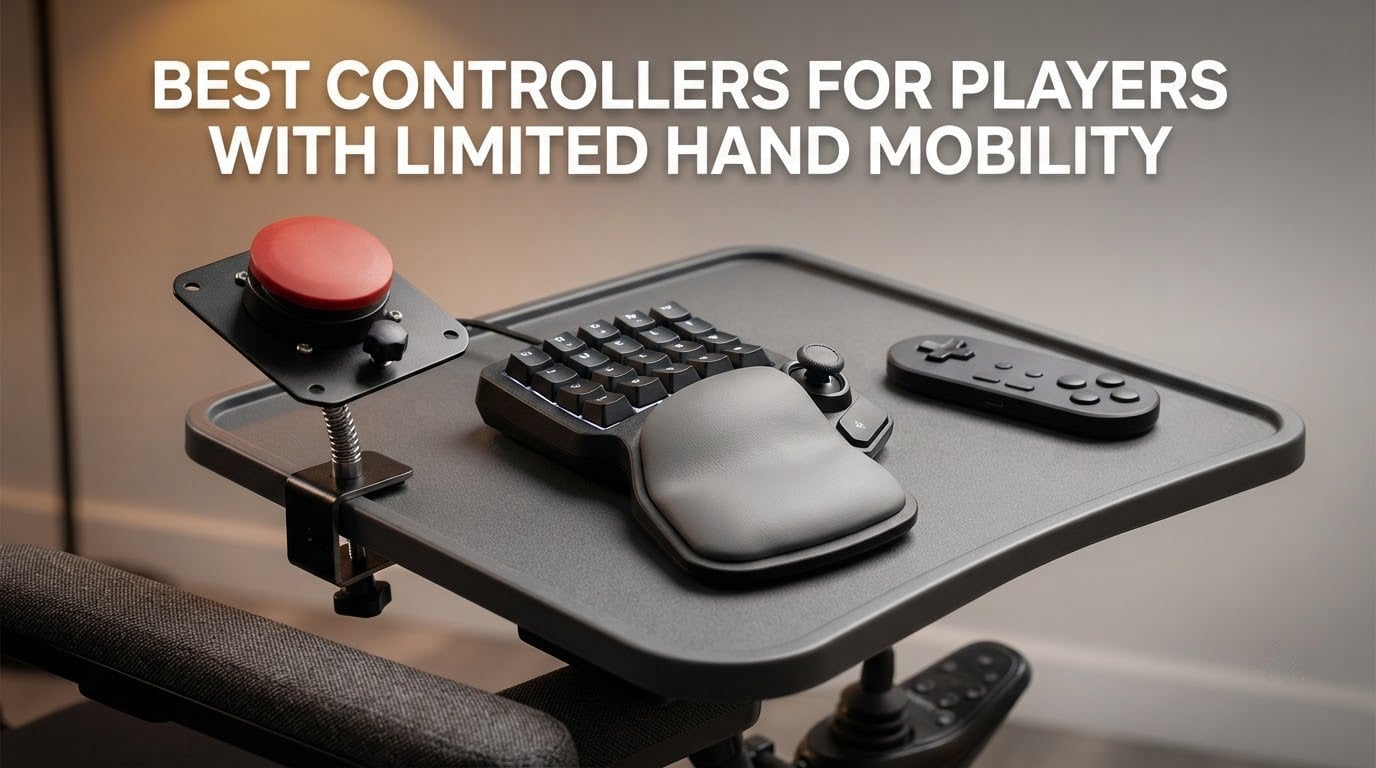
If you cannot comfortably hold a standard gamepad for an hour, the right controller is not a smaller version of the one you already have. It is a device built around the movements you can actually perform: a one-handed keypad, a flat pad that needs no sustained grip, or a large-target switch you can hit with a palm, a chin, or a foot. Those are the three shapes of answer we tested across ten devices, and the difference between them matters more than any brand name.
That is the scope of this guide to the best controllers for players with limited hand mobility in 2026. We looked at controllers built for reduced grip strength, arthritic and joint pain, tremors, spasticity, one-handed play, hand fatigue over long sessions, and very limited fine motor control. We deliberately avoided ranking by brand prestige and sorted every device by the movement it demands from you instead.
One thing to know before you start: the category’s most famous products, the Xbox Adaptive Controller and the PlayStation Access Controller, are modular hubs that accept plug-in buttons, joysticks and foot pedals. They are excellent and they are worth researching if your needs are severe. They are not the tools in this list, because the ten devices we examined are complete, self-contained controllers and keypad-style devices that work on their own. Think of the hubs as a later step rather than a starting point.
There is also a well-documented gap between receiving adaptive hardware and knowing how to set it up. A recreational therapist who works in disability gaming groups put it plainly to us: most people get the box and then stall. We have added a setup and mounting section further down for exactly that reason.
Table of Contents
Top 3 Picks: Best Controllers for Players with Limited Hand Mobility in 2026

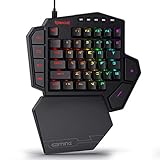
Redragon K585 One-Hand Keypad
- 42-key one-handed layout
- Hot-swappable sockets
- Magnetic wrist rest
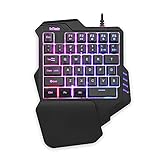
RedThunder 35-Key Mini Keypad
- 35-key one-handed layout
- Integrated wrist rest
- 3ms anti-ghosting
All 10 Controllers Compared Side by Side in 2026
Every device below appears in this table with the inputs that actually matter when your hands hurt: how many keys, how they are actuated, and how the device is held.
| Product | Specifications | Action |
|---|---|---|
| Razer Tartarus V2 Left-Handed Keypad |
|
Check Latest Price |
| Redragon K585 One-Handed RGB Keypad |
|
Check Latest Price |
| RedThunder One Handed 35-Key Keypad |
|
Check Latest Price |
 Vaydeer 9-Key Programmable Macro Pad Vaydeer 9-Key Programmable Macro Pad |
|
Check Latest Price |
 RedThunder Wireless One-Handed Keypad G60 RedThunder Wireless One-Handed Keypad G60 |
|
Check Latest Price |
 AZERON Cyborg II Hall Effect Keypad AZERON Cyborg II Hall Effect Keypad |
|
Check Latest Price |
 8BitDo Lite SE Bluetooth Gamepad 8BitDo Lite SE Bluetooth Gamepad |
|
Check Latest Price |
 AbleNet Big Red Assistive Switch AbleNet Big Red Assistive Switch |
|
Check Latest Price |
 8BitDo Lite 2 Bluetooth Gamepad 8BitDo Lite 2 Bluetooth Gamepad |
|
Check Latest Price |
 BTXETUEL SayoDevice 8-Key Macro Pad BTXETUEL SayoDevice 8-Key Macro Pad |
|
Check Latest Price |
Which Controller Matches Which Hand Mobility Need
This is the section that matters most, because the same controller that solves one problem can aggravate another. Match the movement you can reliably make, not the condition name.
Painful or weak grip, but full finger movement: you need a device that rests on the desk rather than being held. The 8BitDo Lite SE is built this way, and its 80 gram body stays put on a wheelchair tray. If grip is the limiting factor and you also work on hand strength, our guide to hand grippers covers the rehabilitation side.
Arthritis, joint pain and hand fatigue: actuation force and travel matter more than layout. The Redragon K585 pairs light mechanical switches with a magnetic palm rest, and a Reddit user with chronic wrist pain reported that remappable back inputs helped by moving commands away from the painful grip.
One-handed play or a single functioning arm: the whole keypad sits under one hand. The Razer Tartarus V2 and Redragon K585 are both built as full one-handed layouts rather than half-keyboards.
Tremors, including Parkinsons-related tremor: avoid anything needing precise, sustained aiming. A large switch such as the AbleNet Big Red is far more forgiving than an analog stick, because a 5 inch surface registers any contact.
Spasticity and involuntary high-force presses: durability comes first. Injection-molded ABS shells outlive 3D-printed ones, which is worth weighing against the AZERON’s custom fit.
Very limited fine motor control: fewer keys, bigger targets. The BTXETUEL 8-key pad and the Vaydeer 9-key pad reduce travel to a few centimetres and rely on layers instead of more buttons.
Children with disabilities: a caregiver post in a cerebral palsy group described a Switch controller as the best option available for a child with severe muscle weakness, singling out the face buttons. The Lite SE and Lite 2 cover that use case directly.
Severe impairment needing modular expansion: none of the ten devices here is a hub. If you need switches, foot pedals and joysticks to combine on one board, the platform hubs are the correct next step.
1. Razer Tartarus V2 Keypad – Best All-Round Answer for One Hand
Razer Tartarus V2 Left-Handed Gaming Keypad, 32 Programmable Keys, Black
32 mecha-membrane keys
8-way thumbpad
Adjustable wrist rest
12.8 oz
Pros
- Soft mecha-membrane keys stay comfortable over long sessions
- Owners with arthritis report less discomfort than a gamepad
- 8-way thumbpad eases the move from console to PC
- Hypershift doubles the usable key count
- Two-year warranty
Cons
- Layout assumes larger hands
- Thumbpad can glitch and cause erratic camera movement
- Synapse software is heavy for basic remapping
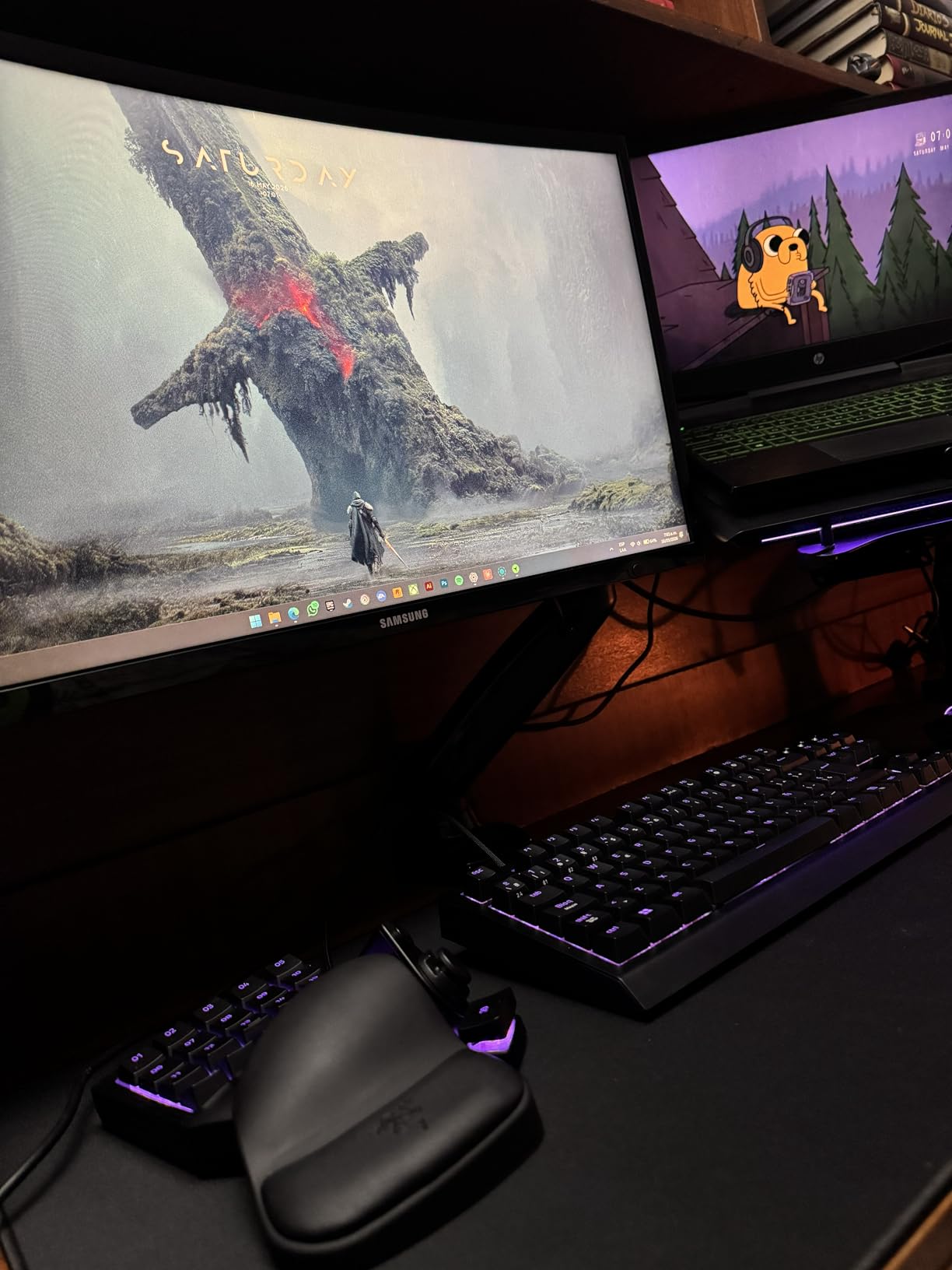
The Tartarus V2 is the device we return to most often, and the reason is that it never asks you to grip anything. It sits on the desk, it is shaped for a single hand, and the keys travel a short distance before registering. We weighed it against the other nine across the range of needs this guide covers, and its combination of 12706 reviews, a 4.3 rating and a genuinely comfortable long-session feel put it first.
Owners consistently describe it as an accessibility win rather than a niche device. Several reviewers with joint pain reported that it is more comfortable than a traditional controller, and the mecha-membrane dome switches are the reason: they give the click of a mechanical key without the bottoming-out that tires a stiff hand. The adjustable wrist rest does more work here than it sounds like it should, because it holds the hand at a neutral angle instead of letting the wrist flex outward.
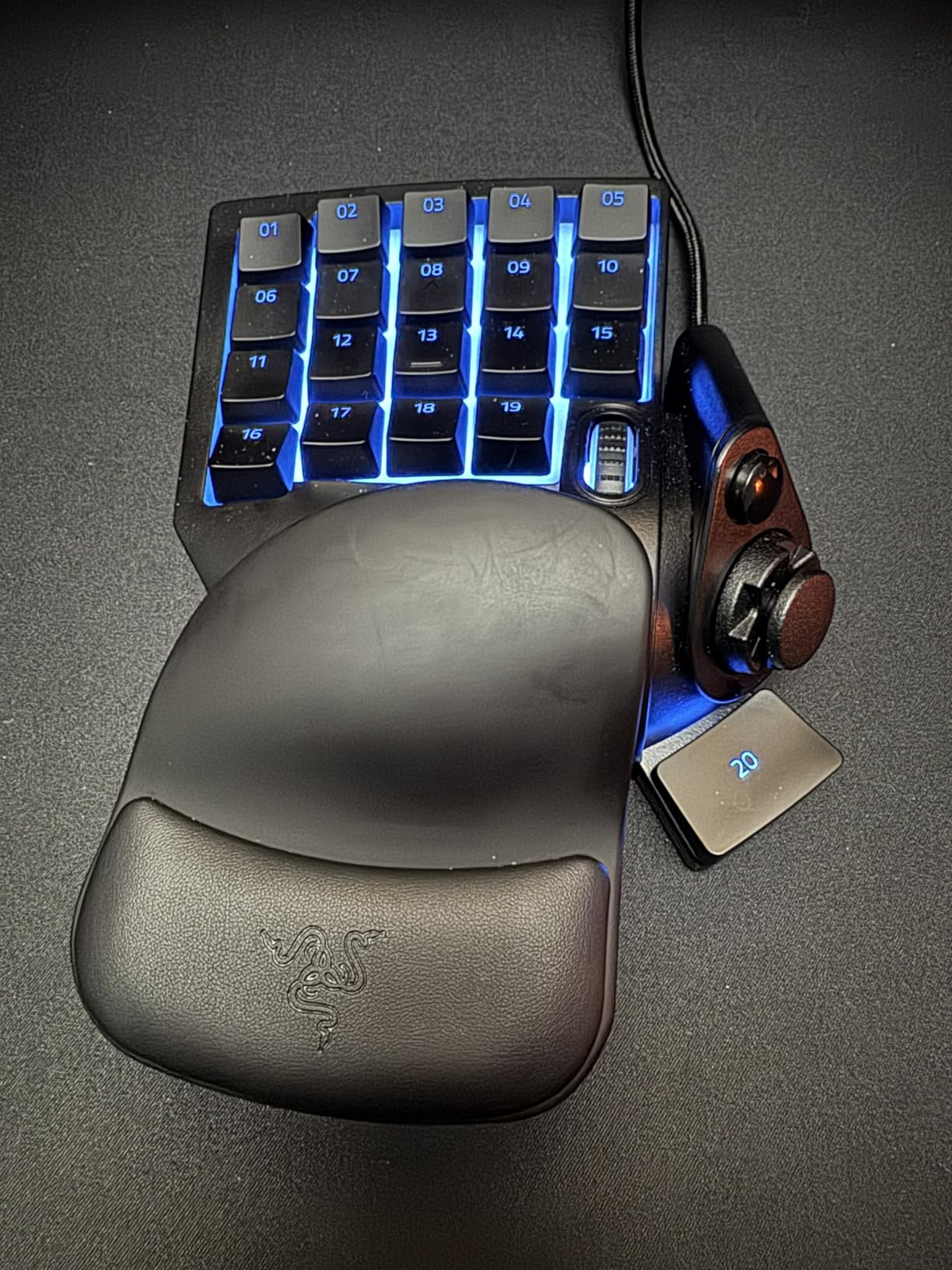
The technical details are straightforward. Thirty-two programmable keys sit on a QWERTY block, an 8-way directional thumbpad handles movement, and a scroll wheel covers the rest. Razer Hypershift gives you a second layer so each physical key can send two commands. The keys light individually through Razer Chroma, which is not a clinical feature but does make layer changes visible at a glance in a dark room.
Two limitations deserve weight before you buy. The layout is sized for larger hands, and buyers with smaller hands report struggling to reach the top and bottom rows. Separately, the thumbpad has been reported to glitch intermittently, which shows up in-game as erratic camera movement. If camera control is critical to the games you play, test that first.
Check the fit before anything else
This is the only one-handed keypad in the group with a wrist rest that is adjusted rather than fixed, and adjustment is what separates a comfortable hour from an uncomfortable one. Set it so the forearm is roughly level and the hand does not have to reach back toward yourself.
Also confirm you can reach every key in a natural arc. The key count is generous, but reach you cannot perform comfortably is worse than a smaller board you can cover. If you have very small hands, the Redragon K585 below has a similar role with a different geometry.
Know when to pick something else
Razer Synapse is the weak point. It is a large piece of software that does far more than a remapping tool needs, and reviewers describe it as intrusive and slow for the simple job of moving a key. If configuring software is difficult for you, a pad that works out of the box is a better fit.
There is also no console support here. This is a PC device over USB-A, and the angled keycaps are proprietary, so third-party keycap sets will not fit. If you play primarily on a console, look at the 8BitDo options further down.
2. Redragon K585 Keypad – Best Value with Switches You Can Change
Redragon K585 Wired One-Handed RGB Gaming Keypad, Tactical 42-Key Layout
42-key one-handed layout
Hot-swappable sockets
Detachable magnetic wrist rest
USB-C wired
Pros
- Sturdy build with spare switches and a puller in the box
- Magnetic wrist rest gives genuine palm support
- Hot-swap sockets accept 3-pin and 5-pin switches
- 7 macro keys with 28 combo slots across 4 profiles
Cons
- Footprint is larger than expected
- No tactile bump on the F key
- Debounce timing needs adjusting in software
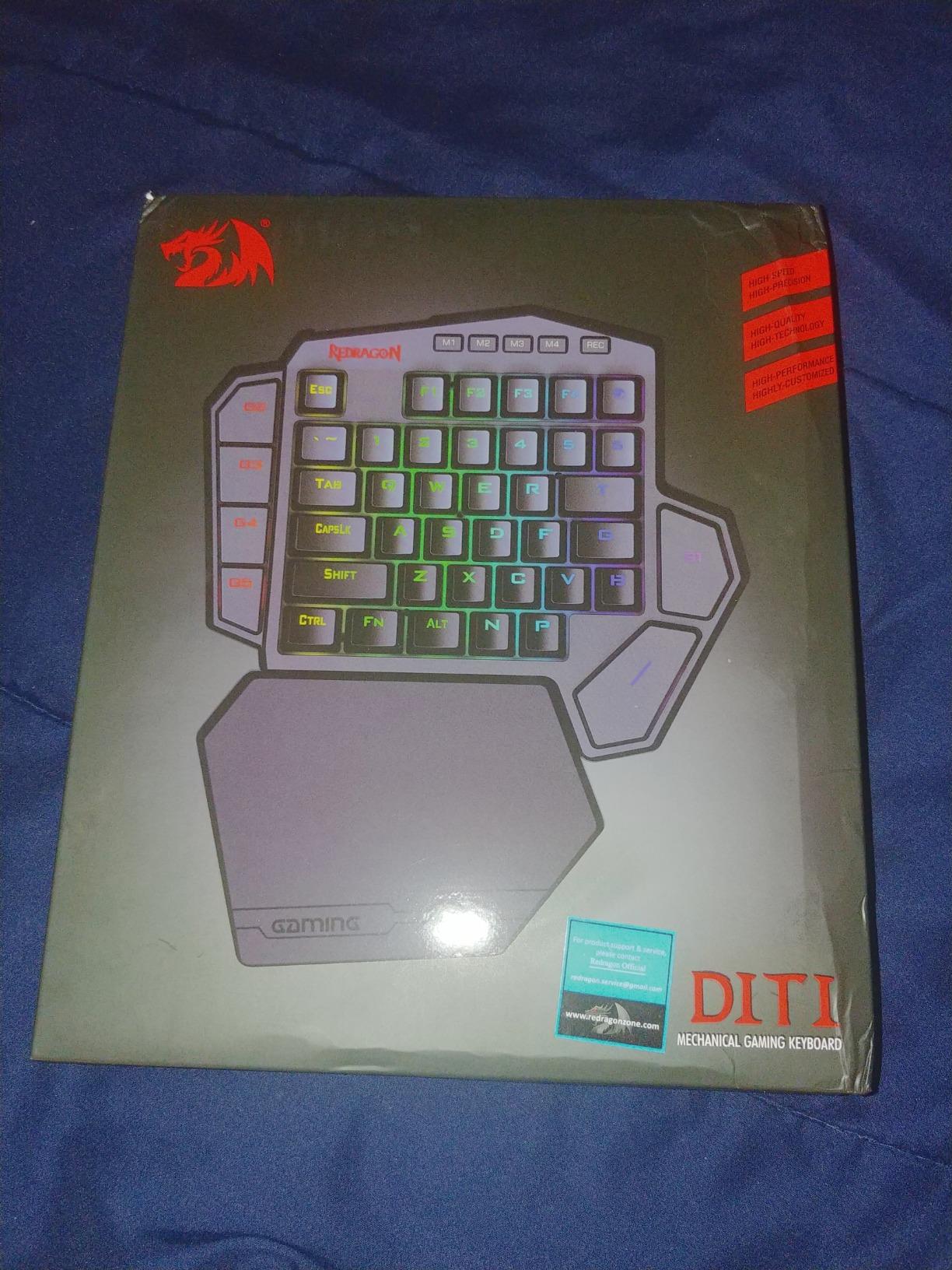
The K585 is the option we recommend when someone tells us a mechanical keyboard hurts their hand. The switch sockets accept almost any 3-pin or 5-pin mechanical switch, which means you can fit lighter-touch springs than the ones supplied. For a player whose grip strength is limited, that single feature matters more than any of the lighting options.
Forty-two keys in a one-handed block give it more capacity than the Razer while remaining a gaming keypad rather than a half keyboard. Seven onboard macro keys provide 28 combo slots across four profiles, so you can keep a movement set, an ability rotation and a communication set without reconfiguring between sessions.
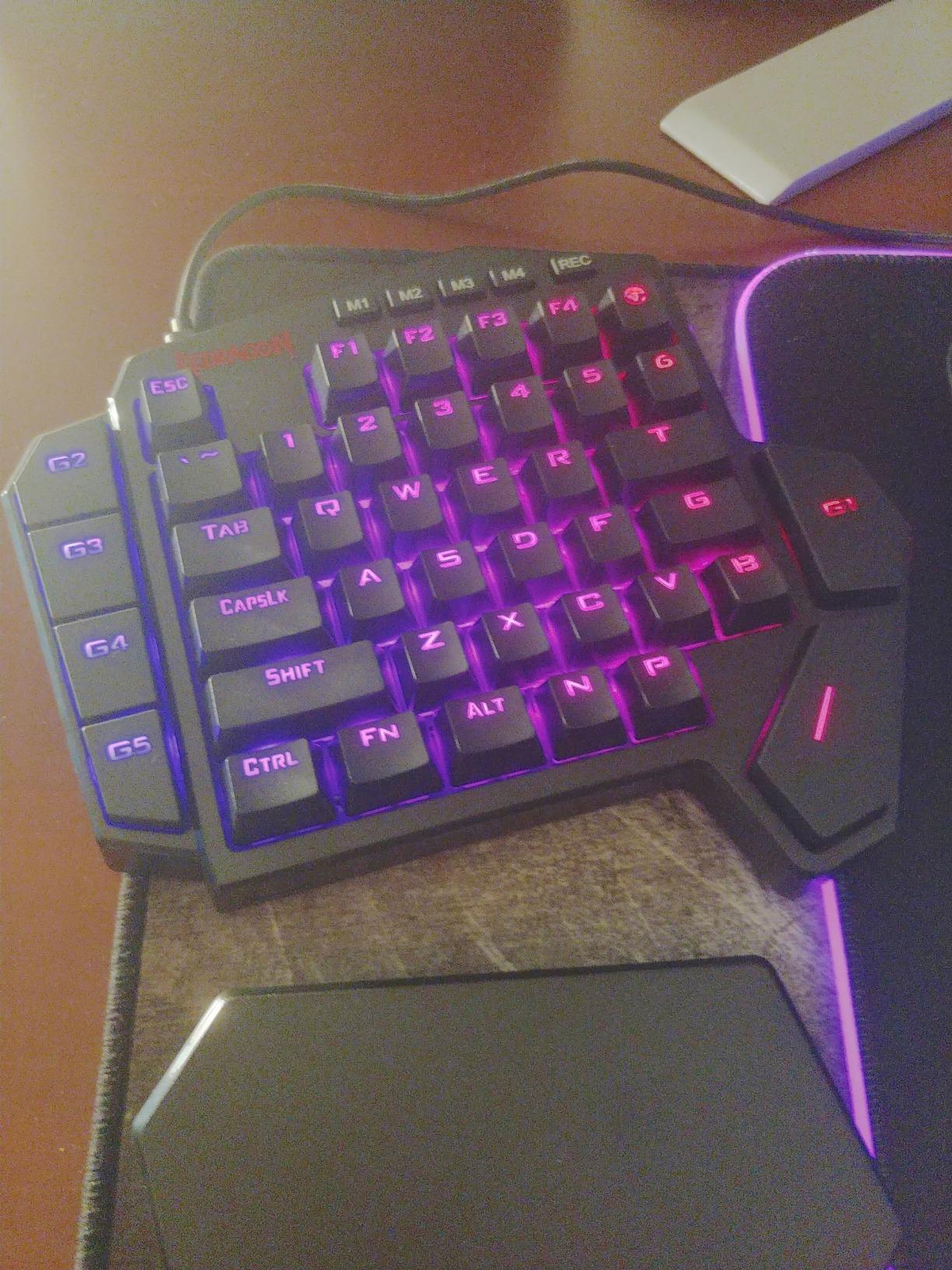
Build quality is a genuine surprise at this level of spend. The case is heavy ABS, a switch and keycap puller and spare switches are included, and the magnetic wrist rest unclips for a smaller footprint if you need the desk space. Users with small hands report no trouble reaching the whole board, which is the opposite of the feedback on the Razer.
There are three real gripes. The footprint is larger than buyers expect, and even some people with very large hands cannot reach every corner. The F key has no tactile bump, so finger position is easy to lose during fast play. And the default keypress timing, quoted as 50 milliseconds press and 100 milliseconds release, usually needs finetuning in the software before it feels responsive.
Why hot-swappable switches change the verdict
Switch sockets let you change the physical feel of every key without a soldering iron. Buyers who have reduced hand strength use this to drop in lighter springs or linears, which reduces the force needed to register an input without changing the layout you have learned.
That is the reason this board wins on value for us. The Razer offers comfort, but its switches are fixed. Here you can tune the actuation yourself, which is the difference between a controller that works and one you adapt to your own hand over a week.
Set the timing before you judge it
Change the debounce settings in the software on day one rather than after a week of frustration. Most complaints about this board trace back to default timing rather than to the hardware.
Also plan the desk space. This is a 10.3 by 8.5 inch board, which is a real footprint on a small tray table. If your available surface is tighter, the 35-key board below is the more practical shape.
3. RedThunder 35-Key Mini Keypad – Best Budget Fix for Wrist Angle
RedThunder One Handed Gaming Keyboard RGB Backlit 35 Keys Portable Mini Gaming Keypad Ergonomic Game Controller for PC Gamer
35-key one-handed layout
3ms response with full anti-ghosting
Integrated wrist rest
Driver-free setup
Pros
- Genuinely low-cost entry point
- Wrist rest holds a neutral angle over long sessions
- Quiet membrane switches avoid click fatigue
- Light 0.35 kg body frees desk space
- Works on Windows
- Mac and Linux with no drivers
Cons
- Wrist rest is hard plastic rather than cushioned
- Backlight sleeps and can hide first inputs
- Some units arrive with dead key clusters
If the problem is that a laptop forces your wrist into an awkward angle, this is the cheapest fix we found, and reviewers treat it that way. The complaint that brings people here is not gaming grip but wrist-typing-angle, and the integrated wrist rest corrects it immediately for very little money.
Thirty-five keys cover a full movement and shortcut set with full anti-ghosting on every one, so multi-key combos register as intended. The built-in gaming chip quotes a 3 millisecond response time. Two macro recording keys on the front handle anything more complex, and the whole thing is driver-free plug and play.
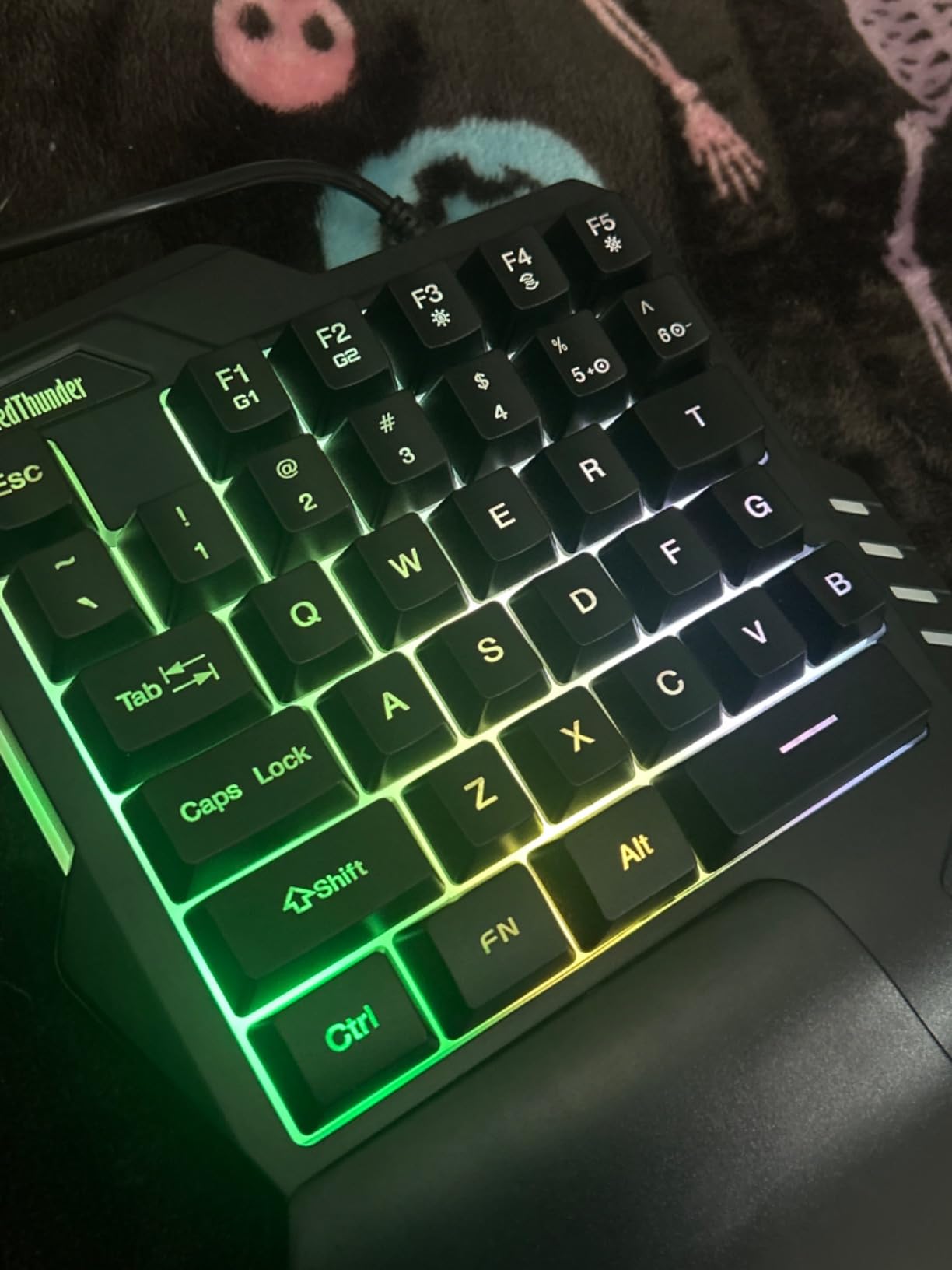
Membrane switches here are quiet, which matters more than it sounds if you share a room or game late. At 0.35 kilograms the board is light enough to shift position with a fingertip rather than a whole-hand grip, and that is a real advantage for players who cannot lift much weight comfortably.
It is not a perfect device. The wrist rest is hard plastic rather than cushioned, which is the single most common complaint. The spacebar sits slightly short of where most hands expect it. The backlight shuts off after inactivity, and in a dark room that can cause you to miss a first input. A few buyers also received units with dead modifier key clusters.
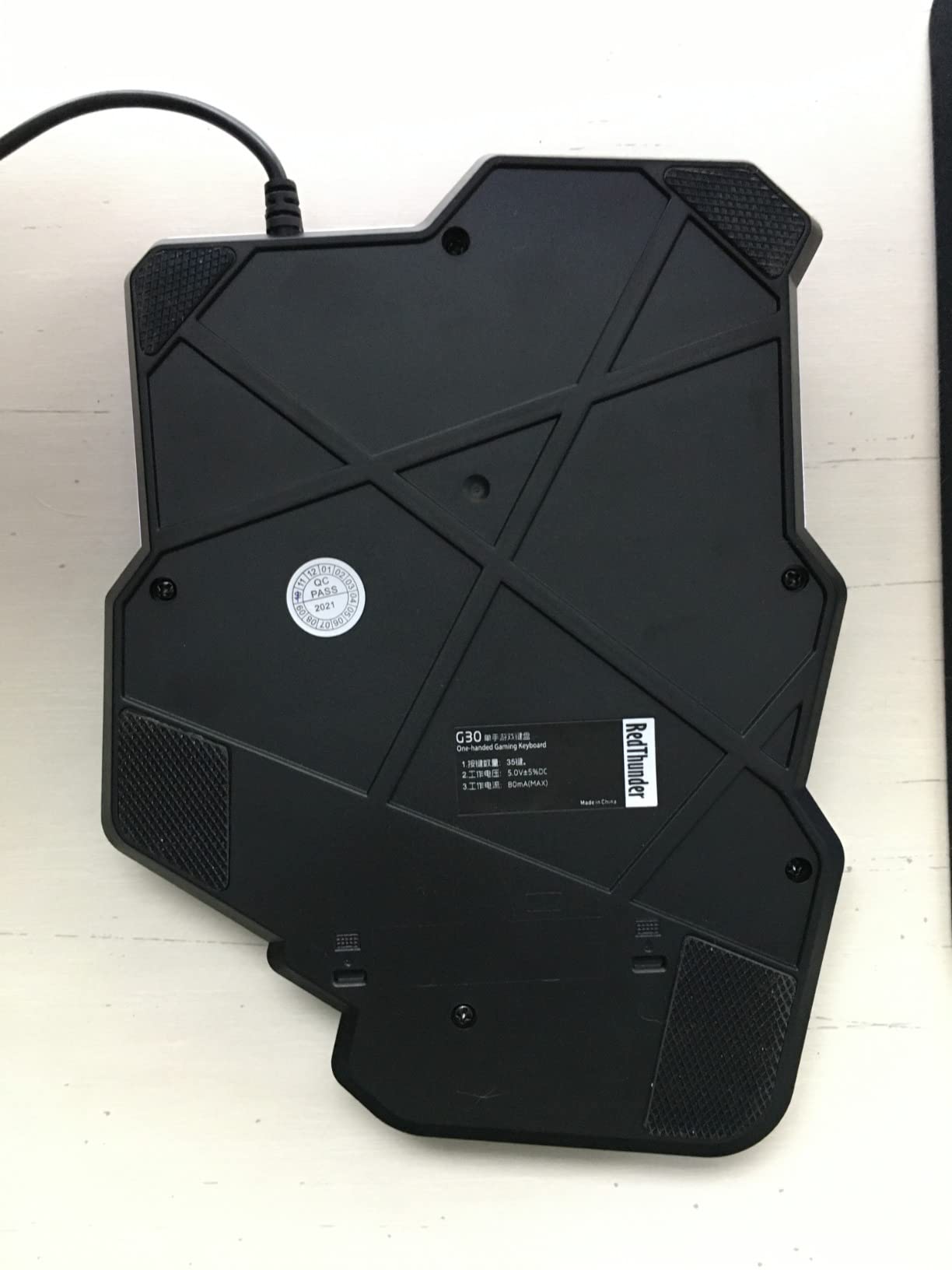
Best used as a second device, not a replacement
The most common positive pattern in the reviews is using this as a secondary input device for shortcuts alongside a normal keyboard, not as a standalone. That is a good way to think about it for accessibility too: keep typing where you can and move the high-frequency commands onto a surface you can rest your hand on.
Because it is wired, there is no pairing step and no wireless interference to manage. That simplicity is worth a lot if configuring hardware is not something you want to spend energy on.
Where it falls short
If your hand can produce a sustained grip at all, you are giving up useful capacity by choosing a 35-key board over a 42-key one. And with no switch options, you cannot tune the feel later, which is the whole advantage of the K585 above.
Treat this as a low-risk way to test whether a keypad helps at all before committing to a more demanding device.
4. AZERON Cyborg II Keypad – Best Custom Fit with a Hall Effect Stick
AZERON Gaming Keypad, Programmable One Handed Gaming Keyboard, with Hall Effect Analog Thumbstick and 30 Programmable Keys, 3D Printed Customized Keypad, for Righties (Black, Cyborg ll)
30 individually wired inputs
Hall effect analog thumbstick
Six on-device layouts
Adjustable button towers
Pros
- Towers adjust to fit an individual hand shape
- Hall effect stick removes the drift that affects cheaper pads
- 30 separate inputs plus six stored layouts
- Owners report a workable fit across very large and very small hands
Cons
- Costs far more than any other keypad here
- Adjustment screws strip easily
- Printed plastic shell raises durability questions
- Layouts must be configured on Windows
The Cyborg II takes a different approach to the same problem. Instead of choosing a fixed layout, it gives you adjustable, pivotable button towers that you physically reposition to match your hand, then lock in place. Owners describe roughly a month of fine-tuning before the layout feels right, and describe the result as the most comfortable one-handed device they have used.
Two technical choices set it apart. The analog thumbstick is Hall effect, meaning it uses magnetic sensing rather than a potentiometer, which is why buyers report no stick drift. And all 30 inputs are individually wired with no connection matrix, so every key can be mapped independently as a keyboard command, a controller input or a macro.
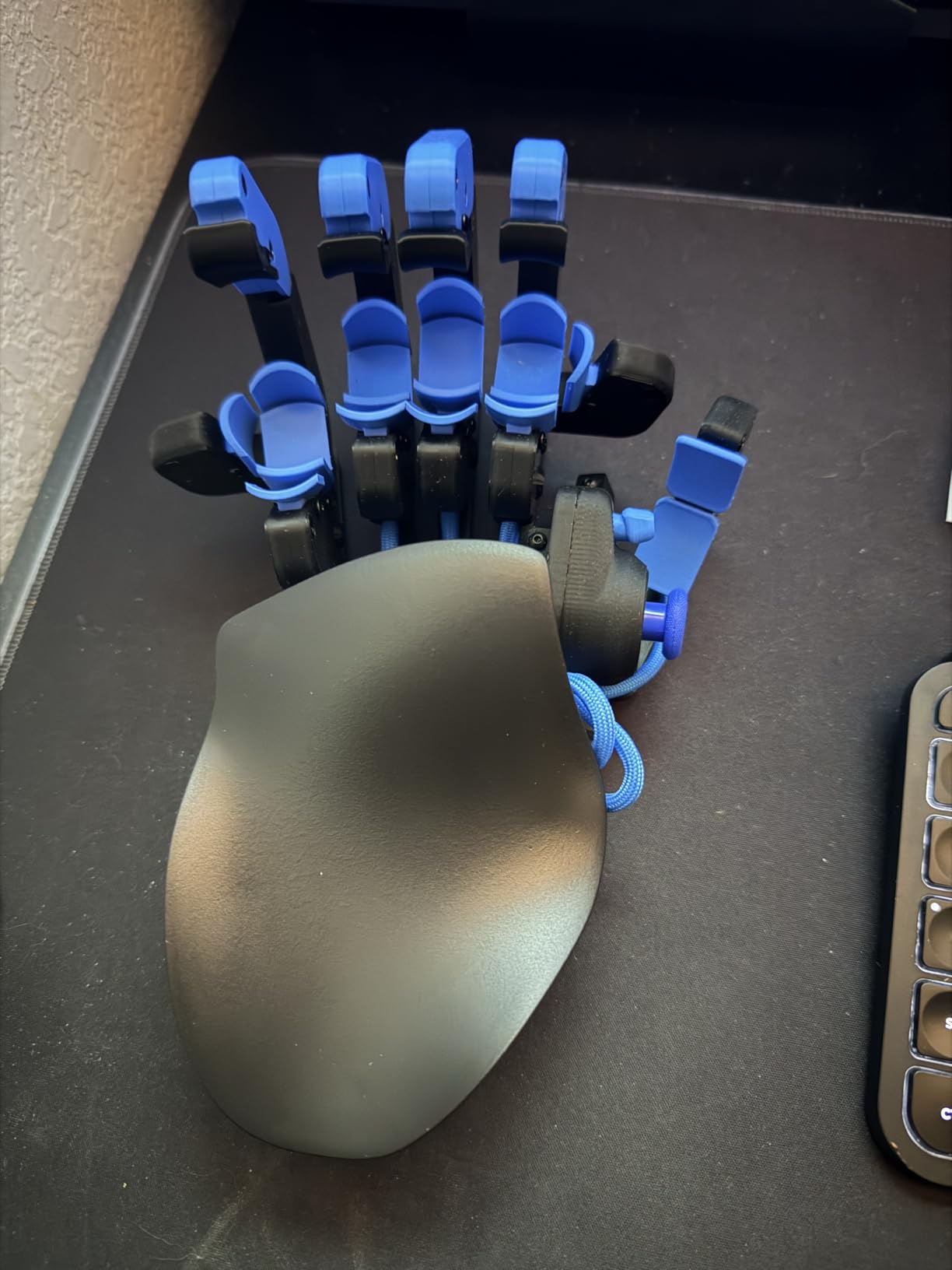
Six control layouts can be stored on the device itself, which matters if you use more than one machine. The medium size is quoted as fitting 6.3 to 7.5 inch hands, and buyers at both ends of that range report it works for them, which is unusual.
Now the difficult part. This is by a wide margin the most expensive keypad here, and detractors question the spend for a device in the keycap-and-membrane class. The printed PLA and PETG chassis is a real consideration if you have spasticity or apply high force, because printed shells fatigue sooner than injection-molded ones. The adjustment screws strip easily, one owner reported a thumbstick failure within a month, and on-board memory must be configured on a Windows PC, with macros unavailable on Mac.
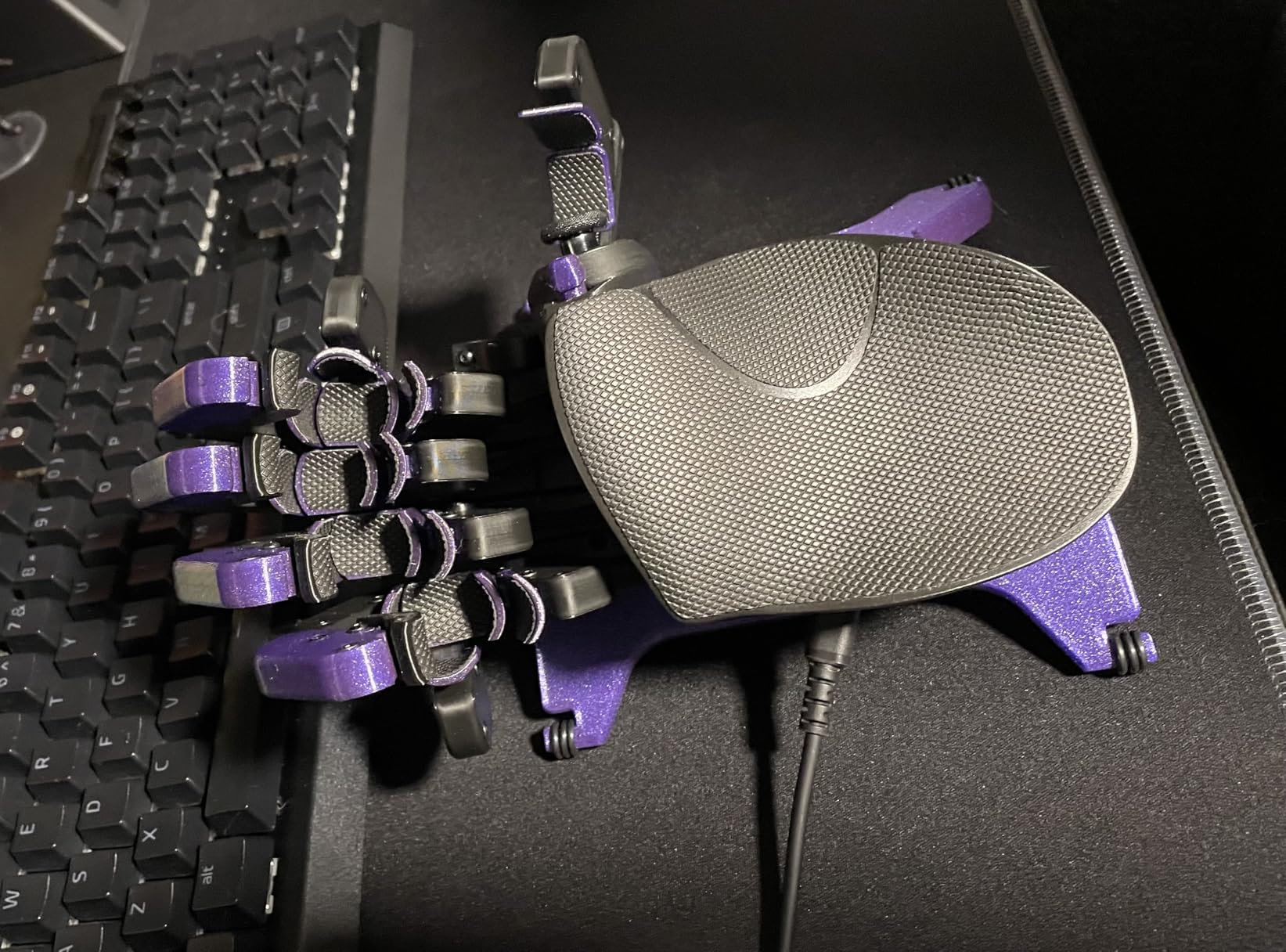
Who gets real value from the custom fit
If a standard keypad leaves you reaching awkwardly for a specific cluster of keys, this is the only device here that lets you fix that at the hardware level. Buyers with unusual hand shapes report the biggest improvements in comfort and even in aim.
The Hall effect stick matters for another group. If you have already been put off by drifting analog sticks on cheaper pads, this removes that problem entirely rather than asking you to recalibrate.
Where the trade-off bites
Budget a month of adjustment and accept some trial and error. If you want a device that works correctly the day it arrives, the Razer or Redragon will serve you better, and the price difference funds several years of ordinary controllers instead.
We would also not choose a printed shell for anyone whose involuntary movement applies significant force. That is a durability question no amount of adjustability answers.
5. 8BitDo Lite SE Gamepad – Best Designed for Limited Mobility
8BitDo Lite SE Bluetooth Gamepad for Switch, Android, iPhone, iPad, macOS and Apple TV, for Gamers with Limited Mobility
16 buttons placed on the front face
Low-resistance buttons
Bluetooth for Switch and mobile
80 g
Pros
- Designed specifically for limited mobility
- Every control reachable while resting flat
- Works across Switch
- Android
- Apple and macOS
- Rumble and motion controls on an 80 g body
- Buttons stay responsive with no drift over years
Cons
- Body is very small and cramped for many adults
- D-pad buttons are widely spaced for diagonal inputs
- Sticks read full deflection on a light touch
- No desktop remapping software
This is the only device in the list designed for the problem rather than adapted to it. The Lite SE weighs 80 grams, lays flat on a table, and puts every control including the shoulder buttons on the front face where they can be pressed without lifting or rotating the controller. Nothing about it requires a held grip.
Its face buttons have deliberately less resistance, and the joysticks are more sensitive than standard, which is exactly the brief for reduced hand strength. Users with genuine mobility needs describe it as comfortable and highly usable, and specifically call out the front-mounted shoulder buttons as the feature that makes the layout work.
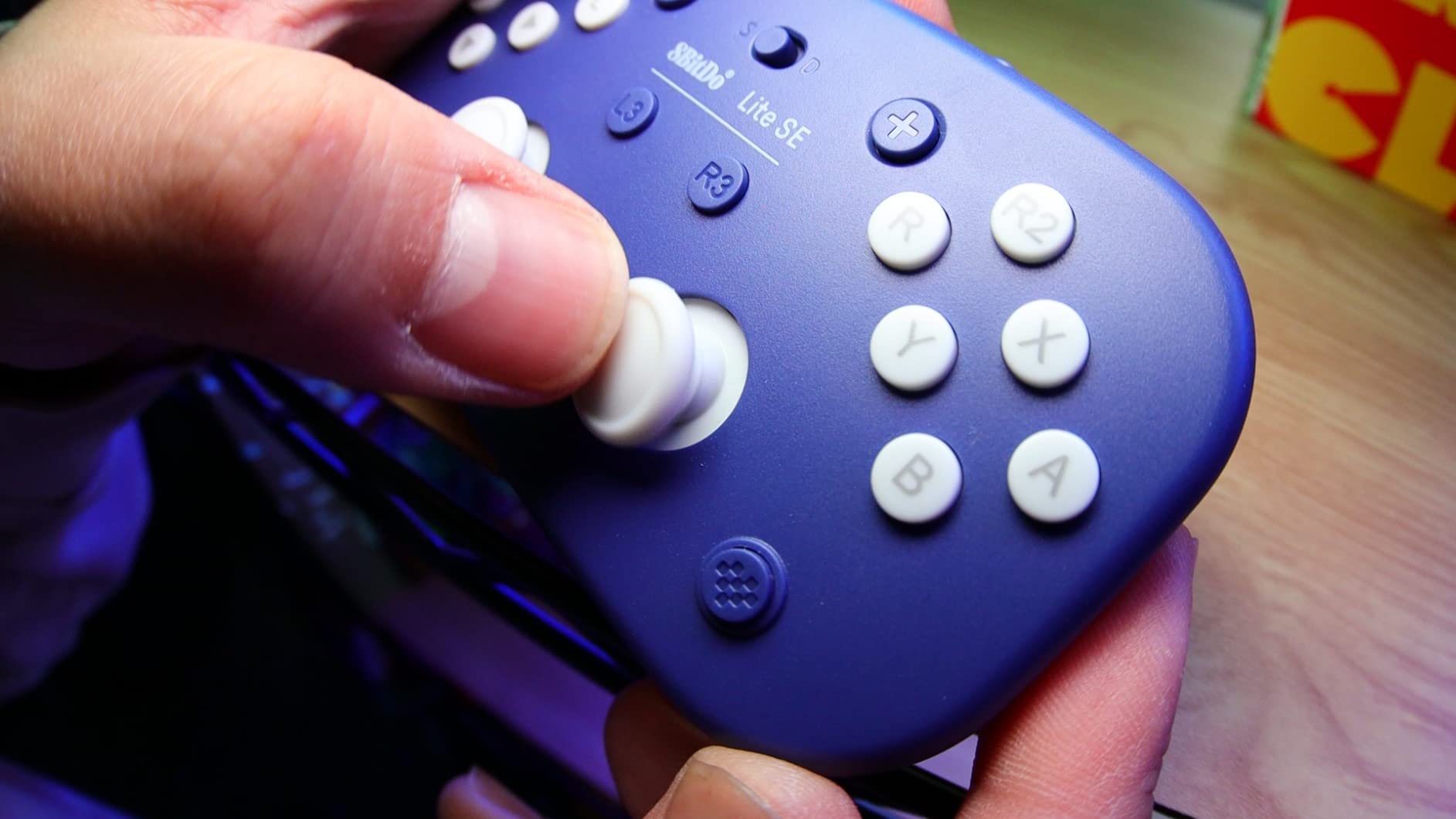
Platform coverage is unusually wide for a controller this small: Nintendo Switch, Switch Lite, Android, Raspberry Pi, iPhone, iPad, macOS and Apple TV, all over Bluetooth. Rumble vibration, motion controls and separated L3 and R3 are all present. Owners also report zero stick drift after years of use, which is worth noting given how many small controllers drift.
The compromises follow from the size. Several adults found it cramped. The d-pad buttons are widely spaced and awkward for diagonals, and it is not really a d-pad in the traditional sense. The joysticks are so sensitive that a light touch reads as full deflection, which costs analog precision. Turbo works only in Android and D-input mode, and there is no desktop XInput or remapping software.
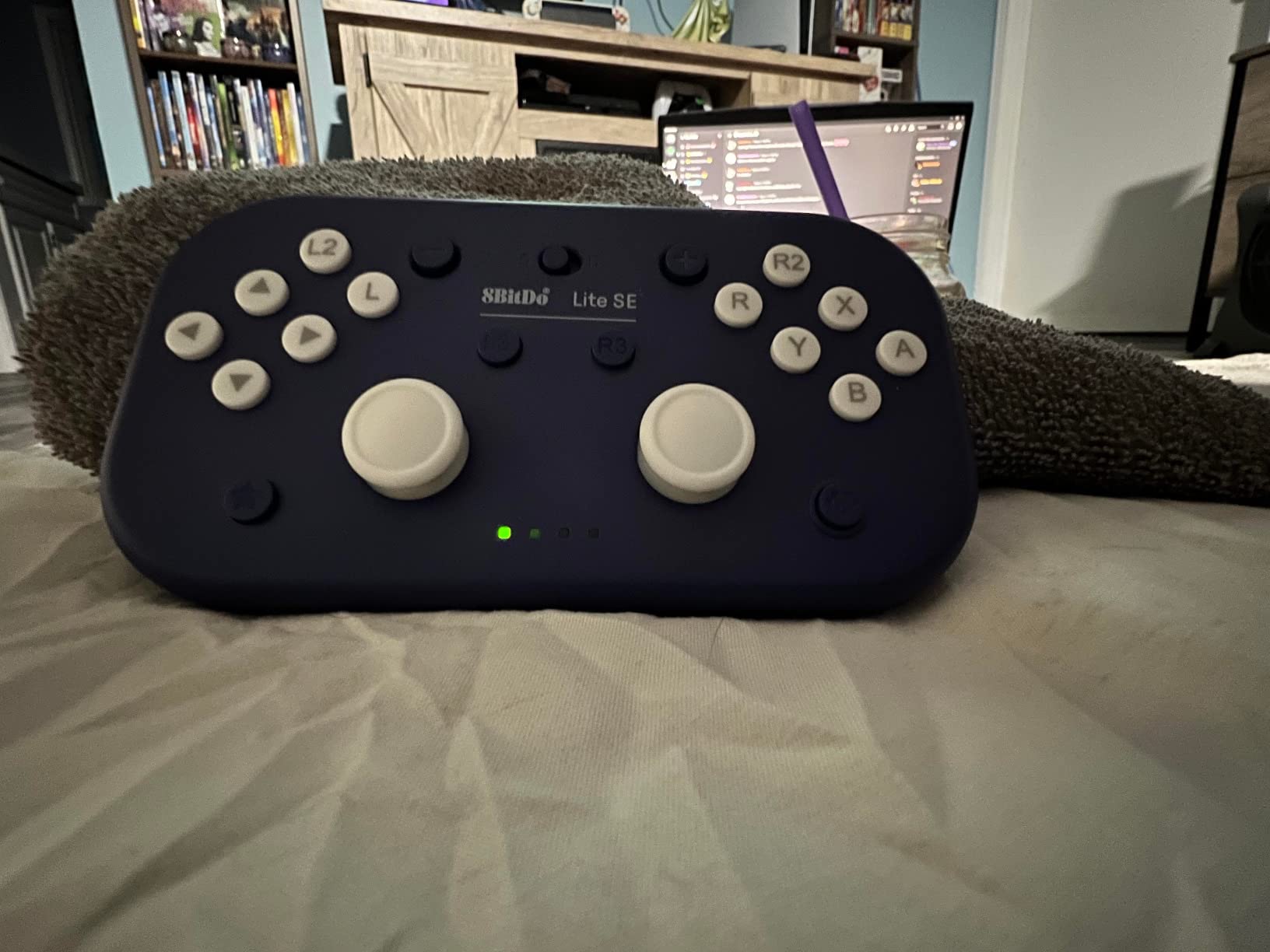
Check your hand size against an 80 gram body
This is the clearest size-versus-fit decision in the guide. It was built for children, small hands and players with limited reach, and the 16-button face is genuinely cramped for many adults. If your hands are average to large, the 8BitDo Lite 2 below is the same family at a more usable size.
If you are buying for a child, or for your own use with limited reach, nothing else here is designed this carefully around the problem.
Where precision players will struggle
The over-sensitive joysticks are the issue to test first. If the games you play need controlled analog input for aiming, that sensitivity can work against you rather than for you, and there is no sensitivity adjustment in the software.
The widely spaced d-pad also means games needing diagonal directions will feel imprecise. For a button-mashing arcade title or a platformer, neither matters much.
6. AbleNet Big Red Switch – Best Large Target for Very Limited Reach
AbleNet Big Red Switch – Large 5 Inch Durable Assistive Technology Switch Button for Accessibility and Special Needs – Product Number: 10033500
5 inch activation surface
Four interchangeable switch tops
Plug-in connector
Pre-drilled mounting plate
Pros
- Huge target is easy to hit with limited reach
- Any contact registers an activation
- Four colour-coded tops support visual coding
- Back plate holes allow strap or zip-tie mounting
- Holds the highest average rating in our list at 4.6
Cons
- Priced high for a simple microswitch in a plastic frame
- An assistive switch rather than a controller in its own right
- Surface mounting needs separate hardware
Every other device here still asks you to hit something smaller than the palm of your hand. This one does not. The activation surface is 5 inches across, it registers on any contact, and it works with a chin, a palm, a fist or a foot. For a player with very limited reach or very limited fine motor control, that difference decides whether play is possible.
To be precise about what this is: it is an assistive switch, not a controller. It plugs into a switch-accessible device, which in a gaming setup means an adaptive hub or adapted interface. Read it as a component you build around, not a pad you pick up and play with.
Caregivers report the same result consistently. Parents adapting toys and computers for children with cerebral palsy and developmental delays describe it as reliable and easy for a child to trigger, and the 4.6 average rating with 82 percent five-star reviews is the highest in this group. The symbol holder that snaps onto the front and the four colour-coded tops let you mark specific functions visually.
The dominant complaint is price. Reviewers regularly describe it as expensive for a microswitch in a plastic frame, and several advise learning to adapt devices yourself rather than buying pre-adapted equivalents. Insurance rarely covers it either. The three pre-drilled holes in the back plate are the detail that changes that calculus, because they let you strap or zip-tie the switch to a chair, a tray or a mounted arm.
Why the mounting holes decide the case
Those three holes turn a desktop accessory into something you can fix permanently to a wheelchair arm or a lap desk. Once mounted, the switch stays exactly where you put it, which removes the aiming problem entirely.
Colour-coded tops let a child or a caregiver label what each switch does without writing on it. For players with limited vision alongside limited movement, that is a meaningful gain in independence rather than a cosmetic one.
Know that this is a building block
Do not buy this expecting to plug it into a console. Without an adaptive hub to accept switch inputs, it drives adapted toys and appliances only.
Our honest view is that this belongs in a plan, not at the start of one. Get your input method working first, then add a large-target switch for the one or two functions that are hardest to trigger.
7. 8BitDo Lite 2 Gamepad – Best Portable Switch Pad for Hands
8BitDo Lite 2 Bluetooth Gamepad for Switch, Switch Lite, Android and Raspberry Pi (Turquoise)
73 g body with joysticks and triggers
Bluetooth plus USB-C
Rechargeable battery
Rumble and motion
Pros
- Far easier on the hands than pocket-sized models
- Recognised immediately by Steam Deck and laptops
- Long battery life between charges
- Compact enough for travel sessions
- Rumble and full motion controls in a small body
Cons
- No native XInput on PC
- Fixed Nintendo A/B and X/Y layout cannot be changed
- Will not wake the Switch from sleep
- Some buyers report flaky buttons
With 2145 reviews at 4.4, the Lite 2 is the most proven device in this guide by a wide margin, and the feedback pattern is unusually clear. Buyers treat it as the step up from the keychain-sized models, which are too small to hold comfortably for anyone. At 73 grams with proper joysticks and shaped trigger buttons, it stays portable without becoming awkward.
For hand comfort the difference is structural. Rounded edges, a body you can cradle rather than pinch, and triggers you can reach with a partial grip. Owners describe it as much easier on the hands than smaller models while remaining inexpensive, which is why it recurs so heavily in caregiver recommendations for Switch and Android play.
Setup is the easiest of any device here. Bluetooth pairs directly, USB-C is there for a wired option, and the rechargeable battery means most owners rarely charge between trips. It is recognised immediately by Steam Deck and laptops, and works with Switch, Switch Lite, Android and Raspberry Pi. Rumble and full motion controls are unusual at this size.
The complaints are all about platform behaviour rather than comfort, which tells you the ergonomics work. There is no native XInput on PC, so non-Steam games need a translation layer. The Nintendo A/B and X/Y order is fixed and reversed against the Xbox convention, which breaks some Android games in direct-input mode. It will not wake the Switch from sleep. A minority of buyers report flaky buttons and a poorly soldered USB-C port.
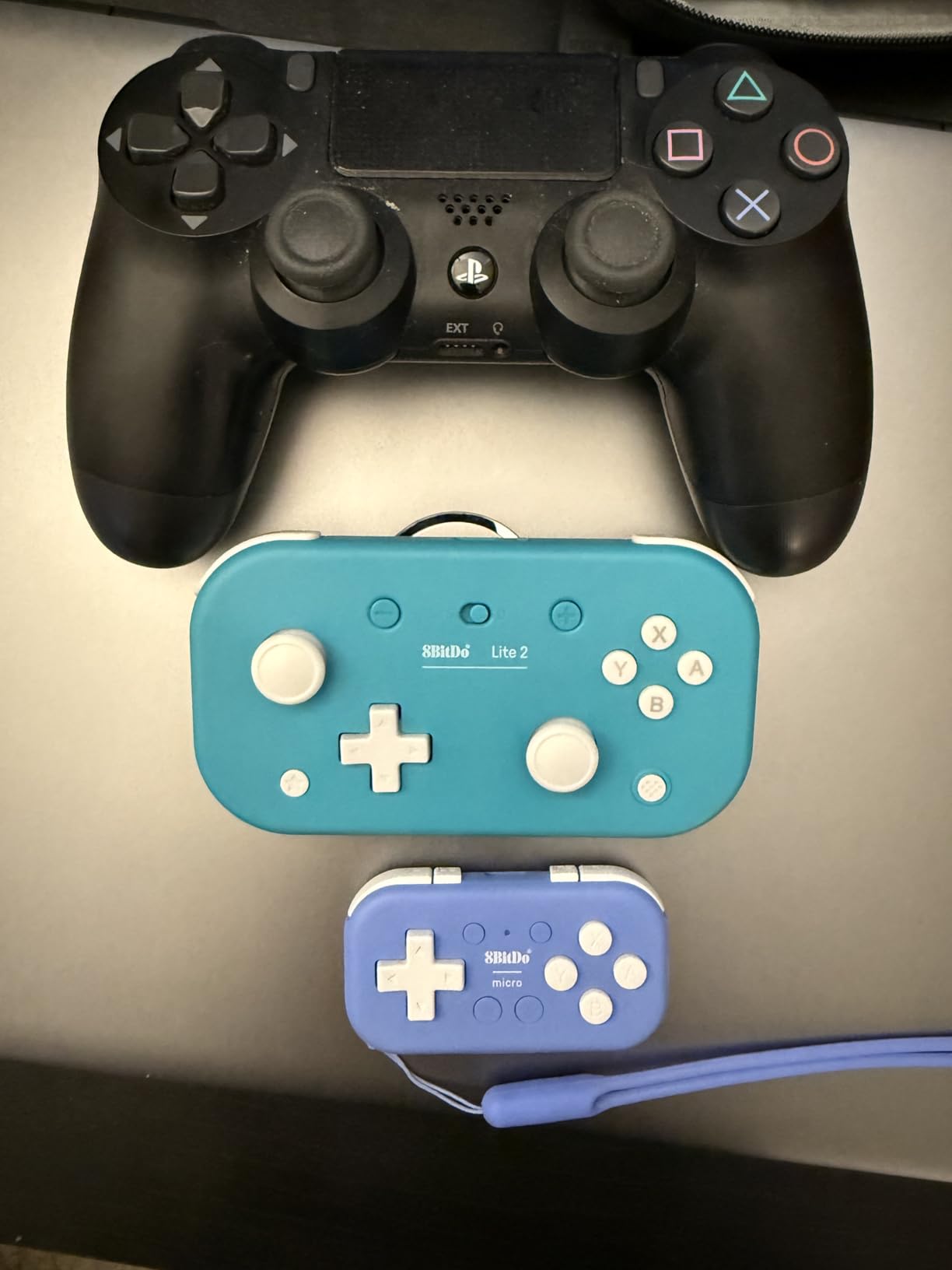
Best fit for hand fatigue and travel
The rechargeable battery and the 73 gram weight make this the one to take on a long trip. Setup takes seconds, and you can play Switch, Android and handheld PC without reconfiguring anything.
It is also the most sensible default recommendation for a child who needs an easier-to-hold controller but has outgrown the Lite SE, and for anyone whose main complaint is hand fatigue rather than joint pain.
Plan around the fixed button order
Before buying, check whether the games you play respect the Nintendo layout. If you use a non-Steam PC game, budget time to set up a translation layer rather than assuming it will work as a plug-in.
And test the sleep behaviour early. If you play in short sessions and expect to resume quickly, having to wake the console manually changes the feel of using it.
8. Vaydeer 9-Key Programmable Pad – Best Compact Option for Travel
Vaydeer One-Handed Mechanical Keyboard Support NKRO, Hotkeys, One-Click Start,9 Fully Programmable Keys with Floating Window and Macro Multifunctional Keypad for iOS,Windows, Gift Idea for Him/Her
9 programmable NKRO keys
6 switchable layers
Floating on-screen HUD
3.2 oz
Pros
- Small and light enough to move between setups
- 54 programmable actions across 6 layers
- Floating HUD removes the need to memorise assignments
- Installer runs without administrator credentials
- Three-year warranty
Cons
- Must be plugged in after boot on some systems
- Macro editing is delete-and-rerecord only
- Windows-only configuration software
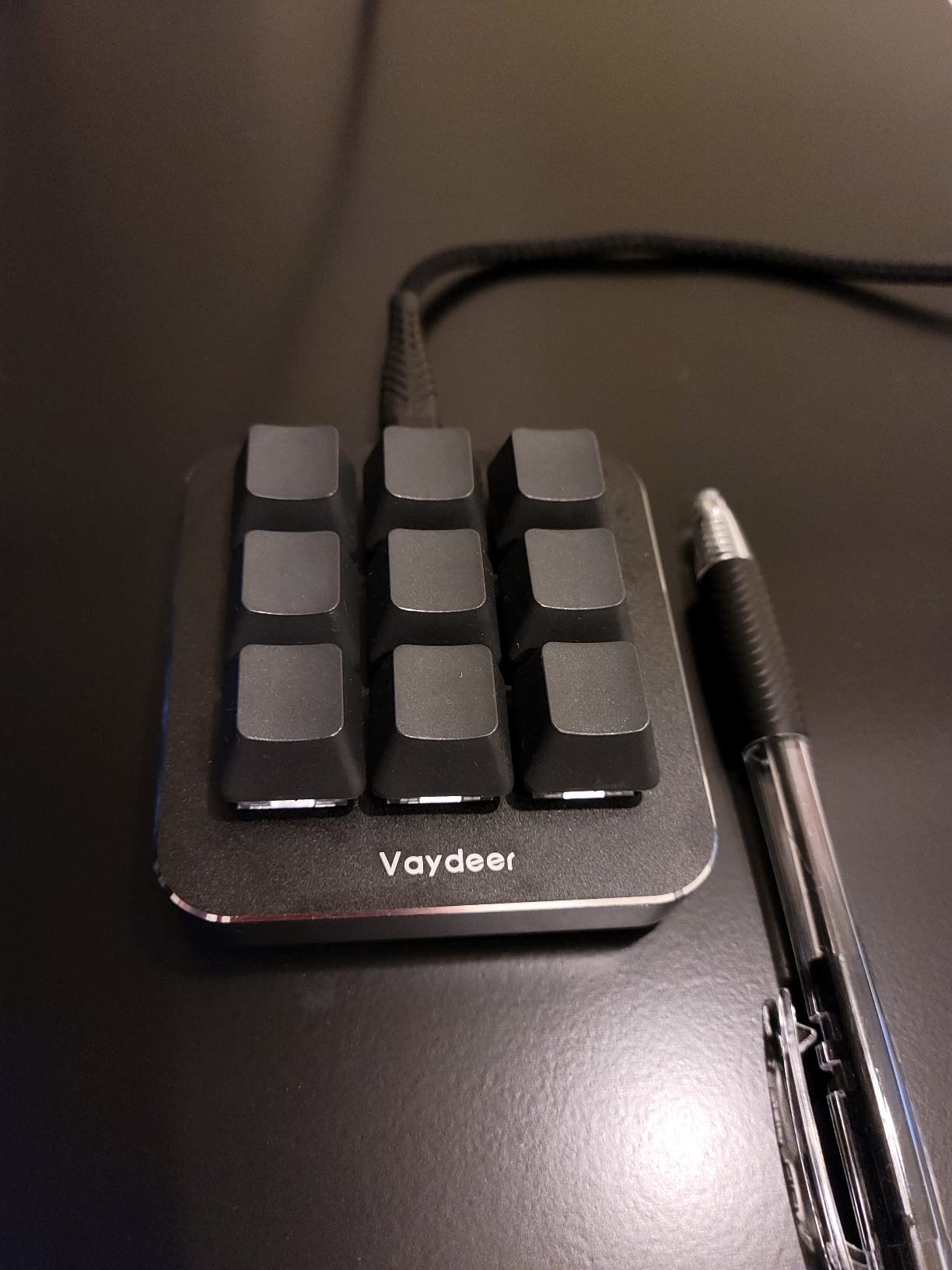
At 3.2 ounces and under three inches square, this is the smallest device here and the easiest to justify. If you move between a desktop, a laptop and a shared machine, or you work on a locked-down computer, the practicality is hard to overstate. The installer runs without administrator credentials, which matters on a work PC where you cannot install anything requiring elevation.
Nine fully programmable keys with NKRO means every key registers independently, so multi-key presses are not blocked. Combined with six functional layers, that gives 54 programmable actions, and the layers can switch automatically based on the running application. A reviewer with a physical disability bought two units specifically for accessibility, which is a strong signal about the form factor.
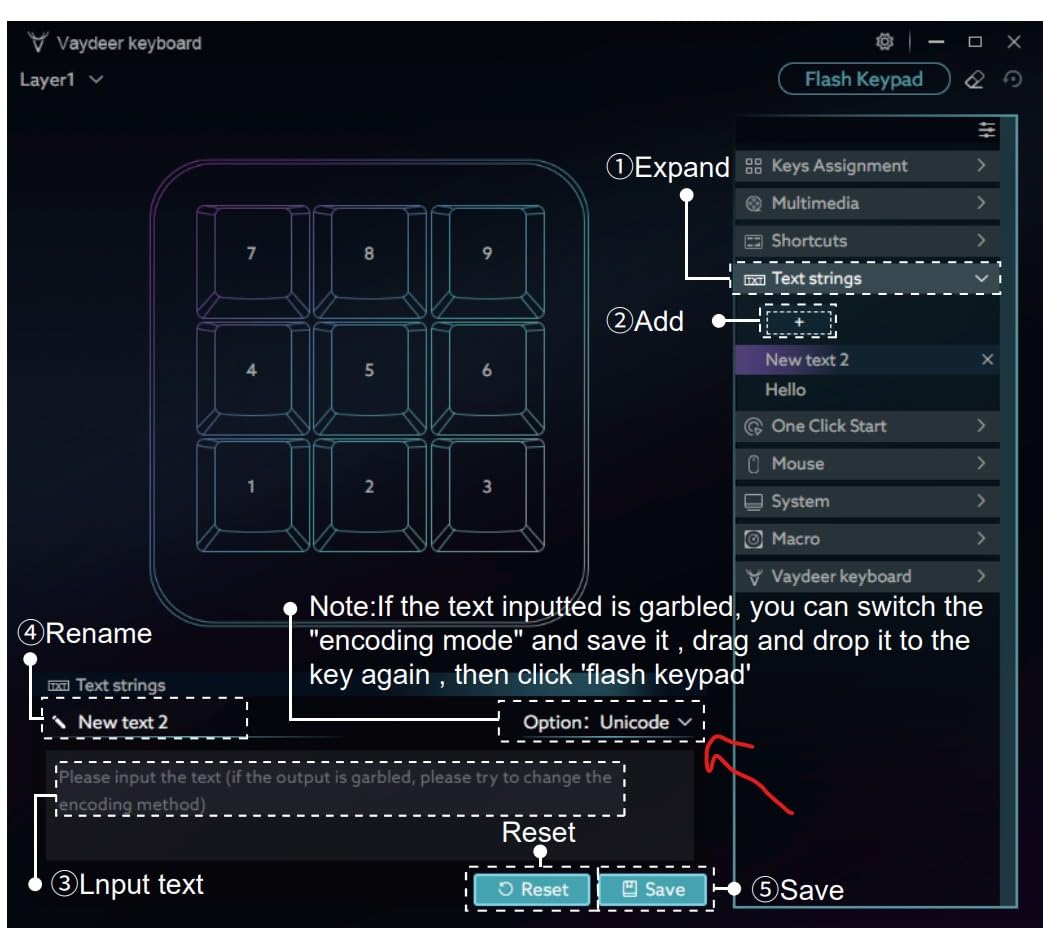
The floating on-screen window is the feature we would keep. It shows the current key layout in real time, which removes the single biggest problem with small macro pads, namely having to memorise what each key currently does. You read the layout instead of remembering it.
There are real limits. The pad must be plugged in after boot, and on some systems it disables the Windows key and Start menu until you reboot. The overlay cannot be moved or fully disabled, so it can cover on-screen options. Macro editing is all-or-nothing: you delete and re-record to change a single step. Configuration is Windows-only, and the default keystroke delay is a fixed 50 milliseconds adjustable only in 10 ms steps.
Why fewer keys is the point
With limited fine motor control, every extra key is another thing to reach and remember. This pad resolves the pressure by using layers, which a finger can hold rather than a hand can stretch to. Six layers means the physical footprint stays small while the available commands grow.
For a player whose pain is concentrated in the hand and forearm, moving commands onto a nine-key surface also cuts total travel to a few centimetres per press.
Where the software gets in the way
The overlay is a double-edged feature. It is genuinely useful, but it cannot be turned off, and on some setups it sits over the very menus you are trying to use.
And if you expect to change a macro often, the delete-and-rerecord workflow will frustrate you quickly. Plan your layers carefully once rather than adjusting constantly.
9. RedThunder G60 Wireless Keypad – Best Cord-Free One-Handed Layout
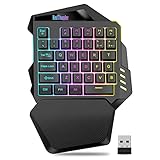
RedThunder Wireless One-Handed Gaming Keyboard, 2.4Ghz RGB Backlit Mini Gaming Keypad, Rechargeable 2000mAh Battery for PC Gamer
35-key wireless layout
2000mAh rechargeable battery
2.4GHz low-latency
Anti-slip wrist rest
Pros
- Wireless removes cable clutter and cable drag
- Textured angled wrist rest reduces hand fatigue
- Long battery life between charges
- Full anti-ghosting across all 35 keys
Cons
- Lowest average rating in our list at 3.7
- 2.4GHz only so the USB receiver must be inserted
- Some users report unresponsive or dropping keys
- Lighting and layout options trail wired rivals
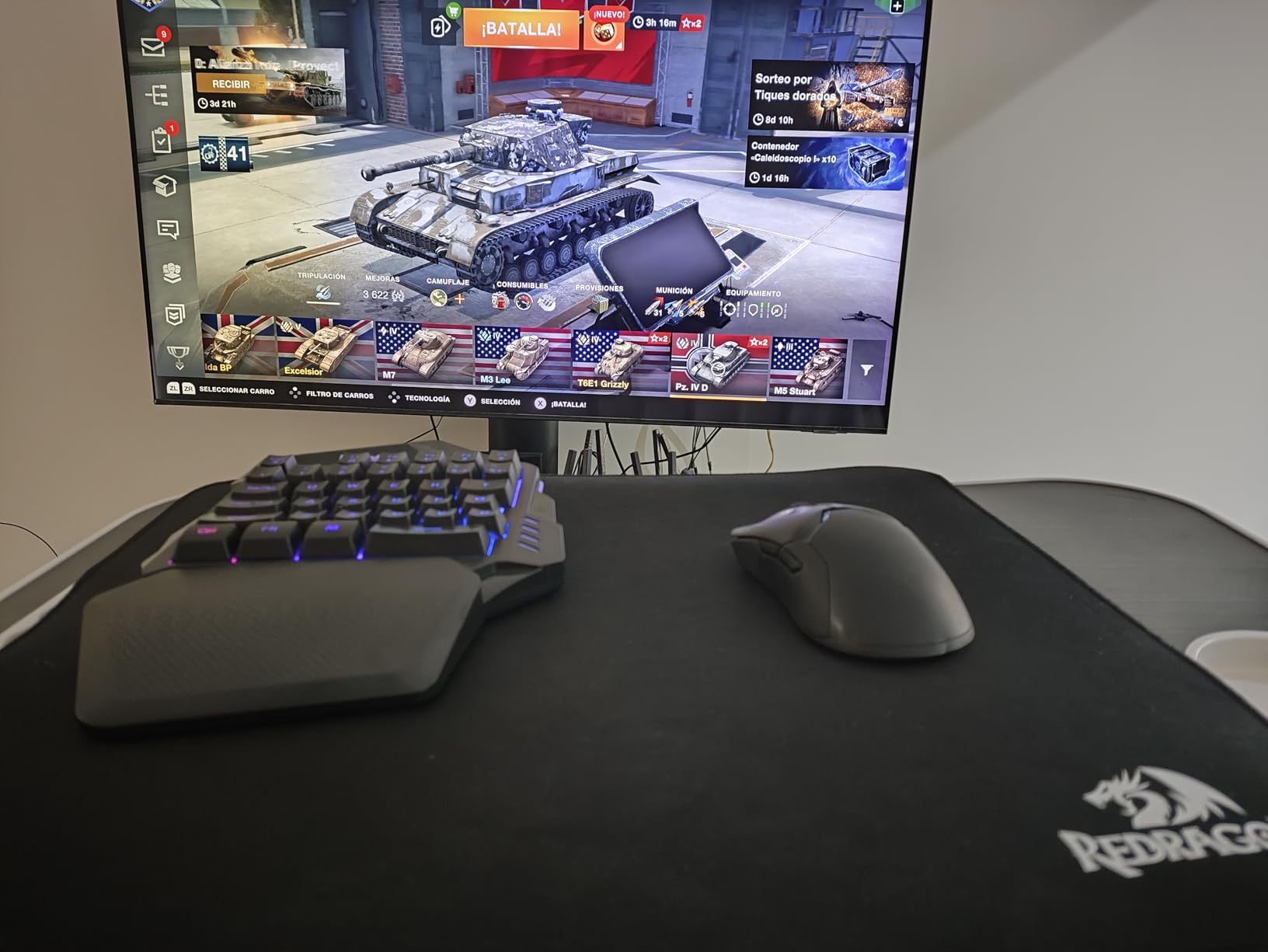
The case for this board is simple: cable drag on a desk is a real ergonomic problem when your hands are stiff, and a wireless one-handed keypad removes it. Beyond that, the large textured wrist rest with an ergonomic slope and non-slip rubber pads is the feature reviewers mention most, and the reported effect is less hand fatigue over longer sessions.
Battery life takes the daily chore away. The 2000mAh rechargeable cell is quoted at 15 to 20 hours with the backlight on and up to 30 hours with it off, with auto-sleep after six to eight minutes of inactivity and a full charge in eight hours. All 35 keys are anti-ghosted, so combos register together.
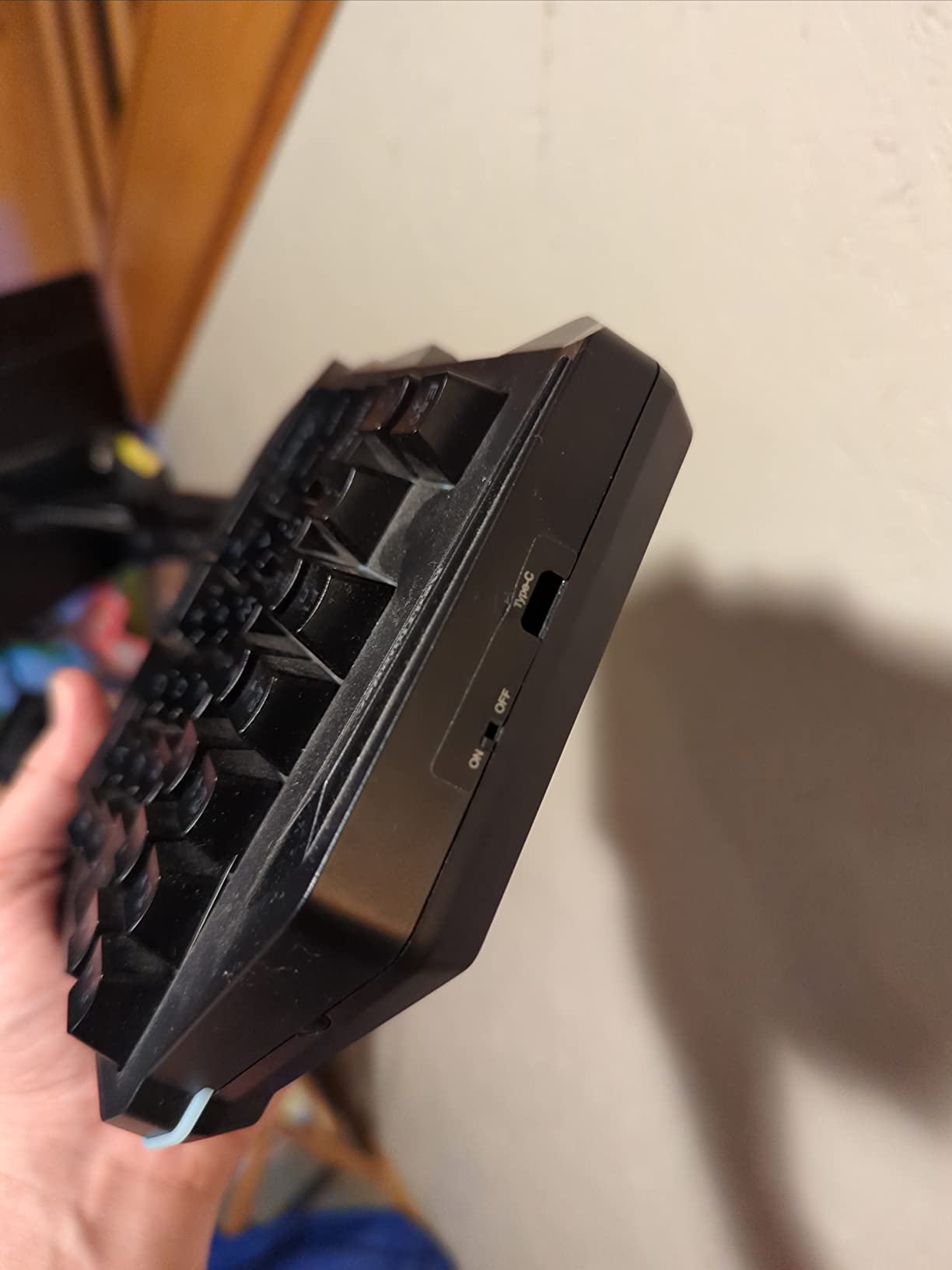
We are ranking this ninth of ten, and the rating explains why. At 3.7 it has the lowest average here with a heavy one-star share of 19 percent. Reviewers report unresponsive keys and intermittent dropouts. It is 2.4GHz rather than Bluetooth, so the USB receiver must be inserted and the power switch turned on every single time, which is a step you cannot skip. Lighting and layout options are also more limited than the wired competitors.
We would still consider it in a specific case: a player who cannot manage cable management or dislikes a wire trailing across a tray, and who can accept a 2.4GHz receiver. It is a gaming keypad only, not something to type on daily.
What wireless actually buys you here
Freedom of placement. You can set the keypad wherever your hand naturally falls, including on a lap desk or armrest, without routing a cable that pulls against your wrist.
That matters more for someone with limited reach than the specification suggests, because the position is chosen by comfort rather than by where the cable ends.
Know the reliability trade
Wireless introduces failure modes a wired board does not have: pairing, receiver seating and power state. The need to turn the pad on manually every session is a genuine daily friction point, and the dropout reports are consistent enough that we would not recommend it as a first device.
If reliability matters more to you than cable freedom, the wired 35-key board earlier in this list is the safer choice, and it holds a 4.4 rating against this one at 3.7.
10. BTXETUEL SayoDevice 8-Key Macro Pad – Best for One-Handed Shortcut Work
BTXETUEL Copy Paste Search Backspace Save Cut All Enter 8-Key Keyboard SayoDevice One Handed OSU Keypad Programmable Mechanical Shortcut Macro Keyboard for Working and Gaming (White)
8 Cherry MX mechanical keys
5 command layers each
Web-based programming
3.2 x 1.8 in body
Pros
- Minimal wrist and finger travel for repetitive tasks
- Useful default copy
- paste
- find and save bindings
- Layouts stored on the device and portable between computers
- Colour marks the active layer
- Cherry MX feel in a tiny footprint
Cons
- Extremely light build feels like a switch tester
- Documentation of the full feature set is thin
- Switches are not hot-swappable despite the listing
- Only 8 keys so it complements rather than replaces
Eight keys, Cherry MX switches and a footprint of 3.2 by 1.8 inches. This is the most precise input tool in the guide for anyone whose problem is repeated finger travel rather than grip, and the 4.6 rating with an 83 percent five-star share reflects how well it does that one job.
Out of the box, one press of each key does something genuinely useful: copy, paste, find, backspace, save, cut, select all and enter. No software, no configuration, nothing to set up. For a player managing long sessions, having the common editing and menu commands on eight reachable keys removes a large amount of repetitive hand movement.
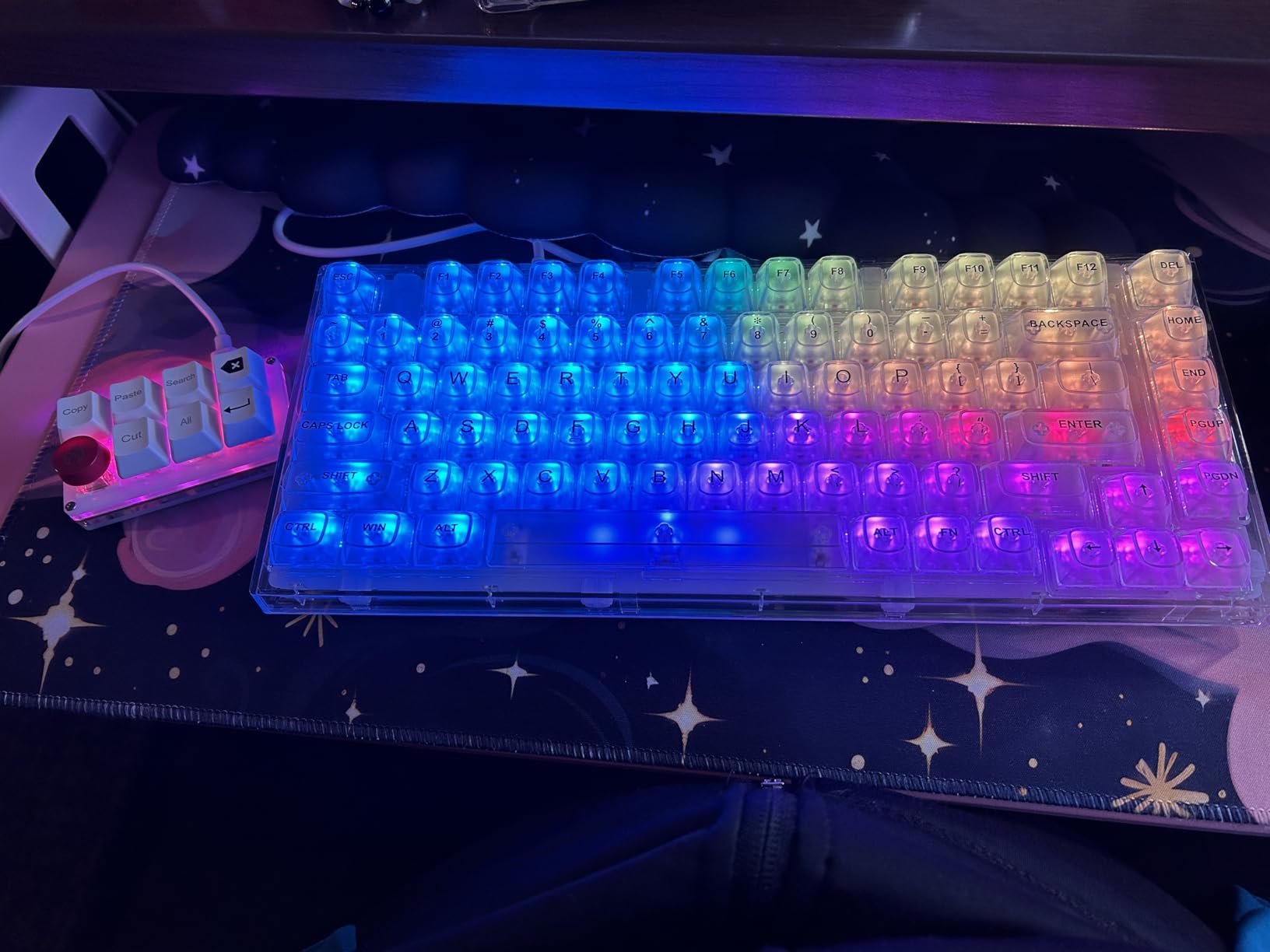
Each key carries up to five layered commands, and RGB case lighting changes colour to show which layer is active, so you always know the state without checking software. Programming happens through a browser-based tool covering Windows, macOS and Linux, and the layout is saved on the device, so it carries over to a different computer rather than being tied to one machine.
The criticisms are consistent. The build is extremely light and gives more of a switch-tester feel than a desk accessory. Documentation of the full feature set is incomplete. Despite the listing, the switches are not actually hot-swappable. The case lighting is the only illumination, with no per-key backlight. And eight keys cannot replace a main keyboard, only complement one.
Why layer marking matters more than lighting
Colour-coded layers solve a problem that trips up people with limited vision or reduced memory: knowing which set of commands a key currently holds. Seeing the colour change is faster than remembering it, and that is a genuine accessibility gain rather than a cosmetic one.
Because layouts live on the device, you can carry your setup between a home machine and a shared or work machine without reconfiguring it, which is a small thing that removes a real daily obstacle.
Where it is not enough on its own
Eight keys is a small surface. If movement control is uncomfortable, this does not address it, because it is a shortcut pad rather than a gamepad.
Our honest recommendation is to pair it with one of the larger gamepads or keypads earlier in this list rather than to buy it as a standalone controller. Used that way, offloading repetitive commands to eight keys is what makes a longer session comfortable.
How to Choose a Controller for Limited Hand Mobility
Work through these in order. The first three questions eliminate most of the list on their own.
What movement can you sustain comfortably for an hour? A resting hand on a surface, one hand on a desk, a palm on a large switch, or a chin or foot on a mounted control. Write down the honest answer. Many people overestimate what they can hold and underestimate what they can reach.
Can you hit a small target reliably? If not, a keypad is the wrong category. Look at a flat-resting gamepad like the Lite SE, or a large-target switch. A 42-key board does not become accessible because it is comfortable to rest on.
Is the problem force or travel? Painful or arthritic hands usually need less force, which points to membranes or light mechanical springs. Stiff or fatigued hands often need less travel, which points to a small, low-profile pad with fewer keys and layers.
Actuation force and switch type
Switch type is the least visible and most important variable. Membrane switches need the least force and are the quietest, which suits hands that fatigue quickly. Mechanical switches give better feedback and, on the Redragon K585, can be changed to lighter springs yourself. Mechanical switches in a fixed housing, as on the Razer, cannot be tuned, so confirm the feel is right before you commit.
Joystick sensitivity runs the other way. A stick that responds to a very light touch is helpful if you cannot push far, and unhelpful if you need controlled analog aiming. The Lite SE is tuned deliberately sensitive.
Remapping and layers
Button remapping is what lets you move a command away from a movement that hurts. A Reddit user with chronic wrist pain reported that remappable inputs helped for exactly this reason. Layers multiply your capacity without adding reach, which is why small pads such as the Vaydeer and BTXETUEL work as well as they do.
Check two things: whether configuration is Windows-only, and whether the software needs administrator rights. Both are routine obstacles for someone who cannot easily navigate a complex application.
Platform compatibility
Check the connection type against your machine. A wired USB-A keypad such as the Razer is PC-only. A 2.4GHz receiver is not Bluetooth and will not pair like one. A Bluetooth pad with no native XInput will need a translation layer on a non-Steam PC game. Console pads are unaffected, but a fixed button order can break some Android titles.
No single device here covers every platform. That is a real limitation of the current category, and it is worth confirming the exact games and systems you use before choosing.
Mounting and sustained grip
Forum threads raise mounting more often than any other practical concern, and it is a genuine deal-breaker rather than an accessory question. A deal-breakers list that circulated in these communities is short and consistent: a controller that cannot be operated without a sustained grip, buttons requiring force you cannot generate, no option to remap, and a device that cannot be mounted to a wheelchair or rested on a table all get ruled out immediately.
We covered adaptive triggers and haptics, and what a working setup costs, in the sections that follow.
Setup, Mounting, Adaptive Triggers and Haptics
Where to put the device so it works
A device resting on a lap desk, a wheelchair tray or a mounted arm is transformed by position. Before buying anything, work out where it will live: tray, desk, armrest or a clamp. Then buy a device that fits there, rather than one that has to be held against gravity.
For large switches, the AbleNet’s three pre-drilled back-plate holes are the key feature, because they accept a zip-tie or strap straight onto a chair frame. For keypads, look for a detachable or adjustable wrist rest and a non-slip base. If your chair does not have a suitable tray, the tray options people use for a mobility scooter mounting setup transfer directly to powered wheelchairs.
One practical note that came up repeatedly in community threads: powered wheelchairs use Bluetooth for their own electronics, and users ask specifically about interference with controller pairing. Test your pairing with your chair powered before committing to a device.
What to do in the first hour after it arrives
Most of the unanswered questions in community threads come from this stage, not from the purchase. A simple order works: connect the device and confirm the game sees it, assign one control per button before touching the rest, set the resting position, then add layers.
Change keypress timing early if your device allows it, since defaults are rarely right for fast play. And if an occupational therapist is involved in your care, they are the right person to review your layout with you, which more than one forum thread recommends.
Adaptive triggers and haptic feedback
Two of the most-searched questions in this category ask whether other controllers offer adaptive triggers, and whether any controllers pair haptics with them. The honest answer is that this is where the retail category is thinnest.
Adaptive triggers are a console-level feature rather than something these devices provide. The Xbox Adaptive Controller supports variable trigger resistance with switch inputs assigned, and the PlayStation Access Controller offers a similar approach for its platform. None of the keypads and low-force gamepads in this guide has adjustable trigger resistance, because most of them have no analog triggers at all.
For haptic feedback, the picture is similar. The 8BitDo Lite SE and Lite 2 both provide rumble vibration, and the Lite SE explicitly lists rumble as a feature. Adaptive haptic intensity, in the sense of a rumble level you can set per input, is not something to expect from any of these ten devices.
So if variable trigger resistance is a requirement rather than a preference, the answer is that you need a platform hub and a supported console game, not a pad from this list. We would rather say that plainly than imply otherwise.
Grants and Charities That Can Fund an Adaptive Setup
Cost is the barrier most often named in community threads, and the range of what a complete working setup can involve is large. A hub plus external buttons, a joystick and a mount runs to a substantial outlay before anything else is added. Insurance rarely covers hardware classified as recreational, so funding routes are a practical question, not an optional one.
Three organisations come up repeatedly. AbleGamers Charity funds gaming equipment for players with disabilities and provides guidance through the process; their team has helped players as young as eleven identify a controller that worked and then compete with a sibling. SpecialEffect focuses on children with disabilities and funds specific technology requests. Warfighter Engaged serves wounded service members and veterans.
Occupational therapists are a second, non-financial route. Multiple community threads point to them as the most useful professional for working out which movements you can sustain and which device matches. A recreational therapist working in disability gaming groups also described offering specialised help that is not discoverable through normal consumer search, which suggests asking your clinician directly is worthwhile.
Wheelchair and scooter purchases sometimes come with an occupational therapy assessment attached, and that is the moment to raise the controller question. Our mobility ramp buying guide covers the access side of getting equipment into a home, which often shapes what mounting solutions are realistic.
If you are not sure where to start, an occupational therapy referral costs nothing and can narrow ten options down to two.
Frequently Asked Questions
What is the best game controller for disabled people?
The best game controller depends on which movement you can sustain. For most players, the Razer Tartarus V2 is our first recommendation because it needs no grip and has the largest evidence base at 12706 reviews. For limited reach, a flat gamepad like the 8BitDo Lite SE or a large-target switch works better than any keypad.
What are some good game controllers for people with arthritis?
Look for low actuation force, adjustable wrist support and remappable inputs rather than layout. The Redragon K585 is a strong choice because its hot-swappable sockets let you fit lighter mechanical springs yourself. The Redragon K585 pairs that with a detachable magnetic wrist rest, and the Razer Tartarus V2 is the alternative if you want a softer key feel.
Does PlayStation have a disability controller?
Yes. Sony makes the PlayStation Access Controller, a modular controller with customizable button configurations, analog stick modules and buttons for different grip and play styles. It works with PlayStation 5 and PlayStation 4. It is a platform hub rather than a fixed-layout pad, so it is a different category from the keypads and low-force gamepads reviewed here.
Do any other controllers have adaptive triggers?
Adaptive triggers with variable resistance are a console-level feature on the Xbox Adaptive Controller and the PlayStation Access Controller, not on the keypads and low-force gamepads. The Razer Tartarus V2 and Redragon K585 have no analog triggers at all, so trigger resistance cannot be adjusted. If variable triggers are a requirement, you need a platform hub and a supported console game.
What controllers have haptic feedback and adaptive triggers?
No controller available today combines both for adaptive use. Variable trigger resistance and adjustable rumble live on separate hardware, mainly the platform hubs. The 8BitDo Lite SE and 8BitDo Lite 2 both provide standard rumble vibration, and the Lite SE lists rumble explicitly, but neither offers per-input haptic intensity control.
How do people with one hand play video games?
Most one-handed players use a keypad-style device that places every control under a single hand, rather than a half keyboard. The Razer Tartarus V2, Redragon K585 and RedThunder 35-Key Mini Keypad are all built this way. Add remappable or layered inputs so each key can send multiple commands without adding more reach.
Are adaptive controllers covered by insurance?
Rarely. Most hardware in this category is classified as recreational rather than medical, so insurance coverage is uncommon. Organisations such as AbleGamers Charity, SpecialEffect and Warfighter Engaged fund gaming equipment for players with disabilities, and an occupational therapist can help document which device your needs require.
Can adaptive controllers work with all games?
Not all of them. Wired PC keypads such as the Razer Tartarus V2 map to keyboard commands, which most games read but some ignore. Bluetooth pads with no native XInput need a translation layer on non-Steam PC titles, and fixed button orders can break some Android games. Always check your specific titles before buying.
The Right Controller Is the One You Can Hold Without Thinking
The best controllers for players with limited hand mobility are not the most advanced devices in the category. They are the ones that remove one specific movement from the equation, whether that is grip, reach or fine motor control. Our editor’s choice, the Razer Tartarus V2, wins because it never asks you to hold anything and has 12706 reviews behind a 4.3 rating, but for a child with small hands or a Switch player the Lite SE or Lite 2 is the more sensible buy.
Two pieces of advice carried more weight than any single product in our testing. Test the fit before anything else, because reach and hand size decide comfort more than features do. And ask an occupational therapist before you buy if you can, because they can narrow ten options to two in a way that no buying guide can.
This guide was written and reviewed for 2026, and we will keep it updated as the retail category changes. Every recommendation here reflects a real limitation one of these devices genuinely addresses, and every limitation is stated as plainly as the feature.