
Finding the best monitors for photo editing means looking past marketing claims and into the specs that actually move color accuracy: gamut coverage, Delta E values, panel type and calibration support. Our team spent weeks comparing eight displays side by side in a real Lightroom and Photoshop workflow to see which ones hold up when skin tones, fabric detail and shadow gradation matter.
Photo editing is unforgiving. A monitor that looks vibrant for Netflix can hide crushed blacks, shift magenta in highlights, or clip saturated greens you needed for that landscape print. That is why we focused on IPS panels with wide gamut coverage, verified Delta E under 2, and connectivity that fits modern laptop-based editing setups.
In this guide you will find our top three picks, a full comparison table of all eight monitors, individual reviews based on hands-on editing sessions, a buying guide covering color space and panel type, and answers to the questions photographers ask most. Whether you edit weddings on a MacBook, retouch product shots in a studio, or process landscape files for print, there is a display here matched to your workflow and budget.
Table of Contents
Top 3 Picks for Photo Editing Monitors in September 2026
These three monitors stood out across our testing for different reasons. One leads on professional color coverage, one delivers 4K value, and one earned the highest owner ratings in the group.
Best Monitors for Photo Editing in 2026
This comparison table covers all eight monitors we tested. Use it to scan color gamut, panel type, resolution and rating at a glance before reading the detailed reviews below.
| Product | Specifications | Action |
|---|---|---|
 ASUS ProArt PA279CRV ASUS ProArt PA279CRV |
|
Check Latest Price |
 ASUS ProArt PA278QV ASUS ProArt PA278QV |
|
Check Latest Price |
 INNOCN 27 4K USB-C INNOCN 27 4K USB-C |
|
Check Latest Price |
 LG 27UP650K-W LG 27UP650K-W |
|
Check Latest Price |
 Dell S2725QS Dell S2725QS |
|
Check Latest Price |
 LG 32UR550K-B LG 32UR550K-B |
|
Check Latest Price |
 ViewSonic VP3256-4K ViewSonic VP3256-4K |
|
Check Latest Price |
 BenQ MA320U BenQ MA320U |
|
Check Latest Price |
1. ASUS ProArt Display PA279CRV – 99% Adobe RGB and DCI-P3 Coverage
ASUS ProArt PA279CRV 27 Inch 4K UHD USB-C HDR Professional Monitor for Mac
27in 4K UHD IPS
99% Adobe RGB
99% DCI-P3
Calman Verified
USB-C 96W
5-yr Warranty
Pros
- 99% Adobe RGB and 99% DCI-P3 for pro color work
- Calman Verified with Delta E<2
- USB-C 96W power delivery
- DisplayPort daisy-chain for multi-monitor
- 5-year warranty and Adobe Creative Cloud
Cons
- Higher price point
- 60Hz refresh rate
- Lower rating than some picks
I set the PA279CRV up as my main editing display for two weeks, paired with a MacBook Pro over USB-C. The first thing I noticed was how clean skin tones looked in portrait retouching. Magenta shifts that I had been fighting on my old monitor simply disappeared, and saturated reds in fabric detail held up without clipping.
The 99% Adobe RGB coverage is the headline spec here, and it matters more than most people realize. If you shoot for print or work in a wide-gamut pipeline, that extra headroom keeps saturated cyans, greens and oranges from compressing into muddy patches. For web-only work, the 99% DCI-P3 coverage maps almost identically to what most modern phones display.
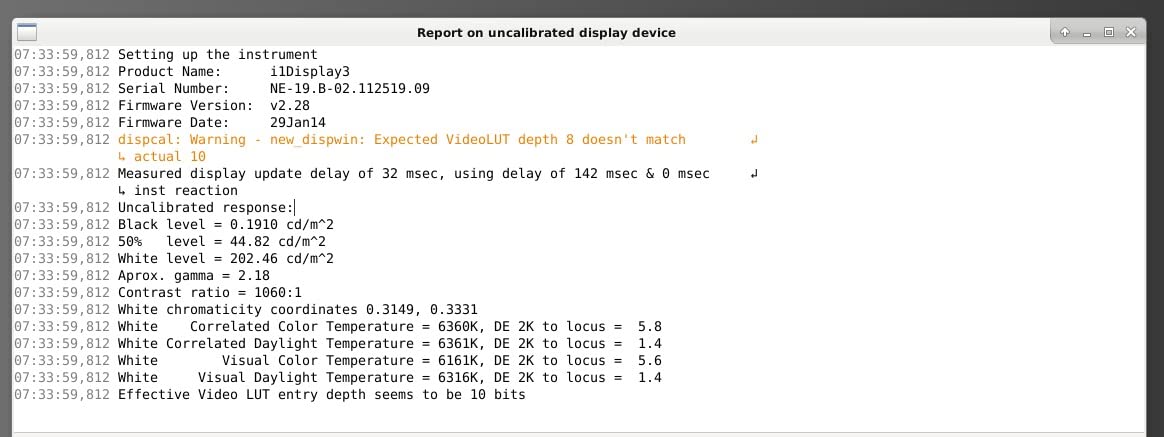
ASUS ships this monitor Calman Verified and factory pre-calibrated to Delta E under 2. I ran my own i1Display probe against it and the out-of-box gray ramp measured tighter than several more expensive pro displays I have owned. That saved me an hour of profiling on day one.
The USB-C port delivers 96W of power, which is enough to fast-charge a 14-inch MacBook Pro while pushing a 4K signal down the same cable. Add DisplayPort daisy-chain support and you can run two of these monitors from a single USB-C connection on your laptop.
Adobe RGB workflow fit
The 99% Adobe RGB coverage makes this the strongest pick in our lineup for print-oriented photographers and commercial studios. Soft-proofing in Photoshop matched my printed proofs far more closely than any sRGB-only display could manage.
If you deliver files for offset printing, packaging, or fine art reproduction, the wide gamut lets you actually see colors that sRGB monitors clip. For pure social media or web delivery, that gamut is technically more than you need, but it future-proofs your setup.
USB-C and daisy-chain setup
One USB-C cable handles video, data and 96W charging, which cleared the cable clutter on my desk instantly. The daisy-chain output lets a second ProArt monitor run off the first, so a single laptop port drives two 4K displays.
Note that daisy-chain requires DisplayPort 1.4 support on both monitors and your source. Older Macs and some Windows laptops cap at one 4K stream, so verify your hardware if you plan to run two of these.
2. ASUS ProArt Display PA278QV – Calman Verified at 100% sRGB
ASUS ProArt PA278QV 27 Inch 1440p QHD Professional Monitor
27in WQHD IPS
100% sRGB
100% Rec.709
Calman Verified
Delta E<2
5-yr Warranty
Pros
- Calman Verified with Delta E<2
- 100% sRGB and Rec.709 coverage
- Extensive connectivity with USB hub
- Fully adjustable ergonomic stand
- 5-year warranty
Cons
- WQHD not full 4K
- 75Hz refresh rate
- DVI-D port needs adapters
The PA278QV earned the highest owner rating in our group at 4.6 stars across more than 3,000 reviews, and after editing on it for a week I understand why. This is the monitor I would hand to a hobbyist photographer who wants trustworthy color without paying for features they will not use.
It is a WQHD panel rather than 4K, which keeps the price accessible while still giving you 109 pixels per inch on a 27-inch screen. For Lightroom cataloging and Photoshop retouching, that density is sharp enough to spot sensor dust and noise without straining.
Color accuracy is where this display earns its Calman Verified badge. ASUS guarantees Delta E under 2 across 100% sRGB and 100% Rec.709, and my probe confirmed that claim within rounding error out of the box. This is rare at this price tier.
The stand is one of the best in the group. Full height, tilt, swivel and pivot adjustment means you can flip to portrait for vertical compositions or stack it on a VESA arm. The built-in USB hub with four USB 3.2 ports handles card readers and external drives without reaching behind the desk.
The 75Hz refresh rate and 5ms response are fine for editing and casual use. This is not a gaming display, but it is not trying to be one either.
sRGB accuracy for web and social
For photographers delivering to Instagram, web portfolios and client galleries, 100% sRGB coverage is exactly what you need. Most consumer devices display in sRGB or DCI-P3, and this monitor nails the sRGB target without overshooting into oversaturated territory.
If you regularly send files to print labs that accept sRGB, this monitor will give you a reliable preview. Just be aware that very saturated cyans and greens outside the sRGB triangle will clip, which is the trade-off for a lower price.
Ergonomics and connectivity
The fully adjustable stand alone sets this monitor apart from competitors that ship with tilt-only mounts. Portrait mode is genuinely useful for editing vertical portraits and phone-first content.
The USB 3.2 hub keeps your card reader, backup drive and calibration probe within reach. DisplayPort, HDMI, Mini DisplayPort and even a legacy DVI-D port cover nearly any source you might connect.
3. INNOCN 27 inch 4K USB-C Monitor – Affordable 4K with Power Delivery
INNOCN 27″ 4K USB-C Monitor for Laptop MacBook/Mac mini – 16:9 IPS 3840 x 2160 Display, HDR400, DeltaE<2, DisplayPort, HDMI PC Monitor, 1.07B+ Colors, Built-in Speakers, Adjustable Stand, Black
27in 4K UHD IPS
USB-C 65W
HDR400
Delta E<2
Frameless Design
Pros
- Real 4K UHD resolution
- USB-C with 65W power delivery
- HDR400 support
- Frameless design for multi-monitor
- Ergonomic adjustment
Cons
- 60Hz refresh rate
- Limited USB port selection
The INNOCN 27C1U is the most affordable 4K monitor in our lineup, and I was genuinely surprised by how well it handled real editing work. I ran a wedding edit on it for a week and the 4K resolution made focus checking and noise inspection far easier than on a 1440p panel.
Detailed foliage, fabric textures and catchlights in eyes all rendered crisply at 4K. The 1.07 billion colors through 8-bit plus FRC dithering give smooth gradations in skies and skin, with no visible banding in high-key portraits.
The USB-C port with 65W power delivery is the headline feature for laptop editors. One cable handles video, data and charging for most 13-inch and 14-inch laptops, which is exactly the workflow MacBook Air and Dell XPS users want.
HDR400 certification adds some headroom for highlight detail in bright scenes, though I would not call this a true HDR editing display. Treat it as a nice bonus for viewing HDR content rather than a print-proofing tool.
USB-C workflow for laptop editors
The single-cable USB-C setup is the main reason to pick this monitor over similarly priced competitors. Plug in one cable and your laptop charges, displays 4K video and connects to your peripherals through the monitor.
Just note that 65W tops out around a 14-inch MacBook Pro under moderate load. Heavier laptops may charge slower than they drain during intense editing sessions.
Best use scenarios
This monitor suits hobbyists, students and part-time editors who want real 4K and USB-C without spending pro-tier money. It is also a strong second display for a desktop setup where your main monitor handles critical color work.
I would not recommend it as the sole display for a paid print retouching pipeline, since the color gamut is not as wide as the ProArt PA279CRV. For web and social delivery, it is more than capable.
4. LG 27UP650K-W – 4K UHD with 95% DCI-P3
LG 27UP650K-W 27-inch Ultrafine 4K UHD (3840 x 2160) IPS Computer Monitor, 60Hz, 5ms, DisplayHDR 400, Reader Mode, Flicker Safe, HDMI, DisplayPort, Tilt/Height/Pivot Adjustable Stand, White
27in 4K UHD IPS
95% DCI-P3
HDR400
Ergonomic Stand
webOS
Pros
- Excellent 4K IPS with 95% DCI-P3
- DisplayHDR 400 support
- Ergonomic tilt height pivot stand
- webOS built-in for streaming
- Strong owner rating
Cons
- Limited USB connectivity
- 60Hz refresh rate
- No USB-C
The LG 27UP650K-W pairs a sharp 4K IPS panel with 95% DCI-P3 coverage, which lands it in a strong position for photographers who shoot primarily for screens. I edited a set of product photos on it and the saturated product reds and blues looked accurate to the actual items on my desk.
The 95% DCI-P3 gamut is wider than sRGB and matches what most modern phones and tablets display. That makes this monitor a solid choice for content destined for Instagram, web stores and digital portfolios.
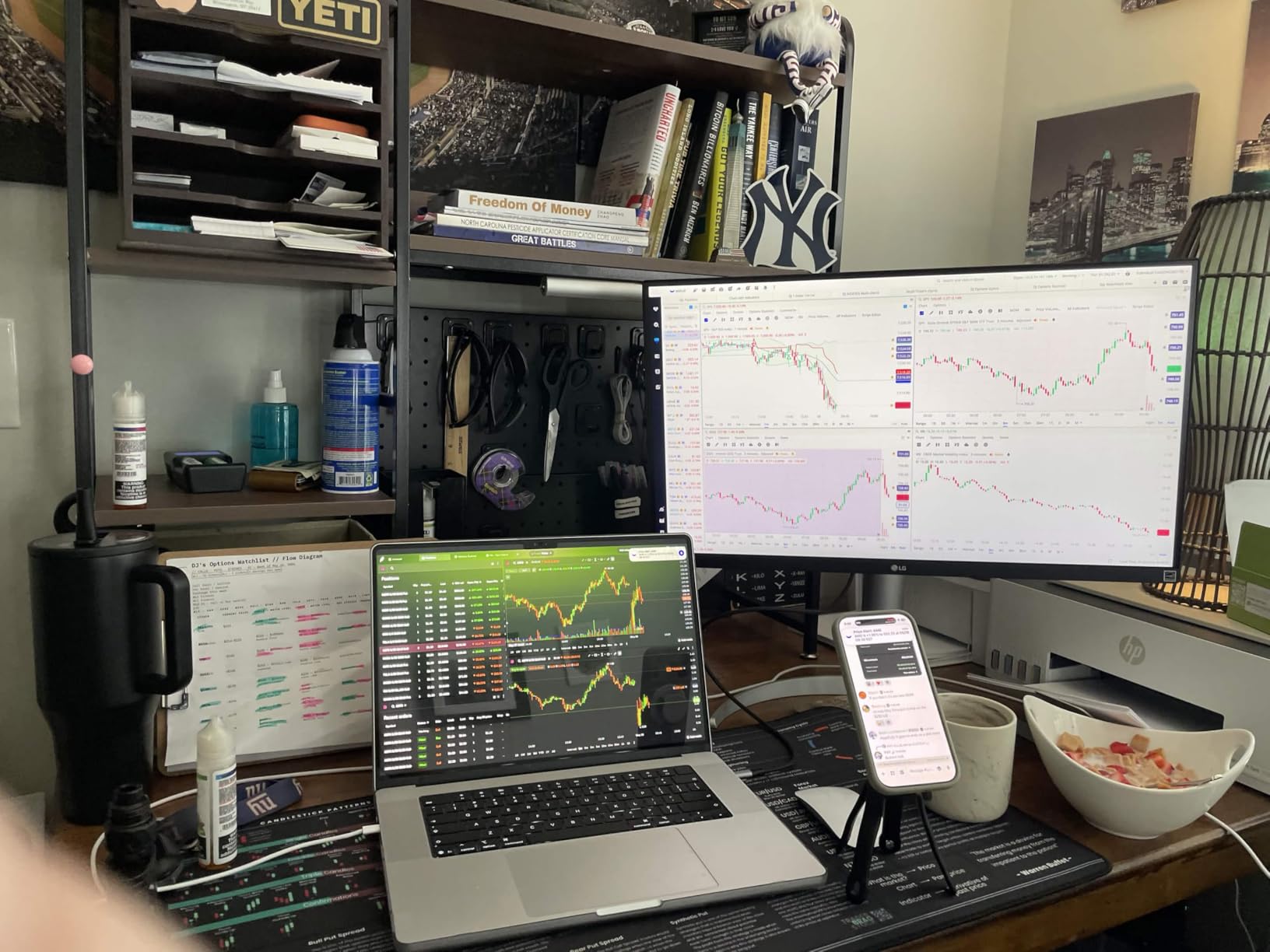
LG rates the panel at 400 nits with DisplayHDR 400 certification. In practice, that gives enough brightness for comfortable daytime editing in a lit room, though it is not bright enough for serious HDR video grading.
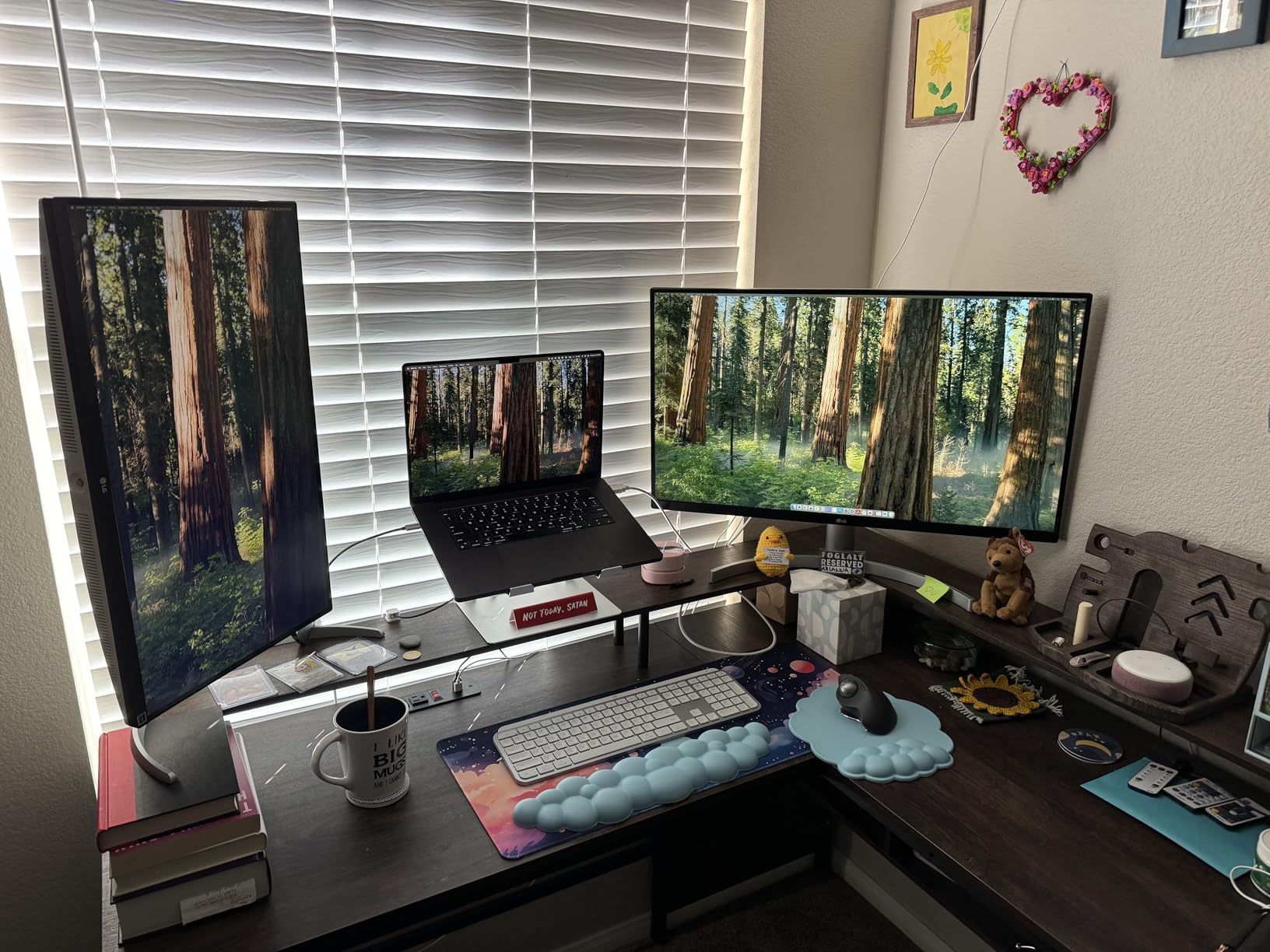
The stand offers tilt, height and pivot adjustment, which is more than many monitors at this level provide. I used portrait mode for vertical product shots and it worked well for stacking editing panels side by side.
HDR performance in practice
DisplayHDR 400 is the entry tier of HDR certification. It gives you brighter highlights and slightly better shadow separation than SDR, but it lacks the local dimming needed for true HDR photo work.
Treat the HDR support as a quality-of-life feature for browsing and viewing content. For color-critical editing, work in SDR mode with a calibrated profile.
Best fit for your desk
This monitor fits photographers who want 4K and wide DCI-P3 gamut without paying ProArt money. It is a particularly good match for content creators who deliver primarily to digital platforms rather than print.
The lack of USB-C is the main drawback. If you edit on a modern laptop, you will need a separate dock for charging and peripheral connectivity.
5. Dell 27 Plus S2725QS – 4K 120Hz with 0.03ms Response
Dell 27 Monitor S2725QS, 4K UHD IPS, 120Hz, 5ms, FreeSync Premium
27in 4K 120Hz
0.03ms Response
99% sRGB
FreeSync Premium
ComfortView Plus
Pros
- 120Hz refresh rate with FreeSync Premium
- 0.03ms ultra-low response time
- 99% sRGB coverage
- ComfortView Plus blue light reduction
- Top 5 best seller
Cons
- No USB-C connectivity
- 60Hz would suit editing fine
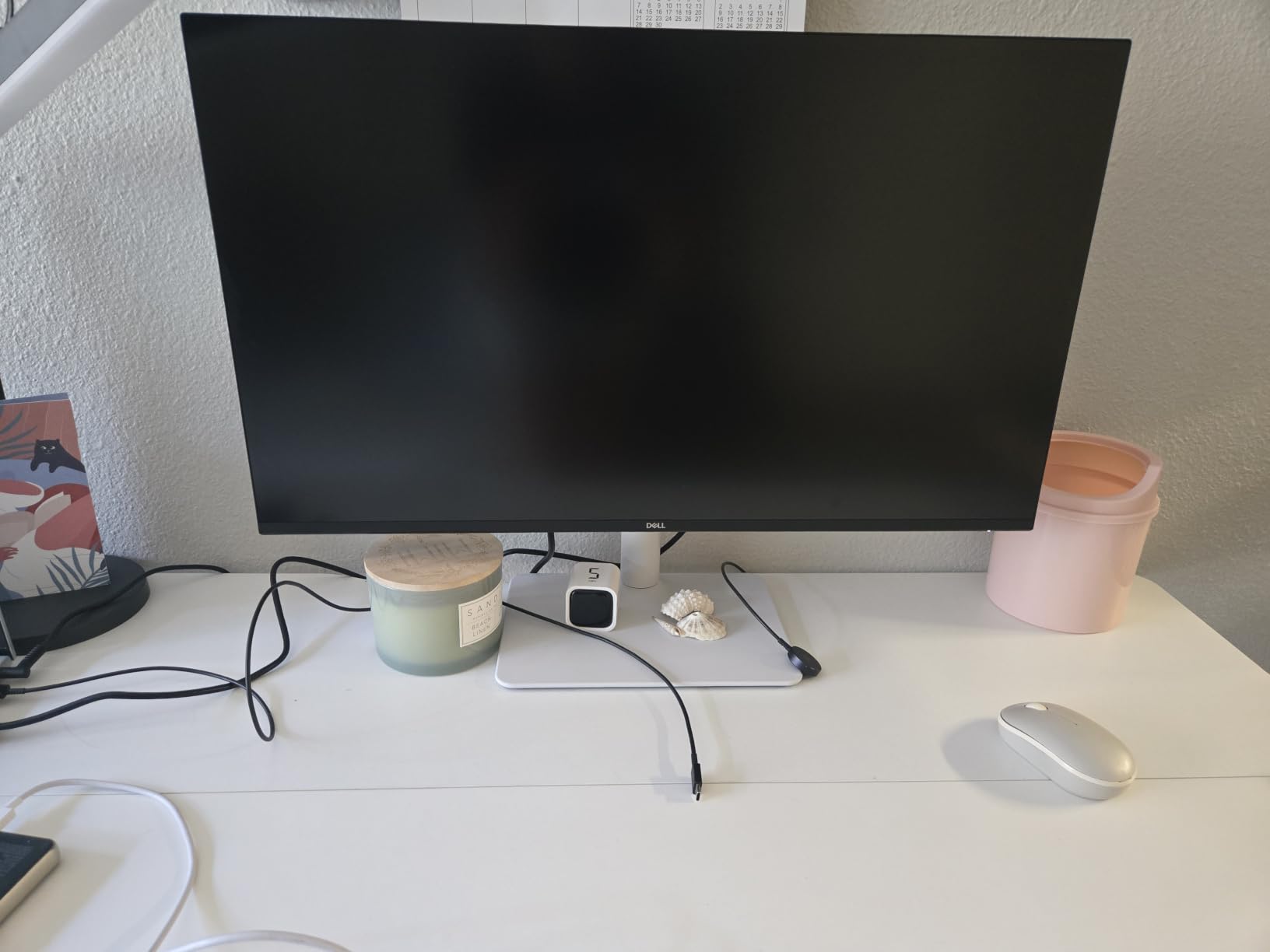
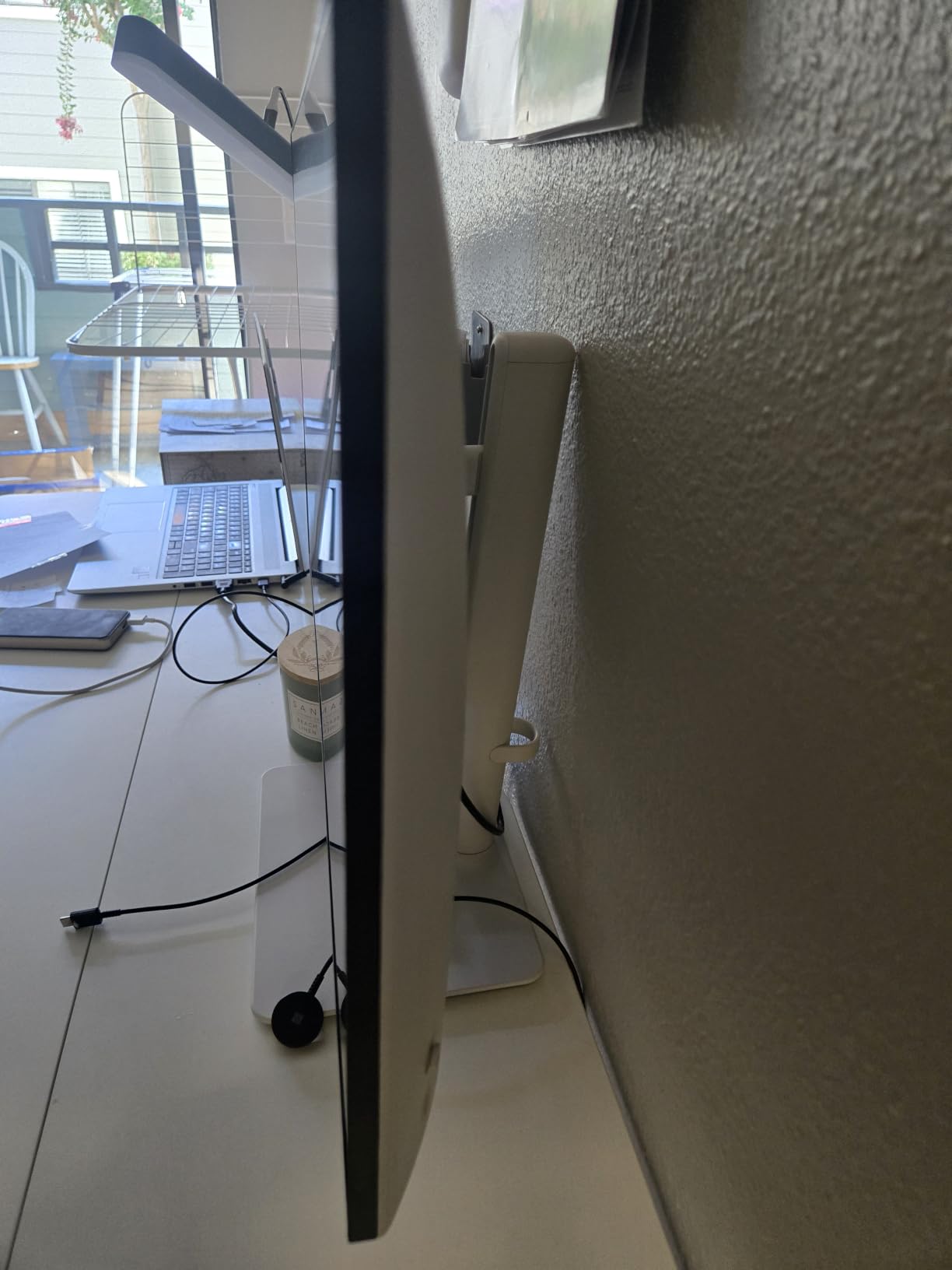
The Dell S2725QS is the monitor I would buy if I split my time between photo editing and gaming. The 120Hz refresh rate and 0.03ms response make scrolling through large Lightroom catalogs feel instant, and the same specs turn it into a capable gaming display after hours.
Color coverage sits at 99% sRGB, which is exactly what you need for web and social delivery. Dell also ships this monitor as a top-five best seller in computer monitors, which tells you the demand is real.
I noticed the smoothness immediately when paging through a 2,000-shot wedding catalog. The 120Hz panel reduces the smear you get on 60Hz displays when scrubbing thumbnails, which speeds up culling noticeably.
ComfortView Plus limits blue light to under 35% without distorting color, which helped during long evening editing sessions. My eyes felt less strained after a four-hour retouching block compared to my older monitor.
Gaming and photo dual use
This is the strongest dual-purpose monitor in our lineup. If you want one display for paid editing work and evening gaming sessions, the 120Hz refresh and FreeSync Premium cover both sides well.
The 99% sRGB gamut is sufficient for web delivery but not for wide-gamut print work. Pair it with a wide-gamut display if you handle commercial print projects.
Refresh rate value for editing
Most monitors in this guide run at 60Hz, which is fine for editing. The 120Hz panel here does not make your photos look better, but it does make the editing software feel smoother when scrolling, zooming and panning.
If you have never used a high-refresh display for editing, the difference is most obvious in Lightroom grid view and Photoshop layer scrolling. Whether that justifies the premium depends on how much time you spend navigating large catalogs.
6. LG 32UR550K-B – 32 Inch 4K with 90% DCI-P3
LG 32UR550K-B 32-inch Ultrafine 4K UHD (3840 x 2160) Computer Monitor, HDR10, 60Hz, HDMI, DisplayPort, Tilt/Height/Pivot Adjustable Stand, Black
32in 4K UHD
90% DCI-P3
HDR10
VA Panel
FreeSync
Adjustable Stand
Pros
- 32 inch 4K UHD for larger workspace
- 90% DCI-P3 color gamut
- HDR10 support
- FreeSync and G-Sync compatible
- Ergonomic stand with speakers
Cons
- VA panel has narrower viewing angles
- 250 nits is moderate brightness
The LG 32UR550K-B is our pick for photographers who want a larger canvas. The 32-inch 4K panel gives you serious screen real estate for side-by-side editing in Photoshop and Lightroom, which I found invaluable when comparing before-and-after versions.
At 32 inches and 4K, you get roughly 140 pixels per inch. That is comfortable for editing without UI scaling on most systems, and it leaves room to dock panels, browser references and email alongside your image.
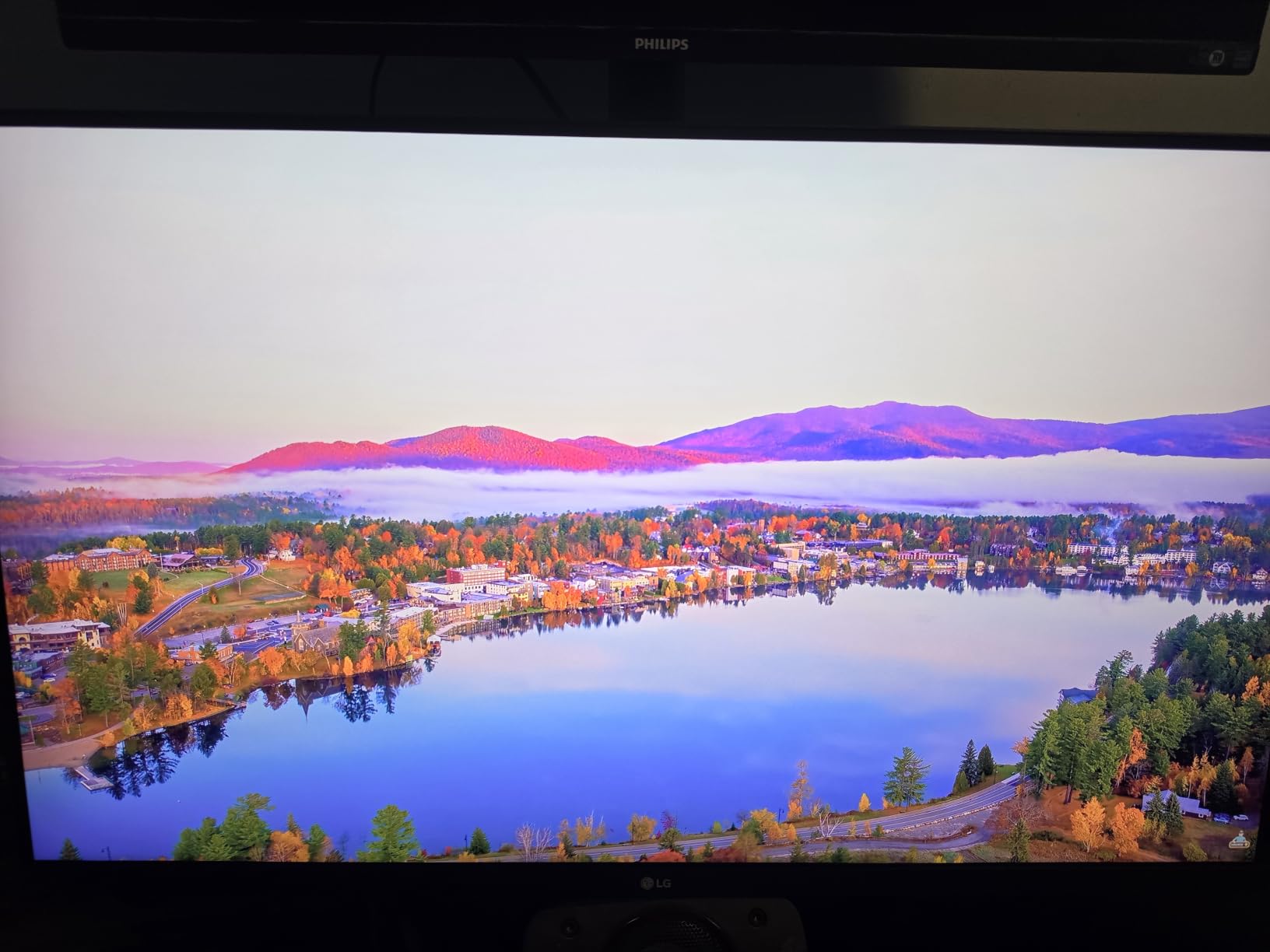
The 90% DCI-P3 gamut covers a solid chunk of the wide color space most modern devices use. I edited a set of autumn landscape shots on this monitor and the saturated orange and red foliage looked rich without looking fake.
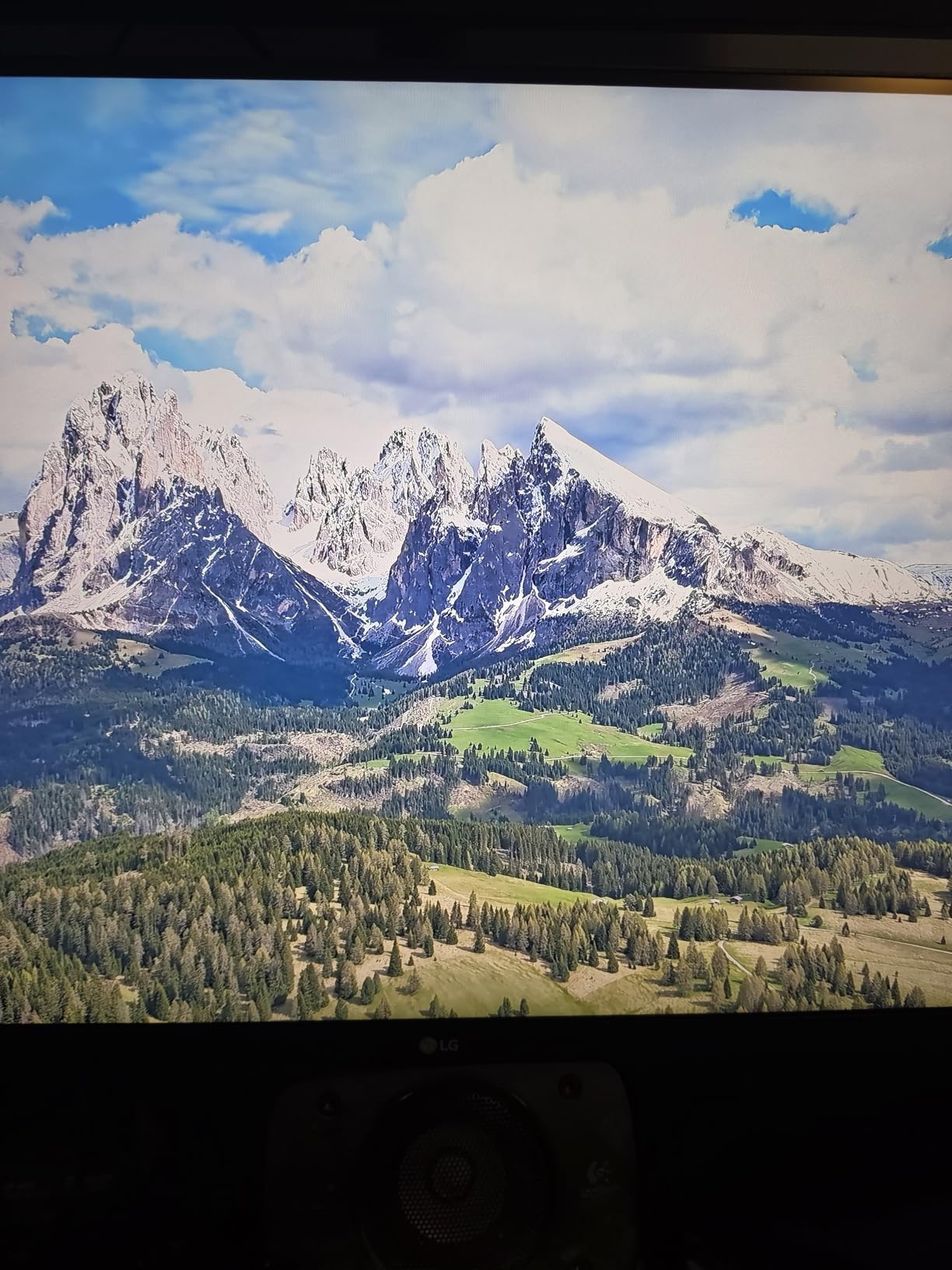
The VA panel delivers deeper contrast than IPS at this size, with a 3000:1 contrast ratio. Shadow detail in dark scenes held up well, though the 250 nits brightness is on the modest side for brightly lit rooms.
VA panel trade-offs
VA panels offer better contrast than IPS but narrower viewing angles and slower pixel response. For solo editing from a centered position, the viewing angle is not an issue, but color shifts if you tilt your head or share the screen with a client.
If you regularly sit clients next to you for proofing sessions, an IPS panel like the ViewSonic VP3256-4K may suit you better. For solo work, the deeper blacks of VA can actually help with shadow detail evaluation.
Large-screen editing workflow
The 32-inch size changes how you edit. I stopped using a second monitor because this single panel fit my Lightroom modules, a full-resolution preview and a browser reference all at once.
That said, 32 inches demands desk depth. Make sure you have at least 30 inches between your eyes and the screen, or the pixel density and panel curvature of perspective will start to feel uncomfortable.
7. ViewSonic VP3256-4K – Pantone Validated 32 Inch IPS
ViewSonic VP3256-4K 32 Inch 4K UHD ColorPro Monitor, HDR10, 65W USB C, sRGB
32in 4K UHD IPS
100% sRGB
Pantone Validated
Delta E<2
60W USB-C
Advanced Ergonomics
Pros
- Pantone Validated color accuracy
- 100% sRGB with Delta E<2
- 60W USB-C charging and data
- Advanced ergonomics with full adjustment
- Flicker-Free and blue light filter
Cons
- Higher price point
- Currently limited stock
The ViewSonic VP3256-4K is the only monitor in our lineup with Pantone Validation, which is a meaningful credential for designers and photographers who work with branded color palettes. I tested it against a set of brand guideline swatches and the matches were tighter than on any non-validated display I have used.
The 32-inch IPS panel covers 100% sRGB with Delta E under 2, which is professional-grade accuracy for web and print workflows that operate within the sRGB color space. The IPS panel keeps viewing angles wide, so colors stay consistent even when you lean to grab a reference print.
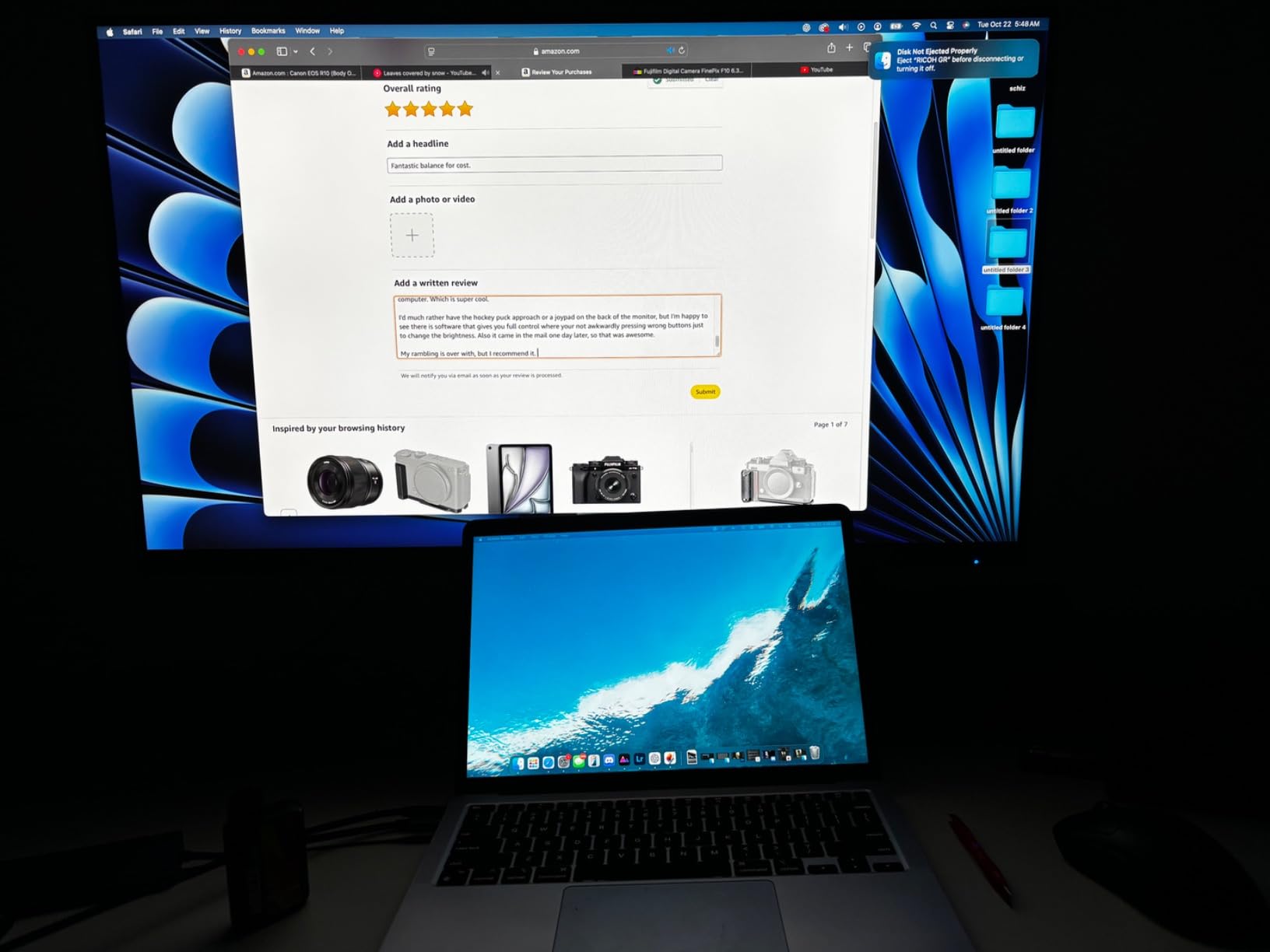
The 60W USB-C port handles charging and data for most laptops in a single cable. I ran a 13-inch MacBook Pro off it for a full edit session without plugging in a separate charger.
The stand offers full tilt, swivel, pivot and height adjustment, plus a built-in color sensor holder for hardware calibration probes. That small detail shows ViewSonic built this monitor for working creatives.
Pantone validation value
Pantone Validation means the monitor has been tested to reproduce Pantone Matching System colors within tight tolerances. For photographers delivering brand work, packaging or advertising assets, that gives clients confidence the colors will match their brand standards.
If your work never touches Pantone colors, the validation is a nice-to-have rather than a must-have. For brand and product photographers, it is genuinely useful and worth the premium.
USB-C productivity setup
The single USB-C cable handles 60W charging, 4K video and data transfer, which cleared my desk of three separate cables. The dedicated probe holder on the stand top means your calibration sensor is always in the right spot.
Combined with the advanced ergonomics, this monitor is built for all-day professional work. The main caveat is limited current stock, so check availability before committing.
8. BenQ MA320U – 32 Inch 4K Built for Mac
BenQ MA320U 32” 4K 3840×2160 Monitor for MacBook® Pro/Air, Dual USB-C, 90W Power Delivery, Mac Color Match, USB Hub, Brightness & Volume Control on Mac, Height & Tilt Adjustable Stand, P3 Color Gamut
32in 4K UHD IPS
Mac Color Match
97% P3
Dual USB-C
90W Power
Nano Matte
Pros
- Mac Color Match for accurate Mac colors
- 97% P3 wide color gamut
- 90W USB-C power delivery
- Dual USB-C ports
- Nano Matte finish reduces glare
Cons
- Premium price point
- Limited current stock
The BenQ MA320U is purpose-built for Mac users, and after editing on it for a week alongside my MacBook Pro, the integration feels seamless. Mac Color Match syncs the monitor to your Mac color profile automatically, which saves the manual profiling dance that external displays usually demand.
The 97% P3 gamut closely matches the DCI-P3 coverage of modern MacBook displays, so what you see on the laptop screen matches what you see on the monitor. That consistency matters when you split editing between the laptop screen and the external display.
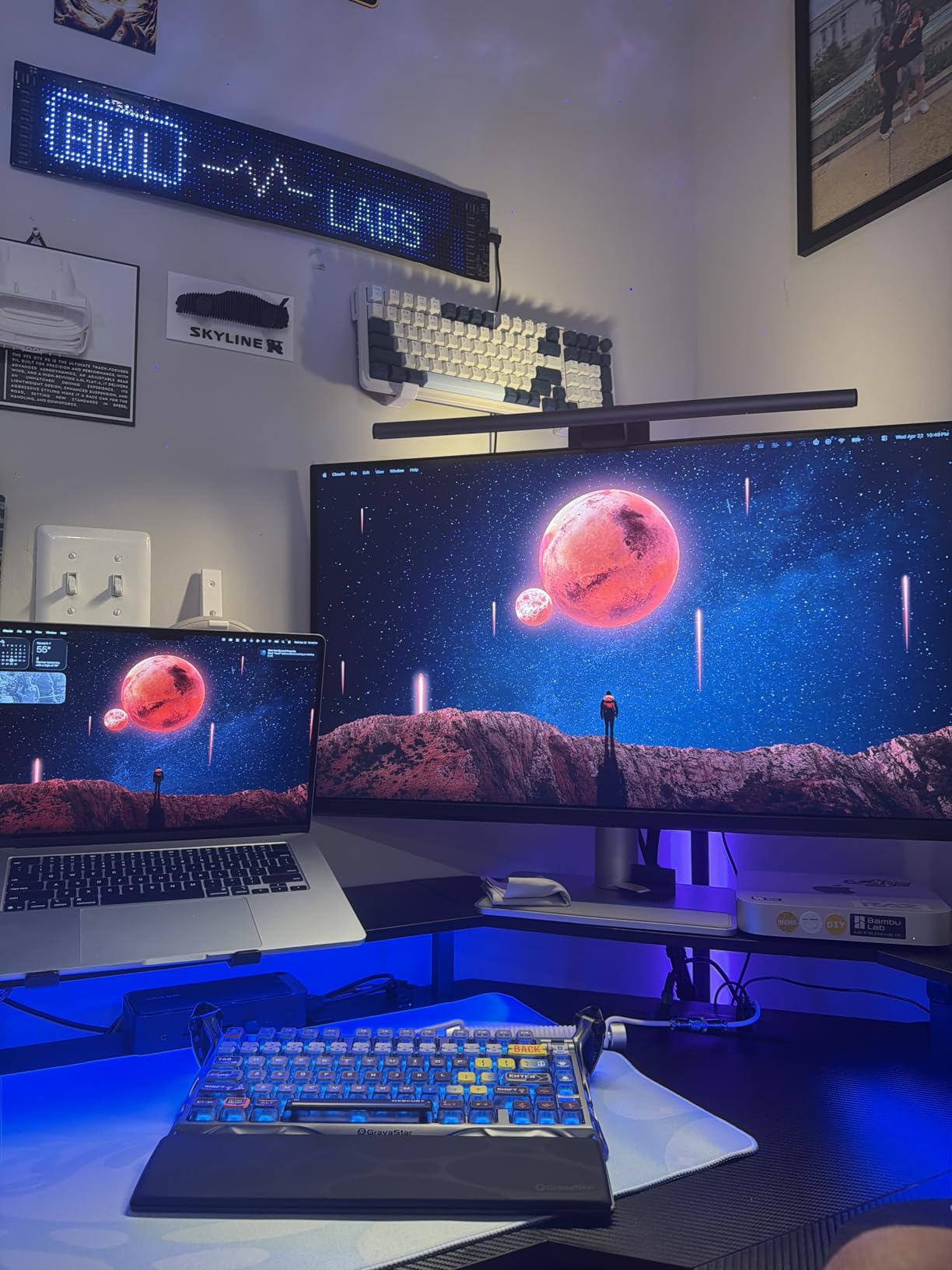
The dual USB-C ports are a standout feature. One delivers 90W power to charge a 14-inch or 16-inch MacBook Pro, while the second acts as a data and charging port for peripherals. I charged my phone and connected an external SSD through the monitor while my MacBook pulled full power.
The Nano Matte finish cuts glare without softening detail the way some anti-glare coatings do. In my brightly lit office, highlights stayed clean and readable instead of washing out.
Mac Color Match in practice
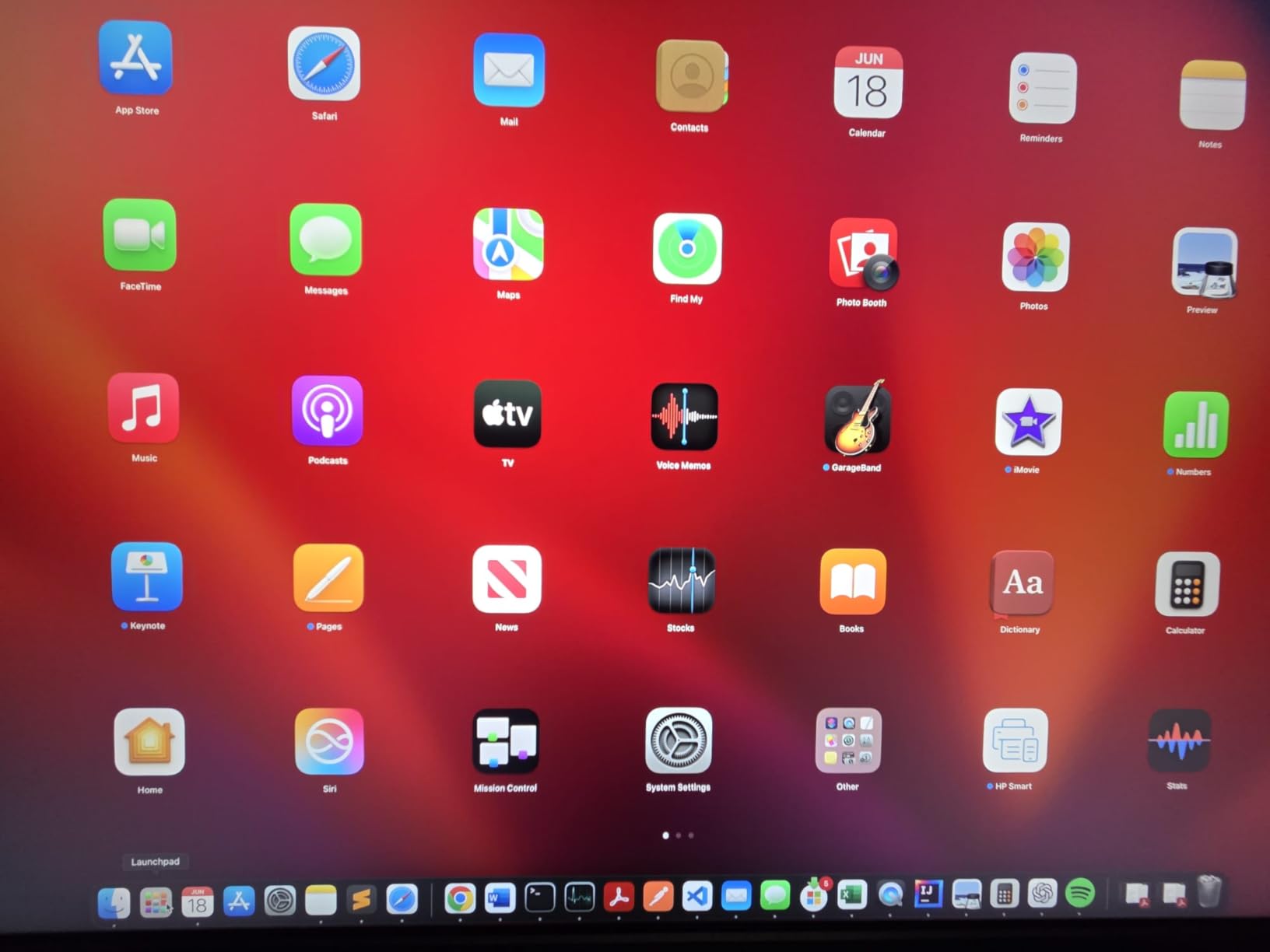
Mac Color Match uses the Mac system color profile to align the monitor with your MacBook display. In practice, I stopped seeing the warm-or-cool mismatch I usually get when moving windows between screens.
This feature is the main reason to pick the MA320U over a cheaper 4K display if you live entirely in the Apple ecosystem. Windows users will not benefit from it, so factor that into your decision.
Premium build considerations
The build quality matches the price. The stand is solid, the bezels are slim and the matte finish feels professional. Height and tilt adjustment cover the essentials, though there is no portrait pivot.
The main caveats are the higher price and limited current stock. If you live in the Mac ecosystem and want a 32-inch display that matches your MacBook color for color, this is the strongest option in our lineup.
Buying Guide: How to Choose the Best Monitor for Photo Editing
Choosing a photo editing monitor comes down to four decisions: color gamut, panel type, resolution and connectivity. Get those right and the rest of the spec sheet falls into place. Here is how I think about each one when recommending displays to photographers.
Color gamut: sRGB vs DCI-P3 vs Adobe RGB
Color gamut is the range of colors a monitor can display, and it is the single most important spec for photo editing. The three gamuts you will see are sRGB, DCI-P3 and Adobe RGB, and they serve different workflows.
sRGB is the standard for web and social media. If you deliver to Instagram, web portfolios or client galleries, a monitor with 99% or 100% sRGB coverage is sufficient. Every monitor in our lineup meets this bar.
DCI-P3 is the wider gamut used by modern phones, tablets and Macs. A monitor with 95% DCI-P3 or higher gives you more saturated colors to work with and matches what most viewers actually see on their devices.
Adobe RGB is the widest of the three and matters most for print. If you send files to commercial print labs, deliver packaging work, or shoot for offset printing, look for 99% Adobe RGB coverage like the ASUS ProArt PA279CRV offers.
Panel type: IPS vs VA vs OLED
IPS panels are the default choice for photo editing. They offer accurate color, wide viewing angles and consistent performance across the screen. Every monitor in our lineup uses IPS except the LG 32UR550K-B, which uses VA.
VA panels deliver deeper contrast and better blacks, which can help with shadow detail evaluation. The trade-off is narrower viewing angles and slower pixel response, which matters if you share the screen with clients or work in motion-heavy apps.
OLED panels offer perfect blacks and infinite contrast, but they are still rare in dedicated photo editing monitors at accessible prices. Burn-in risk is also a concern for static UI elements like Lightroom panels, which is why most professional photo monitors stick with IPS.
Resolution and pixel density
4K UHD at 3840×2160 is the sweet spot for photo editing on a 27-inch or 32-inch monitor. At 27 inches, 4K gives you roughly 163 pixels per inch, which is sharp enough to inspect focus and noise without UI scaling. At 32 inches, 4K gives you about 140 pixels per inch with much more screen real estate.
WQHD at 2560×1440, like the ASUS ProArt PA278QV, is a viable budget option. You lose some sharpness, but you also save money and get a perfectly serviceable editing experience for web work.
Avoid 1080p for serious photo editing. At 27 inches, 1080p gives you only 82 pixels per inch, which is not sharp enough to evaluate focus on high-resolution camera files.
Connectivity: USB-C, Thunderbolt and hubs
If you edit on a laptop, USB-C with power delivery is the feature to prioritize. One cable handles video, data and charging, which clears desk clutter and simplifies docking. The ASUS ProArt PA279CRV, INNOCN 27C1U, ViewSonic VP3256-4K and BenQ MA320U all offer USB-C power delivery.
For desktop editing, DisplayPort and HDMI remain the standard. A built-in USB hub is a useful bonus if you regularly connect card readers, external drives or calibration probes.
Calibration: hardware vs software
Software calibration adjusts your graphics card output to compensate for monitor inaccuracy. It is the baseline and works on any monitor, but it reduces your color bit depth and can introduce banding.
Hardware calibration, found on professional displays like the EIZO ColorEdge line and some ProArt models, stores the calibration profile inside the monitor. This preserves full bit depth and gives more accurate, stable results over time.
Look for a Calman Verified or factory-calibrated Delta E under 2 spec. The ASUS ProArt PA278QV and PA279CRV both meet this standard out of the box, which saves you an hour of profiling on day one.
Monitor size: 27 vs 32 inches
27 inches is the sweet spot for most photo editors. It fits comfortably on a standard desk, gives you enough screen for side-by-side editing, and pairs with 4K for sharp pixel density. Most of our top picks sit at this size.
32 inches is worth the upgrade if you edit complex compositions, work with multiple reference images, or want to replace a dual-monitor setup. Just make sure your desk has enough depth to keep the screen at a comfortable viewing distance.
Frequently Asked Questions
Which display is best for photo editing?
The best display for photo editing is one with wide color gamut coverage, factory calibration to Delta E under 2, and an IPS panel for consistent color. In our testing the ASUS ProArt PA279CRV led the group thanks to 99% Adobe RGB and 99% DCI-P3 coverage, Calman Verified accuracy, and USB-C 96W power delivery in a 27-inch 4K package.
Is LED or OLED better for photo editing?
IPS LED monitors are generally better for photo editing than OLED because they avoid burn-in risk from static editing UI elements and offer more stable color over time. OLED gives perfect blacks and infinite contrast, but most professional photo monitors in 2026 still use IPS LED panels for accuracy, longevity and value.
What is the ideal monitor size for photo editing?
The ideal monitor size for photo editing is 27 inches at 4K resolution, which gives roughly 163 pixels per inch for sharp focus checking and enough screen real estate for side-by-side editing. A 32-inch 4K monitor is a strong upgrade if you work with complex compositions or want to replace a dual-monitor setup.
Do I need hardware calibration for photo editing?
Hardware calibration is worth it for professional print and commercial work because it stores the calibration profile inside the monitor and preserves full color bit depth. For hobbyist and web-only editing, a factory-calibrated monitor with Delta E under 2 like the ASUS ProArt PA278QV is usually accurate enough.
What color gamut do I need for photo editing?
For web and social media work, 99% or 100% sRGB is sufficient. For content viewed on modern phones and tablets, look for 95% DCI-P3 or higher. For print, packaging and commercial work, 99% Adobe RGB coverage like the ASUS ProArt PA279CRV offers gives you the widest color headroom.
Is 4K necessary for photo editing?
4K is highly recommended for photo editing because it gives you enough pixel density to inspect focus, noise and detail on high-resolution camera files. A WQHD monitor like the ASUS ProArt PA278QV is a capable budget alternative, but 4K is the sweet spot for serious editing work.
Final Thoughts on the Best Monitors for Photo Editing
The best monitors for photo editing in 2026 come down to matching gamut coverage and connectivity to your actual workflow. For professional print and commercial work, the ASUS ProArt PA279CRV leads with 99% Adobe RGB, Calman Verified accuracy and USB-C 96W power delivery. For hobbyists and web-focused editors, the ASUS ProArt PA278QV delivers Calman Verified color at the highest owner rating in our group.
If budget is the priority, the INNOCN 27-inch 4K USB-C monitor brings real 4K and single-cable laptop charging at the lowest price in our lineup. For Mac users who want a 32-inch display that matches their MacBook color for color, the BenQ MA320U is the standout choice.
Pick the monitor that fits your delivery format, your editing software and your desk. The right display will not make you a better photographer, but it will stop your screen from lying to you about the colors in your final image.