
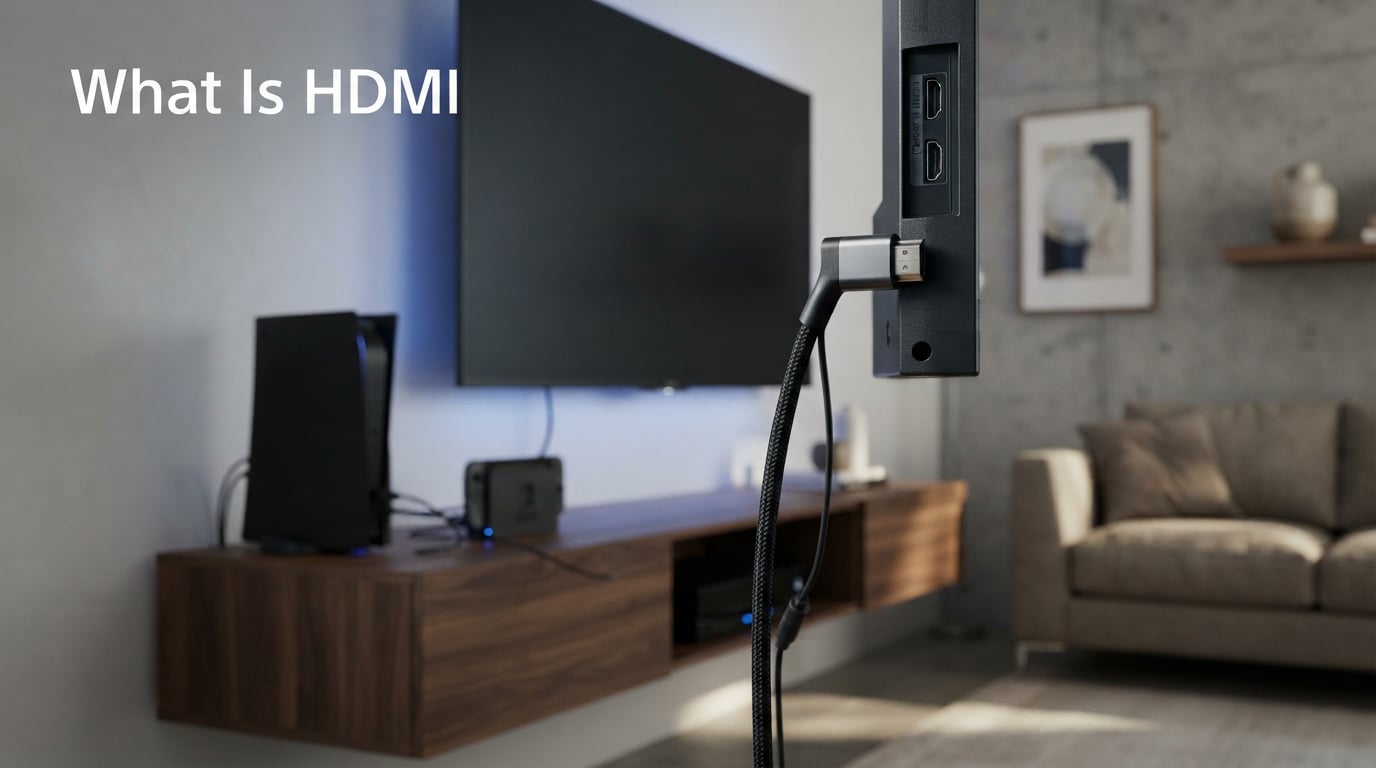
If you have ever connected a gaming console to your TV, plugged a Blu-ray player into a home theater system, or hooked up a laptop to a monitor, you have used HDMI. But what does HDMI actually mean, and why is it so important for modern electronics? This guide will give you a clear, jargon-free explanation of everything you need to know about HDMI.
Table of Contents
What Does HDMI Stand For?
HDMI stands for High-Definition Multimedia Interface. That mouthful of words essentially describes exactly what HDMI does. It is a digital interface that transmits high-quality video and audio signals between devices using a single cable.
Before HDMI became standard, you needed separate cables for video and audio. You might have used component cables for video and optical cables for sound. HDMI simplified all of that by combining video and audio into one connection. This is why you now need just one cable from your streaming device to your TV instead of three or four different ones.
The technology behind HDMI uses something called TMDS (Transition-Minimized Differential Signaling) to encode digital signals in a way that prevents interference and signal degradation. This means the picture and sound quality stays sharp even over longer cable runs, though cable quality still matters for reliability.
The History and Evolution of HDMI Versions
HDMI was first introduced in 2003, and it quickly became the standard for consumer electronics. Over the years, the HDMI standard has evolved through several versions, each bringing new capabilities and higher bandwidth.
HDMI 1.0 to 1.4
HDMI 1.0 launched in 2003 and could handle 1080p video at 60Hz with 8-bit color. It also supported up to 8 channels of uncompressed audio.
HDMI 1.3 arrived in 2006 and increased bandwidth significantly. This version introduced Deep Color support, which allowed for better color gradations with 10-bit, 12-bit, and even 16-bit color depths. The PS3 and Xbox 360 era heavily relied on this version.
HDMI 1.4, released in 2009, added Ethernet connectivity over HDMI and the Audio Return Channel (ARC) feature. It also introduced 4K support, though only at 30Hz, which meant choppy motion during fast-paced content. This was the version that most TVs from the early 2010s used.
HDMI 2.0 and 2.0a
HDMI 2.0, launched in 2013, was a major leap forward. It increased bandwidth to 18 Gbps, which allowed for 4K video at 60Hz with full 4:4:4 chroma sampling. This meant sharper text and clearer images, especially important for computer monitors and gaming.
HDMI 2.0a, released in 2015, added HDR (High Dynamic Range) support. HDR makes bright areas brighter and dark areas darker, creating more realistic and vibrant images. If you have watched Netflix or Disney Plus in HDR on a compatible TV, you have seen the benefit of this version.
HDMI 2.1
HDMI 2.1, introduced in 2017 and now common in modern devices, pushed bandwidth to 48 Gbps. This massive increase enabled 4K at 120Hz and 8K at 60Hz. It also introduced Variable Refresh Rate (VRR), which reduces screen tearing during gaming, and Auto Low Latency Mode (ALLM), which automatically switches your TV to game mode when you start playing.
For gamers, HDMI 2.1 has become essential. The PlayStation 5 and Xbox Series X both require HDMI 2.1 ports to output their full capabilities at 4K 120Hz. Without it, you lose visual smoothness that these consoles can deliver.
Types of HDMI Connectors and Cables
Not all HDMI connectors are the same size. The type you need depends on your device. Understanding the differences helps you buy the right cables and adapters.
Type A: Standard HDMI
Type A is the full-size HDMI connector you see on most TVs, gaming consoles, Blu-ray players, and home theater receivers. It has 19 pins and measures about 14mm wide. This is the connector most people think of when they hear HDMI.
These ports are found on virtually every modern television and A/V receiver. If you are connecting a streaming stick directly to a TV, you probably use a standard HDMI cable with Type A on both ends.
Type C: Mini HDMI
Type C is a smaller version of HDMI, measuring about 10mm wide. You will find this on smaller devices like DSLR cameras, some tablets, and older GoPro action cameras. It carries the same 19 pins as Type A but in a more compact form factor.
Many cameras come with a Type C to Type A cable so you can connect them to your TV or computer. Some laptops also use mini HDMI for external display connections.
Type D: Micro HDMI
Type D is the smallest HDMI connector at only about 6mm wide. It looks similar to a micro-USB port. This connector appears on very compact devices like action cameras (some models), small projectors, and certain portable monitors.
Because of its size, Type D is reserved for devices where space is extremely limited. You will need a Type D to Type A cable or adapter to connect these devices to standard HDMI equipment.
HDMI Cable Categories
Beyond connector types, HDMI cables also have speed categories. Standard HDMI cables work fine for 1080p and some 4K content. High Speed HDMI cables handle 4K at 60Hz, 3D content, and HDR. Ultra High Speed HDMI cables are certified for 8K, 4K at 120Hz, and all the advanced features of HDMI 2.1.
The good news is that basic HDMI cables work adequately for most people. You do not need to spend premium money on expensive cables. A reputable mid-range cable will deliver the same picture quality as an expensive brand in most situations, assuming the cable is properly certified for your needs.
Key HDMI Features You Should Know
HDMI includes several features that go beyond simple video and audio transmission. Understanding these helps you make better use of your devices.
ARC and eARC: Audio Return Channel
ARC (Audio Return Channel) allows your TV to send audio back to a soundbar or A/V receiver through the same HDMI cable you use for video. Before ARC, you needed an optical cable running from your TV to your sound system for external audio.
Imagine you have a TV with built-in streaming apps and a soundbar. With ARC, the TV sends the audio from Netflix or YouTube through the HDMI cable to the soundbar, and the soundbar plays it. Your remote controls both devices together.
eARC is an enhanced version that supports higher bandwidth audio formats like Dolby Atmos and DTS:X. If you have a high-end sound system and want the full audio experience from streaming services, eARC makes a noticeable difference.
CEC: Consumer Electronic Control
CEC lets your devices talk to each other through the HDMI connection. This means you can often use one remote to control multiple devices. When you turn on your PlayStation, CEC might automatically switch your TV to the correct input and turn on your soundbar.
CEC is not always enabled by default. You can usually find it in your TV settings under names like Anynet+ (Samsung), Simplink (LG), or SonyLink (Sony). Enabling it can reduce remote clutter significantly.
HDCP: Content Protection
HDCP stands for High-bandwidth Digital Content Protection. It is a form of digital rights management that prevents unauthorized copying of video content as it travels through your HDMI cables.
You have probably encountered HDCP issues if you have ever tried to record gameplay or use an old AV receiver between your console and TV and seen an error message about HDCP. Some older devices do not support newer HDCP versions, causing compatibility problems.
For most users, HDCP works silently in the background without issues. Content studios require it, so your streaming services and Blu-rays play without interruption on modern devices.
Resolution and Audio Support
Each HDMI version supports different maximum resolutions and audio capabilities. Matching your cables and devices to your viewing goals matters more than you might think.
Resolution Support by Version
HDMI 1.4 maxes out at 4K at 30Hz or 1080p at 60Hz with 4:4:4 chroma. HDMI 2.0 supports 4K at 60Hz with full chroma sampling. HDMI 2.1 pushes to 4K at 120Hz, 8K at 60Hz, and even 10K for commercial applications.
For most people watching movies and TV shows, HDMI 2.0 performance is perfectly adequate. The jump to 4K 60Hz makes a difference for gaming and sports, but traditional movies and series rarely exceed 30Hz.
Audio Capabilities
HDMI supports just about every audio format you will encounter. This includes stereo for basic setups, compressed formats like Dolby Digital and DTS for home theaters, and lossless formats like Dolby TrueHD and DTS-HD Master Audio on Blu-rays.
HDMI 2.1 with eARC brings uncompressed audio formats including Dolby Atmos and DTS:X object-based audio. These formats create an immersive sound experience by placing sounds in three-dimensional space around you.
Common Use Cases for HDMI
HDMI appears everywhere in modern home entertainment. Here are the most common scenarios where you will encounter it.
Gaming
Modern gaming requires HDMI 2.1 for the best experience on current-generation consoles. The bandwidth allows for higher frame rates and HDR during gameplay. PC gamers also benefit from HDMI 2.1 when using graphics cards that support it.
Gaming monitors often include HDMI 2.1 ports alongside DisplayPort connections. This allows console gamers to use the same cable they would at home when connecting to a monitor.
Home Theater
Connecting an A/V receiver to a TV and multiple source devices is the backbone of any home theater. Modern receivers offer multiple HDMI 2.1 inputs to handle all your devices, with outputs that send video to your projector or TV and audio to your speakers.
The HDMI eARC feature is particularly valuable in home theater setups. It lets your TV send immersive audio formats from streaming apps back to your receiver through a single cable.
Streaming and Media Devices
Every streaming device from Roku to Apple TV to Amazon Fire TV uses HDMI. These compact devices output 4K HDR video and lossless audio through their HDMI connections. Even the cheapest streaming sticks deliver impressive quality through HDMI.
Professional and Creative Uses
DSLR cameras, mirrorless cameras, and camcorders often include HDMI output for monitoring or recording. This lets you connect your camera to an external monitor or capture device. Many video professionals use HDMI for on-set monitoring with external recorders.
Troubleshooting Common HDMI Issues
HDMI problems are common but usually easy to fix. Here are solutions to the issues you are most likely to encounter.
No Signal or Black Screen
If your TV shows no signal, start by checking that both devices are powered on and the cable is fully inserted. Try a different HDMI port on your TV. Many TVs have multiple HDMI inputs, and one might be working while another is not.
Restart both devices. Power cycling often resets the HDMI handshake, which is the negotiation process devices use to agree on resolution and audio settings. Unplug both devices for 30 seconds, then plug them back in.
If you are using an adapter or converter, try bypassing it. Adapters can fail or introduce compatibility issues. Direct connections are always more reliable.
Cable Length Limitations
HDMI signals degrade over distance. Passive HDMI cables work reliably up to about 25 feet for 4K content. Beyond that, you might need an active HDMI cable with built-in signal boosting or an HDMI extender that uses Ethernet or fiber.
For runs over 50 feet, active cables or extenders become necessary. For long installations in home theaters or commercial spaces, budget for proper HDMI infrastructure rather than hoping a cheap long cable will work.
HDR Not Working
If HDR is not appearing when it should, first verify that both your source device and TV support the same HDR format. Some TVs support HDR10 but not Dolby Vision, for example, and your content might be in a different format.
Check that you are using a High Speed or Ultra High Speed HDMI cable, as older standard cables cannot carry HDR metadata. Also, make sure your HDMI port supports HDMI 2.0 or higher, since HDR requires additional bandwidth.
Enable HDR in your device settings. Some source devices have HDR disabled by default and require manual activation in the display or video settings menu.
Intermittent or Flickering Display
Flickering usually indicates a loose connection or a failing cable. Try a different cable to isolate the problem. If the flickering follows the cable to another setup, you have found your culprit.
Check for damage along the cable length, especially near the connectors where flexing occurs. Kinked or crushed cables can work intermittently before failing completely.
FAQs
What does HDMI actually stand for?
HDMI stands for High-Definition Multimedia Interface. It is a digital connection standard used to transmit high-quality video and audio signals between devices like TVs, gaming consoles, and computers.
Do I need HDMI on my TV?
Yes, HDMI is essential for modern TVs. Every TV sold today uses HDMI to connect source devices like streaming players, gaming consoles, and Blu-ray players. Without HDMI, you cannot get digital video and audio from external devices into your TV.
Why do I need HDMI?
HDMI replaced multiple older cables with a single connection that carries both video and audio in digital form. It supports higher resolutions and better audio quality than old analog connections. Today, every modern device uses HDMI as the standard connection.
What is HDMI ARC?
HDMI ARC (Audio Return Channel) lets your TV send audio back to a soundbar or receiver through the same HDMI cable used for video input. This eliminates the need for a separate optical audio cable.
What’s the difference between HDMI versions?
The main differences between HDMI versions are bandwidth, resolution support, and features. HDMI 1.4 supports 4K at 30Hz, HDMI 2.0 supports 4K at 60Hz with HDR, and HDMI 2.1 supports 4K at 120Hz, 8K video, and features like VRR for gaming.
Conclusion
HDMI has become the universal standard for connecting audio and video devices in our homes. Understanding what HDMI means and how it works helps you make better purchasing decisions and troubleshoot problems when they arise.
The key points to remember are that HDMI stands for High-Definition Multimedia Interface, and it is a digital connection that carries both video and audio in one cable. The version matters for your use case. Basic HDMI 1.4 works fine for movies and TV at 1080p or 4K 30Hz. HDMI 2.0 handles 4K 60Hz with HDR. HDMI 2.1 is essential for 4K 120Hz gaming and 8K video.
For most people, a mid-range HDMI cable from a reputable brand works perfectly well. You do not need to spend excessive money on premium cables unless you have specific requirements like very long runs or the highest refresh rates for competitive gaming.
Whether you are setting up a new gaming station, building a home theater, or simply connecting a streaming device to your TV, HDMI makes it possible with a single, reliable cable connection that has remained the industry standard for over two decades.