
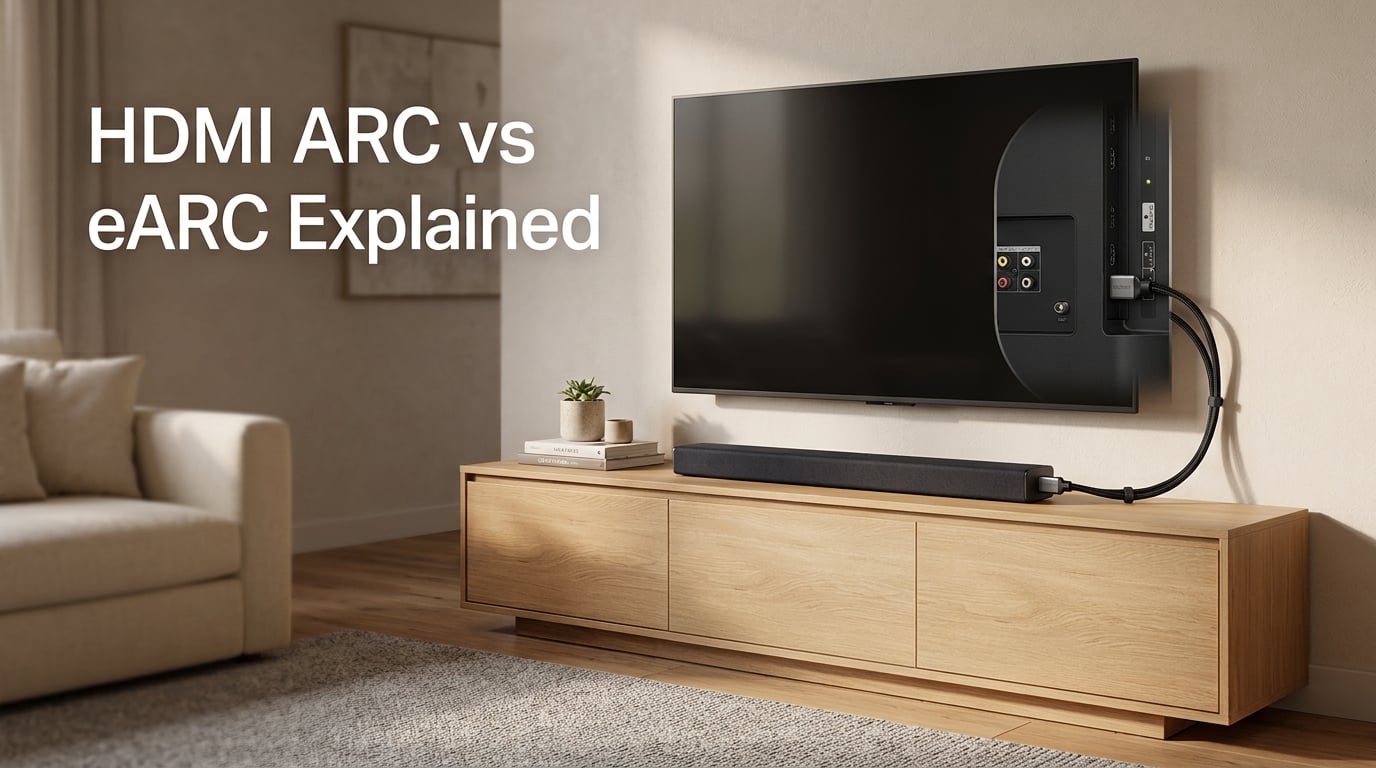
If you have ever spent time trying to figure out why your soundbar is not producing the audio you expected, you are not alone. HDMI ARC vs eARC is one of the most confusing topics in home theater, and the number of cables, ports, and settings can overwhelm anyone. Our team has spent hours testing these connections across different setups to bring you clarity.
In this guide, you will learn exactly what HDMI ARC and eARC are, how they differ, and which one you should use for your specific setup. We cover everything from bandwidth limitations to real-world audio quality differences, including troubleshooting tips that even experienced users find useful.
Table of Contents
What Is HDMI?
HDMI stands for High-Definition Multimedia Interface. It is the standard connection for transmitting video and audio between devices. Every HDMI cable has 19 pins and uses a Type A connector. HDMI has evolved significantly since its introduction, with each new version bringing increased bandwidth and capabilities.
The version numbers matter because they determine what features your setup can support. HDMI 1.4 introduced ARC, while HDMI 2.1 brought us eARC. The latest HDMI 2.2 standard continues to push these capabilities further, though it is not yet widely adopted in consumer devices.
What Is HDMI ARC?
HDMI ARC (Audio Return Channel) is a feature introduced with HDMI 1.4 that allows audio to travel in both directions over a single HDMI connection. Before ARC, you needed a separate cable (usually optical) to send audio from your TV to a soundbar or receiver. ARC eliminated that extra cable, simplifying your setup considerably.
The key limitation of ARC is its bandwidth. It can handle approximately 1 Mbit/s, which is sufficient for compressed audio formats like Dolby Digital and DTS, but not enough for lossless or high-bitrate audio. This means if you are streaming a movie with Dolby Atmos from your TV apps, ARC can pass a compressed version, but it cannot deliver the full lossless experience that the studio intended.
ARC also supports CEC (Consumer Electronics Control), which lets you use one remote to control multiple devices. Lip-sync compensation is built in as well, helping to synchronize audio with video when delays occur. However, the limited bandwidth means 7.1 channel audio and certain advanced formats are simply not available through ARC.
What Is HDMI eARC?
HDMI eARC (Enhanced Audio Return Channel) arrived with HDMI 2.1 and addressed many of ARC’s shortcomings. The most significant improvement is bandwidth. eARC can handle up to 37 Mbit/s, which opens the door to uncompressed audio formats that were previously impossible over a single HDMI cable.
With eARC, your setup can transmit Dolby TrueHD, DTS-HD Master Audio, and Dolby Atmos in its lossless form. This means you hear exactly what the content creators intended, without the compression artifacts that can slightly dull the impact of dynamic range and detail. DTS:X, the rival to Dolby Atmos, also works fully over eARC.
eARC maintains backward compatibility with ARC devices, so you can connect an older soundbar to a newer TV and it will work. The connection will simply fall back to ARC limitations. eARC also includes improved lip-sync compensation and maintains CEC functionality, but the key advantage is purely audio quality for those with high-end equipment.
HDMI ARC vs eARC Explained: The Key Differences
The table below shows the fundamental differences between ARC and eARC at a glance.
| Feature | HDMI ARC | HDMI eARC |
|---|---|---|
| Introduced | HDMI 1.4 | HDMI 2.1 |
| Bandwidth | 1 Mbit/s | 37 Mbit/s |
| Audio Formats | Dolby Digital, DTS, compressed Dolby Atmos | Dolby TrueHD, DTS-HD Master Audio, lossless Dolby Atmos, DTS:X |
| Channels | Up to 5.1 | Up to 7.1 |
| Compression | Compressed audio | Uncompressed audio |
| Cable Type | Standard HDMI | High-Speed or Ultra High Speed HDMI |
Bandwidth is the fundamental difference. Think of it like a pipe. ARC has a narrow pipe that can only carry compressed audio streams. eARC has a much wider pipe that can carry full, uncompressed audio. This difference is not marketing jargon. It is the technical reason why some soundbars and receivers sound dramatically better when connected via eARC.
The practical impact shows up most clearly with lossless audio from Blu-rays, 4K streaming services that offer Dolby TrueHD Atmos, and gaming consoles outputting high-quality audio. If you have a collection of physical media or subscribe to premium streaming tiers, eARC makes a noticeable difference.
Cable Requirements: What You Actually Need
One of the most common questions our team encounters is whether you need new cables for eARC. The answer depends on what cables you currently have and what you are trying to achieve.
For basic ARC functionality, virtually any HDMI cable will work. The original HDMI 1.4 cables handle the 1 Mbit/s bandwidth requirement without issue. If your current setup uses ARC and you are not having audio problems, you do not need to change cables.
eARC requires High-Speed HDMI cables at minimum, but we recommend Ultra High Speed HDMI cables for the best results. These cables support 48 Gbps bandwidth and are specifically designed to handle the demands of HDMI 2.1 features including eARC. Most cables sold as “High-Speed” or “Premium High-Speed” in recent years will work, but the “Ultra High Speed” designation ensures maximum compatibility.
If you purchased your HDMI cables within the last five years and they are from reputable brands, they likely already support eARC. The only cables that might struggle are very old ones or cheap cables that are not properly certified. When in doubt, check the packaging or the cable itself for HDMI 2.1 compatibility markings.
Dolby Atmos Over ARC vs eARC: What You Can Actually Get
Dolby Atmos has become the benchmark for immersive home audio, but how you get it depends on your connection type. Understanding this difference helps you set realistic expectations for your system.
Over ARC, Dolby Atmos is available through Dolby Digital Plus. This is a compressed format that Atmos uses to fit through the narrower ARC bandwidth. Many streaming services, including Netflix and Disney+, deliver Atmos in this format. The experience is still immersive and enjoyable, but audiophiles notice that compression slightly reduces the dynamic range and detail.
Over eARC, Dolby Atmos can be delivered in its lossless form using Dolby TrueHD. This is the same quality you get from Blu-ray discs and some premium streaming tiers. The difference is most apparent in scenes with subtle background sounds, precise audio placement, and deep bass impacts. With a good soundbar or receiver, you hear more of what the sound engineers created.
DTS:X behaves similarly. It works over both ARC and eARC, but only reaches full quality with eARC. If you have a collection of Blu-rays with DTS-HD Master Audio soundtracks, eARC is essential for hearing them at their best.
Compatibility: Can You Use an ARC Device With an eARC Port?
This is one of the most frequently asked questions in home theater forums, and the answer is reassuring. Yes, you can connect an ARC soundbar to an eARC TV. The connection will work, and you will get audio. However, you will be limited to what ARC can handle.
The reverse also works. Connecting an eARC soundbar to an ARC TV will function, but again, limited to ARC bandwidth. Your eARC soundbar is smart enough to negotiate the highest common capability. This backward compatibility exists precisely because the industry knew people would have mixed setups during the transition period.
The physical port is the same. Both ARC and eARC use the same HDMI connector. The difference is in the internal hardware and the protocol they speak. When you connect two devices, they automatically negotiate which mode to use. This negotiation is why you might occasionally have to dig into settings to enable eARC on both devices for it to work properly.
How to Set Up Your ARC or eARC Connection
Setting up ARC or eARC correctly ensures you get the best audio experience from your equipment. Follow these steps to configure your system.
Step 1: Identify the correct port. Look for your TV’s HDMI port labeled “ARC” or “eARC.” Not all HDMI ports support Audio Return Channel, so this step matters. The eARC port is usually labeled distinctly on newer TVs.
Step 2: Connect your soundbar or receiver to the ARC/eARC port using a High-Speed or Ultra High Speed HDMI cable. Route the cable from the eARC port on your TV to the eARC input on your audio device.
Step 3: Enable CEC on both devices. This allows your TV remote to control your soundbar volume and power. You can usually find this setting in your TV’s system or connection settings menu under names like “Anynet+,” “CEC,” or “Link Settings.”
Step 4: If using eARC, look for an eARC setting in your TV audio menu and ensure it is turned on. Some TVs have this disabled by default. Your soundbar may also have an eARC toggle in its settings.
Step 5: Select the correct audio output. In your TV settings, choose the HDMI ARC or eARC output as the audio source instead of the TV speakers. This tells your TV to send audio to the external device.
Step 6: Test with content that uses the audio format you want to hear. Try a Netflix show with Dolby Atmos or a Blu-ray with DTS-HD Master Audio to verify everything works correctly.
Common ARC and eARC Problems (and How to Fix Them)
Even with correct setup, issues can arise. Here are the most common problems and their solutions based on our testing and real user experiences from forums like Reddit home theater communities.
Problem: No audio through ARC or eARC
This is the most common issue and usually has simple causes. First, verify that you connected the cable to the correct ARC/eARC port on both devices. Second, check that CEC is enabled on your TV. Third, go into your TV audio settings and confirm the ARC/eARC output is selected as the active audio source. Fourth, try a different HDMI cable if you have one available, as cables can fail.
Problem: 5.1 surround sound not working
Many users report that their TV apps only output stereo, not 5.1 surround, even with ARC connected. This often happens because your TV is converting the audio to a format ARC cannot handle, or the app is set to output stereo in its own settings. Check your streaming app audio settings to ensure they are set to the highest available format. Also, your TV may need a firmware update to properly pass through 5.1 audio.
Problem: Lip-sync issues
Audio and video getting out of sync is frustrating. Both ARC and eARC support lip-sync compensation, but not all devices implement it correctly. Go into your TV audio settings and look for an audio delay or lip-sync adjustment. Some soundbars also have their own lip-sync settings. Start with small adjustments and test with a scene you know well.
Problem: CEC not working across brands
CEC should allow your TV remote to control your soundbar, but cross-brand compatibility can be spotty. If CEC does not work, you will need to use separate remotes. Some users find that enabling and then disabling CEC on both devices resolves temporary issues. The quality of CEC implementation varies significantly between manufacturers.
Problem: eARC cutting out intermittently
If your eARC connection drops audio periodically, the issue is likely cable-related. Even cables that work for video may not handle eARC reliably. Try a certified Ultra High Speed HDMI cable. Also, check if your TV or soundbar has an eARC firmware update available, as manufacturers continue to refine eARC implementation.
ARC vs eARC: Which Should You Use?
The answer depends entirely on your equipment and what you are trying to achieve. Here is a straightforward framework to help you decide.
Use ARC if your primary audio sources are TV streaming apps, you are satisfied with standard Dolby Digital or DTS audio, and your soundbar or receiver does not support lossless audio formats. ARC is perfectly adequate for casual viewing and most everyday content. Many users never notice the difference because much of what they watch is delivered in formats ARC handles well.
Use eARC if you have a premium soundbar or AV receiver capable of lossless audio, you watch 4K Blu-rays or use a player that bitstreams audio, you subscribe to streaming services that offer lossless Dolby Atmos or DTS:X, or you are building a system where audio quality matters significantly to you. eARC future-proofs your setup as more content becomes available in premium audio formats.
Most people upgrading from a basic TV speaker system will notice a significant improvement with either ARC or eARC. The difference between them only becomes apparent when you have equipment and content that can take advantage of eARC’s capabilities. If you are investing in quality audio gear, eARC is worth ensuring you have the right cables and ports to support it.
Frequently Asked Questions
What is the difference between HDMI ARC and eARC?
HDMI ARC (Audio Return Channel) offers 1 Mbit/s bandwidth and supports compressed audio formats like Dolby Digital. HDMI eARC (Enhanced Audio Return Channel) provides 37 Mbit/s bandwidth and supports uncompressed audio including Dolby TrueHD, DTS-HD Master Audio, and Dolby Atmos in its lossless form.
Do I need a special HDMI cable for eARC?
Most modern High-Speed HDMI cables support eARC, but for full bandwidth and advanced audio formats, Ultra High Speed HDMI cables are recommended. Standard HDMI cables may work for basic ARC but cannot handle eARC’s higher bandwidth reliably.
Can I plug an ARC soundbar into an eARC TV?
Yes, you can connect an ARC soundbar to an eARC TV. The connection will work, but audio quality will be limited to what ARC supports. Your eARC TV is backward compatible with ARC devices, so you will not get the enhanced audio experience that eARC provides.
Should I use eARC or regular HDMI?
Use the eARC port specifically for your audio device (soundbar or AV receiver) if both your TV and audio device support eARC. This ensures you get the best possible audio quality. Regular HDMI ports do not support Audio Return Channel functionality, so you would need a separate audio cable.
What is HDMI eARC used for?
HDMI eARC is used to send high-quality audio from your TV to a connected soundbar or AV receiver without needing a separate audio cable. It supports uncompressed Dolby Atmos, Dolby TrueHD, DTS:X, and other premium audio formats that ARC cannot handle due to bandwidth limitations.
Final Thoughts
Understanding HDMI ARC vs eARC comes down to knowing your content, your equipment, and what you want from your home theater. ARC serves most people well for everyday streaming and casual viewing. eARC unlocks the full potential of premium audio formats for those with the equipment to appreciate them.
If you are setting up a new system or upgrading, choosing eARC-compatible devices and using Ultra High Speed HDMI cables gives you the most flexibility going forward. Content creators and streaming services continue to offer higher quality audio, and eARC ensures you can enjoy it fully when your equipment is ready.
Our team recommends starting with the correct port connection, enabling all relevant settings, and testing with content that matters to you. Most audio issues resolve with simple adjustments to settings or cables. Take your time with the setup, and you will be rewarded with an audio experience that matches the visual quality of your display.