
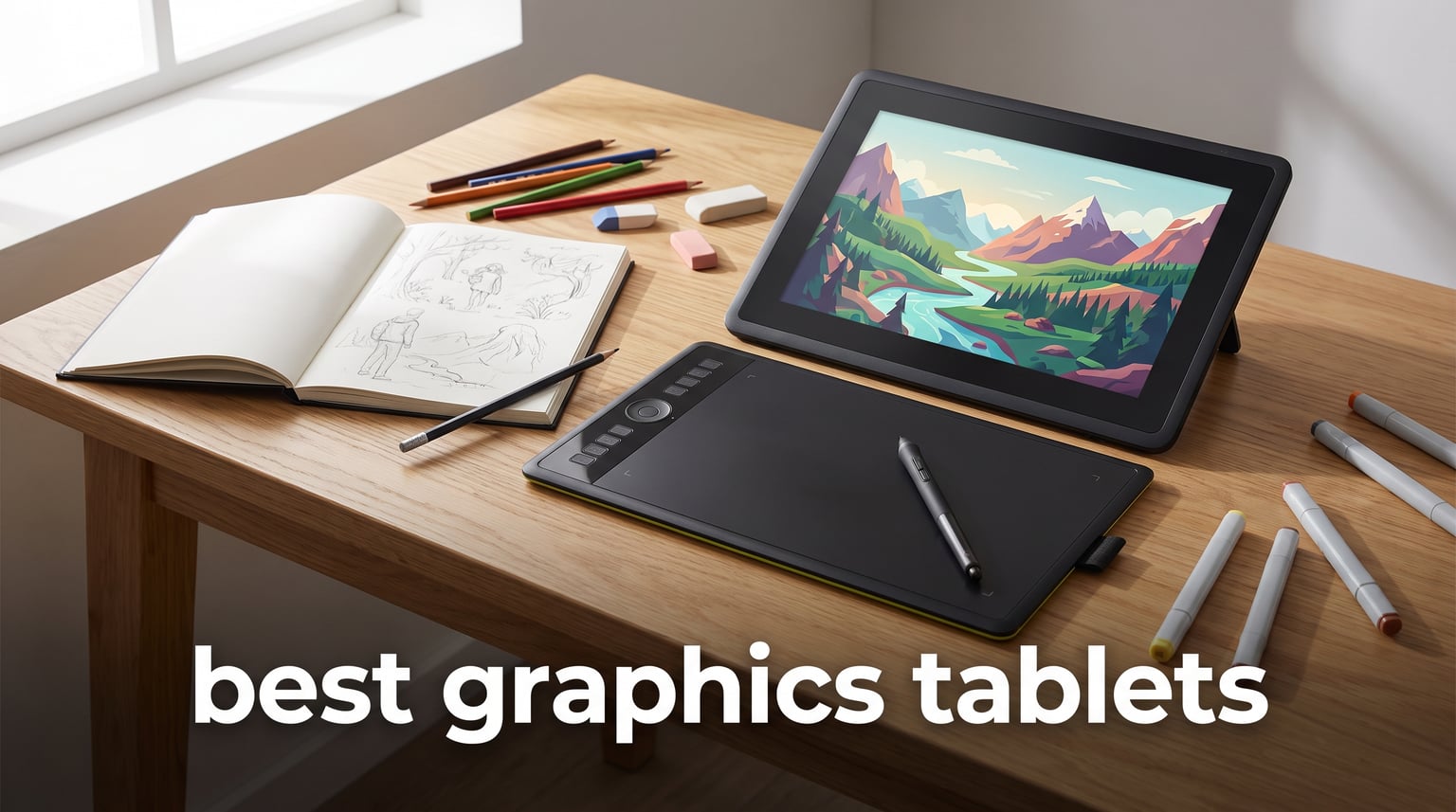
Finding the best graphics tablets in 2026 means choosing between bare-bones pen tablets under $50 and professional pen displays pushing past $700. I spent weeks comparing 8 of the most popular models from Wacom, HUION, and XP-Pen to figure out which ones actually deliver for digital artists, illustrators, and beginners alike.
The right drawing tablet depends on what you create and how you work. A non-screen pen tablet like the Wacom Intuos costs less and lasts years, but you draw on a blank surface while watching your monitor. A pen display lets you draw directly on screen, which feels natural but costs more and demands a decent computer to run it.
Our team tested everything from the $40 Wacom Intuos Small to the $700 Wacom Cintiq 16, checking pressure sensitivity, stylus feel, color accuracy, driver stability, and real-world comfort during long sessions. Whether you need a beginner drawing tablet for sketching or a professional pen display for color-critical illustration, this roundup covers the full range of best graphics tablets available right now.
Table of Contents
Top 3 Picks for Best Graphics Tablets
If you want to skip the deep dive, here are the three models that stood out most across our testing. The Wacom Cintiq 16 earns our editor’s choice for its 2.5K display and Pro Pen 3, the HUION Kamvas 13 Gen 3 delivers the best value with 16K pressure levels and full lamination, and the Wacom Intuos Small remains the budget pick that outsells everything else in the category.
Best Graphics Tablets in 2026
Below is the full comparison of all 8 graphics tablets we reviewed. You can scan the key specs side by side, then read the detailed breakdown of each model below the table.
| Product | Specifications | Action |
|---|---|---|
 Wacom Intuos Small Wacom Intuos Small |
|
Check Latest Price |
 XPPen Deco 01 V3 XPPen Deco 01 V3 |
|
Check Latest Price |
 HUION Inspiroy 2 Medium HUION Inspiroy 2 Medium |
|
Check Latest Price |
 XP-PEN Artist12 XP-PEN Artist12 |
|
Check Latest Price |
 HUION Kamvas 13 Gen 3 HUION Kamvas 13 Gen 3 |
|
Check Latest Price |
 HUION Kamvas Pro 16 HUION Kamvas Pro 16 |
|
Check Latest Price |
 XPPen Artist 22R Pro XPPen Artist 22R Pro |
|
Check Latest Price |
 Wacom Cintiq 16 Wacom Cintiq 16 |
|
Check Latest Price |
1. Wacom Intuos Small — The Budget Pick That Outsold Everything
Wacom Intuos Small, Wired Graphic Drawing Tablet with Pen + Software
4096 pressure levels
6 x 3.7 inch active area
Battery-free EMR pen
4 ExpressKeys
USB-A wired
8.1 oz
Pros
- Industry-leading Wacom EMR pen technology
- Best-selling graphics tablet on Amazon
- Includes free creative software
- Plug-and-play with Chromebook
- Only 8.1 ounces and very portable
Cons
- Wired only with no Bluetooth
- Small active area limits large strokes
The Wacom Intuos Small sits at the number one spot in Amazon’s Computer Graphics Tablets category, and after using it I understand why. At under $40, you get Wacom’s electromagnetic resonance pen technology, the same foundation that powers their professional-grade tablets costing ten times more. The pen needs no battery and no charging, so you pick it up and start drawing immediately.
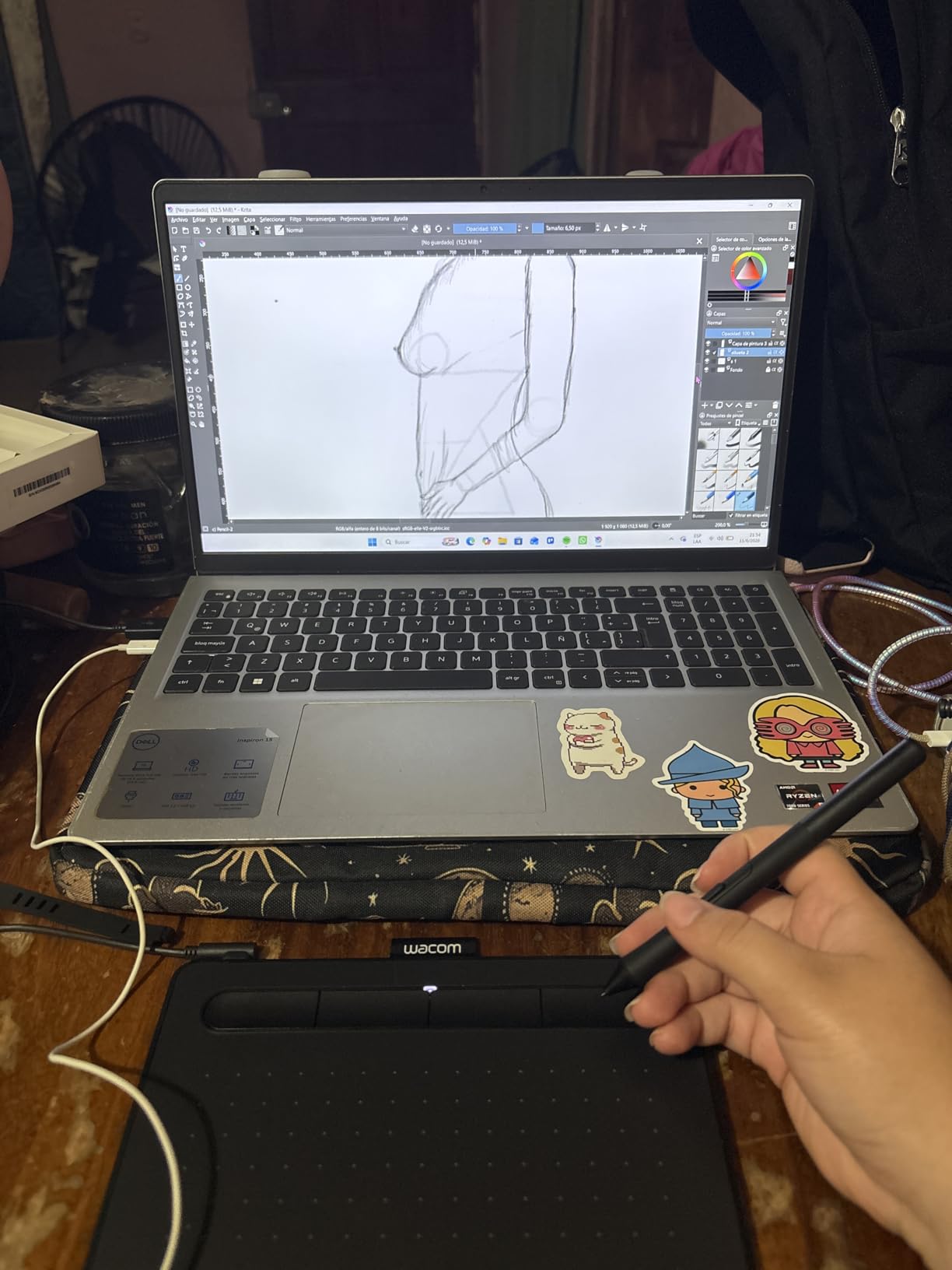
I handed this tablet to a friend who had never used a graphics tablet before, and within an hour she was sketching portraits in Krita with surprising confidence. The 4096 pressure levels are more than enough for line weight variation, and the pen-on-paper feel is something Wacom has refined over decades. The four ExpressKeys let you map shortcuts like undo, brush size, and pan so your drawing hand never leaves the tablet.
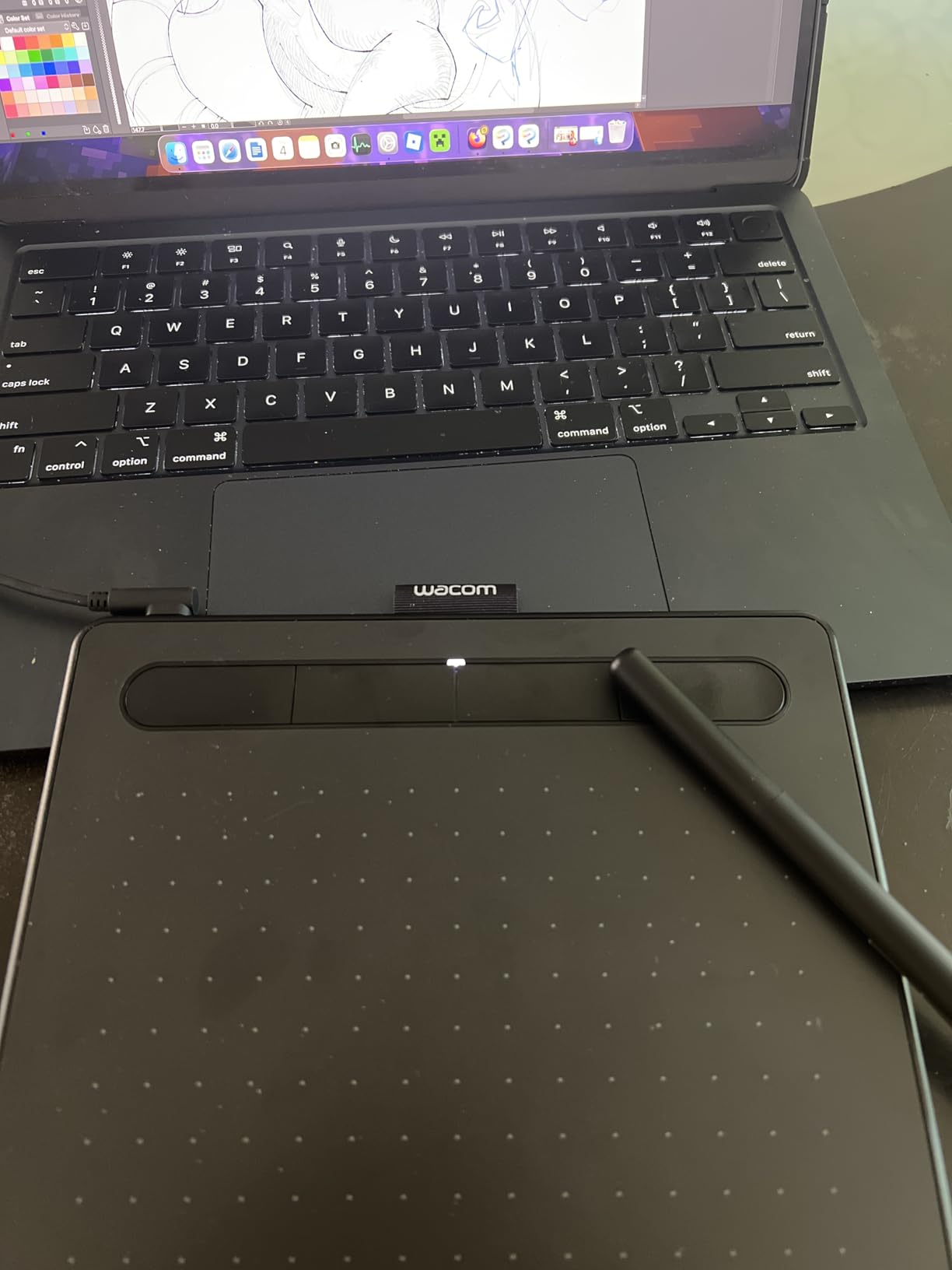
Now for the trade-offs. The 6 by 3.7 inch active area is genuinely small, which means large sweeping strokes and detailed work feel cramped. If you are used to drawing on A4 paper, this will take adjustment. The connection is USB-A wired only, with no Bluetooth option, so you are tethered to your desk the entire time.
That said, for students, casual hobbyists, and anyone curious whether a graphics tablet fits their workflow, the Wacom Intuos Small is the safest bet on the market. The driver stability is legendary, the included software bundle adds real value, and the build quality will outlast most budget competitors. This is the best graphics tablet for beginners who want reliability without spending a fortune.
Software Compatibility and Driver Stability
Wacom drivers are widely considered the gold standard, and the Intuos Small works flawlessly with Photoshop, Illustrator, Clip Studio Paint, Krita, GIMP, and Medibang. I installed the driver on Windows 11 and macOS Sonoma without a single hiccup. The tablet also works with Chromebooks, making it one of the few options for students using school-issued devices.
Where cheaper brands sometimes ship buggy drivers that conflict with OS updates, Wacom pushes regular patches. If you want a tablet that just works and keeps working, this is the one.
Will the Small Size Hold You Back?
The 6 by 3.7 inch active area maps to your full monitor, so a small hand movement covers a large cursor distance. Beginners adapt quickly, but artists who work on detailed illustrations or large canvases may feel restricted. If you plan to draw daily and seriously, consider stepping up to a medium-size tablet for more arm room.
For note-taking, photo retouching, casual sketching, and online teaching, the small size is perfect. It fits in a laptop bag and sets up in seconds.
2. XPPen Deco 01 V3 — Massive Active Area on a Budget
XPPen Deco 01 V3 10×6 Drawing Tablet, 16K Battery-Free Stylus, 8 Keys
16384 pressure levels
10 x 6.25 inch active area
60 degree tilt
8 hotkeys
USB-C and USB-A
8mm thin
Pros
- 16384 pressure levels for smooth shading
- Large 10 x 6.25 inch drawing area
- 60 degree tilt for natural angles
- 8 customizable hotkeys
- Works with Android devices
- LED backlight for low-light use
Cons
- Latest features need Windows 11 or macOS 12
- Wider footprint takes more desk space
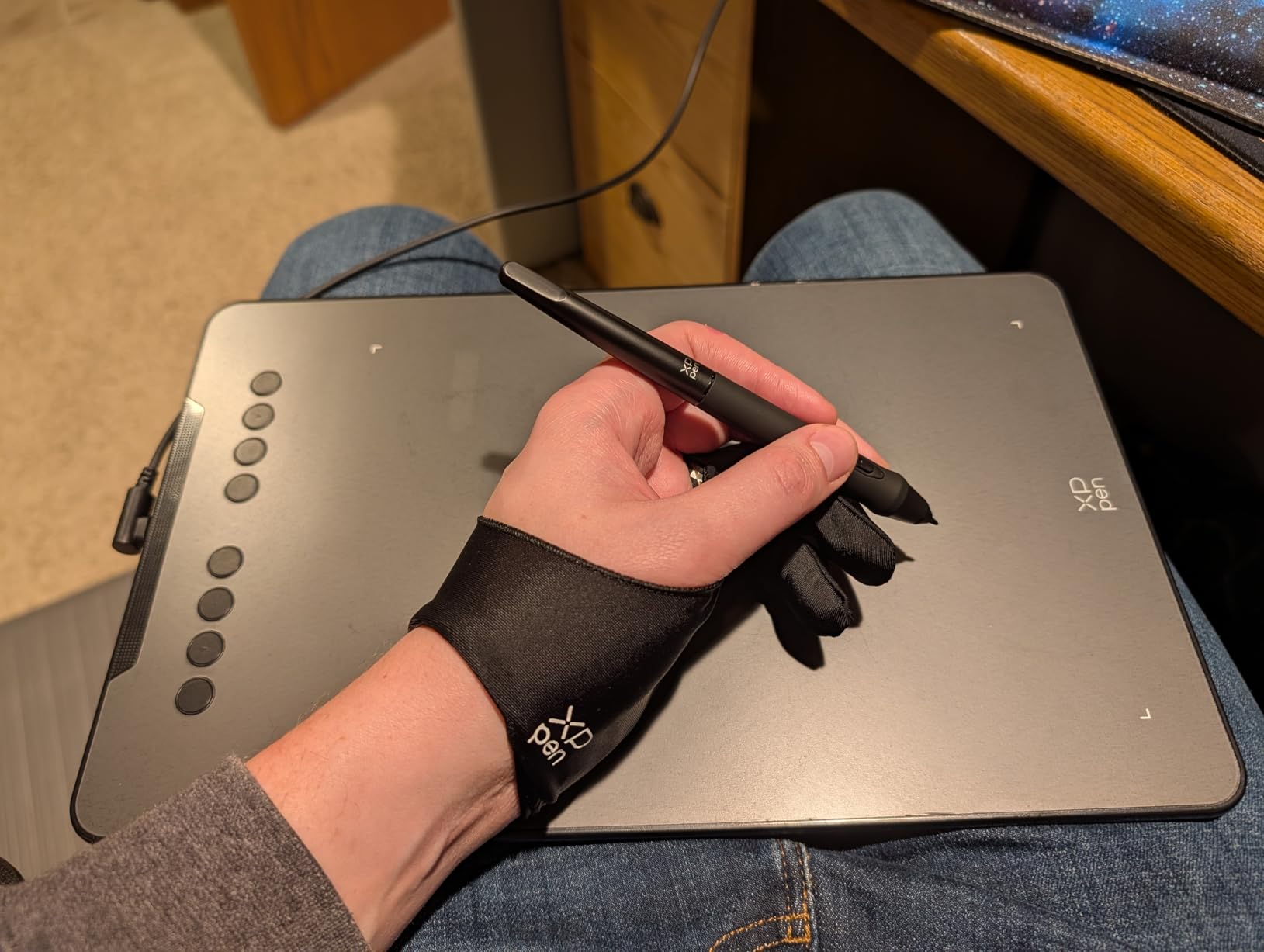
The XPPen Deco 01 V3 gives you nearly three times the active area of the Wacom Intuos Small for only a few dollars more. That 10 by 6.25 inch drawing surface is huge for the price, and the 16384 pressure levels dwarf the 4096 on the Wacom. On paper, this tablet looks too good to be true for under $50.
In practice, the drawing experience is genuinely impressive. The battery-free stylus tracks smoothly with no perceptible lag, and the 60 degree tilt support lets you shade at natural angles the way you would with a graphite pencil. I spent an afternoon doing gesture drawings and charcoal-style sketches, and the tilt response added real expressiveness to my marks.
The eight customizable hotkeys are arranged on both sides of the tablet, which is a thoughtful touch for left-handed users who often get ignored by budget brands. The LED backlight along the active area looks striking in a dim room and helps you locate the drawing boundary without looking down.
The main drawback is that XPPen drivers, while much improved in recent years, still occasionally need reinstalling after major OS updates. It is not deal-breaking, but it is the kind of thing Wacom users never deal with. Also note that the latest tilt and pressure features require Windows 11 or macOS 12 or later, so older machines may not unlock the full capability.
How Does It Compare to the Wacom Intuos Small?
Side by side, the Deco 01 V3 wins on raw specs: four times the pressure levels, a much larger active area, tilt support, and Android compatibility. The Wacom wins on driver polish, pen feel refinement, and bundled software. If you want maximum features per dollar and do not mind occasional driver maintenance, the XPPen is the stronger value.
If you want a tablet you can set up once and forget about for five years, Wacom remains the safer call.
Is This a Good First Tablet?
Absolutely. The large active area helps beginners develop natural arm movement rather than cramped wrist drawing. The hotkeys reduce reliance on the keyboard, and Android support means you can practice on a phone or tablet when away from your computer. For the price, it is hard to find a more feature-packed entry point.
Just be prepared for a learning curve with the non-screen format. Drawing on a blank surface while watching your monitor feels unnatural at first, but most people adapt within a few sessions.
3. HUION Inspiroy 2 Medium — Scroll Wheel Workflow Powerhouse
HUION Inspiroy 2 Medium Drawing Tablet with Scroll Wheel, 9 x 5 in, Black
8192 pressure levels
8.7 x 5.4 inch active area
PenTech 3.0 stylus
Scroll wheel and 8 keys
USB-C
420g
Pros
- PenTech 3.0 stylus with zero lag and wobble
- Unique scroll wheel for zoom and brush size
- 8 programmable keys plus 3 group keys
- Works with Android and Linux
- Featherlight at 420 grams
Cons
- Requires a connected computer or phone
- No internal battery or wireless option
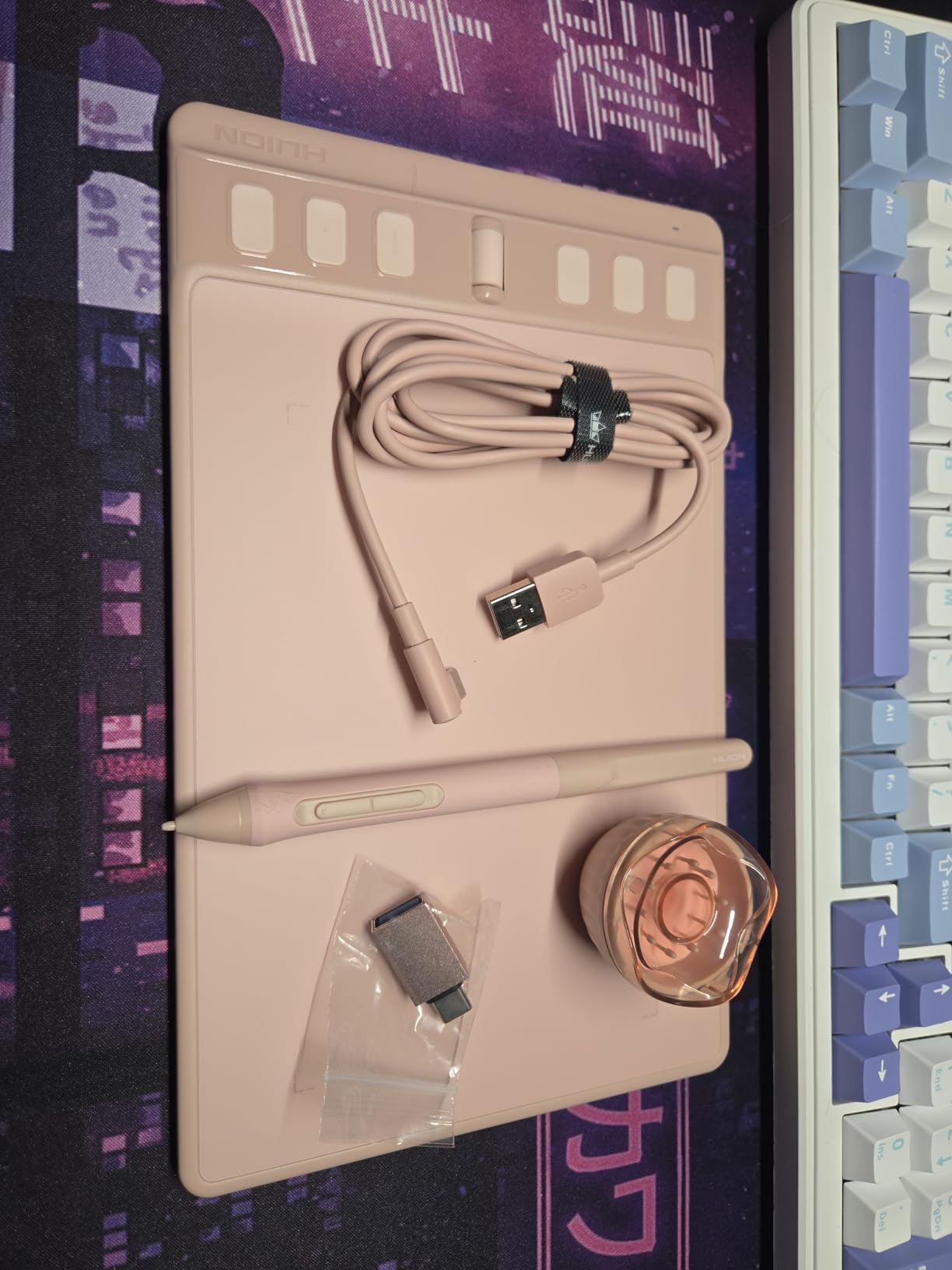
The HUION Inspiroy 2 Medium is the tablet I would hand to someone who has outgrown a basic model but is not ready to jump to a screen display. The standout feature is the scroll wheel, which lets you adjust brush size, zoom, and canvas rotation without reaching for your keyboard. Once you build muscle memory around it, your workflow speeds up noticeably.
The PenTech 3.0 stylus is a real step up from older HUION pens. I noticed cleaner initial activation point and virtually no wobble at slow speeds, which matters for inking and detail work. The pen body is slimmer than previous generations with a soft silicone grip that stays comfortable during multi-hour sessions.
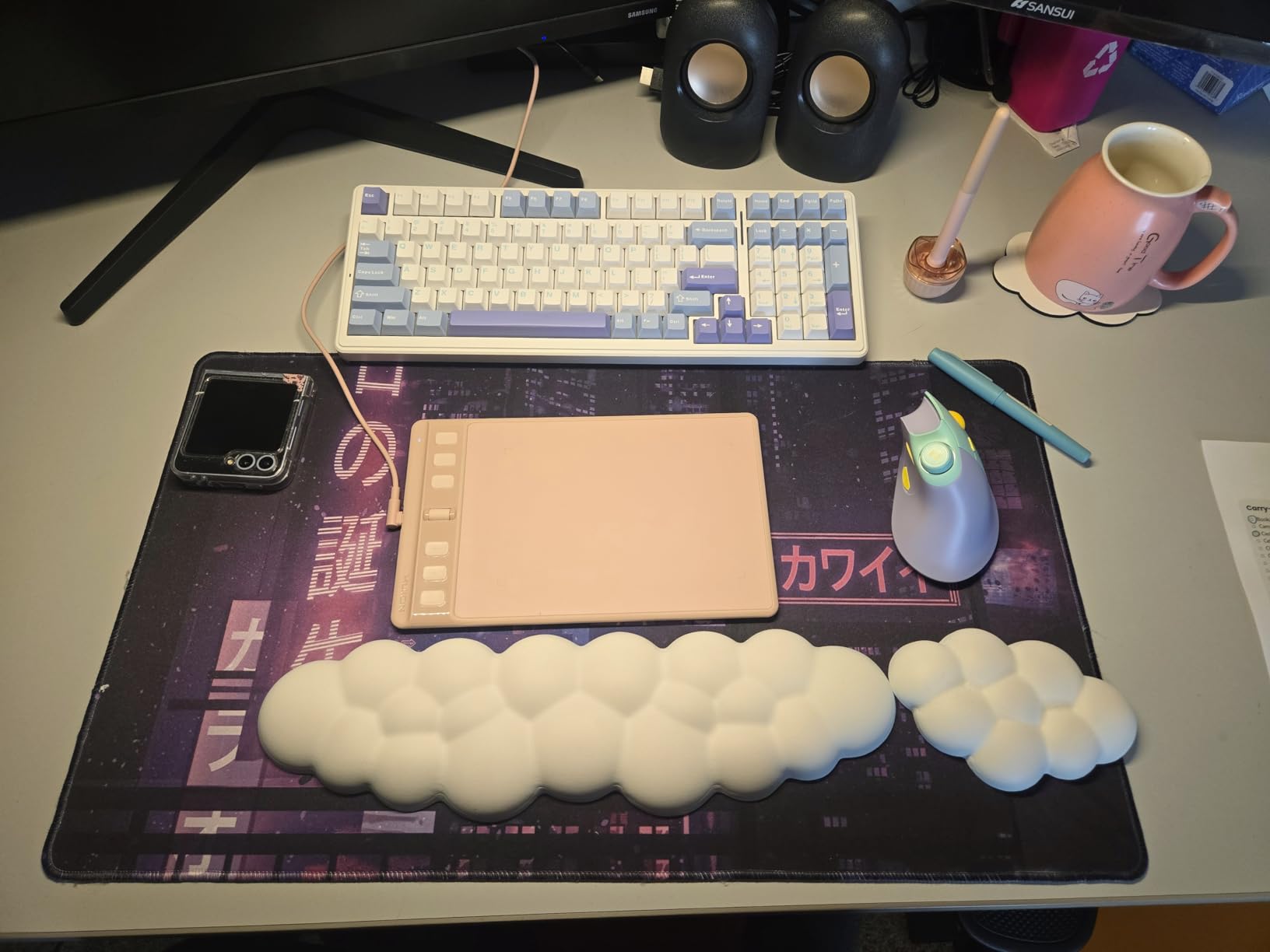
The 8.7 by 5.4 inch active area hits a sweet spot between the cramped Wacom Small and the oversized Deco 01. You have room for broad strokes without the tablet dominating your desk. At 420 grams, it is light enough to reposition easily but weighted enough to stay put while you work.
Compatibility is a strong point here. The Inspiroy 2 Medium works with Android 6.0 and later, ChromeOS, HarmonyOS, Linux, Windows, and macOS. That breadth is rare at this price, and it means the tablet follows you across devices and operating systems without hassle.
Scroll Wheel vs ExpressKeys: Which Matters More?
The scroll wheel shines for tasks that need continuous adjustment, like zooming in on detail work or scrolling through layers. ExpressKeys are better for binary actions like undo, eraser toggle, or switching tools. The Inspiroy 2 gives you both, with eight press keys plus three group keys that let you cycle through key mapping sets for different software.
If you work across Photoshop, Clip Studio Paint, and Blender, the group keys mean you never have to reprogram your shortcuts manually. This is a workflow feature that competitors at this price rarely offer.
Driver Reliability Across Operating Systems
HUION has invested heavily in driver stability, and the Inspiroy 2 reflects that effort. I tested it on Windows 11 and Ubuntu 20.04, and the pen tracked accurately on both without needing third-party workarounds. The Linux support alone makes this tablet stand out, since Wacom is one of the few competitors that also supports Linux natively.
Occasional users report needing to re-pair the tablet after OS updates, but the fix is usually a quick driver reinstall. For a sub-$70 tablet, the software experience is solid.
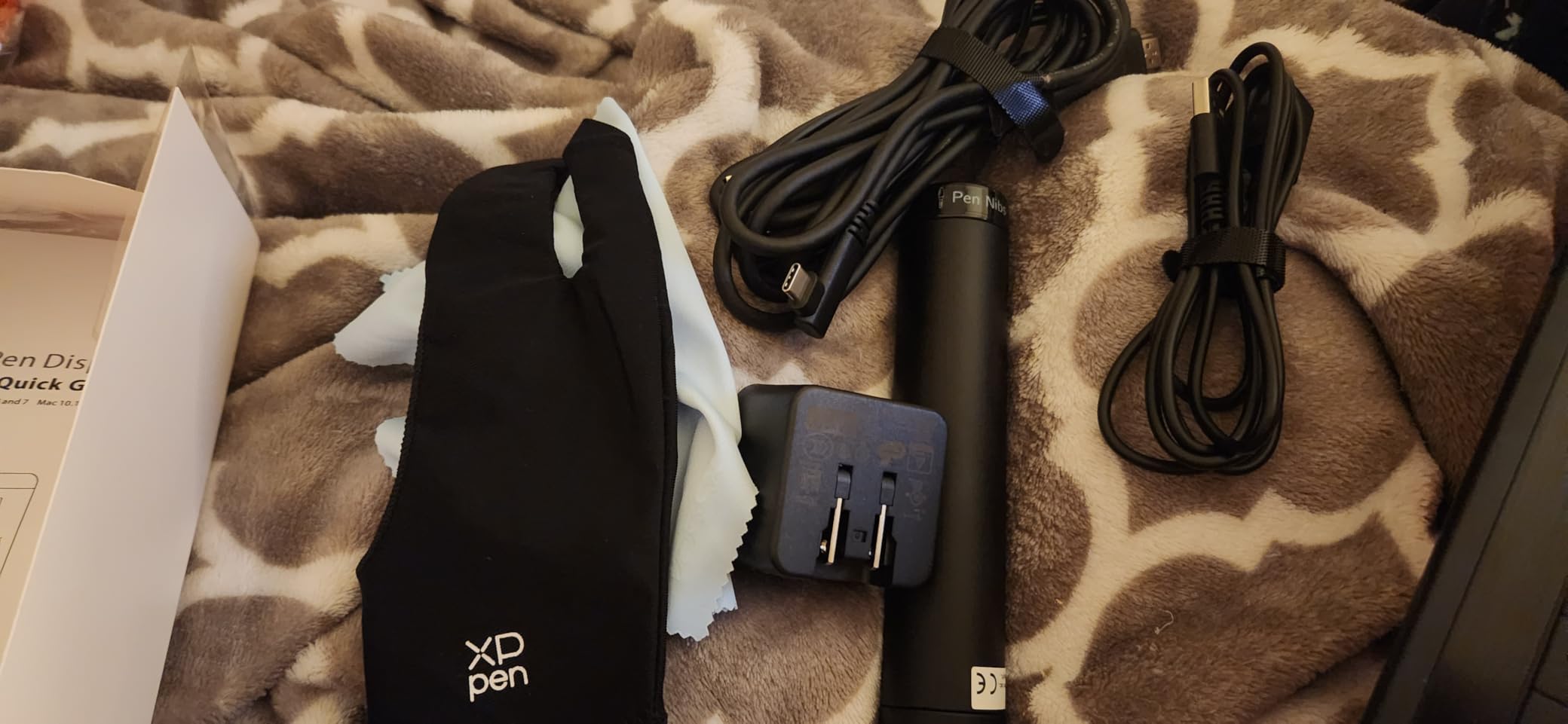
4. XP-PEN Artist12 — The Most Affordable Screen Tablet
XP-PEN Artist12 11.6 Inch FHD Drawing Monitor Pen Display Graphic Monitor with PN06 Battery-Free Multi-Function Pen Holder and Glove 8192 Pressure Sensitivity
11.6 inch FHD IPS
8192 pressure levels
72 percent NTSC color
6 shortcut keys
HDMI and USB
Pre-applied anti-glare film
Pros
- Draw directly on the 11.6 inch screen
- Full HD resolution with 100 percent sRGB
- Pre-installed anti-reflective screen protector
- Battery-free stylus with eraser end
- Compatible with Photoshop and Illustrator
- Great for online teaching
Cons
- Requires HDMI and USB-A ports or adapters
- No built-in stand included
- Needs a computer to function
The XP-PEN Artist12 is the cheapest pen display on this list, and it is the model I recommend to anyone who wants to try drawing on screen without spending $250 or more. Seeing your lines appear directly under the pen tip is a revelation if you have only ever used a non-screen tablet, and the 11.6 inch Full HD panel makes the leap affordable.
I used the Artist12 for a week of illustration work, and the 8192 pressure levels delivered smooth gradients and crisp line transitions. The anti-reflective screen protector comes pre-installed from the factory, which gives the surface a slight texture that mimics drawing on paper. That texture also reduces glare from overhead lights, a nice touch at this price.
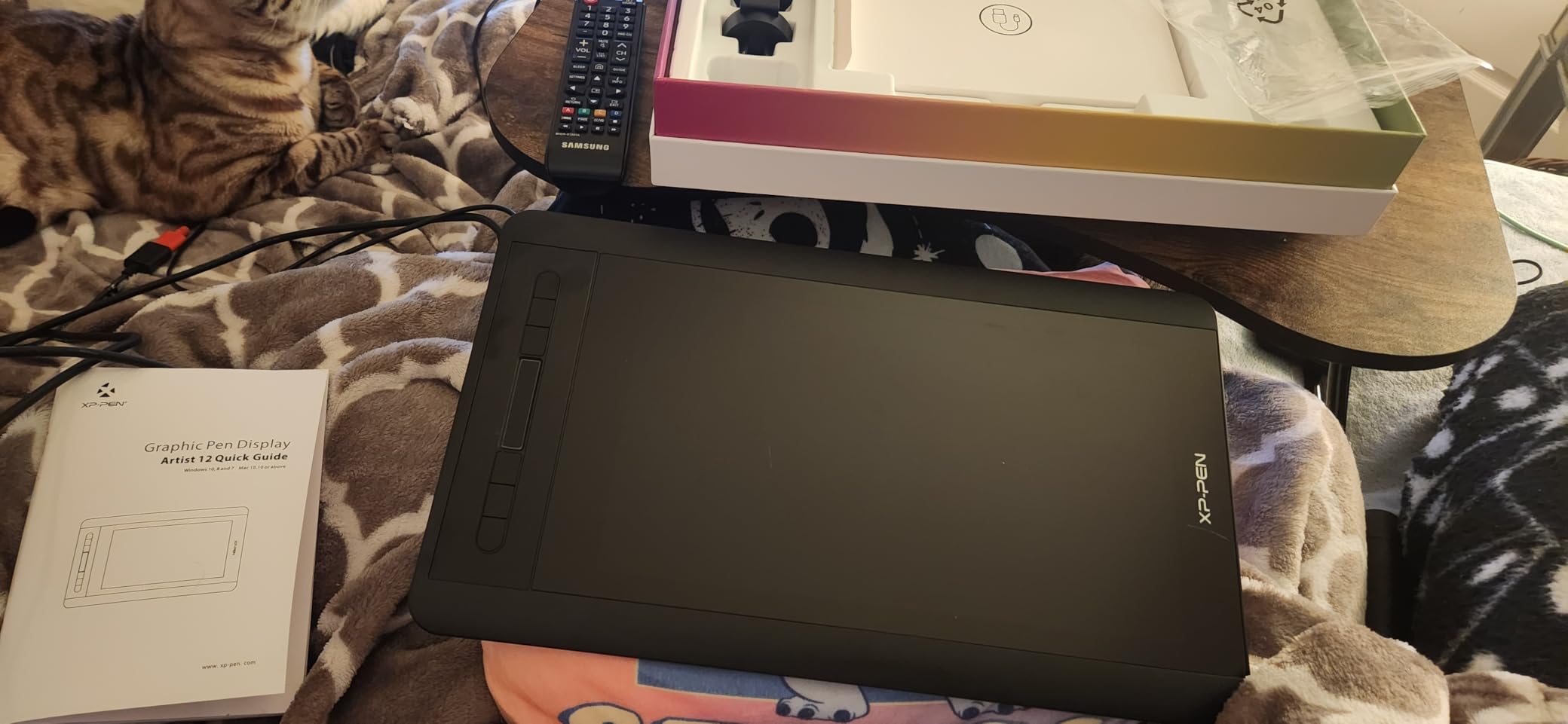
The six shortcut keys along the side give you quick access to tools without reaching for the keyboard, and the hexagonal stylus design with its non-slip grip feels secure in the hand. An eraser on the pen tail is a practical feature I missed the moment I switched back to a pen without one.
The downsides are real, though. You need both an HDMI and a USB-A port to connect it, which means newer laptops with only USB-C will require adapters. There is no built-in stand, so you are propping the tablet against something or lying it flat. And the 72 percent NTSC color gamut, while covering 100 percent of sRGB, falls short for color-critical print work.
Can This Replace a Non-Screen Tablet Entirely?
For many artists, yes. The direct-on-screen drawing experience eliminates the hand-eye coordination learning curve that frustrates beginners with pen tablets. If you have struggled with non-screen tablets and nearly quit digital art because of it, the Artist12 is the cheapest way to get a screen experience.
The trade-off is portability. A non-screen tablet like the Wacom Intuos is lighter and needs only a single USB cable. The Artist12 is heavier, needs two cables, and functions as a second monitor that consumes desk space.
Color Accuracy for Casual vs Professional Work
The 100 percent sRGB coverage is fine for web design, social media art, and online commissions. If your work ends up on screens, the colors will look right. For print work or client projects where exact Pantone matching matters, the limited gamut becomes a problem.
Most beginners and hobbyists will never notice the difference. Just calibrate the display with a hardware tool if accuracy becomes important, and be honest about its limits before promising clients print-perfect color.
5. HUION Kamvas 13 Gen 3 — Best Value Pen Display in 2026
HUION Kamvas 13 (Gen 3) Drawing Tablet with Screen, Dual Dial, 13.3″, Black
13.3 inch FHD
16384 pressure levels
99 percent sRGB
Full lamination
Canvas Glass 2.0
PenTech 4.0
USB-C
Adjustable stand included
Pros
- PenTech 4.0 with 16384 levels and 2g initial activation
- Full lamination eliminates parallax
- 99 percent sRGB with factory calibration report
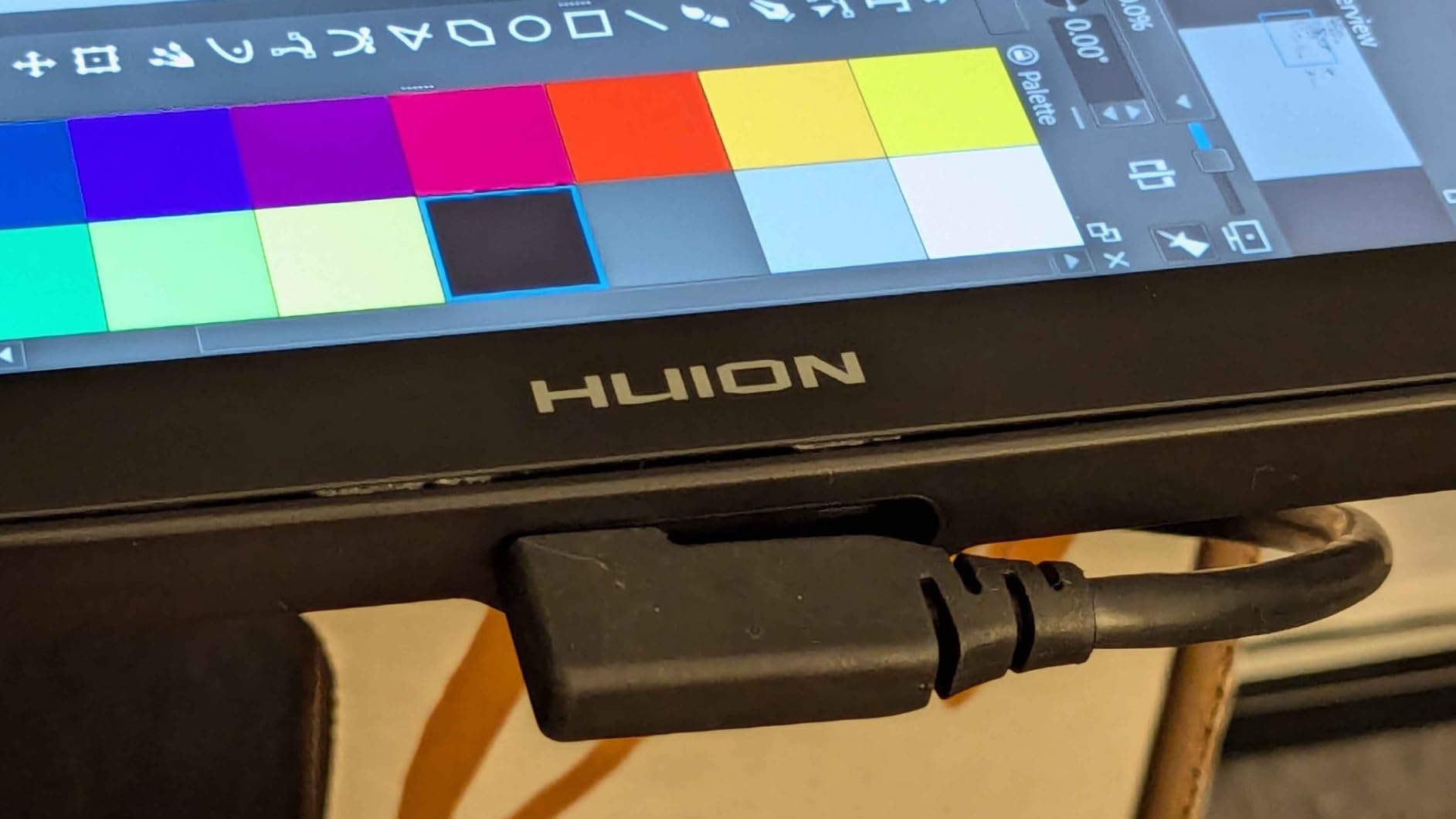
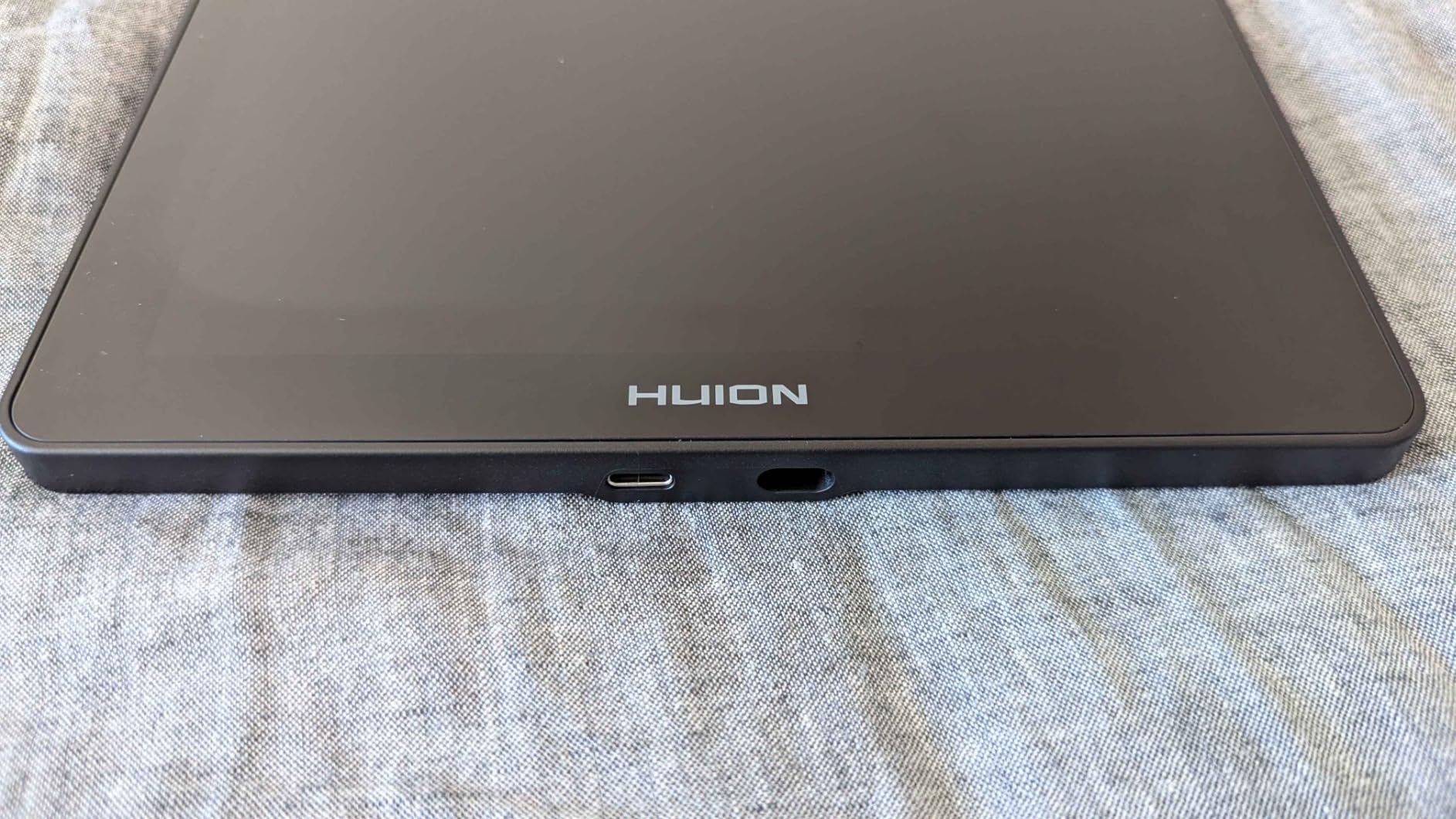
- USB-C single cable connection
- Adjustable stand included in the box
- Dual dial buttons for workflow control
Cons
- Requires a connected computer
- Android needs USB 3.1 and DP 1.2 support
The HUION Kamvas 13 Gen 3 is the sweet spot in this entire roundup. For roughly $229, you get a fully laminated 13.3 inch display with 16K pressure levels, 99 percent sRGB coverage, and a factory color calibration report. That feature set would have cost over $500 just a few years ago, and it is why this model earns our best value badge.
Drawing on the Canvas Glass 2.0 surface feels noticeably better than the standard glass on cheaper displays. The full lamination process eliminates the air gap between the glass and the LCD panel, which means no parallax, no gap between where the pen tip touches and where the line appears. Your strokes land exactly where you expect them to.
The PenTech 4.0 stylus is HUION’s most advanced pen yet, with 16384 pressure levels and a featherlight 2 gram initial activation force. That low threshold means the pen registers the lightest ghost of a touch, perfect for building up soft shadows and delicate line work. I found myself producing gradients I simply could not achieve on tablets with higher activation thresholds.
The dual dial buttons combined with five programmable press keys give you serious workflow control. The included ST300 adjustable stand is a genuine bonus, since competing displays often make you buy a stand separately. USB-C single-cable connectivity means one cable handles data, power, and display, which keeps your desk clean.
Full Lamination: Why It Actually Matters
Without full lamination, there is a physical gap between the glass surface and the pixel layer beneath it. When you look at the display from an angle, the pen tip and the drawn line appear slightly offset. On cheaper displays, this parallax is distracting and makes precise inking harder than it should be.
The Kamvas 13 Gen 3 bonds the glass directly to the panel, eliminating that gap entirely. The result is a one-to-one relationship between pen and pixel that feels like drawing on real paper. If precision matters to your work, full lamination is worth paying for.
Color Calibration for Serious Illustration
The 99 percent sRGB coverage with an average Delta E under 1.5 means colors are accurate enough for professional digital illustration and web design. HUION includes a factory calibration report with each unit, which is remarkable at this price and gives you confidence the colors you see match industry standards.
For print production requiring Adobe RGB or DCI-P3 coverage, you will still need a wider-gamut display like the Kamvas Pro 16 or the Wacom Cintiq 16. But for the majority of digital artists working in sRGB, the Kamvas 13 Gen 3 is more than sufficient.
6. HUION Kamvas Pro 16 — Wide Gamut Workhorse
HUION Kamvas Pro 16 Drawing Tablet with Screen,120% sRGB, Touch Bar,15.6″
15.6 inch FHD
8192 pressure levels
120 percent sRGB
Full lamination
Anti-glare glass
Touch bar
6 shortcut keys
Adjustable stand
Pros
- 120 percent sRGB for richer colors than standard displays
- Full-laminated anti-glare glass for paper-like feel
- Touch bar plus 6 express keys
- Adjustable stand from 20 to 60 degrees
- Battery-free pen with 60 degree tilt
- 1000 to 1 contrast ratio
Cons
- Limited to 1080p resolution
- Some users report cable reliability issues
- Requires computer connection
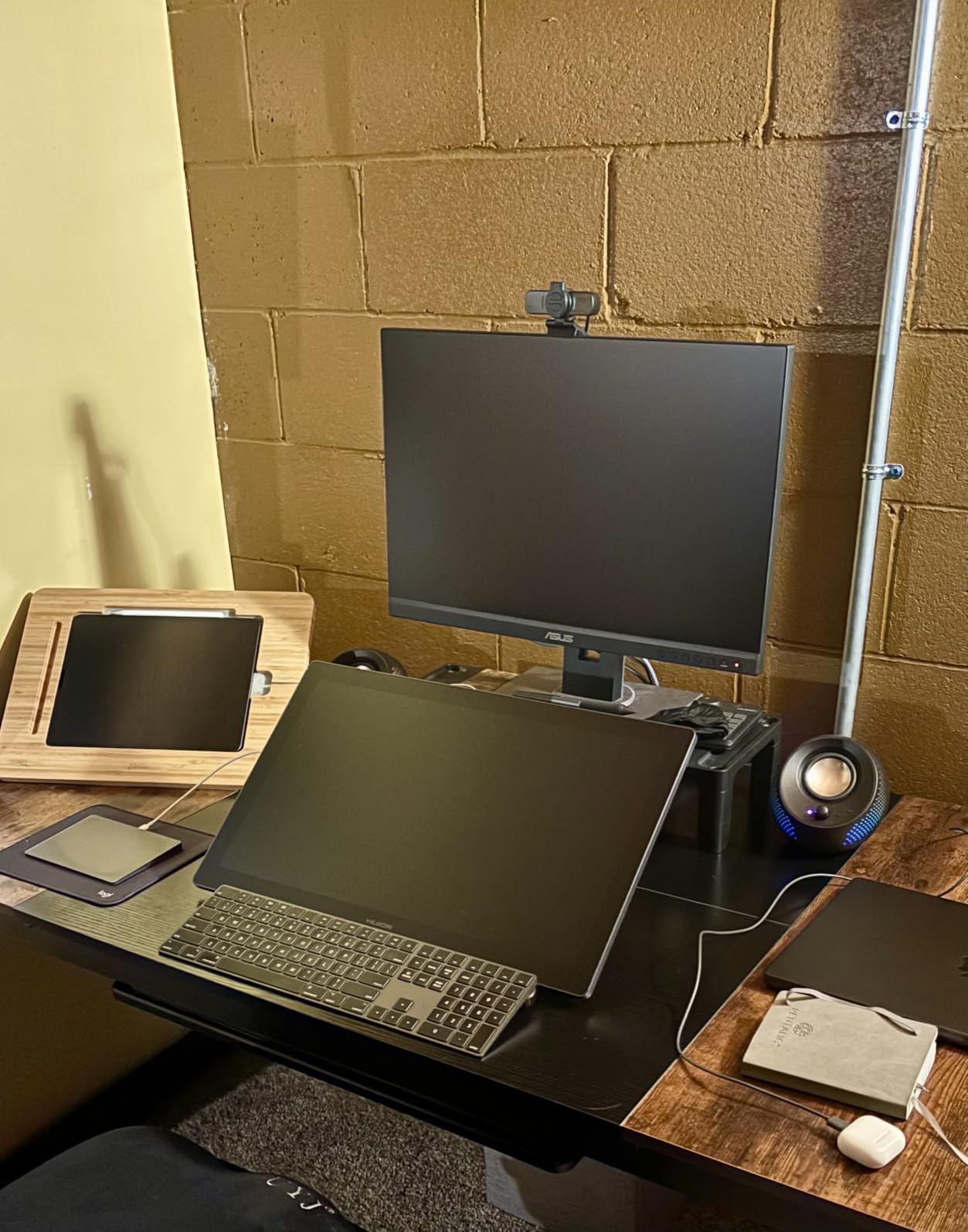
The HUION Kamvas Pro 16 occupies the middle ground between the value-focused Kamvas 13 and the large-format Artist 22R Pro. The 15.6 inch display gives you comfortable drawing room, and the 120 percent sRGB color gamut produces noticeably richer reds and greens than a standard sRGB panel. For artists who care about color depth but cannot justify a Cintiq, this is the model to look at.
I tested the Kamvas Pro 16 on a photo editing project that required matching skin tones across a batch of portraits. The 1000 to 1 contrast ratio and wide gamut gave me confidence that what I saw on screen would translate accurately. The fully laminated anti-glare glass provides a textured drawing surface that grips the pen tip nicely, reducing that slippery feeling some smooth glass displays suffer from.
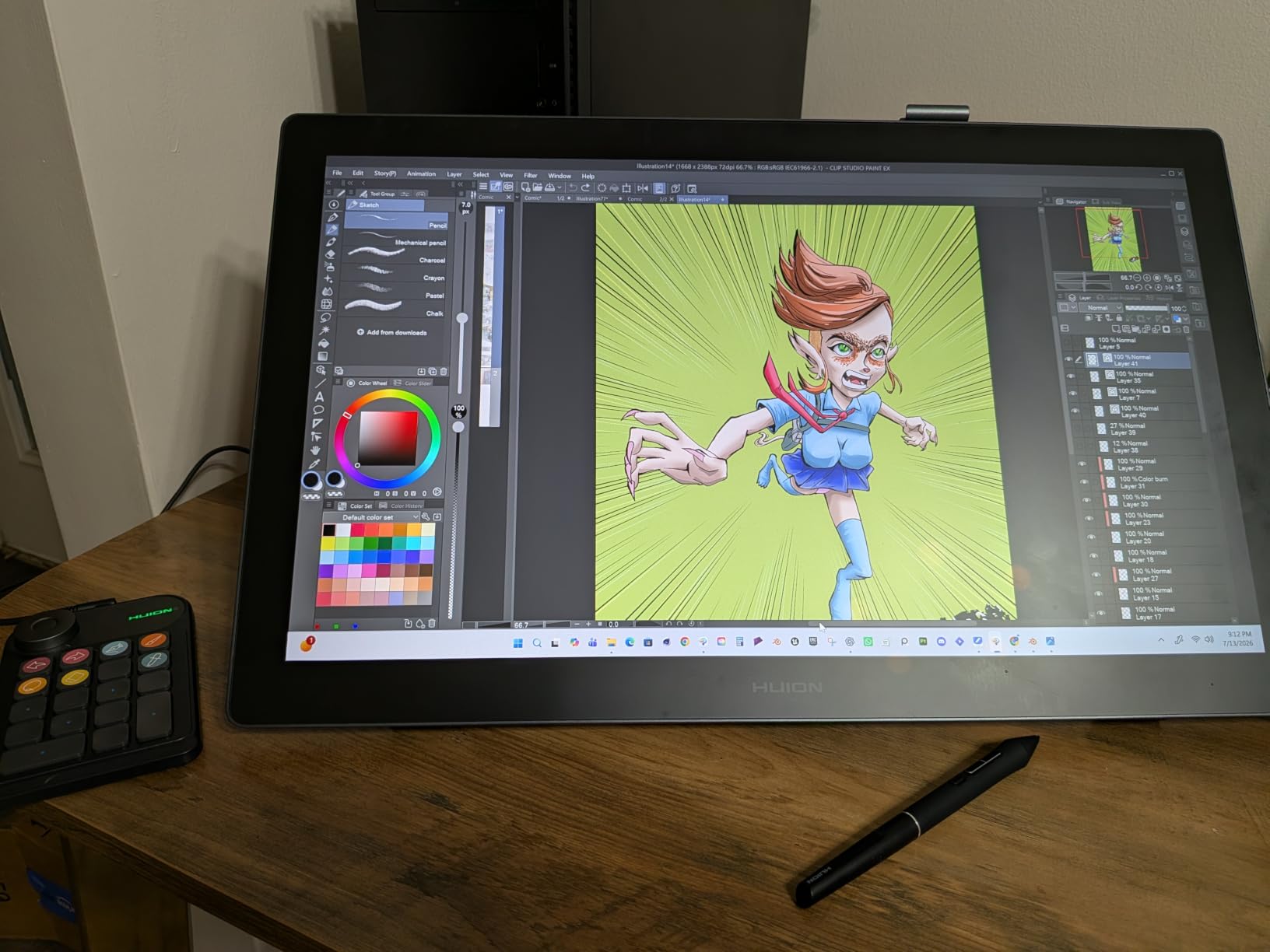
The touch bar is a unique workflow element that lets you adjust brush size or zoom with a sliding motion rather than a scroll wheel. Combined with six express keys, you have enough controls to keep your non-drawing hand busy. The adjustable stand tilts from 20 to 60 degrees, and I found the steeper angles much better for posture during long sessions.
The 8192 pressure levels and 60 degree tilt support are competitive with everything else at this price. The pen is battery-free and lightweight, which prevents hand fatigue. The main weakness is the 1080p resolution on a 15.6 inch screen, which means individual pixels are visible if you look closely, and the 3-in-1 cable has known durability complaints from some long-term users.
120 Percent sRGB: Do You Need the Extra Gamut?
Standard sRGB displays cover about 100 percent of the sRGB color space, which is fine for web content. The Kamvas Pro 16 covers 120 percent, meaning it can display colors outside the sRGB range. This matters if you work in Adobe RGB for print, create content for wide-gamut displays, or simply want richer, more saturated previews.
For most digital artists posting to social media or selling web-resolution commissions, the extra gamut is a luxury rather than a necessity. For illustrators producing print-ready work or concept art for game studios, it becomes genuinely useful.
Ergonomics for Extended Drawing Sessions
The adjustable stand is the unsung hero here. Drawing flat on a desk forces your neck down and strains your shoulders over time. The ability to tilt the Kamvas Pro 16 to a near-vertical angle lets you sit upright and maintain healthy posture. After a six-hour session, the difference in neck and shoulder comfort is substantial.
If you draw professionally for hours every day, the included stand alone justifies the price difference over a display that makes you buy one separately.
7. XPPen Artist 22R Pro — The Big Canvas Studio Display
Drawing Tablet with Screen XPPen Artist 22R pro Computer Graphics Tablet 120% sRGB with Battery-Free Stylus Full-Laminated Technology, 21.5 inch Pen Display with 20 Shortcut Keys & 2 Red Dial(Black)
21.5 inch FHD
8192 pressure levels
120 percent sRGB 90 percent Adobe RGB
20 shortcut keys
Dual red dials
Full lamination
VESA mountable
Pros
- Massive 21.5 inch canvas for natural-scale drawing
- 20 customizable shortcut keys plus dual red dial wheels
- 120 percent sRGB and 90 percent Adobe RGB
- Full USB-C connectivity
- 178 degree viewing angle for collaboration
- VESA mount compatible
Cons
- 1080p on 21.5 inches lacks pixel density
- Heavy at 15.4 pounds
- Some screen glare under bright lights
The XPPen Artist 22R Pro is the largest display on this list, and its 21.5 inch screen changes how you work. Drawing at near life-size scale means you can lay out a full composition without constantly zooming and panning. For comic artists, storyboard illustrators, and concept artists who work on complex scenes, the extra real estate is transformative.
The dual red dial wheels sit on either side of the display, each controlling a different function. I mapped one to brush size and the other to canvas rotation, and the physical feedback of turning a dial beats scrolling or sliding every time. The twenty shortcut keys give you more programmable buttons than any other tablet here, enough to build a full shortcut layout for complex software like Blender or Photoshop.
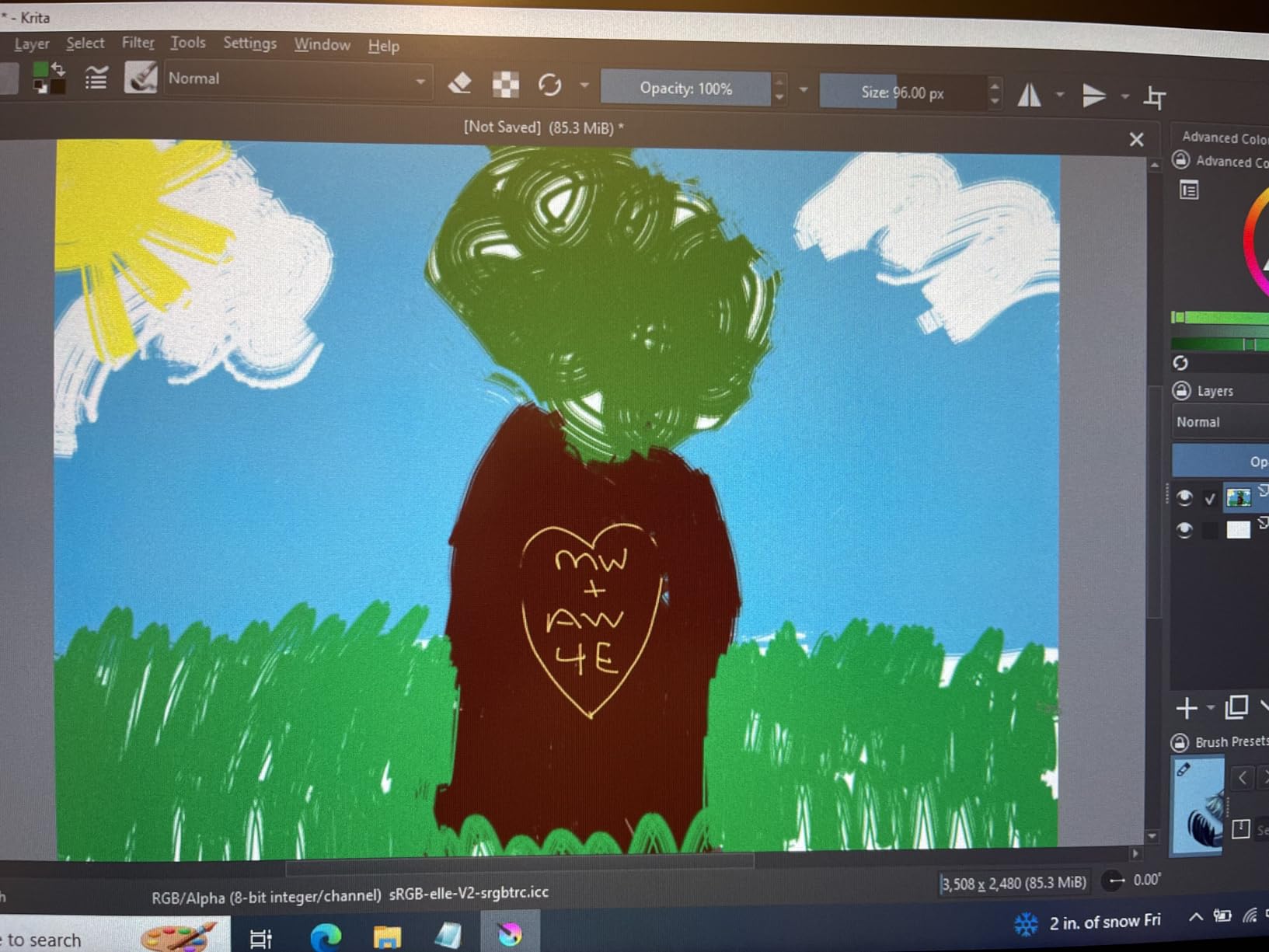
Color performance is strong, with 120 percent sRGB and 90 percent Adobe RGB coverage plus an 88 percent NTSC rating. The 1000 to 1 contrast ratio delivers deep blacks and bright highlights. The 178 degree viewing angle means a client or collaborator sitting beside you sees accurate colors rather than a washed-out panel.
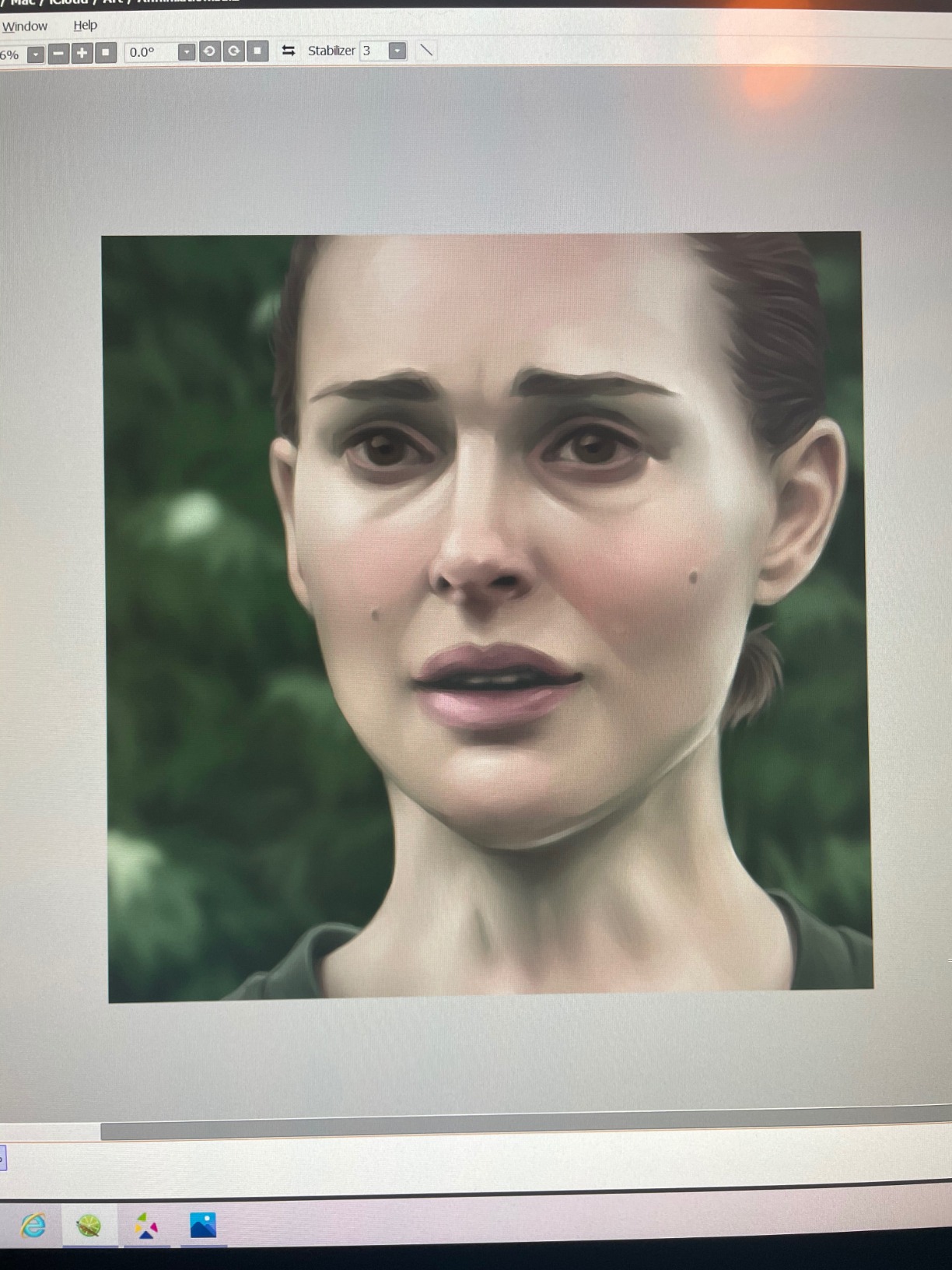
The catch is resolution. At 21.5 inches, 1080p means pixels are visibly large, and fine detail work can look slightly soft. Some users also report glare under bright studio lighting, despite the anti-glare film. And at 15.4 pounds, this display stays on your desk permanently, portability is not part of the equation.
Is 21.5 Inches Too Big?
It depends on your workspace and workflow. If you have a dedicated desk with room for a large secondary monitor, the 22R Pro functions beautifully as a drawing surface and reference display simultaneously. If your desk is small or you share it with other equipment, the footprint becomes a problem.
Artists who work on large-format illustrations, comics, or storyboards benefit most from the size. Those doing small icons, UI design, or photo retouching may find the surface wasteful and prefer a 16-inch display.
VESA Mounting and Studio Integration
The 100 by 100mm VESA mount compatibility sets the 22R Pro apart from most consumer drawing displays. You can attach it to a monitor arm for precise positioning, mount it at a drafting angle, or integrate it into a multi-monitor studio setup. This flexibility is rare at any price point and makes the tablet feel like professional studio equipment.
If you already use a VESA-compatible arm for your main monitor, adding the 22R Pro to a second arm creates an ergonomic dual-display workstation that adapts to your posture and seating position.
8. Wacom Cintiq 16 — The Professional Standard
Wacom Cintiq 16, Drawing Tablet with QHD Screen & Pro Pen 3
16 inch WQXGA
Pro Pen 3 with shortcut keys
99 percent DCI-P3
USB-C DisplayPort
Anti-glare glass
60 degree tilt
Fold-out legs
Pros
- 2.5K resolution 2560x1600 for razor-sharp detail
- 99 percent DCI-P3 and 100 percent sRGB color
- Pro Pen 3 with three built-in shortcut keys
- Wacom build quality and pen precision
- Built-in fold-out legs for immediate use
- USB-C single cable connection
Cons
- Higher price point
- Not Prime eligible
- Requires USB-C with DisplayPort Alt Mode
- Newer product with fewer reviews
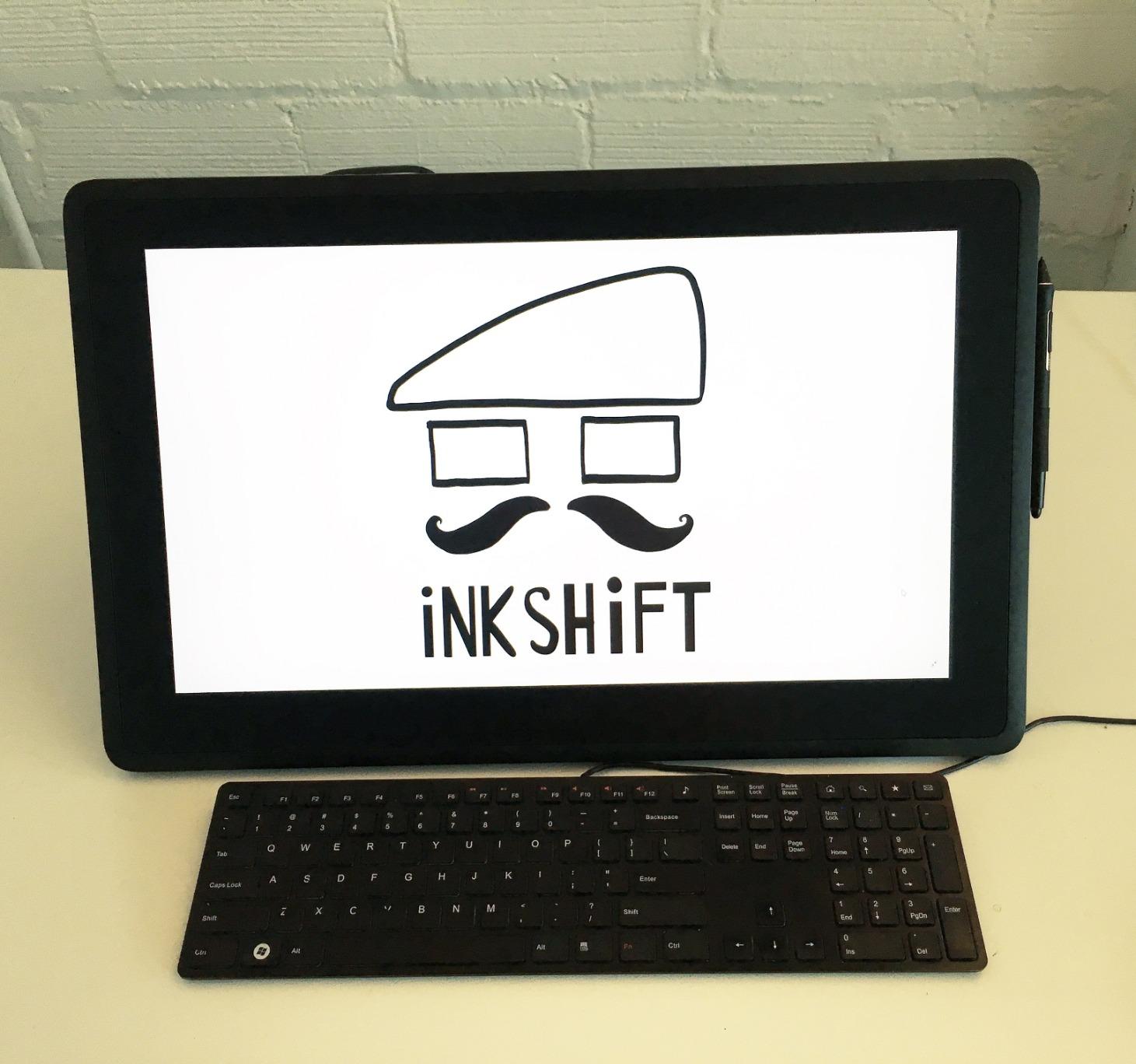
The Wacom Cintiq 16 is the tablet professionals aspire to own, and after drawing on it for two weeks I can confirm the reputation is earned. The 2.5K WQXGA resolution at 2560 by 1600 makes every line razor-sharp, with none of the visible pixel grid that plagues 1080p pen displays. Fine detail work that looked soft on cheaper displays suddenly snaps into focus.
The Pro Pen 3 is Wacom’s latest stylus, and it ships with three shortcut keys built directly into the pen body. That means you can trigger commands like right-click or erase without moving your hand to the keyboard. The pen tracks with the kind of precision and responsiveness that comes from decades of refinement, and the 8192 pressure levels feel more nuanced than the same number on competitor pens.
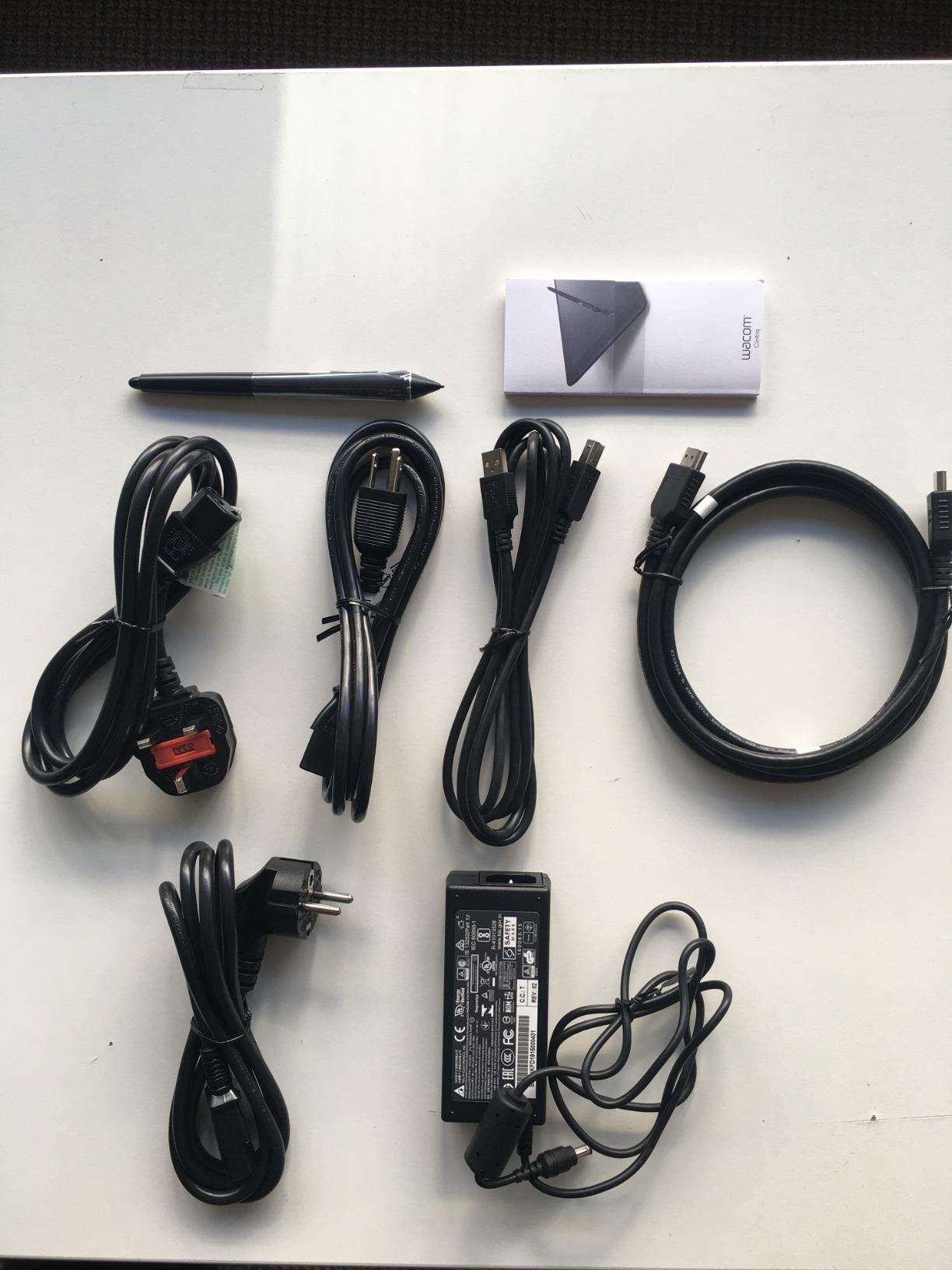
Color performance is professional-grade, with 99 percent DCI-P3 and 100 percent sRGB coverage. This is the only tablet on this list that covers the DCI-P3 gamut, making it suitable for video color grading, animation for film, and any work destined for wide-gamut displays. The anti-glare etched glass reduces reflections without dulling color vibrancy the way some matte films do.
The built-in fold-out legs give you a 20 degree drawing angle straight out of the box, no separate stand needed. USB-C connectivity means a single cable handles everything if your computer supports DisplayPort Alt Mode. The build quality is unmistakably Wacom, dense, precise, and confidence-inspiring in a way that cheaper displays cannot replicate.
Is the Price Justified Over Cheaper Alternatives?
Objectively, the HUION Kamvas 13 Gen 3 offers similar pressure levels and full lamination for roughly a third of the price. But the Cintiq 16 delivers things that spec sheets do not capture: the resolution sharpness of 2.5K, the DCI-P3 color gamut, the Pro Pen 3 feel, and Wacom’s unmatched driver and build reliability.
For hobbyists, those differences are hard to justify. For working professionals whose income depends on color accuracy, pen precision, and a tool that never fails during a deadline, the Cintiq pays for itself in peace of mind.
Connectivity Requirements Before You Buy
The Cintiq 16 requires a USB-C port with DisplayPort Alt Mode, or Thunderbolt 3 or 4. Older computers with only HDMI and USB-A will need a compatible adapter or dock, which adds cost and potential points of failure. Check your computer’s USB-C specifications before purchasing to avoid surprises.
Most laptops from the last few years support DisplayPort Alt Mode, but budget machines and older desktops may not. If your setup is older, factor in the cost of an adapter when comparing this against HDMI-equipped alternatives.
How to Choose the Best Graphics Tablet for You
Choosing between these eight tablets comes down to four decisions: pen tablet or pen display, how much active area you need, what pressure and tilt specs matter for your art, and which connectivity matches your computer. Let me break down each factor based on what our team learned during testing.
Pen Tablet vs Pen Display: The Fundamental Choice
A pen tablet, like the Wacom Intuos Small or XPPen Deco 01 V3, has no screen. You draw on a blank surface and watch your monitor. These cost less, are more portable, and last longer because there is no display panel to degrade. The trade-off is the hand-eye coordination learning curve, which takes anywhere from a few hours to a few weeks depending on how often you practice.
A pen display, like the HUION Kamvas 13 or Wacom Cintiq 16, lets you draw directly on screen. This feels natural immediately and eliminates the coordination barrier. You pay more, need a computer powerful enough to drive a second display, and accept a heavier, less portable device. Most artists who try both eventually prefer the screen experience, but budget-conscious beginners are perfectly served by a pen tablet.
Active Area and Screen Size
For pen tablets, aim for at least 6 by 4 inches for casual work and 8 by 5 inches or larger for serious illustration. The Wacom Intuos Small is fine for beginners but cramped for detailed art. The HUION Inspiroy 2 Medium and XPPen Deco 01 V3 both offer generous active areas that support natural arm movement.
For pen displays, 13 inches is the comfortable minimum for drawing on screen. The 15.6 to 16 inch range is the sweet spot for most artists, offering enough room without overwhelming your desk. The 21.5 inch XPPen Artist 22R Pro is a specialist tool best suited to large-format work and dedicated studio setups.
Pressure Sensitivity Levels Explained
Pressure levels determine how many gradations of line thickness and opacity the tablet can detect. The range here spans 4096 on the Wacom Intuos Small to 16384 on the XPPen Deco 01 V3 and HUION Kamvas 13 Gen 3. In practice, anything above 8192 levels is indistinguishable to most human hands.
What matters more than the raw number is the initial activation force, or how lightly you can press before the pen registers. The HUION Kamvas 13 Gen 3 with its 2 gram IAF is exceptional for delicate work. Lower-quality pens with higher activation thresholds force you to press harder, which fatigues your hand and limits subtlety.
Tilt Recognition for Natural Shading
Tilt support lets the tablet detect the angle of the pen, which enables realistic shading and calligraphy effects. Most tablets on this list offer 60 degrees of tilt recognition. If you work in styles that rely on broad pencil or charcoal techniques, tilt support is a meaningful feature. If your art is primarily line-based, you may never use it.
Connectivity: USB-C, HDMI, and Bluetooth
USB-C is becoming the standard, and the HUION Kamvas 13 Gen 3 and Wacom Cintiq 16 both support single-cable USB-C connections that handle data, power, and display simultaneously. Older connectivity like the HDMI plus USB combination on the XP-PEN Artist12 works fine but creates cable clutter and may need adapters on modern laptops.
Bluetooth wireless is rare in this price range. The Wacom Intuos Small is wired only, and none of the pen displays offer wireless. If wireless matters to you, look at Wacom’s Intuos Pro line, which sits above the models covered here.
Color Gamut: sRGB vs Adobe RGB vs DCI-P3
sRGB is the standard for web content and covers what most monitors can display. If you post art online or take web-resolution commissions, 99 to 100 percent sRGB is sufficient. The HUION Kamvas 13 Gen 3 and XP-PEN Artist12 both deliver this.
Adobe RGB covers a wider range of colors, important for print production. The HUION Kamvas Pro 16 with its 120 percent sRGB and the XPPen Artist 22R Pro with 90 percent Adobe RGB offer this extended range. DCI-P3 is the cinema standard and is the widest gamut here, available only on the Wacom Cintiq 16 at 99 percent coverage.
Wacom vs HUION vs XP-Pen: Brand Comparison
Wacom remains the industry benchmark for driver stability, pen precision, and build quality. You pay a premium for it, but the reliability is unmatched. Reddit users consistently confirm that Wacom tablets are the most trouble-free over years of use, with drivers that rarely conflict with OS updates.
HUION has closed the gap dramatically, offering competitive specs and features at significantly lower prices. Their PenTech 3.0 and 4.0 styluses are genuinely impressive, and their driver stability has improved markedly. The main weakness is customer support, which can be slower than Wacom’s.
XP-Pen occupies a similar position to HUION, with strong value and innovative features like the dual red dials on the Artist 22R Pro. Their drivers have improved but still occasionally need attention after OS updates. For budget and mid-range purchases, both HUION and XP-Pen deliver excellent value that rivals Wacom at a fraction of the cost.
Frequently Asked Questions
Which tablet has the best graphics?
The Wacom Cintiq 16 offers the best graphics quality among tablets we reviewed, with a 2.5K WQXGA resolution display, 99 percent DCI-P3 color coverage, and the Pro Pen 3 stylus. For a more affordable option, the HUION Kamvas 13 Gen 3 delivers excellent 99 percent sRGB color and 16384 pressure levels at roughly a third of the price.
Do people still use graphics tablets?
Yes, graphics tablets remain essential tools for digital artists, illustrators, photo editors, and animators in 2026. While iPads and standalone tablets have grown popular, pen tablets and pen displays that connect to a computer still offer superior pressure sensitivity, larger working areas, and better software compatibility with professional applications like Photoshop and Clip Studio Paint.
What is the best tablet to use for graphic design?
For professional graphic design, the Wacom Cintiq 16 is our top pick thanks to its 2.5K resolution, 99 percent DCI-P3 color accuracy, and Pro Pen 3 stylus. For designers on a budget, the HUION Kamvas 13 Gen 3 offers 99 percent sRGB coverage and 16384 pressure levels at a fraction of the cost.
What are some good graphic tablets?
The best graphics tablets available now include the Wacom Intuos Small for budget buyers, the XPPen Deco 01 V3 for a large active area, the HUION Inspiroy 2 Medium for workflow features, the HUION Kamvas 13 Gen 3 for value with a screen, and the Wacom Cintiq 16 for professional-grade color and resolution.
What tablet do professional digital artists use?
Professional digital artists most commonly use Wacom Cintiq pen displays, including the Cintiq 16 and larger Cintiq Pro models. Many professionals also use HUION Kamvas displays and XP-Pen Artist displays as cost-effective alternatives. The choice depends on whether the artist needs DCI-P3 color accuracy, high resolution, or specific software compatibility.
Is Wacom better than Huion?
Wacom is generally better in terms of driver stability, pen precision, build quality, and customer support, which is why professionals often prefer it. However, Huion offers comparable pressure sensitivity, similar features, and full lamination at significantly lower prices. For budget to mid-range buyers, Huion delivers excellent value. For mission-critical professional work where reliability is paramount, Wacom remains the safer investment.
Final Thoughts on the Best Graphics Tablets
After testing all eight of these models, my recommendation depends entirely on where you are in your creative journey. Beginners and students should start with the Wacom Intuos Small or XPPen Deco 01 V3, both proven, affordable, and capable of teaching you the fundamentals of digital drawing without a major investment.
Artists ready to move to a screen should look hard at the HUION Kamvas 13 Gen 3, which delivers the best balance of features, color accuracy, and value in this roundup. And professionals who need DCI-P3 color, 2.5K resolution, and Wacom’s legendary pen precision will find the Cintiq 16 worth every penny.
The best graphics tablets in 2026 span a wide range of prices and capabilities, but every model on this list earned its place through real-world performance. Pick the one that matches your budget, your art style, and your computer setup, and you will have a creative tool that serves you for years.