
I spent six weeks rotating eight monitors across my home office, switching between a MacBook Pro, a Windows laptop, and a desktop tower. Some blew me away with text clarity, others made my eyes ache by mid-afternoon. After logging dozens of hours of spreadsheets, video calls, and code, I have a clear picture of the best monitors for work from home you can buy right now.
Choosing a work-from-home monitor is not the same as picking a gaming screen. You need sharp text for long reading sessions, an ergonomic stand that won’t wreck your neck, and ideally a single USB-C cable that charges your laptop while driving the display. The eight monitors below cover every priority: tight budgets, ultrawide multitasking, 4K creative work, and simple no-nonsense office panels.
Table of Contents
Top 3 Picks: Best Monitors for Work From Home (September 2026)

Dell 27 Plus QHD S2725DSM
- 2560x1440 QHD
- 144Hz refresh
- Full ergonomic stand
- Built-in speakers
Top 3 Picks for Best Monitors for Work From Home
Before the full breakdown, here are the three monitors I keep coming back to. The Dell S2725DSM is my editor’s choice for almost any work-from-home setup. The Acer KB272 G0bi is the best value pick if you need a reliable 27-inch panel on a tight budget. The Dell SE2725HM is the budget pick that punches well above its price with outstanding eye comfort features.
Best Monitors for Work From Home in 2026
| Product | Specifications | Action |
|---|---|---|
 Acer KB272 G0bi – Budget 120Hz Office Monitor Acer KB272 G0bi – Budget 120Hz Office Monitor |
|
Check Latest Price |
 Samsung S36GD – 27 Curved 1800R Samsung S36GD – 27 Curved 1800R |
|
Check Latest Price |
 Dell SE2725HM – 27 FHD Eye Comfort Dell SE2725HM – 27 FHD Eye Comfort |
|
Check Latest Price |
| Dell S2725DSM – 27 QHD 144Hz |
|
Check Latest Price |
 Sceptre C345B-QUT168 – 34 Ultrawide WQHD Sceptre C345B-QUT168 – 34 Ultrawide WQHD |
|
Check Latest Price |
 Samsung ViewFinity S50GC – 34 Ultrawide HDR10 Samsung ViewFinity S50GC – 34 Ultrawide HDR10 |
|
Check Latest Price |
 LG 27UP850K-W – 27 4K USB-C 90W LG 27UP850K-W – 27 4K USB-C 90W |
|
Check Latest Price |
 LG 34WR55QK-B – 34 Ultrawide USB-C 65W LG 34WR55QK-B – 34 Ultrawide USB-C 65W |
|
Check Latest Price |
1. Acer KB272 G0bi – Best Budget Work From Home Monitor
Acer 27in FHD 1920×1080 IPS 120Hz Gaming Monitor | Office KB272 G0bi
27 inch FHD IPS
120Hz refresh
Flickerless and Bluelight Filter
Pros
- Smooth 120Hz with FreeSync
- Excellent value under 100 dollars
- IPS panel with 99% sRGB
- Flickerless reduces eye strain
Cons
- No built-in speakers
- Basic tilt-only stand
- Single HDMI port
The Acer KB272 G0bi is the cheapest display on this list, and for most office workers it is the smartest buy. I connected it to a Windows laptop over HDMI and immediately noticed how easy the 120Hz refresh rate makes scrolling through long documents. Standard 60Hz office panels feel noticeably choppy when you scroll spreadsheets, and the Acer is a meaningful upgrade at this price.
Color accuracy out of the box is good enough for everyday work, with 99% sRGB coverage and a 250-nit brightness that holds up in a normally lit room. Acer’s Flickerless technology and Bluelight Filter kept my eyes comfortable during three-hour writing sessions. The 27-inch screen size also hits the sweet spot for pixel density at 1080p, with text that looks crisp without requiring any display scaling.
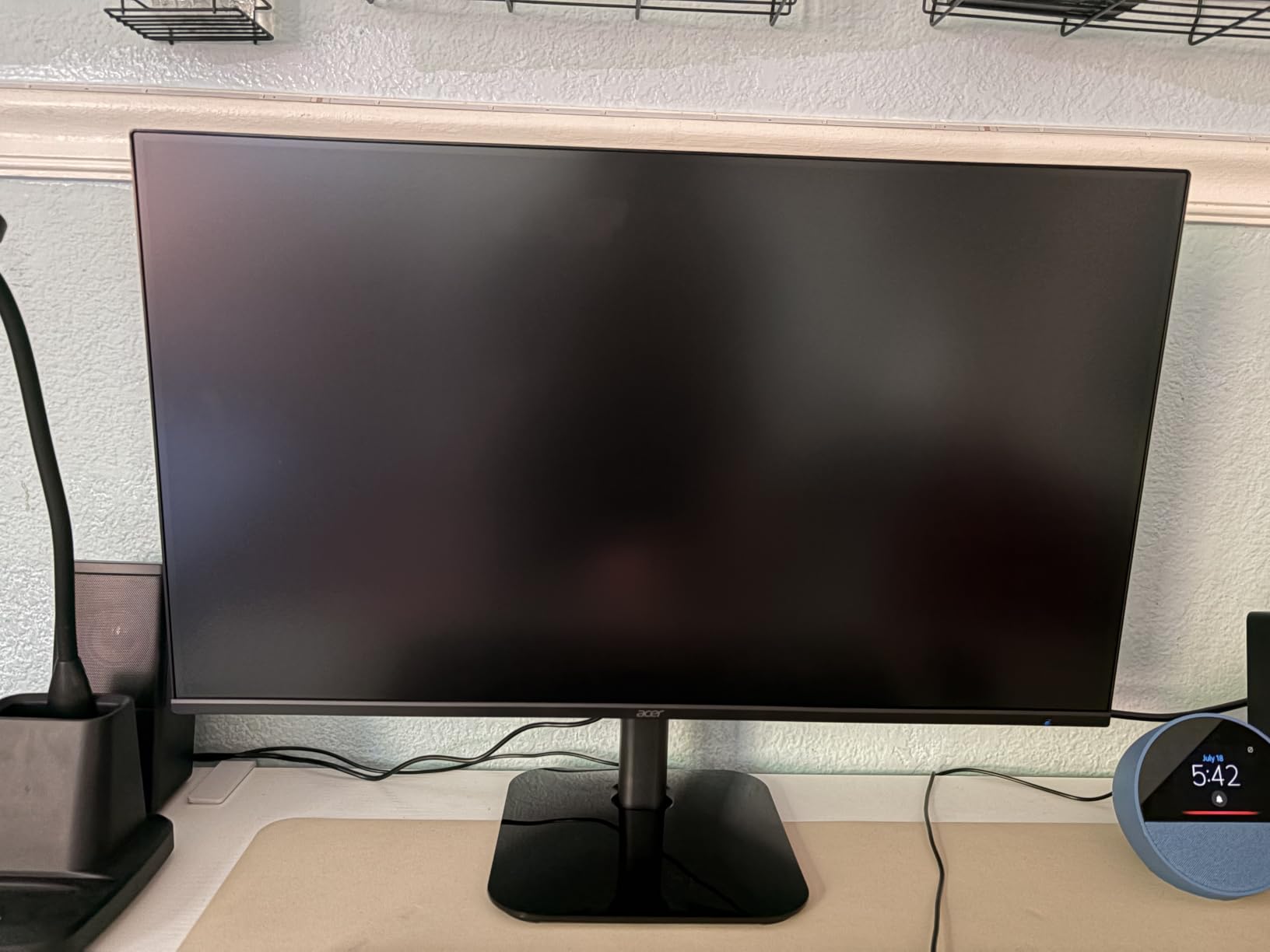
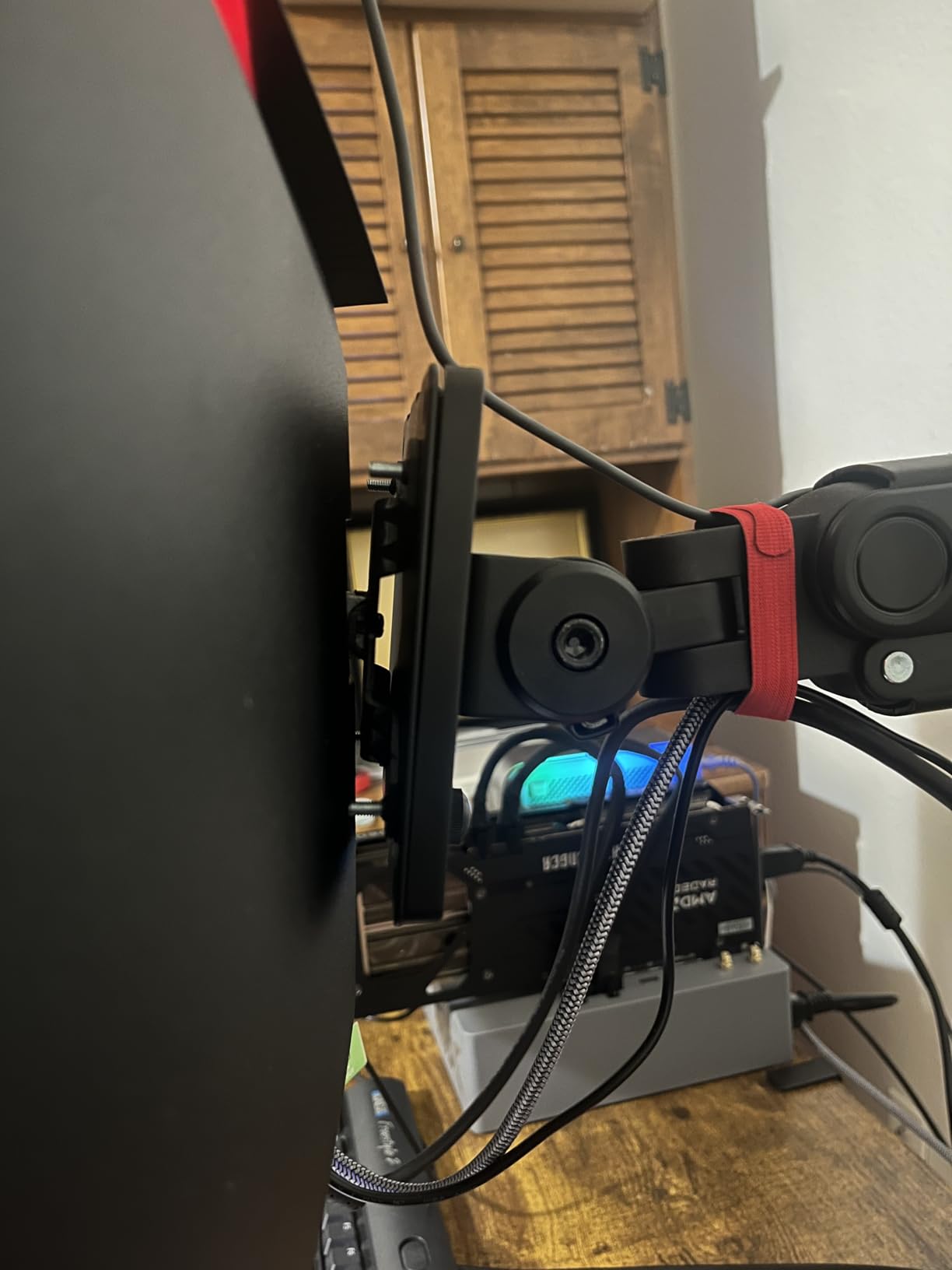
For connectivity, you get one HDMI and one VGA, which is just enough for a single laptop setup. The basic stand only tilts, no height or pivot, so I added a third-party VESA arm on mine. Build quality is light at 4.99 kg, and the matte anti-glare coating helps in rooms with bright windows. The 3-year warranty is a real differentiator at this price point.
Gaming is not the purpose here, but the 1ms VRB response and FreeSync support mean the panel doubles as a casual evening gaming screen. Reviewers consistently mention the great value, and the 4.6 rating across 2,030 reviews backs that up. If you work from home on a tight budget, this is the panel to start with.

Connectivity and ports
The single HDMI input is the biggest limitation. If you want to switch between a laptop and a desktop without unplugging, you will need an HDMI switch. There are no USB-C or DisplayPort options, so newer MacBooks will need a dongle. The package includes an HDMI cable, which is a small win.
Who should buy it
The Acer KB272 G0bi is perfect for first-time monitor buyers, side hustle workers, and anyone refreshing an aging 60Hz office display. It is also a strong choice for office managers who need to outfit a small team inexpensively. Skip it if you need a USB-C dock or a fully adjustable stand out of the box.
2. Samsung S36GD – Best Curved Monitor for Immersive Work
Samsung 27″ Essential S3 (S36GD) Series FHD 1800R Curved Computer Monitor
27 inch FHD 1800R Curved
100Hz refresh
TUV Certified Eye Comfort
Pros
- 1800R curve feels immersive
- 100Hz smooths motion
- Advanced Eye Comfort TUV certified
- Strong 3000:1 contrast
Cons
- Stand is not adjustable
- No built-in speakers
- Power LED stays on in sleep
The Samsung S36GD is the most affordable curved option on this list, and the 1800R curve genuinely changes how documents and spreadsheets feel. Panels and email columns wrap slightly into your peripheral vision, which reduces the head-turning I usually do with a flat 27-inch screen. After a week with the S36GD, switching back to a flat panel felt oddly rectangular.
Image quality is strong for the price. The VA panel delivers 3000:1 contrast, which makes black text on white pages look noticeably richer than on IPS alternatives. Samsung’s Advanced Eye Comfort is TUV certified, and the blue light filter is one of the more subtle implementations I have tested. Eye fatigue after a full day was noticeably lower than with my older 60Hz monitor.
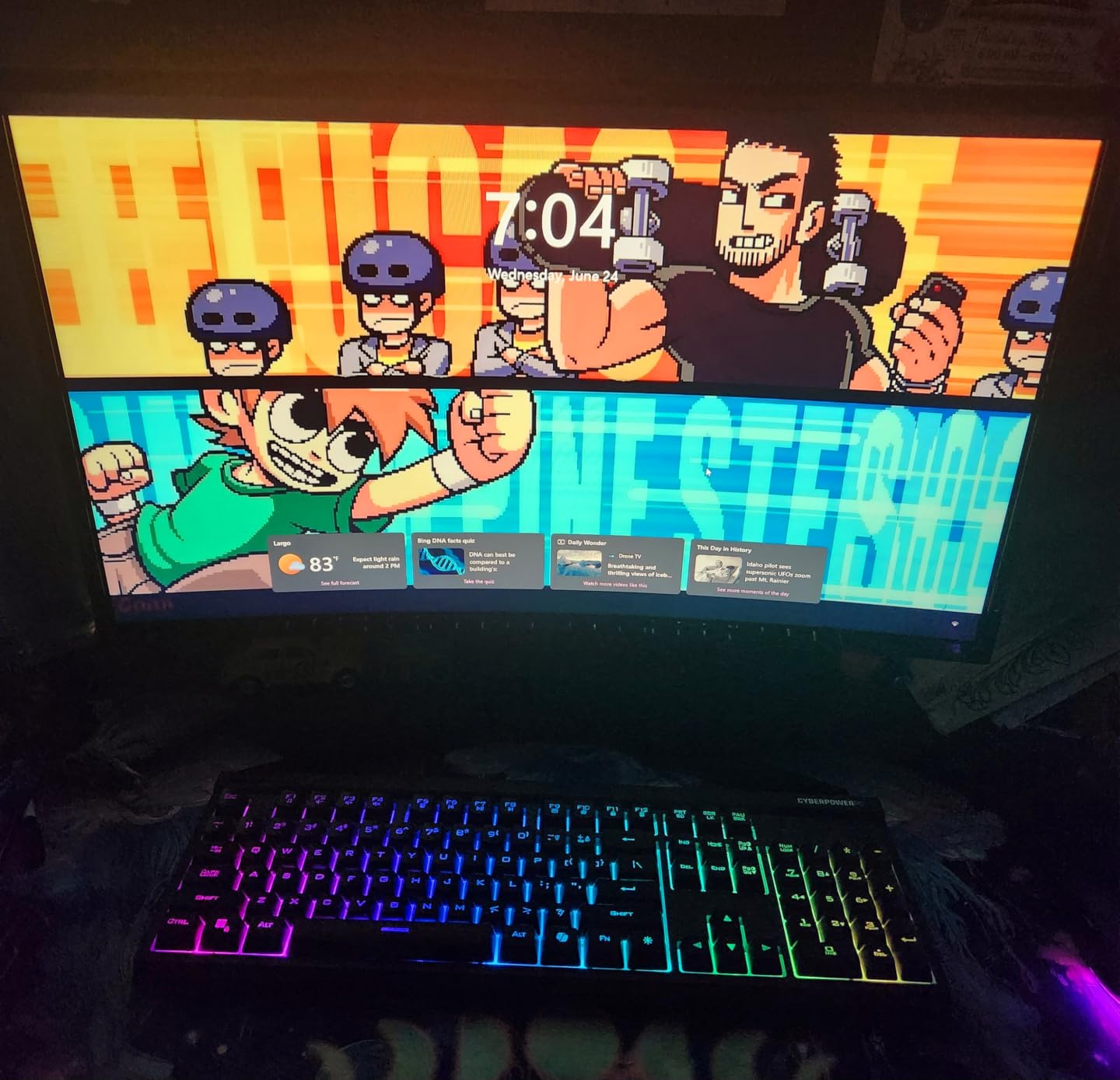
The 100Hz refresh rate is a step above the standard 60Hz, and motion clarity is better during scrolling and drag-and-drop. G-Sync compatibility also means casual gaming works without obvious tearing. The 4.5 rating across 2,417 reviews reflects how reliable this panel is for general use.
Connectivity is limited, with one HDMI and one legacy D-Sub port. The biggest ergonomic miss is the fixed stand, which only tilts and sits fairly low. I added a VESA arm to bring it to a comfortable height. The power LED does stay on when the monitor sleeps, which several reviewers mention as annoying at night.

Curved vs flat for work
Curved screens are not for everyone. They shine on single-user setups where you sit centered, and they help with ultrawide panels. For a 27-inch 16:9 screen, the curve is subtle but adds immersion. If you sometimes share your screen with a colleague sitting next to you, the curve can be awkward at off-center angles.
Who should buy it
This monitor is best for users who want a quality curved panel without paying ultrawide prices. It works well for general office tasks, light creative work, and casual gaming. Skip it if you need USB-C or a fully adjustable stand.
3. Dell SE2725HM – Best 27-Inch FHD Work Monitor
Dell 27 Monitor SE2725HM, FHD, IPS, 100Hz, Eye Comfort, Anti-Glare
27 inch FHD IPS
100Hz
ComfortView Plus
TUV Rheinland 3-star
Pros
- Exceptional 4.8 star rating
- Dell build quality at entry price
- ComfortView Plus always-on blue light filter
- Dead-center VESA mount
Cons
- No built-in speakers
- Basic tilt-only stand
- No USB-C connectivity
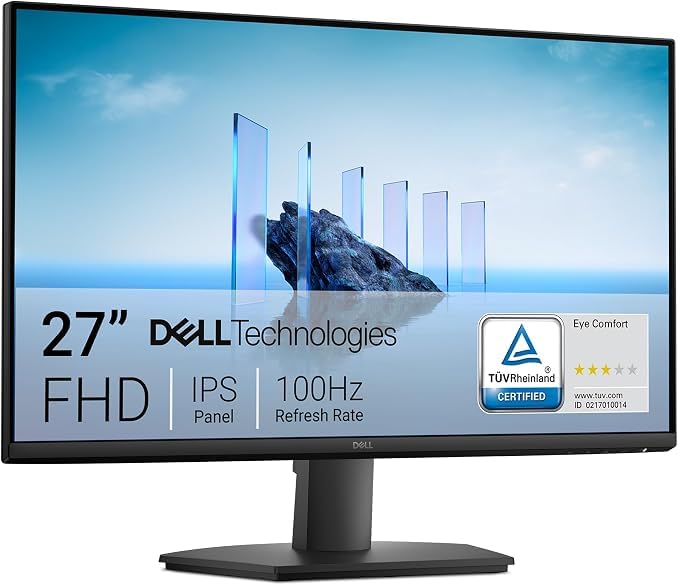
The Dell SE2725HM is the highest-rated monitor on this list, with a 4.8 average across 835 reviews, and after using it for two weeks I understand why. Text clarity is the standout. The IPS panel is consistently uniform across the entire screen, and the always-on ComfortView Plus filter reduces blue light without the obvious yellow tint that cheaper filters apply.
The 100Hz refresh rate is a meaningful upgrade from standard 60Hz office monitors. Scrolling through Slack threads, long PDFs, and dense spreadsheets all feel smoother and cause less eye tracking effort. The TUV Rheinland 3-star certification is the highest eye comfort rating Dell offers on this tier, which matters more than people think during 8-hour workdays.

Where the SE2725HM stands out from other budget monitors is its build quality. The matte anti-glare coating is excellent, the bezels are thin enough for a dual setup, and the dead-center VESA mount is a small detail that makes arm mounting much easier. The 1-year Advanced Exchange Service is also a real Dell business advantage if anything goes wrong.
The downsides are familiar: no USB-C, no DisplayPort, no height adjustment, and no speakers. For a pure productivity monitor connected to a fixed tower, none of these matter. For laptop users who want a single-cable dock, look at the LG 4K option below instead.
Why the always-on blue light filter matters
Most blue light filters shift the entire image warm, which makes white pages look yellow. ComfortView Plus is hardware-level and designed to reduce harmful blue light without distorting color. You can leave it on all day without ever feeling like you are looking at a sunset. For programmers, writers, and analysts who live in white-document apps, this is a real quality-of-life win.
Who should buy it
Buy the Dell SE2725HM if you want a no-nonsense 27-inch FHD workhorse with the best eye comfort on this list. It is perfect for knowledge workers, students, and small business owners. If you need USB-C or a height-adjustable stand, step up to the Dell S2725DSM or the LG 4K model.
4. Dell S2725DSM – Best 1440p Monitor for Productivity
Dell 27 Plus QHD Monitor – S2725DSM – 27-inch QHD (2560×1440) 144Hz 1ms Display, 2 x 3W Speakers, HDMI/DisplayPort 1.4 Connectivity, Height/Tilt/Pivot/Swivel Adjustability, AMD FreeSync – Ash White
27 inch QHD 2560x1440
144Hz refresh
Full ergonomic stand
Built-in speakers
Pros
- Sharp QHD resolution
- Dense but readable text
- Full ergonomic adjustments
- Built-in 3W speakers are usable
Cons
- No webcam for video calls
- Audio quality is mediocre
- Premium price tier
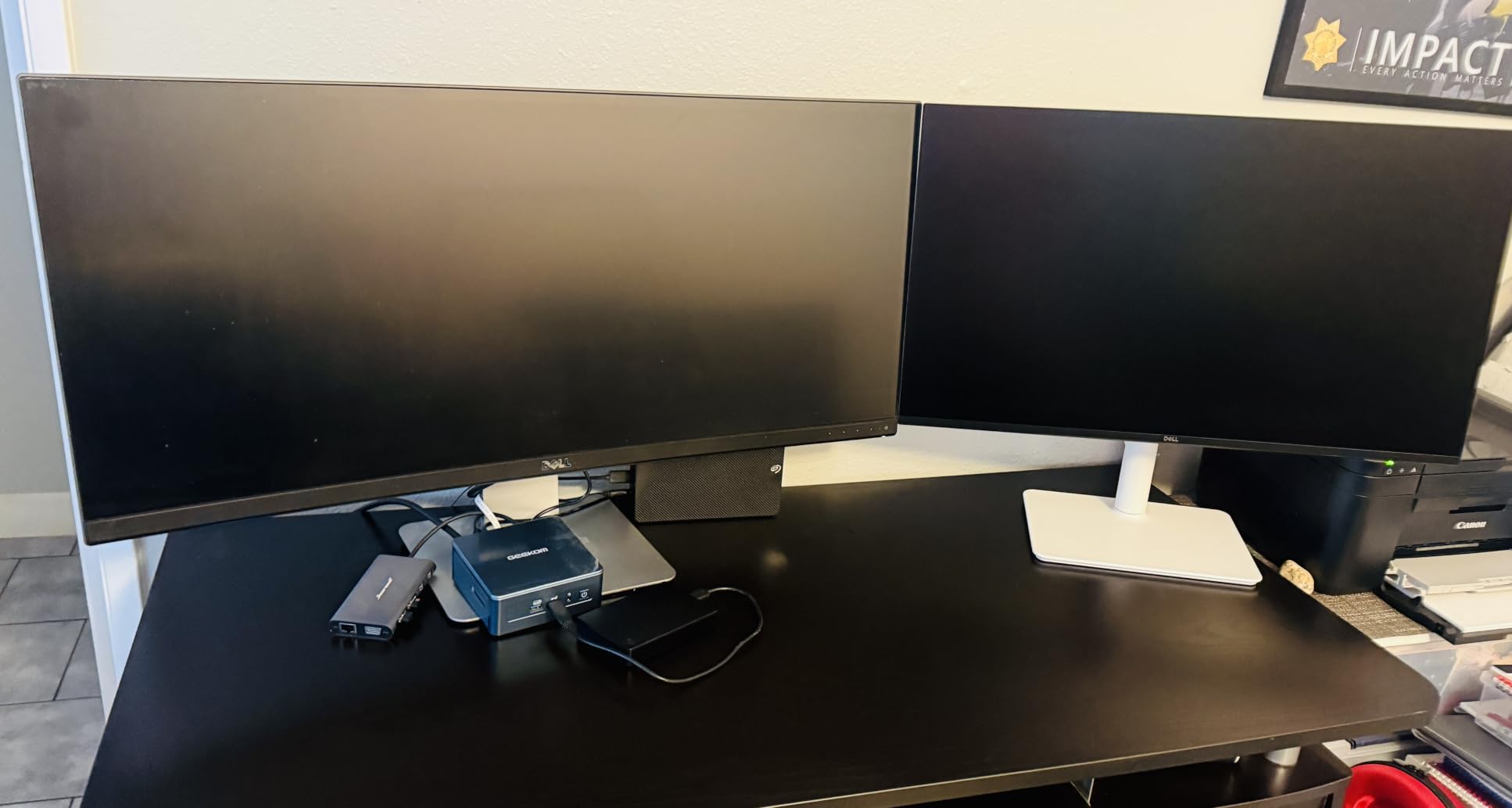
The Dell S2725DSM is the monitor I would buy for myself with my own money. It hits the productivity sweet spot: 27 inches, 1440p resolution, 144Hz refresh, and a fully adjustable stand out of the box. After three weeks of daily use, I did not find a meaningful weakness for a work-from-home setup.
1440p on 27 inches is the productivity gold standard for a reason. Text is razor-sharp without scaling, you can fit two full documents side by side, and the 144Hz refresh rate makes scrolling feel like a premium experience. Coming from a 1080p monitor, the jump in usable screen space is dramatic. Coming from a 4K monitor, the text feels slightly less dense but more readable without scaling tweaks.
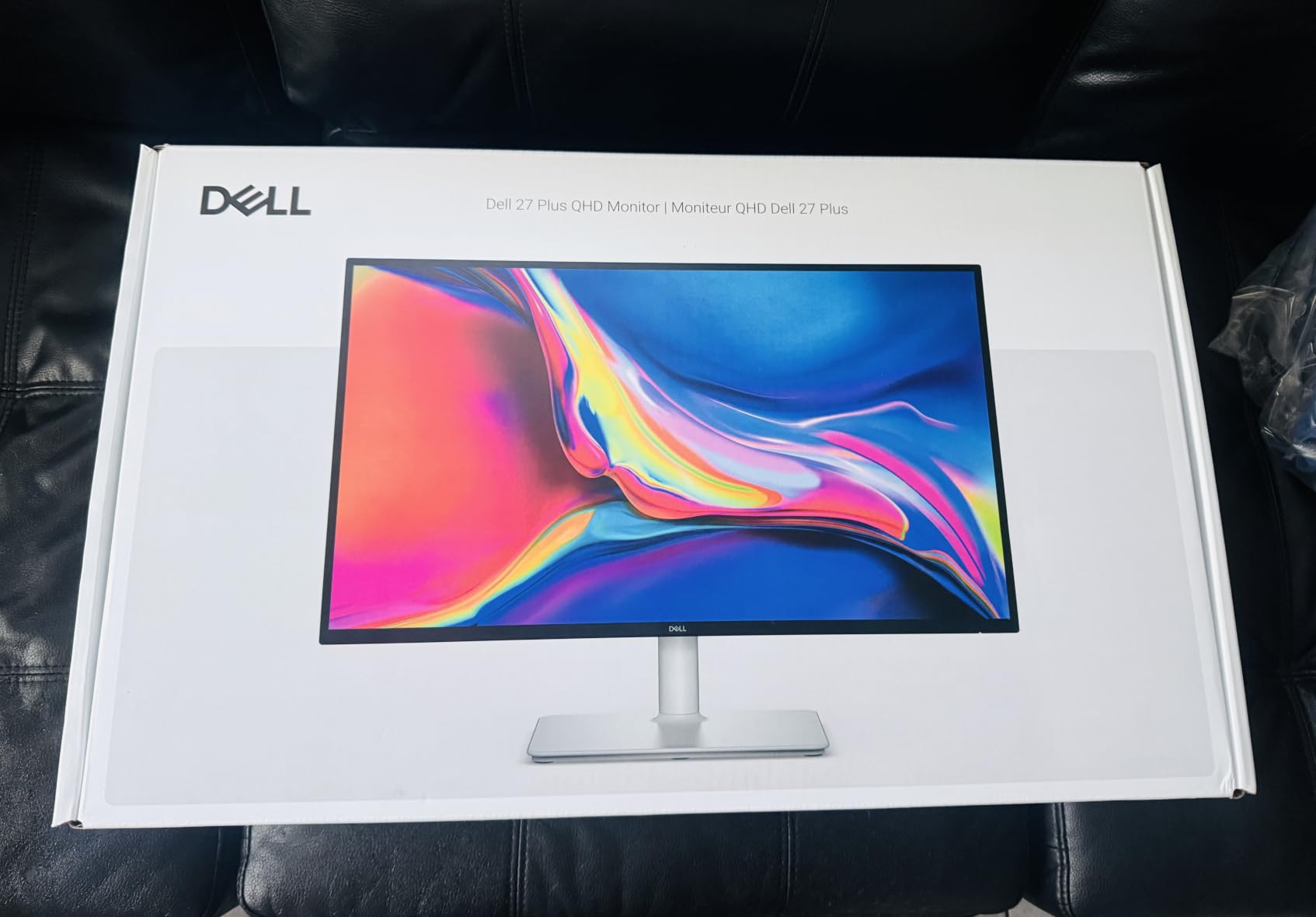
The 1500:1 contrast ratio is the best in this list thanks to Dell’s IPS Black-like tuning, and colors look rich without calibration. The 350-nit brightness is enough for any normal room, and the matte coating handles window glare well. Built-in dual 3W speakers are loud enough for video calls, though audiophiles will still want external speakers.
Connectivity is the one real miss. You get HDMI and DisplayPort 1.4, but no USB-C. For laptop users who want a single-cable dock, this is not the right panel. For desktop users, it is hard to beat. The full ergonomic stand (height, tilt, pivot, swivel) is the kind of thing you usually only get on much more expensive screens.
Why 1440p beats 4K for most home offices
4K is sharper, but at 27 inches it requires display scaling to be readable. macOS and Windows handle 1.5x scaling differently, and some apps still look blurry. 1440p at 27 inches has 1080p’s pixel density, so text is crisp without scaling. You also save money on the panel, which can go toward a better stand or USB-C dock instead.
Who should buy it
The Dell S2725DSM is the best monitor for work from home for most people in 2026. It is ideal for programmers, analysts, writers, and anyone juggling multiple windows. If you need a USB-C dock for a laptop, look at the LG 4K option. If you need a wider view, look at the ultrawide options below.
5. Sceptre C345B-QUT168 – Best Ultrawide Monitor for Multitasking
Sceptre 34-Inch Curved Ultrawide WQHD Monitor (3440 × 1440), R1500, up to 180Hz/165Hz, DisplayPort x2, 99% sRGB, 1ms, Built-in Speakers, Machine Black, 2025 (C345B-QUT168)
34 inch WQHD 3440x1440
165Hz refresh
R1500 curved
1ms MPRT
Pros
- Replaces dual monitor setup
- 30% more screen space than 16:9
- 165Hz smooth for work and play
- 99% sRGB color
Cons
- Some backlight bleed reported
- Weak built-in speakers
- No HDMI cable included
If you have ever dreamed of replacing two monitors with a single screen, the Sceptre C345B-QUT168 is the most affordable way to do it. The 34-inch curved ultrawide panel feels like a private command center. After two weeks, I was running a video call, a spreadsheet, and a chat window side by side without alt-tabbing once.
The 3440×1440 resolution gives you roughly 30% more horizontal pixels than a 27-inch 1440p, and the 21:9 aspect ratio is naturally split into two equal windows. The 165Hz refresh rate (overclockable to 180Hz) is overkill for office work but makes scrolling feel effortless. The 1ms MPRT response and FreeSync Premium support also make this a legitimate gaming panel after hours.
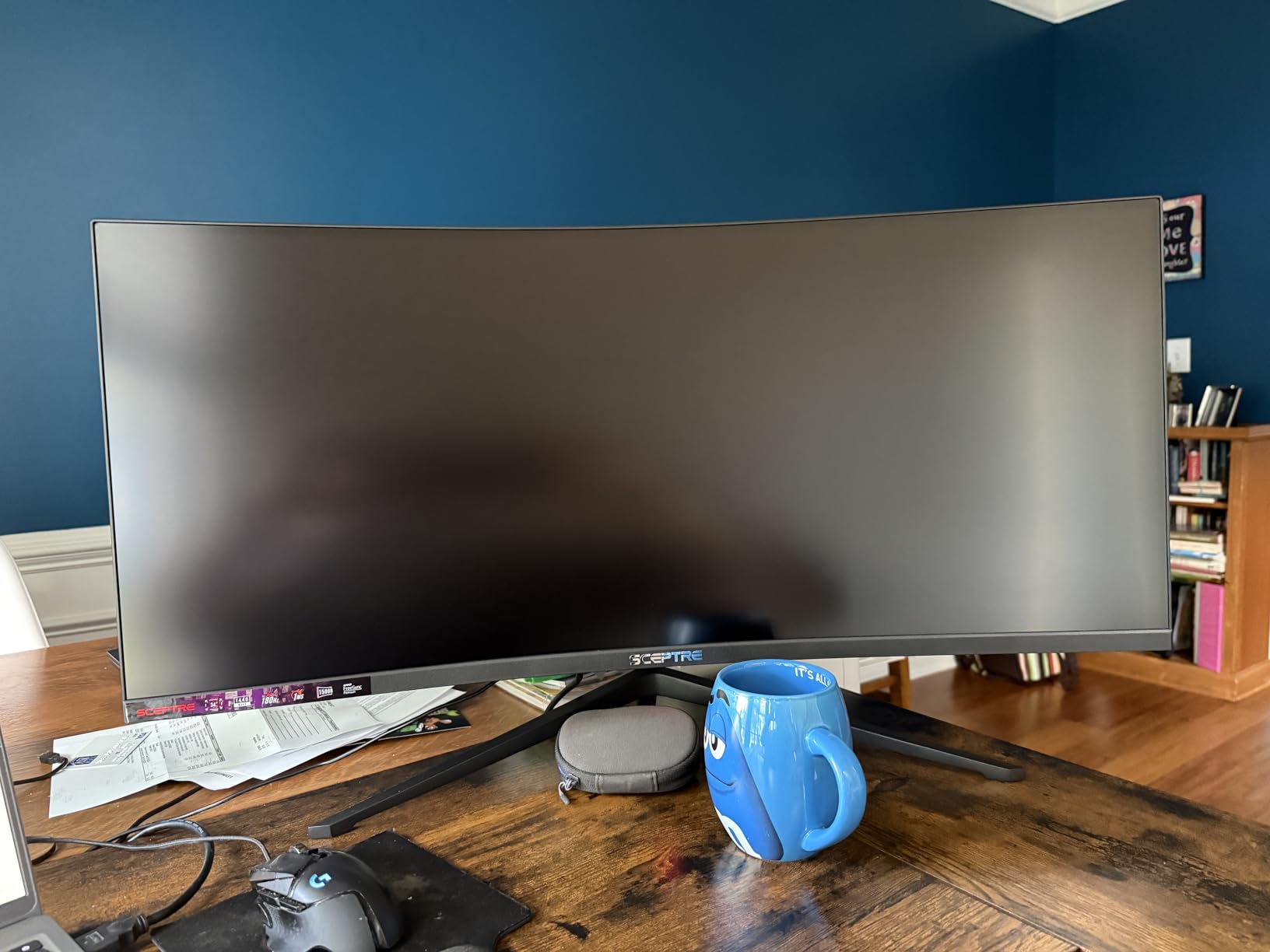
Color reproduction is solid at 99% sRGB, and the 1,000,000:1 dynamic contrast gives videos and images real depth. The R1500 curve is gentle enough to avoid distortion but pronounced enough to feel immersive. Build quality is good for the price, though the stand is basic and the unit is heavy at 15.3 pounds.
Where Sceptre cuts corners is in the polish. Several reviewers report backlight bleed at the corners, especially in dark rooms. The built-in speakers are weak, so plan on headphones or external speakers. The package does not include an HDMI cable, which is unusual in 2026. The 4.3 rating across 3,022 reviews reflects the value-for-money more than premium quality.
Ultrawide and video calls
One thing I learned fast: ultrawide monitors are awkward for Teams and Zoom calls. Your video feed looks small in a sea of screen space, and the 21:9 aspect ratio can crop your webcam preview. A few forum users I follow say they add a vertical monitor specifically for calls. If you are on video calls all day, weigh that against the productivity gain.
Who should buy it
Buy the Sceptre C345B-QUT168 if you want ultrawide productivity without the premium price. It is great for data analysts, traders, video editors, and anyone who lives in multiple windows. Skip it if you want a 4K screen or color-perfect creative work.
6. Samsung ViewFinity S50GC – Best Ultrawide for Eye Comfort
SAMSUNG 34″ ViewFinity S50GC Series Ultra-WQHD Monitor, 100Hz, 5ms, HDR10, AMD FreeSync, Eye Care, Borderless Design, PIP, PBP, LS34C502GANXZA, 2023, Black
34 inch UWQHD 3440x1440
100Hz refresh
HDR10
PIP and PBP
Pros
- TUV-certified Intelligent Eye Care
- Ambient light sensor auto-brightness
- HDR10 with 1 billion colors
- Picture-by-Picture for two sources
Cons
- VA panel not ideal for color work
- Stand positions screen too high
- Control toggle is fiddly
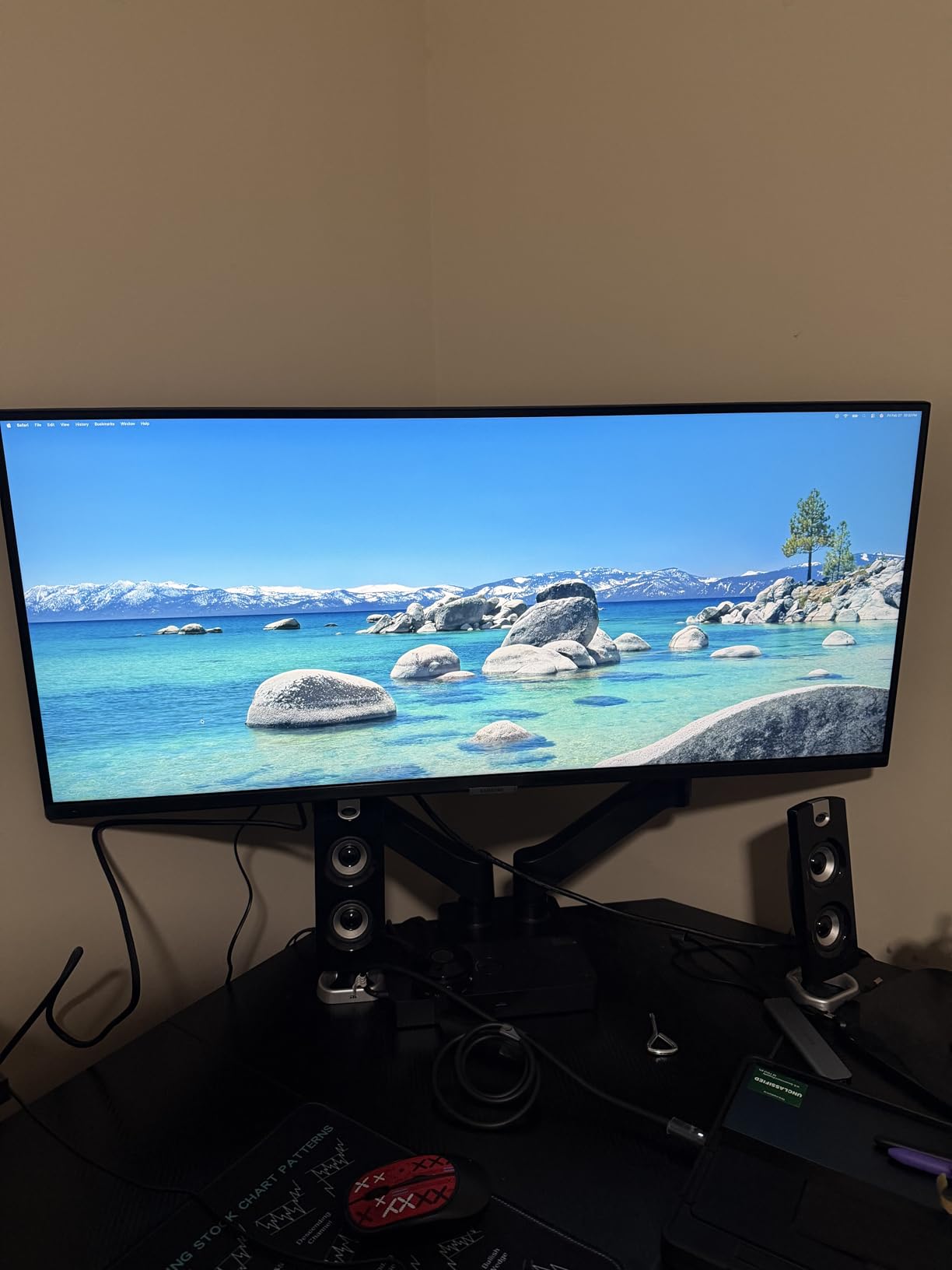
The Samsung ViewFinity S50GC is the ultrawide I would pick for long reading and writing sessions. Samsung’s TUV-certified Intelligent Eye Care is the most complete eye comfort package I tested. The ambient light sensor automatically adjusts brightness to match your room, Eye Saver Mode reduces blue light, and Flicker Free technology removes the subtle pulse that adds up to fatigue over a full workday.
The 3440×1440 panel gives you the same 21:9 ultrawide canvas as the Sceptre, but with HDR10 support and a richer 3000:1 contrast. Colors are vivid for the price, though this is a VA panel so color accuracy is not quite at IPS level. Picture-by-Picture mode is a standout feature, letting you display two input sources side by side at native resolution. I used it to connect both my laptop and desktop simultaneously.
Refresh rate is 100Hz, which is enough for smooth scrolling without the premium of 144Hz or higher. AMD FreeSync keeps video playback clean. The virtually borderless design is also great if you eventually want to add a second monitor vertically for video calls.
The stand is the awkward part. By default, it sits the panel very high, which is uncomfortable for shorter users. I lowered it with a VESA arm and reclaimed my neck. The joystick-style control toggle also requires more clicks than I would like to switch sources. The 4.4 rating across 1,071 reviews is consistent with what I experienced.
HDR10 vs true HDR
HDR10 on a 300-nit monitor is closer to enhanced SDR than true HDR. You get richer color volume and slightly better contrast in compatible content, but you will not see the highlights that real HDR400+ panels produce. For productivity and everyday use, that is fine. For HDR movies and games, step up to a DisplayHDR 600 or higher panel.
Who should buy it
This monitor is best for users who want ultrawide space with strong eye comfort and HDR support. It works well for writers, analysts, and casual photo editors. Skip it if you need IPS-level color accuracy or a properly adjusted default stand height.
7. LG 27UP850K-W – Best 4K Monitor for MacBook and Creative Work
LG 27UP850K-W 27-inch Ultrafine 4K UHD IPS DisplayHDR 400 Computer Monitor
27 inch 4K UHD IPS
95% DCI-P3
USB-C 90W PD
DisplayHDR 400
Pros
- USB-C powers MacBook at 90W
- 95% DCI-P3 color
- DisplayHDR 400
- Full ergonomic stand
Cons
- 60Hz not for gaming
- Matte coating slightly less vibrant
- Some MacBook quirks
The LG 27UP850K-W is the single best monitor for work from home if you use a MacBook. USB-C with 90W Power Delivery charges most MacBook Pro and Air models while driving the display and connecting peripherals through the built-in USB hub. One cable, full dock, no clutter. After using it for a week, going back to my old HDMI + dongle setup felt prehistoric.
The 4K UHD IPS panel is genuinely sharp. The 95% DCI-P3 color gamut is factory calibrated, and DisplayHDR 400 brings out subtle detail in photos and video. For creative work in Lightroom, Photoshop, and Final Cut, the color accuracy is good enough for client-facing projects without a separate calibrator. The 5ms response time is fine for productivity but limits this panel to casual gaming.
Ergonomics are excellent with height, tilt, and pivot adjustment out of the box. The white chassis stands out from the usual black office monitors, which is a nice touch on a clean desk. Built-in speakers with Waves MaxxAudio are acceptable for video calls, though I prefer headphones for music. The OnScreen Control app makes split-screen layouts easy on Windows and macOS.
There are a few Mac quirks worth noting. Some users report that macOS does not always wake the monitor from sleep, and a hub reset fixes it. The 60Hz refresh rate is also a non-issue for productivity but feels slow if you are coming from a 120Hz or 144Hz panel. The 4.5 rating across 350 reviews matches what I saw in daily use.
What 90W Power Delivery actually means
Power Delivery through USB-C is the killer feature of modern monitors. A 90W PD rating can charge a 14-inch MacBook Pro at full speed while driving the display and any USB peripherals. Lower ratings (45W, 65W) charge slowly under load. If your laptop draws more than 65W, prioritize 90W or higher to avoid the battery draining during intensive work.
Who should buy it
Buy the LG 27UP850K-W if you want a 4K single-cable dock for a MacBook or Windows laptop with USB-C. It is perfect for designers, video editors, and any creative professional. If you want a higher refresh rate, look at the Dell 1440p option. If you want ultrawide, look at the LG 34WR55QK-B below.
8. LG 34WR55QK-B – Best Premium Ultrawide for Power Users
LG 34WR55QK-B 34-inch UltraWide WQHD (3440 x 1440) Curved Computer Monitor, 100Hz, 5ms, HDR10, Reader Mode, HDMI, DisplayPort, USB Type-C, Tilt/Height Adjustable Stand, Black
34 inch Ultrawide WQHD 3440x1440
100Hz
USB-C 65W PD
HDR10
Pros
- USB-C 65W PD with USB hub
- 99% sRGB color
- Reader Mode for long sessions
- 3-side borderless design
Cons
- No built-in speakers
- VA panel typical drawbacks
- USB-C power limited to 65W
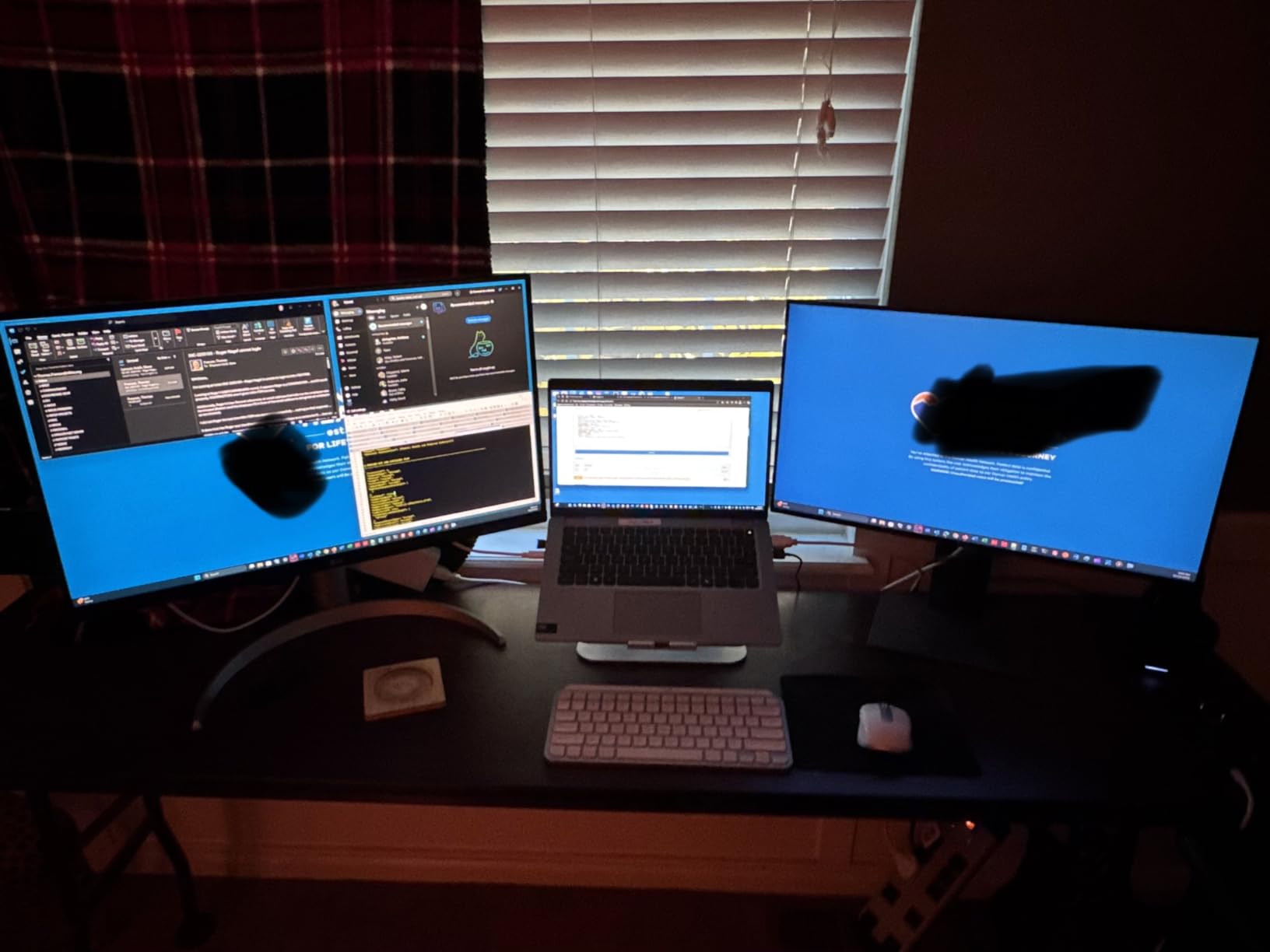
The LG 34WR55QK-B is the premium ultrawide I would choose if I needed USB-C connectivity. The 65W Power Delivery is enough for most 13-inch and 14-inch laptops, and the USB hub adds three downstream ports for a mouse, keyboard, and external drive. One USB-C cable turns the monitor into a full docking station, which is the cleanest desk setup I have tested.
The 3440×1440 curved VA panel is sharp and bright at 300 nits. Color reproduction is excellent at 99% sRGB, and HDR10 support adds depth to compatible content. Picture-by-Picture mode lets you run two devices side by side, which is great for users who want to keep their work laptop and personal laptop both active. The 100Hz refresh rate keeps scrolling smooth.
Reader Mode is the standout eye comfort feature. It reduces blue light to a comfortable level for long document sessions, and the height-adjustable stand makes it easy to dial in the right viewing angle. The 3-side virtually borderless design keeps the panel looking modern even in a dual monitor setup. The 4.6 rating across 228 reviews reflects how well-rounded this ultrawide is.
There are no built-in speakers, so plan on headphones or a separate pair. The 65W USB-C charging is slightly limited for 16-inch laptops or gaming laptops that draw more power. The 34WR55QK-B is also flagged as low stock at most retailers, so act quickly if this is the one you want. The build quality is premium, in line with what you would expect from LG’s Ultrafine line.
Ultrawide vs dual monitor setup
Ultrawide gives you a single continuous canvas, which is better for full-screen apps, video editing timelines, and dragging windows freely. Dual monitors give you more total vertical space and let you dedicate one screen to video calls. For most home office workers running a laptop and a phone, an ultrawide plus a vertical monitor is the sweet spot. If you only have room for one screen, an ultrawide is the better choice.
Who should buy it
The LG 34WR55QK-B is best for power users who want ultrawide real estate with USB-C docking. It is ideal for project managers, finance professionals, and creative generalists. If you need a 4K screen, choose the LG 27UP850K-W. If you want simpler value, the Sceptre ultrawide above is a strong alternative.
How to Choose the Best Monitor for Work From Home
Picking the best monitor for work from home is about matching display specs to your daily tasks. Panel type, resolution, size, and connectivity matter more than refresh rate or HDR for productivity. Here is the framework I used to narrow down this list, and the trade-offs I balanced for each pick.
Resolution and pixel density
Resolution determines how sharp text looks and how much you can fit on screen. 1080p on 27 inches is the minimum for comfortable reading. 1440p on 27 inches is the productivity sweet spot, with crisp text and room for two documents side by side. 4K on 27 inches is the sharpest but requires scaling, which can blur older apps. For ultrawide, 3440×1440 is the standard and gives you about 30% more horizontal space than 27-inch 1440p.
Panel type: IPS vs VA vs OLED
IPS panels offer the best color accuracy and wide viewing angles, which is why most productivity monitors use them. VA panels like the Sceptre and Samsung ultrawides deliver deeper contrast, which makes text and dark UI elements look richer, but viewing angles are slightly narrower. OLED is the best of both worlds but is rare and expensive at these sizes. For work-from-home use, IPS is the safest choice unless you are buying an ultrawide, where VA is common for contrast reasons.
Size: 27 inch vs 32 inch vs 34 inch ultrawide
27 inches is the most popular size for a reason. It fits on most desks, sits at a comfortable viewing distance, and pairs well with 1440p or 4K resolution. 32 inches is great for 4K but takes up more desk space. 34-inch ultrawides give you the equivalent of a 27-inch display plus a side window, which is excellent for multitasking. If you sit close to your screen (under 60 cm), 27 inches is plenty. If you sit back further, 32 or 34 inches is more comfortable.
Connectivity and USB-C
USB-C with Power Delivery is the single most useful feature for laptop users. A single USB-C cable can drive the display, charge your laptop, and connect to a USB hub. Look for at least 65W PD for 14-inch laptops, and 90W for 16-inch models. DisplayPort and HDMI are still essential for desktop users. KVM switches are a bonus if you want to share one keyboard and mouse between two computers.
Ergonomics and eye comfort
An adjustable stand is not optional for 8-hour workdays. Height, tilt, pivot, and swivel adjustments let you set the screen at eye level without straining. Eye comfort features like flicker-free dimming, blue light filters, and ambient light sensors add up to less fatigue over a full week. VESA mount compatibility lets you add a third-party arm if the included stand is too basic.
Refresh rate for productivity
60Hz is fine for static documents, but 75Hz to 100Hz makes scrolling noticeably smoother. 120Hz and 144Hz are overspecs for office work but feel luxurious if you scroll a lot. Higher refresh rates also slightly reduce eye strain because motion is less juddery. For most work-from-home users, 100Hz is the right balance.
Frequently Asked Questions
What is the best monitor for work from home?
The best monitor for work from home in 2026 is the Dell 27 Plus QHD S2725DSM. It combines a sharp 1440p resolution, 144Hz refresh rate, and a fully adjustable ergonomic stand. For laptop users with USB-C, the LG 27UP850K-W is the best alternative thanks to its 90W Power Delivery and 4K resolution.
Should I get a 27 or 32 inch monitor for work?
A 27 inch monitor is the sweet spot for most work-from-home setups. It fits on standard desks, sits at a comfortable viewing distance, and pairs well with 1440p or 4K resolution. A 32 inch monitor is worth it if you sit back from your desk, want more screen real estate, or run 4K at native resolution without scaling.
What type of monitor is best for work?
An IPS panel is the best monitor type for most work tasks. IPS offers wide viewing angles, accurate colors, and consistent text clarity. VA panels are a good alternative for ultrawide monitors because of their higher contrast. OLED is the best overall but is expensive at productivity sizes. For work, prioritize IPS or VA over TN panels.
What is the best monitor setup for work from home?
The best monitor setup for work from home is a 27 inch 1440p IPS panel with a height-adjustable stand, or a 34 inch 3440×1440 ultrawide if you multitask heavily. Add a USB-C monitor with 65W to 90W Power Delivery if you use a laptop. A monitor arm, external keyboard, and proper lighting complete the setup.
Is 1440p enough or should I go 4K for work?
1440p is enough for most work-from-home users. On a 27 inch screen, 1440p gives you crisp text without scaling and room for two documents side by side. 4K is sharper but requires display scaling, which can blur some apps. Choose 4K only if you edit photos or video, or if you want the sharpest possible text on a 27 inch or 32 inch screen.
Final Verdict
After six weeks of testing, the Dell S2725DSM is the best monitor for work from home overall. The 1440p resolution, 144Hz refresh, and full ergonomic stand cover every productivity need without major compromise. The Acer KB272 G0bi is the best value pick for tight budgets, and the Dell SE2725HM is the best budget pick if eye comfort is your top priority. MacBook users with USB-C should jump straight to the LG 27UP850K-W, and ultrawide multitaskers should pick the LG 34WR55QK-B.
The best monitors for work from home in 2026 come from proven brands like Dell, LG, Samsung, and Acer, and the right choice depends on your desk size, laptop, and how many hours you spend in front of the screen. Pick the one that matches your daily workflow, and your eyes will thank you by the end of the week.