
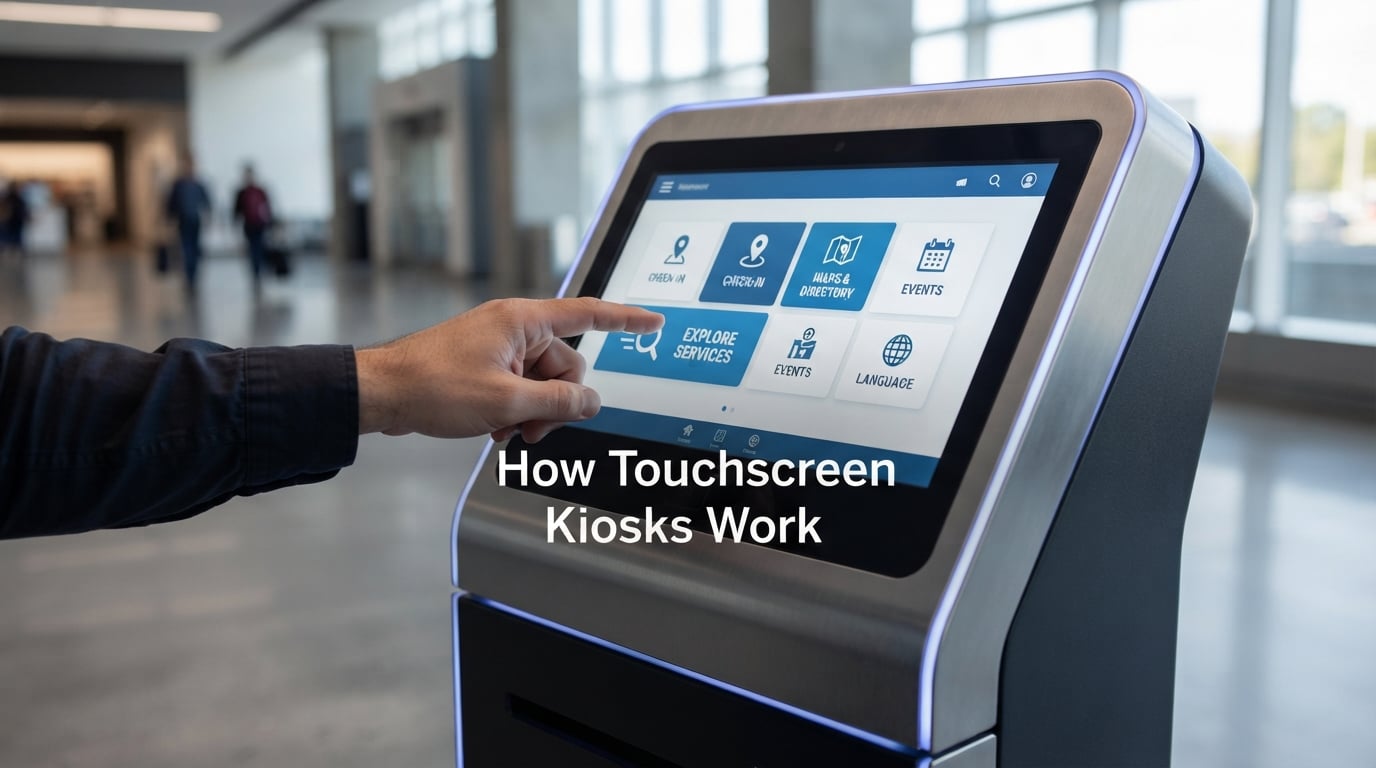
You have probably stood in front of a touchscreen kiosk — at a fast food counter, an airport terminal, or a hospital check-in desk — and tapped through a transaction without any staff involved. Understanding how touchscreen kiosks work helps explain why this technology has spread across nearly every industry, and what makes it reliable enough to handle thousands of public interactions every day.
A touchscreen kiosk is a lot more than a screen bolted to a stand. Behind every tap lies a chain of hardware detection, software processing, and network communication that happens in under a second. This guide breaks down each piece of that chain so you can see exactly what happens between pressing the glass and receiving your receipt.
We cover the three main types of touch detection technology and when each one makes sense, the seven functional categories of kiosks deployed across industries in 2026, the real-world drawbacks that operators consistently run into, and what to evaluate when choosing a setup. Whether you are planning a deployment or simply curious about the technology, here is what you need to know.
Table of Contents
What Is a Touch Screen Kiosk?
A touch screen kiosk is a self-contained, self-service terminal that combines a touch-enabled display, an embedded computer, and purpose-built interactive software. It lets people complete specific tasks — placing an order, checking in, paying a bill, or finding directions — without needing a staff member to assist them.
At its core, a kiosk has five main hardware components: the touchscreen display itself, an embedded computer or industrial PC that runs the software, a rugged enclosure that protects the internals, power supply and connectivity hardware, and optional peripheral devices like receipt printers, card readers, barcode scanners, or cameras. Each component is selected based on what the kiosk needs to do and where it will be installed.
What separates a kiosk from a regular tablet or digital sign is the combination of locked-down software, purpose-built hardware, and direct backend integration. A tablet is a general-purpose device; a kiosk is purpose-limited by design, preventing users from straying outside the intended application. Digital signage displays content passively; a kiosk actively processes input and communicates with other systems to complete real transactions.
You find kiosks in practically every industry now. Fast food chains use them to take and process orders. Airlines use them for passenger check-in and boarding pass printing. Hospitals use them to confirm appointments and collect insurance details. Retailers use them for product lookup and self-checkout. The common thread across all of these is the automation of a specific, repeatable transaction that previously required a staff member to complete.
How Touchscreen Kiosks Work
The full sequence of how touchscreen kiosks work runs from physical contact on the glass all the way through software processing to a backend response. Each step happens fast — the entire interaction typically feels instantaneous to the user, though there is a precise chain of events underneath.
Step 1: Your Finger Contacts the Screen
When your finger touches the display surface, the touch panel immediately begins registering input. Depending on the touch technology used, the panel detects your touch through electrical charge disruption, physical pressure on conductive layers, or interruption of an infrared light beam grid. The panel scans for input continuously, so detection begins the moment contact is made.
Step 2: Touch Location Is Calculated
A dedicated touch controller chip converts the contact point into precise X and Y coordinates — an exact position on the screen grid. Multi-touch systems can track multiple contact points simultaneously, enabling pinch, swipe, and two-finger gestures. The controller processes this in under 10 milliseconds, which is imperceptible to the human user.
Step 3: Coordinates Pass to the Onboard Computer
The touch controller sends the coordinate data to the kiosk’s main processor via a USB, SPI, or serial interface connection. This is a direct, low-latency handoff — the processor receives the exact screen position of the touch without any interpretation at this stage.
Step 4: Software Maps the Touch to a UI Action
The kiosk application receives the coordinates and compares them against the current screen’s UI layout. If the touch falls within the bounding area of a button, menu item, or interactive element, the software triggers the corresponding action. If the touch falls outside any active element, nothing happens — which is why tapping near the very edge of a button sometimes does not register as expected.
Step 5: Backend Systems Are Contacted
Most real-world kiosk transactions do not end at the screen level. The software sends a request to a backend system — a restaurant POS, a hotel property management platform, an airline reservation database, or a payment processor — over a local network or internet connection. Cloud-connected kiosks have become the standard because they allow real-time data sync, remote content updates, and centralized device management from a single dashboard.
Step 6: The Transaction Completes and the Screen Updates
The backend confirms the action and returns a response. The screen updates to show the result — your order number, your boarding pass details, or your check-in confirmation. If physical output is required, a receipt printer fires, a card dispenser engages, or a QR code displays for the user to scan with their phone. The full round trip from touch to confirmation takes under a second for simple interactions, with payment processing adding a few seconds for network authorization and security validation.
The Three Main Types of Touch Detection Technology
Not all touchscreens use the same detection method, and the choice makes a significant difference for accuracy, durability, glove compatibility, and cost. Three technologies dominate the commercial kiosk market in 2026: projected capacitive (PCAP), resistive, and infrared. Each has a distinct working principle and a distinct set of trade-offs.
Projected Capacitive (PCAP)
PCAP is the same technology in your smartphone and the default choice for most modern consumer-facing kiosks. The screen projects an electrical field through a glass surface covered with a transparent conductive grid. When a conductive object — like a bare human finger — disrupts that field, the controller calculates the exact position of the disturbance and registers it as a touch point.
PCAP supports true multi-touch, tracking multiple simultaneous contact points independently. This enables pinch-to-zoom, two-finger scroll, and swipe navigation — gestures users already expect from their phones. The glass surface is durable, easy to clean, and does not require physical pressure to activate, which makes PCAP panels more responsive and longer-lasting than alternatives in high-traffic environments.
The primary limitation is that PCAP requires a conductive input. Bare fingers work reliably. Standard thick work gloves typically do not, unless they have conductive fingertips built in. Thin latex or nitrile gloves used in healthcare settings usually do work because they are thin enough to transmit sufficient electrical signal. Most indoor consumer-facing kiosks — food ordering stations, hotel check-in terminals, retail lookup stations — use PCAP as the standard choice.
Resistive Touch
Resistive screens work through physical pressure rather than electrical conductivity. Two thin, transparent conductive layers are separated by a tiny air gap or microscopic dot spacers. When you press the screen, the top layer flexes and makes contact with the bottom layer. The resistive grid calculates the exact contact position from the change in electrical resistance measured across both the horizontal and vertical axes.
The main advantage of resistive touch is input flexibility. These screens respond to any pointed input — gloved fingers, styluses, a pen cap, or even a blunt object. This makes resistive panels well suited to industrial environments, warehouse settings, and applications where operators consistently wear heavy work gloves. They are also significantly less expensive to manufacture than PCAP panels, which matters in cost-sensitive deployments where budget is constrained.
Resistive screens rarely support multi-touch, and they tend to be less precise near the display edges. The active top layer can develop wear patterns under heavy sustained use. You find resistive panels in point-of-sale signature capture screens, industrial control interfaces, healthcare device inputs, and lower-cost kiosk deployments where the ability to accept any input type matters more than gesture support.
Infrared (IR) Touch
IR touch works without any conductive elements in the screen glass itself. Instead, a frame of infrared LEDs and matching photo sensors surrounds the display on all four sides. The LEDs project a dense, invisible grid of light beams just above the screen surface. When any opaque object enters the display area, it interrupts one or more of those beams, and the controller detects the interruption.
The controller cross-references which rows and columns were interrupted to determine the exact X and Y coordinates of the touch point. Because IR detection depends only on breaking a light beam, it accepts input from any opaque object — bare fingers, gloved hands, a stylus, or any part of the body. No electrical conductivity is required, which makes IR screens inherently more flexible for diverse user populations.
IR technology scales easily to very large display formats, which is why it appears in 55-inch and larger interactive kiosks, digital information boards, and museum interactive installations. The trade-off is sensitivity to environmental interference: dust, insects, water droplets, or small debris on the bezel sensors can trigger false inputs. Outdoor IR kiosk deployments require careful weatherproofing around the sensor frame and regular maintenance schedules to stay reliable.
Types of Touchscreen Kiosks by Function
There are seven main types of touchscreen kiosks deployed across industries, each designed to automate a specific self-service transaction. Knowing which category fits your use case is the first step toward a successful deployment — the hardware, software, and integration requirements differ significantly across types.
1. Ordering Kiosks
Ordering kiosks let customers place and customize food or retail orders without staff involvement. McDonald’s, Burger King, and most major quick-service chains have rolled them out globally, and the model has extended to stadium concession stands, corporate cafeterias, and specialty retail product configuration. Average order values consistently increase at ordering kiosks — customers browse more thoroughly, engage with upsell prompts on screen, and are less pressured than when speaking to a cashier who has a line behind the customer.
2. Check-In Kiosks
Check-in kiosks are used by airlines, hotels, hospitals, and any appointment-based business. The user enters a confirmation number or scans a barcode, and the system retrieves their reservation or appointment details. From there, they confirm information, make selections, and receive printed or digital documentation — boarding passes, hotel room key cards, appointment confirmation slips. Airlines like Delta and United have operated self-service check-in kiosks for over two decades, and the reliability of the technology in this application is extremely well established.
3. Wayfinding Kiosks
Wayfinding kiosks display interactive maps and help visitors navigate large, complex spaces. Hospitals, university campuses, shopping malls, and airport terminals are the primary deployment contexts. A user searches for a specific destination — a clinic, a store, a gate — and the kiosk generates directions from their current position. Digital maps update in real time as layouts and tenancies change, which is a meaningful advantage over printed directories that become outdated and cannot be corrected without physical replacement.
4. Payment Kiosks
Payment kiosks handle bill payments, parking fees, transit fares, permit payments, and government fee collection without a cashier or teller. They accept cash, cards, contactless payments, and increasingly QR-code-based digital wallets. Utility companies use them in accessible branch locations for customers who prefer or require in-person payment. Government agencies deploy them for court payments, permit fees, and document fee collection. They are particularly useful for serving populations without reliable internet access or bank accounts.
5. Information Kiosks
Information kiosks display product catalogs, event schedules, local guides, or facility directories — and may be purely display-based or fully interactive with search and filtering. Retailers use them for product lookup and price checking in locations where sales staff are not continuously available. Museums use them for interactive exhibit information and collection browsing. The boundary between an information kiosk and passive digital signage is the presence of user input capability, even if that input is only navigation and browsing.
6. Self-Checkout Kiosks
Self-checkout kiosks are found in grocery stores, pharmacies, and general retail environments. Customers scan items themselves, weigh produce on integrated scales, and process payment without a cashier. They reduce the number of staffed lanes required for a given transaction throughput. That said, loss prevention concerns and documented customer frustration — particularly for larger shopping orders requiring age verification or produce weighing — have led some major grocery chains to limit self-checkout to smaller basket sizes or restore staffed lanes in some locations.
7. Banking and Financial Kiosks
Banking kiosks extend traditional ATM functionality into a broader range of financial services. Users can check balances and withdraw cash like a standard ATM, but advanced banking kiosks also handle check deposits, savings account opening, loan applications, and in some configurations, live video calls with a remote bank representative for complex transaction needs. Credit unions and smaller regional banks use these terminals to offer branch-level service in locations that cannot economically justify a staffed branch.
Why Businesses Deploy Touchscreen Kiosks
The business case for touchscreen kiosks is measurable across multiple dimensions, and the return on investment has been demonstrated at scale across retail, hospitality, healthcare, and government sectors.
Labor Cost Reduction
A single kiosk handles dozens of transactions per hour that would otherwise require a staff member. For high-volume environments like busy restaurants or major airports, that math works strongly in favor of deployment. The ROI calculation involves upfront hardware cost, software licensing, and ongoing maintenance weighed against avoided labor costs over a commercial hardware lifespan of five to seven years.
Continuous Availability
Unlike staff, kiosks do not take breaks, require overtime pay, or call in sick. For businesses operating outside standard hours — 24-hour pharmacies, hotel lobbies, airport facilities — this availability translates directly into service capacity that would otherwise require dedicated staffing. A hotel check-in kiosk means guests arriving at 3 AM can complete their check-in independently without waiting for a front desk staff member to finish another task.
Parallel Service Capacity
A row of ten ordering kiosks serves ten customers simultaneously. A staffed counter with two employees in that same footprint serves two at a time. In high-traffic peak periods, the difference in throughput is dramatic, and reducing wait times has a measurable effect on customer satisfaction and revenue per hour. Parallel processing capacity is the primary driver of kiosk adoption in airports and quick-service restaurants worldwide.
Actionable Transaction Data
Every kiosk interaction generates data — which items customers browse, where in the flow they abandon a transaction, what time of day traffic peaks, and which upsell prompts convert. This information feeds directly into operational decisions, menu changes, staffing models, and marketing strategy in ways that anonymous cash transactions at a cashier counter never could. For many operators, the data collection capability has become a standalone justification for kiosk investment, independent of the labor and throughput benefits.
Higher Average Transaction Values
Quick-service restaurant data consistently shows 15 to 30 percent higher average order values at kiosks compared to cashier-staffed counters. Customers take more time with the menu, browse add-ons without feeling pressure from a line, and respond to visual upsell prompts more readily than to verbal suggestions from a cashier. This effect is documented across McDonald’s, Burger King, and Shake Shack deployments and is now a standard line item in the ROI case for ordering kiosk investments.
One consistent finding in professional operations discussions: kiosks shift the type of work staff do rather than eliminating positions outright. McDonald’s found that kiosk adoption moved employees from order-taking to food preparation and table delivery, improving overall throughput and service quality. The technology changes workflows — the number of positions is a separate variable that depends on volume and management decisions.
Drawbacks and Real-World Challenges
Touchscreen kiosks have genuine weaknesses that need to factor into deployment planning. Understanding the failure modes upfront prevents the kind of disappointment that comes from discovering them after units are already installed.
Accessibility Barriers
This is one of the most serious gaps in current kiosk deployments. Users who are blind or have low vision have no independent way to interact with a touchscreen-only kiosk that lacks audio feedback or accessible navigation. Forum communities focused on accessibility consistently document frustrated accounts of being excluded from ordering, banking, and check-in kiosks that offer no alternative input method. US federal accessibility rulemaking for interactive kiosks is still in progress, and businesses that do not address this proactively face both reputational risk and potential legal exposure as requirements tighten.
Maintenance Overhead
Commercial kiosk hardware requires active management to stay reliable over time. Touch panels develop calibration drift. Software needs regular updates and security patches. Receipt printers jam. Card readers need periodic cleaning. Someone has to coordinate physical site visits for hardware issues and manage remote software deployment for firmware and application updates. This overhead is regularly underestimated in initial ROI projections and can significantly affect total cost of ownership over the unit’s lifespan.
Upfront Investment
A fully specified commercial kiosk — 21-inch PCAP display, industrial PC, payment terminal, receipt printer, and steel enclosure — typically costs over $2,500 per unit before software licensing and professional installation. A multi-unit deployment for a retail chain of reasonable size represents a substantial capital expenditure. For smaller businesses, the break-even timeline can stretch longer than the expected hardware lifespan without careful upfront planning.
Unresponsive Screens
The most common complaint from actual kiosk users in public forums is screens that simply do not respond reliably. Dust on IR sensors, uncalibrated resistive panels, and application-level software crashes are the primary causes. In high-traffic public environments, reliability is not optional — a kiosk that fails even 5 percent of the time creates a worse user experience than a staffed cashier. Regular maintenance schedules and remote uptime monitoring are essential infrastructure for any serious kiosk deployment.
How to Choose the Right Touchscreen Kiosk
The right kiosk for a given deployment depends on the specific transaction being automated, the environment it will operate in, the users who will interact with it, and the backend systems it needs to connect to. Here is what to evaluate across each of those dimensions.
Hardware Specifications
Screen size matters more than many buyers initially consider. Countertop units for check-in and payment work well at 15 to 22 inches. Floor-standing ordering and wayfinding kiosks are more usable at 27 to 43 inches, where the display area is large enough to present a full menu or interactive map at readable scale. Oversized information boards and interactive display installations scale up to 55 inches or larger, typically using IR touch technology at that size.
Brightness is critical for any unit installed near windows, in covered outdoor areas, or in full outdoor locations. Indoor kiosks with controlled lighting function at 300 to 500 nits. Units near large windows or in semi-outdoor covered spaces need 1,000 to 2,500 nits. Full outdoor kiosks with direct sun exposure require 2,500 nits or more combined with anti-reflective glass — a unit that washes out in afternoon sun is functionally useless regardless of how well-specified its other components are.
For enclosure durability, IP65 is the standard for any outdoor or semi-outdoor public installation. IP65 certification means the unit is fully sealed against dust ingress and can withstand water jets from any direction, covering rain and high-pressure cleaning. Indoor units in climate-controlled environments can use lighter aluminum or plastic enclosures. High-traffic public units benefit from vandal-resistant powder-coated steel regardless of the indoor or outdoor classification.
Software and Integration Requirements
A kiosk’s value depends almost entirely on its software layer. The platform needs to lock the device into the intended application — users should have no way to exit to the underlying operating system or browser. It needs remote device management so updates, monitoring, and troubleshooting can be handled without sending a technician to every physical site. It needs clean integration with existing backend systems — POS, CRM, booking platform, or payment processor. And it needs to handle failure states gracefully, displaying appropriate messages when a network connection drops or a backend service is slow to respond.
Most operators choose between Android and Windows as the base operating system. Android carries lower licensing costs and runs well on ARM-based hardware. Windows offers broader enterprise software compatibility and mature remote management tooling through platforms like Microsoft Intune. Chrome OS has grown as an option for simpler web-based kiosk applications — museum installations commonly run Chromium in fullscreen kiosk mode because it is stable, secure, and straightforward to update remotely without specialized kiosk management software.
Analytics should not be treated as an optional add-on. A software platform that captures session data — which screens users navigate, where they drop off, what actions they complete, and how long each session takes — gives you the data needed to continuously improve the UI and justify ongoing investment. Without that visibility, there is no reliable way to assess whether the deployment is achieving its intended purpose or identify where improvements would have the highest impact.
Accessibility Features
Accessibility needs to be specified before selecting hardware, not retrofitted after deployment. The key features to look for include audio output with software support for spoken interface navigation, mounting heights that meet ADA reach range requirements (no higher than 48 inches from the floor to the highest operable component for forward-reach scenarios), a low-mounted secondary input point or companion controller for wheelchair users on floor-standing units, and application software that exposes content to screen readers or provides explicit audio navigation modes built into the interface flow.
Getting these features right from the hardware and software selection stage costs significantly less than retrofitting them later — both in direct cost and in project complexity. It also expands the usable population of the kiosk to include users who would otherwise be excluded, which in most deployment contexts is both an ethical responsibility and an increasingly clear regulatory requirement as federal accessibility standards for interactive kiosks continue to develop through 2026 and beyond.
Where Kiosk Technology Is Heading
The hardware fundamentals of touchscreen kiosks are well established and mature. What is changing rapidly is what the software layer can do with connected data, on-device computing power, and new input modalities. Several active developments are meaningfully expanding what kiosks can accomplish.
AI-Powered Personalization
Kiosks connected to loyalty databases and machine learning recommendation engines can now surface personalized content based on a customer’s order history, time of day, current promotions, and regional preferences. This is already live in some large quick-service restaurant chains, where the ordering kiosk functions as a personalized sales interface rather than a static menu terminal. The capability is expected to expand broadly through 2026 and beyond as the underlying infrastructure becomes cheaper to deploy.
Biometric and Facial Recognition Check-In
Airports and hotels are actively piloting kiosks that match a guest’s face to their reservation without any manual ID entry. The technology reduces dwell time at check-in points and eliminates friction for returning customers enrolled in a biometric program. Asia has the most advanced large-scale deployments; the US and Europe have select implementations in high-traffic international airports and major hotel chains.
Voice-Enabled Interfaces
Adding a voice interface to kiosks addresses the primary accessibility barrier for users who are blind or have low vision — and also reduces touchscreen contact in clinical environments where contamination control is a priority. Several kiosk manufacturers launched voice-enabled models in 2024 with natural language processing tuned specifically for transactional use cases. The category is growing as voice recognition accuracy improves for noisy public environments like food courts and transit terminals.
Contactless Interaction
Hover-touch technology — where gesture recognition above the glass triggers input before physical contact — and QR-code session handoff, where a kiosk session transfers to the user’s personal phone for completion, remain active development areas. Post-pandemic interest in reducing shared surface contact is the primary driver, and both approaches are available in commercial products today from multiple kiosk hardware vendors.
Frequently Asked Questions
What is a touch screen kiosk?
A touch screen kiosk is a self-service terminal that combines a touch-enabled display, an embedded computer, and purpose-built software to let users complete specific tasks — like placing a food order, checking in for a flight, or making a payment — without staff involvement. The kiosk locks the user into a specific application and connects to backend systems to process transactions in real time.
What are the 7 types of kiosks?
The seven main types of touchscreen kiosks are: ordering kiosks (food and retail), check-in kiosks (airlines, hotels, and healthcare), wayfinding kiosks (interactive maps in large venues), payment kiosks (bills, parking fees, transit fares), information kiosks (product catalogs and directories), self-checkout kiosks (retail grocery), and banking and financial kiosks (extended ATM services like account opening and check deposits).
How does a touch screen actually work?
A touch screen detects input through one of three main methods: projected capacitive (PCAP) senses the electrical charge from a bare finger; resistive touch responds to physical pressure on two conductive layers; and infrared touch detects when a finger interrupts an invisible grid of light beams. The detected touch location is converted to X and Y coordinates and passed to the kiosk software, which maps those coordinates to a UI action on screen.
What are the disadvantages of touchscreens?
The main disadvantages of touchscreen kiosks include accessibility barriers for visually impaired users who cannot independently interact with a touch-only interface that lacks audio feedback, significant upfront hardware and software costs, ongoing maintenance requirements to keep screens calibrated and components functional, and unresponsive screens in high-traffic public environments caused by sensor fouling, calibration drift, or software crashes.
Conclusion
Understanding how touchscreen kiosks work — from the physics of touch detection to the software that routes every tap to a backend transaction — gives you a solid foundation for evaluating this technology as a business solution or simply making sense of the systems you interact with every day. The core hardware mechanism has been stable for over a decade, but the software capabilities, accessibility options, and integration depth continue to improve with each product generation.
For businesses considering kiosk deployments in 2026, the return on investment is strongest in high-volume transaction environments where reducing wait time, extending service hours, and capturing better transaction data all matter. The variables that separate successful deployments from disappointing ones are choosing the right touch technology for the actual environment, investing in a software platform that supports remote management and analytics, and specifying accessibility features from the start rather than attempting to add them later.
How touchscreen kiosks work is fundamentally a solved problem at the hardware level. How well they work in your specific context depends entirely on the quality of the decisions made before the first unit is installed — and on the ongoing commitment to maintaining the systems once they are in the field.