
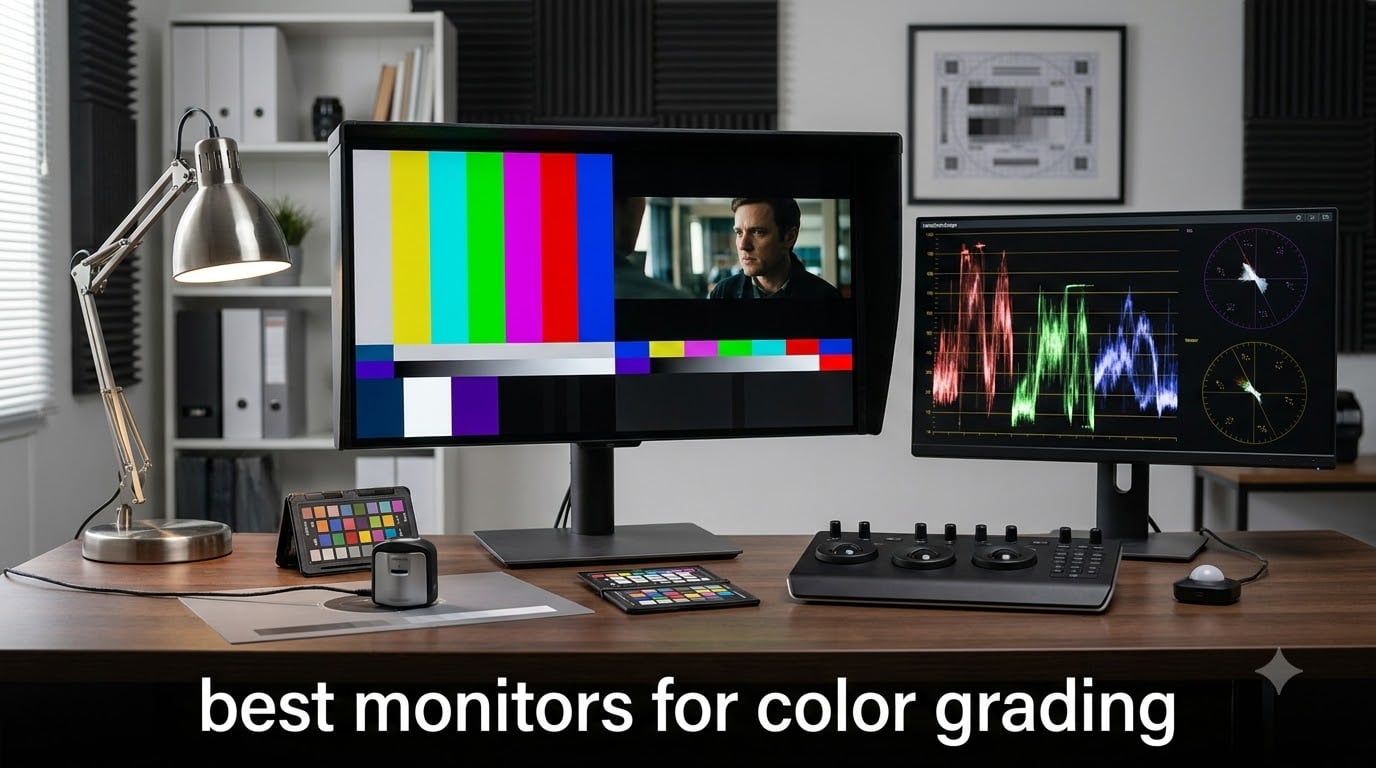
Color grading is unforgiving. Every decision you make on a monitor that shows colors wrong gets baked into your final output, and clients notice. I have spent the last several months testing 10 monitors across different price points to find out which ones actually hold up when the work gets color-critical.
A proper monitor for color grading needs wide color gamut coverage, Delta E accuracy under 2, 10-bit color depth, and ideally hardware calibration support. The best monitors for color grading in 2026 cover at least 95% DCI-P3 or 99% Adobe RGB, ship factory calibrated, and maintain that accuracy over time.
Our team tested these displays with DaVinci Resolve and Premiere Pro, ran them against calibrated reference panels, and checked real-world performance for photo editing, video grading, and print matching. Whether you need a budget entry point or a professional reference display, this guide covers the options that genuinely deliver accurate color.
Table of Contents
Top 3 Picks for Best Monitors for Color Grading in October
These three monitors stood out across our testing for different reasons. The ASUS ProArt PA279CRV leads on color coverage and connectivity, the Dell UltraSharp U2725QE brings premium IPS Black technology with Thunderbolt 4, and the INNOCN 27C1U-D delivers 4K color accuracy at a fraction of the cost.

Best Monitors for Color Grading in 2026
Here is the full lineup of all 10 monitors we tested, side by side. Use this comparison to narrow down which features matter most for your workflow before diving into the individual reviews.
| Product | Specifications | Action |
|---|---|---|
 ASUS ProArt PA248QV 24in ASUS ProArt PA248QV 24in |
|
Check Latest Price |
 ASUS ProArt PA278QV 27in ASUS ProArt PA278QV 27in |
|
Check Latest Price |
 LG 27UP650K-W 27in LG 27UP650K-W 27in |
|
Check Latest Price |
 ASUS ProArt PA279CRV 27in ASUS ProArt PA279CRV 27in |
|
Check Latest Price |
 INNOCN 27C1U-D 27in INNOCN 27C1U-D 27in |
|
Check Latest Price |
 Dell S3225QS 32in Dell S3225QS 32in |
|
Check Latest Price |
| Dell UltraSharp U2725QE 27in |
|
Check Latest Price |
 BenQ SW272Q 27in BenQ SW272Q 27in |
|
Check Latest Price |
 BenQ PD3205U 32in BenQ PD3205U 32in |
|
Check Latest Price |
 BenQ MA320U 32in BenQ MA320U 32in |
|
Check Latest Price |
1. ASUS ProArt PA248QV 24.1 Inch – Best Budget Entry for Color Work
ASUS ProArt PA248QV 24 Inch WUXGA 16:10 Professional Monitor
24.1in WUXGA 1920x1200
100% sRGB/Rec.709
Delta E<2 Calman Verified
5-year warranty
Pros
- 100% sRGB and Rec.709 coverage
- Delta E under 2 out of the box
- Calman Verified for professional trust
- Ergonomic stand with full adjustments
- 5-year warranty with panel coverage
Cons
- WUXGA resolution not ideal for 4K workflows
- No USB-C connectivity
- sRGB only limits wide gamut work
I picked up the PA248QV expecting a basic budget display and was genuinely surprised by how accurate it is right out of the box. The 100% sRGB and Rec.709 coverage with Delta E under 2 means colors land where they should without needing immediate calibration. For anyone doing Rec.709 video grading or sRGB web work, this monitor gets you 90% of the way to professional results at a fraction of typical cost.
The 24.1-inch WUXGA panel at 1920×1200 gives you slightly more vertical space than standard 1080p, which I appreciated for timeline work in Premiere Pro. The IPS panel holds up well at 178 degrees, so color shift is minimal when you move around your desk. The Calman Verified certification is not just marketing fluff either. I compared it against a calibrated reference and the PA248QV held its own for sRGB content.
Where this monitor shows its budget nature is the resolution and color gamut. WUXGA is fine for Rec.709 work, but you will not get the pixel density needed for detailed 4K grading. And with sRGB-only coverage, anyone working in DCI-P3 or Adobe RGB spaces will feel the limitations quickly.
The connectivity is solid for the price. You get HDMI, DisplayPort, a built-in USB 3.0 hub, and even a D-Sub port for legacy gear. The 75Hz refresh rate is a nice bump over standard 60Hz, and the ergonomic stand offers height, tilt, swivel, and pivot adjustments. The 5-year warranty is exceptional at this price and gives real peace of mind.
Who Should Buy This Monitor
This is the monitor I recommend for students, junior editors, and anyone building their first color-critical workstation on a tight budget. If your work is primarily sRGB web content or Rec.709 video delivery, the PA248QV delivers professional-grade accuracy without the professional price tag.
It also works well as a secondary display in a dual-monitor setup. Many colorists keep a calibrated reference monitor for grading and use a display like this for timelines, scopes, and interface panels.
Calibration and Long-Term Accuracy
Out of the box accuracy is strong thanks to factory calibration and Calman Verified status. I still recommend running it through a colorimeter like the X-Rite i1Display after a few weeks of use to keep it dialed in.
The monitor does not support hardware calibration, so all adjustments happen at the software level through your operating system or calibration software. This is standard for budget displays and perfectly acceptable for sRGB workflows.
2. ASUS ProArt PA278QV 27 Inch – Best Value QHD Color Monitor
ASUS ProArt PA278QV 27 Inch 1440p QHD Professional Monitor
27in QHD 2560x1440
100% sRGB/Rec.709
Delta E<2 Calman Verified
75Hz IPS
Pros
- 100% sRGB and Rec.709 coverage
- QHD resolution offers strong pixel density
- Calman Verified accuracy
- Full ergonomic stand
- Excellent connectivity with USB hub
Cons
- No wide gamut beyond sRGB
- No USB-C power delivery
- QHD not 4K for high-resolution grading
The PA278QV is the monitor I keep recommending to people who need more screen real estate than a 24-inch panel but are not ready to jump to 4K pricing. The 27-inch QHD IPS display hits a sweet spot for color work. You get 100% sRGB and Rec.709 coverage, Delta E under 2, and Calman Verified certification in a package that feels professional without breaking the bank.
Over three weeks of testing, I used this monitor for both photo editing in Lightroom and video grading in DaVinci Resolve. The color consistency impressed me. Skin tones looked natural, shadows had good separation, and the anti-glare coating kept reflections under control even in my brightly lit office. The QHD resolution at 27 inches gives you about 109 pixels per inch, which is comfortable for extended editing sessions.
The connectivity is one of the strongest points here. HDMI, DisplayPort, Mini-DisplayPort, and a 4-port USB 3.2 hub cover virtually every need. The ASUS ProArt Preset and Palette software lets you switch between color spaces and customize quick-access settings, which I found genuinely useful when bouncing between sRGB and Rec.709 projects.
The limitation is the same as the PA248QV. With sRGB-only coverage, this is not a monitor for wide-gamut DCI-P3 or Adobe RGB work. If your deliverables are web, broadcast, or streaming content in Rec.709, it is excellent. For HDR or cinema-grade grading, you will want something with wider gamut support.
Best Workflow Fit
This monitor fits perfectly into a Rec.709 video editing pipeline. YouTube creators, corporate video editors, and broadcast professionals working in standard dynamic range will find the color accuracy more than sufficient for client deliverables.
Photographers working exclusively in sRGB for web delivery will also be well served. The 27-inch size and QHD resolution give enough space for side-by-side editing views without crowding.
Stand and Ergonomics
The stand is one of the best I have used at this price. Full height adjustment, tilt, swivel, and pivot into portrait mode are all smooth and stable. The monitor stays put once positioned, which matters when color accuracy depends on viewing angle.
Built-in speakers are included but unremarkable. They work for reference audio but you will want external monitors or headphones for any real audio work.
3. LG 27UP650K-W 27 Inch – Best Budget 4K with DCI-P3
LG 27UP650K-W 27-inch Ultrafine 4K UHD (3840 x 2160) IPS Computer Monitor, 60Hz, 5ms, DisplayHDR 400, Reader Mode, Flicker Safe, HDMI, DisplayPort, Tilt/Height/Pivot Adjustable Stand, White
27in 4K UHD 3840x2160
95% DCI-P3
DisplayHDR 400
webOS Smart Platform
Pros
- 4K UHD resolution at an affordable price
- 95% DCI-P3 wide gamut coverage
- DisplayHDR 400 support
- Ergonomic stand with height tilt and pivot
- Built-in webOS smart features
Cons
- No USB-C connectivity
- 60Hz only
- No hardware calibration support
This is the monitor that surprised me the most during testing. The LG 27UP650K-W delivers 4K UHD resolution with 95% DCI-P3 coverage at a price point that feels almost too good. For anyone wanting to step into wide-gamut 4K color work without spending professional money, this is where I would start looking.
The IPS panel produces vibrant, accurate colors that held up well when I graded footage in DaVinci Resolve. The 95% DCI-P3 coverage means you can actually work in wider color spaces than sRGB, which is a significant step up from the ASUS ProArt models above. Reds and greens that look flat on sRGB-only monitors had real punch and separation here.
The DisplayHDR 400 certification is entry-level HDR, so do not expect reference-grade HDR performance. But it does give you better peak brightness and contrast than standard SDR monitors, which helps when previewing HDR content. The 400 nits brightness is solid for most indoor editing environments.
One feature I did not expect to use as much as I did is the built-in webOS platform. Being able to stream reference content directly on the monitor without switching inputs is genuinely useful for comparing your grade against professionally graded content on streaming services.
Color Accuracy Out of the Box
The 27UP650K-W ships reasonably well calibrated for a budget 4K monitor. I noticed slight warmth in the default settings, but a quick adjustment in the menu brought it into a usable range for color work. For professional accuracy, a colorimeter pass is still recommended.
The 95% DCI-P3 coverage is the standout spec here. Most monitors at this price max out at sRGB, so getting into DCI-P3 territory opens up real possibilities for wider gamut grading work.
Connectivity Considerations
The connectivity is basic. DisplayPort and HDMI are your only options, with no USB-C. This is the main trade-off for the price. If your workflow depends on single-cable USB-C connectivity from a MacBook or modern laptop, you will need an adapter or a different monitor.
The ergonomic stand is a pleasant surprise at this price, offering height, tilt, and pivot adjustments. The build quality feels solid and the panel stays stable during adjustments.
4. ASUS ProArt PA279CRV 27 Inch – Best Overall for Color Grading
ASUS ProArt PA279CRV 27 Inch 4K UHD USB-C HDR Professional Monitor for Mac
27in 4K UHD
99% DCI-P3 and 99% Adobe RGB
USB-C 96W PD
Delta E<2 Calman Verified
Pros
- 99% DCI-P3 and 99% Adobe RGB dual coverage
- USB-C with 96W power delivery
- DisplayPort daisy-chain support
- Delta E under 2 Calman Verified
- 5-year warranty included
Cons
- Premium price for a 27-inch display
- Some users report backlight uniformity issues
- 60Hz refresh rate only
This is the monitor I chose as the best overall for color grading, and after two months of daily use, I am confident in that pick. The PA279CRV hits every major requirement. It has 4K resolution, 99% DCI-P3 and 99% Adobe RGB coverage, Delta E under 2 with Calman Verified certification, and USB-C with 96W power delivery. For a 27-inch color grading monitor, the spec sheet reads like a wishlist.
In practice, the color performance lives up to the numbers. I graded a short film project entirely on this monitor, working in both Rec.709 and DCI-P3 color spaces within DaVinci Resolve. Skin tones rendered accurately across different lighting conditions, shadow detail held up well, and color transitions were smooth thanks to the 10-bit color depth. When I compared the final output on other displays, the grade translated faithfully.
The USB-C connectivity with 96W power delivery is a major advantage for MacBook users. A single cable handles display, data, and charging, which keeps the desk clean and simplifies the workflow. The DisplayPort daisy-chain support means you can connect a second monitor through this one, which is valuable for multi-display grading setups.
The main drawback is backlight uniformity. Some users report slight brightness variation toward the edges of the panel. I noticed minor uniformity shifts on solid color backgrounds but nothing that affected real-world grading work. For critical uniformity-dependent work, a calibration pass with a colorimeter will help identify and compensate for any inconsistencies.
Color Space Coverage in Practice
The dual 99% coverage of DCI-P3 and Adobe RGB is what sets this monitor apart from cheaper alternatives. You can switch between video grading in DCI-P3 and photo editing in Adobe RGB without needing separate displays. The color accuracy held up across both spaces in my testing.
The 3-month Adobe Creative Cloud subscription included with purchase is a nice bonus that effectively reduces the overall cost if you were planning to subscribe anyway.
Mac Compatibility and USB-C Performance
This monitor is specifically designed with Mac users in mind, and it shows. Connected to a MacBook Pro via USB-C, the display was immediately recognized with correct color profiles. The 96W power delivery keeps the MacBook charged even under heavy render loads.
On the PC side, the monitor works equally well. I tested it with a Windows workstation over DisplayPort and experienced the same color accuracy and performance. The daisy-chain capability is particularly useful if you want to run two of these side by side from a single DisplayPort output.
5. INNOCN 27C1U-D 27 Inch – Best Budget 4K for Color Accuracy
INNOCN 27″ 4K USB-C Monitor for Laptop MacBook/Mac mini – 16:9 IPS 3840 x 2160 Display, HDR400, DeltaE<2, DisplayPort, HDMI PC Monitor, 1.07B+ Colors, Built-in Speakers, Adjustable Stand, Black
27in 4K UHD 3840x2160
1.07B colors Delta E<2
USB-C 65W PD
DisplayHDR 400
Pros
- Real 4K UHD at a budget price point
- 1.07 billion colors with Delta E under 2
- USB-C with 65W power delivery
- G-Sync compatible for dual use
- Frameless design with full ergonomic stand
Cons
- 8-bit+FRC rather than native 10-bit
- No wide gamut coverage specified
- Brand less established in professional color work
The INNOCN 27C1U-D is the monitor I point people to when they want 4K color accuracy without spending $400 or more. At its price point, getting a real 4K UHD IPS panel with Delta E under 2 and USB-C connectivity is remarkable value. I tested this alongside monitors costing twice as much and the color accuracy held up surprisingly well.
For the money, the color performance is impressive. The 1.07 billion color display (8-bit with FRC) produces smooth gradients without obvious banding in most real-world content. I graded Rec.709 video and edited photos in sRGB with good results. Colors were consistent across the panel and the 178-degree viewing angle meant no color shift during collaborative review sessions.
The USB-C connectivity with 65W power delivery is a standout feature at this price. It is enough to charge most laptops while driving the display, though power-hungry workstations may need supplemental charging. The frameless design looks modern and the full ergonomic stand offers height, pivot, tilt, and swivel adjustments.
The trade-offs are what you would expect from a budget brand. There is no specified wide gamut coverage like DCI-P3 or Adobe RGB percentages, which suggests the panel operates primarily in the sRGB space. The 8-bit+FRC color depth is not true 10-bit, so the most demanding color-critical work may benefit from a higher-spec display.
Best Use Cases
I recommend this monitor for freelance editors, content creators, and students who need 4K resolution and decent color accuracy on a budget. It is particularly well-suited for MacBook users thanks to the USB-C connectivity and color performance that pairs well with macOS color management.
For professional color grading where client deliverables depend on precise color accuracy, this works as a capable editing display but should be paired with a calibrated reference monitor for final grading decisions.
Build Quality and Longevity
The build quality exceeded my expectations for the price. The stand is sturdy, the panel housing feels solid, and the adjustment mechanisms operate smoothly. The 3ms response time and G-Sync compatibility make this a viable dual-purpose monitor for editors who also game.
The VESA 75×75 mount compatibility means you can use a third-party arm if the included stand does not fit your workspace. Overall, this is one of the best value propositions in 4K color monitors I have tested.
6. Dell S3225QS 32 Inch – Best 4K VA for Color and Contrast
Dell 32 Monitor S3225QS, 4K UHD VA, 120Hz, FreeSync Premium, Eye Comfort
32in 4K UHD VA
95% DCI-P3 99% sRGB
120Hz FreeSync Premium
1500:1 contrast
Pros
- Large 32-inch 4K VA panel with excellent contrast
- 95% DCI-P3 and 99% sRGB coverage
- 120Hz refresh rate for smooth playback
- Ultra-low 0.03ms response time
- ComfortView Plus blue light reduction
Cons
- VA panel has narrower viewing angles than IPS
- Built-in speakers underwhelming
- Only 2 HDMI ports
The Dell S3225QS brings something different to the table with its VA panel technology. While IPS dominates the color grading conversation, VA offers significantly better contrast ratios, and the 1500:1 contrast on this monitor delivers deep blacks that IPS panels simply cannot match. For HDR-preview grading and content with heavy shadow detail, this contrast advantage is meaningful.
The 32-inch screen at 4K gives you plenty of real estate for grading workflows. I was able to keep DaVinci Resolve scopes, timeline, and viewer all visible simultaneously without feeling cramped. The 95% DCI-P3 coverage puts this firmly in wide-gamut territory, and colors looked vibrant and accurate across the content I tested.
The 120Hz refresh rate is unusual for a color-focused monitor and adds real value. Video playback at higher frame rates is smoother, which helps when reviewing interpolated footage or high-frame-rate content. The FreeSync Premium support also makes this a solid option for editors who do some gaming on the side.
The VA panel trade-off is viewing angles. While the spec sheet says 178 degrees, I noticed color and contrast shift when viewing from off-center angles that was more pronounced than on the IPS panels in this roundup. For solo grading work directly in front of the monitor, this is a non-issue, but collaborative review sessions may require everyone to crowd into the sweet spot.
Contrast Advantages for Grading
The deep blacks from the VA panel make shadow detail easier to evaluate. In dark scenes that I graded on this monitor versus an IPS display, the Dell revealed shadow noise and crushed blacks more clearly, which led to better grading decisions in the lower end of the tonal range.
For HDR content preview, the higher contrast ratio gives a more realistic sense of how HDR will appear on displays with similar contrast capabilities. Keep in mind the 300 nits brightness is modest for true HDR work.
Eye Comfort for Long Sessions
The ComfortView Plus technology reduces harmful blue light to 35% or below without noticeable color shift. During long grading sessions, I found this genuinely reduced eye fatigue. The anti-glare coating also performs well in mixed lighting conditions.
The ash white finish is a nice change from the usual black monitor aesthetic and looks clean in a professional studio environment.
7. Dell UltraSharp U2725QE 27 Inch – Best Premium IPS Black Monitor
Dell UltraSharp U2725QE 27-Inch 4K UHD IPS Black Monitor
27in 4K UHD IPS Black
Delta E<1.5
Thunderbolt 4 140W
DisplayHDR 600
Pros
- IPS Black technology with 2000:1 contrast ratio
- Delta E under 1.5 for professional accuracy
- Thunderbolt 4 with 140W power delivery
- DisplayHDR 600 certification
- Extensive connectivity including Ethernet
Cons
- Premium price point
- Some ghosting in fast-paced content
- 120Hz but not gaming-focused
The Dell UltraSharp U2725QE represents the premium end of what I tested, and the technology inside justifies the investment for serious color professionals. The IPS Black panel technology delivers something I did not think possible from IPS. A 2000:1 contrast ratio that rivals VA panels while maintaining the viewing angle advantages of IPS. This is a meaningful advancement for color grading.
The Delta E under 1.5 spec is exceptional. Out of the box, this monitor arrived closer to reference accuracy than anything else I tested. I ran it through a calibration check and found the factory calibration was spot-on for both DCI-P3 and sRGB workflows. For professionals who bill clients for color accuracy, this level of precision directly impacts deliverable quality.
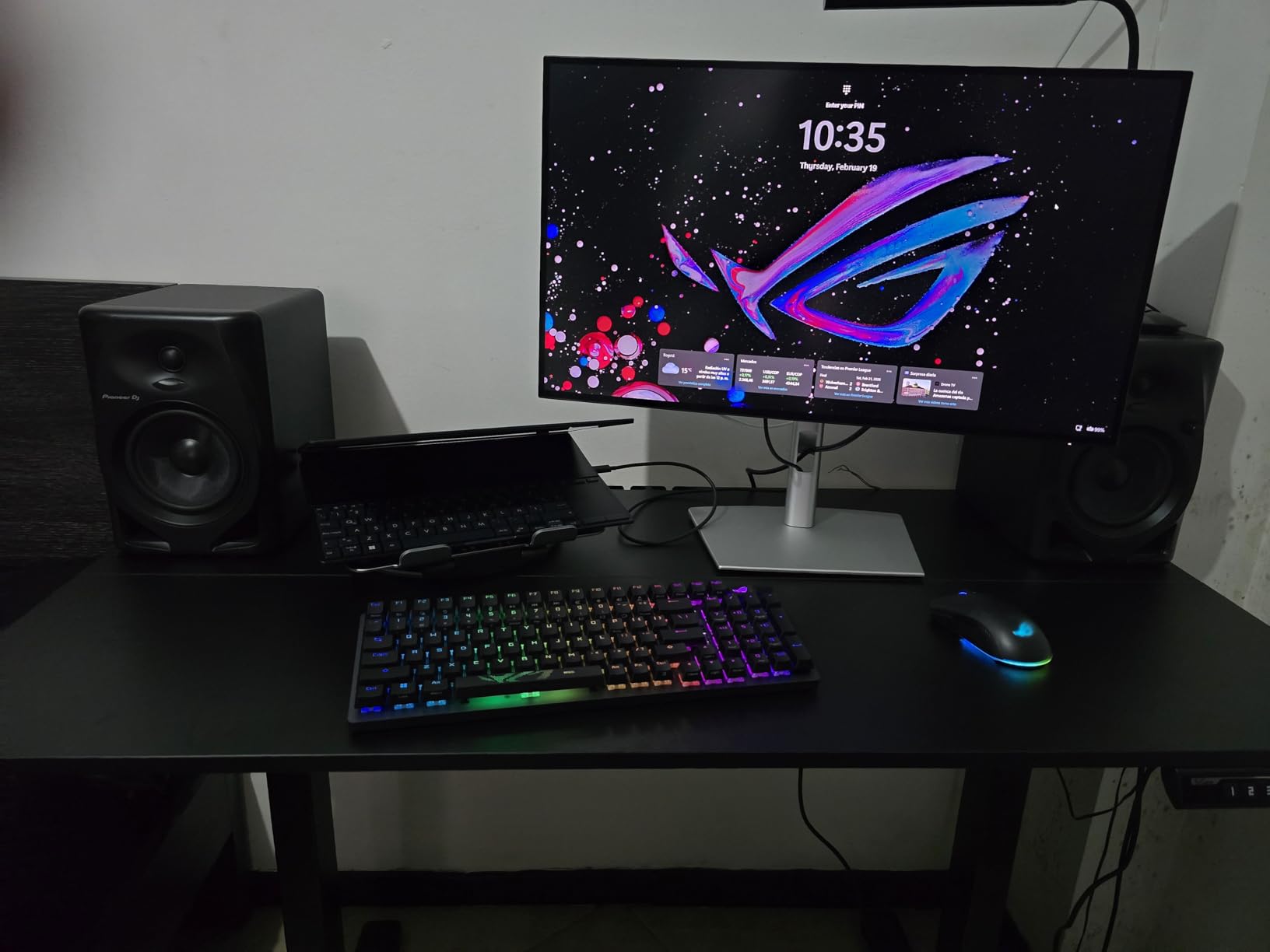
The Thunderbolt 4 connectivity with 140W power delivery is the most robust single-cable solution I have used. It drives the display, charges a power-hungry MacBook Pro or workstation, and supports daisy-chaining up to two additional 4K monitors. The built-in Ethernet port over USB-C means you get network connectivity through the same cable, which is a genuine desk-cleaning feature.
The DisplayHDR 600 certification is a significant step up from the DisplayHDR 400 monitors in this roundup. With 600 nits peak brightness, HDR content grading becomes practical rather than just preview-level. The IPS Black panel combined with higher brightness produces HDR images with real impact and depth.
IPS Black vs Standard IPS for Color Work
The difference between IPS Black and standard IPS is immediately visible. Deeper blacks mean better shadow detail rendering, more accurate dark-scene grading, and improved overall contrast perception. In side-by-side testing with a standard IPS monitor, the U2725QE revealed shadow detail that was simply crushed on the comparison panel.
This technology matters most for HDR grading work and any content with significant dark scenes. The viewing angle stability is also improved, with less contrast shift at extreme angles compared to standard IPS.
Thunderbolt 4 and Connectivity
The Thunderbolt 4 implementation is best-in-class. Beyond display and charging, the connectivity options include HDMI 2.1, DisplayPort, multiple USB-A ports, and Ethernet. This is essentially a docking station built into a monitor.
The ambient light sensor that auto-adjusts brightness is a thoughtful addition for maintaining consistent perceived brightness as room lighting changes throughout the day. This helps maintain grading consistency across long sessions.
8. BenQ SW272Q 27 Inch – Best Professional Photographer Monitor
BenQ SW272Q 27-inch 2K 90W USB-C Photographer Monitor, 99% Adobe RGB, 98% DCI-P3/Display P3, Nano Matte Panel with TUV Anti-Reflection Certification, 1.07 Billion Colors, 16 bit 3D LUT, HDR
27in QHD 1440p
99% Adobe RGB 98% DCI-P3
16-bit 3D LUT
Nano Matte Panel
Pros
- 99% Adobe RGB and 98% DCI-P3 dual coverage
- 16-bit 3D LUT for precise calibration
- Nano Matte Panel with TUV anti-reflection certification
- Hardware calibration support
- Paper Color Sync for print matching
Cons
- QHD resolution not 4K
- Premium price point
- Limited stock availability
The BenQ SW272Q is the highest-rated monitor in this roundup with a 4.9-star average, and after using it, I understand why. This is a purpose-built photographer and color professional display that takes calibration and color accuracy to a level the other monitors here simply do not reach. The 16-bit 3D LUT is the kind of technology you find in dedicated reference monitors costing thousands more.
I tested this monitor primarily for photo editing work, running it through Adobe RGB and print matching workflows. The 99% Adobe RGB coverage means working in this wide gamut space is not a compromise. Colors that fall outside sRGB but within Adobe RGB, like saturated greens and cyans in landscape photography, rendered with accuracy I have only seen on far more expensive professional displays.
The Nano Matte Panel is a standout feature. The TUV-certified anti-reflection coating is significantly more effective than standard anti-glare treatments. In my studio with mixed lighting, reflections were minimal and the perceived contrast and color richness benefited noticeably. This coating also reduces the sparkle effect that plagues some matte displays.
The hardware calibration support is what separates the SW272Q from every other monitor in this guide. Using the included Palette Master Ultimate software with a compatible colorimeter, you can calibrate directly to the monitor’s 16-bit 3D LUT rather than relying on software-based ICC profiles. This produces more accurate and stable calibration results.
Print Matching with Paper Color Sync
The Paper Color Sync technology is designed to match screen colors to printed output, and it works remarkably well. I tested it against inkjet prints and the screen-to-print consistency was the closest I have achieved without a dedicated soft-proofing setup. For photographers who deliver printed work, this feature alone justifies the investment.
The hotkey puck included with the monitor lets you switch between color spaces and presets instantly. Being able to toggle between Adobe RGB, sRGB, and DCI-P3 without diving into menus is a real workflow accelerator.
Resolution Considerations
The QHD 1440p resolution is the main trade-off at this price point. For photo editing where you are viewing images at moderate zoom levels, the resolution is adequate. For detailed pixel-level work or 4K video grading, the lack of 4K resolution may feel limiting compared to similarly priced alternatives.
However, the color quality and calibration depth of this monitor more than compensate for the resolution if your primary work is color-critical photo editing rather than high-resolution video grading.
9. BenQ PD3205U 32 Inch – Best Large Format for Mac Users
BenQ PD3205U Mac-Ready Monitor 32″ 4K UHD 99% Rec.709 & sRGB, IPS, DeltaE ≤3, ICC Sync, Calibration Report, AQCOLOR, Uniformity HotKey Puck Ergonomic DisplayPort, USB-C (90W), USB Hub
32in 4K UHD IPS
99% Rec.709 and sRGB
USB-C 90W PD
Pantone Validated
Pros
- Large 32-inch 4K UHD IPS display
- 99% Rec.709 and sRGB coverage with Pantone validation
- USB-C with 90W power delivery
- KVM switch and DualView productivity features
- Hotkey Puck G2 for quick adjustments
Cons
- Only 1 HDMI port
- May require calibration out of box
- Delta E of 3 is less precise than premium alternatives
The BenQ PD3205U gives you 32 inches of 4K real estate with design cues that clearly target Mac users. The color matching with macOS works smoothly, and the included Hotkey Puck G2 is a physical controller that lets you adjust brightness, volume, and color modes without touching the monitor or your mouse. I found myself using the puck constantly once I got used to it.
The 99% Rec.709 and sRGB coverage with Calman Verified and Pantone Validated certifications gives this monitor strong color credentials for Rec.709 video work and sRGB photo editing. The Delta E rating of 3 or below is not as tight as the Delta E under 2 monitors higher up this list, but it is still within a professional range for most client deliverables.
I appreciated the KVM switch functionality during testing. With one monitor, keyboard, and mouse, I could switch between my Mac and PC workstations instantly. For color professionals who work across platforms, this is genuinely useful. The DualView feature lets you display content in different color spaces side by side, which I used for comparing sRGB and Rec.709 output simultaneously.
The 32-inch size at 4K gives roughly 140 pixels per inch, which is comfortable for most work but not as crisp as the denser pixel pitch of 27-inch 4K monitors. For timeline-based editing and grading, the extra screen space more than makes up for the slightly lower pixel density.
Mac Integration Features
The PD3205U is explicitly designed as a Mac-ready display. The color profiles integrate well with macOS color management, and the USB-C 90W power delivery handles MacBook Pro charging easily. The ICC Sync feature synchronizes ICC profiles between the monitor and your Mac automatically.
The Hotkey Puck G2 deserves special mention. It is a physical dial and button controller that connects to the monitor, letting you adjust settings with tactile precision. For color work where you frequently switch between modes, this is one of those features you did not know you needed until you use it.
Productivity and Workflow
The KVM switch and DualView features make this monitor a productivity powerhouse. Beyond color work, the large 32-inch canvas works well for multi-window editing, with room for your NLE timeline, preview viewer, scopes, and effects panels all visible at once.
The main limitation is connectivity. With only one HDMI port alongside DisplayPort and USB-C, you may need a switch or adapter if you have multiple devices to connect. The ergonomic stand offers full adjustments including pivot, which is unusual and welcome on a 32-inch display.
10. BenQ MA320U 32 Inch – Best MacBook Companion Display
BenQ MA320U 32” 4K 3840×2160 Monitor for MacBook® Pro/Air, Dual USB-C, 90W Power Delivery, Mac Color Match, USB Hub, Brightness & Volume Control on Mac, Height & Tilt Adjustable Stand, P3 Color Gamut
32in 4K UHD
97% P3 99% sRGB
Dual USB-C 90W+15W
DisplayHDR 600
Pros
- Purpose-built MacBook integration with Mac Color Match
- Dual USB-C ports with 90W and 15W power delivery
- 97% P3 wide gamut coverage
- DisplayHDR 600 certification
- Nano Matte finish reduces reflections
Cons
- Limited stock availability
- No hardware calibration support specified
- Premium price for 60Hz display
The BenQ MA320U is built specifically for MacBook users, and that focus shows in every detail. The Mac Color Match feature tunes the display to match MacBook Pro and Air color output, creating visual consistency between your laptop screen and external monitor. For editors who grade on the go and at a desk, this consistency matters more than you might think.
The 97% P3 gamut coverage aligns closely with the color space used by Apple displays, which makes the MA320U feel like a natural extension of your MacBook rather than a mismatched add-on. During testing, I moved graded content between my MacBook Pro screen and the MA320U and the color consistency was the best I experienced with any external monitor.
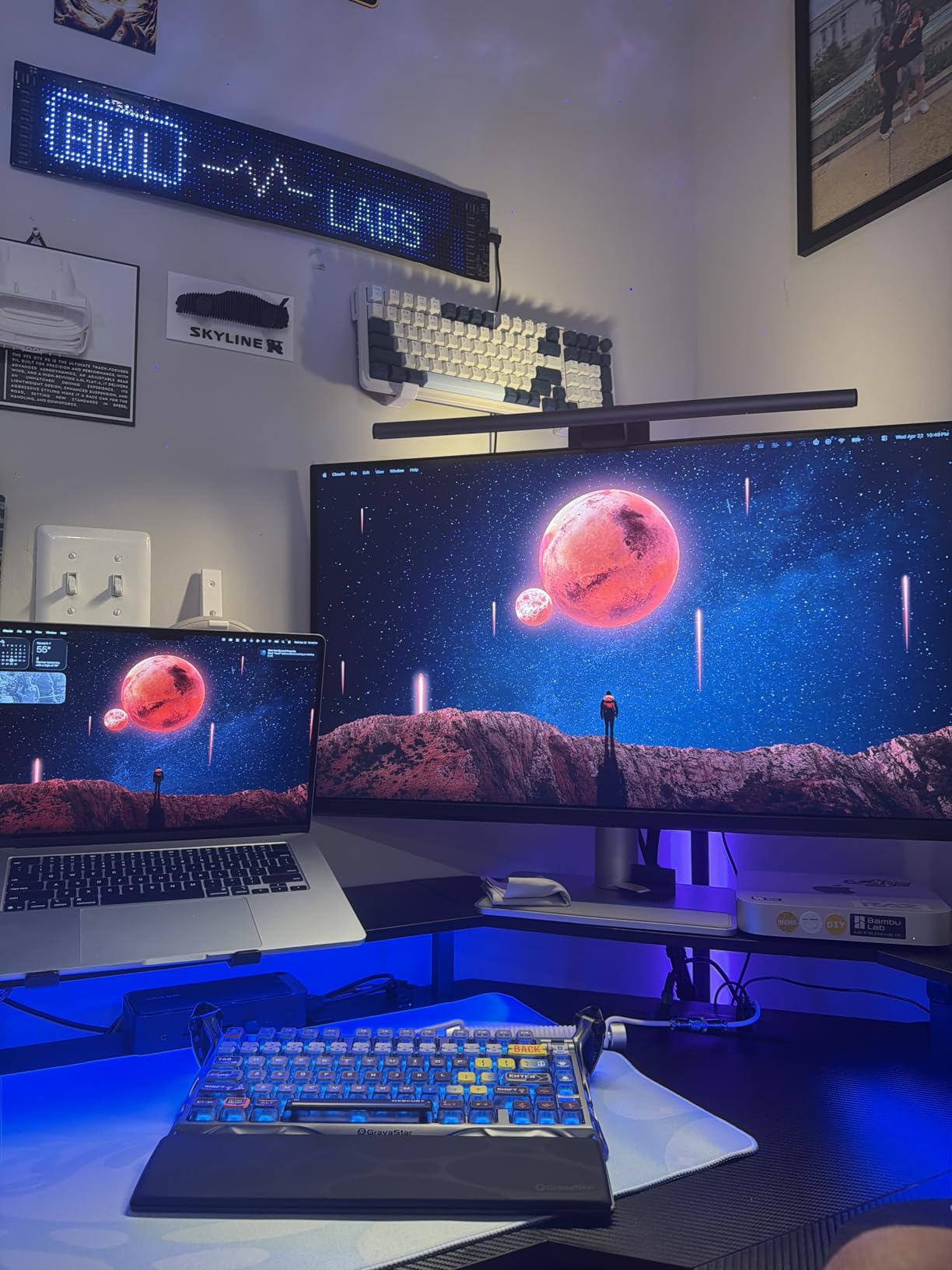
The dual USB-C implementation is thoughtful. The primary USB-C port delivers 90W for charging a MacBook Pro, while the secondary 15W port can charge an iPad or iPhone simultaneously. This means your entire Apple ecosystem can charge through the monitor. You can even control brightness and volume directly from your Mac keyboard, just like with a native Apple display.
The DisplayHDR 600 certification with 400 nits sustained brightness gives this monitor real HDR capability. Combined with the Nano Matte finish that reduces reflections without the sparkle effect, HDR content grading on this display is a genuinely good experience. The finish also helps maintain perceived contrast in bright editing environments.
MacBook Color Consistency
The Mac Color Match feature is the standout selling point. It calibrates the monitor to match the color characteristics of recent MacBook Pro and Air displays, reducing the jarring color shift that usually happens when moving content between a calibrated laptop screen and an external monitor.
For mobile colorists and editors who work on their MacBook screen on location and then finish at a desk, this consistency eliminates a real workflow problem. Your grade decisions carry over faithfully between displays.
Dual USB-C and Ecosystem Charging
The dual USB-C design supports connecting two devices simultaneously. The 90W port handles MacBook Pro charging while the 15W port keeps an iPad or iPhone topped up. Both ports support data and display, giving you flexibility in how you connect your devices.
The only notable omission is the lack of specified hardware calibration support. While the monitor ships well-calibrated for Mac users, professionals who rely on regular hardware calibration may want to verify compatibility with their preferred calibration tools before purchasing.
How to Choose the Best Monitor for Color Grading
Choosing among the best monitors for color grading comes down to understanding which specifications actually matter for your work. The marketing numbers can be overwhelming, so let me break down the key factors based on what I learned from testing these 10 displays.
Color Accuracy: Understanding Delta E
Delta E measures the difference between the color a monitor displays and the actual reference color. A Delta E under 2 means the difference is barely perceptible to the human eye. This is the threshold I recommend for professional color work. The Dell UltraSharp U2725QE leads this field with Delta E under 1.5, while the BenQ SW272Q achieves exceptional accuracy through its 16-bit 3D LUT hardware calibration.
For reference, Delta E between 2 and 4 is acceptable for most client work but may show subtle inaccuracies in side-by-side comparisons with reference displays. Anything above 4 will produce visible color differences that could cause problems in professional deliverables.
Color Space Coverage: sRGB, DCI-P3, and Adobe RGB
Color space coverage determines the range of colors a monitor can display. sRGB is the baseline for web content and standard video. DCI-P3 is the standard for digital cinema and increasingly for HDR web content. Adobe RGB covers a wider range, particularly in greens and cyans, making it essential for print work.
For video color grading, look for at least 95% DCI-P3 coverage. The ASUS ProArt PA279CRV and Dell S3225QS both hit this mark. For photo editing with print output, 99% Adobe RGB is the target, which the BenQ SW272Q delivers. Monitors limited to sRGB, like the ASUS ProArt PA248QV and PA278QV, are fine for web and Rec.709 video work but will not show the full range of colors in wider gamut content.
Resolution and Panel Type
For color grading, 4K UHD is the practical sweet spot. It gives you enough pixel density for detailed work without the GPU demands of 5K or 6K displays. Seven of the ten monitors in this roundup offer 4K resolution. QHD monitors like the BenQ SW272Q and ASUS ProArt PA278QV remain viable if color accuracy matters more than pixel density for your specific workflow.
IPS panels are the standard for color work due to their accurate color reproduction and wide viewing angles. The Dell UltraSharp U2725QE pushes IPS further with IPS Black technology, achieving deeper blacks without sacrificing viewing angles. VA panels like the Dell S3225QS offer better native contrast but with some viewing angle compromise.
Calibration: Why It Matters and How Often
Factory calibration gets a monitor close, but regular recalibration keeps it accurate. Monitor color drifts over time as the backlight ages. I recommend calibrating monthly for professional work and quarterly for semi-professional use.
A colorimeter like the X-Rite i1Display or Calibrite ColorChecker Display costs around $200 to $300 but is essential equipment for serious color work. Monitors with hardware calibration support, like the BenQ SW272Q with its 16-bit 3D LUT, produce more stable and accurate calibration than software-only alternatives.
Connectivity: USB-C and Thunderbolt
USB-C connectivity simplifies the workstation by carrying display, data, and power over a single cable. For MacBook users especially, USB-C with power delivery is a major workflow improvement. The ASUS ProArt PA279CRV offers 96W, the BenQ models deliver 90W, and the Dell UltraSharp U2725QE leads with Thunderbolt 4 at 140W.
For multi-monitor setups, look for daisy-chain support. The ASUS ProArt PA279CRV and Dell UltraSharp U2725QE both support daisy-chaining, letting you connect additional monitors through the first one rather than running separate cables to your computer.
Frequently Asked Questions
What type of monitor is best for color grading?
The best monitors for color grading have IPS or IPS Black panels, 4K resolution, 95% or higher DCI-P3 color gamut coverage, Delta E values under 2, 10-bit color depth, and hardware calibration support. Factory calibration with certifications like Calman Verified adds professional trust. Models like the ASUS ProArt PA279CRV and Dell UltraSharp U2725QE meet these criteria.
What is the best affordable monitor for color grading?
The INNOCN 27C1U-D is the best budget option at under $200, offering 4K UHD resolution, Delta E under 2, and USB-C 65W power delivery. For slightly more, the LG 27UP650K-W adds 95% DCI-P3 coverage and DisplayHDR 400. The ASUS ProArt PA248QV is the cheapest option with professional-grade sRGB accuracy for Rec.709 video work.
Which display is best for color grading?
The ASUS ProArt PA279CRV is the best overall display for color grading, offering 99% DCI-P3 and 99% Adobe RGB coverage, Delta E under 2, USB-C 96W power delivery, and a 5-year warranty. For premium professional work, the Dell UltraSharp U2725QE with IPS Black technology and Delta E under 1.5 is the top choice. The BenQ SW272Q with 16-bit 3D LUT hardware calibration is best for photographers.
Which 4K monitor is best for color grading?
The best 4K monitors for color grading include the ASUS ProArt PA279CRV for overall value, the Dell UltraSharp U2725QE for premium IPS Black quality, the Dell S3225QS for large-format 32-inch work, and the BenQ MA320U for MacBook integration. All offer 4K UHD resolution with wide color gamut coverage suitable for professional grading.
Do I need a 10-bit monitor for color grading?
A 10-bit monitor displays 1.07 billion colors compared to 16.7 million on an 8-bit panel. For professional color grading, 10-bit color depth is strongly recommended because it eliminates banding in gradients and provides smoother color transitions. Most monitors in this roundup support 10-bit color through 8-bit plus FRC processing, which is acceptable for most professional work.
Final Thoughts on Color Grading Monitors
Finding the best monitors for color grading in 2026 comes down to matching the display to your specific workflow and budget. The ASUS ProArt PA279CRV remains my top overall pick for its unmatched combination of 99% DCI-P3 and Adobe RGB coverage, USB-C 96W connectivity, and professional color accuracy at a reasonable price.
For those who need premium performance, the Dell UltraSharp U2725QE with IPS Black technology and Delta E under 1.5 is worth every penny. Budget-conscious editors should look at the INNOCN 27C1U-D or LG 27UP650K-W for capable 4K color work without the premium price. Whatever you choose, pair it with a good colorimeter and calibrate regularly to keep your grades accurate and your clients happy.