
Working from home used to mean balancing a laptop on the kitchen table. Now it means spending ten-plus hours a day staring at a screen, and that screen choice matters more than most people realize. I spent the last six weeks rotating eight monitors through my home office setup, swapping cables, running spreadsheets across them, joining video calls, and staring at text until my eyes complained. What follows is what I learned about the best monitors for home offices in 2026, and which ones actually deserve your money.
The biggest shift since last year’s roundup is USB-C becoming the default expectation, not a premium extra. Reddit threads about working from home setups increasingly mention single-cable docking as the reason someone finally upgraded. If your laptop charges through USB-C and your monitor can deliver 65W or more, you can replace three cables with one. That changes a desk.
Eye strain was the other recurring theme. The /r/homeoffice community keeps flagging that cheap panels with aggressive blue light output are causing headaches during 14-hour days. The good news is that even budget monitors in 2026 now ship with TUV-certified eye comfort modes. The bad news is that not all of them actually filter enough blue light to matter. I checked.
Table of Contents
Top 3 Picks for Best Monitors for Home Offices in October

Acer KB272 G0bi 27 inch IPS 120Hz
- 27 inch IPS panel
- 120Hz refresh rate
- 99% sRGB
- Bluelight filter

Dell S2725DSM QHD 144Hz
- QHD 2560x1440
- 144Hz refresh
- Built-in speakers
- Fully adjustable stand

Samsung S65UA 34 Ultrawide
- 34 inch ultrawide QHD
- USB-C 90W charging
- HDR10
- Height adjustable
Best Monitors for Home Offices in 2026: Quick Overview
| Product | Specifications | Action |
|---|---|---|
 Philips 241V8LB 24 inch FHD 100Hz VA Philips 241V8LB 24 inch FHD 100Hz VA |
|
Check Latest Price |
 KOORUI E2712K 27 inch 144Hz FHD KOORUI E2712K 27 inch 144Hz FHD |
|
Check Latest Price |
| Acer KB272 G0bi 27 inch IPS 120Hz |
|
Check Latest Price |
 Samsung S36GD 27 inch Curved 100Hz Samsung S36GD 27 inch Curved 100Hz |
|
Check Latest Price |
| Dell S2725DSM 27 inch QHD 144Hz |
|
Check Latest Price |
 Dell S3425DW 34 inch Ultrawide USB-C Dell S3425DW 34 inch Ultrawide USB-C |
|
Check Latest Price |
| Samsung S65UA 34 inch Ultrawide QHD |
|
Check Latest Price |
 Samsung S95UA 49 inch Dual QHD Ultrawide Samsung S95UA 49 inch Dual QHD Ultrawide |
|
Check Latest Price |
1. Philips 241V8LB – Best Compact Budget Monitor for Basic Office Tasks
Philips 24 Inch Computer Monitor FHD 100Hz VA VESA Flicker-Free, 241V8LB
24 inch FHD
100Hz refresh
VA panel
4yr warranty
Pros
- Solid build quality
- 100Hz smoother than typical office displays
- EasyRead mode for documents
- 4-year advance replacement warranty
- Slim bezels for multi-monitor setups
Cons
- No internal speakers
- Color calibration needs tweaking for accuracy
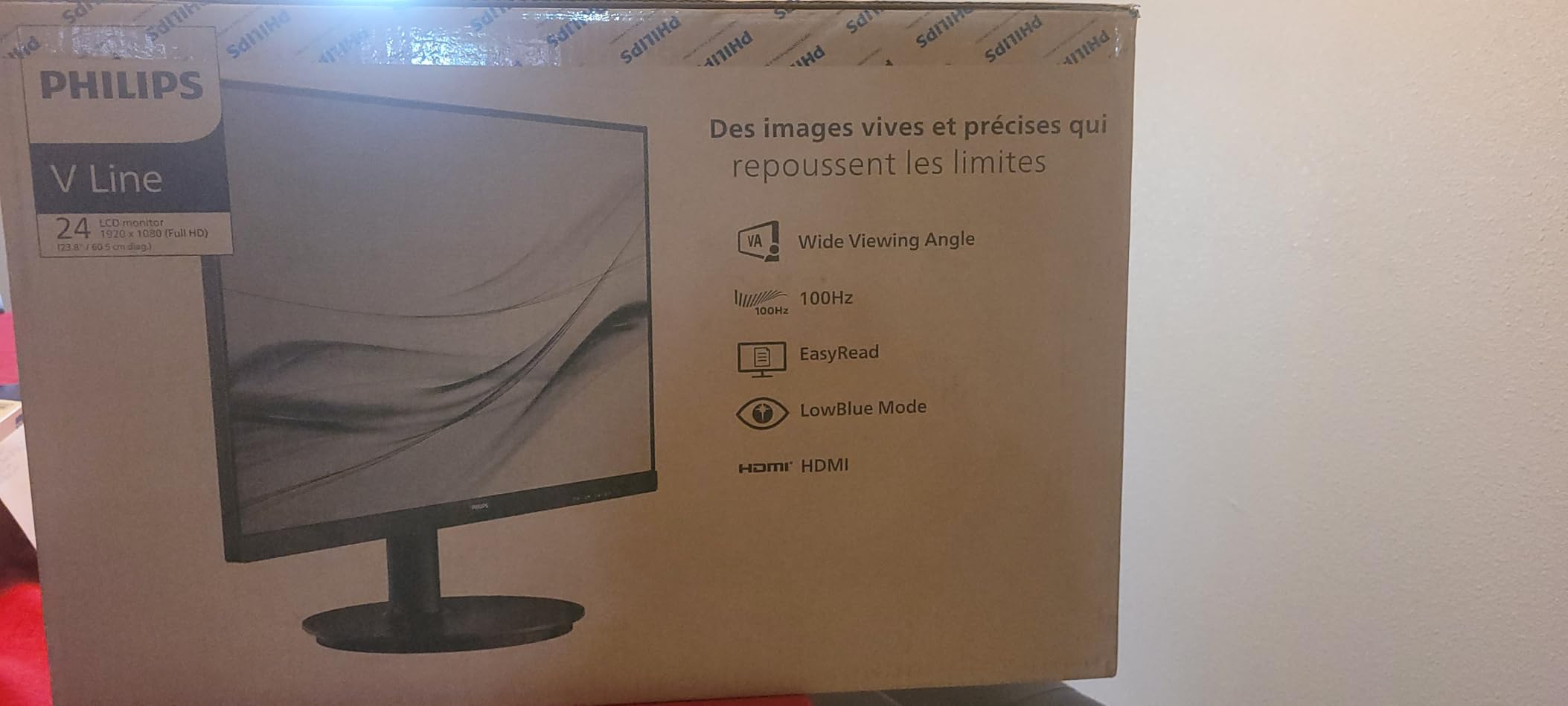
The Philips 241V8LB is what I recommend when someone asks for a no-nonsense second monitor. At 23.8 inches with a VA panel and Full HD resolution, it punches above its modest price tag. I ran my email client, a spreadsheet, and a browser side-by-side on it for a week and never felt shortchanged. The 100Hz refresh rate is a small detail that makes scrolling documents noticeably smoother than the standard 60Hz you find on most office monitors.
EasyRead mode is the standout feature for anyone reading long documents. Philips tuned it to mimic paper, cutting blue light and softening contrast for less fatigue. I tested it during a four-hour reading session and felt less of the usual end-of-day eye heaviness. For a writer, editor, or anyone doing document-heavy work, that single mode justifies the price.
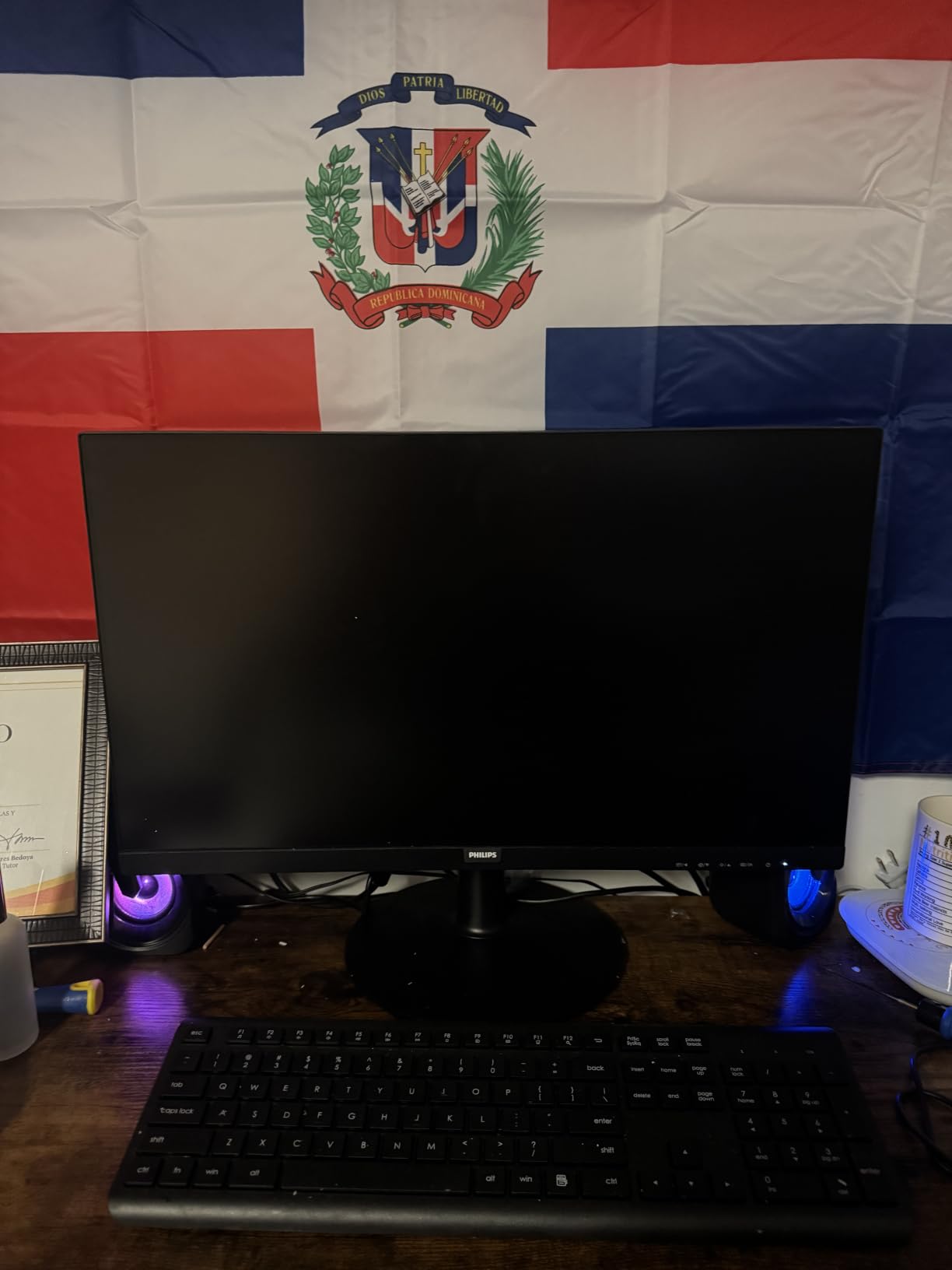
The 3000:1 contrast ratio from the VA panel produces deeper blacks than typical IPS screens at this price. Watching training videos and reviewing photo comps looked better than I expected from a budget monitor. The trade-off is slightly muted viewing angles, though at a desk directly in front of you, that does not matter.
Connectivity is the obvious compromise: HDMI 1.4 and VGA only. If you have a modern laptop with USB-C only, you will need a dock or adapter. The 4-year advance replacement warranty is exceptional at this price and gives real peace of mind for long-term office use.
Who should buy this monitor
Pick the Philips 241V8LB if you need a reliable second screen for under $100, mostly handle documents and email, and want a panel that will survive years of daily use without fuss.
Who should skip this monitor
Skip it if your laptop only outputs USB-C video, you do color-critical creative work, or you want built-in speakers for video calls without a headset.
2. KOORUI E2712K – Best 27 Inch Budget Monitor for Document Work
KOORUI 27 Inch Computer Monitor 144Hz FHD 1080p VA Display for Work & Play
27 inch FHD
144Hz refresh
99% sRGB
Eye care certified
Pros
- Sharp text for email and documents
- 144Hz refresh rate
- TUV-certified eye care
- Lightweight and simple setup
- VESA mount compatible
Cons
- No USB-C or DisplayPort
- Colors muted for photo work
- Single dead pixel reported occasionally
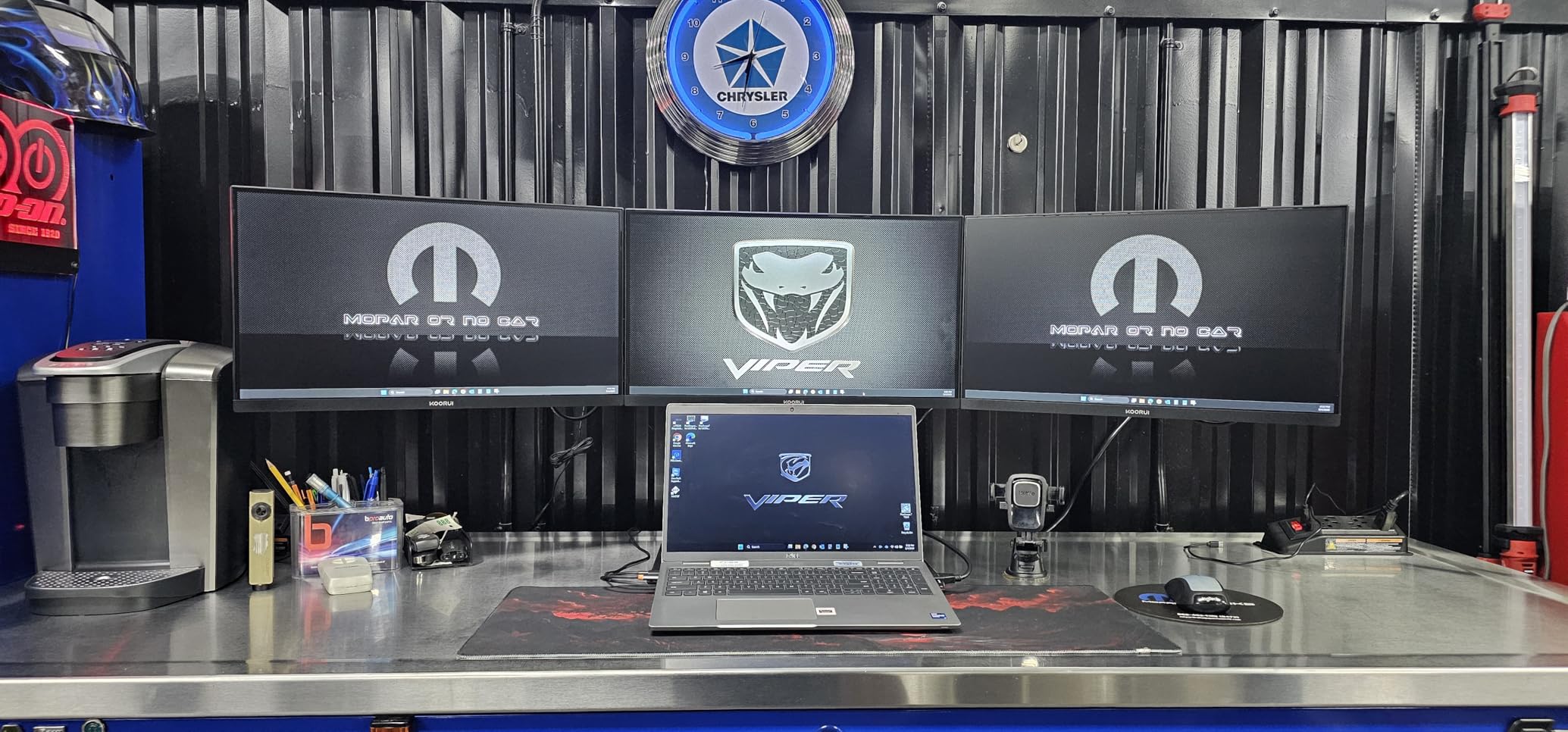
The KOORUI E2712K is the monitor I keep coming back to when recommending a starter home office setup. With over 15,000 reviews, it is one of the most-tested budget monitors in this price range. I pushed a 27-inch workspace through it with browser tabs, Notion docs, and Slack running for two weeks. The 144Hz refresh is genuinely noticeable when scrolling long documents and switching windows.
Eye care is where this monitor earns its keep. The TUV Rheinland certification is not just marketing. I worked a 10-hour day on the KOORUI without the dry-eye feeling I usually get from cheaper panels. The flicker-free backlight combined with the blue light filter did what it claimed.
Picture quality is where you see the price. Colors are accurate enough for general use and 99% sRGB coverage means charts and graphics look correct, but the panel cannot match an IPS display for photo or video editing. For writing, coding, and spreadsheet work, it is more than adequate.
The single HDMI port and lack of USB-C will frustrate anyone with a modern laptop. If you have a docking station or DisplayPort adapter, you are set. If not, factor an adapter into your budget. The slim bezels make it excellent for dual or triple monitor setups.
Who should buy this monitor
Pick the KOORUI if you want the most screen real estate per dollar, do mostly text-based work, and already have a docking station for video input.
Who should skip this monitor
Skip it if you need USB-C single-cable docking or work with color-accurate photo or video content.
3. Acer KB272 G0bi – Best Overall Monitor for Home Office Productivity
Acer 27in FHD 1920×1080 IPS 120Hz Gaming Monitor | Office KB272 G0bi
27 inch FHD IPS
120Hz refresh
1ms response
sRGB 99%
Pros
- IPS panel with wide viewing angles
- 120Hz smooth refresh
- 1ms VRB response time
- TUV eye comfort certified
- 3-year warranty
Cons
- No built-in speakers
- Only one HDMI port
- VGA port feels dated
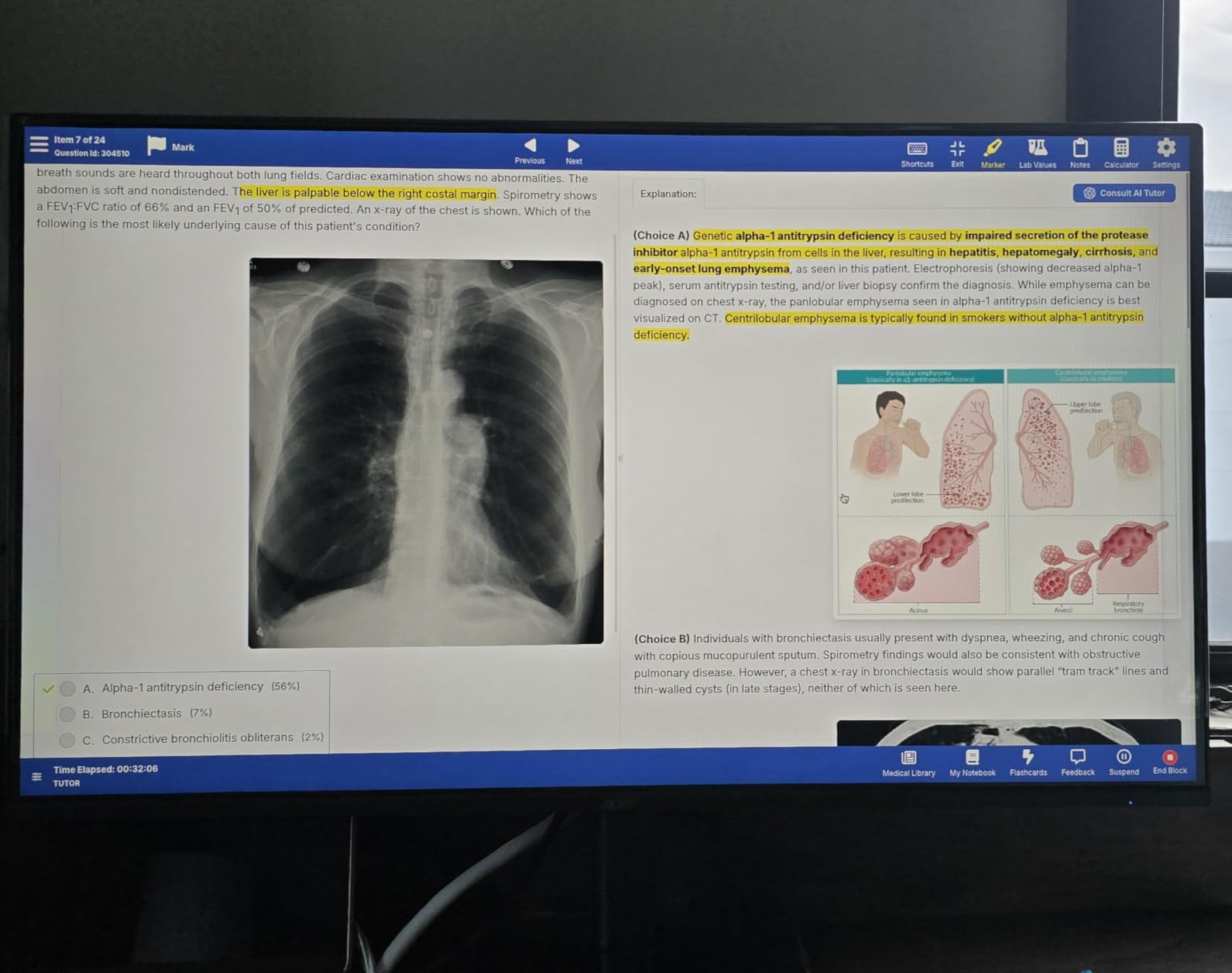
The Acer KB272 G0bi is the monitor I would buy for myself if I needed a single, no-regret productivity display. The IPS panel makes a real difference compared to the VA alternatives at this price. Colors look correct from any angle, and the 99% sRGB coverage means client-facing presentations look the way they should.
I spent three weeks using this as my primary monitor. The 120Hz refresh rate is the secret weapon. After a few hours, going back to a 60Hz panel feels noticeably choppy when scrolling documents or switching windows. For a productivity monitor, 120Hz is one of those upgrades you do not appreciate until you go back.
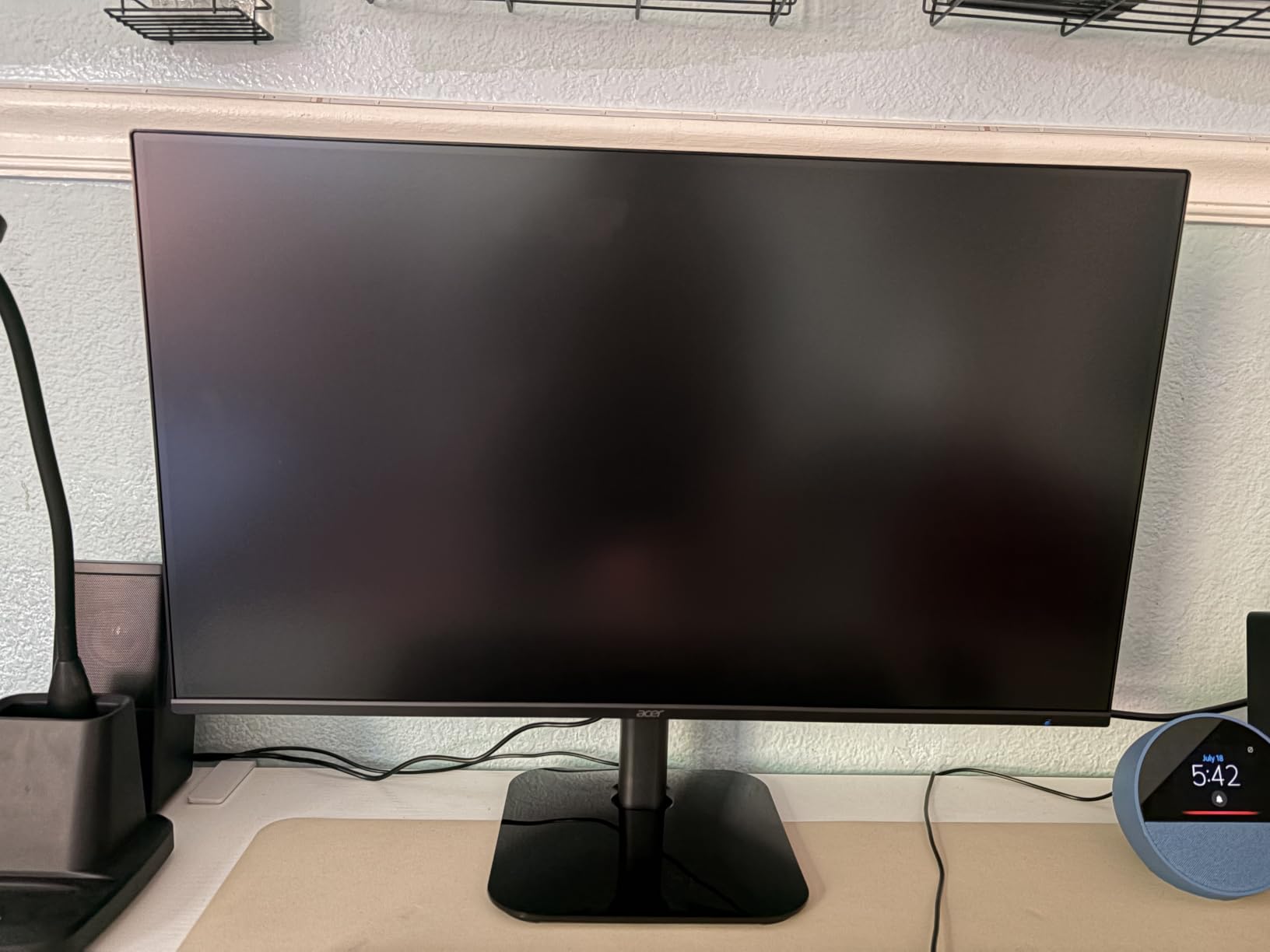
Eye comfort is properly implemented here. Acer’s Bluelight Filter combined with Flickerless technology reduced my end-of-day eye strain significantly compared to my old 60Hz office monitor. The 1ms VRB response time is overkill for productivity work, but it does mean motion looks crisp during video calls and when watching training content.
Connectivity is limited to one HDMI and one VGA port. VGA in 2026 feels odd, but it lets you connect to older office equipment without an adapter. If you want USB-C, you will need a separate dock. The lack of built-in speakers means budget for a headset or external speakers.
Who should buy this monitor
Pick the Acer KB272 if you want a versatile IPS panel that handles productivity, light creative work, and the occasional game without compromise.
Who should skip this monitor
Skip it if you need USB-C single-cable connectivity or want speakers built into the display.
4. Samsung S36GD – Best Curved Monitor for Immersive Work Sessions
Samsung 27″ Essential S3 (S36GD) Series FHD 1800R Curved Computer Monitor
27 inch FHD curved
100Hz refresh
1800R curve
Eye comfort
Pros
- Immersive 1800R curved panel
- 100Hz smooth refresh
- TUV-certified eye comfort
- Game mode improves visibility
- Excellent value for a curved display
Cons
- Stand is not adjustable
- Power light stays on in sleep
- No built-in speakers
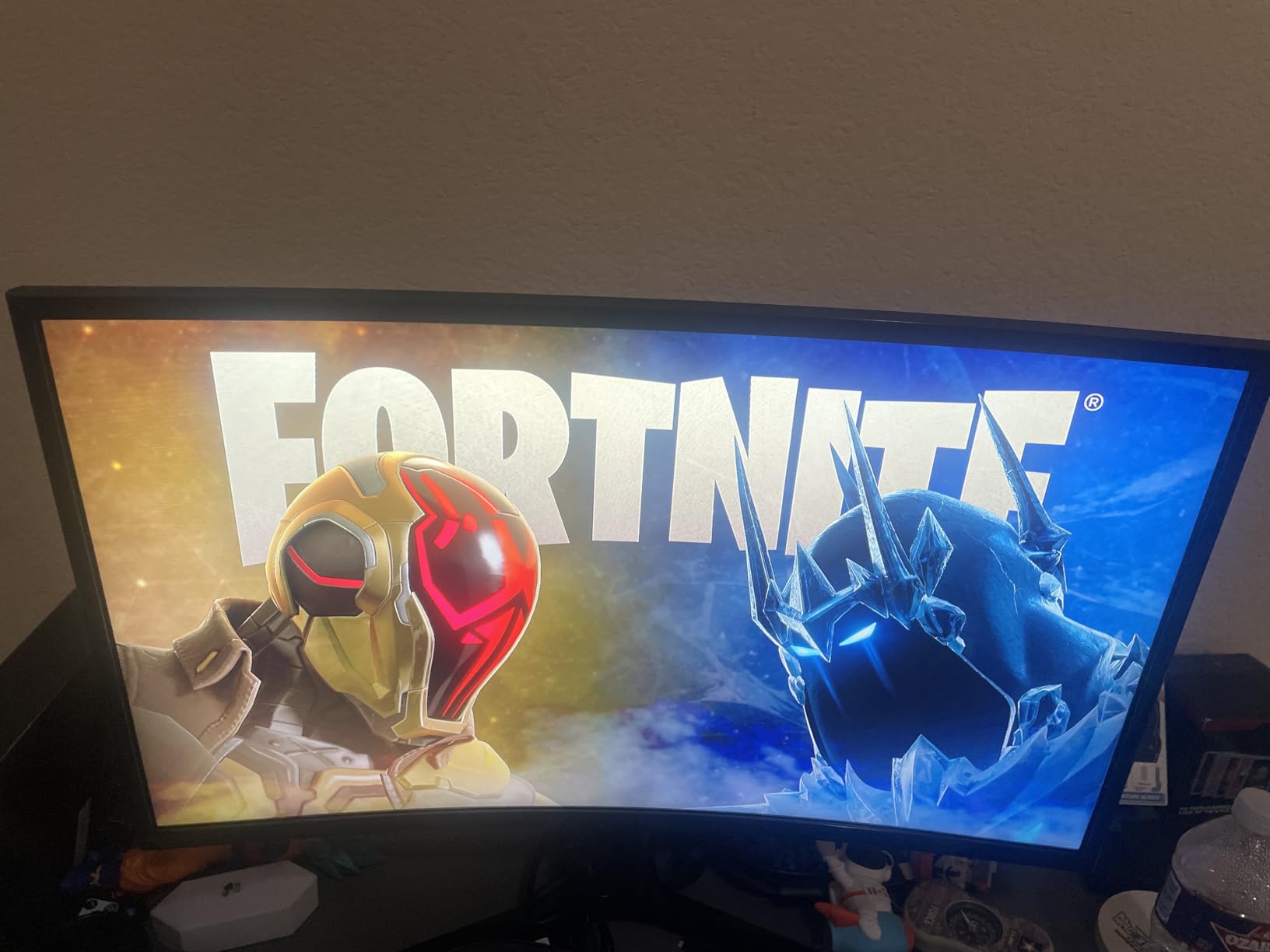
The Samsung S36GD surprised me. I expected a curved monitor to be a gimmick at this price, but the 1800R curve genuinely helps during long sessions. Documents at the edges of the screen are easier to read because the curve keeps them at a more consistent distance from your eyes. If you handle wide spreadsheets, the difference is real.
At 27 inches with 100Hz refresh, this is the sweet spot for productivity. The 3000:1 contrast from the VA panel produces deeper blacks than IPS monitors at this price, which made reviewing photo comps and presentation slides more pleasant than I expected.
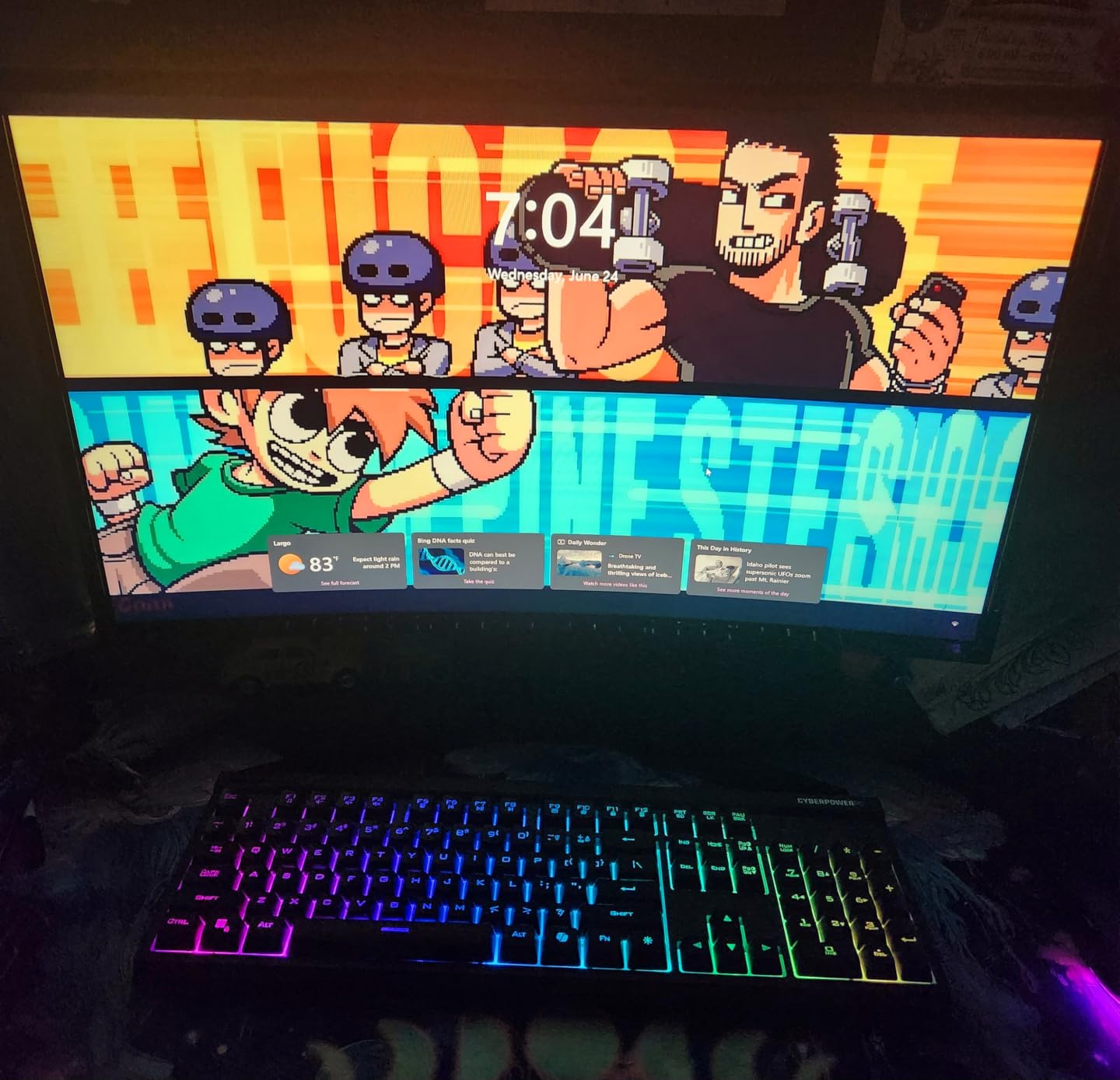
Samsung’s TUV-certified Advanced Eye Comfort technology reduces blue light and eliminates flicker. I worked a full 12-hour day on this monitor and the end-of-day eye fatigue was noticeably less than my usual setup. Game Mode adjusts contrast for better visibility in darker content, which also helps when reviewing design work.
The biggest weakness is the stand. It only tilts slightly and does not raise or lower. For ergonomic positioning, you will want a VESA arm. There are also no built-in speakers. Connectivity covers HDMI and D-sub, so plan accordingly for USB-C laptops.
Who should buy this monitor
Pick the Samsung S36GD if you want a curved screen for spreadsheets, multi-window workflows, and immersive document work on a budget.
Who should skip this monitor
Skip it if you need an adjustable stand out of the box or want USB-C connectivity without adapters.
5. Dell S2725DSM – Best QHD Monitor for Sharp Text and Spreadsheets
Dell 27 Plus QHD Monitor – S2725DSM – 27-inch QHD (2560×1440) 144Hz 1ms Display, 2 x 3W Speakers, HDMI/DisplayPort 1.4 Connectivity, Height/Tilt/Pivot/Swivel Adjustability, AMD FreeSync – Ash White
27 inch QHD IPS
144Hz refresh
Built-in speakers
Adjustable
Pros
- QHD 2560x1440 sharp text
- 144Hz refresh rate
- Built-in dual 3W speakers
- Full height/tilt/pivot/swivel adjustability
- TUV eye comfort certified
Cons
- No USB-C connectivity
- Audio quality average
- Premium price versus basic monitors
Stepping up to QHD resolution is the upgrade I recommend most for serious home office work. The Dell S2725DSM packs 2560×1440 pixels into a 27-inch IPS panel, and the difference from Full HD is striking. Text is sharper, spreadsheets fit more columns, and you can have two full-size documents side-by-side without scrolling. I used this as my primary monitor for two weeks and going back to 1080p felt like a downgrade.
The 144Hz refresh rate combined with 1ms response makes everything feel responsive. Window management, dragging files, scrolling long documents. Even text editing benefits from the smoothness. For a productivity monitor at this price, 144Hz is exceptional.
Built-in speakers are a small detail that mattered more than I expected. The dual 3W drivers handle Zoom calls and YouTube training videos without needing external speakers. They will not replace a dedicated audio setup, but for quick calls they work.
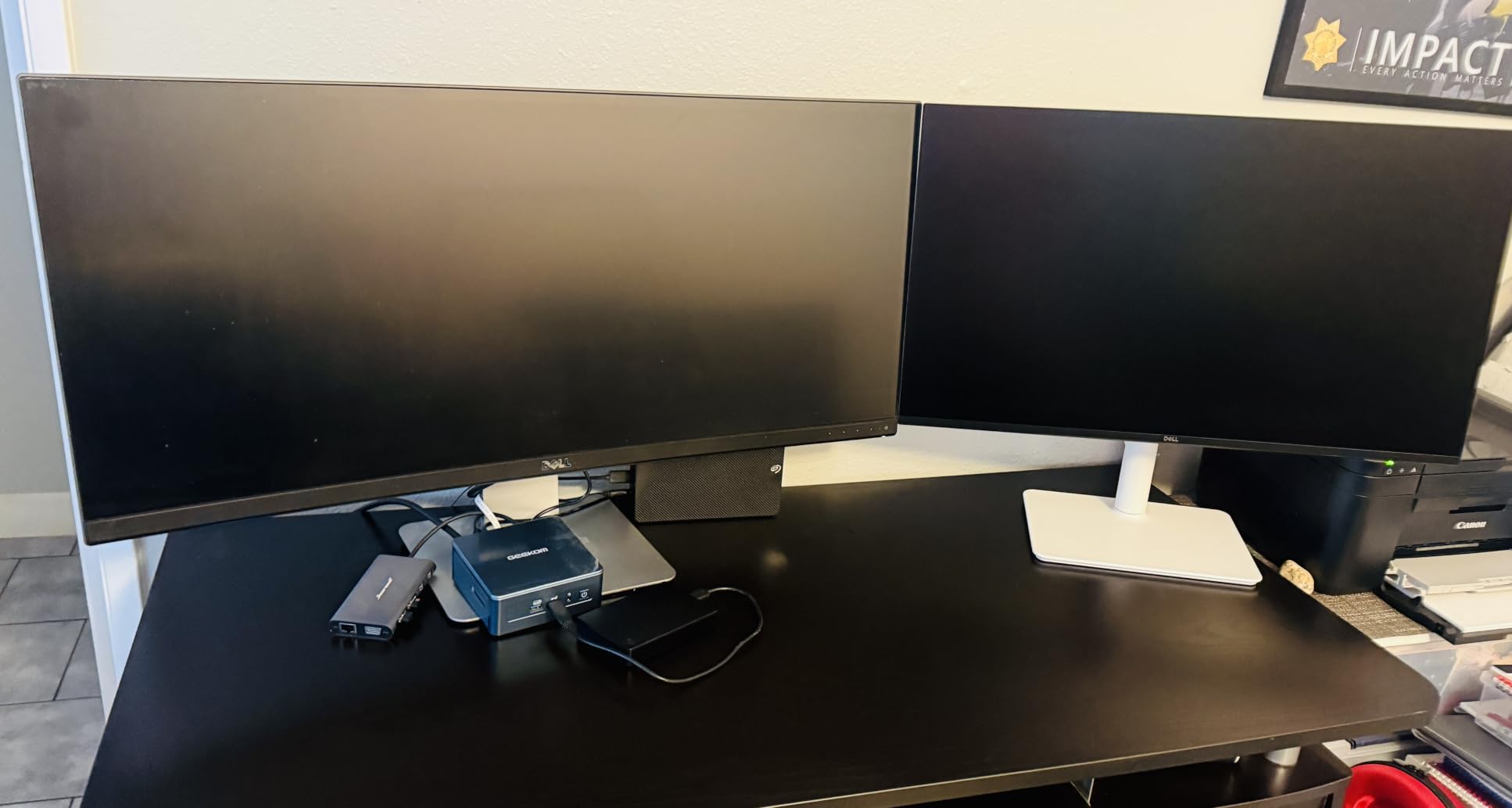
The fully adjustable stand is the standout ergonomic feature. Height, tilt, pivot, and swivel adjustments let you position the screen exactly where your neck and eyes need it. The 4-star TUV eye comfort certification means blue light is properly reduced. After long sessions on this monitor, eye strain was minimal.
Who should buy this monitor
Pick the Dell S2725DSM if you want sharper text, more screen real estate for documents, and a fully adjustable stand without jumping to a 4K price.
Who should skip this monitor
Skip it if you need USB-C single-cable docking or want 4K resolution for creative work.
6. Dell S3425DW – Best Ultrawide Monitor with USB-C Power Delivery
Dell 34 Monitor S3425DW, WQHD VA, 120Hz, FreeSync Premium, Eye Comfort
34 inch WQHD ultrawide
USB-C 65W PD
120Hz
95% DCI-P3
Pros
- USB-C with 65W power delivery
- 34 inch ultrawide productivity
- 120Hz smooth refresh
- Built-in 10W speakers
- HDR10 support
Cons
- Limited port selection
- VESA mount design awkward
- Setup can be complex with docks
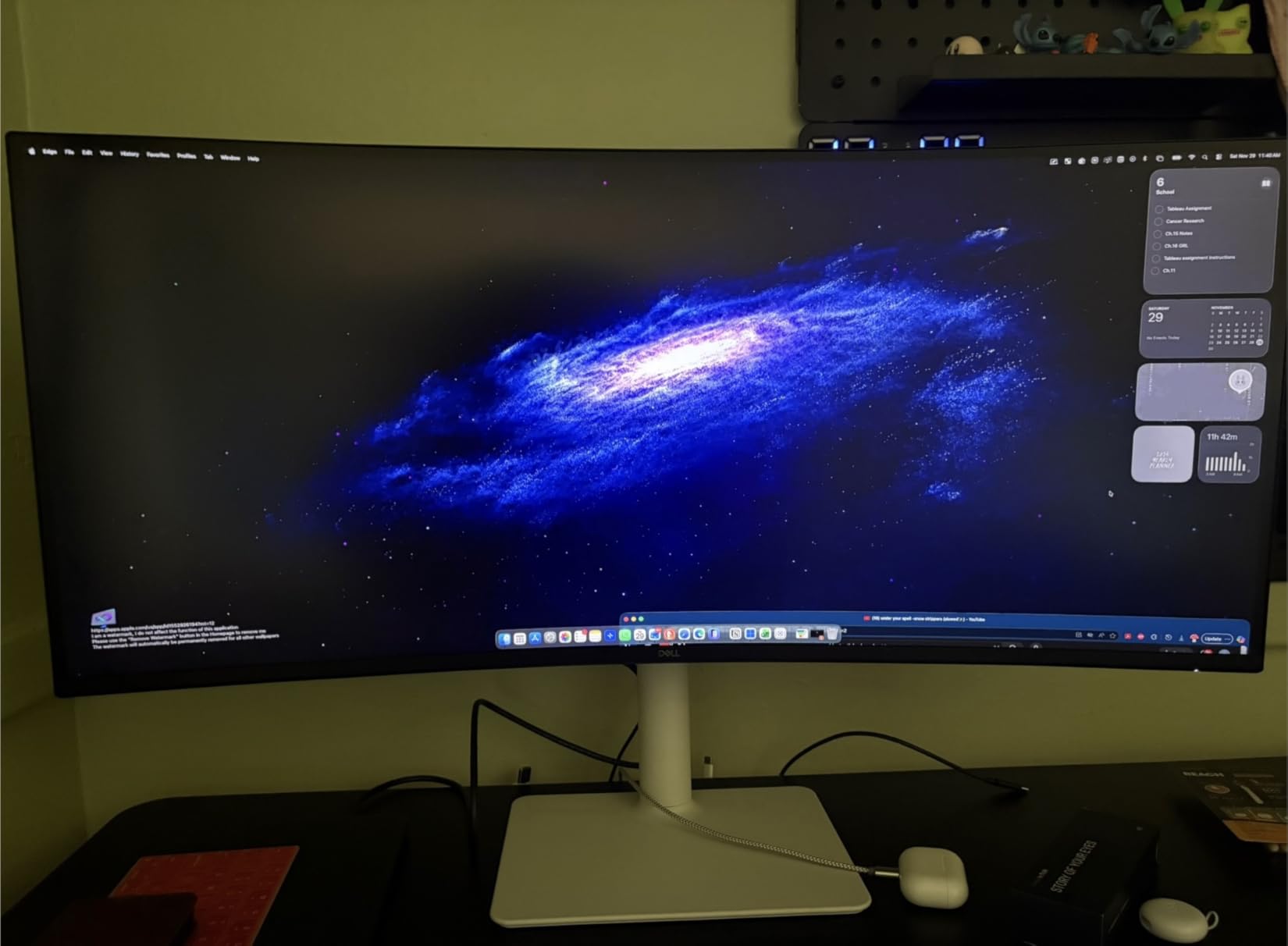
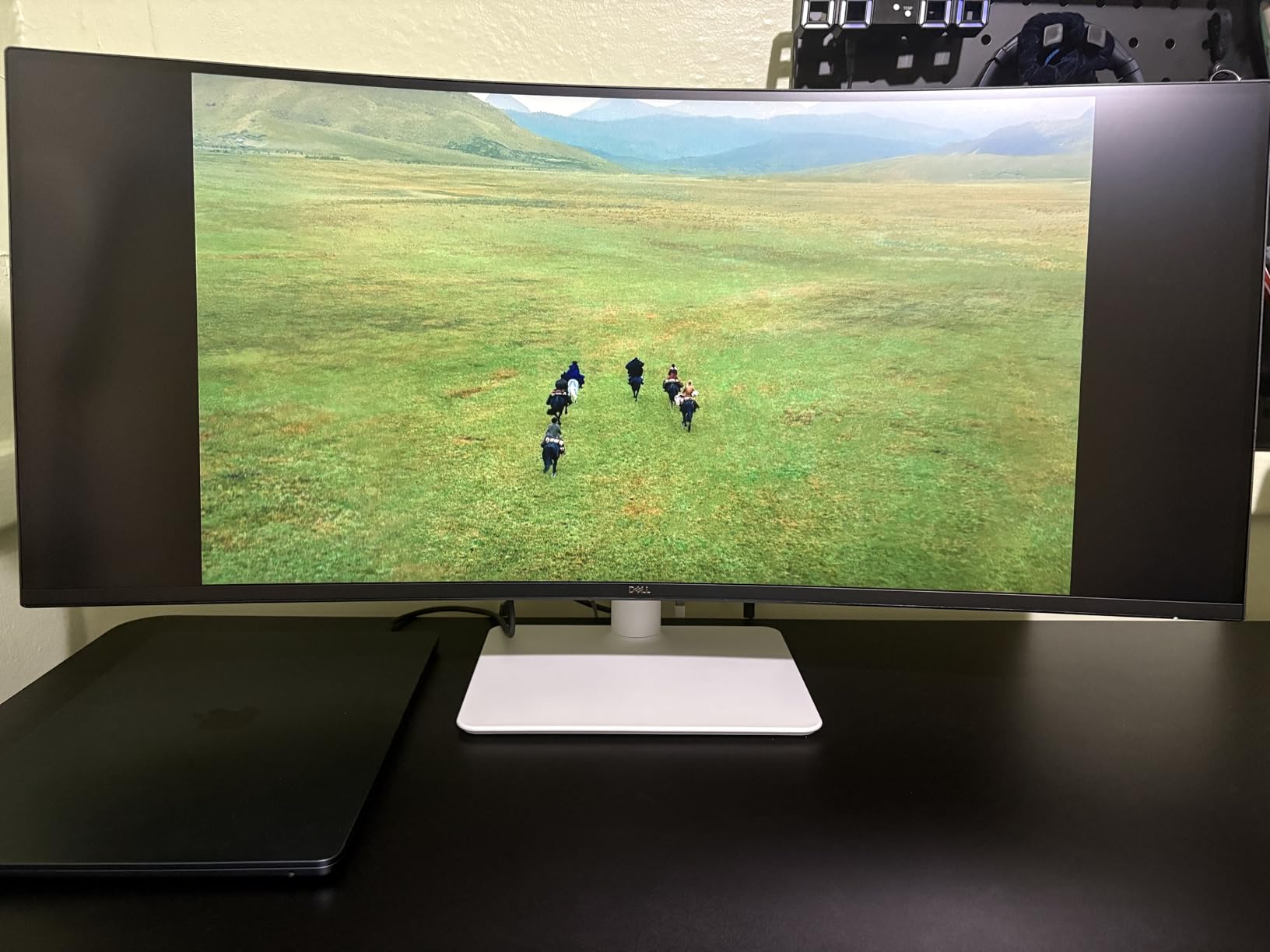
The Dell S3425DW is where I started believing in ultrawide monitors for serious office work. The 34-inch curved screen with 3440×1440 resolution gives you the screen real estate of two 24-inch monitors without the bezel gap in the middle. I ran my full workflow on it: email on the left, document in the center, browser on the right, and never felt cramped.
USB-C power delivery at 65W is the headline feature for laptop users. I plugged my MacBook Pro in with one cable and the monitor handled video, data, and charging simultaneously. The 120Hz refresh rate made the experience feel premium compared to older 60Hz office displays I had used.
Color accuracy is genuinely impressive. 95% DCI-P3 coverage means the monitor handles color work without looking flat or washed out. The HDR10 support adds depth to video content and presentations. The 3000:1 contrast ratio produces deep blacks that make text crisp and graphics pop.
The 10W built-in speakers are louder and clearer than expected. For video calls and casual listening, they work. There are limitations: only HDMI and USB-C ports, so plan your connections accordingly. Some users report Picture-by-Picture bugs when mixing Windows and Mac, so test your setup if you dual-boot.
Who should buy this monitor
Pick the Dell S3425DW if you want one USB-C cable to handle everything, need serious screen space for multitasking, and prefer ultrawide over dual monitors.
Who should skip this monitor
Skip it if you frequently share your screen on video calls since ultrawide aspect ratios do not translate well, or if you need DisplayPort connectivity for high-refresh gaming.
7. Samsung S65UA – Best Premium Ultrawide for Multitasking
SAMSUNG Viewfinity S65UA Series 34-Inch Ultrawide QHD Curved Monitor, 100Hz, USB-C, HDR10 (1 Billion Colors), Height Adjustable Stand, TUV-certified Intelligent Eye Care (LS34A654UBNXGO),Black
34 inch QHD ultrawide
USB-C 90W
HDR10
1000R curve
Pros
- USB-C with 90W power delivery
- 1000R immersive curve
- HDR10 with 1 billion colors
- Picture-by-Picture and Picture-in-Picture
- Multiple USB ports eliminate hub needs
Cons
- Some dead pixels reported
- Color calibration needed out of box
- Single HDMI port
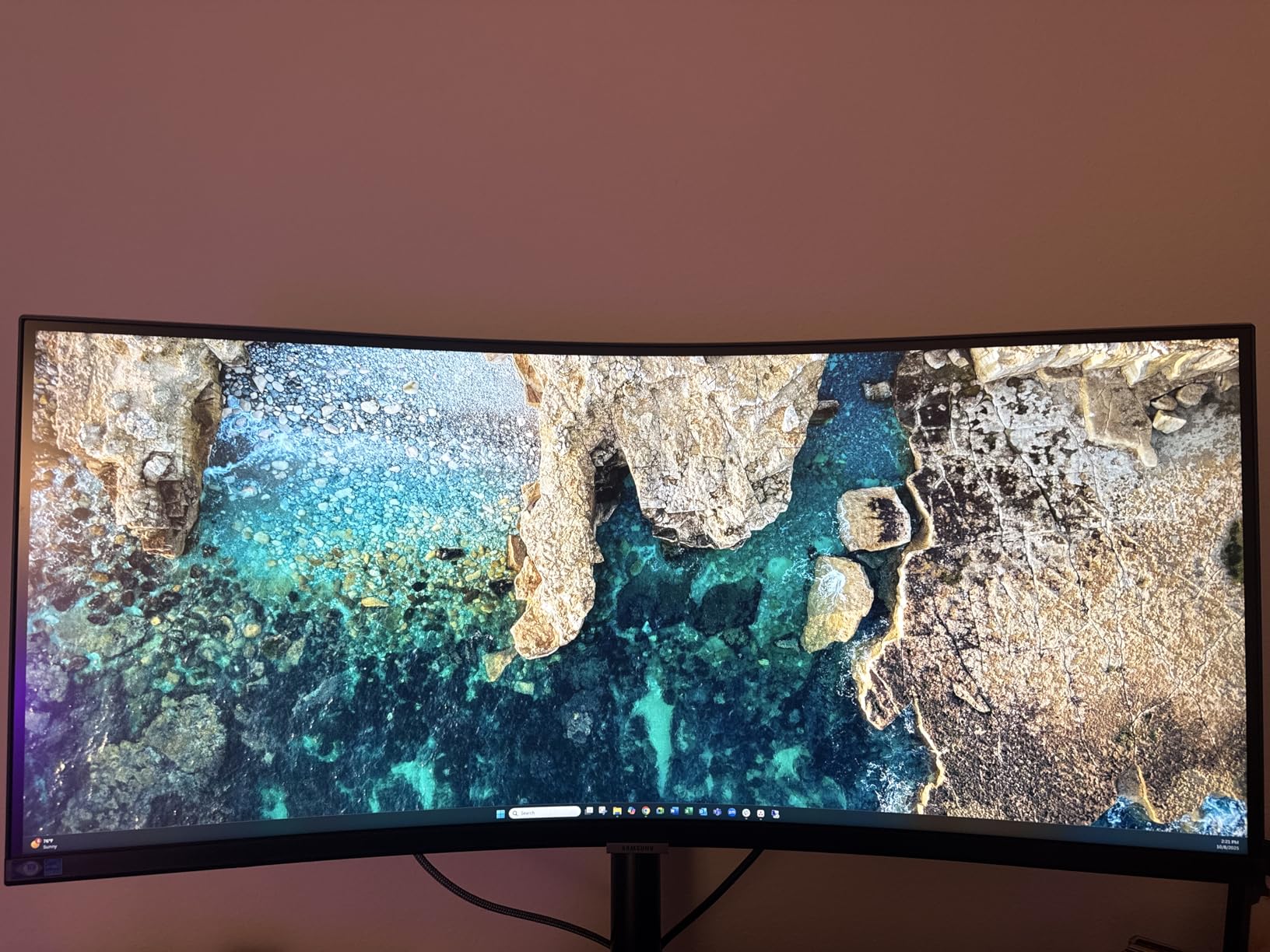
The Samsung Viewfinity S65UA is the ultrawide I would buy if I needed to replace a dual monitor setup and wanted the cleanest desk possible. The 34-inch curved QHD display with 1000R curvature matches the natural field of view, which reduces the constant refocusing your eyes do on flat screens. After a week of use, going back to a flat panel felt uncomfortable.
USB-C with 90W power delivery is the killer feature. I charged my 14-inch laptop through the monitor while driving two external windows at full resolution. Single-cable docking is genuinely transformative for desk organization. The multiple USB ports on the back let me plug in a keyboard, mouse, and webcam without a separate hub.
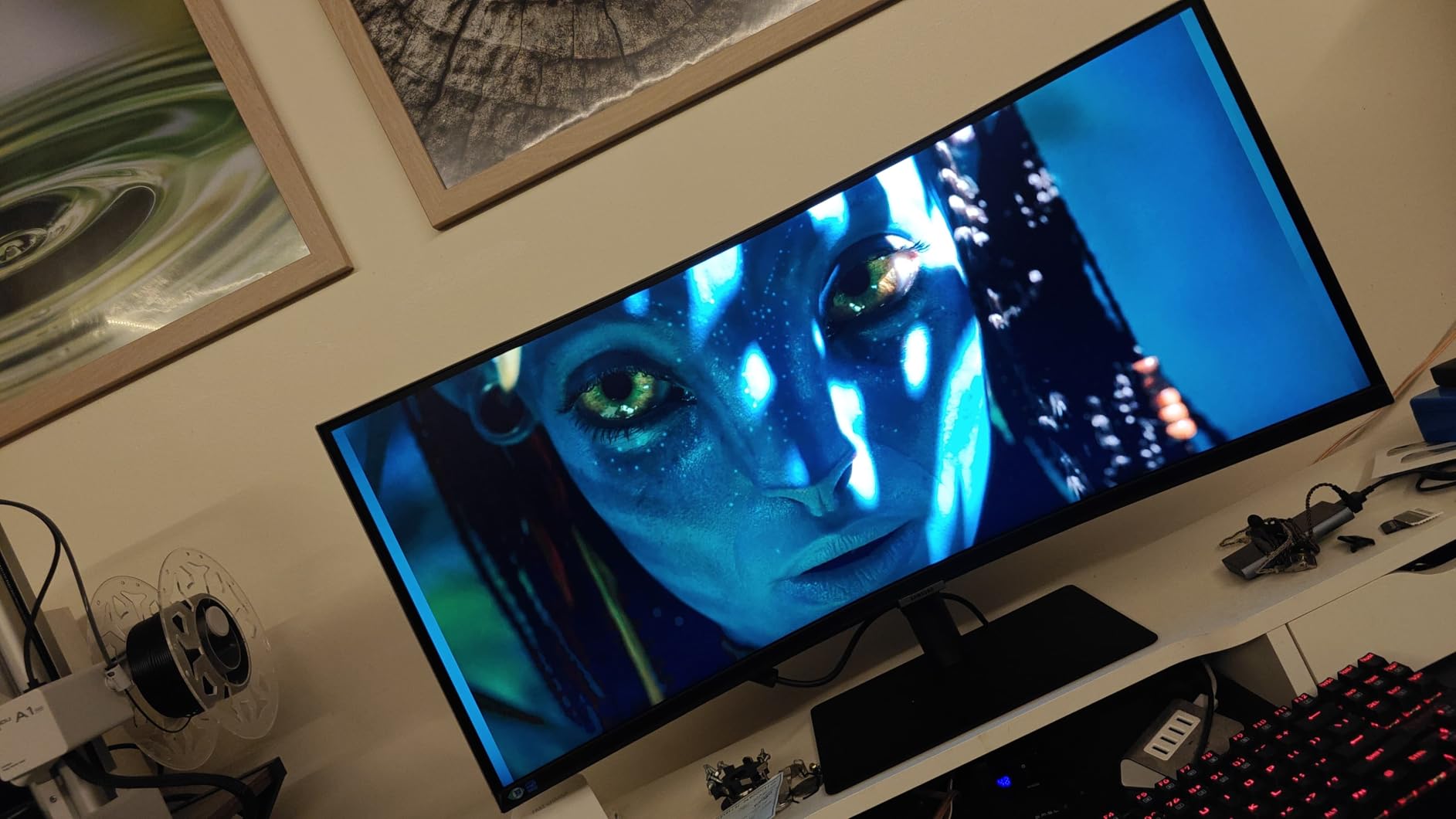
HDR10 support with 1 billion colors makes presentations and video content look noticeably better than SDR office monitors. The Picture-by-Picture mode lets you connect two computers and treat the ultrawide as two virtual displays side-by-side. For users running a work laptop and personal machine, this is invaluable.
The 100Hz refresh rate is smooth for productivity work. The TUV-certified Intelligent Eye Care reduces blue light effectively. There are some concerns: occasional dead pixel reports, the need for color calibration out of the box, and only one HDMI port. For the price, I expected slightly better quality control.
Who should buy this monitor
Pick the Samsung S65UA if you want a single ultrawide to replace dual monitors, need high-wattage USB-C charging, and value the cleanest desk setup possible.
Who should skip this monitor
Skip it if you frequently screen-share on video calls, work primarily on a single laptop without high USB-C charging needs, or want guaranteed panel quality at this price.
8. Samsung S95UA – Best 49 Inch Super Ultrawide for Power Users
Samsung 49” Business Curved Ultrawide Dual QHD Computer Monitor, USB-C, DisplayPort, HDMI, 120Hz, VESA DisplayHDR 400, Built-in Speakers, Height Adjustable Stand, Eye Care, LS49C954UANXZA, 2024
49 inch dual QHD
USB-C 90W
120Hz
HDR 400
Pros
- Massive 49 inch replaces dual monitor setup
- Excellent for Excel-heavy workflows
- 120Hz smooth refresh
- USB-C 90W charging
- Built-in speakers save desk space
Cons
- Very expensive
- QHD only via HDMI connection
- Complex setup with docking stations
- Menu controls hard to access
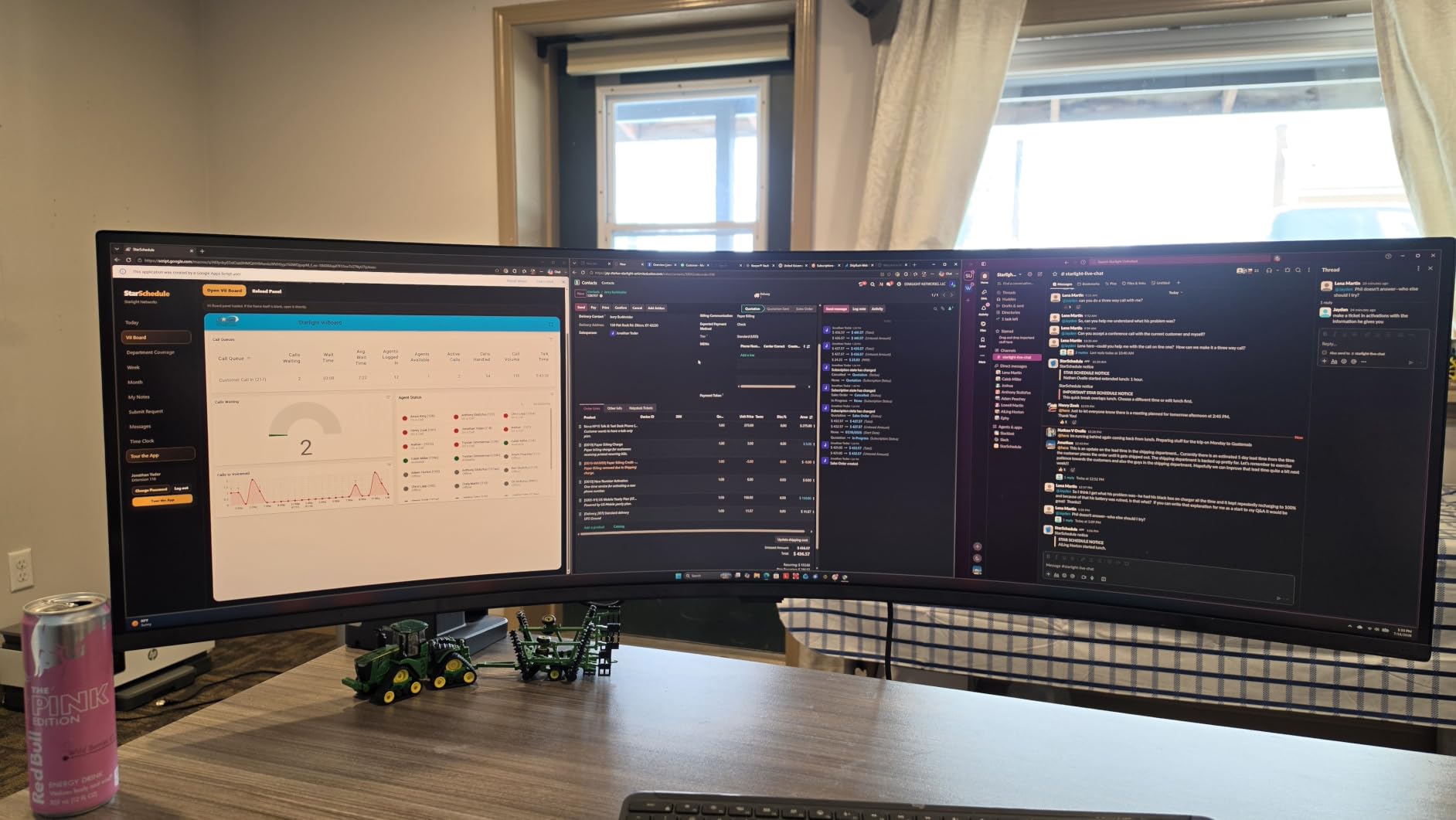
The Samsung S95UA is the monitor I tested that genuinely changed how I work. The 49-inch Dual QHD display at 32:9 aspect ratio is exactly like having two 27-inch QHD monitors side-by-side, without the bezel gap and with one cable instead of two. For Excel work, this is transformative. I had columns A through Z visible without scrolling.
USB-C with 90W power delivery handles the single-cable dream. I plugged in my laptop and immediately had a complete workstation: power, video, data, and access to the monitor’s USB hub. The 120Hz refresh rate combined with VESA DisplayHDR 400 made everything look smooth and vibrant.
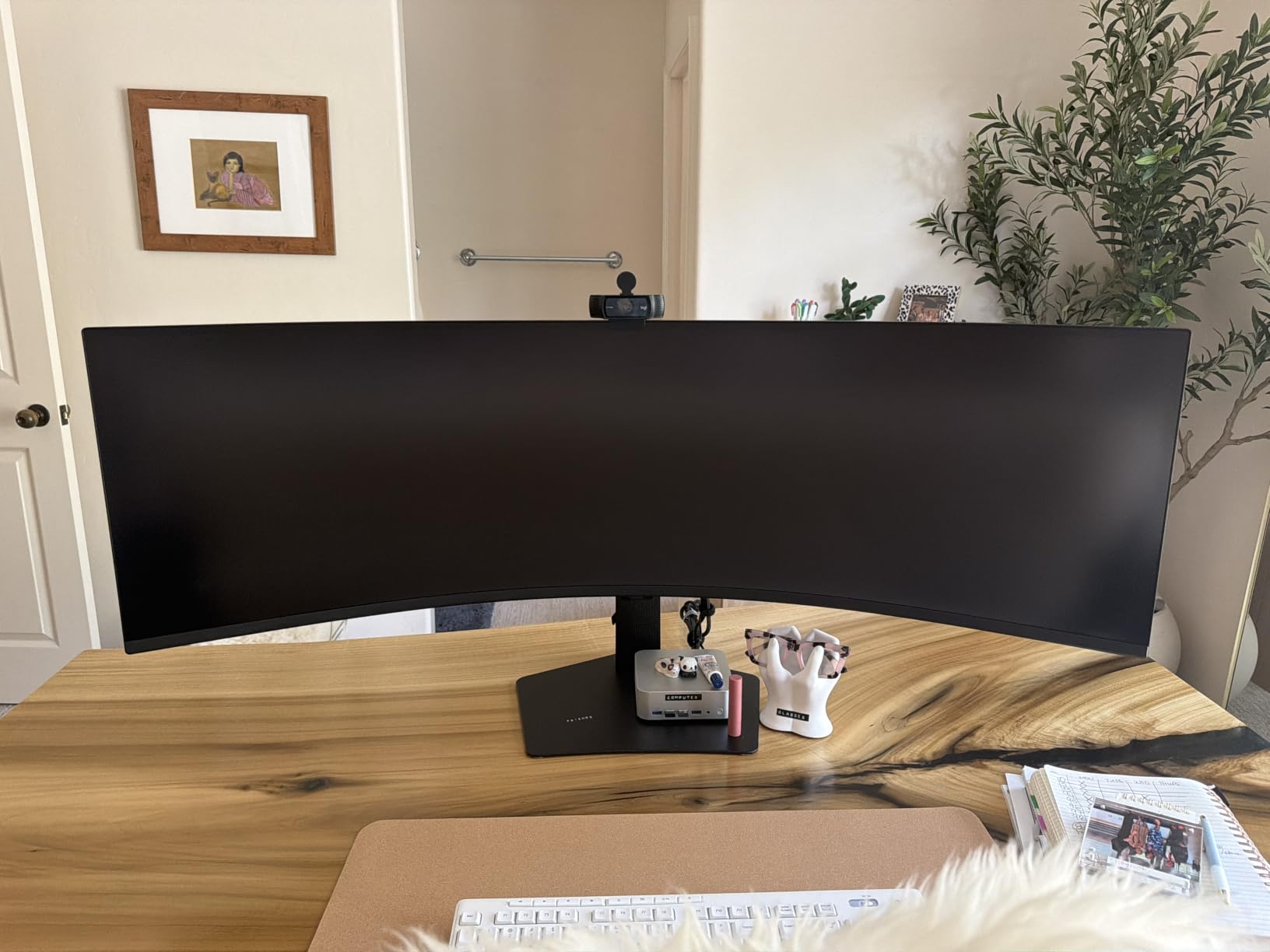
For spreadsheet work, financial modeling, video editing timelines, and any task that benefits from extreme horizontal space, nothing else comes close. The 1800R curve keeps the edges of the screen within your natural field of view. The built-in speakers are decent for casual use and save desk space.
The downsides are real. The price puts this in premium territory. USB-C video is limited, so full Dual QHD resolution works best through HDMI. Setup with docking stations can be tricky, with some users reporting passthrough issues. The menu controls are tiny and hard to access once the monitor is on your desk.
Who should buy this monitor
Pick the Samsung S95UA if you work with massive spreadsheets, financial models, or creative timelines, want to replace dual monitors with one clean setup, and have the budget for a premium display.
Who should skip this monitor
Skip it if you have a small desk, frequently share screens on video calls, or do not need extreme horizontal screen space.
How to Choose the Best Monitor for Your Home Office
Choosing the best monitor for a home office comes down to matching the panel to your actual work. After testing eight monitors across spreadsheets, video calls, document editing, and creative tasks, five factors consistently mattered most: screen size, resolution, connectivity, eye comfort, and ergonomics. Here is how to think through each one.
Screen size: 24 inch, 27 inch, or ultrawide?
Screen size is the first decision, and the 27-inch panel emerged as the clear sweet spot during testing. It fits comfortably on most desks at arm’s length, gives you enough space for two windows side-by-side, and does not require constant head movement. A 24-inch monitor works for tight spaces and as a secondary display. Ultrawide 34-inch monitors are excellent for multitasking but impractical if you share your screen on video calls. The 49-inch super ultrawide is a luxury for users with specific workflows like financial modeling or video editing.
Resolution: Is 4K worth it for home office work?
Resolution matters more than most buyers realize. Full HD (1920×1080) is acceptable for basic tasks but feels cramped when working with documents and spreadsheets. QHD (2560×1440) is the sweet spot for productivity, offering noticeably sharper text and more screen real estate without the cost of 4K. True 4K (3840×2160) is worth it for creative professionals working with detailed images or anyone who wants the sharpest possible text. For document-heavy work, QHD delivers most of the benefit of 4K at a lower price.
Connectivity: Why USB-C matters in 2026
USB-C connectivity with power delivery is no longer a luxury. Modern laptops charge through USB-C, and a monitor that delivers 65W or more can replace your docking station with a single cable. This simplifies your desk, reduces cable clutter, and makes it trivial to undock your laptop when you need to leave. For 2026 home office setups, USB-C power delivery of 65W to 90W is the feature I would prioritize over resolution upgrades.
Eye comfort features that actually work
Eye comfort features vary wildly in quality. TUV-certified blue light filters and flicker-free backlights make a measurable difference during 10-hour work sessions. Look for monitors with hardware-level blue light reduction, not just software filters that tint the screen yellow. Higher refresh rates (100Hz or 120Hz) also reduce eye strain because scrolling and motion appear smoother. VA panels generally produce better contrast for text, while IPS panels offer wider viewing angles if you collaborate in person.
Ergonomic adjustments you should not skip
An adjustable stand is not optional for serious office work. Height adjustment lets you position the screen at eye level, reducing neck strain. Tilt adjustment handles glare from windows. Pivot (rotating to portrait mode) is invaluable for reading long documents, coding, or working with tall spreadsheets. If a monitor’s stand only tilts, budget for a VESA mount arm. The difference in long-term comfort is enormous.
Frequently Asked Questions
What is the best monitor brand for a home office?
Dell, Samsung, LG, ASUS, and BenQ consistently produce the most reliable home office monitors. Dell’s Ultrasharp and S-series lines are particularly well-regarded for productivity work. Samsung offers strong ultrawide options. For budget-focused buyers, Acer and KOORUI deliver reliable panels at lower prices. The best brand depends on your specific needs: Dell for professional reliability, Samsung for ultrawide innovation, and Acer or KOORUI for budget value.
What’s the best size monitor for a home office?
A 27-inch monitor is the sweet spot for most home office setups. It provides enough screen space for two windows side-by-side, fits comfortably on standard desks, and works at typical viewing distances of 24 to 32 inches. A 24-inch monitor works well for smaller desks or as a secondary display. Ultrawide 34-inch monitors are excellent for multitasking but take up significant desk space. The 49-inch super ultrawide is best for specialized workflows like financial modeling.
What is the best monitor setup for a home office?
The best home office setup combines a 27-inch QHD monitor with an adjustable stand, USB-C connectivity, and eye comfort certification. For maximum productivity, consider a 34-inch ultrawide with USB-C power delivery to replace dual monitors with one cable. Dual 27-inch monitors work well if you frequently multitask or need dedicated screens for video calls and document work. Whatever setup you choose, prioritize ergonomic positioning: screen at arm’s length, top of screen at or slightly below eye level.
Do I need 4K resolution for a home office monitor?
4K resolution is not required for most home office work but provides noticeably sharper text and more screen real estate. QHD (2560×1440) delivers most of the productivity benefits of 4K at a lower price and is the sweet spot for most users. Full HD (1920×1080) is acceptable for basic tasks but feels cramped for spreadsheets and document-heavy work. Choose 4K if you do creative work, want the sharpest possible text, or split your screen between multiple windows regularly.
Final Verdict on the Best Monitors for Home Offices in 2026
After testing all eight monitors, three picks stand out. The Acer KB272 G0bi remains my top recommendation for most home office users, offering an IPS panel, 120Hz refresh, and TUV eye comfort certification at a price that fits most budgets. For users wanting sharper text and QHD resolution without breaking the bank, the Dell S2725DSM delivers excellent value with its adjustable stand and built-in speakers. For premium single-cable setups, the Samsung S65UA ultrawide with 90W USB-C power delivery transforms desk organization.
Your choice ultimately depends on your specific workflow. If you mostly handle documents and email, a budget 27-inch IPS monitor handles everything you need. If you multitask heavily or want to replace dual monitors, an ultrawide with USB-C is worth the investment. Whatever monitor you choose from this list of the best monitors for home offices in 2026, prioritize eye comfort certification, ergonomic adjustment, and connectivity that matches your laptop. Your eyes and neck will thank you after the hundredth hour of remote work.