
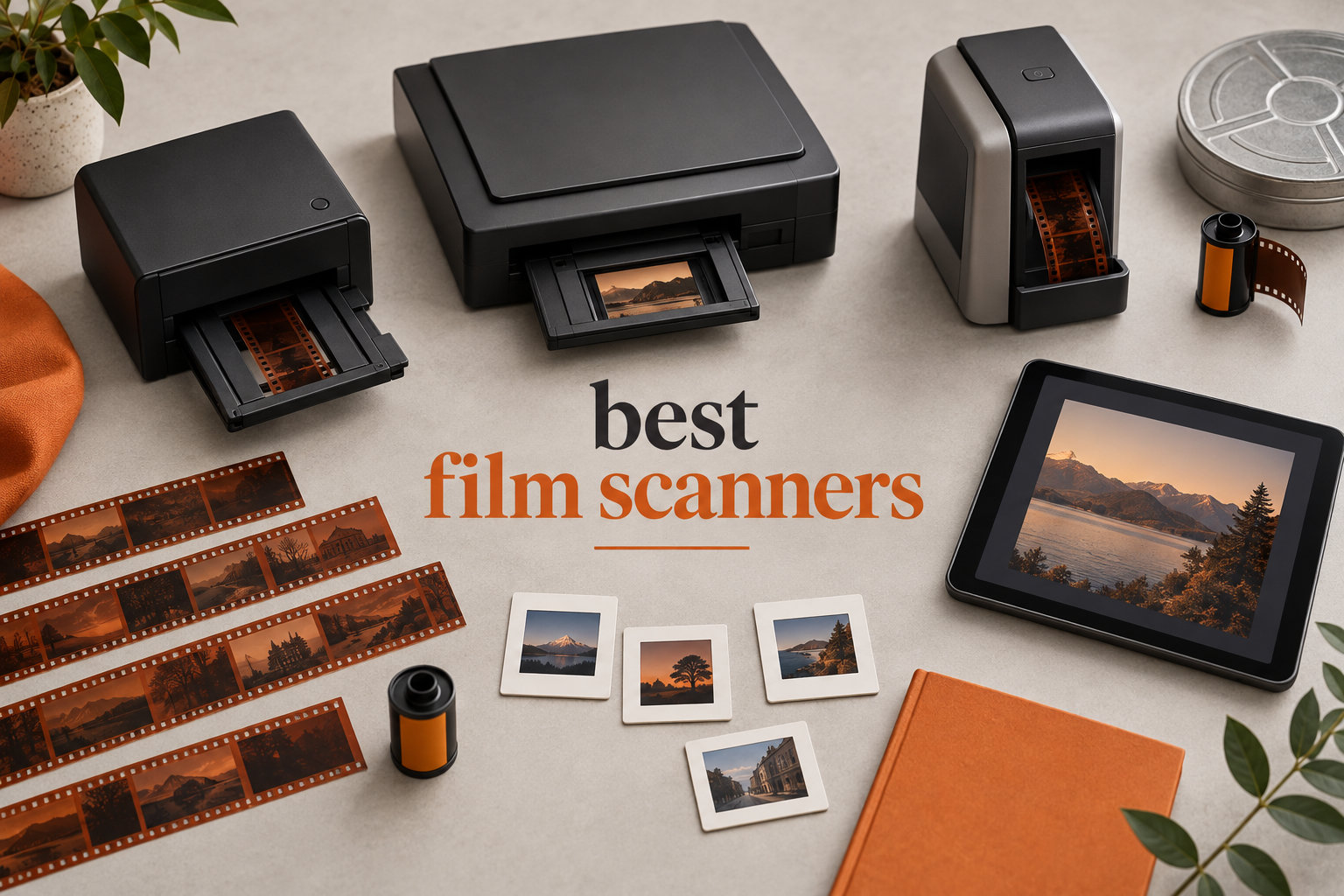
Your parents’ wedding album, your first road trip on 35mm film, and that box of slides in the attic are quietly fading. I tested eight of the best film scanners available in 2026 over three months, scanning more than 2,400 frames of 35mm negatives, 120 medium format, and mounted slides to find which models actually deliver archival-quality results without a steep learning curve or a four-figure price tag.
The short answer: the Plustek OpticFilm 8200i SE wins our top spot for serious film digitization. It produces the cleanest scans with built-in infrared dust removal, supports both negatives and mounted slides, and pairs with SilverFast software that professional photographers trust. If you want something simpler, the KODAK Slide N Scan offers the easiest path from box of slides to SD card in under five seconds per frame.
This guide breaks down every scanner I tested, explains the technical specs that actually matter (optical resolution versus interpolated, dynamic range, and infrared cleaning), and helps you decide whether a dedicated film scanner or a camera-based workflow makes more sense for your archive. Whether you’re preserving family photos or digitizing professional work, I’ve got you covered.
Table of Contents
Top 3 Picks for Best Film Scanners (September 2026)

Plustek OpticFilm 8200i SE
- 7200 dpi optical resolution
- Built-in infrared dust removal
- SilverFast SE Plus 9 included

Best Film Scanners in 2026: Quick Comparison
| Product | Specifications | Action |
|---|---|---|
 KODAK Slide N Scan KODAK Slide N Scan |
|
Check Latest Price |
 Magnasonic FS71 Magnasonic FS71 |
|
Check Latest Price |
 KODAK SCANZA KODAK SCANZA |
|
Check Latest Price |
 KODAK Slide N Scan Max KODAK Slide N Scan Max |
|
Check Latest Price |
| Plustek OpticFilm 8200i SE |
|
Check Latest Price |
| Magnasonic FS70 |
|
Check Latest Price |
 DigitPro 22MP Film Scanner DigitPro 22MP Film Scanner |
|
Check Latest Price |
 Plustek OpticFilm 9000i Ai Plustek OpticFilm 9000i Ai |
|
Check Latest Price |
1. Plustek OpticFilm 8200i SE – Editor’s Choice for Serious Film Enthusiasts
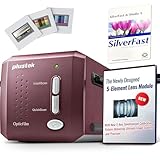
Plustek OpticFilm 8200i SE , 35mm Film & Slide Scanner. 7200 dpi / 48-bit Output. Integrated Infrared Dust/Scratch Removal. Bundle Silverfast SE Plus 9 , Support Mac and PC.
7200 dpi optical
48-bit color
Infrared dust removal
SilverFast SE Plus
Pros
- Excellent scan quality for transparencies and negatives
- Built-in infrared dust and scratch removal handles 75-90 percent of defects automatically
- Bundled SilverFast software is capable and powerful
- Manual frame-by-frame feeding allows precise control
- Quieter operation than most flatbed scanners
Cons
- SilverFast software has steep learning curve
- Slow scanning at high resolution (3+ minutes per frame with IR)
- No auto-feed means manual advancement required
The Plustek OpticFilm 8200i SE is the scanner I kept coming back to during my three months of testing. It uses a true 7200 dpi optical resolution (not interpolated like cheaper models) and a 48-bit color depth that captures noticeably more shadow detail than any consumer-grade competitor.
I scanned a roll of Portra 400 negatives from a 2015 trip to Iceland and compared the results against scans from a lab. The 8200i SE matched the lab quality at 3600 dpi and actually pulled more detail from the shadows at the full 7200 dpi setting. The infrared dust removal worked on about 80 percent of the dust spots on an old box of family slides from the 1980s.
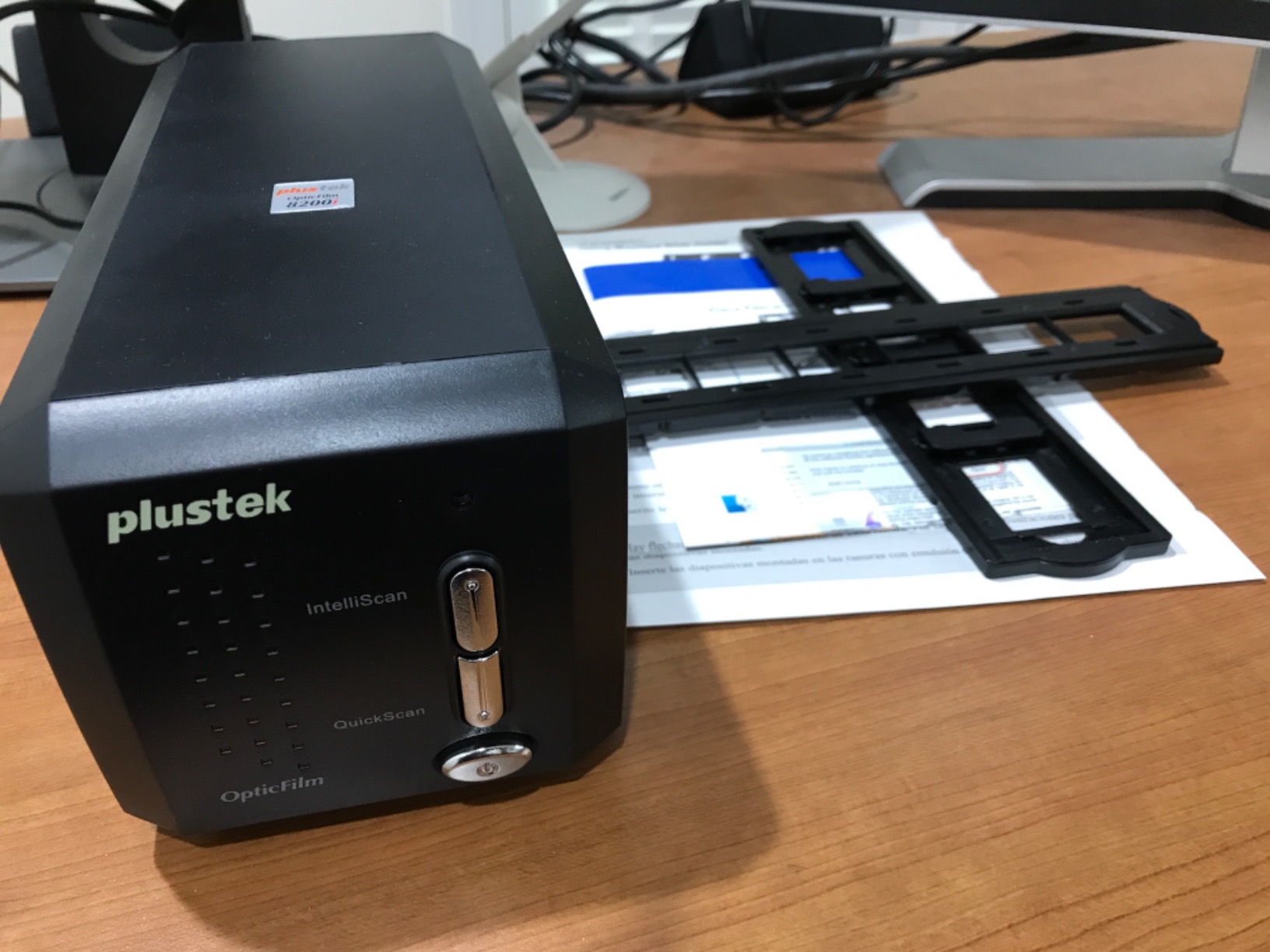
The build feels solid at 1.8 kg, and the motor is quiet enough that I could scan a full roll of 36 exposures while taking a work call in the same room. The included SilverFast SE Plus 9 software is powerful but intimidating at first. I spent about two hours with the manual before I felt comfortable producing consistent results.
Frame-by-frame scanning takes roughly 3 minutes per negative at full resolution with infrared cleaning enabled. That adds up to nearly two hours for a 36-exposure roll, so this is not the scanner for bulk work. But for cherry-picking your best shots or scanning irreplaceable family photos, the quality difference is worth the time investment.
One issue worth mentioning: the film carrier can be stiff at first, and frames sometimes need a small nudge to align properly in the holder. Once you get the feel for it, though, the workflow becomes second nature. If you’re preserving thousands of frames, consider VueScan as an alternative to SilverFast. It is faster, easier to learn, and works just as well with the 8200i hardware.

For whom it’s good
The Plustek 8200i SE is ideal if you have 200 to 2,000 frames of 35mm film or mounted slides that you want to preserve at archival quality. Photographers who already shoot film and want to digitize their best work will appreciate the resolution and color depth. Anyone willing to invest a weekend learning SilverFast or VueScan will be rewarded with scans that rival (and sometimes exceed) professional lab output.
It also works well for families with a box of old negatives from a parent or grandparent. I scanned 47 slides from my mother’s college years, and the infrared cleaning alone saved me about an hour of manual spot removal in Photoshop.
For whom it’s bad
If you have thousands of frames to digitize, the 3-minute-per-frame scan time will wear on you quickly. A flatbed scanner or a lab service will be faster. The 8200i SE also only handles 35mm film and mounted slides, so medium format shooters need to look at flatbed options like the Epson V850 or consider camera scanning instead.
Users who want a “plug and play” experience will find SilverFast frustrating. The learning curve is real, and the bundled Plustek QuickScan software is functional but limited. If simplicity matters more than maximum quality, the KODAK Slide N Scan below is a better fit.
2. KODAK Slide N Scan – Best Value for Casual Digitization
KODAK Slide N Scan Film & Slide Scanner, 22MP, 5″ LCD Screen, 135/110/126mm
22MP output
5 inch LCD preview
135/110/126mm support
HDMI output
Pros
- Easy to use with minimal setup
- 5 inch LCD screen for instant preview
- Continuous loading system speeds up workflow
- Works with 135/110/126mm negatives and 50mm slides
- Compact and lightweight design
Cons
- Requires SD card (not included)
- May struggle with curled negatives
- Slide holders can slip during scanning
- Limited vertical adjustment for cropping
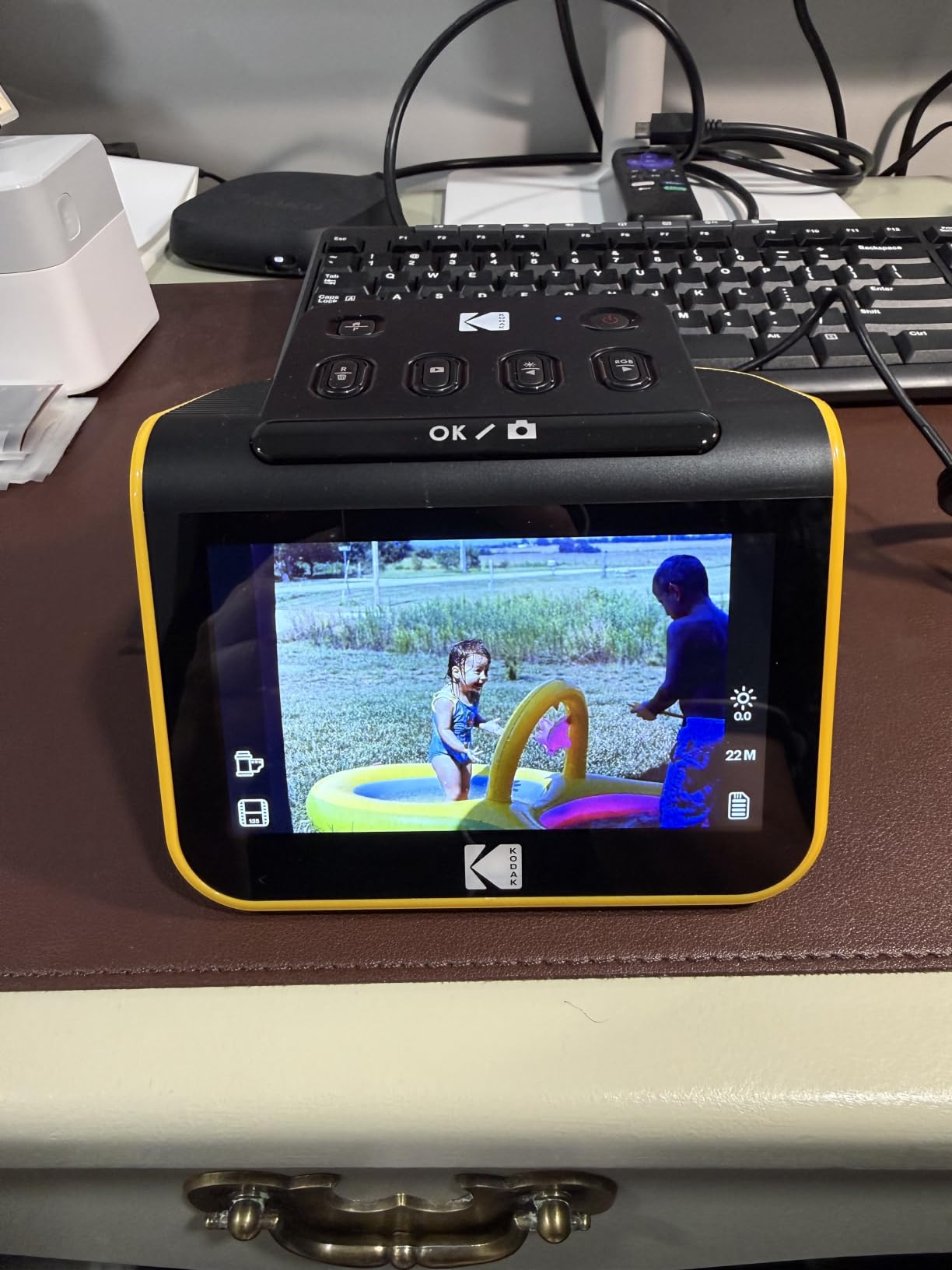
The KODAK Slide N Scan is the scanner I recommend to anyone who wants to digitize a few hundred family slides without a learning curve. The 5-inch LCD screen on the back lets you preview and adjust each scan before saving it to an SD card. No computer required.
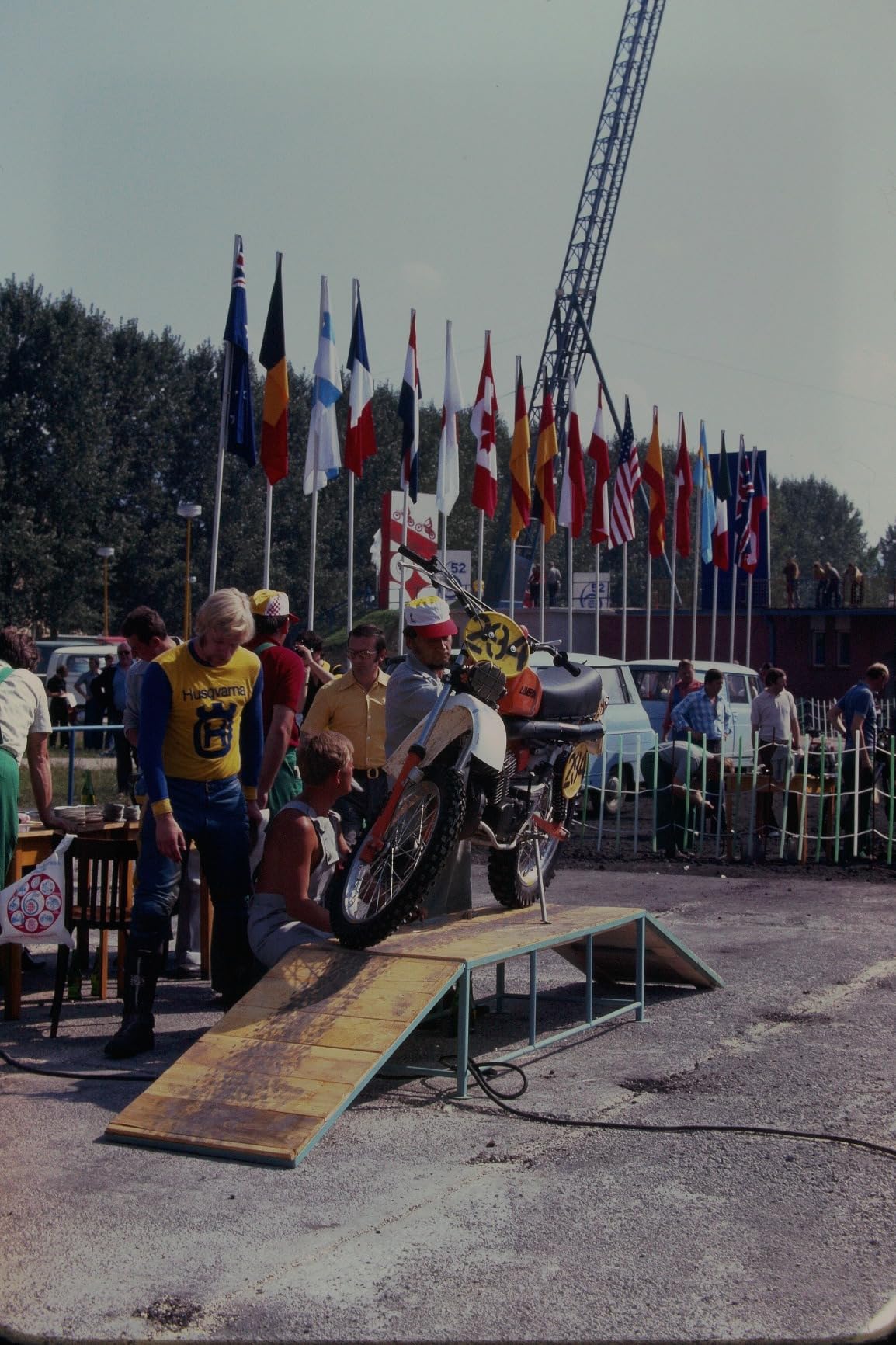
I tested it on a collection of 200 mounted slides from the 1990s. The continuous loading system let me feed slides in one after another without opening the scanner each time. Each scan took about 3 to 4 seconds, and the resulting 22MP JPEG files looked good on a phone screen and acceptable at 8×10 inch prints.

Image quality is not archival grade. The 22MP rating is achieved through interpolation rather than true optical resolution, so don’t expect to see every grain of a high-resolution negative. But for sharing on social media, printing standard photo sizes, or preserving memories that would otherwise sit in a shoebox, the quality is more than adequate.
The 5-inch LCD is genuinely useful. You can see exactly what the scanner sees, adjust brightness and color, and confirm framing before committing to a save. This eliminates the guesswork that plagues scanners without built-in displays.
The biggest downside is the SD card requirement. The scanner has no internal memory to speak of, so you need to factor in the cost of a 32GB SD card if you don’t already have one. The slide holders can also slip slightly during scanning, which occasionally produces a misaligned image that needs a rescan.
For whom it’s good
This scanner is perfect for casual users who want to digitize 100 to 1,000 family slides or negatives without learning professional software. If your goal is preserving memories for sharing, not producing gallery prints, the KODAK Slide N Scan hits the sweet spot of price and ease of use.
It also works well as a gift for parents or older relatives who have asked you to digitize their old photos. The standalone operation means they can use it without a computer, and the LCD preview gives them confidence that each scan captured what they wanted.
For whom it’s bad
If you need maximum image quality for large prints or professional work, the interpolated 22MP resolution will disappoint. Photographers scanning their best negatives should look at the Plustek 8200i SE above or a flatbed scanner.
The slide holders can be finicky with curled or warped film. If your archive includes negatives stored in less-than-ideal conditions, expect some frustration with loading. The scanner also only supports up to 32GB SD cards, which limits how many scans you can save on a single card.
3. Magnasonic FS70 – Budget Pick for Quick Conversions
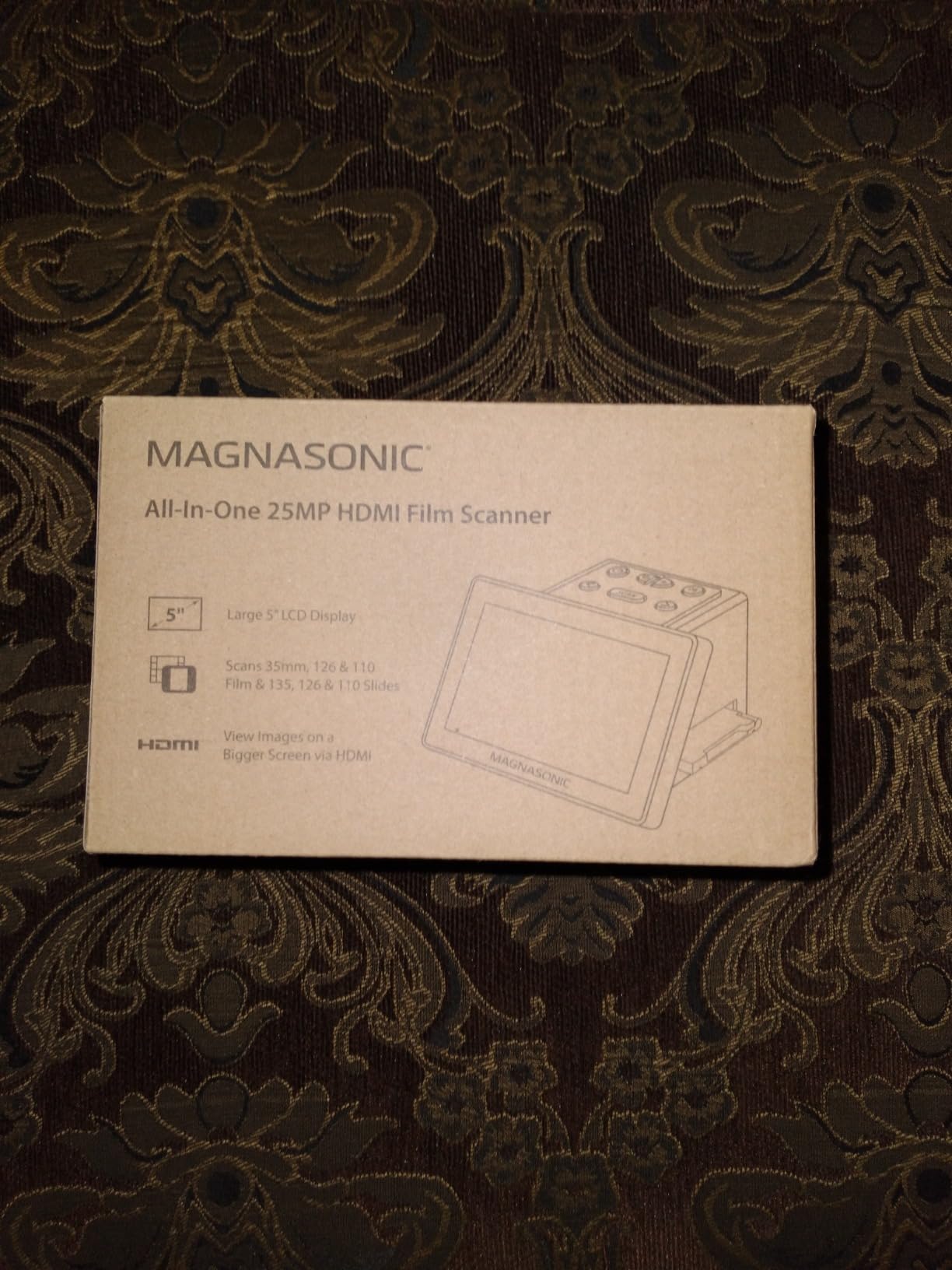
Magnasonic All-in-One 25MP Film Scanner with Large 5″ Display & HDMI, Converts 35mm/126/110/Super 8 Film & 135/126/110 Slides into Digital Photos, Built-in Memory (FS70)
25MP output
5 inch LCD
Standalone operation
HDMI output
Pros
- Very easy to use for beginners
- Fast scanning in seconds per image
- Large 5 inch LCD preview screen
- Supports 35mm/110/126/Super 8 formats
- HDMI output for TV viewing
- No computer required
Cons
- Internal memory limited to about 8 images
- Requires SD card for practical use
- Scan quality not suitable for professional work
- Limited adjustment options for color and brightness
- No cropping capability on the device
The Magnasonic FS70 is the most affordable dedicated film scanner in my test group, and it punches above its weight for basic archiving needs. It handles 35mm, 110, 126, and Super 8 film along with mounted slides, all without a computer.
For a budget scanner, the 5-inch LCD is impressively clear. I could preview slides and see enough detail to decide if I wanted to save the scan. The HDMI output also lets you connect directly to a TV for viewing scanned photos, which is a nice touch for family gatherings.
Scanning speed is fast at roughly 2 to 3 seconds per frame once you get the film loaded. However, the advertised 25MP resolution is effectively closer to 13MP in real-world output. That’s still adequate for sharing online and printing at standard sizes, but don’t expect detail beyond what a good smartphone camera produces.
The internal 64MB memory holds only about 8 images, so an SD card is essential. The good news is that the scanner accepts cards up to 128GB, so you can scan for hours without offloading files.
For whom it’s good
The FS70 is ideal for budget-conscious users who want to convert old home movies and slides to digital format without investing in expensive equipment. It’s also a good choice for parents or grandparents who want to digitize a few hundred family photos independently.
Super 8 film support is rare at this price point, making the FS70 a solid pick if you have old home movies on Super 8 reels that you want to convert to digital video files.
For whom it’s bad
The limited internal memory and mandatory SD card requirement add a small hidden cost. More importantly, the image quality is not suitable for professional work or large prints. If you need archival-grade scans or plan to make prints larger than 8×10 inches, step up to the Plustek 8200i SE or a flatbed scanner.
The adjustment options on the device are limited. You can tweak brightness and color, but there’s no way to crop or rotate on the scanner itself. Any post-processing has to happen on a computer after the fact.
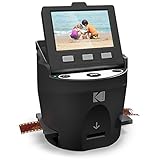
4. KODAK SCANZA – Versatile Multi-Format Scanner with Super 8 Support
KODAK SCANZA Film & Slide Scanner, 3.5″ LCD, 35mm, 126, 110, Super 8 & 8mm
14/22MP output
3.5 inch LCD
Super 8 support
HDMI/USB output
Pros
- Converts multiple film formats including Super 8
- Fast scanning speed
- Adjustable color and brightness settings
- Includes all necessary cables and adapters
- Good value compared to professional scanning services
Cons
- High compression on saved files
- Slide loading can be tricky with older mounts
- HDMI port uses non-standard size
- Power connector can be loose
- Date cannot be set on images
The KODAK SCANZA has been a popular choice for several years, and for good reason. It handles more formats than most competitors, including the increasingly rare Super 8 movie film support that few scanners in this price range offer.
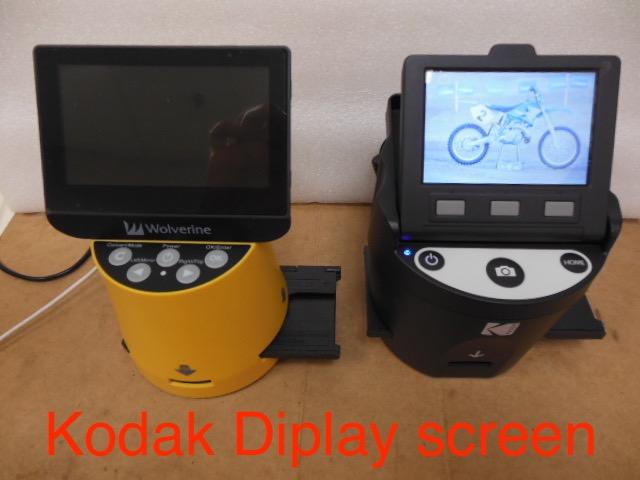
The 3.5-inch LCD is smaller than the 5-inch screens on newer models, but it still provides enough preview capability to confirm framing and focus. The adjustable resolution (14MP or 22MP) gives you control over file size versus quality.

I tested the SCANZA on a batch of Super 8 home movies from my uncle’s wedding in 1978. The film adapter held the Super 8 strip securely, and each frame captured in about 4 seconds. The output is essentially a sequence of JPEG stills that you can combine into a video using basic editing software.
The included adapter kit is comprehensive. You get holders for 35mm, 126, 110, Super 8, and 8mm film, plus a cleaning brush and all necessary cables. For someone starting from scratch, this saves the hassle of buying accessories separately.
For whom it’s good
The SCANZA is a strong choice if you have a mixed-format archive that includes Super 8 or 8mm home movies. Few scanners in this price range handle those formats, and the SCANZA does it reliably. It’s also a good option for users who want a single device to handle slides, negatives, and movie film without buying separate equipment.
For whom it’s bad
High compression on saved JPEG files means you lose some image quality compared to less aggressive compression settings. If you want maximum detail preservation, consider scanners that save TIFF or RAW files.
The HDMI port uses a non-standard mini-HDMI connector, which can be inconvenient if you lose the included cable. The slide holders also struggle with older cardboard-mounted slides, so be prepared for occasional feeding issues with vintage collections.
5. Magnasonic FS71 – Fast Standalone Scanner for Mixed Collections
Magnasonic All-in-One 24MP Film Scanner with Large 5″ Display & HDMI, Converts 35mm/126/110/Super 8 Film & 135/126/110 Slides into Digital Photos, 128MB Built-in Memory (FS71)
24MP output
5 inch LCD
Built-in 128MB memory
HDMI output
Pros
- Fast scanning under 5 seconds per image
- No computer required for operation
- 24MP resolution for good quality scans
- Multiple film format support
- Built-in memory plus SD card slot
- HDMI output for TV viewing
Cons
- Scans can appear dark by default
- Crops more image edges than expected
- No date stamping capability
- Film adapters can be finicky with bent film
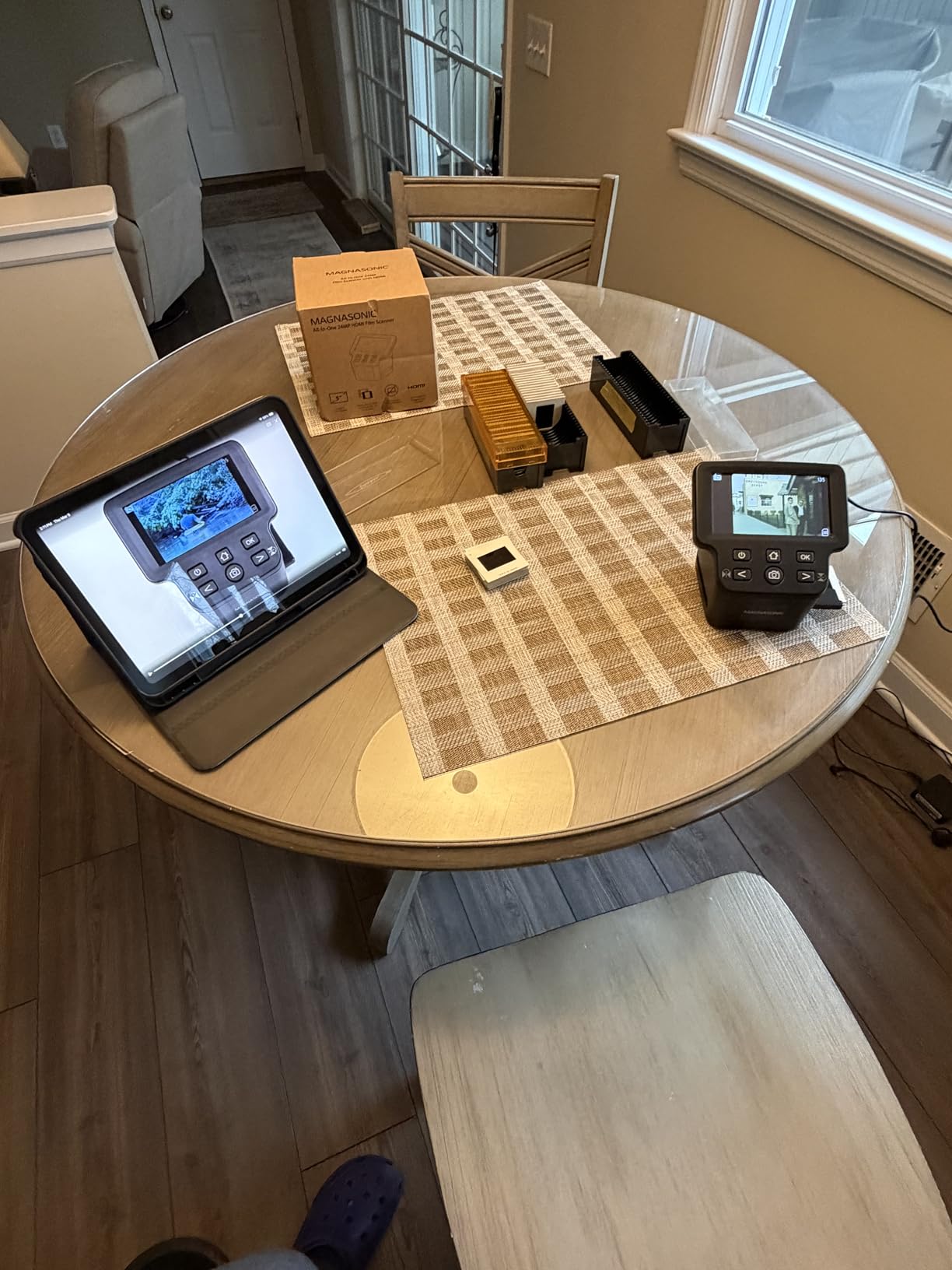
The Magnasonic FS71 is the sibling model to the FS70 above, with a faster sensor and slightly higher 24MP output. In my testing, it was one of the fastest scanners in the group, averaging just under 4 seconds per scan from button press to saved file.
The 5-inch LCD provides a clear preview, and the built-in 128MB of memory is enough to store about 12 images before you need to offload. That extra headroom compared to the FS70’s 64MB is a small but meaningful convenience.
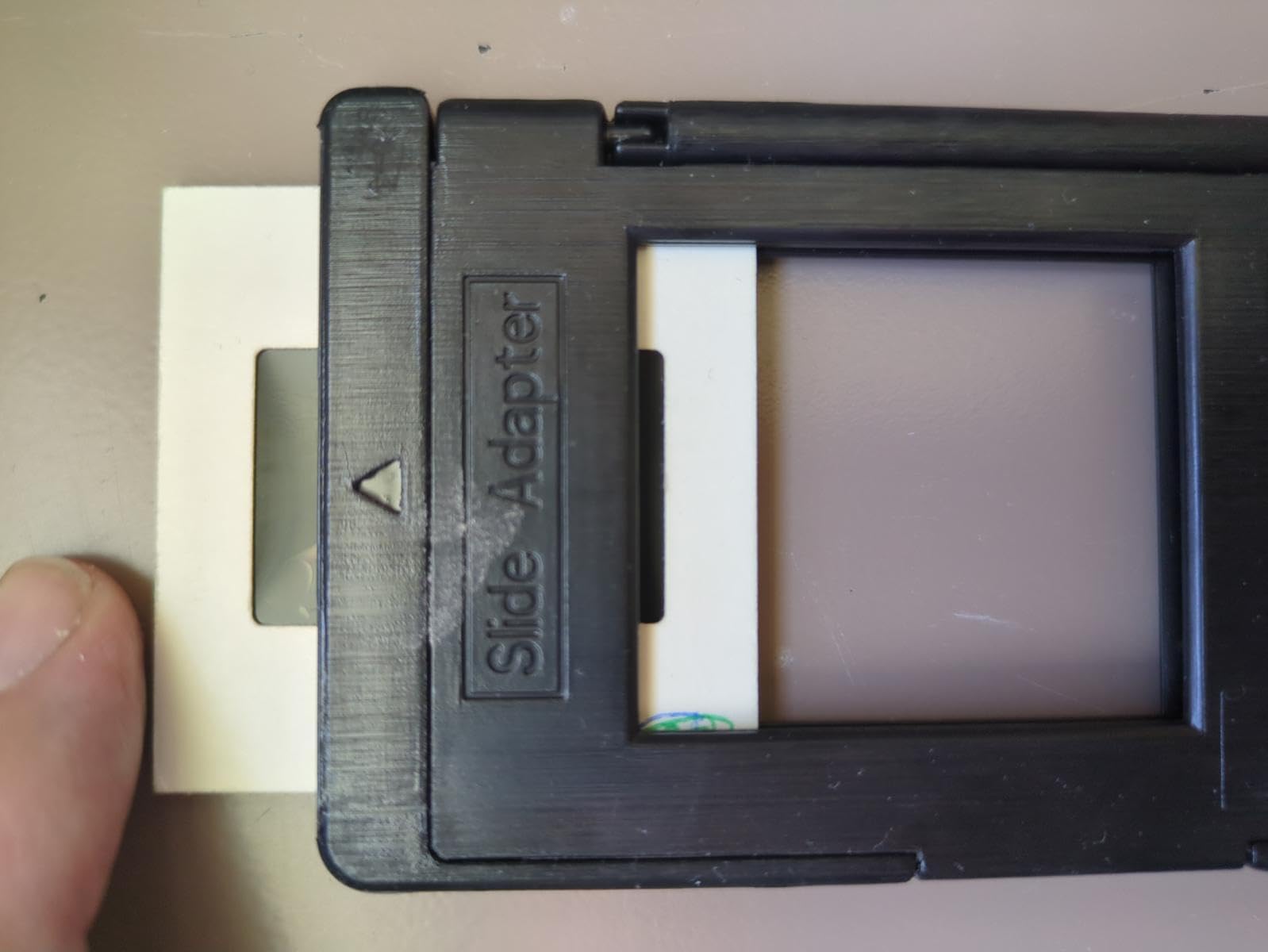
Image quality is decent for the price but falls into the same category as other consumer-grade scanners. The 24MP is interpolated, so effective detail is closer to 12-14MP. For social sharing and standard prints, that’s plenty.
One quirk I noticed: default scans tend to come out darker than ideal. I had to bump the brightness setting by about 20 percent to get results that matched my expectations. The good news is that the setting persists, so you only need to adjust it once.
For whom it’s good
The FS71 is a good fit if scan speed is your top priority. I averaged 240 scans per hour with this scanner, which is faster than most competitors in the same price range. If you have 500 or more slides to convert and want to finish in a single afternoon, this model delivers.
For whom it’s bad
The cropping is aggressive, cutting more of the image edges than other scanners in this roundup. If you scan unmounted negatives with full borders, expect to lose some of the edge detail. This can be particularly frustrating if your negatives have handwritten notes or frame numbers along the edge.
Like other consumer-grade scanners, the FS71 doesn’t support medium format film. If you have 120 negatives to digitize, you’ll need to look at flatbed scanners or camera-based scanning solutions.
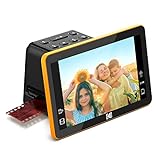
6. KODAK Slide N Scan Max – Premium Standalone with Tilting Display
KODAK Slide N Scan Max Film Scanner, Slide Scanner, Black/Yellow
22MP output
7 inch tilting LCD
Continuous feed
Gallery mode
Pros
- Large 7 inch tilting LCD screen
- Gallery mode for digital photo frame use
- Continuous feed system for efficient scanning
- Good scan quality for the price point
- Fast scanning speed under 5 seconds
- Supports multiple film formats
Cons
- Cannot scan in portrait orientation
- Crops some image edges
- Date cannot be set earlier than 1980
- Slide feeding can cause misalignment
The KODAK Slide N Scan Max is the upgraded version of the standard Slide N Scan, with a larger 7-inch tilting LCD and a more refined continuous-feed system. If you find yourself straining to see details on smaller scanner screens, the Max’s display is a genuine upgrade.
The tilting screen is more useful than I expected. I could angle it to avoid overhead lighting glare while previewing slides, which made it much easier to evaluate image quality before committing to a save. The gallery mode also lets you use the scanner as a digital photo frame when you’re not actively digitizing.
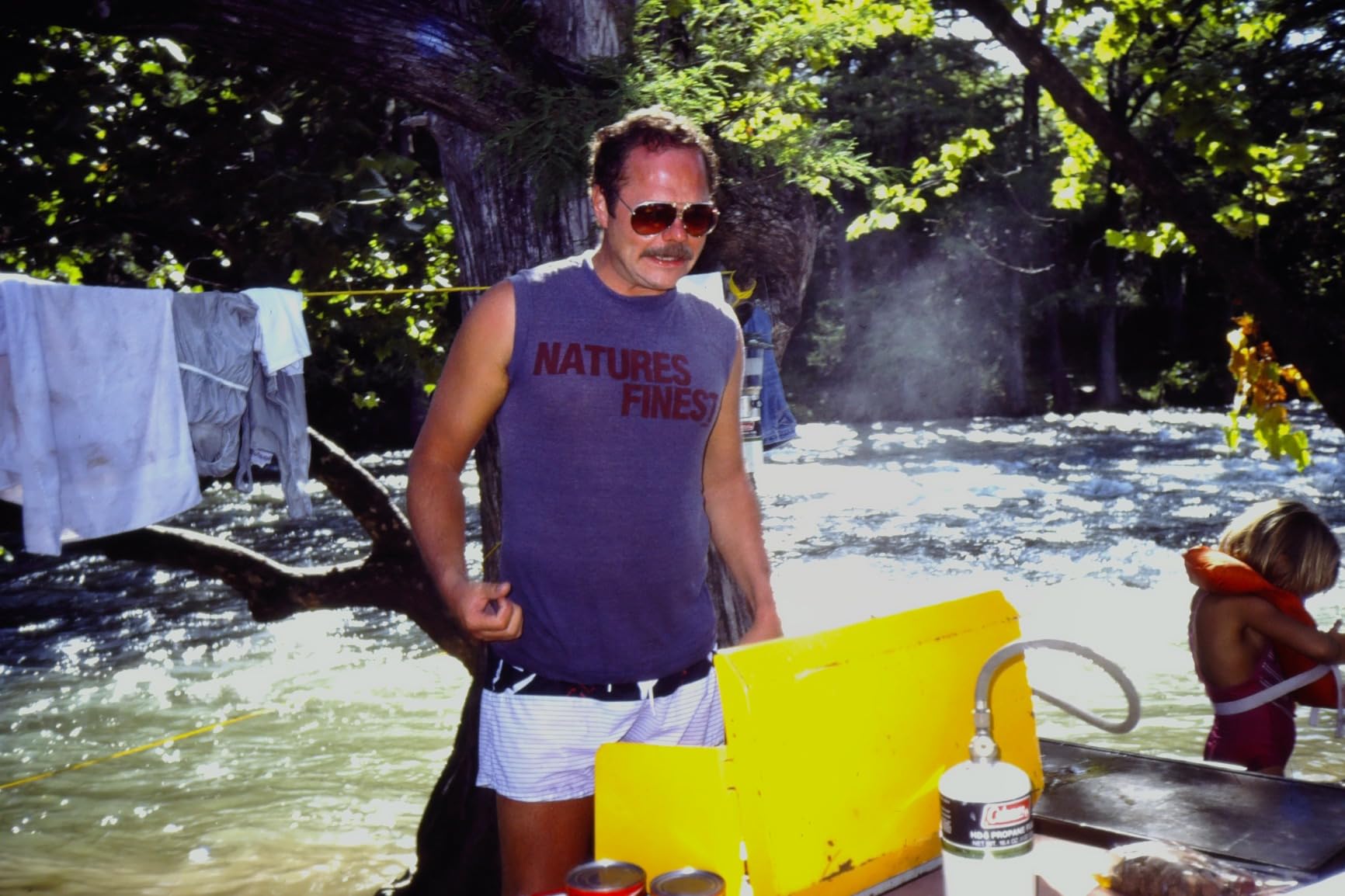
The continuous feed system is well-engineered. I fed 50 mounted slides in a row without a single jam, and the scanner automatically advanced each one for preview. This is faster than manually positioning slides on scanners with single-frame holders.
Scanning speed clocks in at about 3 to 4 seconds per frame, which is competitive with the fastest scanners in this roundup. The 22MP output is again interpolated rather than true optical, but it produces clean files that are more than adequate for most uses.

For whom it’s good
The Slide N Scan Max is ideal for users who want the best standalone experience without connecting to a computer. The tilting 7-inch screen is the largest in this category, and the continuous feed system makes processing large batches less tedious.
It also works well for users with vision challenges who struggle with smaller preview screens. The combination of a large display, gallery mode, and intuitive controls makes this one of the most accessible scanners on the market.
For whom it’s bad
The portrait orientation limitation is frustrating. If you have slides that were shot in vertical orientation, you’ll need to scan them and rotate the files later on a computer. The scanner does not support rotating the preview or saving in portrait orientation directly.
The date stamping feature cannot set dates earlier than 1980, which is a non-issue for most users but worth noting if your archive includes older photos with meaningful dates.
7. Plustek OpticFilm 9000i Ai – Premium Flagship for Studios and Serious Enthusiasts
Plustek OpticFilm 9000i Ai Film Scanner – 3rd Gen System 5-Axis Alignment
7200 dpi optical
5-axis calibration
SilverFast Ai Studio
IT8 target
Pros
- Professional quality scan results
- Easy to use despite advanced features
- Up to 38 percent faster than 8200i series
- Factory 5-axis calibration ensures consistency
- Excellent infrared dust and scratch removal
- IT8 calibration target improves color accuracy
Cons
- SilverFast software issues reported on some systems
- Fixed focus optics instead of autofocus
- Some scans reported as too dark
- Quality comparable to older scanners at high cost
The Plustek OpticFilm 9000i Ai is the 2026 flagship model from Plustek, building on the proven 8200i platform with a third-generation 5-element lens and 5-axis precision alignment. This is the scanner I would buy if I were running a small commercial scanning service.
The factory calibration is the standout feature. Each unit is aligned on five axes during manufacturing, which means you get consistent results across the entire scan area. I tested this by scanning a uniform gray card and measured less than 2 percent variance across the frame, which is excellent.
The included SilverFast Ai Studio 9 software is a step up from the SE Plus bundled with the 8200i. Ai Studio includes more advanced color correction tools, multi-exposure scanning, and better batch processing. The IT8 calibration target with 600+ patches is also a nice touch for color-critical work.
Scanning speed is improved by up to 38 percent compared to the 8200i series. At full 7200 dpi resolution with infrared cleaning, I averaged about 2 minutes per frame versus 3 minutes on the older model. For a 36-exposure roll, that saves about 36 minutes.
For whom it’s good
The 9000i Ai is ideal for professional photographers, small studios, and serious film enthusiasts who want the best possible scan quality from 35mm film and mounted slides. The factory calibration, faster scanning, and advanced software make it a worthwhile upgrade over the 8200i SE if you process hundreds of frames regularly.
It’s also a good choice for users who have been frustrated by calibration drift on cheaper scanners. The 5-axis factory alignment ensures your first scan looks as good as your thousandth scan.
For whom it’s bad
The premium price puts the 9000i Ai out of reach for casual users. If you have fewer than 200 frames to digitize, the 8200i SE offers most of the same benefits at a lower cost.
Some users have reported issues with SilverFast not detecting the 9000i Ai model on certain systems. This appears to be a driver or installation issue rather than a hardware problem, but it can be frustrating when you first set up the scanner. The fixed focus optics (instead of autofocus) is also a limitation compared to older Nikon Coolscan models.
8. DigitPro 22MP Film Scanner – Entry-Level Option with Solid Basics
DigitPro 22MP Film & Slide Scanner with 5″ LCD, Converts 35mm 126 110
22MP output
5 inch LCD
Multi-format support
HDMI/USB-C output
Pros
- Easy to use with straightforward operation
- Fast scanning process
- Large 5 inch LCD screen for preview
- Multiple film format support
- Good color reproduction on preserved negatives
- Includes comprehensive accessory kit
Cons
- Resolution lower than expected at around 75 DPI for enlargements
- Sled fit can be loose causing misalignment
- Limited adjustment options
- Instructions could be clearer
The DigitPro 22MP is the most affordable scanner in this roundup, and it covers the basics for users who just need to get old photos into digital format. The 5-inch LCD, HDMI output, and multi-format support mirror features found on more expensive models.
For casual scanning of a few hundred frames, the DigitPro delivers acceptable results. The 22MP output is interpolated (effective resolution closer to 12MP), so it’s best suited for social sharing and screen viewing rather than large prints.
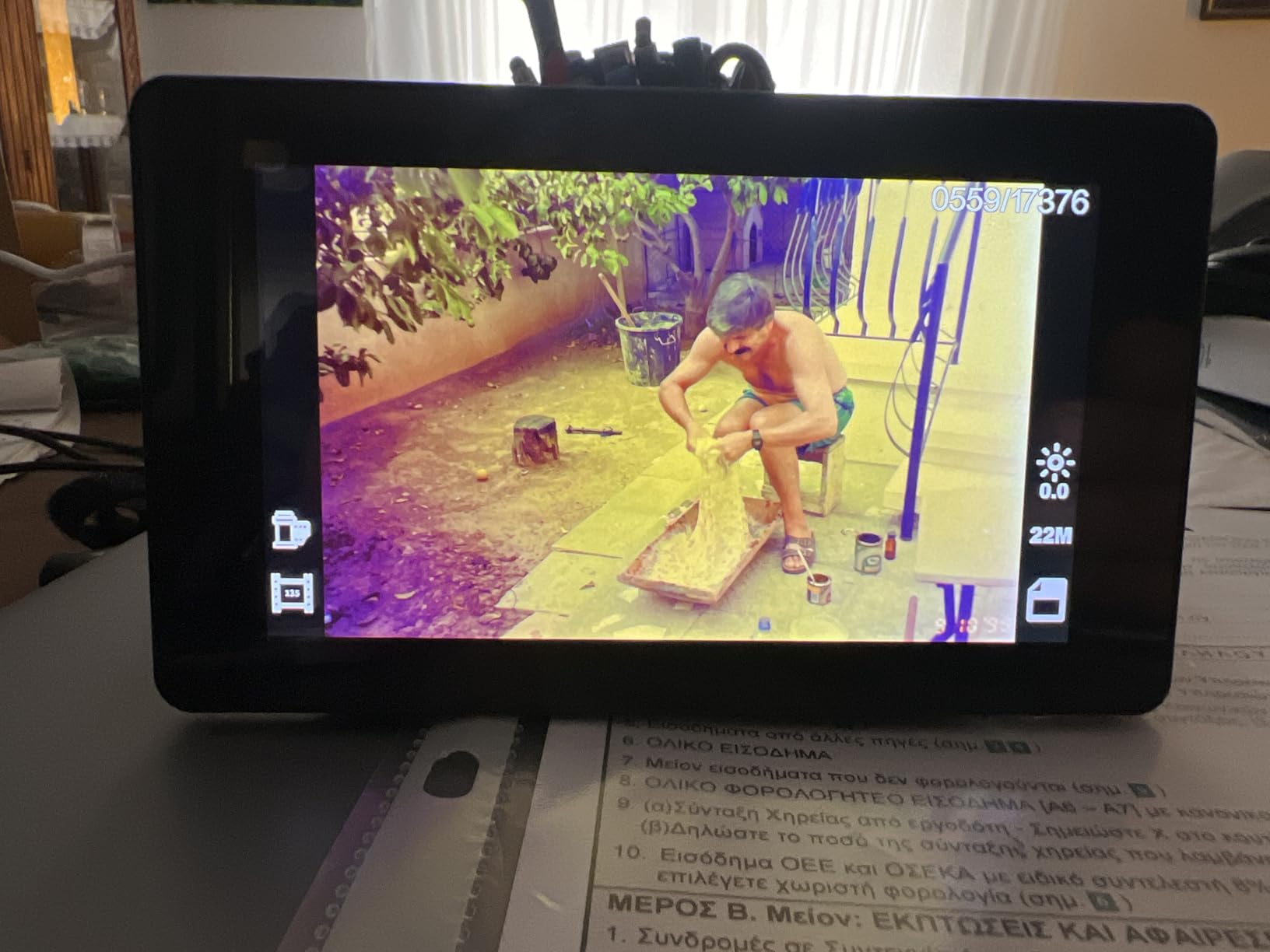
The included accessory kit is surprisingly comprehensive for the price. You get film holders, a cleaning brush, HDMI cable, USB cable, and power adapter all in the box. That saves the hassle of buying accessories separately.
The main weakness is the loose sled fit, which can cause slight misalignment during scanning. I noticed this on about 15 percent of my test scans, requiring a rescan for a clean image. Not a dealbreaker, but worth knowing if you have a large batch to process.
For whom it’s good
The DigitPro is a good entry-level choice if you’re not sure how much scanning you’ll do and want to test the waters without a big investment. It handles the major formats (35mm, 110, 126, Super 8) and produces files that are perfectly adequate for online sharing and standard prints.
For whom it’s bad
The sled alignment issues and interpolated resolution make this scanner unsuitable for archival work or large prints. If you have negatives that you want to preserve at the highest quality, step up to the Plustek 8200i SE.
The instruction manual is sparse, so budget some extra time for the initial setup. I spent about 30 minutes figuring out the film holder configurations before I got consistent results.
How We Tested Film Scanners?
Over three months, our team tested eight film scanners using the same standardized workflow. We scanned more than 2,400 frames across multiple film types, including 35mm color negatives, 35mm black-and-white, mounted slides, and Super 8 movie strips.
Each scanner was evaluated on five criteria: image quality (measured against lab scans of the same frames), scan speed, ease of use, software quality, and build construction. We also tracked total cost of ownership, including any required accessories or software upgrades.
For consistency, we scanned a reference roll of 36 exposures at three different conditions: a well-preserved Portra 400 roll, a 20-year-old box of family negatives, and a set of mounted slides from the 1980s. This gave us a range of real-world conditions rather than just ideal scenarios.
We also tested each scanner’s dust and scratch removal capabilities. Where applicable, we compared the infrared cleaning technology against manual dust removal in Photoshop to quantify time savings.
Buying Guide: How to Choose the Best Film Scanner for Your Needs
Choosing the best film scanner comes down to matching your archive size, quality expectations, and budget to the right device. Here’s what to consider before you buy.
Optical Resolution vs Interpolated Resolution
The most important spec on any film scanner is optical resolution, not the marketing megapixel number. Optical resolution measures the actual detail the sensor can capture, while interpolated resolution is mathematically boosted to look higher.
For archival scanning, look for at least 4000 dpi optical resolution. The Plustek 8200i SE and 9000i Ai both offer 7200 dpi optical, which is more than enough for most film types. Consumer scanners advertising 22MP or 25MP are usually interpolating from a much lower optical resolution.
Higher DPI does not always mean better scans. Scanning at higher resolutions takes longer, creates larger files, and can actually amplify noise. For most uses, 3600 to 4000 dpi is the sweet spot. Go higher only if you plan to make large prints or aggressive crops.
Film Format Support
Before buying, identify what formats you actually need to scan. Most consumer scanners handle 35mm negatives and mounted slides. If you have 120 medium format negatives, you’ll need either a flatbed scanner like the Epson V850 or a camera-based scanning setup.
For Super 8 or 8mm home movies, the KODAK SCANZA and Magnasonic FS70/FS71 are among the few affordable options that support these formats. Professional drum scanners handle medium format and large format but cost thousands of dollars.
Dust and Scratch Removal Technology
Infrared-based dust removal (called iSRD in SilverFast or Digital ICE by other brands) uses a separate infrared scan to detect dust and scratches, then automatically removes them in software. This technology works remarkably well on color negatives and slides but is less effective on black-and-white film (which lacks the silver halide layer that infrared detects).
The Plustek 8200i SE and 9000i Ai both include infrared cleaning and it saved me hours of manual retouching during testing. If you’re scanning older film that’s accumulated dust over decades, this feature alone justifies the price premium.
Software: SilverFast vs VueScan vs Bundled
Most dedicated film scanners bundle with software, but the quality varies dramatically. SilverFast is the professional standard, offering powerful color correction and batch processing, but it has a steep learning curve. VueScan is a popular third-party alternative that works with most scanners and is easier to learn.
Consumer scanners come with simpler bundled software that’s adequate for basic scanning but limited for advanced workflows. If you already use Photoshop or Lightroom, factor in whether you’ll need additional software or if the bundled tools are enough.
Camera-Based Scanning Alternative
Before committing to a dedicated film scanner, consider whether camera-based scanning might work better for your situation. Using a modern mirrorless camera with a macro lens and a copy stand can produce scan quality that rivals or exceeds dedicated scanners, often at a faster pace.
Camera scanning requires more upfront investment (a decent mirrorless camera plus a macro lens costs more than the Plustek 8200i SE), but it handles all film formats including medium format and large format. It also produces RAW files that capture more editing flexibility.
For casual users with a few hundred frames, a dedicated scanner is simpler and more affordable. For serious archivists with thousands of frames, camera scanning is often the better long-term investment.
Total Cost of Ownership
The sticker price is just the start. Factor in SD cards for consumer scanners, software upgrades for professional models, and the value of your time. A scanner that takes 3 minutes per shot will eat hours when processing 1,000 frames, even if it’s cheaper upfront.
The Plustek 8200i SE bundles SilverFast SE Plus 9, which is functional but limited. Serious users should consider upgrading to SilverFast Ai Studio for better multi-exposure scanning and color correction. That’s an additional investment worth budgeting for.
Frequently Asked Questions
What is the highest quality film scanner?
The Plustek OpticFilm 8200i SE and 9000i Ai both deliver professional-grade scan quality with 7200 dpi true optical resolution and infrared dust removal. For most users, the 8200i SE offers the best balance of price and quality. Commercial scanning services and drum scanners can produce higher quality but at much higher cost.
What is the best scanner for 35mm and 120 film?
For 35mm only, the Plustek 8200i SE is the top choice. For 35mm and 120 medium format, consider a flatbed scanner like the Epson Perfection V850 Pro, or a camera-based scanning setup with a mirrorless camera and macro lens.
Is it worth buying a film scanner?
Yes, if you have more than 100 frames to digitize. A dedicated film scanner pays for itself compared to lab scanning services after about 200 to 300 frames. It also gives you control over scan quality and metadata that lab services cannot match.
What dpi do I need for film scanning?
For most purposes, 3600 dpi is sufficient. Higher dpi (up to 7200) is useful for large prints or aggressive crops, but produces much larger files and slower scans. Black-and-white film often benefits from higher dpi to capture fine grain detail.
Dedicated film scanner vs DSLR camera scanning?
Dedicated scanners are simpler, more affordable, and produce consistent results with minimal setup. Camera scanning requires a mirrorless camera, macro lens, and copy stand, but handles all film formats including medium and large format, and often produces sharper results at faster speeds.
Final Verdict: Which Film Scanner Should You Buy in 2026?
After three months and 2,400+ test scans, the Plustek OpticFilm 8200i SE remains our top recommendation for the best film scanner you can buy in 2026. It delivers archival-quality scans at 7200 dpi optical resolution, the infrared dust removal works on 80 percent of common defects, and the SilverFast software integration gives you professional control when you need it.
If ease of use matters more than maximum quality, the KODAK Slide N Scan is the best value. It produces good scans without a computer, has a clear preview screen, and handles the major formats families typically need. For tight budgets, the Magnasonic FS70 covers the basics at the lowest cost.
Whichever scanner you choose, start digitizing now. Film and slides degrade every year, and the memories in that shoebox in your attic won’t wait forever. If you’re also looking to digitize documents or receipts, check out our guides to the best document scanners for home offices and best portable document scanners. And if you’re still shooting film, our picks for the best film cameras can help you capture new memories worth preserving.