
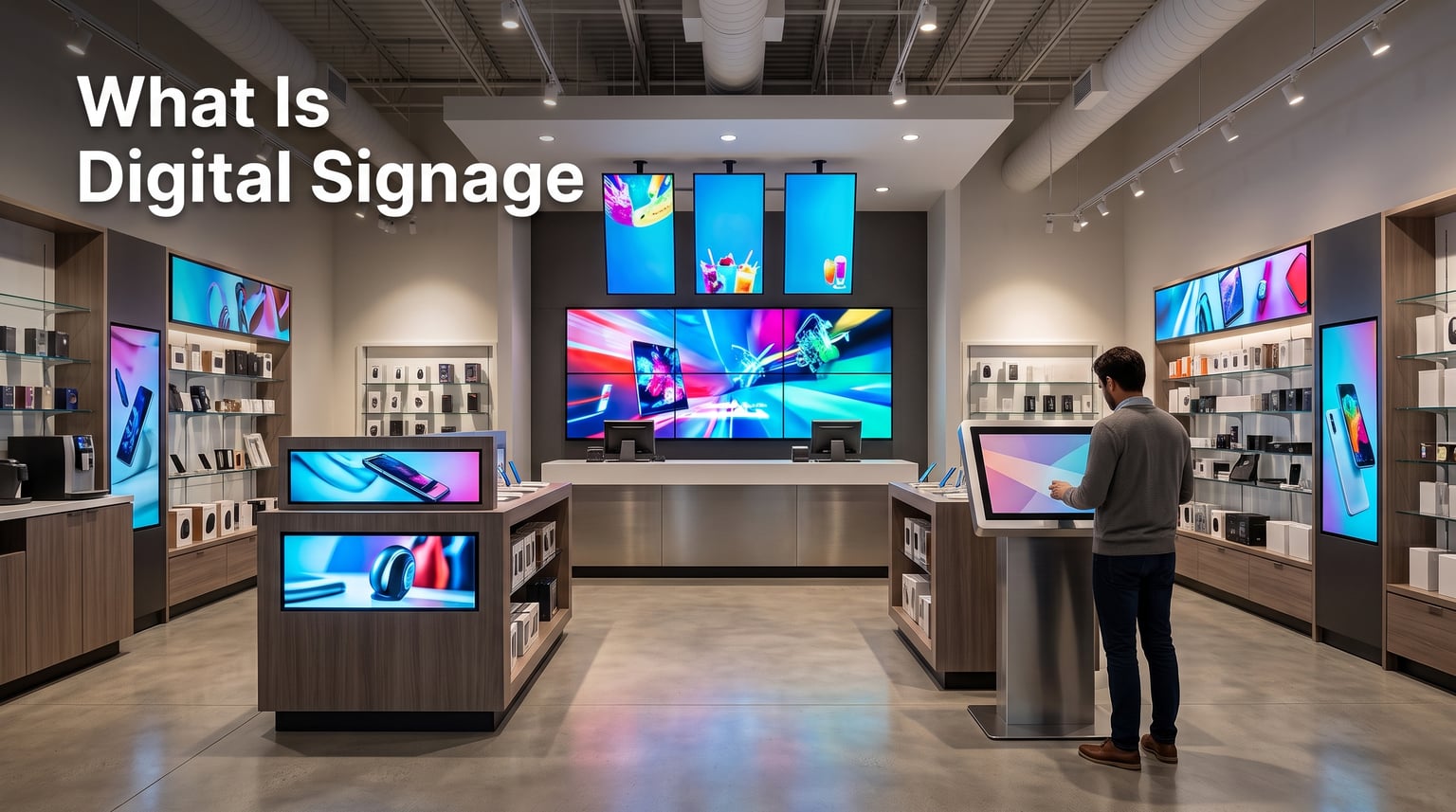
Digital signage is the use of electronic displays, like LCD screens, LED walls, and projection panels, to show dynamic multimedia content in public and private spaces. We have watched this technology transform from a niche novelty into a mainstream business tool in just over a decade.
Walk through any airport, hotel lobby, fast-food counter, or hospital corridor and you will see flat-panel screens doing jobs that printed posters once handled. These screens run videos, animations, wayfinding maps, menu boards, and live social feeds that update throughout the day.
In this guide, our team breaks down exactly what digital signage is, how the hardware and software fit together, who uses it across industries, and what it costs to launch. We will also cover the 7 key elements that make any deployment successful and share what we have learned from working with retailers, schools, and healthcare networks.
Table of Contents
What Is Digital Signage?
Digital signage is a network of electronic displays that deliver multimedia content, including images, videos, animations, and live data, to viewers in a specific location. The displays are connected to a content management system (CMS) so that operators can push updates remotely, in real time, without ever touching the screen.
The category also goes by the term digital out-of-home (DOOH) when the screens are placed in public or commercial environments outside the home. According to Wikipedia, digital signage refers to a segment of electronic signage that uses digital display technologies to present multimedia content in both public and private environments.
Unlike traditional printed signs, digital signage lets you change a message in seconds. A single screen can show breakfast items at 7 a.m., switch to a lunch menu at 11 a.m., and run promotional video loops during the afternoon rush, all from a cloud-based dashboard.
Key Terms You Will Hear
Before we go deeper, here are four terms that come up constantly in the digital signage world.
Digital Signage: Any electronic display used to show content in a commercial, public, or organizational setting.
CMS (Content Management System): The software platform that stores, schedules, and pushes media to screens.
Media Player: A small device (or built-in chip) that pulls content from the CMS and renders it on the display.
DOOH (Digital Out-of-Home): The advertising industry term for digital signage placed in public spaces like transit hubs and shopping malls.
How Digital Signage Works
At a basic level, digital signage works by linking three pieces together: a display screen, a media player, and a content management system. Content lives in the CMS, gets sent to the media player over the network, and shows up on the display for viewers to see.
Step 1: Create Content in the CMS
The CMS is the brain of the system. Marketing staff, store managers, or IT admins upload images, videos, web pages, and data feeds to a cloud dashboard. From there, they organize content into playlists, set schedules, and assign media to specific screens or groups.
Step 2: Deliver Content to the Media Player
Media players sit between the CMS and the screen. They receive the content over Wi-Fi, Ethernet, or 4G/5G cellular networks. Each player handles a single display (like a small Android stick) or several screens at once (like a video wall controller).
Step 3: Render Content on the Display
The display receives its signal over HDMI, DisplayPort, or a direct network connection and shows the content full-screen. Commercial-grade displays are designed to run 16 to 24 hours a day with higher brightness than a home television.
Step 4: Monitor and Update in Real Time
Operators can pull up any screen from a web browser and push a new message immediately. If a store runs out of a product, the manager can swap a promotional slide in under a minute, which is something impossible with printed signage.
Key Components of a Digital Signage System
Every working digital signage setup combines hardware and software. Here is what each layer does.
Display Hardware
Displays are the visible side of the system. The most common options are LCD screens (bright, affordable, indoor), LED panels (modular, bright, great for video walls), OLED screens (premium contrast for high-end retail), and projection systems (large, used in auditoriums and outdoor events).
Media Players
A media player is the small computer that feeds the screen. Options include Android sticks (Chromecast-style, low cost), small PCs (Windows or Linux, more powerful), System on Chip displays (player built into the screen), and commercial digital signage appliances (purpose-built for 24/7 use).
Content Management Software
The CMS is where staff spend most of their time. Modern platforms like Samsung VXT, Yodeck, ScreenCloud, and OptiSigns offer drag-and-drop editors, template libraries, scheduling calendars, and remote troubleshooting. Cloud-based CMS platforms now dominate the market because they let teams manage thousands of screens from a single browser tab.
Network Infrastructure
A reliable network is the part nobody sees. Wired Ethernet is preferred for fixed installations, while Wi-Fi or cellular works for remote or temporary setups. Many enterprise networks use VLANs or VPNs to keep signage traffic separate from corporate data.
The 7 Key Elements of Digital Signage
Most deployments succeed or fail on the same handful of elements. We have seen the 7 below pop up again and again in project briefs, vendor docs, and Reddit threads at r/digitalsignage.
Display Hardware: The screen itself, sized and rated for the location it sits in.
Media Player: The device that receives content from the CMS and outputs it to the display.
Content Management System: The platform that stores media, schedules playlists, and pushes updates.
Network Connectivity: A wired or wireless link that ties every screen back to the central CMS.
Content: The actual graphics, video, and data feeds shown on the displays.
Software Integration: Connections to other business systems like POS, calendars, weather APIs, or social feeds.
Mounting and Installation: Wall mounts, floor stands, kiosks, and protective enclosures that match the environment.
When all 7 elements line up, the screens stay on, the content stays fresh, and the visitors stay informed.
Types of Digital Signage Displays
Not all digital signage looks the same. The right setup depends on where the screen lives and what you want it to do.
Indoor vs Outdoor
Indoor displays sit in climate-controlled spaces with moderate ambient light. Outdoor screens are built with weatherproof enclosures, anti-glare coatings, and high-nit brightness (typically 2,500 to 5,000 nits) so they stay visible in direct sunlight.
Video Walls
Video walls are tiled arrays of screens joined together to form one large canvas. They are common in control rooms, stadiums, retail flagship stores, and corporate lobbies. A 3×3 video wall using 55-inch panels creates a display 165 inches wide.
Kiosks
Interactive kiosks pair a touchscreen with a media player inside a freestanding enclosure. You will see them in malls (wayfinding), quick-service restaurants (self-order), hospitals (check-in), and airports (boarding pass printing).
Menu Boards
Menu boards are dedicated digital displays for restaurants and cafeterias. Modern QSR chains pair them with POS systems so prices and 86’d items update automatically. Samsung’s VXT guide highlights menu boards as the fastest-growing segment.
Window and Shelf Displays
High-brightness window displays face outward through storefront glass to attract foot traffic. Smaller shelf-edge displays at grocery stores highlight prices and promotions right at the point of decision.
Who Uses Digital Signage?
Almost any organization that communicates with people in a physical space can use digital signage. Here is who we see running it most often.
Retail Stores
Retailers use digital signage to promote products, highlight sales, and adjust messaging by time of day. Department stores run video walls, while convenience chains use shelf-talkers and cooler screens to influence buying at the moment of choice.
Restaurants and Quick-Service Brands
Fast-food and fast-casual chains rely on digital menu boards to swap breakfast for lunch and to mark items out of stock in seconds. According to Samsung, menu boards are now the single largest category of digital signage spend.
Healthcare Facilities
Hospitals use digital signage for wayfinding, patient queue updates, donor recognition walls, and health education videos in waiting rooms. During the COVID-19 era, the same networks pushed real-time visitor policy changes.
Corporate Communications
Office lobbies, break rooms, and meeting floors show company news, KPIs, and event reminders. Internal corporate TV networks are a fast-growing niche, especially for hybrid workforces that need a centralized place to broadcast updates.
Education
Universities run digital signage for campus wayfinding, event calendars, emergency alerts, and donor walls. K-12 schools use classroom displays and hallway boards for announcements and emergency messaging.
Transportation
Airports, train stations, and bus terminals use digital signage as the primary passenger information system. Flight status, gate changes, and security wait times update in real time across hundreds of screens at once.
Hospitality
Hotels display lobby art, meeting room schedules, restaurant menus, and wayfinding on lobby screens. Conference venues use interactive kiosks to help attendees find sessions and exhibitors.
Government and Public Sector
City halls, courts, and visitor centers show service line wait times, public notices, and multilingual wayfinding. Many municipalities pair these screens with emergency override capabilities.
Benefits of Digital Signage
Digital signage pays off when used strategically. Industry studies and our own client work point to four consistent wins.
Higher engagement: Digital signs capture 400% more views than static signs, according to multiple industry studies.
Real-time control: Content can be updated in minutes across any number of locations.
Lower long-term cost: No reprinting, no truck rolls, no waste when something changes.
Sales lift: Brands report up to 80% sales lift on items promoted on in-store digital screens.
Beyond raw numbers, digital signage gives brands a presence that feels current. A static poster on a wall looks tired after a month. A live screen with updated content reads as alive and worth watching.
Pros and Cons of Digital Signage
Like every technology, digital signage has tradeoffs. Here is how we lay it out for clients.
Advantages
Content can change in seconds across thousands of screens.
Interactive options (touch, motion sensors, mobile) drive deeper engagement.
Data integrations let screens show live inventory, weather, or social feeds.
Long-term printing and shipping costs drop to zero.
Disadvantages
Upfront hardware cost is higher than printed signs.
Screen burn-in and pixel failure can occur with poor-quality panels.
Software subscriptions add an ongoing line item.
Content creation takes time, especially without a dedicated designer.
Outdoor screens need power, data, and weatherproofing that indoor signs do not.
Most teams find that once the network is in place, the cons shrink fast. A failed PC stick is a $40 swap, not a $400 reprint job.
How to Get Started with Digital Signage?
Starting a digital signage project is easier than most people think. Here is the path we recommend.
Step 1: Define the Goal
Decide what the screen needs to do. Drive sales, reduce perceived wait time, replace printed posters, or deliver wayfinding. The goal drives every other decision.
Step 2: Pick the Right Hardware
For a single screen under 55 inches, an off-the-shelf commercial display with a built-in System on Chip (SoC) player is usually enough. For multi-screen installs, invest in a dedicated media player and brighter panels.
Step 3: Choose a CMS Platform
Pick a CMS that fits your team’s skill level. Non-technical teams do well with Yodeck, ScreenCloud, or OptiSigns. Larger IT teams may prefer Samsung MagicINFO or Broadsign for deeper integrations.
Step 4: Build Your First Playlist
Start with three to five pieces of content that rotate. Add a few templates you can reuse, then expand. Most platforms include free template libraries you can brand with your colors and logo.
Step 5: Measure and Iterate
Use the CMS analytics (impressions, dwell time, screen uptime) to tune the content. Drop the slides nobody looks at and double down on what works.
DIY tip from the Reddit community: many users report that an Amazon Fire Stick paired with PosterBooking or Yodeck turns a regular TV into a functional digital sign for under $100.
How Much Does Digital Signage Cost?
Costs vary by scale, but here are reasonable ranges for 2026.
Single-screen DIY setup: A consumer TV ($200 to $500) plus a streaming stick and free or low-cost CMS software ($0 to $30 per month).
Small business setup (1 to 5 screens): Commercial displays ($500 to $1,200 each), dedicated media players ($100 to $300), and a mid-tier CMS license ($20 to $80 per screen per month).
Enterprise network (50+ screens): Custom pricing, often involving professional displays, on-prem media players, and enterprise CMS contracts with integrations.
Budget at least 10 to 15% of the hardware cost per year for content creation, software, and remote management.
The Future of Digital Signage
Several trends are shaping where digital signage goes from here.
AI-Driven Content
Vendors are rolling out AI tools that resize, retouch, and translate creative automatically. Expect to see a single upload generate 12 languages and 4 aspect ratios in under a minute.
AR and Computer Vision
Cameras paired with signage screens measure dwell time, demographics, and even emotional response. The data feeds back into the CMS so content adapts to the audience in front of it.
Mobile Integration
QR codes, NFC, and beacons are turning screens into two-way experiences. A shopper scans the screen, gets a coupon on the phone, and the brand tracks the conversion.
All of this sits on top of the same three components, displays, media players, and CMS, that powered the original digital signs. The tech stack has matured, but the foundation is the same.
FAQs
What is the meaning of digital signage?
Digital signage is the use of electronic displays like LCD, LED, or projection screens to show multimedia content in public or private spaces. It replaces traditional printed signs with screens that can be updated remotely through a content management system.
Who uses digital signage?
Retailers, restaurants, healthcare facilities, schools, corporate offices, airports, hotels, and government agencies all use digital signage. Any organization that needs to communicate visually with people in a physical location can benefit from it.
How do I turn my TV into digital signage?
Connect a streaming stick like an Amazon Fire TV or a small Android box to your TV, then sign up with a CMS platform such as Yodeck, ScreenCloud, or PosterBooking. Upload your images or videos, build a playlist, and assign it to the screen. Most setups run in under an hour.
How much does digital signage cost?
A single-screen DIY setup can run under $500 if you already own a TV. Small business setups with commercial displays usually land between $1,000 and $5,000 per screen including a media player and software. Enterprise networks with 50 or more screens are priced per project.
What are the disadvantages of digital signage?
Upfront hardware costs run higher than printed signs, and commercial screens need occasional repair or replacement. Software adds an ongoing subscription fee. Content creation also takes dedicated time, especially if you do not have an in-house designer.
What are the 7 key elements of digital signage?
The 7 key elements are display hardware, media players, a content management system, network connectivity, content, software integration with business systems, and mounting or installation. Each piece has to work for the screen to deliver value.
The Bottom Line on Digital Signage
Digital signage is much more than screens on a wall. It is a network of displays, media players, and software that turns physical spaces into living communication channels. The technology has moved past the early adopter stage into everyday retail, healthcare, education, and corporate environments, and the entry price keeps dropping.
If you are still on the fence, start with a single screen. Pick a CMS with a free tier or low-cost monthly plan, build a five-slide playlist, and measure the response. Most teams we work with are running their second screen within 90 days.
For a deeper look at the displays and media players we recommend, browse our hardware guides or jump into the brand reviews on Exponation. We have tested the major platforms side by side so you do not have to.