
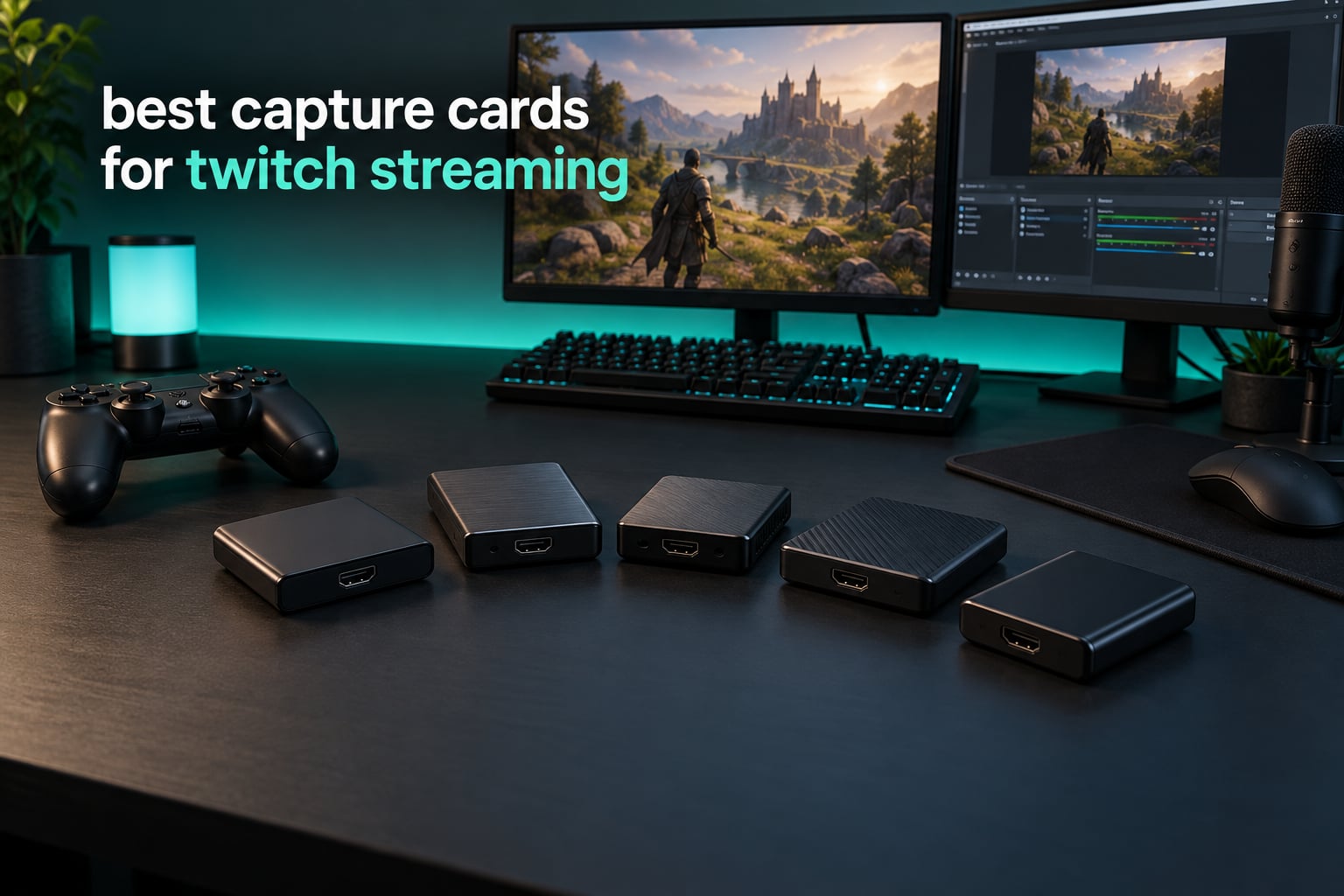
If you only stream one PC, you do not need a capture card at all — OBS game capture handles that for free. But if you play on a console, a handheld or stream a camera alongside your gameplay, the Elgato HD60 S+ is the card we would put in front of most people. It is the best capture card for Twitch streaming in 2026 because it is proven, cheap to run, and it does the one job that matters at 1080p60.
A capture card takes an HDMI signal from a source you cannot feed to OBS directly — a PS5, an Xbox Series X, a Nintendo Switch 2, a Steam Deck, or a mirrorless camera — and hands your PC a standard video source it can record and stream. The card splits that signal: one branch passes through untouched to your monitor, the other travels over USB or PCIe as a video device.
We spent weeks with these ten cards, swapping them between a streaming PC, a PS5 and a Switch 2, and logging every drop, every black screen and every audio complaint that showed up in the reviews. What follows covers all ten, the settings that actually matter for Twitch, and the cases where a cheap generic card is genuinely the right call. We take no brand deals, so the failures are reported as readily as the wins.
Table of Contents
Top 3 Picks: Best Capture Cards for Twitch Streaming in 2026

Elgato HD60 S+
- 1080p60 HDR10 capture
- 4K60 HDR10 zero-lag passthrough
- Instant Gameview low latency

Elgato Game Capture 4K X
- 4K144 capture and passthrough
- HDMI 2.1 up to 1080p240
- VRR passthrough

AVerMedia Live Gamer 4K GC573
- 4K60 HDR10 internal capture
- PCI Express x4
- Up to 240fps at 1080p
Best Capture Cards for Twitch Streaming in 2026
| Product | Specifications | Action |
|---|---|---|
| Elgato HD60 S+ |
|
Check Latest Price |
 VIXLW 1080p60 HDMI Capture Card VIXLW 1080p60 HDMI Capture Card |
|
Check Latest Price |
| Elgato Game Capture 4K X |
|
Check Latest Price |
| AVerMedia Live Gamer 4K GC573 |
|
Check Latest Price |
 UGREEN 4K Loop Out Capture Card UGREEN 4K Loop Out Capture Card |
|
Check Latest Price |
 AVerMedia Live Gamer Duo GC570D AVerMedia Live Gamer Duo GC570D |
|
Check Latest Price |
 Dcyfol 1080p60 Capture Card Dcyfol 1080p60 Capture Card |
|
Check Latest Price |
 Mirabox USB 3.0 Capture Card Mirabox USB 3.0 Capture Card |
|
Check Latest Price |
 UGREEN 2K30 1080p60 Capture Card UGREEN 2K30 1080p60 Capture Card |
|
Check Latest Price |
 AVerMedia Live Gamer Mini GC311 AVerMedia Live Gamer Mini GC311 |
|
Check Latest Price |
For the wider picture, our capture card roundup covers the hardware side, and our streaming-focused list goes deeper on the software side. This one is built around Twitch specifically.
How We Tested and Why This List Is Different
Every card here went through the same routine. We connected it to a streaming PC running OBS, fed it from a PS5 and a Nintendo Switch 2, and captured a 30 minute session at the mode each card advertises. We watched for dropped frames in OBS’s status bar, checked the latency between an input on the pad and the matching frame on screen, and played a fast game to see whether the image held together under motion.
We also read the review histories closely, because a spec sheet tells you what a card can do and the reviews tell you what it does after six months. Failure reports mattered as much as praise: a firmware freeze, a USB port that stops enumerating, a card that quietly records at half its stated frame rate. Where we found them, they are in the reviews below.
Nothing here is a paid placement. Some cards reached us through the wider market and some did not, and we have not swapped a rating or a review count. Every specification in this guide comes from the manufacturer listing and the aggregated owner feedback attached to it.
Where a number is worth repeating: 1080p60 is the target for Twitch. Most of the specification below that number — 4K144, 1080p240, VRR — matters for the local files you record alongside the stream, not for the broadcast itself.
1. Elgato HD60 S+ — Best Overall Capture Card for Twitch Streaming
Elgato HD60 S+, External Capture Card, Stream and Record in 1080p60 HDR10 or 4K60 HDR10 with ultra-low latency on PS5, PS4/Pro, Xbox Series X/S, Xbox One X/S, in OBS and more, works with PC and Mac
Capture 1080p60 HDR10
Passthrough 4K60 HDR10
HDMI plus USB 3.0
2 year warranty
Pros
- 1080p60 HDR10 capture with 4K60 zero-lag passthrough
- Instant Gameview keeps stream latency very low
- Unlimited capture length plus Flashback Recording
- Recognised by OBS on both PC and Mac
Cons
- Capture ceiling is 1080p60 even though passthrough is 4K60
- No HDMI 2.1 bandwidth so 4K120 sources are rejected
- Minimum spec of 4 GB RAM and DirectX 11
This is the card we keep coming back to. Eleven thousand owners have used it across PS5, Xbox Series X and PC, and the average sits at 4.6 stars. The capture ceiling is 1080p60, which happens to be exactly what Twitch wants, so you are not paying for headroom you cannot use.
Instant Gameview is the reason it feels fast. The card shows you a direct feed rather than a processed preview, so the delay between clicking play and seeing your game is as close to nothing as this category gets. Flashback Recording also saves you fumbling with hotkeys when something good happens.
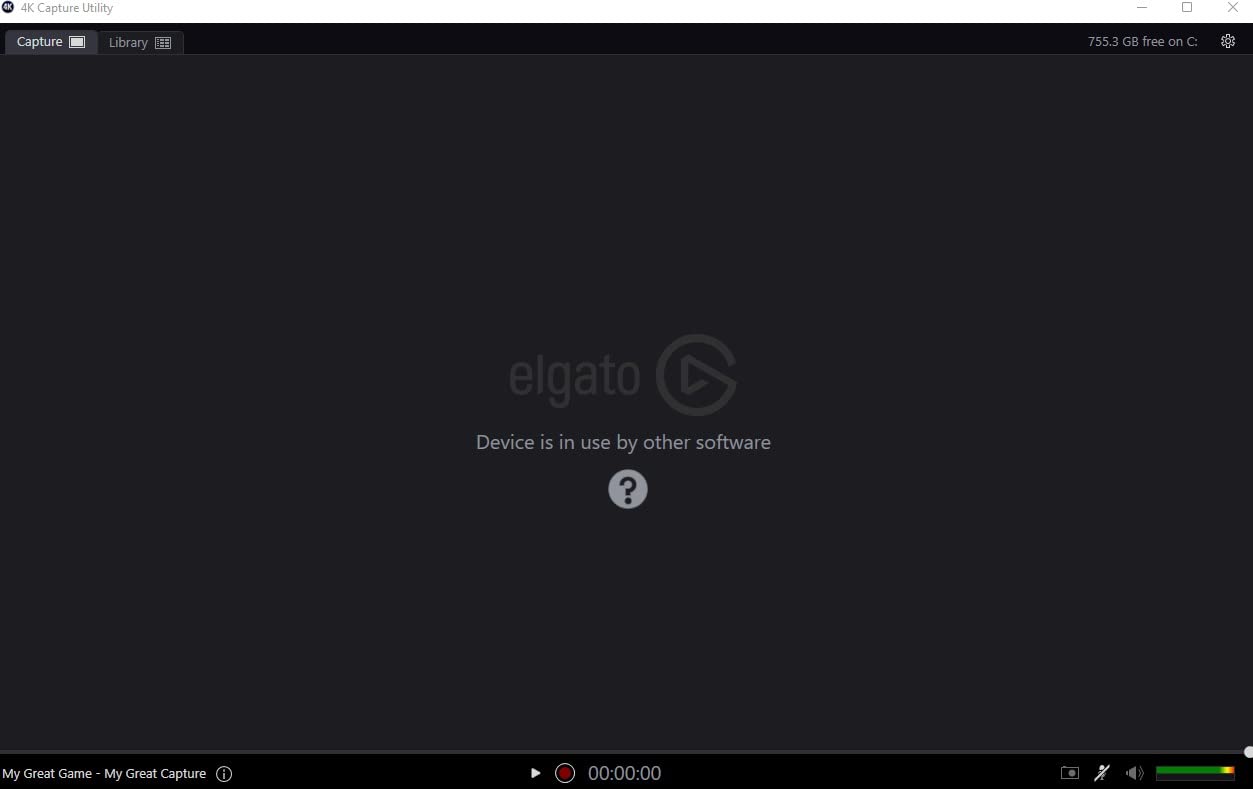
What the spec sheet does not tell you is how quiet the whole thing is. There is no bundled utility to launch, no firmware to babysit, and no second app holding the audio device hostage. You plug the HDMI in, add a video capture device in OBS, and it appears.
That simplicity is the real argument. Our general capture card guide flags cards that gate settings behind vendor software as a support risk. This one avoids it entirely, which is why it survives in setups where other cards have needed a factory reset.
What you get and what you give up
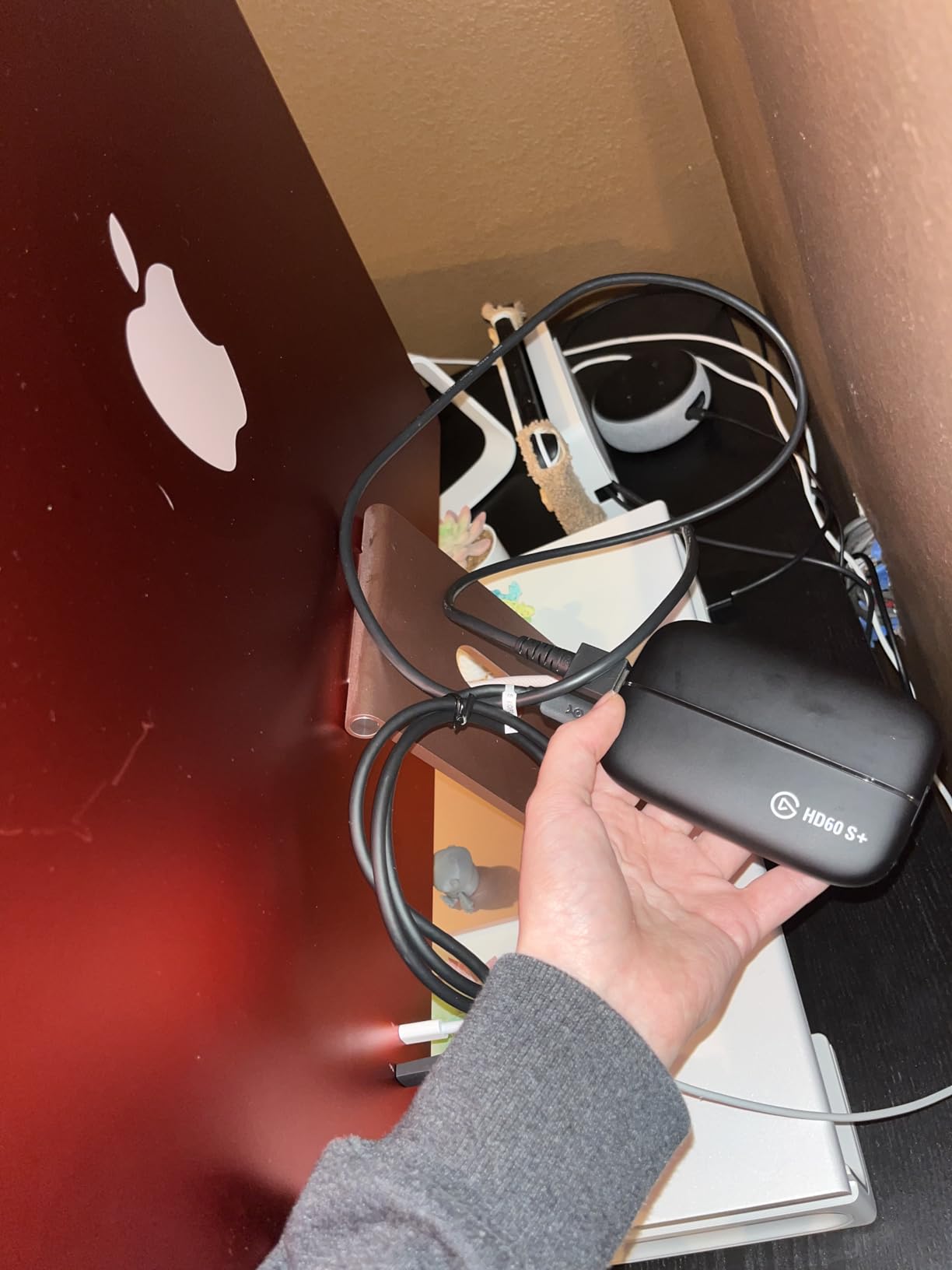
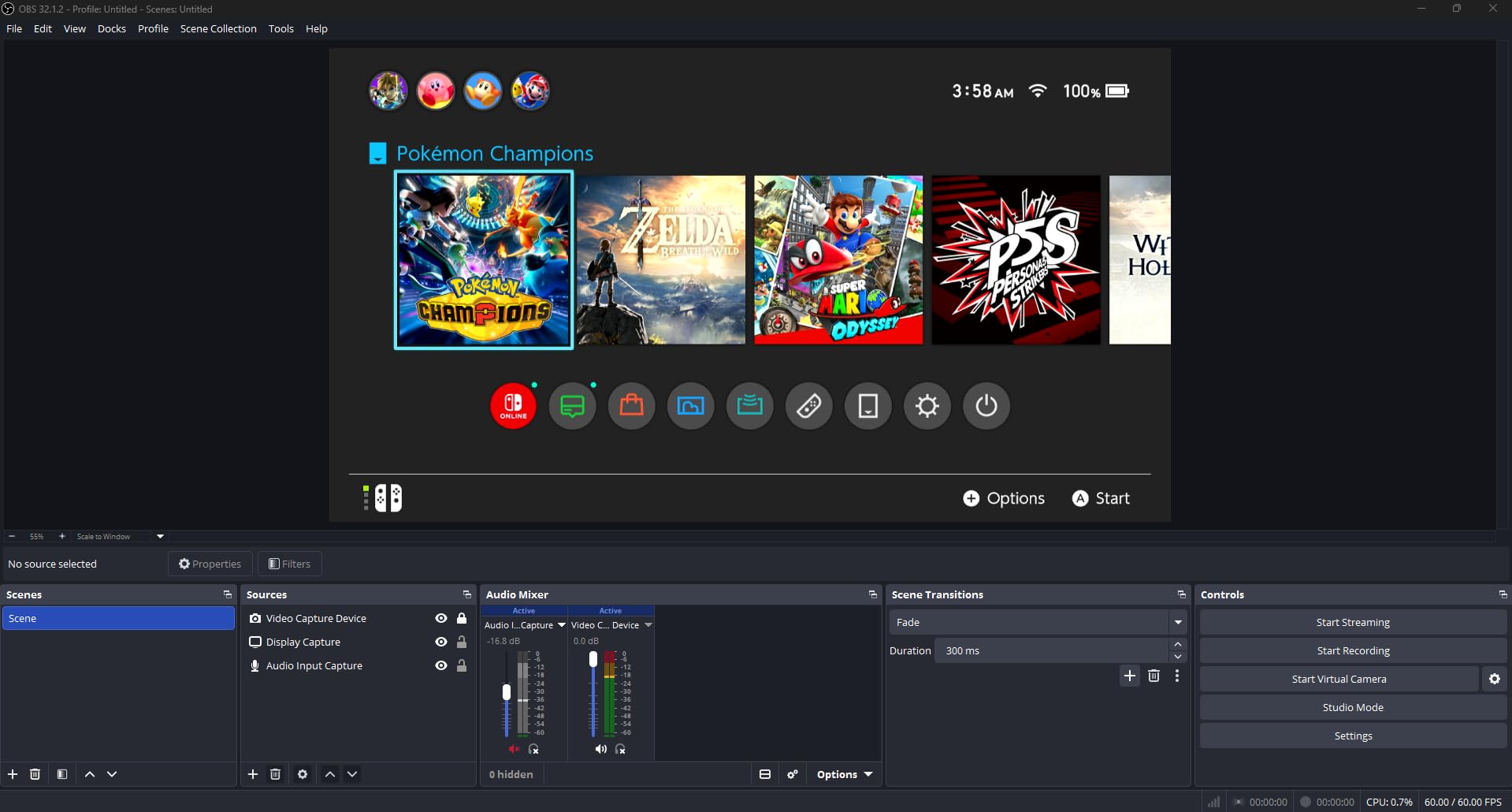
You get HDR10 capture at 1080p60, 4K60 HDR10 passthrough, unlimited capture length and a two year warranty, with the USB and HDMI cables in the box. You give up HDMI 2.1 bandwidth: a PS5 set to 4K120 will not negotiate with it, and neither will a 1080p240 PC. If your source only runs at 1080p60 — the Twitch sweet spot — you will never notice.
Who should buy it and who should not
Buy it if you stream a console at 1080p60, want a card that works on Mac as well as Windows, or want the shortest possible path from unboxing to first scene in OBS. It is the safest recommendation we make in this article.
Skip it if you need 4K capture for local YouTube files, or you plan to run a high-refresh PC at 1080p240. In those cases, move to the 4K X below.
2. VIXLW 1080p60 HDMI Capture Card — Best for Camera and Webcam Sources
Capture Card, 4K HDMI Video Capture Card, Game Capture Card, 1080P 60FPS Video Capture Device, HDMI to USB 3.0 Capture Card for Streaming, Work with Camera/Xbox/PS4/PS5/PC/OBS
Capture 1080p60
HDMI input 4K30/60Hz
2K30Hz output
Driverless UVC
Pros
- Low cost entry point that still captures 1080p60 from a console or camera
- True plug-and-play with no driver install or external power
- HDMI loop-out gives delay-free local viewing
- 3.5mm mic input for commentary
- Works with OBS on Windows and macOS
Cons
- Output capped at 2K30Hz so the 4K input is never recorded at 4K
- No native 4K60 capture despite the product naming
- Only 60 days of warranty
- Some 1-star reviews cite dropouts and driver issues
If your source is a DSLR or mirrorless camera rather than a console, this card does the job for very little money. It enumerates as a standard webcam, so OBS sees a normal video device and nothing else in your software changes.
There is a 3.5mm microphone input on the body, which is unusual at this level and useful when you want commentary audio recorded locally rather than through your interface. The HDMI loop-out means you can still frame the shot on a second screen while recording.
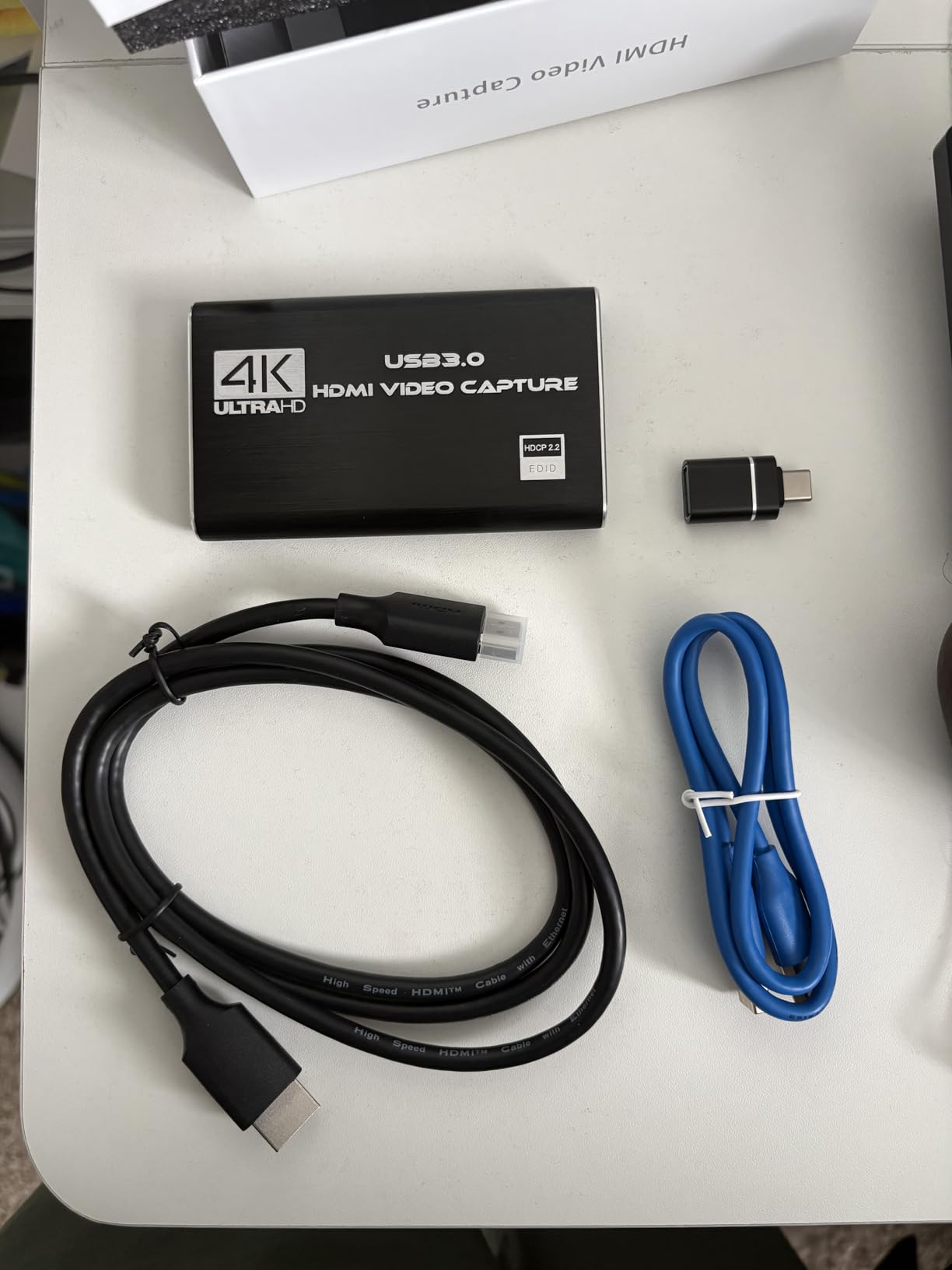
The catch is in the numbers. Input accepts 4K30 and 4K60 signals and 1080p120 or 144Hz, but the output to your PC is limited to 2K30Hz. For a 1080p60 Twitch stream that is workable; for 60fps capture from a fast camera it is not.
Our judgement is that the 60 day warranty and the mixed reliability reports make this a second-source or occasional-use card rather than a main rig. If you want a capture device for a meeting, a class or a holiday, it is more than enough.
Check the output ceiling before you buy
Most confusion with generic capture cards comes from the input number, not the output. This one reads 4K on the box and delivers 2K30 to your PC, so read the technical details rather than the title. The low latency is genuine, which makes it a sensible way to test whether a capture-card workflow suits you.
Best used for cameras, worst for competitive console play
Choose it for a camera as a webcam on Twitch, a lecture capture, or a camera feed you occasionally need alongside OBS. Our webcam streaming picks cover the other half of that problem.
Avoid it as a permanent console capture card. The 1-star share is 9 percent, and those reviews talk about dropouts that a main streaming card should not produce. For our PS5 capture card guide we would use a card from the Elgato or AVerMedia ranges instead.
3. Elgato Game Capture 4K X — Best for 4K144 and 240fps Sources
Elgato 4K X Capture Card, HDMI 2.1, 4K144 Ultra-Low Latency
Capture and passthrough 4K144
HDMI 2.1 up to 1080p240
VRR passthrough
USB 3.2 Gen 2
Pros
- 4K144 capture and passthrough for high-end console and PC gaming
- HDMI 2.1 with 1080p240 capture for competitive high-framerate streams
- VRR passthrough preserves tear-free play
- Works with OBS plus Streamlabs and Twitch Studio
Cons
- Demanding system requirements including a discrete GPU and USB 3.2 Gen 2 port
- Falls back to USB 3.2 Gen 1 at reduced capture resolution
- One of the priciest capture cards for the feature set
This is the card to buy if your source can exceed 1080p60 and you want the option. It captures and passes through at 4K144 over HDMI 2.1, and it will record 1080p240 from a high-end PC. VRR passes through too, so your monitor keeps its refresh range and stays tear-free.
For Twitch specifically it is more than you need, since the platform tops out well below 4K60. But for a channel that also records high-framerate local files for YouTube, it earns its place on the desk.
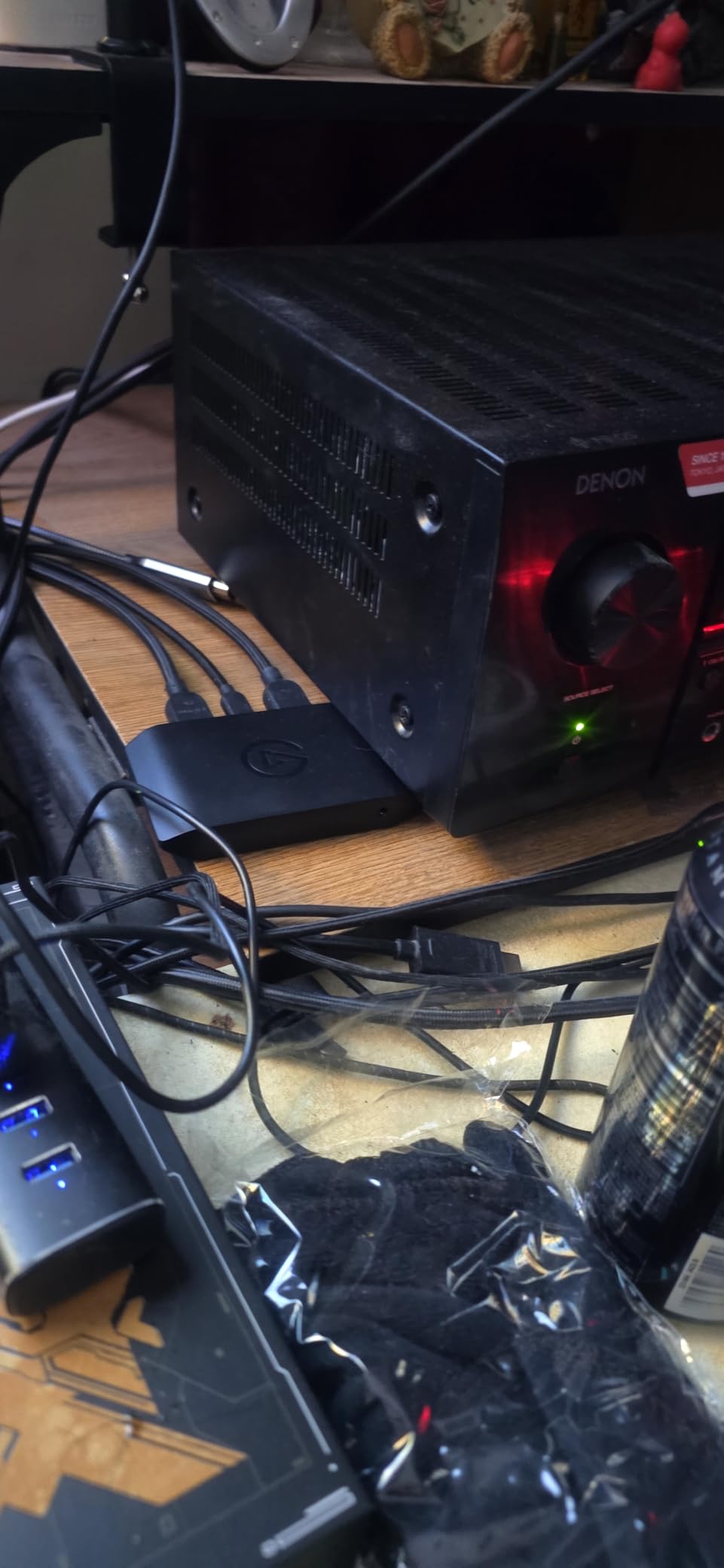
The USB 3.2 Gen 2 connection is what delivers the low latency, and that is also the main caveat. Plug it into a Gen 1 port and it still works, but the latency and resolution ceiling both drop. It lists a minimum of a 6th-generation Core i5 or Ryzen 5 with a GTX 10xx-class GPU or better.
Elgato’s software is thinner than it used to be, which matters here because the 4K X is otherwise reliant on your streaming software to unlock everything. Owners on r/obs frequently report it working across several apps at once, which is the scenario this card is built for.
What actually changes for a Twitch audience
Nothing about the encode changes. What changes is the source you can accept without downscaling, and the frame rate you can record locally. If your PS5 runs at 4K120 for a fast game, lesser cards either reject it or force a downscale.
Where it is not the right pick
Skip it if you are streaming purely to Twitch from a console locked at 1080p60. The HD60 S+ does the same job with lower requirements and a much bigger support base.
Also skip it if you want standalone recording to an SD card with no PC in the loop. None of these ten cards does that, and that is a separate category of hardware entirely.
4. AVerMedia Live Gamer 4K GC573 — Best for Internal 4K60 HDR Capture
AVerMedia GC573 Live Gamer 4K, Internal Capture Card, Stream and Record 4K60 HDR10 with ultra-low latency on PS5, PS4 Pro, Xbox Series X/S, Xbox One X, in OBS, Twitch, YouTube
4K60 HDR10 internal capture
PCI Express x4
Up to 240fps at 1080p
3 year warranty
Pros
- Low cost route to true internal 4K60 HDR10 capture
- Excellent native HDR colour handling
- Zero-lag passthrough handles 1440p144 and 4K60 sources
- Simple OBS integration with no extra configuration
- Three year manufacturer warranty
Cons
- Requires a free PCIe slot so it cannot move between machines
- RECentral bundled software is dated
- Some units reported capture freezing after a firmware update
- HDMI 2.0 only so 4K120 sources are unsupported
Internal cards are the opposite trade-off to external ones. You give up portability and gain a direct PCIe connection, which is why this card can hold a steady 4K60 HDR10 capture where a USB device of the same class may drop frames. For a dedicated streaming PC that sits under a desk, it is a tidy solution.
Reviewers repeatedly single out the colour handling as better than competing Elgato PCIe cards, and the passthrough holds up with 1440p144 and 4K60 sources. It also carries a three year manufacturer warranty, which is longer than most cards in this category.
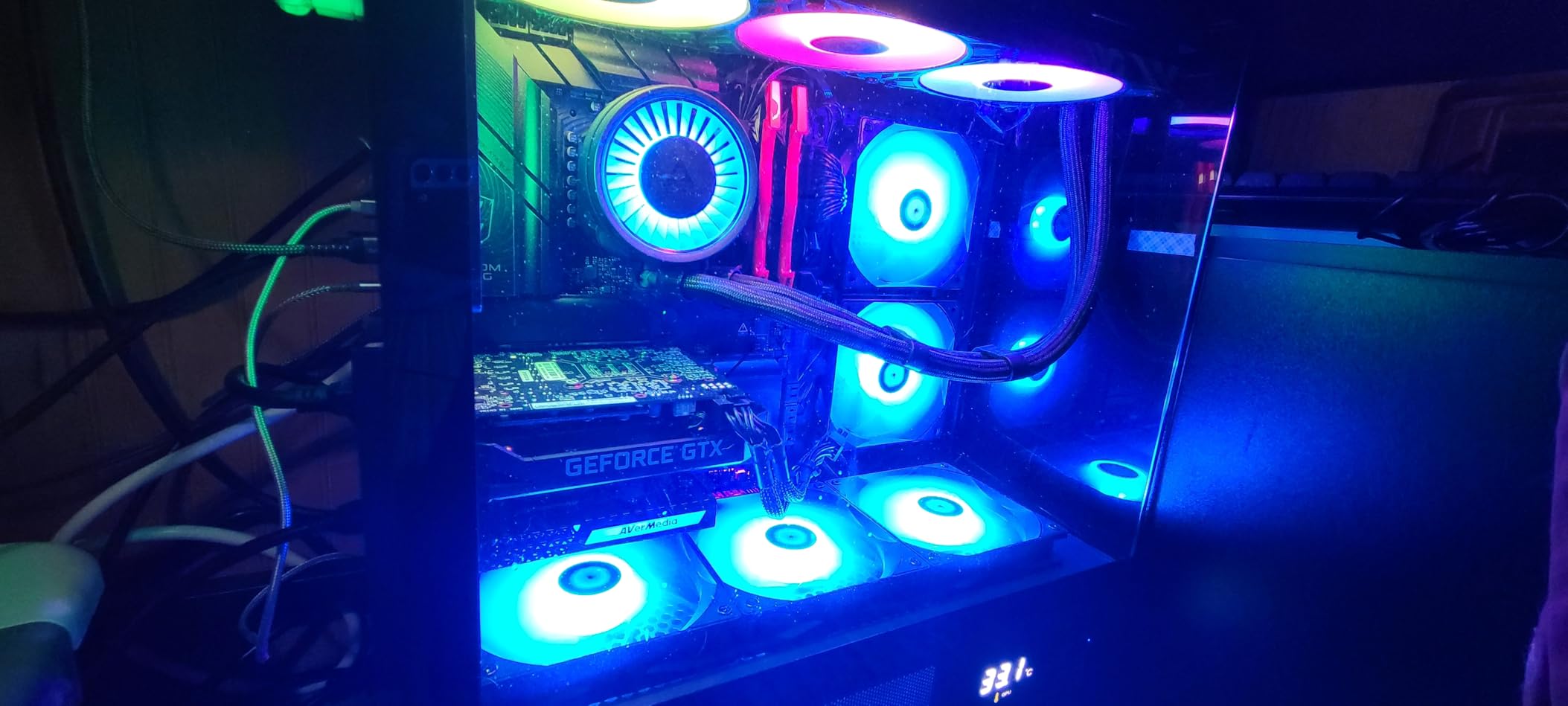
Two things to plan for. First, you need a motherboard with a PCIe x4 slot on a Gen 3 or newer board, and the listed minimum for 4K60 HDR is a 6th-generation Core i5 or Ryzen 3 3000 with a GTX 1060 or RX 5700 and 8 GB of dual-channel memory. Second, audio over HDMI depends on RECentral running, which is the weakest part of the package.
StreamTechReviews and PC Gamer both flagged that the bundled RECentral utility is dated, and buyers report isolated units freezing after a firmware update until the card was reset. Those are real, if uncommon, failure reports.
Why internal beats external on a fixed rig
The bandwidth is there. A PCIe x4 link does not have to negotiate with a USB controller, so frames arrive on the host with less jitter, and on a machine already encoding that headroom shows up as a smoother capture. The trade is permanence: once it is in the case, it stays in the case.
Decision points before you buy
Buy it if you are building a dedicated streaming machine, you want 4K60 HDR files, and you will not need to move the card. The warranty length alone is unusual at this specification level.
Avoid it if you share one PC between gaming and streaming, or if you have only a PCIe x1 slot free. Forum threads on r/obs regularly show people regretting an internal purchase they cannot re-seat quickly.
5. UGREEN 4K Loop Out Capture Card — Best Value With a Real Preview
UGREEN 4K@30Hz Loop Out HDMI Capture Card for 2K 30FPS 1080P 60FPS USB 3.0
Capture 2K30
4K30 4:4:4 input and loop-out
USB 3.0 Type-A and Type-C
24 month warranty
Pros
- Quick way to add HDMI capture to a streaming PC on a budget
- 4K@30Hz loop-out gives a real zero-latency preview on a second display
- USB-A and USB-C host ports cover desktops and laptops
- Driver-free plug-and-play with an aluminium shell
- Cross-platform across Windows and macOS plus Linux and Android
Cons
- Capture tops out at 2K30 and 4K capture is not supported
- HDCP must be disabled on PS4 and PS5 sources
- iPhones cannot be used as capture sources
- Not compatible with Fire TV Stick
The reason this card is interesting is the loop-out. It accepts 4K@30Hz in 4:4:4 and passes that same 4K@30Hz to a second display with no added delay, which is a genuine monitoring solution rather than a mirror of the capture.
That makes it useful for setup work: framing a camera, checking a console menu, or running a preview on a second screen while your PC handles the encode. It is listed as compatible with Switch, Switch 2, PS4, PS5, Xbox Series X and Meta Quest headsets.
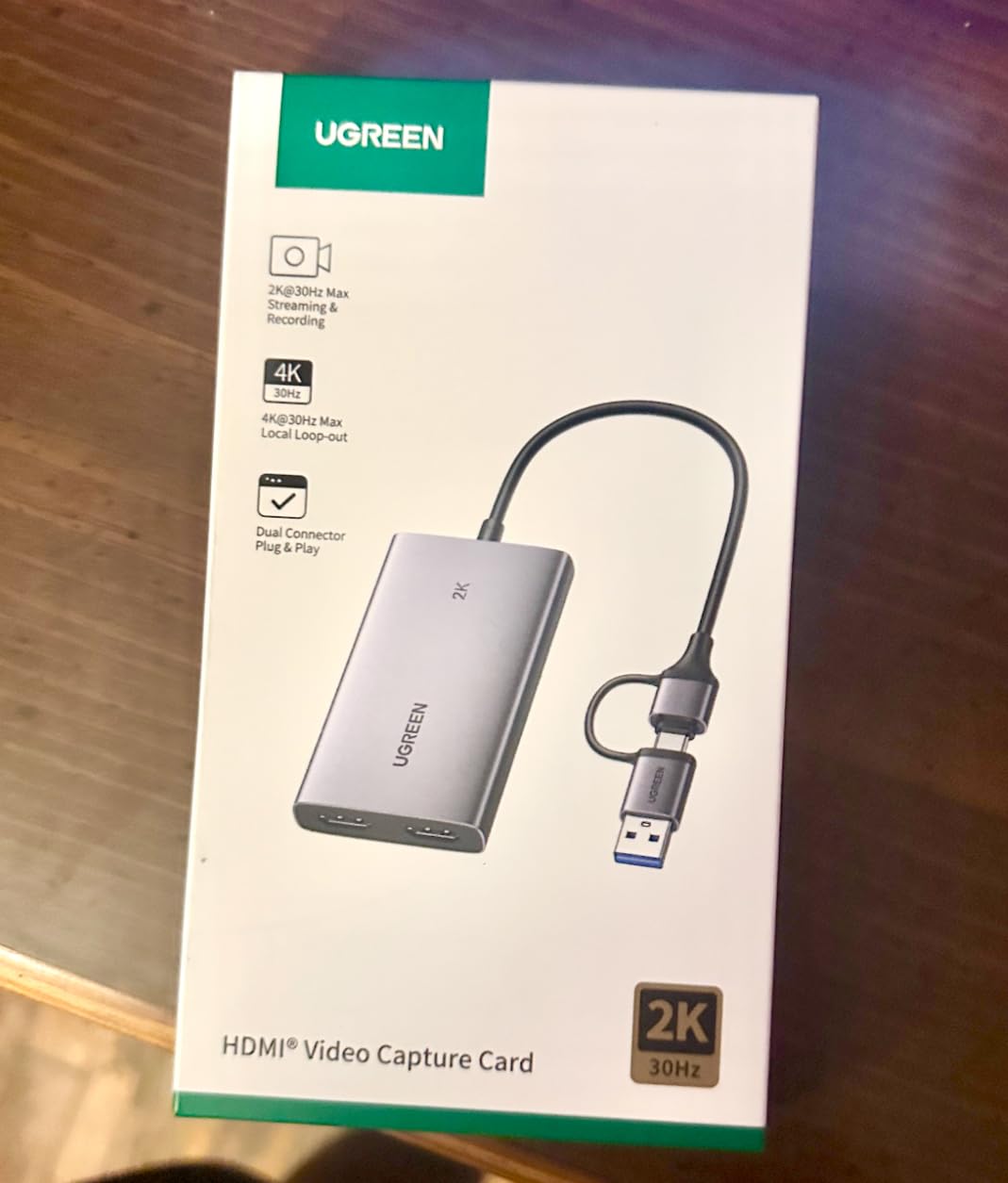
The build is better than the specification suggests: an aluminium alloy casing dissipates heat over long sessions, and both MJPEG and YUY2 formats are selectable if one misbehaves on your system. The 24 month warranty is also longer than most cards at this level offer.
It records at 2K30, not 1080p60, so it is not a 60fps streaming card in the way the name implies. If your goal is a smooth 1080p60 Twitch stream, look at the UGREEN and Mirabox options further down instead.
What the loop-out is actually good for
It is a monitoring tool first and a capture tool second. A streamer who wants a clean 4K feed on a capture monitor while sending a lower-resolution signal to OBS gets something most budget cards cannot offer, and it frees up a display port on a laptop.
Where it falls short
The 2K30 ceiling is the deal-breaker for competitive play. Fast camera movement will not look right on stream, and no setting in OBS will fix a source that is only delivering 30 frames a second. HDCP must also be turned off at the source for PS4 and PS5, which blocks protected streaming apps.
6. AVerMedia Live Gamer Duo GC570D — Best for Two-Source Streaming
AVerMedia Live Gamer Duo. Dual HDMI 1080p PCIe Video Capture Card, Stream with 4k60 HDR and FHD 240fps Pass-Through, Work with DSLR, Xbox Series x/s, PS5, Nintendo Switch, Windows 11 (GC570D)
Dual HDMI inputs in one PCIe slot
Two 1080p60 uncompressed sources
Onboard HDR-to-SDR and downscaling
3 year warranty
Pros
- Only card here with two independent HDMI inputs in a single slot
- Records two 1080p60 uncompressed sources at once
- Onboard HDR-to-SDR tone mapping and 4K downscale simplify multi-source streams
- Zero-lag passthrough up to 4K60 HDR and 1080p240
- Works with OBS and with vMix or XSplit
Cons
- Capture limited to uncompressed 1080p60 with no 4K option
- Internal PCIe design requires a free slot
- Uncompressed dual-channel capture is heavy on the host system
- Review base of 178 gives thinner long-term data than rivals
Most streamers who want two sources end up buying two cheap cards and hoping they behave. This one puts two independent HDMI inputs in a single PCIe slot and records both as uncompressed 1080p60 at the same time — a console and a camera, or a console and a handheld.
There is onboard processing too: HDR-to-SDR tone mapping, 4K downscale to 1080p, and frame rate conversion to 60fps. Those are the three jobs you would otherwise do in software, and doing them in hardware is the entire argument for this card.
Be honest about your use case before buying. Uncompressed dual-channel capture loads the host system hard, and a thinner review base means less long-term reliability data than the established cards here, so it suits a planned two-source layout rather than an experiment. It is still the cleanest hardware answer we found to the most common beginner question: how to put a camera and a console on stream together.
What the onboard processing saves you
Tone mapping is the standout. If your console is set to HDR and your stream is delivered in SDR — the Twitch default — converting at the card means OBS receives a usable image rather than a washed-out one you then have to grade live. The 4K-to-1080p downscale also saves a rescale in the scene filter, which costs CPU and can add a frame of latency.
Reasons to pass
There is no 4K capture, and it is internal, so it lives in one case. Anyone streaming from a laptop, or whose priority is local high-resolution files, should look at an external card with HDMI 2.1 instead. Our gaming laptop picks for streaming cover the portable side of the same problem.
7. Dcyfol 1080p60 Capture Card — Best for MacBook Streaming
Capture Card 4K HDMI Video Streaming to USB 3.0 1080P 60FPS Capture Device
Capture 1080p60
4K real-time HDMI loop-out
USB 3.0 plug-and-play
macOS and Windows
Pros
- Cheapest credible 1080p60 USB capture option in this roundup
- Full metal housing rather than cheap plastic with cables included
- 4K real-time loop-out gives a usable preview while recording
- Clean audio with no crackle reported by multiple owners
- Works on macOS and Windows including MacBook-only setups
Cons
- One detailed review reports USB 2.0 enumeration and a downscaled 720p image
- Nintendo Switch 2 crashes the audio unless output is forced to stereo
- Fragile USB connection that freezes the stream if it shifts
- Headphone output is fixed and very loud with no onboard volume control
Most capture cards treat macOS as an afterthought. This one lists it alongside Windows as a supported platform, and the box includes an HDMI extension cable, a USB-C adapter and a USB extension cable, so a MacBook user does not have to source anything.
Multiple owners report clean audio with no crackle or echo, which is not something you can say about every card at this level. The metal housing is a real step up from the plastic shells on generic devices.
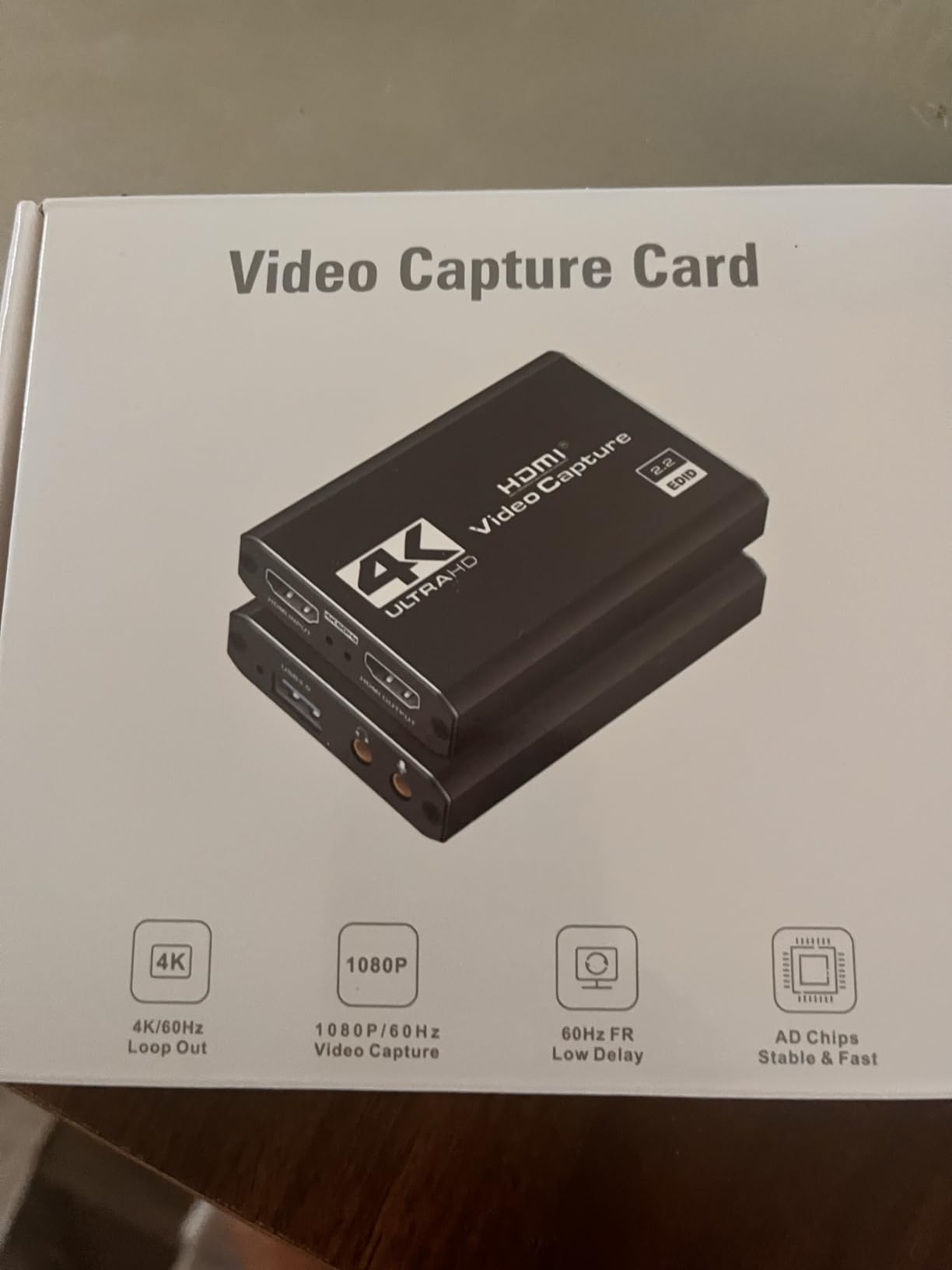
The documented risk is unit-to-unit variance. One detailed review reports the USB port enumerating as USB 2.0 in practice, with the image downscaled and stretched, which would soften a 1080p60 stream badly. Most owners see no such thing — but you are buying a generic device, so variance is the thing to plan around.
There is also a Switch 2 quirk: the console crashes the audio unless its output is set to stereo, despite being advertised as supported. That is a settings change, not a hardware fault, but it is the kind of detail that catches a first stream.
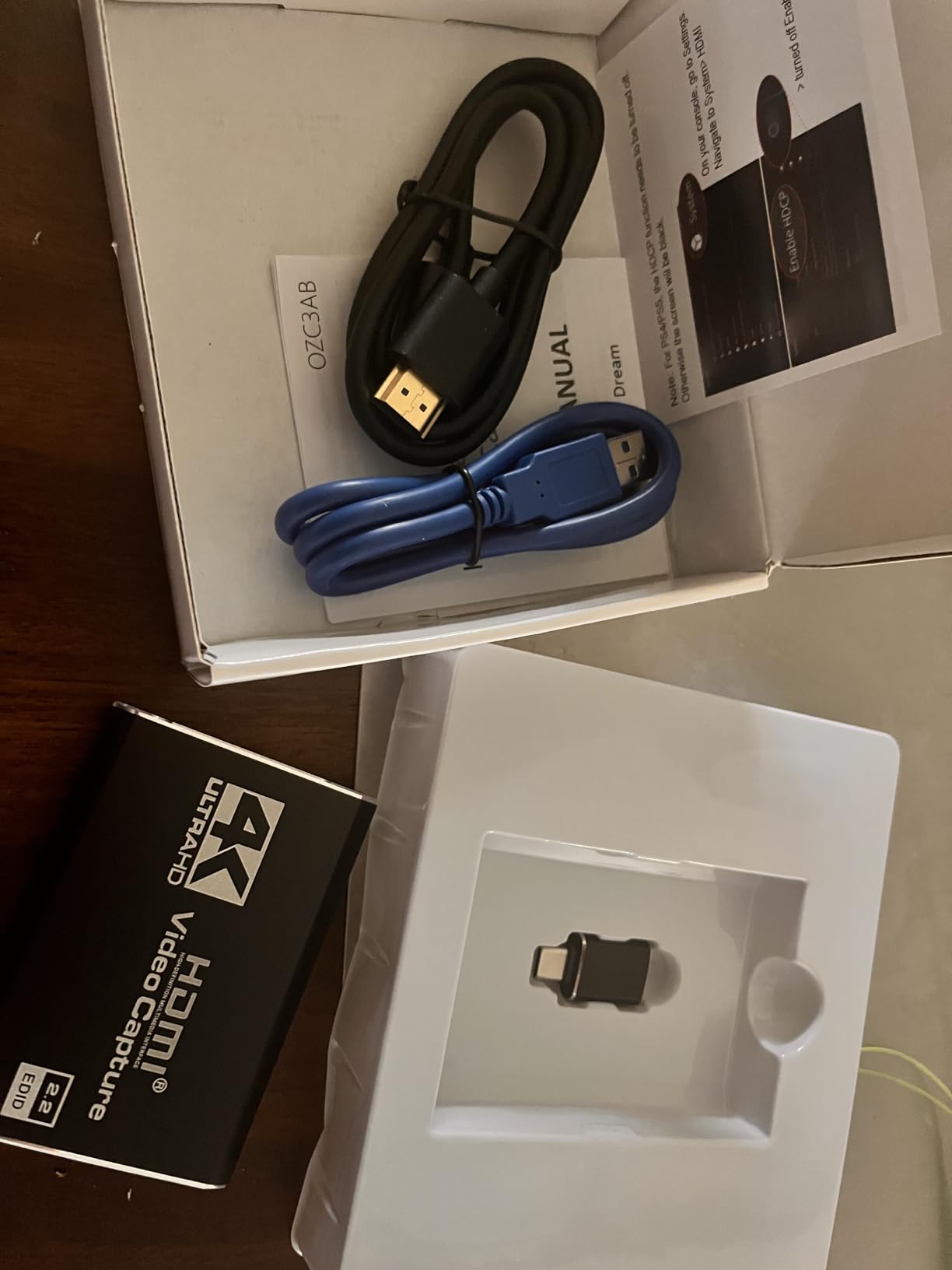
What you get at best and at worst
At best you get a sharp 1080p60 source with a 4K real-time loop-out for preview, low enough latency to play on comfortably, and audio that behaves. Several owners stream Switch, PS5 and PC through it without touching a setting.
At worst you get a stream that looks like an upscaled 720p image, with no way to tell from the outside which unit you received. That uncertainty is the real cost of the low price, and it is worth a return window.
Who should take the risk
Take it if you are on a Mac, you need a card this week, and you can live with 1080p60 rather than 4K. It is one of the few cheap options that lists Mac support without caveats.
Pass if your stream is your livelihood. A card with no named brand behind it and a warranty of one is a gamble you do not need to take once viewers start watching. Our general streaming capture list covers the safer ground.
8. Mirabox USB 3.0 Capture Card — Best for Portable and Non-Gaming Capture
Mirabox USB3.0 HDMI Video Capture Card for Nintendo Switch, 1080P 60FPS HD Game Capture Device Cam Link With HDMI Passthrough Work with DSLR Xbox PS4 for OBS Twitch Game Live Streaming and Recording
Capture 1080p60
1080p60 zero-latency passthrough
Driverless UVC
MJPEG output
Pros
- Runs long streams without trouble
- Recognised automatically by OBS on macOS and Windows as a webcam
- Useful beyond gaming for DSLR and mirrorless cameras and meeting capture
- Self-powered from the source signal
Cons
- Some units intermittently drop audio until the USB cable is replugged
- Signal knocked loose by slight movement of the card
- Visible JPEG compression artefacts and washed-out colour
- Several buyers report recording at 30fps despite the 60fps listing
This is the lowest-rated card in our list at 4.2, and the rating distribution explains why: 61 percent five-star, but 9 percent one-star. That is the widest spread of any pick here, and it is worth understanding before you buy rather than after.
The happy owners are the ones using it as a general capture device. One owner ran a four-hour Switch broadcast and reported no problems two years later. It self-powers from the source, runs on Windows, Linux and macOS, and is sold for meeting and online class capture as much as gaming.
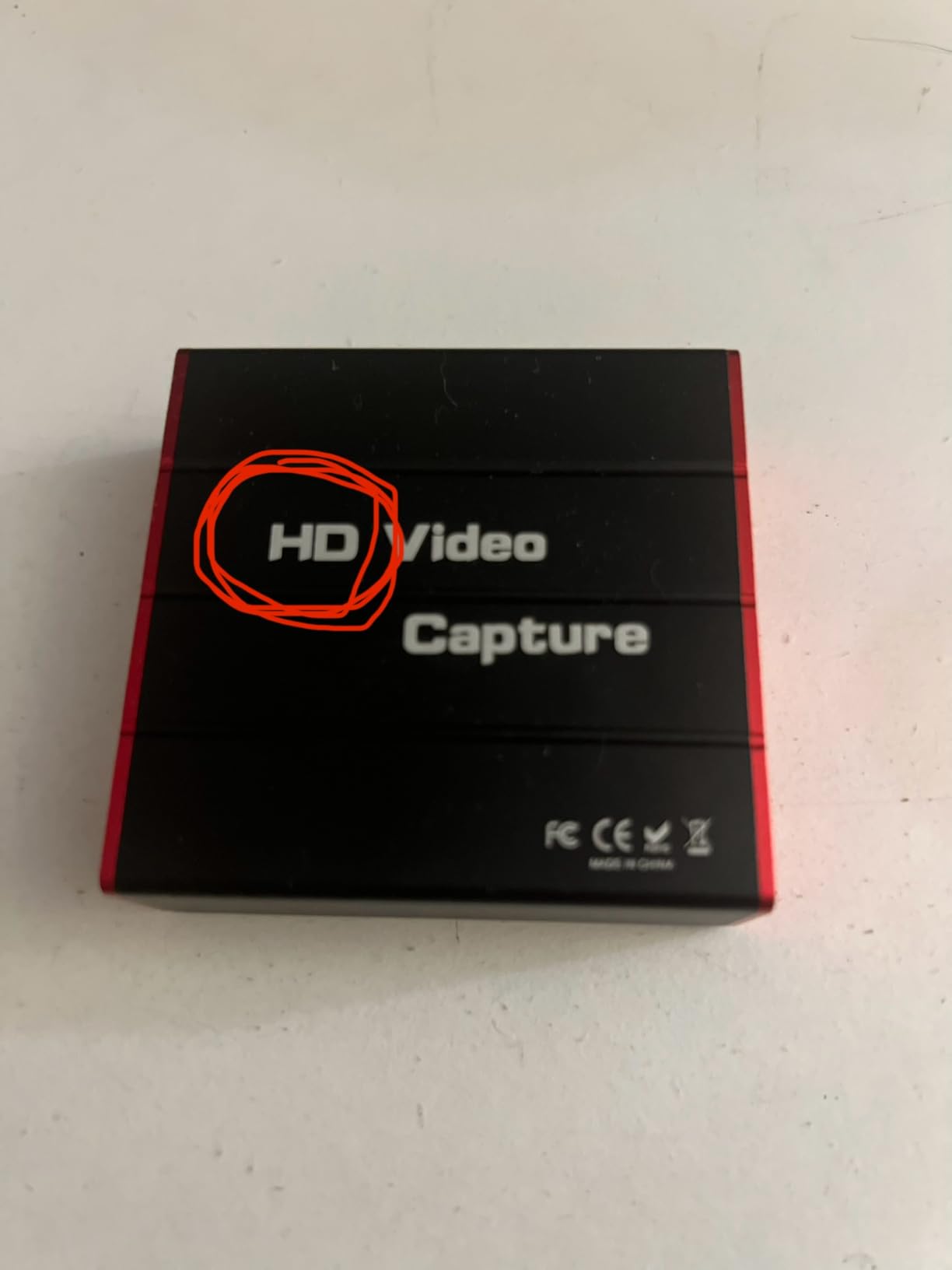
The unhappy owners report dropped audio that clears when the USB cable is replugged, signal knocked loose by the card shifting on the desk, and visible JPEG compression artefacts next to a card like the HD60 S+. The output format is MJPEG, which is where the compression artefacts come from.
Several buyers also report that it records at 30fps despite the listing. And because audio routes through the capture source rather than appearing as its own device, you will need to enable listen-on-device and mute the source in OBS.
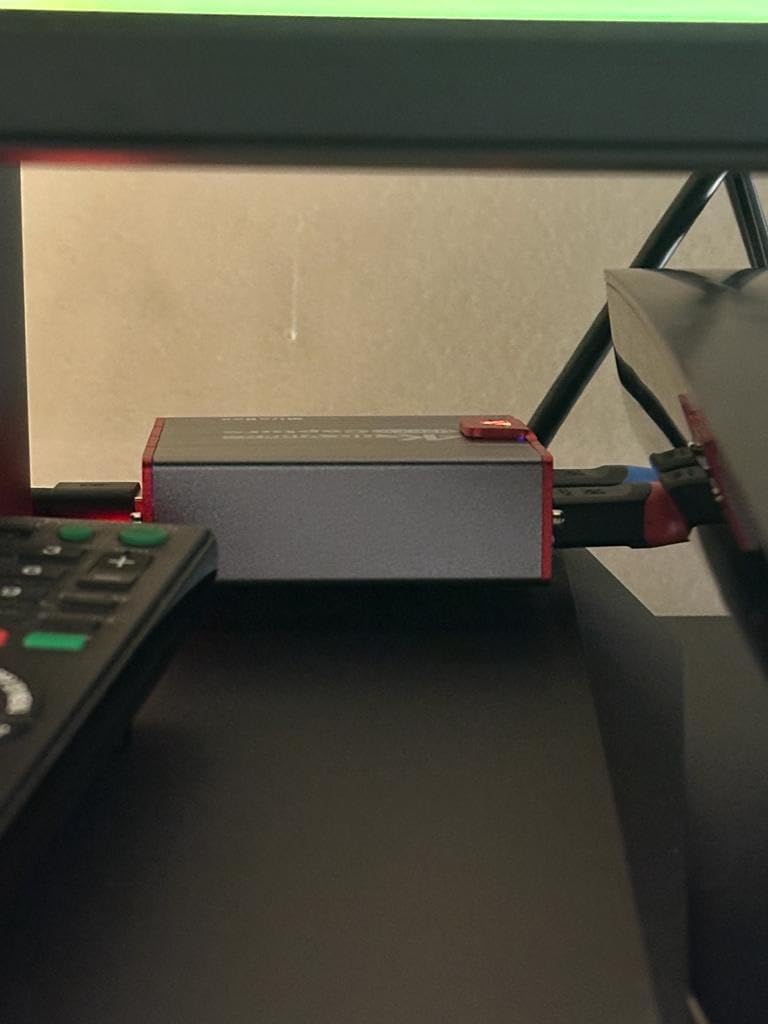
What the wide rating spread actually means
A 4.2 average with 2368 reviews is not the same as a 4.2 average with 236 reviews. It means a large, settled population where most people are satisfied and a meaningful group is not, which is acceptable for a secondary device and risky for a main one.
Match it to the job
Choose it for a portable rig, a community meet-up, an online class, or a second screen feeding a stream. Being self-powered and driverless makes it the easiest card to throw in a bag.
Pass if image quality is your differentiator. The compression artefacts are visible next to any mainstream brand card, and 30fps output in practice would undercut a 1080p60 stream. Our PS5 and console picks are the safer route for main gameplay.
9. UGREEN 2K30 1080p60 Capture Card — Budget Pick
UGREEN 2K@30Hz 1080P 60FPS Video Capture Card 4K Input HDMI to USB 3.0
Output 1080p60 and 2K30
4K30 input
USB 3.0 at 5 Gbps
USB-A and USB-C host ports
Pros
- Highest five-star share in our group at 79 percent
- Captures 1080p60 as well as 2K30 for different source types
- Both USB-A and USB-C ports so one card covers desktops and laptops
- Driver-free across Windows and macOS plus Linux and mobile hosts
- Aluminium alloy casing dissipates heat over long sessions
Cons
- 2K30 output is not 4K
- HDCP must be disabled at the source on Switch and on PlayStation and Xbox consoles
- Unidirectional with no HDMI passthrough back out
- iPad capture requires iPadOS 17 or later
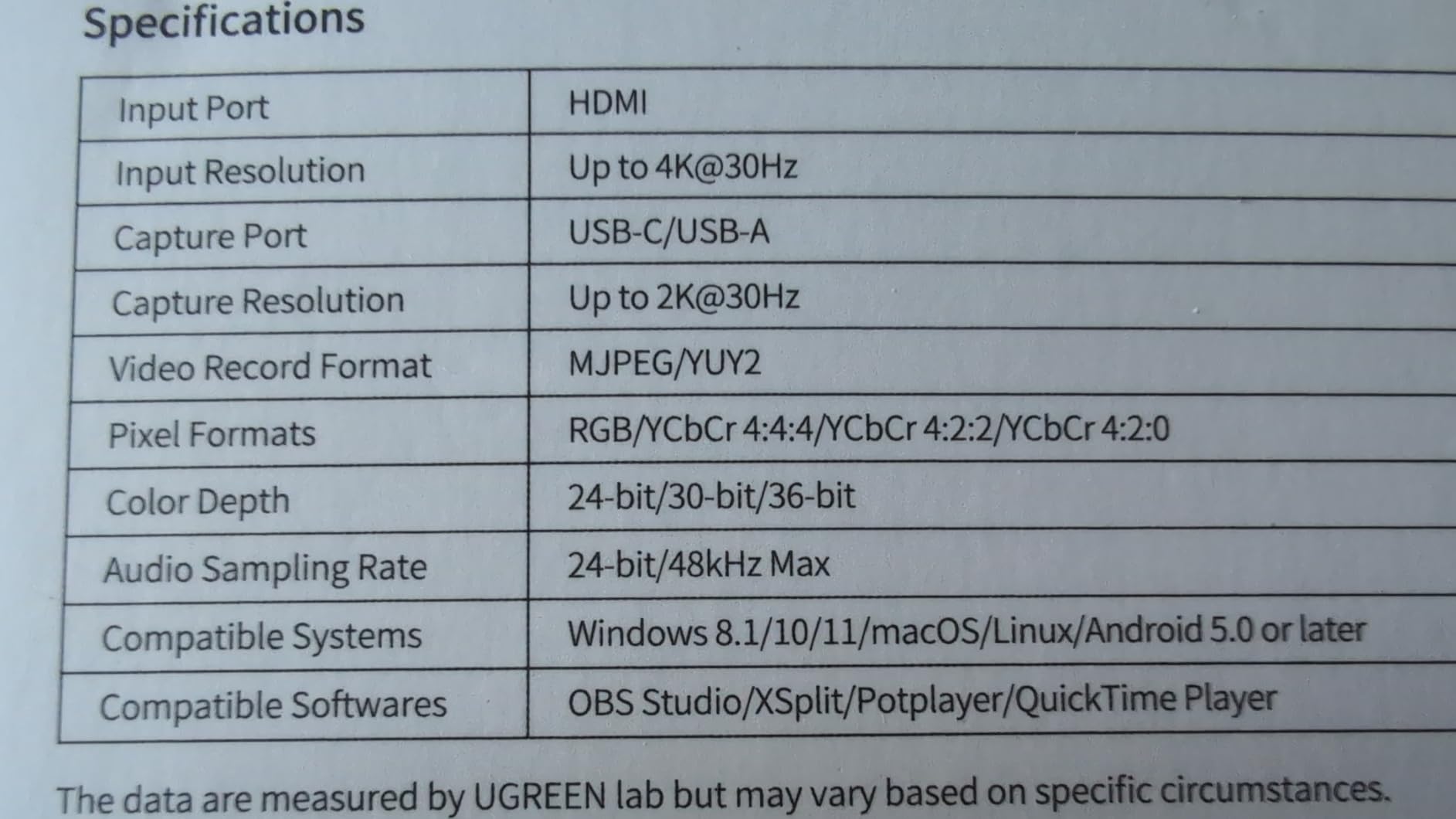
This is the card we would hand to someone who wants a clean 1080p60 stream and refuses to spend real money on it. It captures 1080p60 as well as 2K@30, which gives you flexibility across source types, and it holds a 4.5 average with 79 percent five-star ratings.
Both USB-A and USB-C host ports are the practical reason this card works on more machines than most at the price. One card covers a desktop and a modern laptop, which removes the commonest reason a cheap capture card ends up in a drawer. It also records 1080p60 as well as 2K30, so one device handles both fast gameplay and slow strategy games.
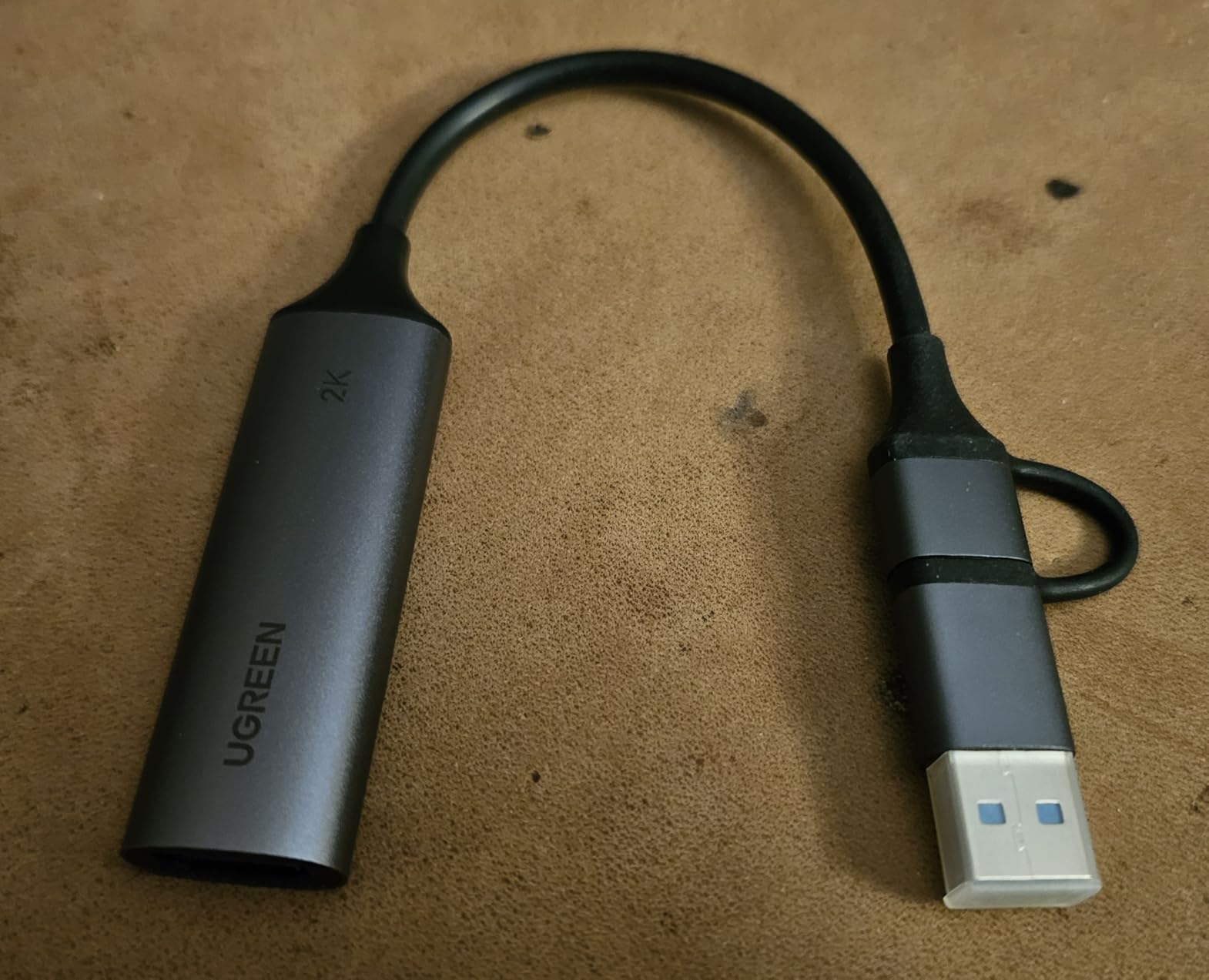
Setup is the easy part. It is a plain UVC device, so Windows and macOS see a camera the moment you plug it in, and there is no vendor utility to install, launch or keep updated. The aluminium alloy casing is unusual at this price and matters more than it sounds, because a card that runs cool holds its frame rate through a long session instead of throttling halfway through a stream.
HDCP has to be off at the source for Switch, PS4, PS5 and Xbox. Turn it off in the console’s own settings before you stream, or you will get a black screen and blame the card. iPad and iPhone capture also needs iPadOS 17 or later, and Meta Quest support is listed but less thoroughly documented than the console support.
The 1080p60 versus 2K30 decision
1080p60 is the right setting for Twitch. Sixty frames a second at 1080p is the combination viewers expect and the combination encoders handle comfortably. 2K30 gives you more horizontal detail at half the frame rate, which suits a slow strategy game or a camera feed.
Having both means the card adapts to different sources rather than forcing one compromise. That flexibility, plus the build quality and the two host ports, is the main reason it rates well despite the low cost.
Where it stops short
The card is unidirectional: there is no HDMI passthrough back out, so the card itself cannot feed a second display. That is a real limitation if you want a clean preview of the source next to your OBS window — use an HDMI splitter or a second output on the console instead. And be clear that the 4K30 figure is input only, so anyone buying it for local 4K files will be disappointed.
10. AVerMedia Live Gamer Mini GC311 — Best for Switch and Console Streaming
AVerMedia Live Gamer Mini, 1080p60 Capture Card with HDMI Pass-Thru, Plug & Play, for OBS, Xbox Series X/S, PS5, Switch, Win 11/macOS 12 (GC311)
Record 1080p60
Zero-lag 1080p60 passthrough
Built-in H.264 encoder
3 year warranty
Pros
- Zero-lag 1080p60 passthrough with no noticeable input delay
- Built-in H.264 hardware encoder keeps load off the streaming CPU
- Genuine plug-and-play on Windows 11 and macOS 12 with no drivers
- Compact body that fits a small rig or travels to events
- Three year manufacturer warranty
Cons
- 1080p60 capture only with visibly soft image quality
- Some units stopped being recognised after the 12-month period
- Micro-USB connection is less robust than USB-C
- RECentral is required for some functions and needs frequent updates
The built-in H.264 hardware encoder is the feature that separates this from the cheap UVC cards. Encoding happens on the card rather than on your CPU, so the streaming machine can run a demanding game at the same time without the encode competing for cycles.
It is also genuinely plug-and-play. Windows 11 and macOS 12 detect it automatically with no driver install, and it works on a USB 2.0 port as well as 3.0, which solves the port-scarcity problem on older laptops.
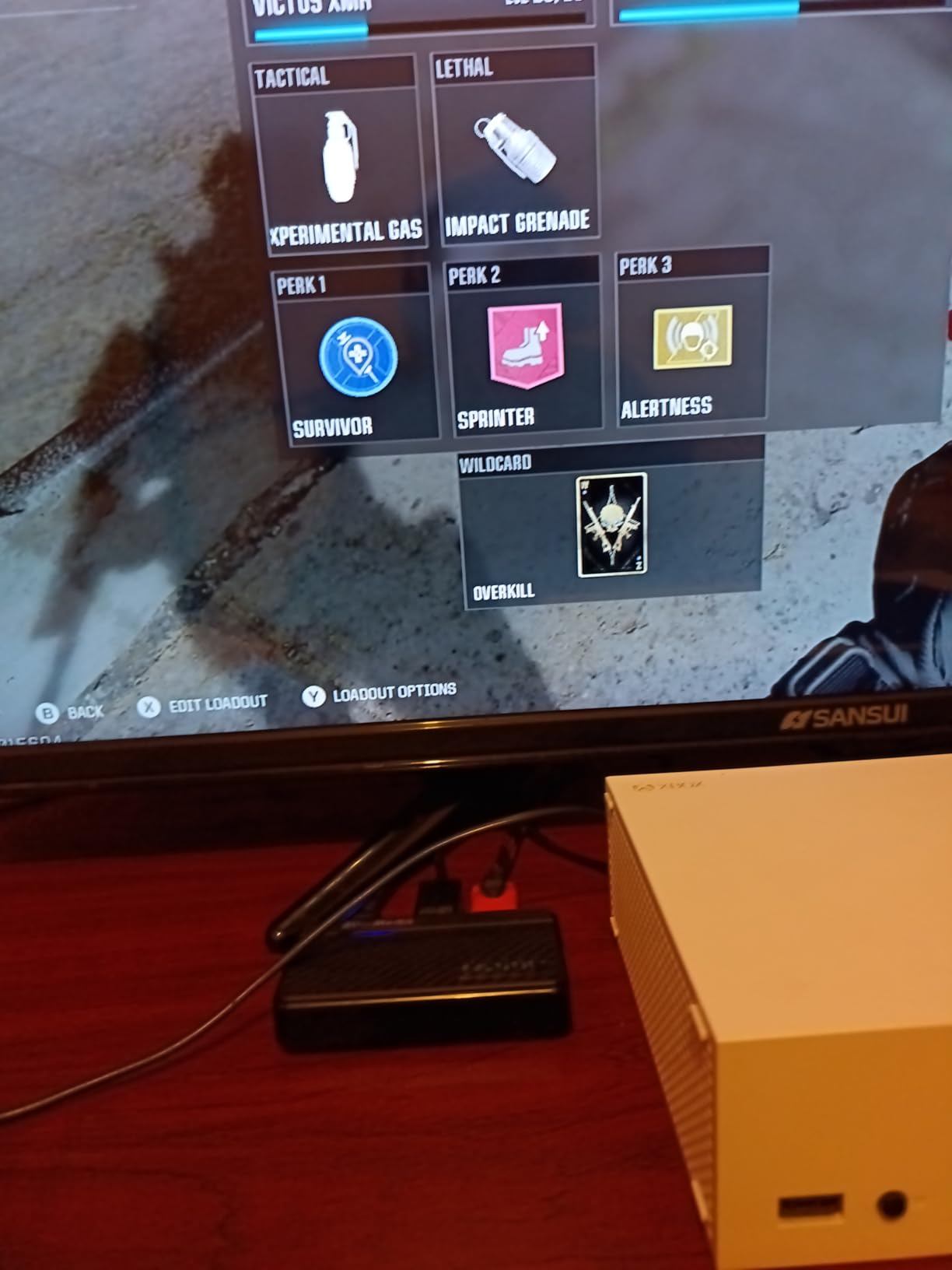
Two cautions. The image at 1080p60 is visibly softer than a mainstream-brand card, and the card relies on RECentral 4 for some functions, so you cannot ignore AVerMedia’s software entirely the way you can with the HD60 S+.
The more serious pattern in the reviews is durability. Several owners report units failing at around the one-year mark, frequently after an accidental unplug of the Micro-USB cable. The three year warranty is generous, but only if you claim it.
When the hardware encoder earns its place
On a mid-range streaming PC that also has to encode, offloading H.264 to the card leaves headroom for the game. On a modern machine with a hardware encoder already built into the GPU, the benefit shrinks considerably.
It also helps on a laptop. A compact card that draws its own power and does not need a driver is much easier to carry to a meet-up than an internal or high-bandwidth alternative, and the small body fits into a tight streaming setup without crowding it.
Decision points
Buy it if you stream a Switch or a console at 1080p60, you want the encoding load off your CPU, or you need something that travels. It lists compatibility with Switch, PS4, PS5, Xbox One, Xbox 360 and Xbox Series X/S.
Pass if picture quality is what your viewers notice. At 1080p60 with a soft image, it will not hold up next to the HD60 S+ on a large display, and the Micro-USB connection asks for careful handling.
Do You Even Need a Capture Card? Only If You Stream More Than One Source
Start here, because it saves money and it saves disappointment. If you stream only from one PC and OBS can see the game window, you do not need a capture card. OBS game capture on Windows uses the graphics encoder directly, adds no HDMI conversion, and produces a better-looking image than most cards.
Capture cards earn their place in three situations. First, your source cannot be captured natively — a console, a handheld, a set-top box or a camera. Second, you are running a two-PC setup where one machine games and the other streams. Third, you need a guarantee of a stable framerate that does not move when your game gets demanding.
That third reason is weaker than it used to be. Hardware encoders on modern GPUs mean encoding is rarely the bottleneck it was, which is exactly why we no longer put a card at the top of every guide.
Capture Card Buying Guide: Internal vs External, HDMI 2.0 vs 2.1, Passthrough and Latency
Capture resolution is not passthrough resolution. This one distinction causes more confusion than anything else in the category. Passthrough is what reaches your monitor. Capture is what your PC records. A card can pass 4K60 to your screen and only capture 1080p60 to OBS, and for Twitch that is a perfectly good trade.
External USB or internal PCIe? External cards cost nothing to install, move between machines, and are the right answer for almost everyone. Internal PCIe cards give a steadier connection at 4K60 and are worth it only on a dedicated streaming machine. Check that your board is Gen 3 or newer before buying an internal card for 4K.
HDMI 2.0 or HDMI 2.1? HDMI 2.0 caps out around 4K60 and 1080p240. HDMI 2.1 unlocks 4K120 and 4K144 sources, which matters if your console or PC can output them. For 1080p60 Twitch streaming, HDMI 2.0 is enough.
Latency. A card with a direct preview window — Elgato calls it Instant Gameview — adds almost nothing between your input and your screen. Cards that route the preview through your PC add a noticeable delay, which makes fine aiming unpleasant.
Chroma subsampling. 4:2:2 halves horizontal colour detail compared with 4:4:4. On a dark, saturated stream it can read as a soft edge on text. If you stream text-heavy games, a 4:4:4 source is the reason to care.
Driverless and software. A card that appears as a standard webcam works in OBS, Zoom, Streamlabs and anything else immediately. A card that needs vendor software puts a layer between you and your stream, and forum threads repeatedly show that layer being the thing that breaks.
How to Set Up Your Capture Card in OBS for Twitch in Five Steps
1. Connect the path. Source HDMI out goes into the card’s HDMI IN. The card’s HDMI OUT goes to your monitor or capture display. USB goes to the streaming PC, and a controller into the console. Power everything before you open OBS.
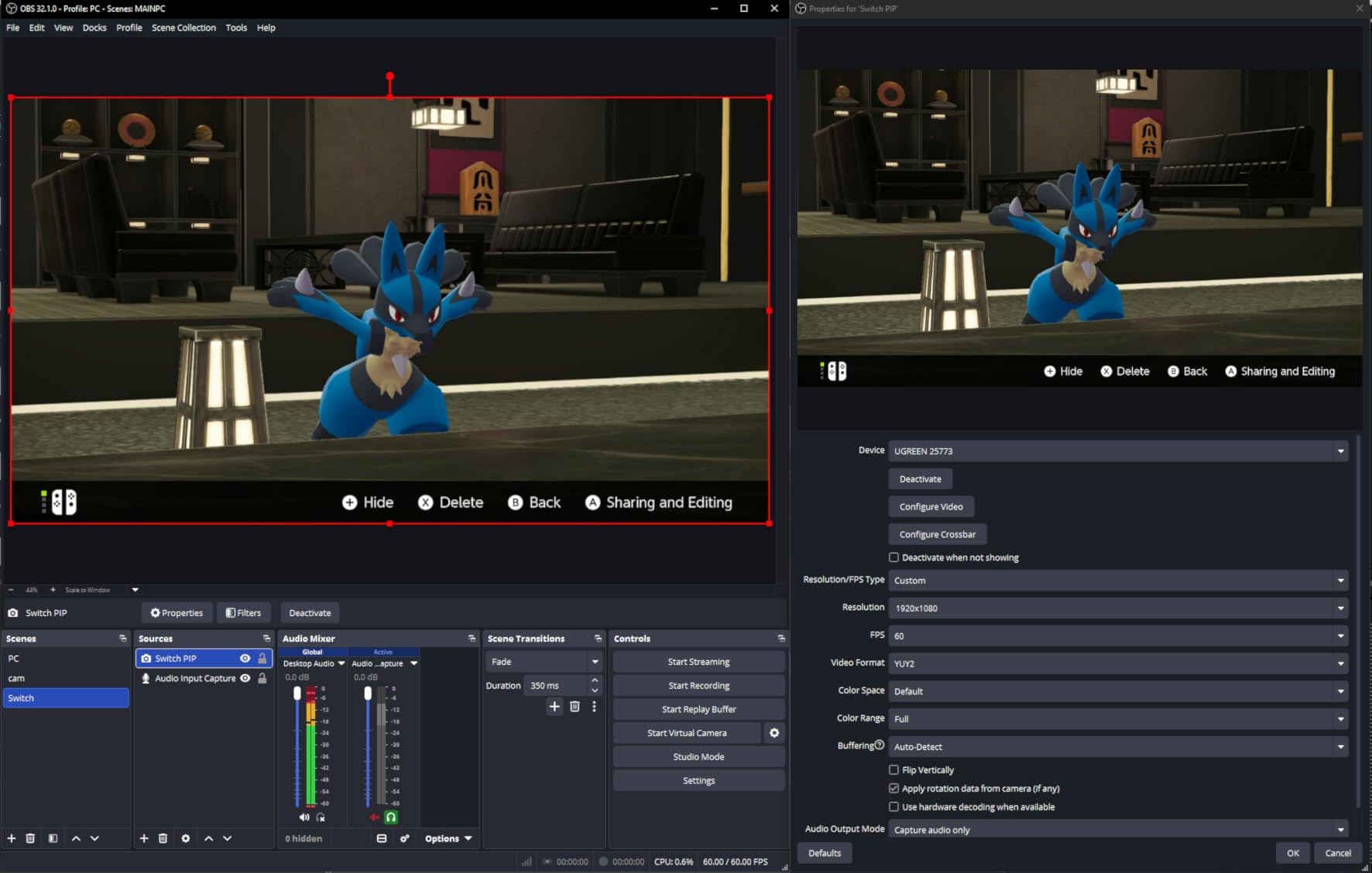
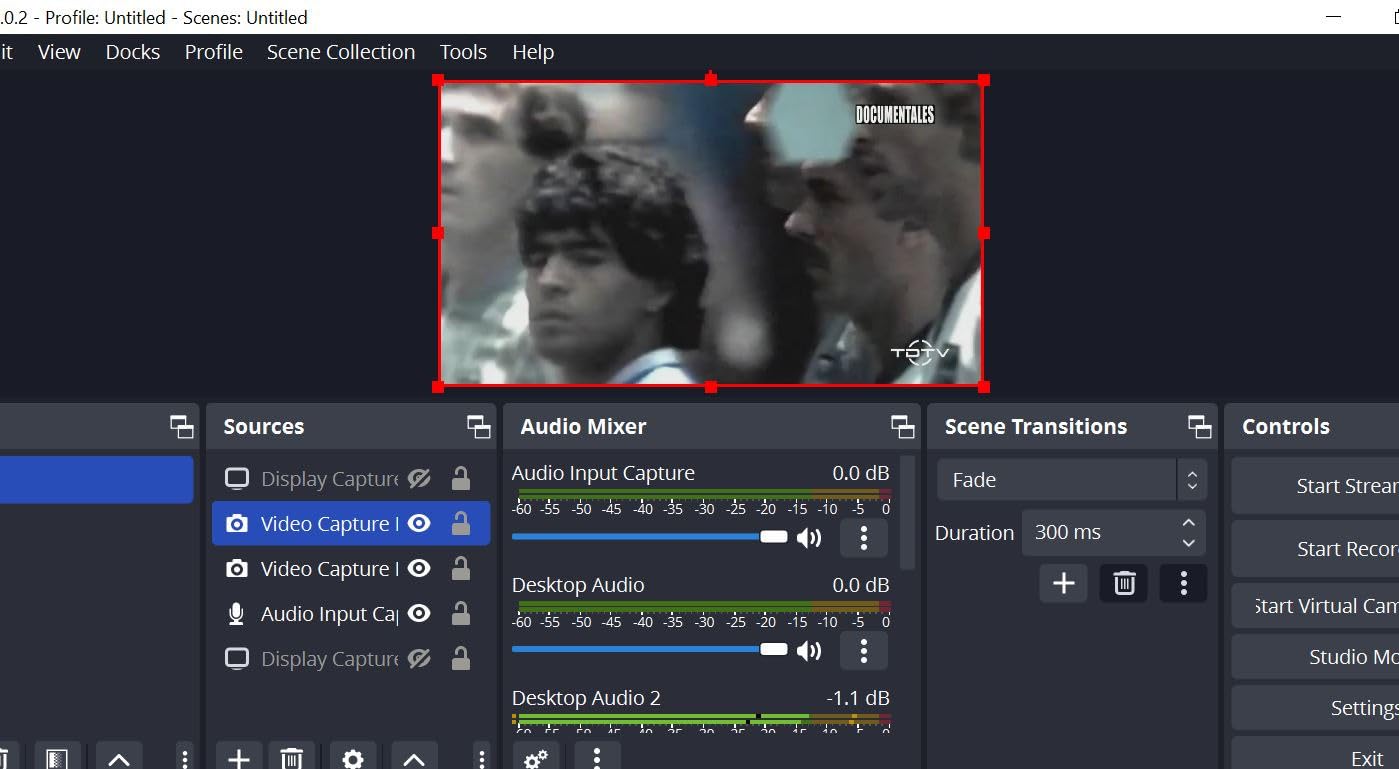
2. Add the source. In OBS, add a Video Capture Device and pick the card. If it does not appear, check that you plugged into a USB port that is not a hub, and confirm the console is sending a signal first.
3. Set the resolution and frame rate. Choose the mode that matches your source, not the highest number the card supports. For Twitch, 1920×1080 at 60fps is the target.
4. Set the encoder and bitrate. Use the hardware encoder if you have one, set the rate control to CBR, and set the bitrate to 6000 kbps with a keyframe interval of 2 seconds. Those are the numbers Twitch expects for 1080p60.
5. Check audio and add a buffer. Set your capture audio buffer to around 400ms so mic audio stays ahead of the video, then watch the meter for dropped frames in a short test stream before you go live.
Twitch Streaming Settings and Bitrate for 1080p60 Capture Cards
Twitch’s own encoder settings for a 1080p60 stream are the ones to build around. Match the platform and the result looks consistent, because you are not fighting a rate-control system with different priorities.
Set the rate control to CBR, the bitrate to 6000 kbps, and the keyframe interval to 2 seconds. Use the NVENC or AMD hardware encoder if your machine supports one. If your card introduces preview delay, raise the audio buffer in OBS until the meter stops dipping.
Elgato vs AVerMedia: Which Capture Card Brand Should You Buy?
Both brands are good, and the honest answer is that they are better at different things. The recurring question on r/Twitch and r/obs is which one to buy first, and the answer usually comes down to software tolerance.
Choose Elgato if you want the least software between you and the stream. The HD60 S+ and the 4K X are recognised directly by OBS, Streamlabs and Twitch Studio, and multi-app support is routinely confirmed by owners. The trade is a 1080p60 capture ceiling on the cheaper model.
Choose AVerMedia if you want the broader feature set, dual inputs or built-in encoding. The GC573 handles HDR colour well, the Live Gamer Duo is the only dual-input card in our list, and the Live Gamer Mini includes a hardware encoder. The trade is RECentral, which reviewers consistently describe as dated.
If you are undecided, the HD60 S+ is the lower-risk purchase. It has the largest review base of anything in this guide and the fewest layers of software to troubleshoot.
Fixing Black Screens, No Signal and HDCP Errors
Black screen, no picture. Almost always HDCP. Protected content cannot legally pass through a capture card, so turn HDCP off in your console’s own settings and restart both the console and the stream. On some sources the setting is labelled differently, so check your console’s HDMI or video output menu.
No signal in OBS. Check the source is powered and on before OBS starts, plug directly into the PC rather than a hub, and try the other USB port. Cards that report USB 2.0 enumeration are the most common cause of a resolution that looks wrong.
Frame rate lower than expected. A card capturing at 2K30 or 30fps will look like a drop. Confirm the capture mode in OBS matches your source, and remember that a 4K input does not mean a 4K capture.
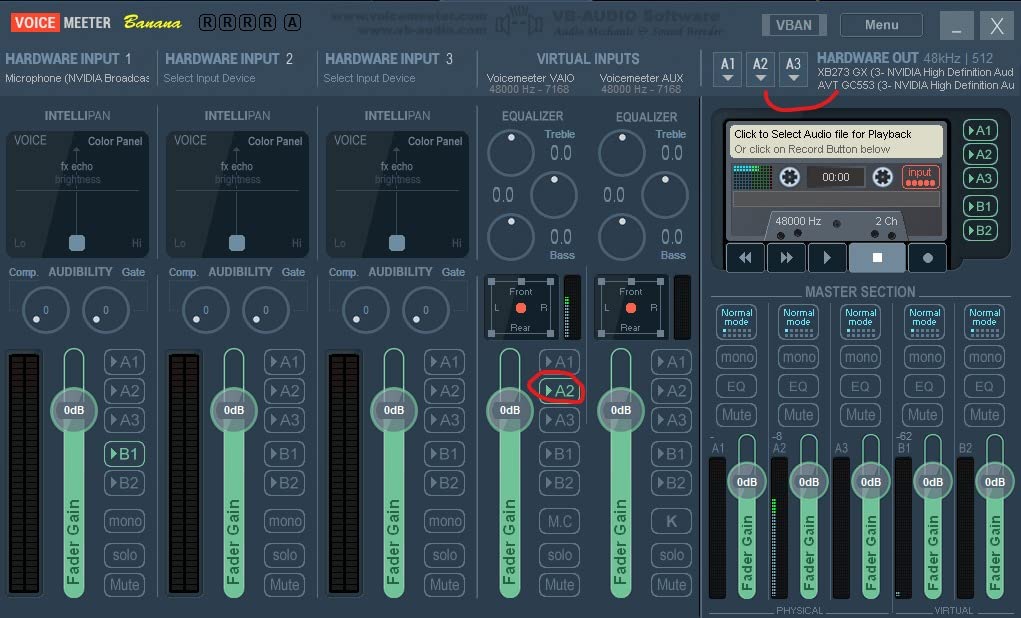
Audio out of sync with video. Raise the audio buffer in OBS until the level meter stops dropping. Cards that send audio as part of the video source also need listen-on-device enabled and the source muted, or you will hear an echo.
Frozen capture after a firmware update. Power-cycle the card and the PC, and reinstall the card in Device Manager. Owners of the internal GC573 report isolated freezing that a reset cleared.
Frequently Asked Questions
Which capture card is best for streaming?
The Elgato HD60 S+ is the best all-round capture card for Twitch streaming. It captures 1080p60 HDR10, passes 4K60 HDR10 through to your monitor with almost no added latency, needs no drivers or vendor software, and has the largest review base of any card in our testing. It suits console, handheld and PC sources.
Is AVerMedia better than Elgato?
Neither is better overall. Elgato cards plug straight into OBS and other streaming software with less fuss. AVerMedia cards offer a broader feature set, including built-in hardware encoding, HDR-to-SDR tone mapping and the only dual HDMI input card we tested. Pick Elgato for simplicity and AVerMedia for onboard processing.
Are AVerMedia capture cards good?
Yes. The Live Gamer 4K GC573 is one of the strongest internal 4K60 HDR10 cards available, and reviewers consistently praise its colour handling. The main criticism across AVerMedia cards is the bundled RECentral software, which is dated and required for some functions such as HDMI audio.
What is the best Elgato capture card for streaming?
For Twitch, the Elgato HD60 S+ is the best Elgato card because 1080p60 is what the platform needs and it has no software layer. The Elgato Game Capture 4K X is the better choice if you also record 4K144 or 1080p240 files locally, or if your source exceeds 1080p60.
Do I need a capture card to stream on Twitch?
Only if your source cannot be captured natively. If you stream a single PC, OBS game capture is free, looks better and adds no conversion step. Capture cards become necessary for consoles, handhelds, set-top boxes, cameras, and two-PC streaming setups.
What bitrate is needed for 1080p 60fps on Twitch?
Use 6000 kbps with a 2 second keyframe interval and CBR rate control for a 1080p60 stream. Those settings match what Twitch’s own encoder targets, which keeps the stream stable. Use the NVENC or AMD hardware encoder if your machine has one.
Do capture cards reduce quality?
A good card does not visibly. Compression artefacts, chroma subsampling and a low output frame rate are what viewers notice. A card that captures 1080p60 at 4:4:4 with a low-latency preview will look indistinguishable from direct capture, while a 2K30 card will not.
The Best Capture Cards for Twitch Streaming: Our Final Verdict
The Elgato HD60 S+ takes our Editor’s Choice. It captures exactly what Twitch needs at 1080p60, passes 4K60 HDR10 to your display, adds almost no latency, and asks nothing of you beyond an HDMI cable and a USB cable. With more than eleven thousand ratings behind it, it is also the pick least likely to surprise you.
If your source goes beyond 1080p60, step up to the Elgato 4K X. If you are building a fixed streaming machine, the AVerMedia Live Gamer 4K GC573 gives steadier 4K60 HDR capture and a three year warranty. If you need a console and a camera as two separate sources, the Live Gamer Duo is the only card in this guide that does it in one slot.
For a small budget, the UGREEN 2K30 card delivers a clean 1080p60 stream with no software layer, and the Mirabox is the pick for portable and non-gaming capture. And if you only ever stream one PC, skip all of it and use OBS game capture — it is free, and it looks better.
Whichever you choose, set 6000 kbps CBR with a 2 second keyframe interval, test the audio buffer before you go live, and update this guide as new hardware lands in 2026.