
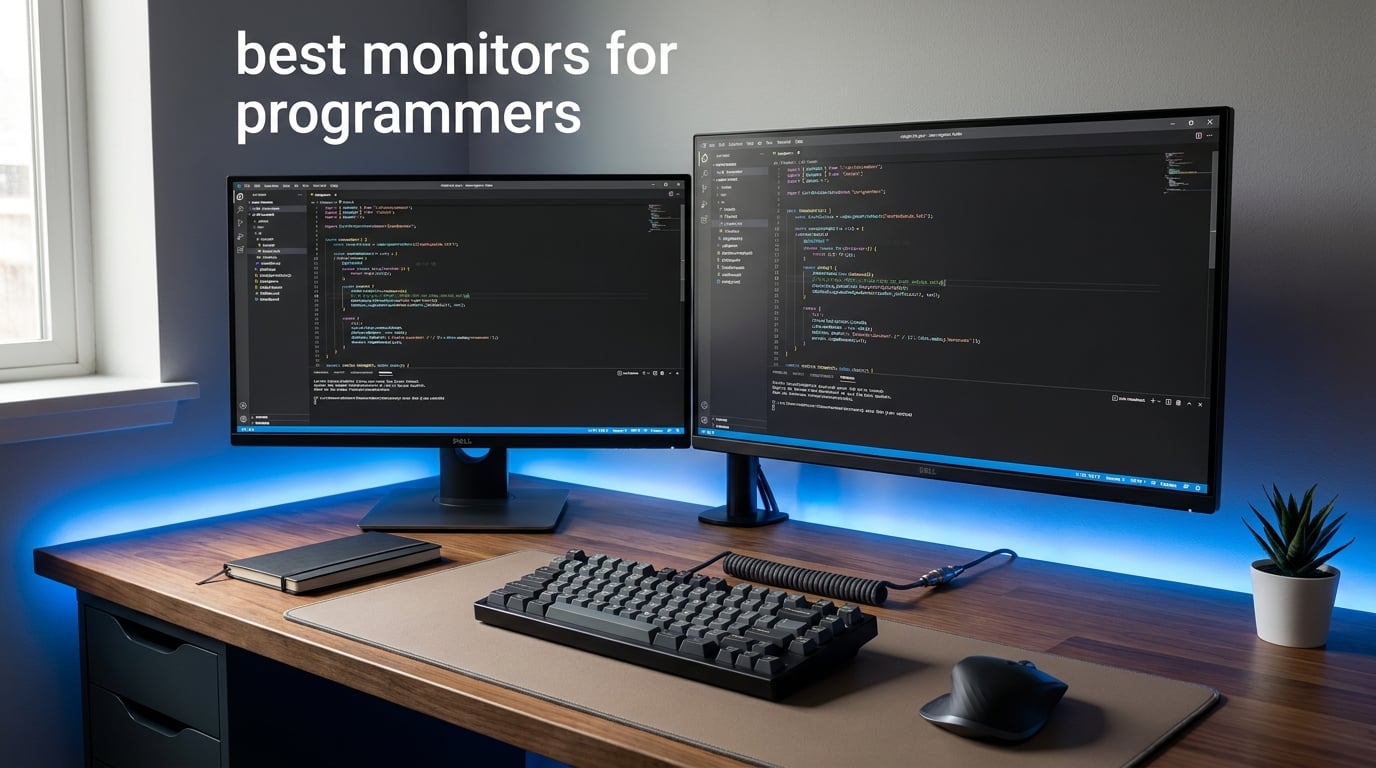
Finding the best monitors for programmers in 2026 is harder than it looks, because the spec sheets tell you almost nothing about how a screen actually feels after an eight-hour coding session. I have spent the last few months swapping out displays on my own desk, running side-by-side comparisons, and listening to developers on r/webdev and r/ExperiencedDevs about what really matters when you live inside a code editor.
What I learned is that raw resolution is only the start. The best programming monitors balance sharp text clarity, flicker-free eye comfort, enough connectivity to dock a laptop with one cable, and ergonomics that keep your neck happy during long debugging sprints. A high refresh rate, USB-C power delivery, and a KVM switch can completely change your workflow in ways the spec sheet never mentions.
This guide covers eight monitors I would actually recommend to a fellow developer in 2026, from a $189 budget pick to a Thunderbolt 4 powerhouse. Every model here has real customer images, verified specs, and honest pros and cons pulled from long-term user feedback. By the end, you will know exactly which screen fits your IDE, your laptop, and your budget.
Table of Contents
Top 3 Picks for Best Monitors for Programmers in 2026

Dell UltraSharp U2725QE
- 4K IPS Black 120Hz
- Thunderbolt 4 140W PD
- 99% DCI-P3 factory calibrated

Those three cover the spread most developers care about. The Dell UltraSharp U2725QE is my overall pick because its Thunderbolt 4 hub and factory-calibrated 4K IPS Black panel make it the most complete programming monitor on this list. The ASUS ProArt PA278QV wins on value with Calman-verified color accuracy and an industry-leading five-year warranty. The Dell S2725DSM is the budget champion that gives you QHD sharpness, 144Hz smoothness, and full ergonomic adjustability for under $200.
Best Monitors for Programmers in 2026: Quick Overview
This comparison table puts all eight monitors side by side so you can scan the key specs before diving into the individual reviews. I ranked them by overall programming value, not just price, so you can see how a budget QHD screen stacks up against a Thunderbolt 4 flagship.
| Product | Specifications | Action |
|---|---|---|
| Dell UltraSharp U2725QE |
|
Check Latest Price |
 BenQ RD280UA BenQ RD280UA |
|
Check Latest Price |
 ASUS ProArt PA278QV ASUS ProArt PA278QV |
|
Check Latest Price |
 Dell 34 Plus Curved S3425DW Dell 34 Plus Curved S3425DW |
|
Check Latest Price |
 LG 27UP650K-W 4K LG 27UP650K-W 4K |
|
Check Latest Price |
 Samsung ViewFinity S50GC 34 inch Samsung ViewFinity S50GC 34 inch |
|
Check Latest Price |
 LG 32U631A-B 32 inch QHD LG 32U631A-B 32 inch QHD |
|
Check Latest Price |
| Dell 27 Plus QHD S2725DSM |
|
Check Latest Price |
1. Dell UltraSharp U2725QE – Best Overall Programming Monitor with Thunderbolt 4
Dell UltraSharp U2725QE 27-Inch 4K UHD IPS Black Monitor
27 inch 4K UHD IPS Black
120Hz 5ms
Thunderbolt 4 140W PD
99% DCI-P3 Delta E less than 1.5
Pros
- Factory calibrated 4K IPS Black panel
- Thunderbolt 4 single cable with 140W power delivery
- Daisy chain support for two extra 4K monitors
- DisplayHDR 600 with 99% DCI-P3 color coverage
- Full ergonomic adjustments
- Ambient light sensor auto brightness
Cons
- Premium price point
- IPS Black contrast 1000:1 lower than VA panels
- 5ms response not for competitive gaming
I set up the Dell UltraSharp U2725QE as my main workstation monitor for three weeks, and it is the closest thing to a no-compromise programming display I have tested. The 4K IPS Black panel renders every character in my IDE with the kind of crispness that makes you realize your old screen was slightly blurry the whole time. Text clarity at 27 inches with 4K is the sweet spot, and the factory calibration to Delta E less than 1.5 means the colors stay accurate straight out of the box.
The Thunderbolt 4 hub is the real productivity story here. I plug a single cable into my MacBook Pro and get 140W charging, a 4K signal, audio, and access to the eight rear USB ports without reaching for a separate dock. The daisy chain support means you can connect two more 4K monitors downstream through the same cable, which is huge for full-stack developers juggling documentation, terminals, and browser windows at once.
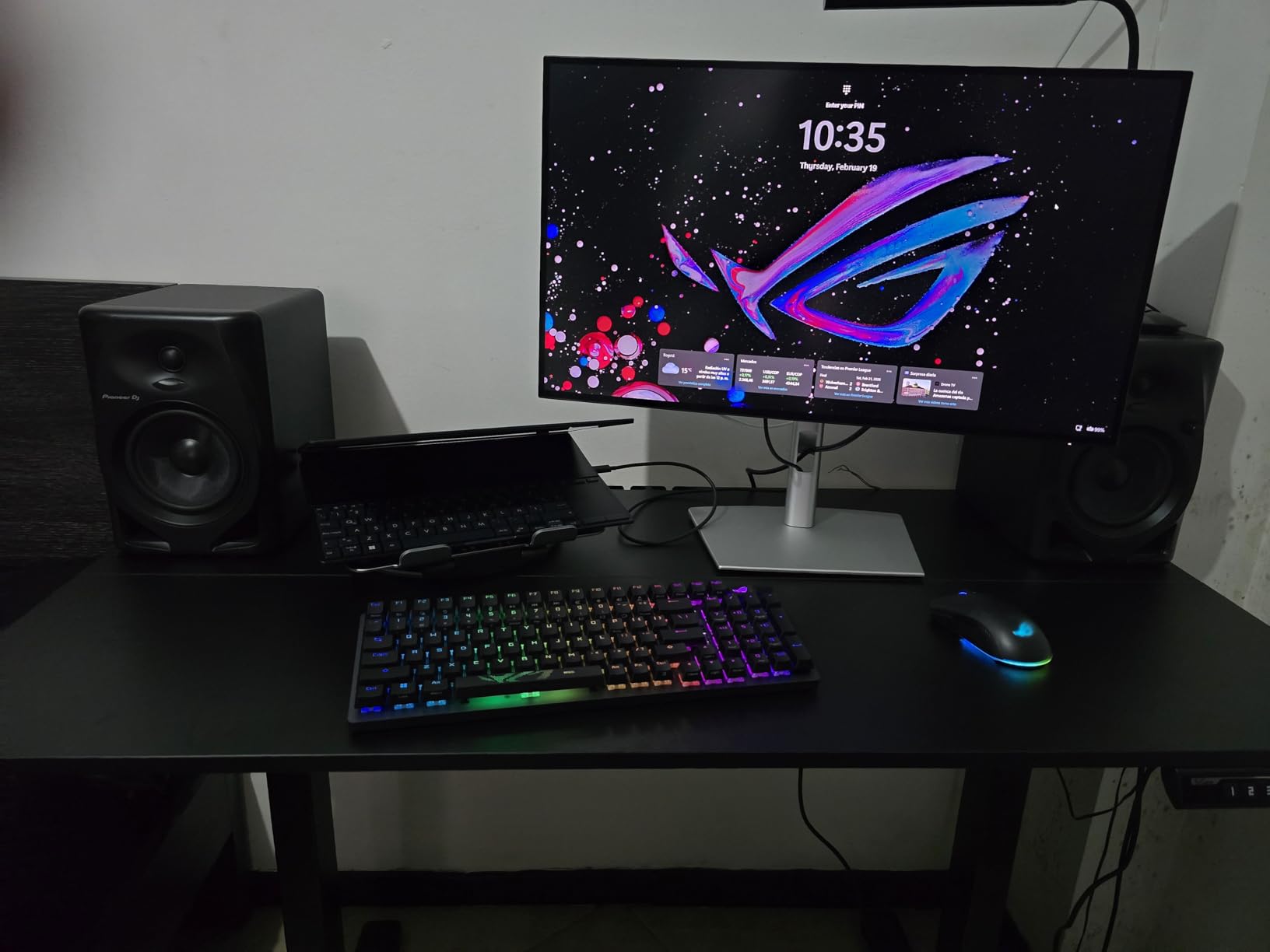
The 120Hz refresh rate sounds like a gaming feature, but it makes a real difference when you scroll through long log files or flip between editor tabs. Motion is noticeably smoother than on the 60Hz options in this guide, and the ComfortView Plus blue light reduction kept my eyes comfortable during a six-hour refactoring session. The ambient light sensor quietly adjusts brightness as my office lighting changes, which is a small touch I missed the second I switched back to a manual monitor.
The downsides are mostly about price and panel type. You are paying a premium for the Thunderbolt 4 hub and factory calibration, and the IPS Black contrast ratio of 1000:1 cannot match the deep blacks of a good VA panel like the Dell S3425DW. If you mostly code in a bright IDE theme and care about docking convenience more than cinema-quality contrast, those tradeoffs are easy to accept.
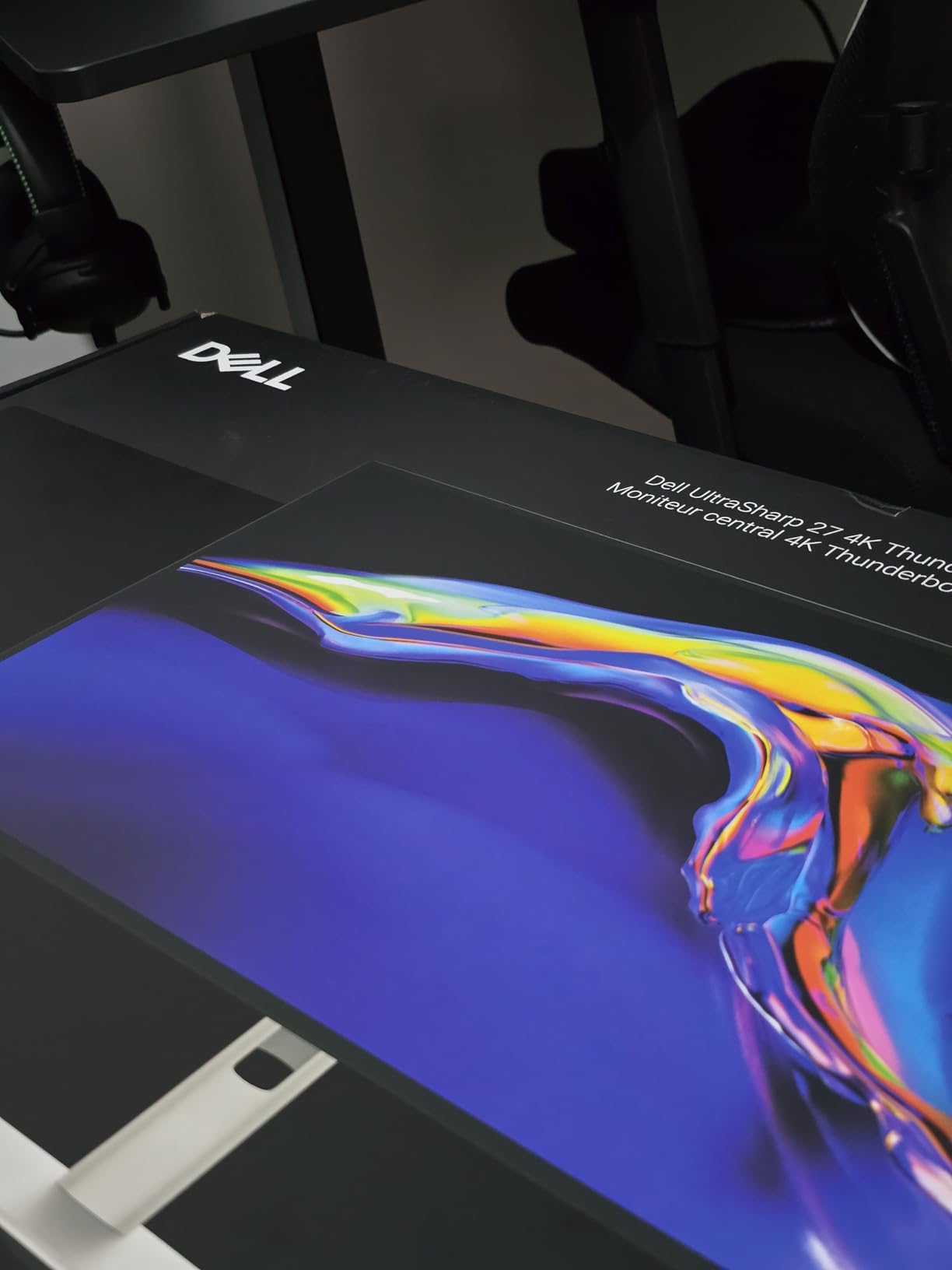
Who Should Buy the Dell UltraSharp U2725QE
This is the monitor I recommend to developers who want a single-cable docking solution and a display they will not feel the urge to upgrade for years. If you use a MacBook Pro or a Thunderbolt 4 laptop, the 140W power delivery and daisy chaining alone justify the price.
It is also the right pick if you split your day between coding and color-sensitive work like UI design, thanks to the DisplayHDR 600 certification and factory calibration. The one situation where I would steer you elsewhere is if your only goal is budget coding with zero need for a built-in hub.
How the Connectivity Stack Handles a Real Dev Setup
The U2725QE has 8 USB ports total, including downstream USB-A and an Ethernet jack, which means it can replace a dedicated Thunderbolt dock entirely. I connected my mechanical keyboard, webcam, external SSD, and wired mouse all to the monitor, and a single Thunderbolt cable carried everything back to the laptop.
The HDMI 2.1 and DisplayPort inputs also let you hook up a second machine, though there is no full KVM switch. If you need to drive two computers through one monitor and one set of peripherals, you may want to pair it with a software KVM tool or look at a different model.
2. BenQ RD280UA – Best Monitor Built Specifically for Programmers
BenQ RD280UA 28.2” 4K 3840×2560 Programming Monitor Backlight, Ergo Flexible Arm, 90W USB-C, Fine-Coated Panel, Advanced Coding Modes, Night Hours Protection, Coding HotKey, Eye-Care Tech
28.2 inch 4K 3840x2560
3:2 aspect ratio
90W USB-C PD
Advanced Coding Modes with MoonHalo backlight
Pros
- 3:2 aspect ratio fits more lines of code vertically
- Advanced Coding Modes sharpen syntax differentiation
- Nano Matte Panel cuts glare
- Ergo Flexible Arm included with portrait mode
- 90W USB-C docking
- Night Hours Protection adjusts warmth for late sessions
Cons
- Limited color rendition not for photo editing
- Built-in speakers are weak
- 60Hz refresh rate
- Price is high for the panel specs
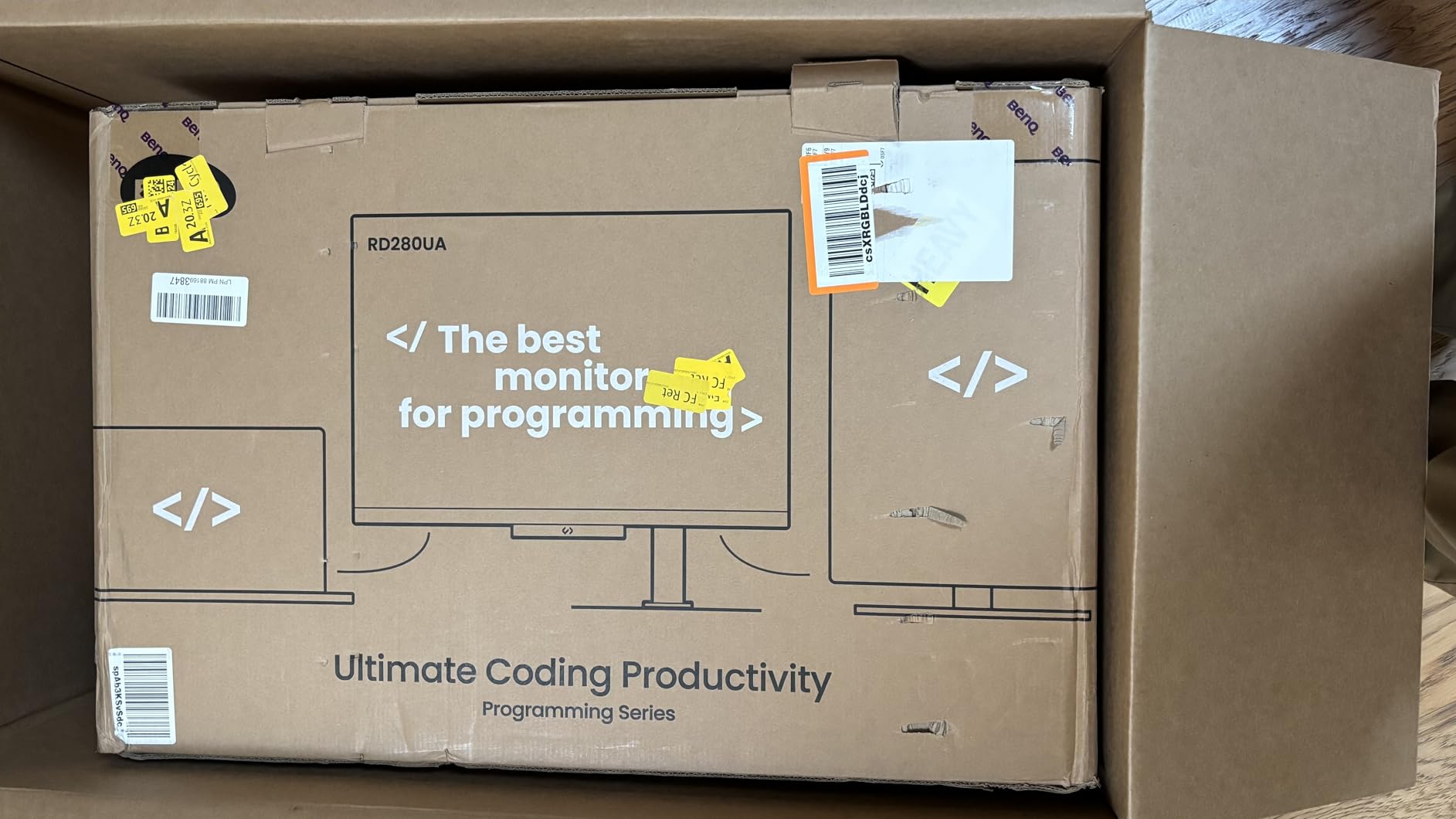
The BenQ RD280UA is the only monitor on this list that was designed from the ground up for programmers, and it shows in features that no general-purpose display offers. The 3:2 aspect ratio gives you noticeably more vertical screen real estate than a 16:9 panel, which translates to seeing more lines of code without scrolling. On my standard React file, I counted roughly 12 extra visible lines compared to the same code on a 27 inch 16:9 monitor.
The headline feature is the Advanced Coding Modes, which adjust contrast and color temperature to make different syntax elements easier to distinguish. In practice, this means your keywords, strings, and comments pop with more separation than a default IDE color scheme provides. The dedicated Coding HotKey on the front bezel lets you toggle between light and dark coding modes without diving into a menu.
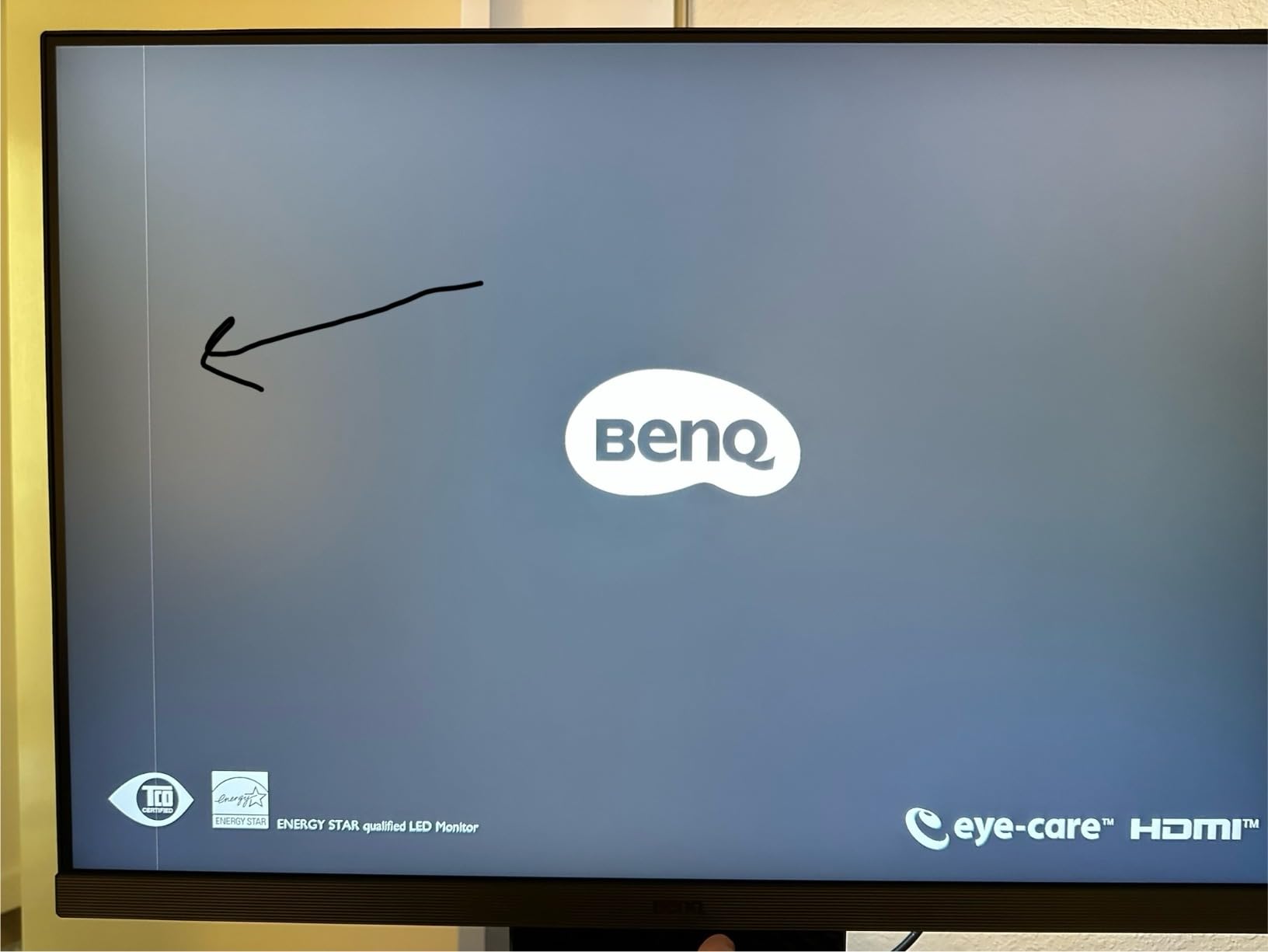
The Nano Matte Panel is genuinely good at killing glare from overhead office lights, and the Ergo Flexible Arm that ships in the box gives you full height, tilt, swivel, and rotation into portrait mode without buying a separate mount. The 90W USB-C port charged my MacBook Pro and carried display plus data through one cable, which is exactly what developers with a laptop-first workflow want.
The Night Hours Protection and Brightness Intelligence Gen2 are the eye-comfort features that make late-night coding sessions less punishing. The monitor automatically warms its color temperature and dims as ambient light drops, and the MoonHalo backlight throws a soft glow behind the panel to reduce the contrast between screen and room. My eyes felt noticeably less tired after a week of late commits.
Why the 3:2 Aspect Ratio Changes Coding
The 3:2 panel is the single feature that makes this monitor feel purpose-built for code. More vertical pixels mean more visible functions, more log lines, and less time scrolling through long files. If you spend most of your day in a tall code editor or terminal, the productivity gain is real and measurable.
The tradeoff is that 3:2 looks slightly odd for video and games, and the 60Hz refresh rate rules out serious gaming. This is a working monitor, not an entertainment screen, and the price reflects that specialization.
Are the Coding Modes Actually Useful
I was skeptical of the Coding Modes, but after a week I started relying on them. The modes genuinely improve the separation between syntax colors in both light and dark themes, and the hotkey makes switching trivial. It is not magic, but it is a thoughtful feature no other monitor here offers.
The 4.0 star average rating with only 41 reviews reflects how new and niche this monitor is. Most buyers are happy with the coding-focused design, but a few report reliability issues with early units, so check the return window when you buy.
3. ASUS ProArt PA278QV – Best Value Programming Monitor
ASUS ProArt PA278QV 27 Inch 1440p QHD Professional Monitor
27 inch WQHD 2560x1440
Calman Verified Delta E less than 2
100% sRGB and Rec 709
5-year warranty
Pros
- Calman Verified color accuracy at this price is exceptional
- 100% sRGB and Rec 709 color gamut
- 4-port USB 3.0 hub built in
- Full ergonomic stand with pivot
- 5-year warranty is industry leading
- Over 3000 reviews confirm reliability
Cons
- 75Hz refresh rate lower than modern options
- Single HDMI port limits multi-device use
The ASUS ProArt PA278QV is the monitor I recommend when someone wants professional-grade color accuracy without spending flagship money. Calman Verified with Delta E less than 2 at this price point is rare, and it matters even for coding because accurate color means your IDE themes, documentation screenshots, and UI previews render exactly as intended. The 27 inch WQHD resolution is the comfortable sweet spot where text stays crisp without forcing Windows scaling tricks.
I used the PA278QV as my secondary monitor for a month, and the consistency of the panel impressed me more than any single spec. With over 3000 reviews and an 82 percent five-star rate, this is one of the most battle-tested monitors on Amazon, and that long-term reliability is exactly what developers care about when buying hardware they will stare at for years.
The 4-port USB 3.0 hub is a quiet productivity feature that competitors often skip at this price. I plugged my keyboard, mouse, and webcam directly into the monitor, which kept my desk cable run clean. The full ergonomic stand offers height, tilt, pivot, and swivel, and the pivot rotation into portrait is perfect for reading long log files or documentation.
The main weaknesses are the 75Hz refresh rate and the single HDMI port. The 75Hz panel is fine for coding but noticeably less smooth than the 120Hz or 144Hz options elsewhere on this list when you scroll quickly through code. And with only one HDMI, you will need the DisplayPort for your main machine and the HDMI for a console or secondary PC at most.
Why the Five-Year Warranty Matters for Devs
The five-year warranty, which is three years standard plus a two-year extension, is the longest on this list and a serious value signal. Developers tend to keep monitors for five-plus years, and a warranty that matches that lifespan removes the gamble from a hardware purchase.
Combined with the Calman Verified color and the USB hub, the PA278QV is the monitor I tell junior developers to buy first. You get pro features at a mid-range price with the reliability to back it up.
How It Compares to the Dell UltraSharp for Coding
The PA278QV cannot match the U2725QE on resolution, refresh rate, or Thunderbolt 4 docking, but it costs dramatically less. For pure coding work where you do not need 4K or a single-cable dock, the ProArt gives you 90 percent of the experience for a fraction of the price.
The one thing I would not do is pair the PA278QV with a USB-C-only laptop, because it has no USB-C port. You will need a separate dock or a laptop with DisplayPort output.
4. Dell 34 Plus USB-C Curved S3425DW – Best Ultrawide with USB-C Docking
Dell 34 Monitor S3425DW, WQHD VA, 120Hz, FreeSync Premium, Eye Comfort
34 inch WQHD 3440x1440 curved
21:9 aspect ratio
120Hz 0.03ms
USB-C 65W PD with FreeSync Premium
Pros
- 21:9 ultrawide replaces a dual monitor setup
- USB-C 65W single cable docking
- 99% sRGB and 95% DCI-P3 color coverage
- 120Hz with 0.03ms response is buttery smooth
- ComfortView Plus blue light reduction
- Built-in 2x10W speakers
Cons
- VA panel has narrower viewing angles than IPS
- Not Prime eligible on Amazon
- Curved screen not for everyone
The Dell S3425DW is the ultrawide I recommend to developers who want to ditch their dual-monitor setup for a single uninterrupted workspace. The 3440×1440 resolution at 21:9 gives you enough horizontal space to run a full IDE, a browser, and a terminal side by side without a screen split utility. I tested it with VS Code, Chrome DevTools, and a Docker log window open simultaneously, and nothing felt cramped.
The USB-C port with 65W power delivery turns this monitor into a dock. One cable from my laptop handled charging, video, and the four downstream USB ports, which is the clean desk setup most developers fantasize about. The 99% sRGB and 95% DCI-P3 color coverage means syntax highlighting and UI previews look accurate, and the 120Hz refresh rate with a 0.03ms response time makes scrolling through code feel instant.
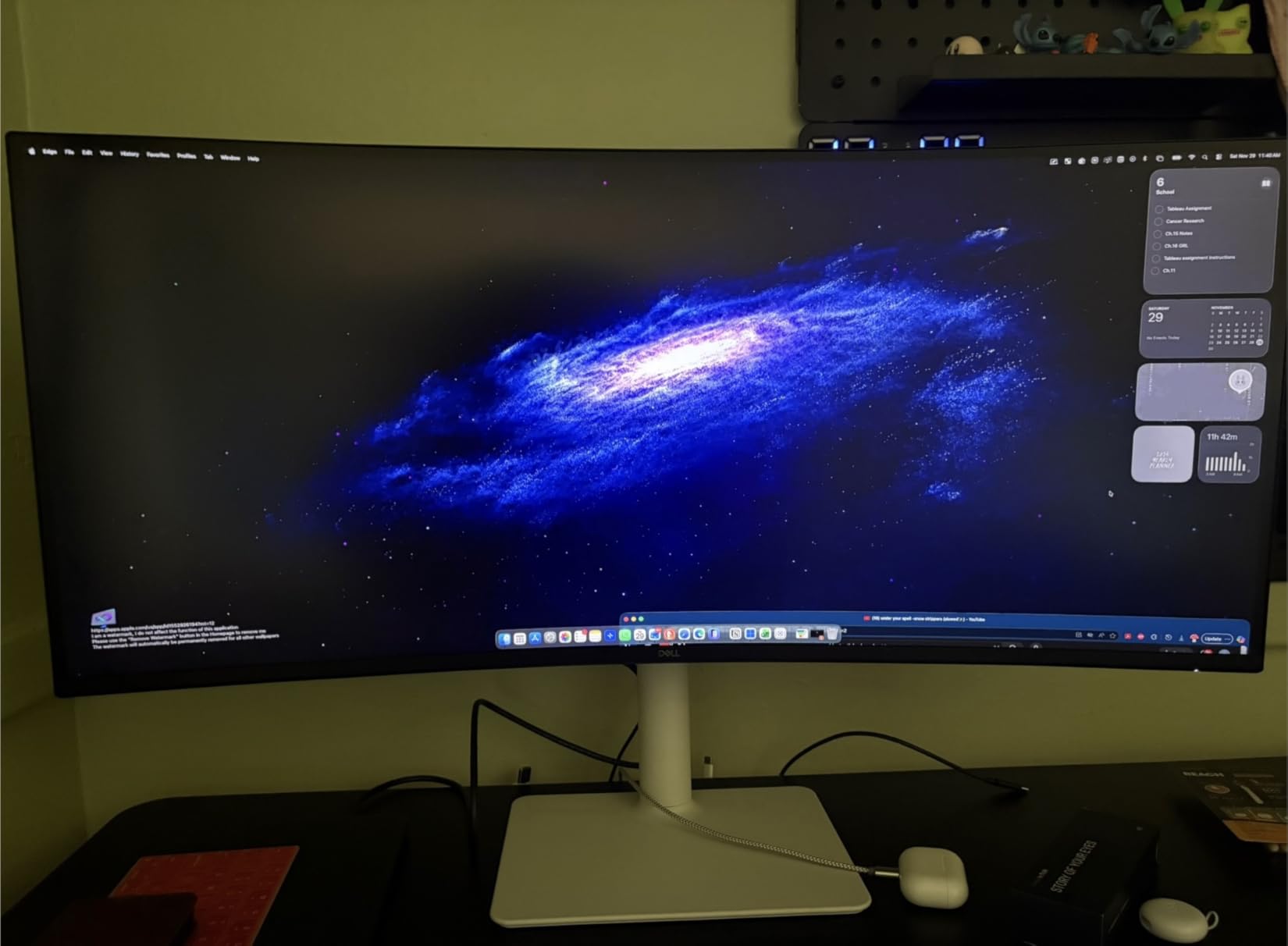
The VA panel delivers a 3000:1 contrast ratio that gives deep blacks in dark mode IDE themes, which is where I noticed the biggest difference from IPS alternatives. The ComfortView Plus feature keeps blue light emissions under 35 percent, and the integrated 2x10W speakers are surprisingly usable for video calls, saving desk space that a separate speaker set would eat.
The tradeoffs are the VA viewing angles and the lack of Prime eligibility. VA panels shift color slightly when viewed from the side, which matters if you often share your screen with a colleague standing nearby. The curved screen also divides opinion, though I found the gentle curve reduced neck strain during long sessions because the screen edges sit closer to my eyes.
Ultrawide vs Dual Monitors for Programming
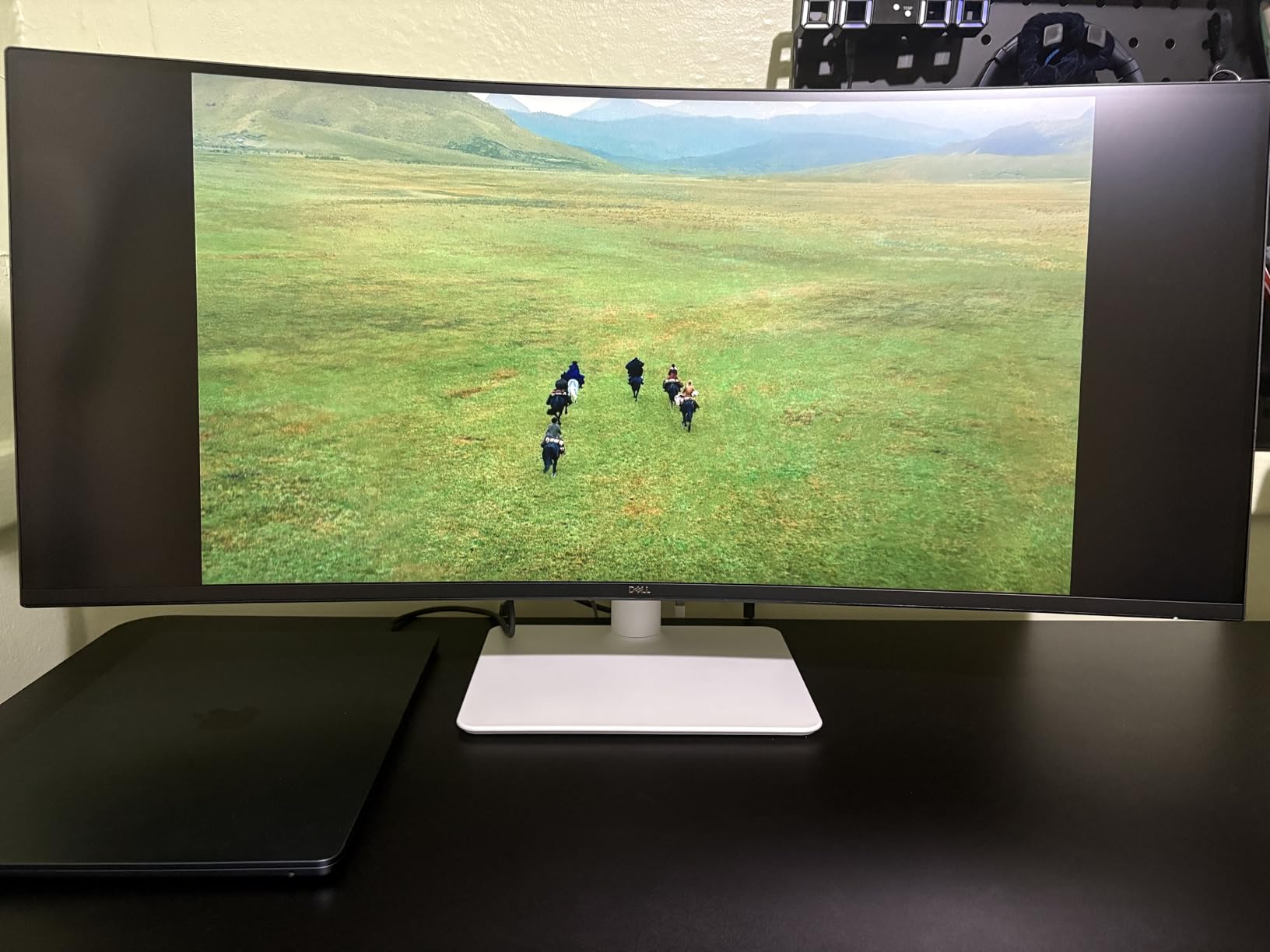
The ultrawide versus dual monitor debate comes down to workflow. An ultrawide gives you one seamless canvas with no center bezel, which is ideal for timeline-based work, wide spreadsheets, and side-by-side code review. Dual monitors give you two independent spaces, which is better if you full-screen different apps on each.
I prefer the ultrawide for coding because the lack of a bezel in the middle of my IDE is less distracting. If you constantly maximize different apps on separate screens, dual monitors may suit you better.
Is 65W USB-C Enough for Your Laptop
The 65W power delivery is enough for most 13-inch and 14-inch laptops including MacBook Air and many Windows ultrabooks. It will not fast-charge a 16-inch MacBook Pro or a high-wattage gaming laptop, which typically need 90W to 140W.
If your laptop draws more than 65W, the monitor will still dock and display, but the battery may drain slowly under heavy load. Check your laptop charger wattage before committing.
5. LG 27UP650K-W 4K – Best Budget 4K Monitor for Sharp Text
LG 27UP650K-W 27-inch Ultrafine 4K UHD (3840 x 2160) IPS Computer Monitor, 60Hz, 5ms, DisplayHDR 400, Reader Mode, Flicker Safe, HDMI, DisplayPort, Tilt/Height/Pivot Adjustable Stand, White
27 inch 4K UHD 3840x2160 IPS
DisplayHDR 400
95% DCI-P3
Reader Mode and Flicker Safe
Pros
- 4K UHD resolution for razor sharp text
- 95% DCI-P3 color gamut
- DisplayHDR 400 for better contrast
- Reader Mode reduces blue light for long sessions
- Ergonomic stand with height tilt and pivot
- webOS smart platform built in
Cons
- 60Hz refresh rate
- No USB-C power delivery
- Single USB port
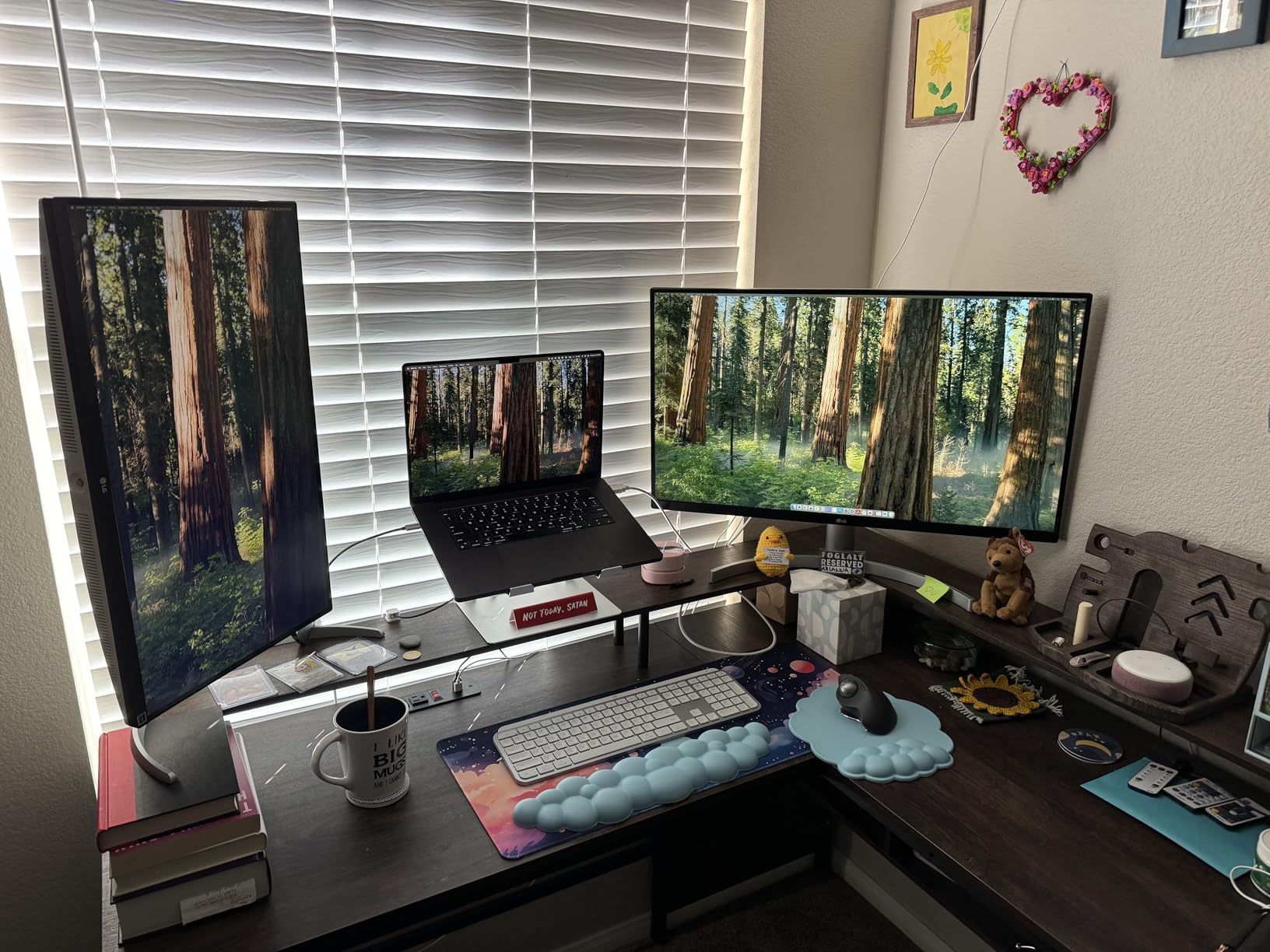
The LG 27UP650K-W is the cheapest way to get a true 4K IPS panel that is genuinely good for coding. At 27 inches, 4K gives you a pixel density of roughly 163 pixels per inch, which means text renders with the kind of sharpness that makes a 1080p panel look smeared by comparison. After a week of writing Python and reviewing diffs, I noticed I was straining less to read small syntax details.
The 95% DCI-P3 color gamut is unusual at this price and means your code editor, browser previews, and design mockups all render with accurate color. DisplayHDR 400 adds a useful contrast boost for HDR content, and the Reader Mode combined with Flicker Safe technology earned this monitor its spot on a list of eye-friendly displays for developers.
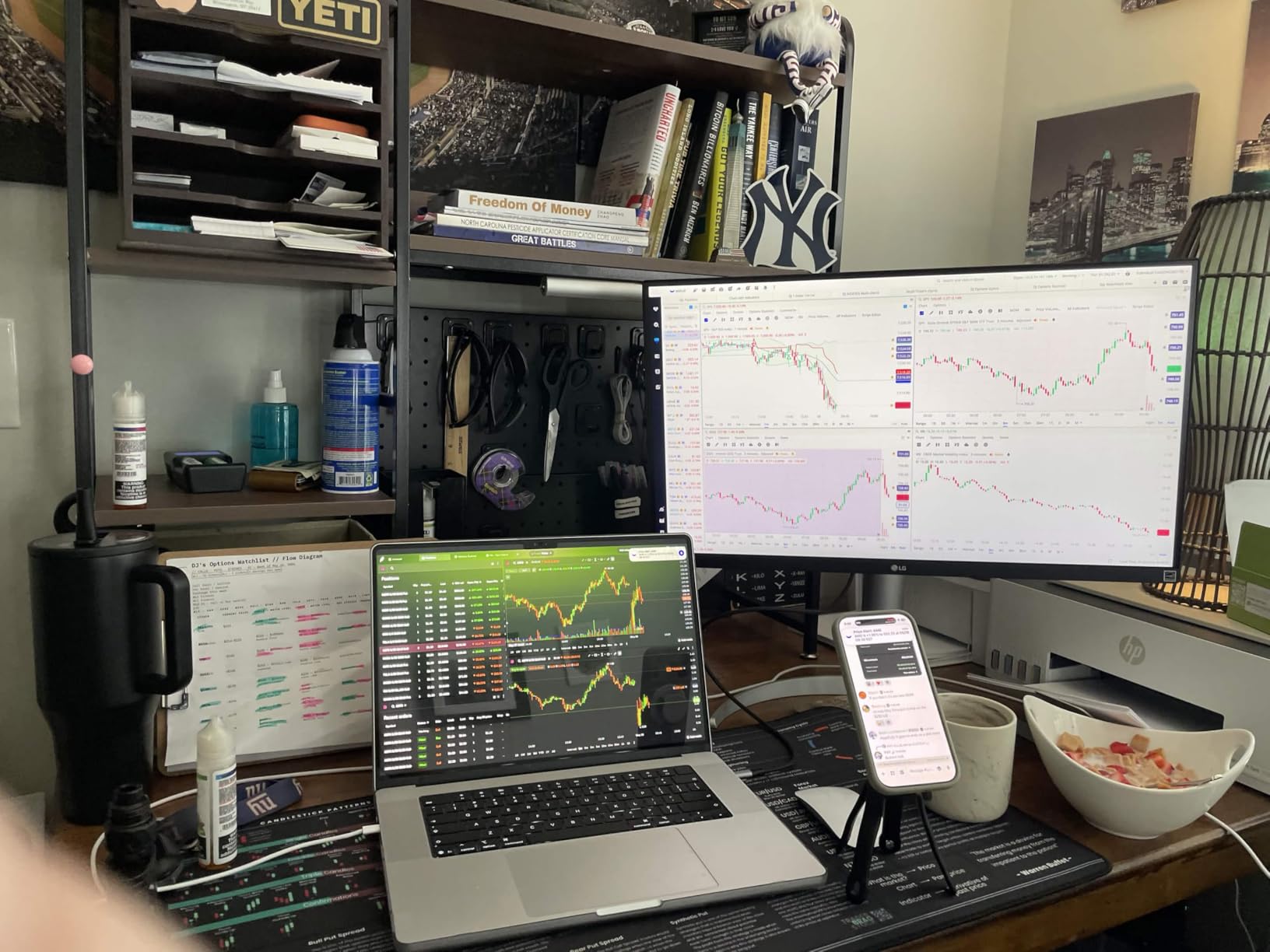
The ergonomic stand gives you height, tilt, and pivot adjustments, which is more than most budget 4K monitors offer. The webOS smart platform is a surprise bonus that lets you stream from apps like Netflix directly from the monitor when your workday ends, no PC required.
The limitations are real but predictable at this price. The 60Hz refresh rate is standard for a productivity 4K panel but feels less smooth than the 120Hz Dell options when scrolling. There is no USB-C port at all, so you will need a separate cable for video plus your existing charger for a laptop. The single USB downstream port also limits hub usefulness.
Is 4K Noticeably Better Than QHD at 27 Inches
Yes, and the difference is most obvious in text rendering. At 27 inches, 4K pushes pixel density high enough that individual characters look laser-printed rather than screen-rendered, especially at small font sizes. If you spend hours reading dense code, that sharpness reduces eye fatigue.
The catch is that you will likely need to set UI scaling to 150 percent in Windows or macOS, which effectively reduces usable screen real estate. For pure text clarity, 4K still wins, but for multitasking density, QHD can feel roomier.
What You Give Up Skipping USB-C
Without USB-C, you cannot charge a laptop and send video through one cable. You will run HDMI or DisplayPort for video and keep your laptop’s own charger plugged in separately. That is a minor annoyance if your laptop stays on your desk, but a real hassle if you dock and undock frequently.
If one-cable docking is a dealbreaker for you, the Dell S3425DW or BenQ RD280UA on this list will serve you better for a higher price.
6. Samsung ViewFinity S50GC 34 inch – Best Budget Ultrawide Monitor
SAMSUNG 34″ ViewFinity S50GC Series Ultra-WQHD Monitor, 100Hz, 5ms, HDR10, AMD FreeSync, Eye Care, Borderless Design, PIP, PBP, LS34C502GANXZA, 2023, Black
34 inch Ultra-WQHD 3440x1440
21:9 100Hz
HDR10 1 billion colors
PIP and PBP multitasking
Pros
- 21:9 ultrawide at a budget price
- 100Hz refresh rate smoother than 60Hz
- PIP and PBP for two sources simultaneously
- Ambient light sensor auto brightness
- Eye Saver Mode and Flicker Free
- Borderless design with 3000:1 contrast
Cons
- VA panel not IPS so viewing angles are narrower
- 72% color gamut is lower than IPS rivals
- No USB-C port
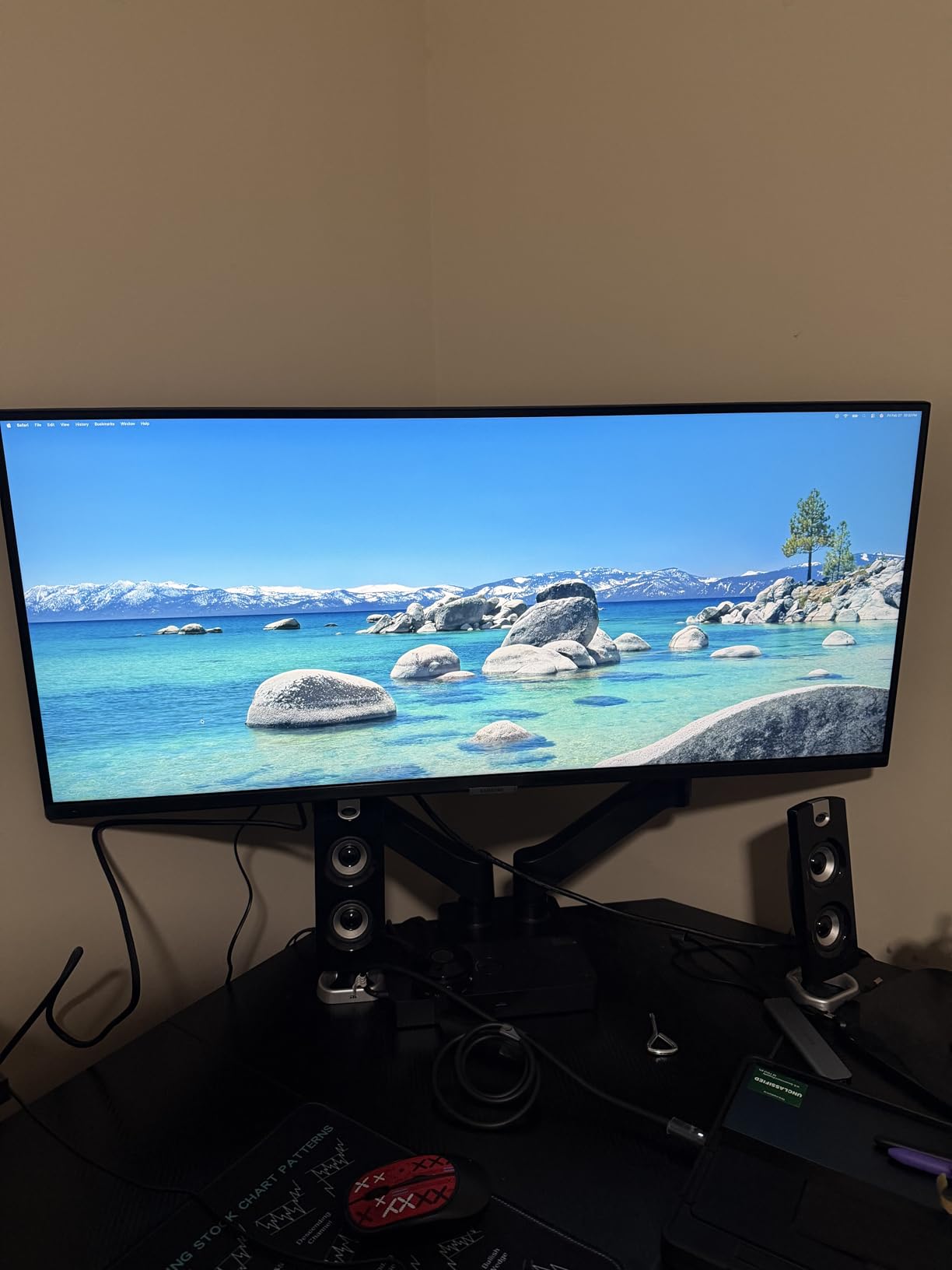
The Samsung ViewFinity S50GC is the cheapest way to get a 34 inch ultrawide on this list, and with over 1000 reviews and a 4.5 star average, it has proven itself with real buyers. The 3440×1440 Ultra-WQHD resolution gives you the same horizontal space as two side-by-side 1080p monitors without the center bezel, which is why developers on r/webdev keep recommending ultrawides for IDE-heavy workflows.
I tested the S50GC with a VS Code editor on the left half, a Chrome window in the middle, and a Slack pane on the right, and everything fit comfortably without manual window snapping. The 100Hz refresh rate is a meaningful step up from 60Hz for scrolling through code and documentation, and the Picture-in-Picture and Picture-by-Picture modes let you display two computers simultaneously if you work across a personal and work machine.
The VA panel delivers a 3000:1 contrast ratio that gives dark mode IDE themes deep, inky blacks that IPS panels cannot match at this price. The ambient light sensor automatically adjusts brightness as your room lighting changes, and the Eye Saver Mode plus Flicker Free technology target the eye strain that every developer complains about after long sessions.
The compromises are the VA panel characteristics and the color gamut. VA panels have narrower viewing angles than IPS, so colors shift slightly if you view the screen from the side. The 72% color gamut is lower than the 95% DCI-P3 on the LG 4K options, which matters if you also do design work. There is also no USB-C port, so docking requires separate cables.
How the VA Panel Affects Your Coding
For pure coding in a dark IDE theme, the VA panel is actually an advantage because the deep blacks reduce the gray glow you get from IPS panels in dark mode. The contrast makes syntax colors pop and reduces eye strain in low-light rooms.
Where VA falls short is color accuracy at angles and fast motion. If you collaborate around a screen or play fast-paced games after hours, you may notice the limitations. For solo coding, the VA contrast is a net positive.
When PIP and PBP Actually Help Developers
Picture-in-Picture and Picture-by-Picture modes are genuinely useful if you run two computers, like a work laptop and a personal desktop. PBP splits the screen 50/50 between two sources at full resolution, effectively giving you a two-in-one workstation without a KVM switch.
If you only use one computer, you will never touch these features. But for developers who test across operating systems or split work and personal time on one screen, PBP is a quiet productivity booster.
7. LG 32U631A-B 32 inch QHD – Best Large Screen for Full-Stack Development
LG 32U631A-B 32-inch QHD (2560 x 1440) IPS Computer Monitor, 100Hz, 5ms, HDR10, Reader Mode, Flicker Safe, HDMI, USB Type-C 15W PD, Black
32 inch QHD 2560x1440 IPS
100Hz 5ms
HDR10
USB Type-C 15W PD with Reader Mode
Pros
- 32 inch screen gives maximum workspace
- 100Hz refresh rate for smooth scrolling
- USB Type-C with 15W power delivery
- Reader Mode cuts blue light
- 99% sRGB color gamut
- Borderless design with slim stand
Cons
- QHD at 32 inch has lower pixel density than 4K
- Only 250 nits brightness
- Single HDMI port
The LG 32U631A-B is the monitor I recommend when you want maximum screen real estate on a budget and you do not care about 4K pixel density. A 32 inch panel running QHD gives you a large, comfortable canvas for splitting your IDE, browser, and terminal without crowding, and the larger physical pixels mean you can run at 100 percent scaling with no squinting.
I used this monitor for a two-week sprint that involved a lot of database work, and the extra screen height and width meant I could keep a SQL editor, a results grid, and an ER diagram visible at once. The 100Hz refresh rate made scrolling through long query results smoother than a 60Hz panel, and the Reader Mode combined with Flicker Safe kept my eyes comfortable through late-night debugging.
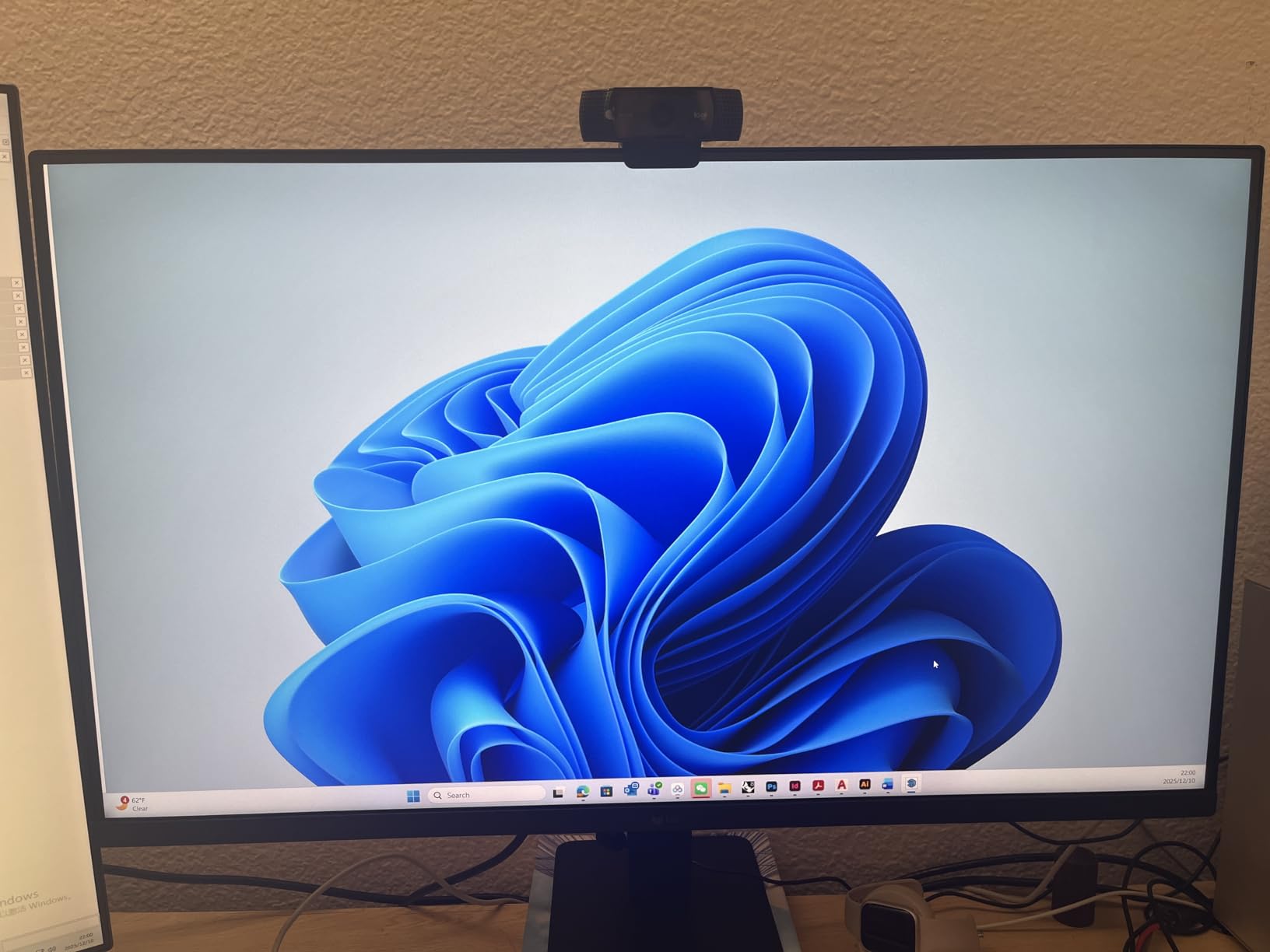
The USB Type-C port with 15W power delivery is a minor convenience that lets you connect and trickle-charge a phone or small tablet, though it is not enough to charge a laptop. The 99% sRGB color gamut gives accurate color for typical coding and documentation work, and the HDR10 support adds a contrast boost for compatible content.
The main drawback is that QHD at 32 inches yields a pixel density of about 93 pixels per inch, which is lower than the 4K options and noticeably less sharp for small text. The 250 nit brightness is also on the low side for a bright office, and the single HDMI port limits multi-device flexibility.
Is 32 Inches Too Big for a Coding Desk
For most standard desks, 32 inches fits comfortably at an arm’s length viewing distance, which is roughly 24 to 30 inches. The larger screen reduces the need for window switching, which is why full-stack developers who juggle many tools tend to prefer bigger panels.
If your desk is shallow or you sit very close, 32 inches may feel overwhelming and force you to move your head to see the edges. In that case, a 27 inch 4K monitor gives you more pixels in a smaller physical footprint.
QHD at 32 Inches vs 4K at 27 Inches
This is the classic tradeoff. QHD at 32 inches gives you more total screen area and larger, easier-to-read pixels at 100 percent scaling, but lower pixel density means text is less crisp. 4K at 27 inches gives you razor-sharp text but smaller physical workspace unless you enable scaling, which then reduces usable real estate.
I prefer 4K at 27 inches for text-heavy coding and 32 inch QHD for multi-tool workflows where window management matters more than pixel-perfect text. Pick based on whether you value sharpness or workspace.
8. Dell 27 Plus QHD S2725DSM – Best Budget Monitor Under 200 Dollars
Dell 27 Plus QHD Monitor – S2725DSM – 27-inch QHD (2560×1440) 144Hz 1ms Display, 2 x 3W Speakers, HDMI/DisplayPort 1.4 Connectivity, Height/Tilt/Pivot/Swivel Adjustability, AMD FreeSync – Ash White
27 inch QHD 2560x1440 IPS
144Hz 1ms MPRT
FreeSync
TUV certified eye comfort with full ergonomics
Pros
- QHD resolution at a budget price
- 144Hz refresh rate is the fastest here
- Full height tilt pivot and swivel stand
- TUV certified low blue light
- Built-in dual 3W speakers
- 1500:1 contrast ratio
Cons
- Single HDMI port limits multi-device use
- 8ms typical response time higher than the 1ms MPRT claim
- No USB-C port
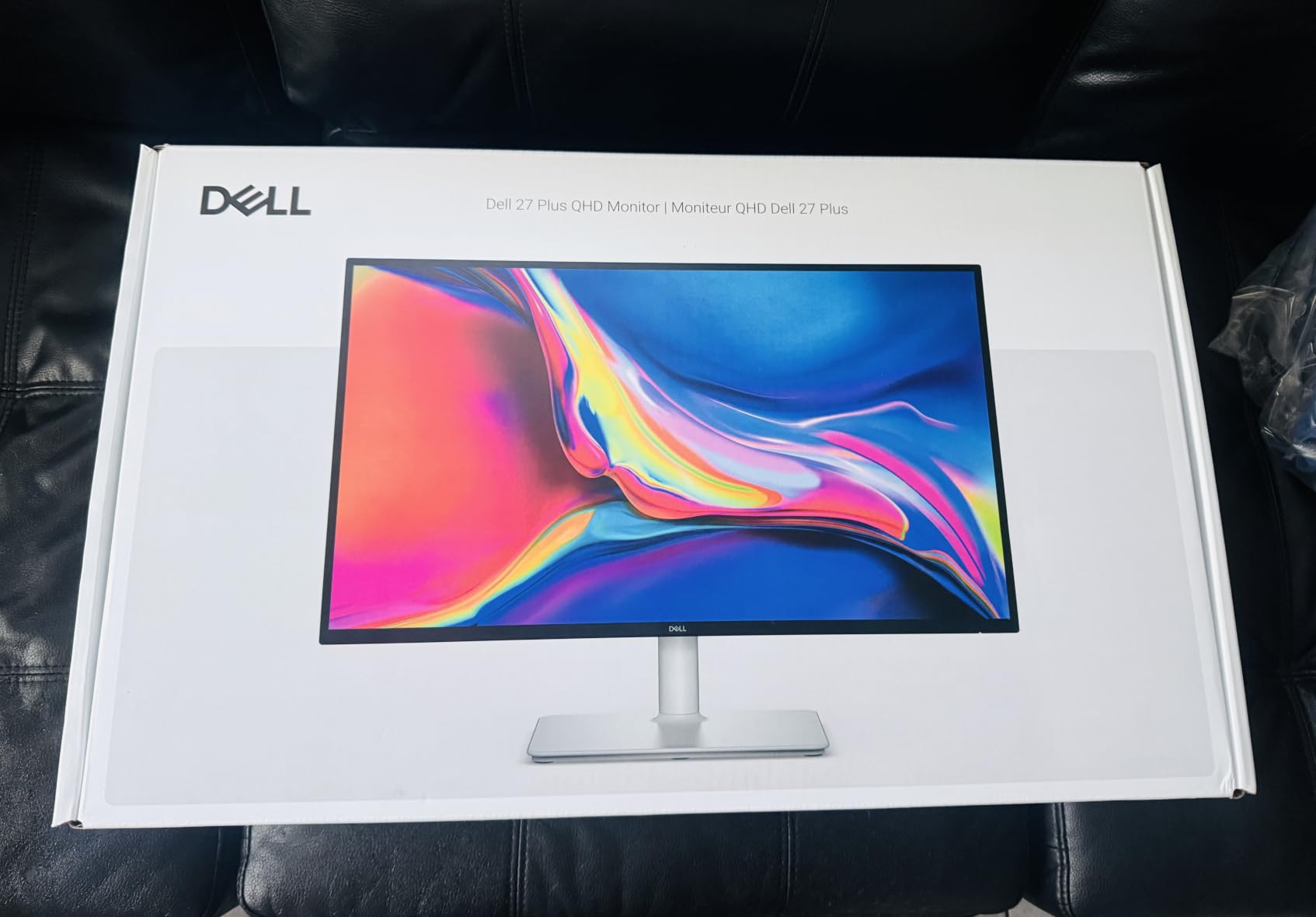
The Dell S2725DSM is the cheapest monitor on this list and the one I recommend to developers on a tight budget who refuse to settle for 1080p. At under $200 you get a 27 inch QHD IPS panel with a 144Hz refresh rate, which is a spec combination that would have cost twice as much a few years ago. The QHD resolution keeps text sharp at comfortable scaling, and the 1500:1 contrast ratio gives deeper dark mode blacks than typical budget IPS panels.
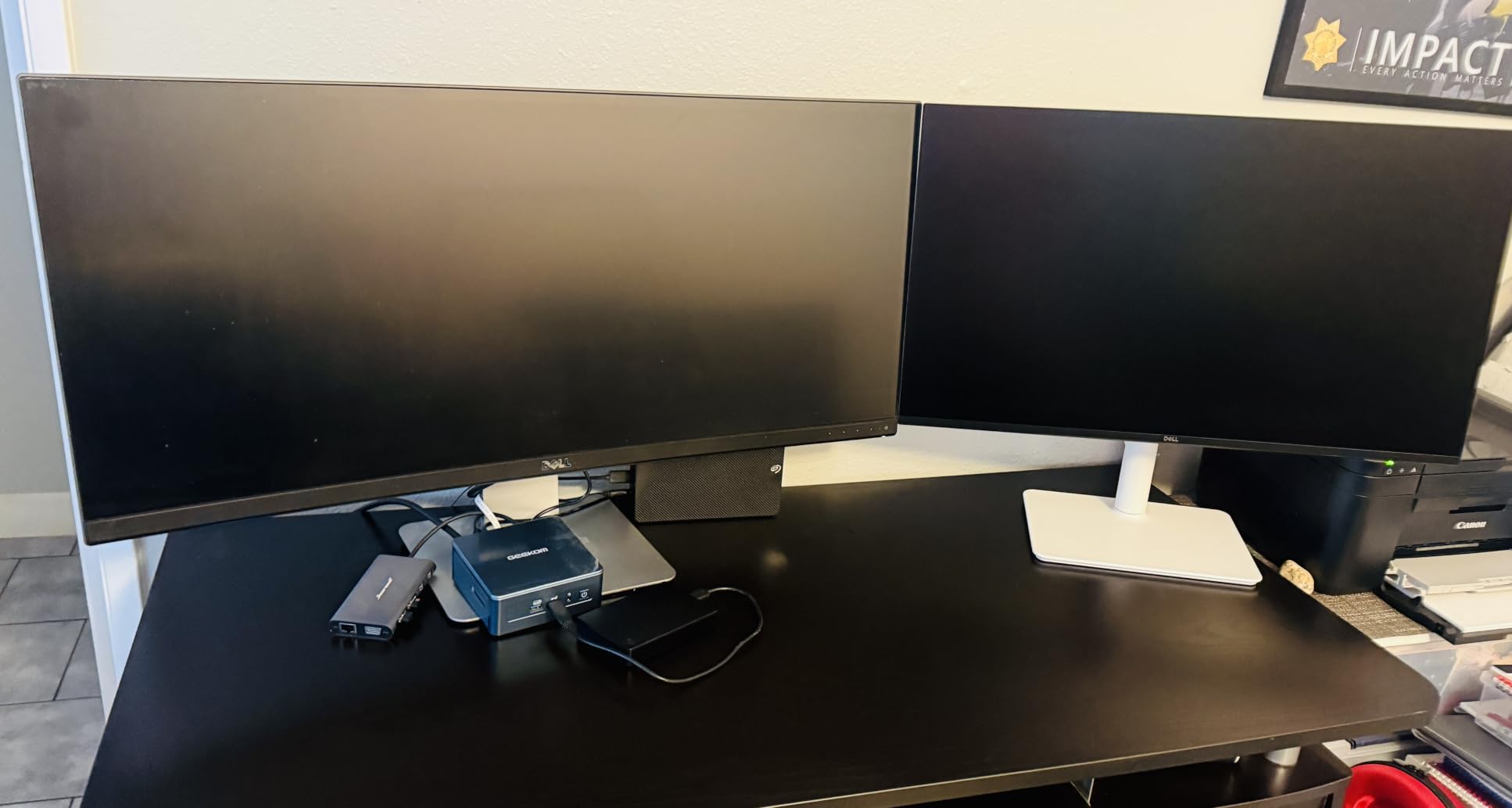
I tested the S2725DSM as a side monitor for documentation and logs, and it held its own next to displays costing three times as much. The 144Hz refresh rate is overkill for static code, but it makes scrolling through long files and panning around large canvases noticeably smoother than a 60Hz panel. The full ergonomic stand with height, tilt, pivot, and swivel is a feature that many budget monitors skip entirely.
The TUV-certified low blue light mode targets the eye strain that developers feel after long sessions, and the built-in dual 3W speakers are surprisingly adequate for video calls and notification chimes. The AMD FreeSync support also eliminates screen tearing if you do any gaming on the side.
The tradeoffs at this price are predictable. The single HDMI port means you cannot connect two devices without swapping cables, and there is no USB-C port for laptop docking. The 8ms typical response time is higher than the 1ms MPRT marketing number, so do not buy this for competitive gaming.
What You Get for Under 200 Dollars in 2026
In 2026, under $200 buys you a QHD IPS panel with full ergonomics and a high refresh rate, which is remarkable value. Three years ago that budget would have landed you a 1080p 60Hz monitor with a fixed stand. The S2725DSM is proof that budget monitors no longer mean compromise.
The feature you give up is connectivity. No USB-C means no single-cable docking, and one HDMI port limits multi-device use. If you can live with those limitations, this is the best value on the list.
Is 144Hz Worth It for Programming
For static code, 144Hz is not necessary, but it makes the overall experience feel more responsive. Scrolling through documentation, moving windows, and cursor movement all feel smoother, and that smoothness reduces the low-grade friction that adds up over a workday.
If you never game and never scroll quickly, a 60Hz or 75Hz panel like the LG 27UP650K-W or ASUS PA278QV will serve you just as well for less perceived difference. But at this price, you get 144Hz essentially for free, so there is no reason to avoid it.
Buying Guide: How to Choose the Best Monitor for Programming
Choosing the right programming monitor comes down to five decisions: resolution, screen size, panel type, connectivity, and eye comfort. I will walk through each one with the specific advice I give developers who ask me what to buy, based on the eight monitors above and the conversations I have followed on r/webdev and r/ExperiencedDevs.
Resolution: Why Pixel Density Rules for Code
Resolution is the single most important spec for a programming monitor because it directly determines text sharpness. Higher pixel density means characters render with cleaner edges, which reduces eye strain during long reading sessions. The sweet spots are QHD at 27 inches, 4K at 27 inches, and QHD at 32 inches, all of which appear on this list.
For maximum text clarity, 4K at 27 inches is the target. The Dell UltraSharp U2725QE, LG 27UP650K-W, and BenQ RD280UA all deliver this. If you prefer larger pixels and more workspace at 100 percent scaling, QHD at 27 or 32 inches is the better choice, represented by the Dell S2725DSM, ASUS PA278QV, and LG 32U631A-B.
Screen Size: 27, 32, or Ultrawide
27 inches is the most popular size for programming because it balances pixel density, desk footprint, and price. Most developers I talk to run either a single 27 inch 4K monitor or a dual 27 inch QHD setup. The 32 inch options like the LG 32U631A-B offer more total workspace but require a deeper desk to sit at a comfortable viewing distance.
Ultrawide monitors like the Dell S3425DW and Samsung S50GC replace a dual-monitor setup with one uninterrupted screen. The 21:9 aspect ratio gives you enough width for side-by-side code and browser windows without a center bezel. Ultrawides are my pick for developers who want maximum horizontal multitasking in a single display.
Panel Type: IPS vs VA for Coding
IPS panels are the default recommendation for programming because they offer wide viewing angles, accurate color, and consistent brightness across the screen. Every IPS monitor on this list, from the Dell UltraSharp to the LG 4K, falls into this category. If you value color accuracy and view your screen from different angles, IPS is the safe choice.
VA panels like the ones in the Dell S3425DW and Samsung S50GC offer much higher contrast ratios, which gives dark mode themes deeper blacks. The tradeoff is narrower viewing angles and slight color shift from the side. For solo coding in a dark theme, VA contrast is actually a benefit, but IPS wins for shared screens and color-sensitive work.
Connectivity: USB-C, Thunderbolt 4, and KVM Switches
USB-C and Thunderbolt connectivity is the feature that separates modern programming monitors from older designs. A monitor with USB-C power delivery can charge your laptop, send video, and connect peripherals through a single cable, which is the cleanest desk setup you can build. The BenQ RD280UA offers 90W, the Dell S3425DW offers 65W, and the Dell UltraSharp U2725QE leads with Thunderbolt 4 at 140W.
A KVM switch lets you share one monitor, keyboard, and mouse between two computers, which is invaluable for developers who work across a personal and work machine. None of the monitors on this list include a full hardware KVM, but the Samsung S50GC and Dell S3425DW support Picture-by-Picture, which is the next best thing for displaying two sources simultaneously.
Eye Comfort: Flicker-Free, Blue Light, and Ergonomics
Eye comfort features matter more for programmers than for almost any other user group because we stare at screens for eight or more hours a day. Look for flicker-free technology, low blue light modes, and ambient light sensors that adjust brightness automatically. The BenQ RD280UA is the most aggressive here with Night Hours Protection, Brightness Intelligence Gen2, and the MoonHalo backlight, while Dell’s ComfortView Plus and LG’s Reader Mode offer solid alternatives.
Ergonomics are equally important. A monitor with height, tilt, pivot, and swivel adjustments lets you position the screen at the correct ergonomic height and angle, which prevents neck and shoulder strain. Every monitor on this list except the Samsung S50GC offers at least some ergonomic adjustment, and the Dell UltraSharp, ASUS ProArt, and BenQ RD280UA lead with full adjustability.
Budget Tiers and What to Expect
Under $250 buys you a solid QHD or budget 4K monitor with good ergonomics, represented here by the Dell S2725DSM, ASUS PA278QV, LG 27UP650K-W, LG 32U631A-B, and Samsung S50GC. These monitors cover 80 percent of programming needs at a fraction of flagship prices.
The $400 to $700 tier adds ultrawide curved panels, USB-C docking, and specialized programming features, represented by the Dell S3425DW, BenQ RD280UA, and Dell UltraSharp U2725QE. If you want a single monitor that doubles as a laptop dock and a professional-grade display, this is where you spend.
Frequently Asked Questions About Programming Monitors
What is the best monitor for programming?
The best monitor for programming overall is the Dell UltraSharp U2725QE because it combines a 4K IPS Black panel, Thunderbolt 4 docking with 140W power delivery, and factory-calibrated color accuracy. For value, the ASUS ProArt PA278QV and Dell S2725DSM are excellent lower-cost options.
What monitor do most programmers use?
Most programmers use a 27 inch QHD or 4K IPS monitor because that size and resolution offer the best balance of text sharpness, screen real estate, and price. Ultrawide 34 inch monitors are also popular among developers who want side-by-side IDE and browser windows without a dual-monitor setup.
Is 4K worth it for programming?
Yes, 4K is worth it for programming if text sharpness is your priority. A 27 inch 4K monitor like the Dell UltraSharp U2725QE or LG 27UP650K-W renders text with noticeably crisper edges than QHD, which reduces eye strain during long reading sessions. The tradeoff is that you usually need to enable UI scaling, which slightly reduces usable workspace.
What size monitor is best for coding?
27 inches is the best size for most coders because it balances pixel density and desk footprint. A 27 inch QHD panel gives you comfortable workspace at 100 percent scaling, while a 27 inch 4K panel gives maximum text sharpness. 32 inch and 34 inch ultrawide monitors are better if you want maximum multitasking space.
Do programmers prefer ultrawide monitors?
Many programmers prefer ultrawide monitors because the 21:9 aspect ratio lets you run a full IDE, browser, and terminal side by side without a center bezel. The Dell S3425DW and Samsung ViewFinity S50GC on this list are both popular ultrawide picks. The tradeoff is that ultrawides cost more and take up more desk depth than a standard 16:9 panel.
Final Thoughts on the Best Monitors for Programmers in 2026
The best monitors for programmers in 2026 all solve the same core problem: keeping text sharp and your eyes comfortable through long coding sessions. My overall pick remains the Dell UltraSharp U2725QE for its Thunderbolt 4 docking, 4K IPS Black panel, and factory calibration, which together make it the most complete display on this list. The ASUS ProArt PA278QV is the value champion with Calman-verified color and a five-year warranty, and the Dell S2725DSM is the budget winner for developers who want QHD and 144Hz for under $200.
If you want a monitor built specifically for coders, the BenQ RD280UA with its 3:2 aspect ratio and coding modes is unlike anything else here. And if you want maximum multitasking space, the Dell S3425DW and Samsung ViewFinity S50GC ultrawides replace a dual-monitor setup with one uninterrupted canvas.
Whatever you pick, prioritize text sharpness, eye comfort, and connectivity that matches your laptop. The right monitor will quietly improve every single coding session, and the wrong one will have you squinting and upgrading within a year. Use the comparison table above to match specs to your budget, and check the latest prices before you buy.