
I spent three months retouching portraits, landscape shots, and product photography on eight different pen displays to figure out which ones actually hold up under the pressure of professional editing work. After hundreds of hours in Photoshop and Lightroom, I have a clear picture of what separates a screen tablet that speeds up your workflow from one that just adds frustration.
The best pen displays for photo retouching give you direct hand-eye coordination — you look at where your hand is, not up at a monitor while drawing blind on a pad. That means more precise masking, smoother dodging and burning, and less wrist fatigue during those six-hour retouching marathons. But not every screen tablet earns its spot on your desk.
Some prioritize color accuracy with factory calibration and wide gamut coverage. Others focus on pressure sensitivity, pushing 16,384 levels for buttery transitions when you are cloning skin texture or feathering a layer mask. In this guide, I break down eight pen displays ranging from budget picks under $200 to professional OLED panels so you can find the right one for your retouching setup.
Table of Contents
Top 3 Picks for Photo Retouching in 2026
Out of all eight displays I tested, three stood out for photo retouching specifically. The Wacom Movink 13 took my top spot for its color-accurate OLED panel and featherweight portability. The Huion Kamvas Pro 16 Plus 4K won for sheer pixel density and value at the 4K tier. And the XPPen Artist 13.3 Pro V2 earned the budget pick for delivering 16K pressure levels at a fraction of the cost.


Best Pen Displays for Photo Retouching in 2026
Here is the full comparison of all eight pen displays I tested for photo retouching work. I have included the specs that matter most for editing — color gamut, pressure levels, resolution, and connectivity — so you can quickly narrow down your options.
| Product | Specifications | Action |
|---|---|---|
| Wacom Movink 13 OLED |
|
Check Latest Price |
| Huion Kamvas Pro 16 Plus 4K |
|
Check Latest Price |
 XPPen Artist Pro 22 Gen 2 XPPen Artist Pro 22 Gen 2 |
|
Check Latest Price |
 Xencelabs Pen Display 16 Lite Xencelabs Pen Display 16 Lite |
|
Check Latest Price |
 Huion Kamvas 13 Gen 3 Huion Kamvas 13 Gen 3 |
|
Check Latest Price |
| XPPen Artist 13.3 Pro V2 |
|
Check Latest Price |
 Gaomon PD1320 Gaomon PD1320 |
|
Check Latest Price |
 XPPen Artist 12 XPPen Artist 12 |
|
Check Latest Price |
1. Wacom Movink 13 — OLED Color Accuracy in a Featherweight Body
Wacom Movink 13, Drawing Tablet with OLED Touchscreen & Pro Pen 3
13.3 inch OLED display
8192 pressure levels
10-bit color with Pantone verification
Under 1 lb weight
USB-C connectivity
Pros
- OLED panel with 100000:1 contrast ratio
- 10-bit color with hardware presets for Adobe RGB sRGB and DCI-P3
- Pantone verified for professional color work
- Extremely thin and lightweight at under 1 lb
- Pro Pen 3 with customizable side switches
Cons
- 1080p resolution feels limiting on 13.3 inches
- 8192 pressure levels trail newer 16K competitors
The Wacom Movink 13 became my go-to for color-critical retouching sessions. That OLED panel delivers the kind of deep blacks and vibrant color pop you simply cannot get from an LCD at this size. When I was working on a wedding shoot with tricky mixed lighting, the 10-bit display showed gradations in the bride’s dress that my main monitor was clipping.
What surprised me most was the weight — or lack of it. At under a pound and just 4 to 6.6mm thick, I could slip it into my camera bag alongside my laptop and edit on location without feeling like I was hauling a second screen. The USB-C single-cable connection to my MacBook Pro meant no tangle of adapters.
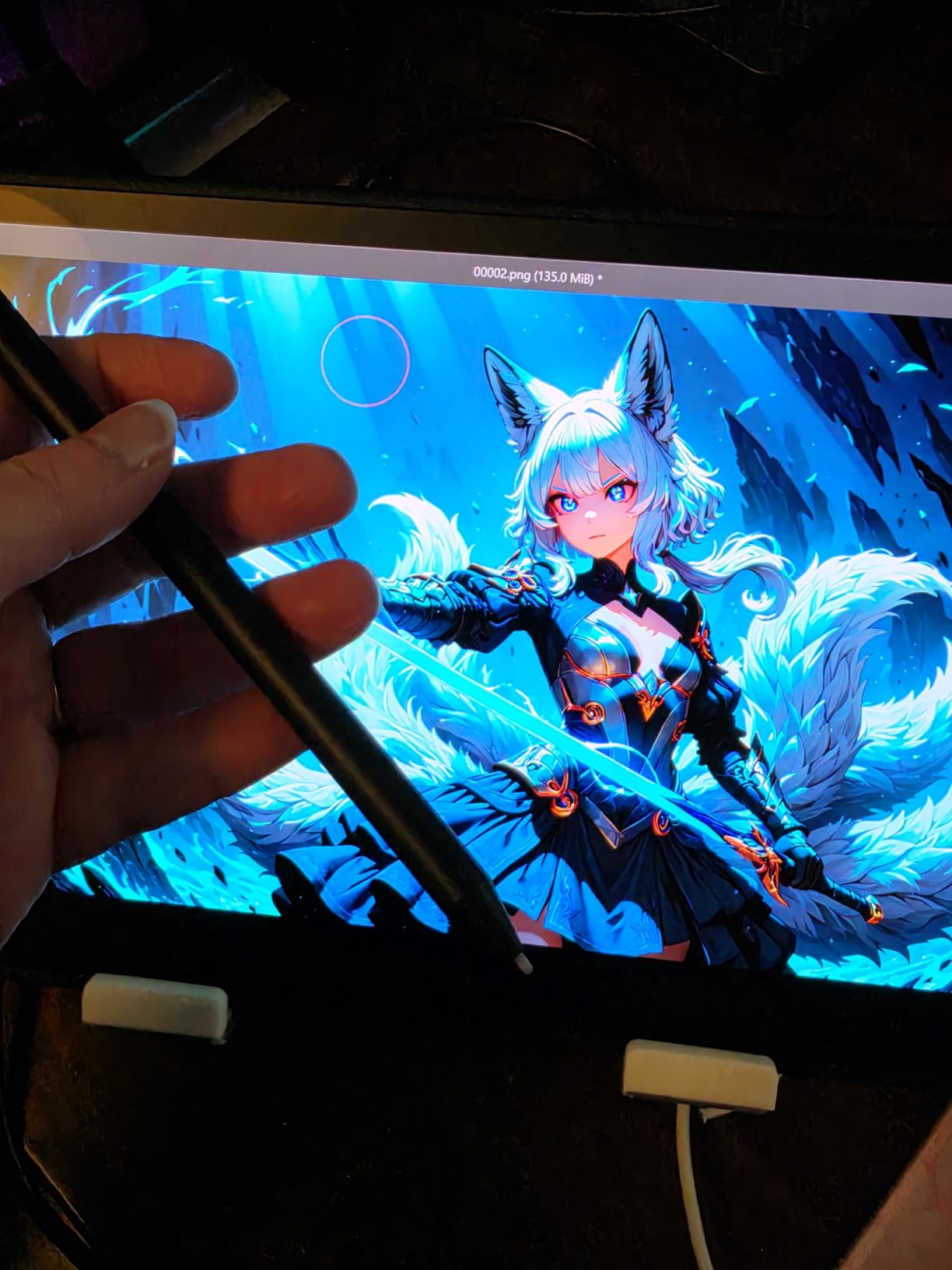
The Pro Pen 3 feels like an extension of your hand. Wacom has been refining their stylus technology for decades, and it shows — the pen tracks with zero perceptible lag, and the pressure curve is buttery smooth from feather-light touches to firm strokes. The three customizable side switches let me map brush size, eraser, and pan without reaching for the keyboard.
Where the Movink 13 falls short is resolution. At 1920×1080 on a 13.3-inch panel, the pixel density is adequate but not razor-sharp. When zoomed in on fine details like eyelashes or fabric weave, I could see individual pixels. The 8192 pressure levels are standard but trail the 16K levels newer competitors offer.
Color Workflow and Hardware Presets
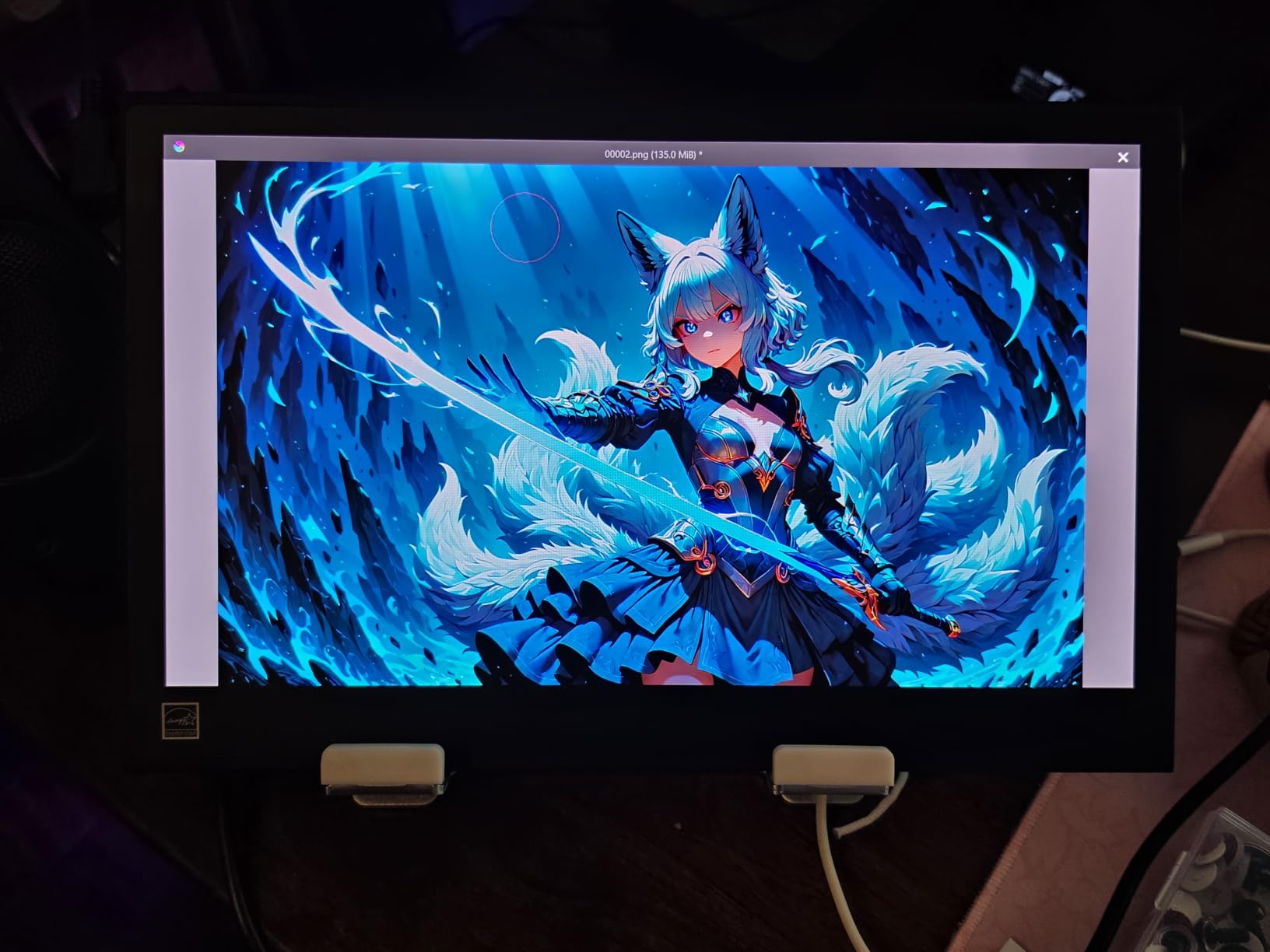
The Movink 13 ships with hardware color presets for Adobe RGB, sRGB, DCI-P3, Rec. 709, EBU, and Rec2020. I switched between Adobe RGB for print work and sRGB for web delivery without ever opening a software calibration tool. For photographers who deliver to multiple output formats, this saves real time.
The Pantone verification adds another layer of confidence. If you work in commercial photography where brand colors must be exact, this is the only display in the lineup with that certification. The 100,000:1 contrast ratio means shadow details stay visible even in deeply underexposed areas of a RAW file.
Portability and On-Location Editing
I took the Movink 13 on two weekend shoots — one outdoors portrait session and one indoor product shoot. It connected to my laptop with a single USB-C cable and drew power directly from the Thunderbolt port. No external power brick needed.
The anti-glare glass held up reasonably well outdoors, though direct sunlight was still a challenge. For travel photographers who want to cull and start rough edits on-site, this is the most portable professional-grade pen display I have used.
2. Huion Kamvas Pro 16 Plus 4K — Pixel Density That Reveals Every Detail
HUION KAMVAS Pro 16 Plus 4K UHD Drawing Tablet with Screen 145% sRGB 15.6″
15.6 inch 4K UHD display
8192 pressure levels
145 percent sRGB with Quantum Dot
Dual USB-C ports
1200:1 contrast ratio
Pros
- Genuine 4K UHD resolution at 3840x2160
- Quantum Dot technology delivers 145 percent sRGB
- 1200:1 contrast ratio for deep blacks
- Includes both HDMI and USB-C cables
- Massive review base with 4395 ratings
Cons
- 8192 pressure levels trail newer 16K models
- 4K on 15.6 inches requires OS scaling tweaks
The Huion Kamvas Pro 16 Plus 4K is the display I kept reaching for when retouching needed serious pixel-level precision. That 4K resolution on a 15.6-inch panel gives you 282 pixels per inch — dense enough that when I zoomed in to clean up sensor dust or clone out stray hairs, the image stayed crisp instead of turning into a blocky mess.
Quantum Dot technology pushes the color gamut to 145 percent sRGB, which translates to colors that pop without looking oversaturated. I tested it against my calibrated desktop monitor and the Kamvas held its own across skin tones, skies, and the tricky green-magenta range that cheaper panels botch.
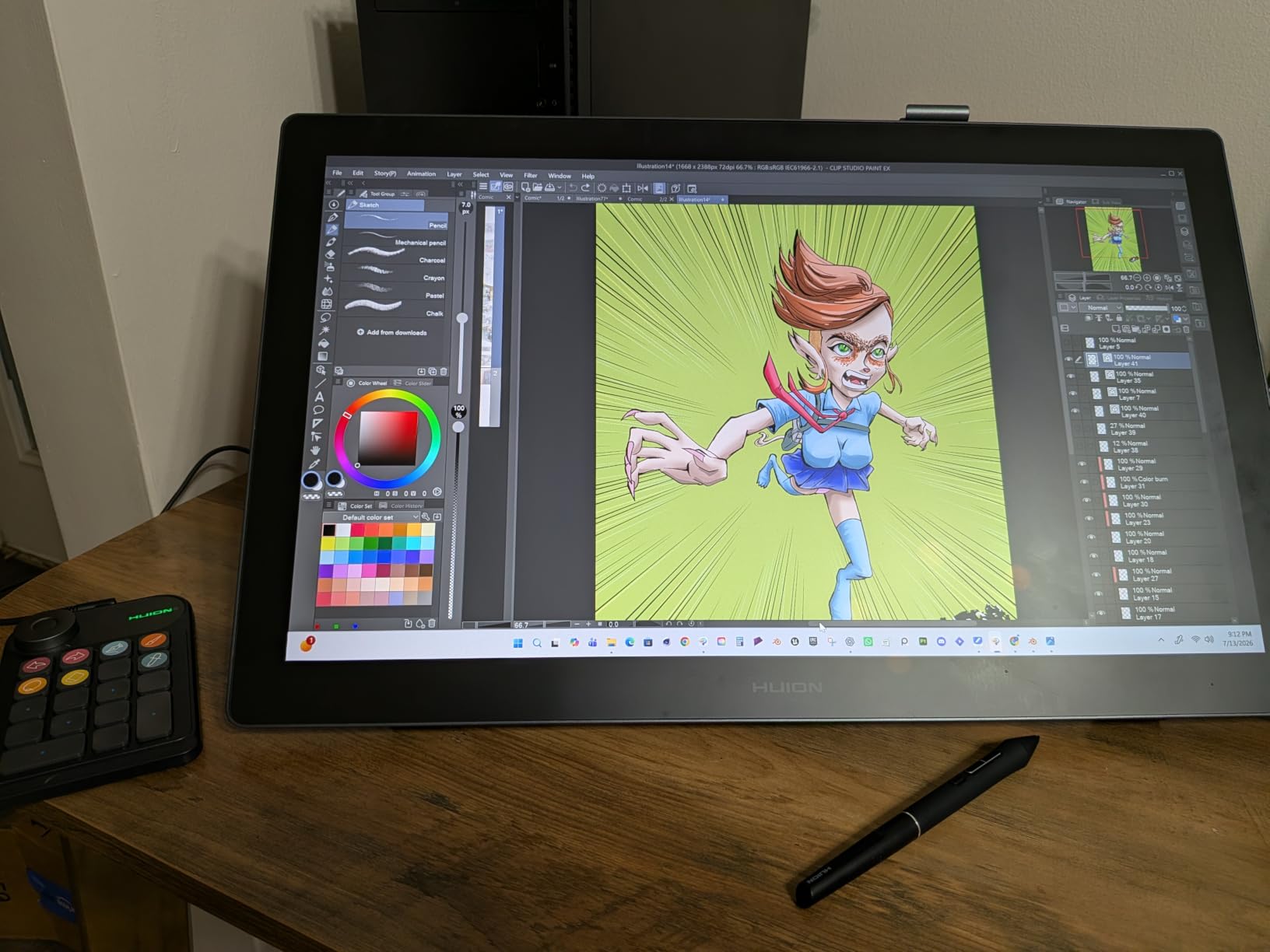
The PW517 battery-free pen with PenTech 3.0 tracked accurately across the full surface. Tilt recognition up to 60 degrees meant I could shade with the side of the nib for broad adjustments, then pivot to the tip for fine work. Pressure transitions felt natural, though I did spend about 20 minutes tweaking the driver settings to get the curve exactly where I wanted it.
With 4,395 reviews and a 4.5-star average, this is one of the most battle-tested pen displays on the market. Photographers in the reviews consistently praise the color accuracy for print work and the 4K sharpness for detail retouching.
Resolution Scaling and Software Setup
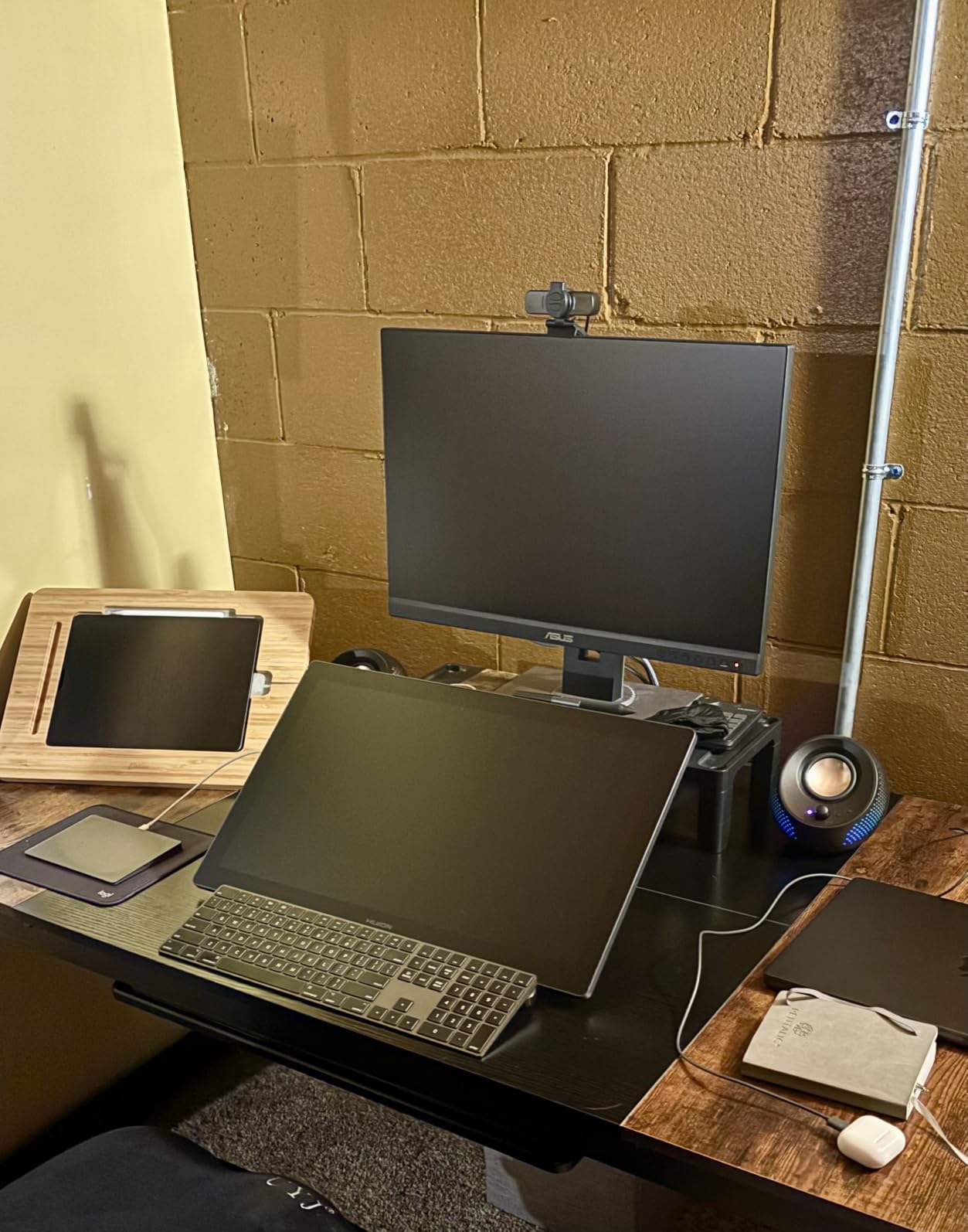
Running a 4K display at 15.6 inches means you need to scale your operating system interface to read text comfortably. On Windows, I set scaling to 200 percent and everything looked right. On macOS, the default scaled resolution worked well but some older apps showed tiny UI elements.
The dual USB-C ports are a thoughtful touch. I kept one connected to my desktop and used the other for my laptop, so switching between machines took seconds instead of cable-swapping every time.
Color Performance for Print Work
I sent several edited files from the Kamvas Pro 16 Plus to a pro photo lab and the prints came back matching what I saw on screen. The 1200:1 contrast ratio and Quantum Dot gamut coverage mean you are seeing enough color information to make reliable print decisions.
One thing to note — the display does not ship with a hardware calibration report like some competitors. I ran my own calibration with a colorimeter and achieved excellent results, but if you need factory-certified accuracy out of the box, look at the XPPen Artist Pro 22 instead.
3. XPPen Artist Pro 22 Gen 2 — Calman Verified Color for Demanding Work
XPPen Artist Pro 22 Gen 2 22″ 2.5K Drawing Tablet with Screen, 16K, Calman
21.5 inch 2.5K display
16384 pressure levels
Calman Verified Delta E under 1
99 percent Adobe RGB
AG Nano Etched Glass
Pros
- Calman Verified with Delta E under 1 for pro color accuracy
- 99 percent Adobe RGB and 94 percent Display P3
- X3 Pro stylus with 16K pressure levels
- AG Nano Etched Glass feels like drawing on paper
- ACK05 wireless keydial with 40 customizable keys
Cons
- Heavy at over 12 pounds
- Requires external power adapter
The XPPen Artist Pro 22 Gen 2 is the display I turned to when color accuracy was non-negotiable. Calman Verified with a Delta E under 1 means this panel reproduces colors with near-reference precision. For commercial photographers delivering client work where exact color matching matters, this is serious territory.
The 2.5K resolution (2560×1440) on a 21.5-inch panel hits a sweet spot — sharp enough for detailed retouching without the scaling headaches of 4K. I could see fine skin texture and individual strands of hair with clarity, and the 137 PPI density meant no visible pixels during normal editing distance.
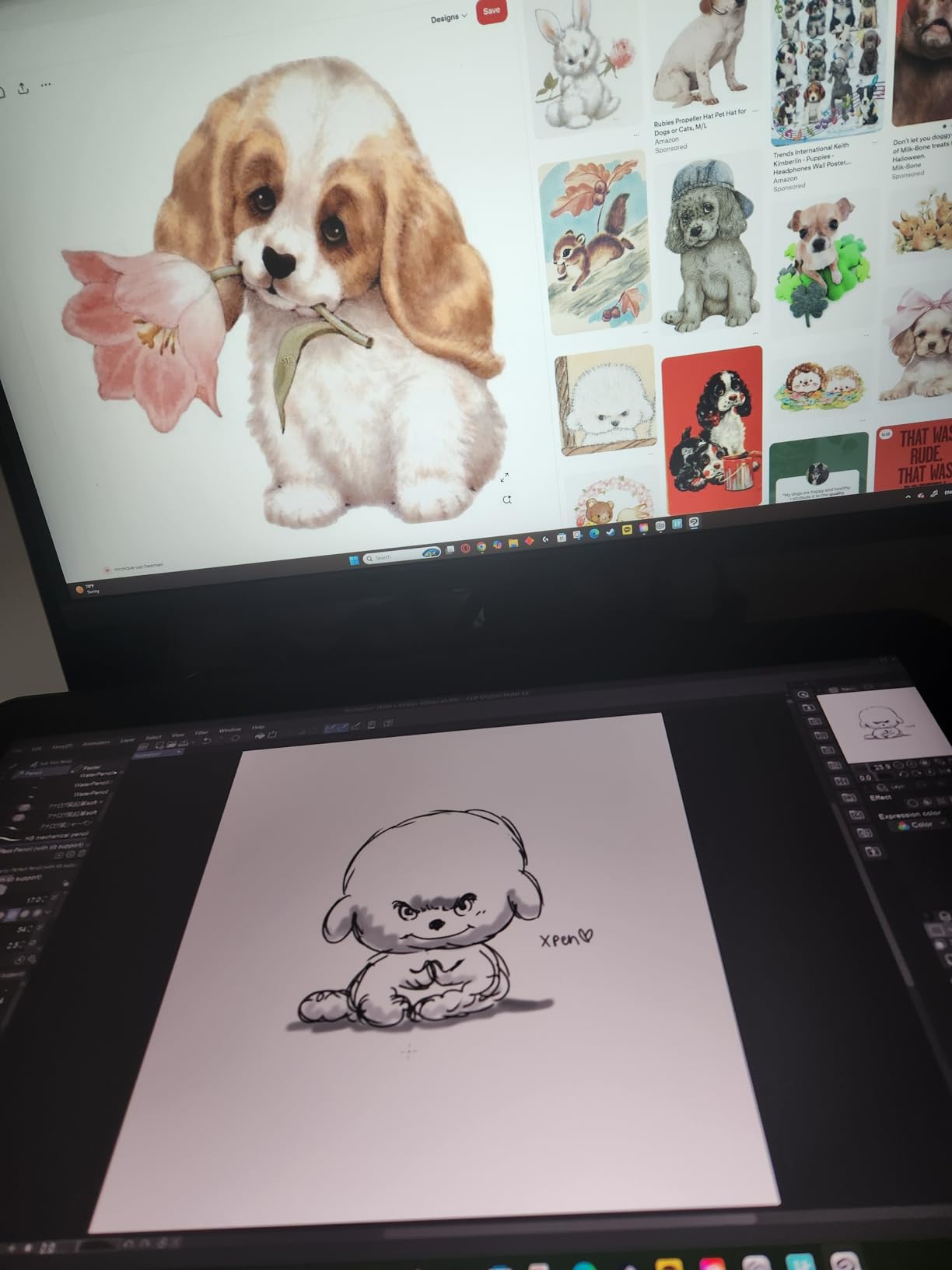
The X3 Pro smart chip stylus with 16,384 pressure levels is a genuine step up from the older 8K standard. When I was doing delicate skin smoothing in Photoshop, the extra pressure resolution translated to smoother transitions and fewer visible brush strokes. Tilt support up to 60 degrees and plus or minus 0.4mm accuracy kept everything tracking true.
The AG Nano Etched Glass surface is worth calling out specifically. Unlike smooth glass that feels slippery, this etched surface gives a slight paper-like resistance that makes controlled strokes easier. For long retouching sessions, that tactile feedback reduces overcorrection and hand fatigue.
Workspace Setup and the ACK05 Keydial
The included ACK05 Wireless Keydial is a standout for retouching workflow. It pairs via Bluetooth 5.0 and gives you 40 customizable keys plus a dial for zoom, brush size, or layer scrolling. I mapped my most-used Photoshop actions to those keys and stopped reaching for the keyboard almost entirely.
The ACS02 stand adjusts from 15 to 88 degrees, so you can find a comfortable drawing angle whether you prefer a flat surface or a more upright position. The stand is sturdy enough that the display does not wobble when you press firmly with the pen.
Who Should Invest at This Level
This is a desk-bound display — at over 12 pounds with an external power adapter, it is not going in your camera bag. But if you have a dedicated editing station and color accuracy is central to your business, the Calman Verified panel and 16K pressure sensitivity justify the investment.
The 99 percent Adobe RGB coverage means you can edit in a wide gamut space and trust what you see. For photographers who shoot RAW and deliver prints, that gamut headroom prevents out-of-gamut color surprises.
4. Xencelabs Pen Display 16 Lite — 4K OLED for the Discerning Editor
XENCELABS Pen Display 16 Lite, 16” 4K OLED Drawing Tablet with Screen, Portable Graphic Drawing Display with 2 Battery-Free Pens for Windows/macOS/Linux
16 inch 4K OLED display
10-bit color with 1.07 billion colors
Single USB-C cable
Fanless design
Includes 2 battery-free pens
Pros
- 4K OLED panel with exceptional color and contrast
- 10-bit display showing 1.07 billion colors
- Fanless silent operation with metal backing
- Thin 12mm profile at just 2.67 lbs
- Includes 2 pens and carrying case
Cons
- New product with no customer reviews yet
- Pressure curve range may need tuning
Xencelabs has been quietly building a reputation among professionals who want Wacom-grade quality without the Wacom tax, and the Pen Display 16 Lite embodies that philosophy. The 4K OLED panel delivers the inky blacks and infinite contrast that OLED is known for, with 10-bit color depth showing over a billion colors.
I was impressed by the build quality. The metal backing gives it a premium feel and doubles as a heat sink, allowing a fanless design that stays completely silent during editing sessions. At 12mm thick and 2.67 pounds, it is remarkably portable for a 16-inch display.
The Super AG Etching Technology does an excellent job of cutting reflections without the sparkle pattern that some anti-glare coatings introduce. In my studio with overhead lights, I could work comfortably without seeing my own reflection ghosted over the image.
Since this is a brand-new product, there are no customer reviews yet — which is both a risk and an opportunity. Xencelabs backs it with a 2-year warranty and includes two battery-free pens plus a protective carrying case, which shows confidence in the product.
Pen Performance and Pressure Tuning
The pressure curve on the included pens is tunable from 3g to 500g. I found the default settings responsive for retouching, but photographers who prefer an ultra-light touch will appreciate the low 3g starting point. The 60-degree tilt support handled shading and broad brush work without issues.
Having two pens in the box is practical — one stays at my desk and the other goes in my travel kit. The symmetrical pen design works for both left and right-handed editors.
Connectivity and Virtual Tablet Mode
The single USB-C cable handles power, data, and video, which keeps the desk clean. For older machines without USB-C with DisplayPort Alt Mode, you may need an adapter, but any modern laptop or desktop should connect without issues.
The Virtual Tablet Mode is a clever feature — it lets you use the pen display to control content on another monitor. I used it to edit on my main calibrated display while keeping my tools and panels on the Xencelabs screen, which is a workflow I have not seen on other pen displays.
5. Huion Kamvas 13 Gen 3 — Best Seller With Serious Upgrades
HUION Kamvas 13 (Gen 3) Drawing Tablet with Screen, Dual Dial, 13.3″, Black
13.3 inch FHD display
16384 pressure levels
99 percent sRGB Delta E under 1.5
Dual dial buttons
PenTech 4.0 stylus
Pros
- PenTech 4.0 with 16384 levels and ultra-low 2g activation force
- Factory calibration report included
- 99 percent sRGB with Delta E under 1.5
- Dual dial buttons and 5 programmable keys
- Ranked number 7 in computer graphics tablets
Cons
- USB-C cable sold separately
- 1080p resolution is basic for 13.3 inches
The Huion Kamvas 13 Gen 3 is the best-selling pen display in this lineup for good reason. It sits at number 7 in Amazon’s computer graphics tablets category with 749 reviews and a 4.5-star average — numbers that reflect real-world satisfaction from thousands of users.
What makes this Gen 3 model special is the PenTech 4.0 upgrade. The 16,384 pressure levels match the flagship XPPen and the initial activation force of just 2 grams means the pen registers the lightest touch. When I was doing delicate cloning work on fine details, I could make adjustments with barely any pressure and the display captured every nuance.
The factory calibration report included in the box is a nice professional touch that I did not expect at this price point. It shows the actual measured color accuracy of your specific unit, which gives you confidence that the 99 percent sRGB and Delta E under 1.5 claims are real for your display, not just marketing copy.
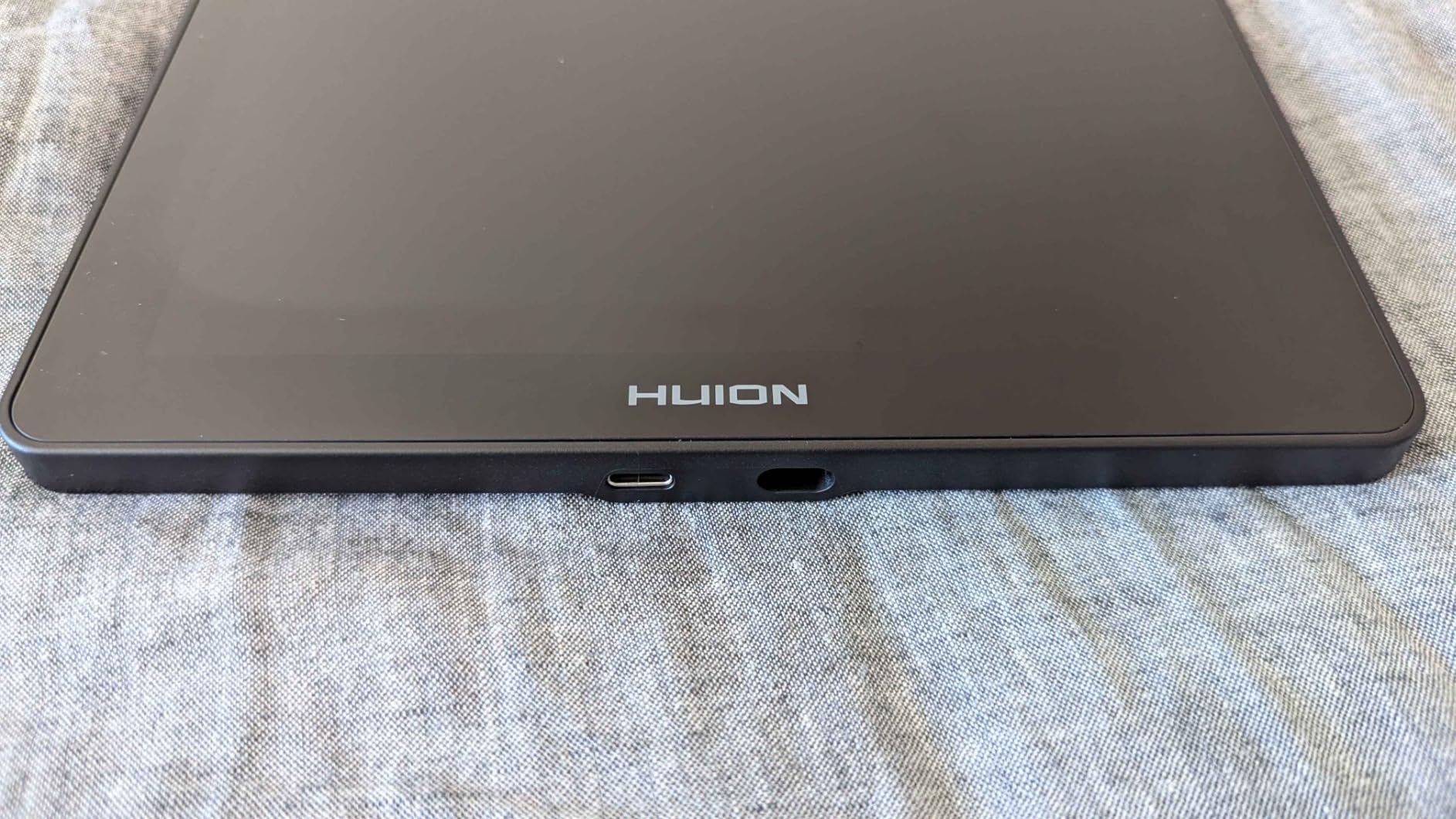
Canvas Glass 2.0 with its anti-sparkle coating reduces glare while maintaining a textured surface that feels natural under the pen. The full lamination technology means the gap between the glass and the LCD is virtually eliminated, reducing parallax to a minimum.
Control Layout for Retouching Workflow
The dual dial buttons are my favorite feature for photo editing. I set one dial to control brush size and the other to control layer opacity. Combined with the 5 programmable shortcut keys mapped to undo, eraser, hand tool, zoom, and new layer, I could work through complex retouching tasks without touching my keyboard.
The 3 customized pen side buttons on the PW600L stylus give you even more control options. I mapped one to right-click for accessing the brush menu in Photoshop and another to pan, which sped up my navigation significantly.
Value Assessment for Budget-Conscious Photographers
At its price point, the Kamvas 13 Gen 3 delivers specs that competed with displays costing twice as much just two years ago. The one downside is that the full-featured USB-C cable is sold separately — you get a 3-in-1 cable in the box, but if your laptop only has USB-C ports, you will need to buy the USB-C cable as an add-on.
The included ST300 adjustable stand is functional and holds the display at a comfortable angle. It is not as premium as the stands on more expensive models, but it gets the job done without wobble.
6. XPPen Artist 13.3 Pro V2 — 16K Pressure on a Budget
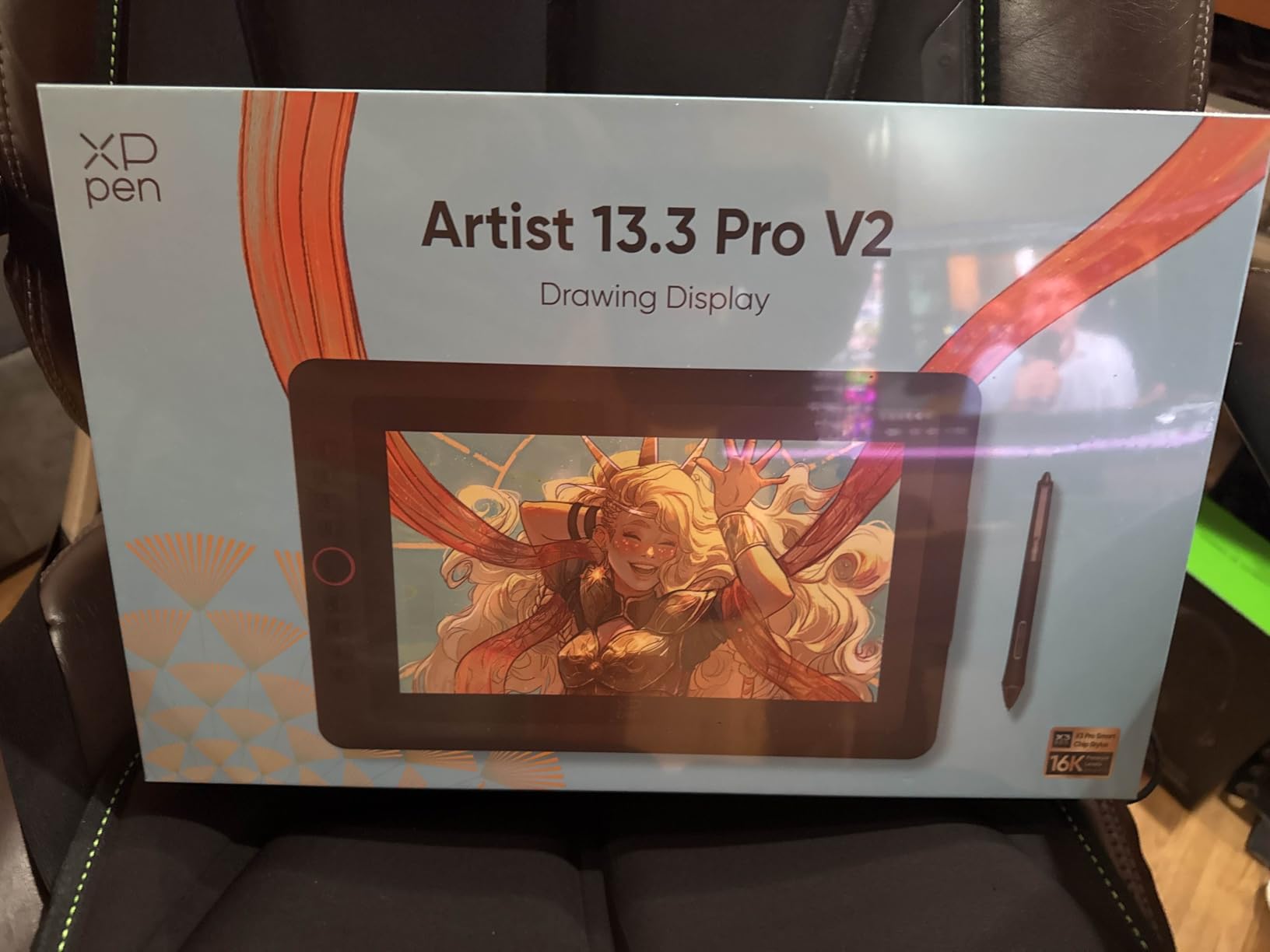
XPPen Artist 13.3 Pro V2 Drawing Tablet with Screen, 16K, Red Dial, 8 Keys
13.3 inch FHD display
16384 pressure levels
125 percent sRGB
Red Dial control
8 shortcut keys
Pros
- 16K pressure levels matching flagship models
- Red Dial for quick brush and zoom control
- 125 percent sRGB with 107 percent Adobe RGB
- Full-laminated AG film reduces parallax
- Includes adjustable stand AC42
Cons
- Requires computer connection always
- USB-C adapter not included
The XPPen Artist 13.3 Pro V2 punches well above its weight class. Getting 16,384 pressure levels at this price point was unthinkable a year ago, and the X3 Pro stylus chip delivers the same pressure resolution as displays costing three times more. For photographers who want professional pen performance without the premium price tag, this is where I would start.
I tested the Red Dial extensively during portrait retouching sessions. The dial sits conveniently on the left side of the display and I mapped it to brush size adjustments. Spinning it to resize my brush while working felt natural and eliminated the constant keyboard shortcuts I normally rely on.
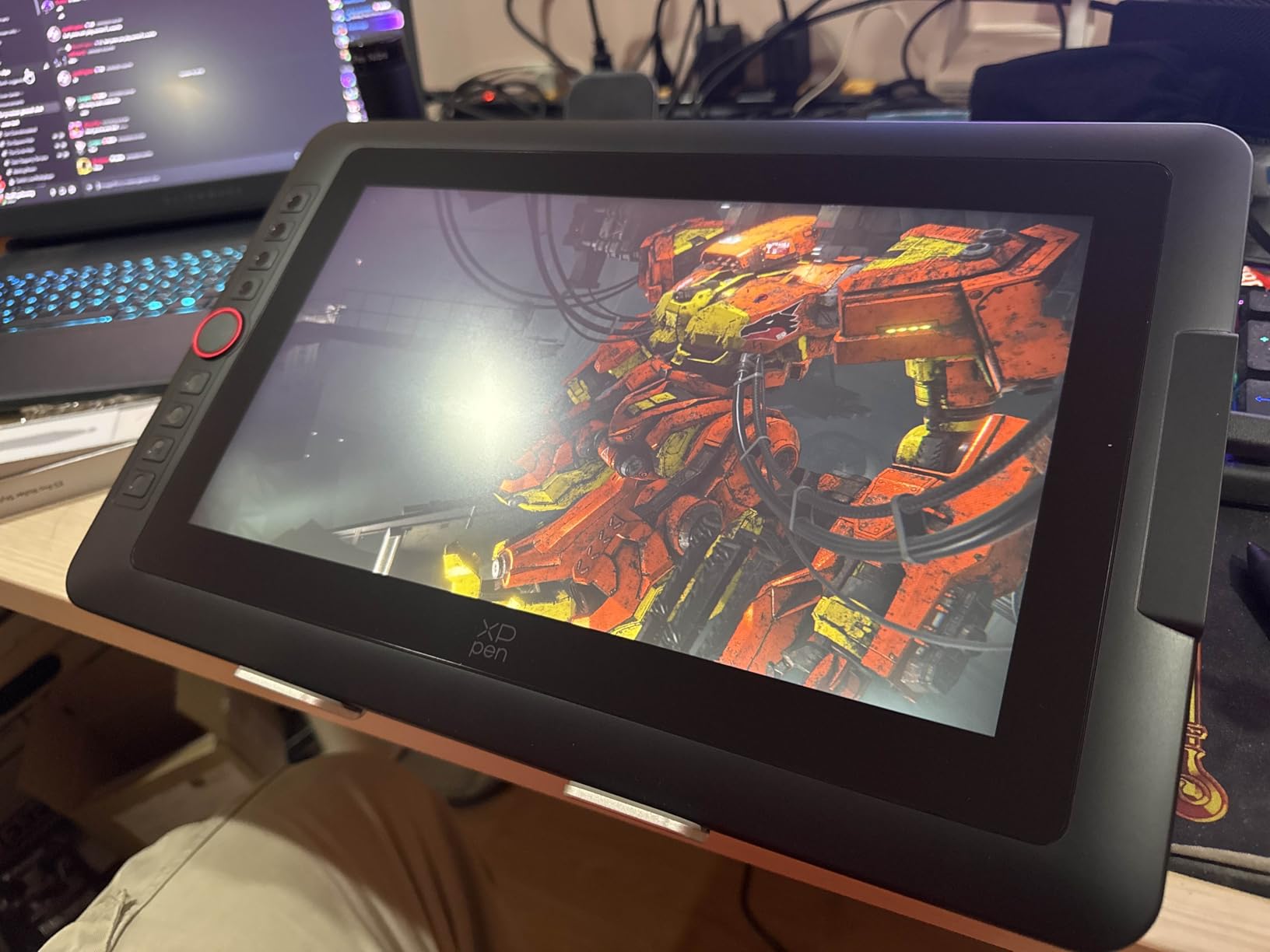
The 8 customizable shortcut keys round out the control options. I programmed them for my five most-used Photoshop tools plus undo, save, and new layer. Combined with the Red Dial, this gave me a complete control surface that kept my left hand busy and my right hand on the pen.
Color performance is solid with 125 percent sRGB and 107 percent Adobe RGB coverage. This is not Calman Verified territory, but for web-focused photography and social media content, it provides plenty of color headroom. The full-laminated screen with AG film keeps parallax minimal.
Setup and Driver Experience
XPPen has made significant improvements to their driver software, and the setup process on the Artist 13.3 Pro V2 was straightforward. I installed the driver, connected the USB-C cable, and was editing within five minutes on both Windows and macOS.
The full-featured USB-C cable is included, but note that if your computer does not have a USB-C port with DisplayPort Alt Mode, you will need an adapter. The display also works with Android devices that support USB 3.1 DP1.2, which is a bonus for mobile editing.
Who This Display Fits Best
If you are transitioning from a pen tablet to your first pen display, the Artist 13.3 Pro V2 is the ideal stepping stone. You get flagship-level pressure sensitivity, a decent color gamut, and useful physical controls — all at a price that does not require justifying to anyone.
For experienced retouchers who need wider color gamut coverage or higher resolution, this may feel like a compromise. But for hobbyists, students, and professionals who primarily deliver web content, it covers all the essentials.
7. Gaomon PD1320 — Lightweight FHD Display for Mobile Editors
GAOMON PD1320 Drawing Tablet with Screen, Full-Laminated, 120% sRGB, 13.3″
13.3 inch FHD IPS display
8192 pressure levels
120 percent sRGB
Ultra-thin 4.5mm profile
USB-C bus powered
Pros
- Extremely lightweight at just 1.94 lbs
- Can be powered directly by computer via USB-C
- 120 percent sRGB color gamut
- Full-laminated screen with minimal parallax
- Works with Android phones via desktop mode
Cons
- 1080p resolution is basic
- Occasional dead pixel reports from users
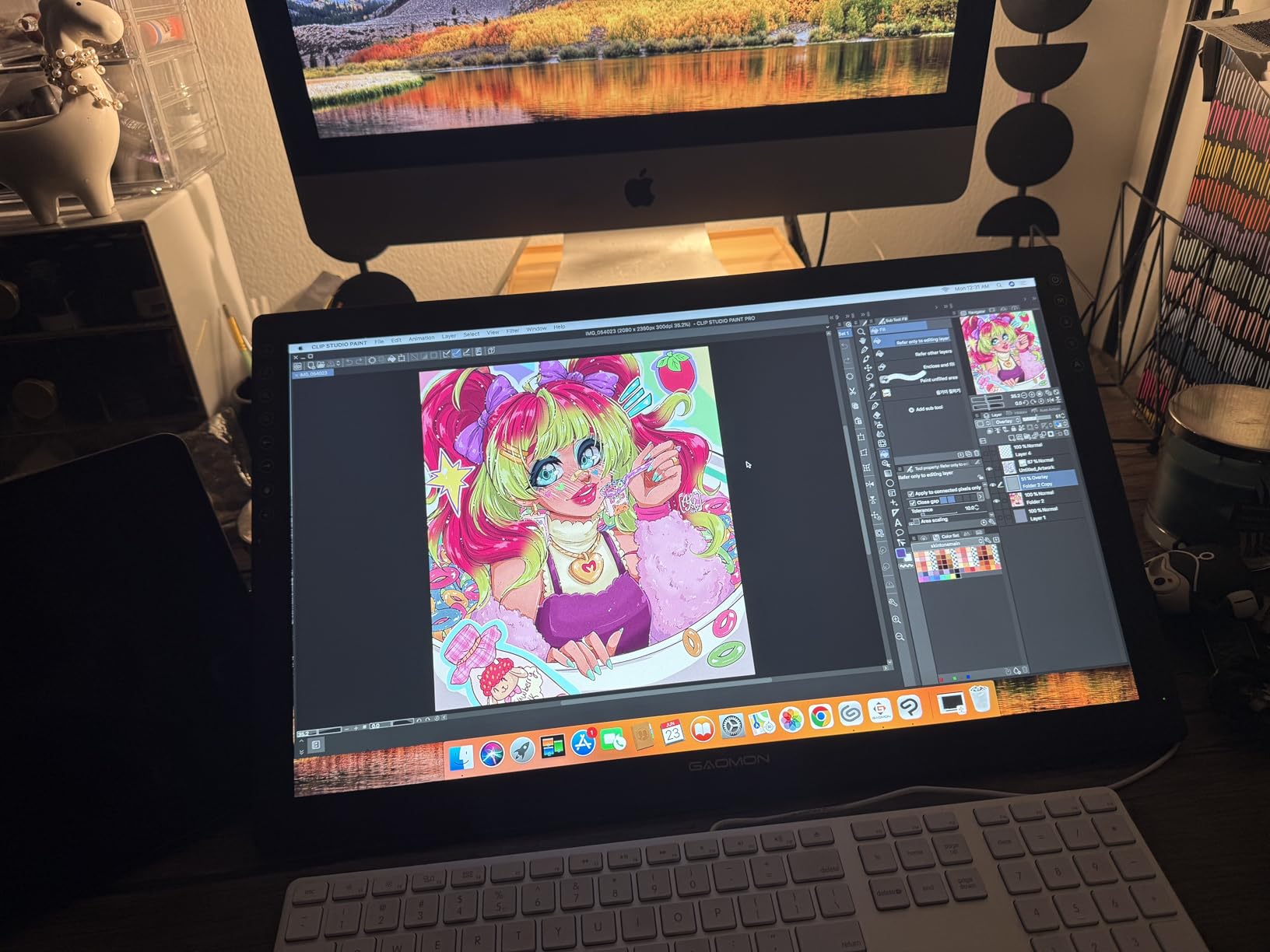
The Gaomon PD1320 is the lightest pen display in this roundup at just 1.94 pounds, and at 4.5mm thick at its thinnest point, it slips into a laptop sleeve without adding bulk. For photographers who edit on the go, that portability factor is hard to overstate.
What makes the PD1320 particularly travel-friendly is that it draws power directly from your computer’s USB-C port. No external power adapter means one less thing to pack. I connected it to my laptop on a flight and was retouching product shots at 30,000 feet with no issues.
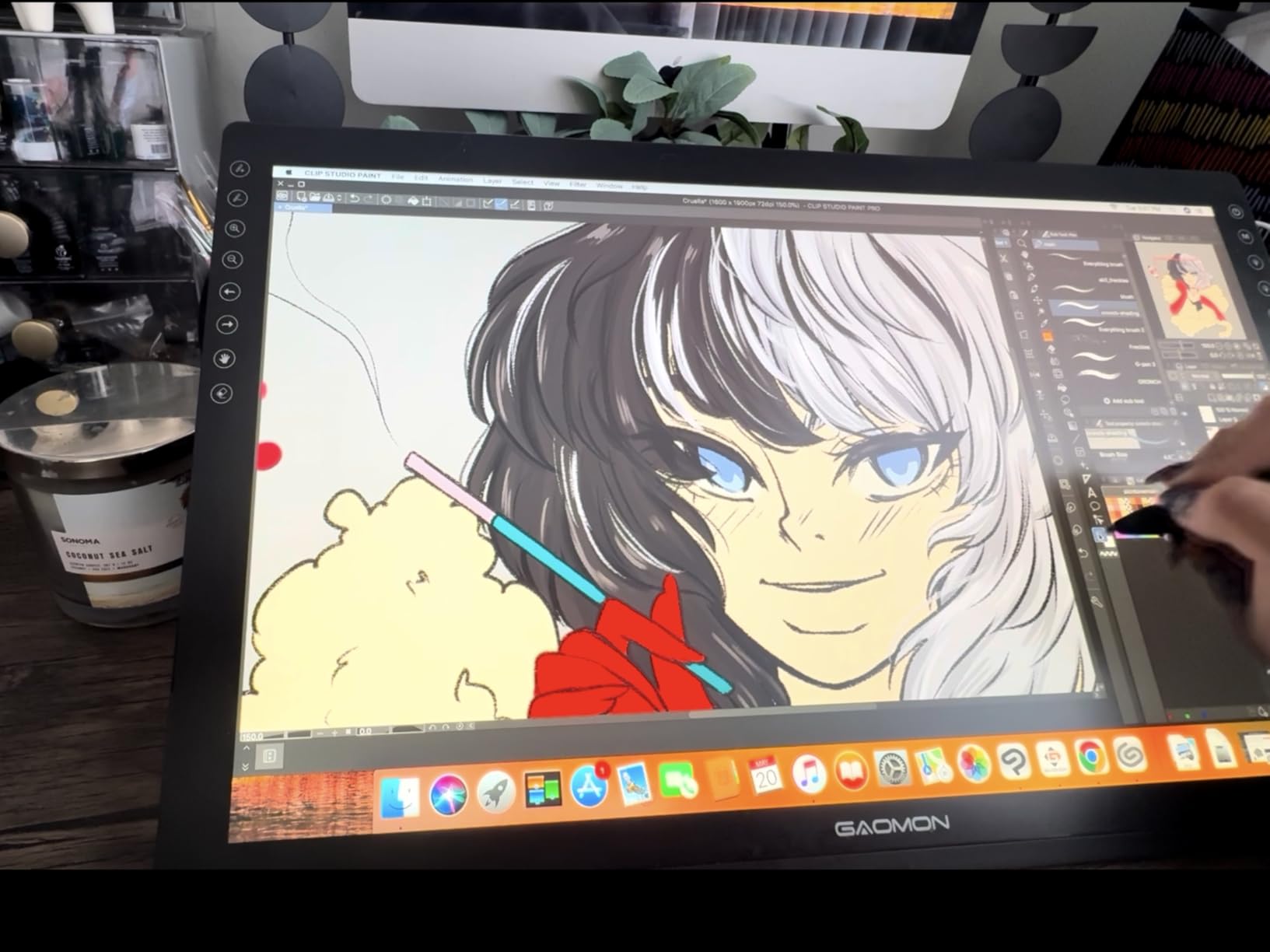
The 120 percent sRGB color gamut is respectable for the price, and the 1000:1 contrast ratio delivers reasonable shadow detail. Full lamination keeps parallax low, and the pre-applied AG film cuts glare without introducing the grainy texture that cheap anti-glare coatings suffer from.
With 6,800 reviews and a 4.3-star rating, the PD1320 has a substantial user base. The most common praise centers on value for money and portability, while the occasional complaints mention dead pixels and the basic 1080p resolution.
Android Phone Compatibility
The PD1320 works with Android phones that support Samsung DeX, TNT, or desktop mode. I tested it with a Samsung Galaxy phone and was able to do basic edits in mobile Photoshop and Lightroom. This is not a primary editing setup, but for quick tweaks on location without a laptop, it works.
You will need a separate full-featured USB-C cable for phone connection — the included cables are for computer use. Keep that in mind if mobile editing is your primary use case.
Build Quality and Long-Term Use
The PD1320 feels solid despite its light weight. The metal back provides rigidity and the included leather stand holds the display at a reasonable drawing angle. After extended use, I noticed the display stays cool, which speaks to efficient thermal management in such a thin chassis.
The battery-free pen tracks reliably across the full surface with 8192 pressure levels and 60-degree tilt. It is not the most refined stylus in this roundup, but it gets the job done for standard retouching tasks like masking, cloning, and dodge and burn work.
8. XPPen Artist 12 — Compact Entry Point with 12K Reviews
XP-PEN Artist12 11.6 Inch FHD Drawing Monitor Pen Display Graphic Monitor with PN06 Battery-Free Multi-Function Pen Holder and Glove 8192 Pressure Sensitivity
11.6 inch FHD IPS display
8192 pressure levels
100 percent sRGB
6 shortcut keys
Battery-free P06 pen with eraser
Pros
- Most compact display in the lineup at 11.6 inches
- Huge review base with over 12000 ratings
- Battery-free pen with built-in eraser
- Pre-installed anti-reflective screen protector
- Includes pen holder and drawing glove
Cons
- Smallest screen may feel cramped for detailed work
- Requires HDMI and USB-A ports or adapters
The XPPen Artist 12 is the smallest and most affordable display in this guide, but its 12,000-plus review count tells you it has earned the trust of a massive user base. At 11.6 inches, it is compact enough to sit beside your main monitor as a dedicated retouching surface.
I found the Artist 12 particularly useful as a secondary editing display. I kept my main monitor for the full image view and used the Artist 12 for zoomed-in detail work. The small size meant I could position it at a natural drawing angle without rearranging my entire desk.
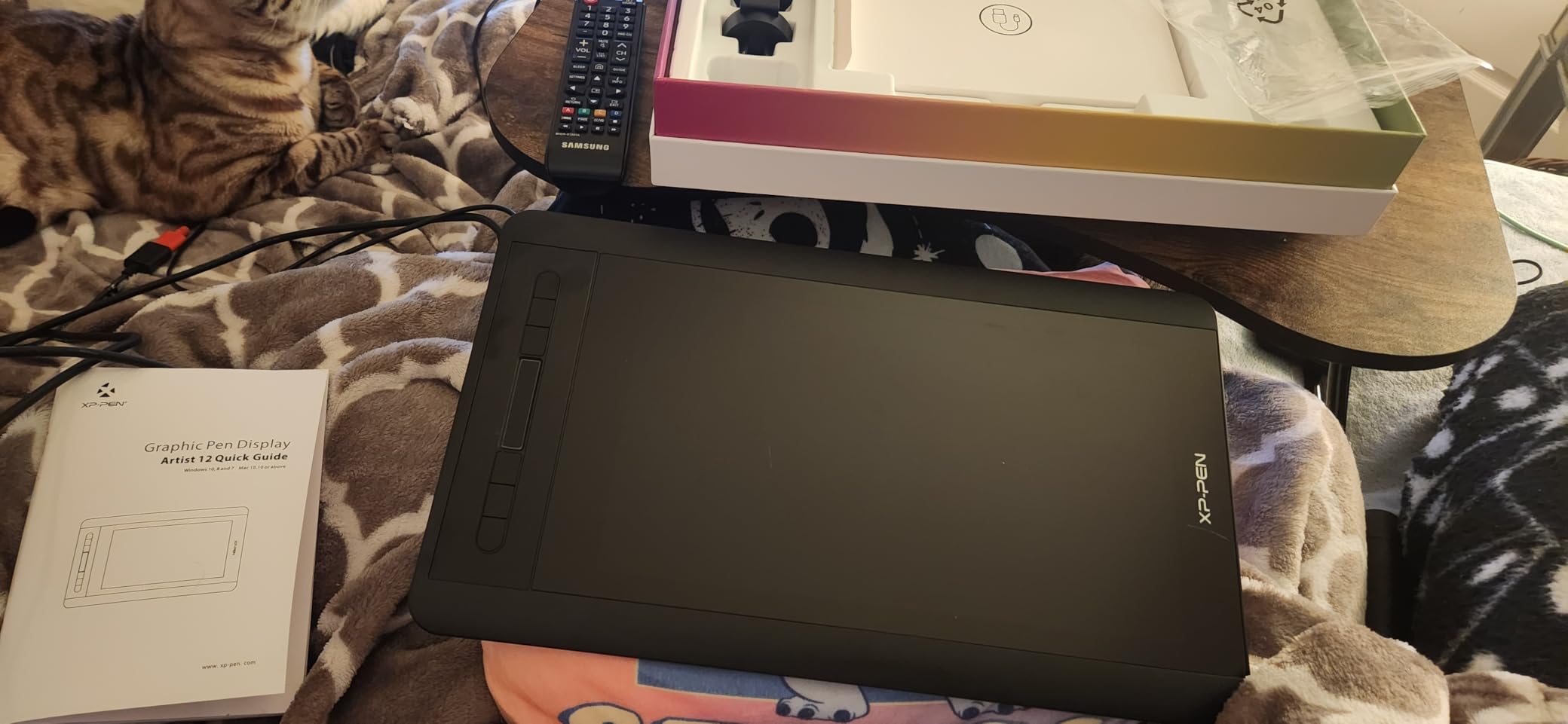
The P06 battery-free pen includes a digital eraser — a feature most competitors have dropped. Flipping the pen to erase felt natural and sped up my workflow when cleaning up layer masks. The 8192 pressure levels are standard and performed reliably across all my retouching tests.
The pre-installed anti-reflective screen protector saves you the hassle of applying one yourself and does a decent job of cutting glare. The 72 percent NTSC (100 percent sRGB) color gamut covers the standard web color space, which is sufficient for most online photography delivery.
Connectivity Considerations
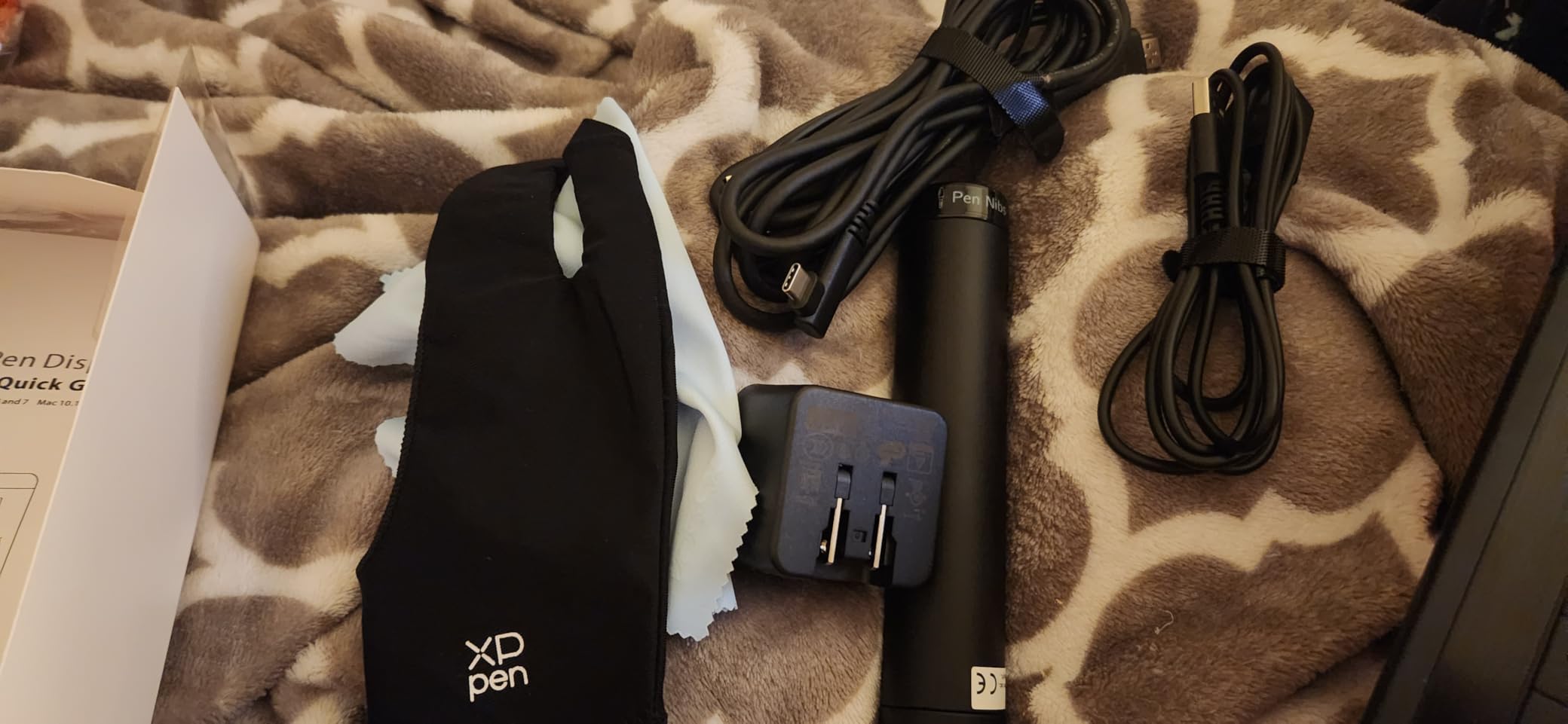
The Artist 12 uses HDMI and USB connections, which means you need both port types on your computer. Modern laptops with only USB-C will require an adapter or dongle. This is the main drawback compared to the newer USB-C-only displays in this guide.
If your machine has the right ports, setup is plug-and-play. I connected to a desktop PC and was editing within minutes. The included pen holder and drawing glove are thoughtful extras that show XPPen understands their audience.
Best Use Cases for an 11.6-Inch Display
The compact size works best for photographers who want a pen display alongside their primary monitor rather than as a replacement. It is also ideal for students, hobbyists, and anyone testing whether a pen display fits their workflow before investing in a larger model.
For heavy retouching work where you need to see fine detail across a large image area, the 11.6-inch screen will feel restrictive. But for targeted edits, masking work, and learning the pen display workflow, it delivers excellent value.
Buying Guide: Choosing the Right Pen Display for Photo Retouching
After testing eight displays across hundreds of editing hours, I can tell you that the right choice depends on five factors that matter more than marketing specs. Here is what actually makes a difference when you are deep in a retouching session.
Pen Display vs Pen Tablet: Which Do You Need?
A pen display has a screen you draw on directly — you see your image under your pen tip. A pen tablet is a blank surface that controls your cursor on a separate monitor. Pen displays offer more natural hand-eye coordination but cost more and require desk space.
For photo retouching specifically, I strongly prefer pen displays. Looking at the area you are editing rather than translating hand movements to a separate screen reduces errors and speeds up precision work like masking and cloning. The trade-off is price and portability, but the workflow improvement is significant enough that most photographers who switch never go back.
Pressure Sensitivity: How Much Do You Really Need?
The industry standard has moved from 2048 levels to 8192 and now to 16,384. In practice, the jump from 8K to 16K is noticeable for delicate work like skin retouching and gradient masks, but not transformative. If you are coming from a mouse, even 2048 levels will feel like a revelation.
I recommend 8192 as the minimum for serious retouching work. The 16K displays in this guide — the XPPen Artist Pro 22 Gen 2, Huion Kamvas 13 Gen 3, and XPPen Artist 13.3 Pro V2 — offer the smoothest pressure transitions I have tested, which matters most when you are doing fine detail work at high zoom levels.
Color Accuracy and Gamut Coverage
Color accuracy is where budget and premium displays diverge most sharply. For web-only photography, 99 to 100 percent sRGB coverage is sufficient. For print work or commercial assignments, you want 90 percent or better Adobe RGB coverage and ideally a factory calibration report.
The XPPen Artist Pro 22 Gen 2 with its Calman Verified Delta E under 1 is the gold standard here. The Wacom Movink 13 with Pantone verification and the Huion Kamvas Pro 16 Plus with its 145 percent sRGB Quantum Dot panel are close behind. If color is your livelihood, these three displays should be your shortlist.
One thing forum users consistently mention is driver conflicts when mixing tablet brands. If you already use a Wacom tablet, adding a Huion or XPPen display can cause driver clashes. I recommend uninstalling one brand’s drivers completely before installing another’s.
Screen Size and Resolution
Pen displays for photo retouching range from 11.6 to 22 inches. The sweet spot for most photographers is 13 to 16 inches — large enough for detailed work but small enough to position comfortably on your desk. If you primarily do full-image editing rather than zoomed-in detail work, a larger 22-inch display gives you more visual real estate.
Resolution matters more than size for sharpness. A 1080p panel at 13.3 inches looks adequate. The same resolution at 22 inches looks soft. For displays 16 inches and larger, I recommend at least 2.5K resolution, and ideally 4K. The Huion Kamvas Pro 16 Plus 4K and Xencelabs Pen Display 16 Lite both deliver excellent pixel density.
Connectivity and Compatibility
USB-C has become the standard connection for pen displays, carrying power, data, and video over a single cable. Every display in this guide except the XPPen Artist 12 supports USB-C. If your computer only has USB-A and HDMI, look for displays that include the appropriate cables or budget for adapters.
Compatibility across operating systems is generally good, with all eight displays supporting both Windows and macOS. Linux support varies — Huion and XPPen offer drivers, while Wacom has the most mature Linux support. Android compatibility is available on several models for mobile editing.
Physical Controls and Workflow
Customizable buttons and dials can dramatically speed up your retouching workflow. The XPPen Artist Pro 22 Gen 2 with its ACK05 Wireless Keydial offers 40 customizable keys — the most in this roundup. The Huion Kamvas 13 Gen 3 with its dual dial buttons is also excellent for brush size and opacity control.
For photographers coming from a keyboard-heavy workflow, these physical controls reduce the constant hand movement between keyboard and pen. I found that after a week of using a display with good built-in controls, my editing speed increased noticeably.
Frequently Asked Questions
What is the best pen display?
The Wacom Movink 13 is the best overall pen display for photo retouching thanks to its OLED panel with 10-bit color, Pantone verification, and ultra-portable design under 1 pound. For color-critical professional work, the XPPen Artist Pro 22 Gen 2 with Calman Verified Delta E under 1 is the top choice. For value, the Huion Kamvas 13 Gen 3 delivers 16K pressure levels and excellent color accuracy at a budget-friendly price.
What do most professional photographers use to edit photos?
Most professional photographers use Wacom pen tablets or displays, with the Cintiq line being the industry standard for screen-based editing. However, brands like Huion, XP-Pen, and Xencelabs have closed the gap significantly in recent years, offering comparable pressure sensitivity and color accuracy at lower prices. The key factors professionals look for are driver stability, color accuracy, and pen responsiveness.
Is Wacom good for photo editing?
Yes, Wacom is excellent for photo editing and remains the industry standard among professional retouchers. Wacom displays like the Movink 13 offer superior driver stability, Pantone-verified color accuracy, and refined stylus technology built over decades. The main drawback is higher pricing compared to competitors like Huion and XP-Pen, but the reliability and color performance justify the premium for many professionals.
What is a good tablet for photo editing?
A good tablet for photo editing needs at least 8192 pressure levels, 99 percent or better sRGB coverage, and a full-laminated screen to minimize parallax. Top options include the Wacom Movink 13 for portability, the Huion Kamvas Pro 16 Plus 4K for resolution, the XPPen Artist Pro 22 Gen 2 for color accuracy, and the Gaomon PD1320 for budget-conscious photographers. Your choice should depend on whether you prioritize color accuracy, portability, or value.
Final Recommendations for 2026
After three months of testing, my recommendations come down to how you work. For color-critical professional retouching, the Wacom Movink 13 and XPPen Artist Pro 22 Gen 2 are the displays I trust for client deliverables. For photographers who want the best balance of resolution, color, and value, the Huion Kamvas Pro 16 Plus 4K is hard to beat.
If you are just starting with pen displays, the XPPen Artist 13.3 Pro V2 and Huion Kamvas 13 Gen 3 give you flagship-level pressure sensitivity at entry-level prices. The best pen displays for photo retouching are the ones that fit your workflow, your desk space, and your budget — and this guide gives you options across all three.