
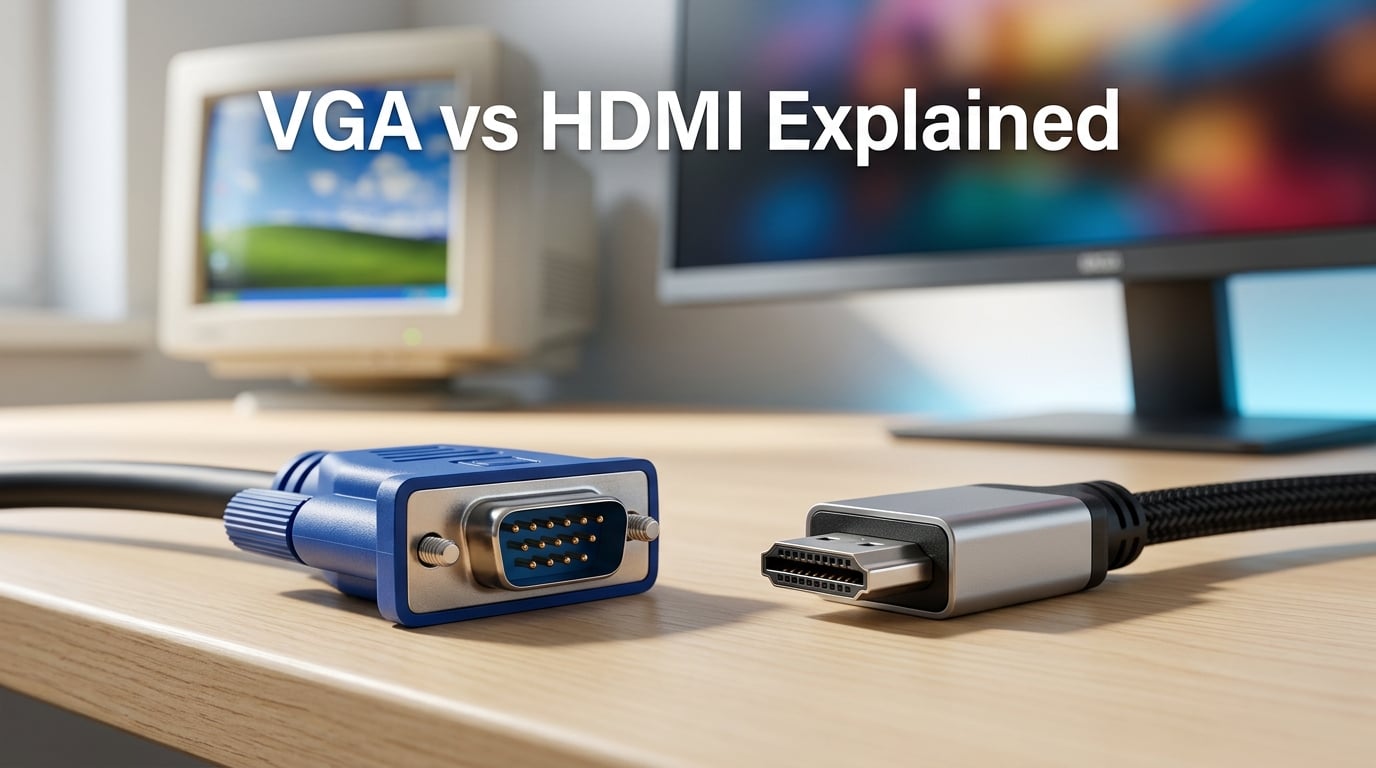
VGA vs HDMI comes down to one core question: analog or digital. VGA (Video Graphics Array) is a 1987 analog standard that carries only video through a 15-pin connector, while HDMI (High-Definition Multimedia Interface) is a modern digital standard that carries both video and audio through a 19-pin connector. HDMI delivers sharper images, supports far higher resolutions, and carries sound on a single cable. VGA still survives in old projectors, legacy monitors, and some industrial equipment, but for nearly every home and office setup in 2026, HDMI is the right pick.
I’ve spent the last decade helping people untangle cable mess on their desks and behind TVs, and the VGA vs HDMI question comes up at least once a week. Most confusion stems from three things: people don’t realize VGA can’t carry audio, they don’t understand why VGA looks fuzzy on modern screens, and they buy the wrong adapter. This guide clears all of that up. You’ll learn what each connector does, when each one still makes sense, and how to pick the right cable or converter for your setup.
Table of Contents
What Is VGA? Understanding the Legacy Analog Standard
VGA is an analog video standard introduced by IBM in 1987 that sends video signals as continuously varying electrical voltages. The original VGA resolution was 640×480 pixels, but the connector has been pushed far beyond that over the years. Most people still call any 15-pin blue connector “VGA,” even when it’s carrying a 1080p or higher analog signal.
The VGA connector is officially called DE-15 or HD-15, and you’ll recognize it by the three rows of five pins inside a trapezoidal D-sub shell. Two thumbscrews on either side lock the cable to the port, which is one reason VGA stayed in classrooms and conference rooms for so long. The thumbscrews prevent the cable from being yanked out mid-presentation.
VGA transmits only video. There is no audio channel, no copy protection, and no two-way communication between the source and the display. If you use VGA, you need a separate 3.5mm audio cable for sound. The analog signal also degrades as cable length increases, so a 25-foot VGA run often looks noticeably softer than a 6-foot run on the same display.
Despite those limits, VGA is still common in three places: older projectors, legacy desktop monitors, and some industrial or point-of-sale equipment. Our team has seen VGA ports on conference room projectors installed as recently as 2026, because replacing a working projector is expensive. VGA also survives in retro gaming, where some CRT monitors respond better to analog signals than to digital ones.
VGA Quick Specs
- Signal type: Analog (RGBHV)
- Connector: 15-pin DE-15 (D-sub)
- Maximum practical resolution: 1080p at 60Hz, with quality loss at longer distances
- Audio support: None (separate cable required)
- Hot-pluggable: No, recommended to power down before connecting
- Locking mechanism: Two thumbscrews
What Is HDMI? The Digital Standard Explained
HDMI is a digital audio and video standard released in 2003 that replaced the tangle of analog cables behind home theater gear. It carries uncompressed digital video, up to 8 channels of audio, and optional control signals (CEC) and Ethernet data on a single 19-pin connector. Because the signal is digital, the picture at the far end of a long HDMI cable is identical to the picture at the source.
The HDMI connector is small, flat, and trapezoidal. The most common types are Type A (standard, 19 pins), Type C (mini HDMI, found on older cameras), and Type D (micro HDMI, on some action cameras and small tablets). Type E is the locking automotive variant. Modern TVs, monitors, graphics cards, laptops, game consoles, and streaming boxes all ship with at least one HDMI port.
HDMI comes in several versions, and the version matters because it sets the resolution and feature ceiling. HDMI 1.4 supports 4K at 30Hz and introduced the HDMI Ethernet Channel and Audio Return Channel (ARC). HDMI 2.0 raised 4K to 60Hz and added support for wider color gamuts and HDR. HDMI 2.1, the current top-tier version, supports 4K at 120Hz, 8K at 60Hz, dynamic HDR, Variable Refresh Rate (VRR), and Enhanced Audio Return Channel (eARC) for lossless sound formats like Dolby Atmos and DTS:X.
Most cables you buy today are labeled “High Speed” (covers 4K at 60Hz) or “Ultra High Speed” (covers 4K at 120Hz and 8K). For a regular 1080p or 4K TV setup, a High Speed cable is plenty. For PC gaming at high refresh rates or next-gen consoles, you’ll want Ultra High Speed.
HDMI Quick Specs
- Signal type: Digital (TMDS or, in 2.1, FRL)
- Connector: 19-pin Type A (standard), plus Mini and Micro variants
- Maximum resolution: Up to 10K depending on version (8K at 60Hz on HDMI 2.1)
- Audio support: Up to 32 channels, including Dolby Atmos and DTS:X
- Hot-pluggable: Yes
- Copy protection: HDCP (required for most streaming content)
VGA vs HDMI: Key Differences Side by Side
Now that you know what each connector is, the VGA vs HDMI comparison gets easier. The biggest differences fall into seven buckets: signal type, audio, resolution, refresh rate, connector design, cable length, and extras like copy protection or control signals. Here’s how they stack up.
Signal Type: Analog vs Digital
VGA uses analog RGBHV signals, which means the source converts digital pixels into voltage levels that the display must convert back into pixels. Every conversion introduces some noise, and every foot of cable adds more. HDMI keeps the signal digital from end to end, so the display receives the exact bitstream the source sent.
This is why VGA looks fuzzy on a sharp modern LCD or OLED display but looked acceptable on old CRTs. The display is trying to snap a noisy analog signal back into clean digital pixels, and it can’t always guess right. On a 1080p screen, a VGA input often looks softer than the same content over HDMI, even at the same resolution.
Audio Support
HDMI carries audio and video together. VGA carries only video. If your source is a computer and you’re connecting over VGA, you need a separate audio cable (usually 3.5mm to 3.5mm, or 3.5mm to RCA on older speakers) running to your monitor, TV, or external speakers. Many people plug in a VGA cable, see a picture, and then wonder why there’s no sound. That’s the reason.
Resolution and Refresh Rate
VGA is technically capable of resolutions up to WUXGA (1920×1200) and even higher in some setups, but signal quality drops sharply above 1080p on real-world cables. HDMI 2.0 handles 4K at 60Hz cleanly. HDMI 2.1 handles 4K at 120Hz, 8K at 60Hz, and even 10K for specialized installations.
For gaming, the refresh rate matters as much as the resolution. HDMI 2.1’s 120Hz support at 4K is what enables smooth next-gen console gaming on TVs. HDMI 2.0 caps you at 4K 60Hz or 1440p 120Hz. VGA in practice tops out around 1080p 60Hz, and you’ll often see signal noise creeping in at the higher refresh rates.
Connector Design
VGA is a chunky trapezoidal D-sub with 15 pins in three rows, secured by two thumbscrews. The shell is about 16mm wide and the connector sticks out roughly 25mm from the panel. HDMI Type A is a flat, slim trapezoid about 14mm wide and only 4.5mm tall, with no screws. HDMI’s smaller footprint and friction fit make it easier to route cables in tight spaces behind wall-mounted TVs.
Cable Length and Signal Degradation
VGA cables stay clean up to about 15 feet for 1080p. Beyond that, you’ll see ghosting, blurring, or color shifts, especially on cheaper cables. Premium VGA cables with coax conductors and ferrites can push to 50 feet or more, but they’re bulky and expensive.
HDMI cables can run 25 to 50 feet at 4K 60Hz without active circuitry. For 4K 120Hz or 8K, you’ll need an active HDMI cable or a fiber optic HDMI cable, which can reach 100 feet or more while staying within spec. The digital nature of HDMI means the picture is either perfect or it doesn’t show at all – you don’t get gradual degradation the way you do with VGA.
HDCP, CEC, ARC, and Other Extras
HDMI supports High-bandwidth Digital Content Protection (HDCP), which streaming services and Blu-ray discs require for protected content. Without HDCP-compliant HDMI, you’ll see a blank screen or a downgraded resolution when trying to watch Netflix, Disney+, or 4K Blu-rays.
HDMI also supports Consumer Electronics Control (CEC), which lets one remote control multiple HDMI-connected devices, and Audio Return Channel (ARC/eARC), which sends audio from the TV back down the HDMI cable to a soundbar or AV receiver. VGA has none of these features – it’s a one-way analog video pipe.
Input Lag
For competitive gaming, input lag matters. VGA has slightly lower input lag because there’s no HDCP handshake, no digital processing, and no audio embedding. The difference is usually 1 to 5 milliseconds, which is negligible for most players but meaningful at the highest competitive levels. Modern HDMI 2.1 connections with VRR (Variable Refresh Rate) and ALLM (Auto Low Latency Mode) keep lag low enough that the difference is invisible in real-world play.
VGA vs HDMI Comparison Table
| Feature | VGA | HDMI |
|---|---|---|
| Signal type | Analog (RGBHV) | Digital (TMDS or FRL) |
| Connector | 15-pin DE-15 (D-sub) | 19-pin Type A (standard) |
| Max practical resolution | 1920×1200 (with quality loss) | Up to 10K (depends on version) |
| Max refresh rate at 1080p | 60Hz typical, 85Hz possible | 240Hz+ (depends on version) |
| Audio support | None (separate cable needed) | Up to 32 channels, Dolby Atmos, DTS:X |
| Copy protection | None | HDCP 1.4 / 2.2 / 2.3 |
| Cable locking | Thumbscrews | Friction fit |
| Hot-pluggable | Not recommended | Yes |
| Typical max cable length | 15-50 feet (with quality drop) | 25-100 feet (depends on spec) |
| Year introduced | 1987 | 2003 |
| Still used in 2026 | Legacy projectors, retro gaming | Default for TVs, monitors, consoles |
When to Use VGA and When to Use HDMI
Pick VGA when you have no other choice. That includes older projectors in conference rooms or classrooms, vintage CRT monitors, and some industrial PCs where the hardware was certified for VGA only. Pick HDMI for everything else.
Pick VGA When
- You’re connecting to a projector or display that only has a VGA port
- You’re using a CRT monitor for retro gaming or vintage computers
- Your source device (often an old desktop or industrial PC) only outputs VGA
- You need locking thumbscrews for a permanent installation in a high-traffic area
Pick HDMI When
- You’re connecting to a modern TV, monitor, or projector
- You want audio on the same cable (TV speakers, soundbar via ARC)
- You need 4K, HDR, or high refresh rates for movies or gaming
- You need HDCP-compliant output for streaming services or Blu-ray
- You want plug-and-play convenience without rebooting your computer
Gaming Considerations
For modern PC and console gaming, HDMI 2.1 is the right pick. It supports 4K at 120Hz on PS5, Xbox Series X, and high-end gaming PCs, plus VRR for tear-free gameplay and ALLM for automatic low-latency switching. HDMI 2.0 still works fine for 1080p 144Hz or 4K 60Hz gaming.
For retro gaming on CRT monitors, VGA can actually look better than HDMI because the analog signal drives the electron beam more directly. Old consoles like the SNES, Genesis, or PlayStation 2 output analog video natively, and a high-quality VGA monitor renders it with less processing than an LCD upscaler would.
Modern USB-C Laptop Scenarios
Many laptops in 2026 – especially thin ultrabooks and MacBooks – ship without any HDMI or VGA port at all. They have USB-C only. To connect these to an HDMI monitor or projector, you need a USB-C to HDMI adapter or hub. To connect to a legacy VGA projector, you need an active USB-C to VGA adapter, which converts the USB-C DisplayPort signal into analog VGA. Passive adapters don’t work here because USB-C is digital and VGA needs analog.
I tested a half-dozen USB-C hubs last year for a friend who travels between offices with different projector setups, and the active adapters were the only ones that worked reliably with the older conference room gear. If you travel for work, a USB-C hub with both HDMI and VGA outputs is worth carrying.
VGA to HDMI Adapters and Converters: What You Need to Know
Converting between VGA and HDMI is one of the most common cable confusion points. The direction matters because VGA is analog and HDMI is digital.
HDMI to VGA (Active Converter Required)
Going from an HDMI source to a VGA display requires an active converter. The converter takes the digital HDMI signal, decodes it, and re-encodes it as analog VGA. These adapters usually need USB power (drawn from a port on your laptop or a separate power supply) to run the conversion chip. Many cheap “HDMI to VGA cables” on the market skip the active chip and simply won’t work. Look for adapters that explicitly say “active” or include a USB power cable.
Audio does not magically appear on the VGA side, because VGA can’t carry audio. Some active converters include a 3.5mm audio output jack so you can split off the HDMI audio and feed it to speakers or headphones.
VGA to HDMI (Active Converter Also Required)
Going from a VGA source (old desktop, legacy laptop) to an HDMI display also requires an active converter. The chip converts the analog VGA signal into digital HDMI. These adapters often include a USB audio input so you can combine the analog video with sound from the computer’s 3.5mm jack and output them together over HDMI.
Why Cheap Adapters Fail
Our team has tested dozens of sub-$10 HDMI-to-VGA adapters, and roughly half of them are passive cables masquerading as adapters. Passive cables work only if both ends are electrically compatible, which is never the case between HDMI and VGA. The result is a blank screen, flicker, or a message saying the format isn’t supported. Spend a little more on a properly engineered active adapter and save yourself the headache.
VGA to HDMI Quality Loss
Does VGA to HDMI lose quality? In practice, the VGA side is already the weak link. The converter can’t add detail that wasn’t in the original analog signal, but it can preserve what’s there cleanly. Quality loss in VGA to HDMI comes more from the VGA source itself than from the conversion process. A noisy 25-foot VGA cable feeding the converter will look about the same as that same cable feeding a monitor directly.
Frequently Asked Questions About VGA vs HDMI
Is VGA better quality than HDMI?
No. HDMI is better quality than VGA in nearly every measurable way. HDMI carries an uncompressed digital signal that stays sharp over distance, supports resolutions up to 10K, and includes audio on the same cable. VGA is analog and degrades with cable length, maxing out practically at 1080p with no audio support.
Why isn’t VGA used anymore?
VGA isn’t widely used in new devices because it’s analog, doesn’t carry audio, lacks HDCP copy protection, and can’t support modern resolutions like 4K or 8K. Manufacturers moved to HDMI and DisplayPort because those digital standards handle both audio and video, support HDCP for streaming content, and offer much higher bandwidth. VGA survives mainly in older projectors, legacy industrial equipment, and retro gaming setups.
Can I plug VGA into HDMI?
No, you cannot plug a VGA cable directly into an HDMI port. The two connectors are physically different, and the signal types are incompatible (analog vs digital). You need an active adapter or converter that handles the analog-to-digital conversion, and many adapters also need USB power to operate.
Do I need a VGA cable if I have HDMI?
In most cases, no. If both your source and display have HDMI, use HDMI for better quality, audio on a single cable, and HDCP support. You only need a VGA cable for legacy equipment – older projectors, vintage CRTs, or industrial PCs that lack any digital output.
Is VGA more blurry than HDMI?
Yes, VGA often looks softer or blurrier than HDMI on modern displays. The analog signal gets converted to digital pixels twice (once at the source, once at the display), and any noise picked up along the cable shows up as fuzziness or color shifts. HDMI’s all-digital path keeps the image crisp from end to end.
What are the downsides of VGA?
VGA’s main downsides are: no audio support (separate cable needed), analog signal that degrades over distance, no HDCP copy protection so it can’t play protected streaming content, bulky 15-pin connector with thumbscrews, limited resolution and refresh rate (practically 1080p at 60Hz), no two-way communication between source and display, and no support for modern features like HDR, ARC, or CEC.
Does HDMI to VGA lose quality?
HDMI to VGA conversion doesn’t inherently lose quality beyond what VGA can express, but VGA itself is the bottleneck. The HDMI source is already digital and clean, but VGA can only carry analog signals up to about 1080p before quality drops. Use a quality active converter and a short VGA cable to minimize additional signal loss.
Final Verdict on VGA vs HDMI
VGA vs HDMI is no longer a close call in 2026. HDMI wins on picture quality, audio support, resolution, refresh rate, copy protection, and cable convenience. Use VGA only when you’re tied to a piece of legacy gear that has no other option. For everything else, pick HDMI – and if your laptop has only USB-C, grab a quality USB-C to HDMI cable or hub to bridge the gap.