
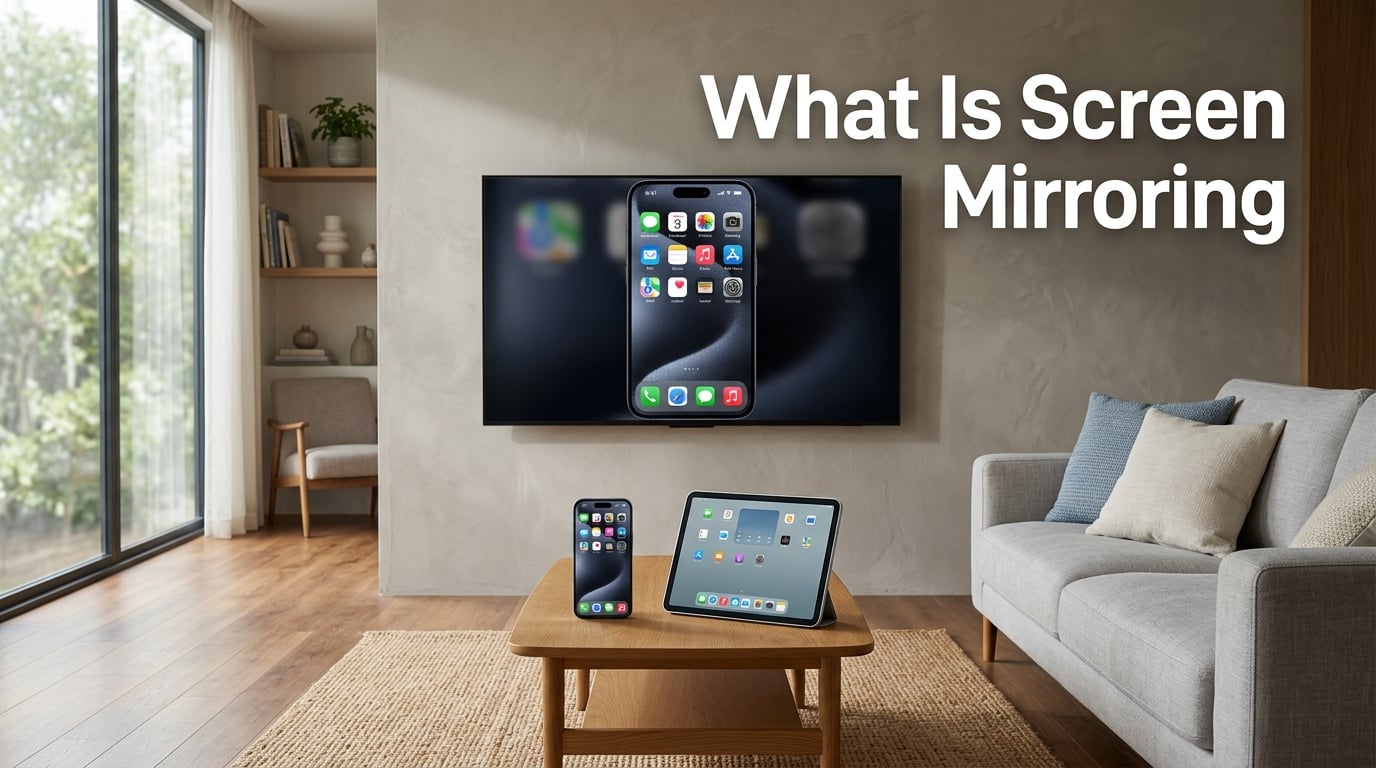
Screen mirroring is a technology that duplicates the exact display of your phone, tablet, or computer onto another screen in real time, usually over Wi-Fi. Instead of plugging in an HDMI cable, your entire screen shows up on a TV, projector, or monitor so you can share apps, slides, videos, and more without moving files. In this guide I’ll walk you through how screen mirroring works, the differences between mirroring, casting, and screen sharing, the main protocols behind the scenes, and how to set it up on the device you have today.
Table of Contents
What Is Screen Mirroring and How Does It Work
Screen mirroring is the process of wirelessly sending a live copy of one screen to another display so that both screens show identical content at the same time. Every tap, swipe, and video plays out on the second screen just as it would on the source device. The whole point is to free you from cables while letting a small device share its screen on something bigger.
Three things make screen mirroring different from a regular connection. First, it copies your full screen, not just one app or one file. Second, it happens live, with no uploading or saving in between. Third, the receiver simply shows what’s already on your device, which means it doesn’t need to know anything about the app or media in advance.
Most modern phones, laptops, and smart TVs already have screen mirroring built in. I see it used every week in boardrooms, classrooms, and living rooms because it skips the awkward hunt for the right adapter.
How Screen Mirroring Works Technically
Under the hood, screen mirroring works by capturing the pixels of your source device, compressing them, and streaming them over a wireless connection to a receiver that decodes and displays them. The whole loop typically takes less than a second, so when you tap an icon on your phone, that same icon lights up on the TV almost immediately.
Two wireless paths do most of the work. The first is a regular Wi-Fi network, where both your device and the TV hop onto the same router and talk to each other through it. The second is Wi-Fi Direct, where the two devices create a private peer-to-peer link without a router, which is useful in conference rooms where no network is available.
Once the link is open, your device encodes the screen using a video codec like H.264 or H.265 to keep the bandwidth low. Latency, or the small delay between action and display, usually sits between 50 and 150 milliseconds. That’s fast enough for slides and video, though serious gamers still prefer a wired connection for split-second reactions.
Screen Mirroring vs Casting vs Screen Sharing
People throw around three terms that sound alike but behave differently, and I explain them to every new client. Screen mirroring copies your full display exactly. Screen casting only sends one piece of media, like a YouTube video, to the TV while your phone acts as a remote. Screen sharing usually means showing your screen in a video call so others in the meeting can see it.
Here’s the quick breakdown I keep on a sticky note:
Screen mirroring: 1:1 copy of every pixel in real time, both screens stay active.
Screen casting: Streams one app or file, your phone can do other things.
Screen sharing: Shares your display into a meeting, used in Zoom, Teams, and Google Meet.
The lines blur in practice. AirPlay can mirror or cast depending on the app. Chromecast leans toward casting but offers a tab-mirror mode. Knowing the difference helps you pick the right option when an adapter or app presents a choice.
Main Screen Mirroring Protocols and Technologies
Four protocols handle the bulk of screen mirroring traffic today, and each one belongs to a different ecosystem. The protocol is simply the rulebook two devices use to talk to each other. Match the rulebook on both ends and the picture shows up.
AirPlay
AirPlay is Apple’s wireless protocol and shows up on iPhone, iPad, Mac, and Apple TV. It mirrors or casts to any AirPlay-compatible receiver, including most modern smart TVs with AirPlay 2 support. Setup is usually a single tap from the Control Center, and audio comes along for the ride.
Miracast
Miracast is the open standard baked into most Windows 10 and Windows 11 laptops, many Android phones, and a wide range of projectors and TVs. It uses Wi-Fi Direct so you don’t need a network at all. Think of Miracast as the universal translator of screen mirroring, though Apple devices don’t speak it natively.
Google Cast
Google Cast powers Chromecast devices and most Android-to-TV setups. By default, it acts like casting, where the TV plays the video and your phone becomes a remote. Casting apps like YouTube and Netflix support this mode natively. Full screen mirroring from Chrome or Android uses the same protocol but streams every pixel.
DLNA
DLNA is the older media-sharing standard found on smart TVs, game consoles, and media players. It handles photos, music, and video streaming more than true mirroring. You’ll see it on older TVs and on Samsung Smart View, but it’s being replaced by AirPlay and Google Cast on newer devices.
What Screen Mirroring Is Used For
Screen mirroring pops up in places you wouldn’t expect, and the use cases keep expanding as new devices ship with the feature. Here are the scenarios I see most often in 2026.
Business presentations: Walk into a meeting, connect to the room’s display, and run your slides directly from your laptop without a dongle.
Classroom teaching: Teachers mirror iPads to projectors so students see every swipe and annotation in real time.
Home entertainment: Stream Netflix, Disney Plus, or personal videos from your phone to the living room TV.
Photo and video sharing: Show vacation photos to family on the big screen without AirDrop or USB cables.
Video conferencing: Use Miracast or AirPlay to drive a conference room display from a phone or laptop.
Gaming: Mirror mobile games to a TV for a console-like feel, accepting a small amount of input lag.
Collaboration: Brainstorm on a shared whiteboard app while everyone in the room sees the same canvas.
When travel returned after 2020, I noticed businesses lean on mirroring more than ever to handle hybrid meetings. Travelers want to use whatever laptop they carry, so the wireless option beats the loaner dongle at the front desk.
How to Use Screen Mirroring on Different Devices
Setup steps change slightly between platforms, but the flow is the same: open the mirroring control, pick a receiver, and confirm. Here are the shortcuts I share most often.
On iPhone or iPad
Swipe down from the top-right corner to open Control Center, tap the Screen Mirroring button, and pick your Apple TV, AirPlay 2-compatible smart TV, or Mac. A four-digit code often appears on the big screen for security. To stop, return to Control Center and tap the mirroring tile again.
On Android
Open Quick Settings by swiping down twice, tap Screen Cast, Screen Mirroring, or Smart View, then select your TV or streaming device. Samsung phones call it Smart View, while Pixel phones use Cast. The exact wording varies by manufacturer, but the option lives in the same place.
On Windows 10 or 11
Press Windows plus K to open the Cast menu, then choose your Miracast display. Alternatively, click the network icon in the taskbar, expand the cast quick action, and pick a target. Older receivers may ask you to enter a PIN shown on the projector screen.
On Mac
Click the Control Center icon in the menu bar, choose Screen Mirroring, and select your Apple TV or AirPlay-compatible display. The AirPlay icon in the menu bar is another shortcut. The Display menu in System Settings also lists mirroring options for external monitors.
Screen Mirroring Security and Privacy Concerns
Privacy is the question I hear more than any other these days. The short answer is no, someone can’t mirror your phone without your active permission. Both phones and TVs require you to tap a confirmation or enter a code on your device for the connection to start.
That said, a few risks still deserve attention. Public Wi-Fi networks can expose unencrypted mirroring traffic to nearby snoops. Hotel TVs and conference room displays occasionally retain paired devices, so anyone who walks up can connect if you forgot to unpair. And some third-party mirroring apps request excessive permissions, including access to your camera roll.
To stay safe, only mirror over trusted networks, unpair your phone from public displays when you’re done, and stick to first-party features like AirPlay, Google Cast, and Miracast whenever possible. Those protocols include encryption and on-device confirmation that block unauthorized access.
Troubleshooting Common Screen Mirroring Problems
Even solid setups fail sometimes. When a connection won’t stick, I run through this checklist before restarting anything.
Check the network: Both devices must be on the same Wi-Fi network, or the receiver needs Miracast support for direct connection.
Update firmware: Smart TVs and phones often fix mirroring bugs in monthly updates, so install the latest version on each device.
Reduce interference: Microwaves, baby monitors, and crowded Wi-Fi channels cause lag and dropouts, so move closer to the router or receiver.
Reset the connection: Forget the TV on your phone, then pair it again to clear any stuck settings.
Switch protocols: If AirPlay refuses to play, try a Miracast adapter or vice versa, since not every receiver supports every protocol.
If the screen looks pixelated or stutters during video, lower the resolution on the source device from 4K to 1080p. Wireless mirroring scales resolution down whenever the signal weakens, and a manual override often restores smooth playback.
Frequently Asked Questions
Can someone mirror your phone without you knowing?
No. Both iPhone and Android require an on-screen confirmation or PIN entry on your phone before a connection completes, so a stranger cannot mirror your screen without your active approval. Stick to first-party features like AirPlay or Google Cast for the strongest protection.
What is the purpose of screen mirroring?
Screen mirroring lets you share your phone, tablet, or laptop screen on a larger display in real time, so it’s used for presentations, classroom teaching, video streaming, photo sharing, video calls, and mobile gaming. The goal is cable-free content sharing on whatever big screen sits nearby.
How do I tell if my phone is screen mirroring?
Open your phone’s Control Center on iPhone or Quick Settings on Android and look for a highlighted Screen Mirroring or Screen Cast icon. You can also check the connected devices list in your TV’s settings menu to see what is currently paired.
How do I turn screen mirroring off?
Return to Control Center on iPhone or Quick Settings on Android, tap the active Screen Mirroring tile, and choose Stop Mirroring or Disconnect. On Windows, press Windows plus K and choose Disconnect, and on Mac open Control Center and click Stop Mirroring.
Final Thoughts on Screen Mirroring
Screen mirroring turns a tiny phone screen into a wall-sized display with one tap, and it’s now a default feature on most devices people buy. You don’t need special hardware, complicated apps, or a tech support call to share slides, stream Netflix, or show vacation photos. Pick the protocol your device speaks, confirm the connection, and your whole screen shows up on the bigger display.
If you’re shopping for a new TV or laptop in 2026, check the spec sheet for AirPlay, Miracast, or Chromecast support so future setups stay painless. When you hit a snag, the troubleshooting checklist above solves most issues in under a minute. For most homes, classrooms, and conference rooms, screen mirroring is the simplest answer to the question of how to share what’s on your screen right now.