
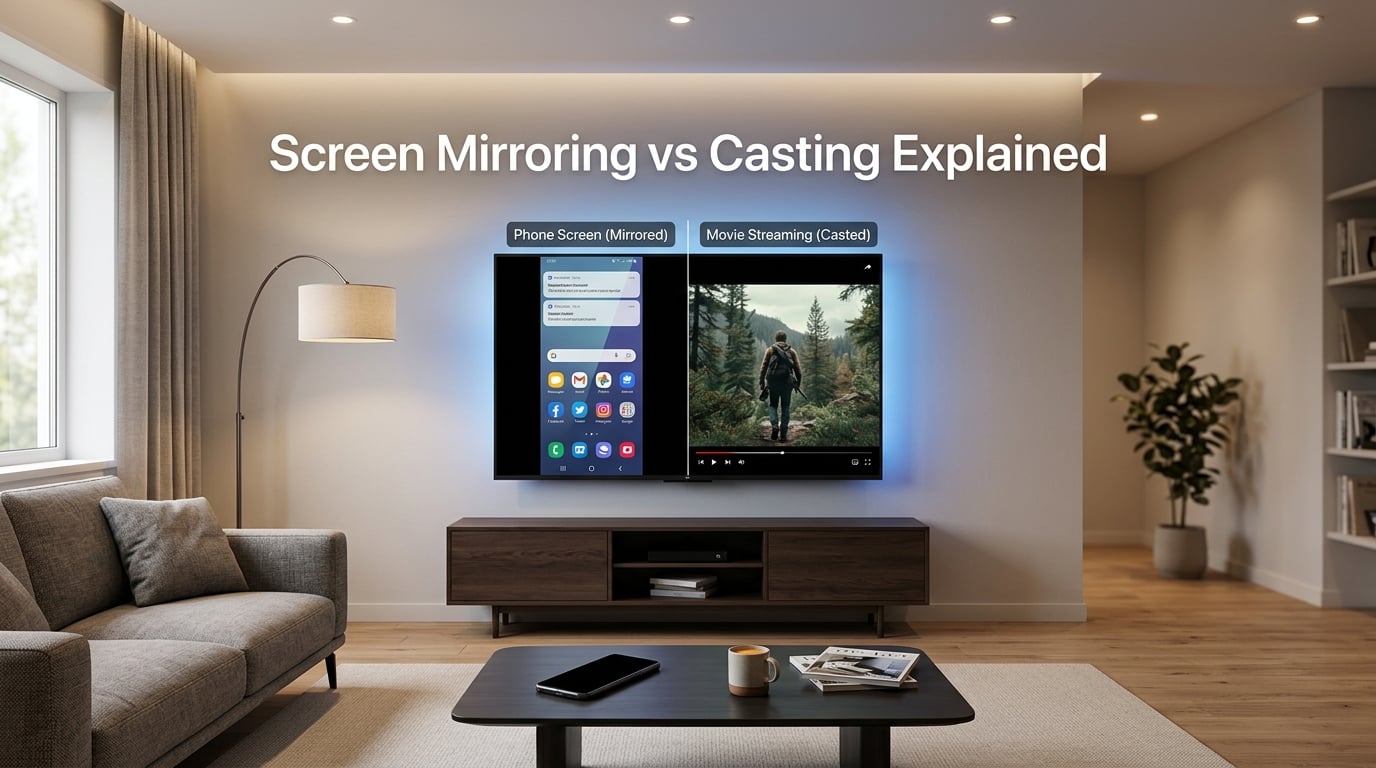
Screen mirroring duplicates your entire device display onto another screen in real time, while screen casting sends specific content from your device to a display where it plays independently. I have tested both methods on dozens of TVs, monitors, and streaming devices, and the distinction matters more than most people think.
When you understand the screen mirroring vs casting difference, you stop fighting laggy video calls and presentations that drop frames. You also save battery, free up your phone, and pick the right tool for the job every time.
This guide covers exactly how each technology works, where each one shines, and the security tradeoffs nobody warns you about. I have included a side-by-side comparison table, platform-specific steps for iOS, Android, and Windows, and answers to the four questions Google shows in the “People Also Ask” box.
Table of Contents
What Is Screen Mirroring?
Screen mirroring is a wireless display technology that copies everything visible on your device’s screen and reproduces it on a TV, monitor, or projector. Every app, every notification, every swipe appears on the big screen exactly as you see it on your phone or laptop.
The protocol most devices use is called Miracast, a Wi-Fi Direct standard that creates a peer-to-peer connection between your source device and the display. Your phone acts as the transmitter, the TV acts as the receiver, and the video signal flows continuously in both directions.
Because the TV is showing a live capture of your screen, mirroring works with any app or content on your device. You can demo a website that does not have a Cast button, share a folder of vacation photos, or play a mobile game on the big screen. The catch is that your device stays locked into the stream. Close the lid, walk out of range, or get a phone call, and the mirrored image freezes or disappears.
Screen mirroring is also called “screen sharing” in some apps, which adds to the confusion. We will clear that up in the FAQ section below.
What Is Screen Casting?
Screen casting sends specific content from your device to a display, where that content plays directly on the receiver. Your phone tells the TV “play this YouTube video” and the TV streams the video on its own. Your phone is free to lock, take calls, or run other apps while the video keeps playing on the big screen.
The dominant protocols are Google Cast (used by Chromecast and Android TV) and Apple AirPlay. When you tap the Cast icon in Netflix, YouTube, or Spotify, you are using screen casting. The display becomes an independent player, pulling the content over the internet or your home network.
Casting is device-independent once the stream starts. Your phone becomes a remote control rather than a transmitter. This is why casting saves battery and why you can walk away without interrupting playback. The trade-off is that casting only works with apps that have built-in Cast or AirPlay support. If an app does not have the Cast icon, you cannot cast from it.
Many people use “casting” as a catch-all term for any phone-to-TV streaming, but technically it refers to this send-and-disconnect model.
Screen Mirroring vs Casting: Side-by-Side Comparison
| Feature | Screen Mirroring | Screen Casting |
|---|---|---|
| What it shows | Exact copy of your device screen | Specific app content (video, music, photos) |
| Source device needed during playback | Yes, must stay connected and awake | No, can lock or leave the room |
| Battery drain on phone | High | Low |
| Works with any app | Yes | Only apps with Cast/AirPlay support |
| Network requirement | Wi-Fi Direct or same network | Same Wi-Fi network usually required |
| Latency | Very low (great for presentations, gaming) | Higher (not ideal for interactive use) |
| Video quality | Matches your screen resolution | Often up to 4K HDR for supported apps |
| Notifications visible on TV | Yes (privacy concern) | No |
| Common protocols | Miracast, AirPlay Mirroring | Google Cast, AirPlay |
| Best for | Presentations, gaming, video calls | Streaming movies, music, photo slideshows |
Quick Summary in One Line
Mirroring shows your screen. Casting plays content on another screen while your device steps out of the way.
How Screen Mirroring Works Technically
When you start screen mirroring, your device creates a wireless connection directly to the display using Wi-Fi Direct. Your phone captures the screen as a video stream, encodes it in real time using the H.264 codec, and transmits it to the TV. The TV decodes the stream and displays it frame by frame.
This is essentially a wireless HDMI cable. The latency is low, often under 100 milliseconds, which is why mirroring feels instant when you tap or swipe on your phone and see the response on the TV.
Because the entire stream lives on your device, mirroring does not require internet access. You can mirror your laptop to a hotel TV without any router, as long as both devices support Miracast or AirPlay.
The downside is bandwidth. Streaming a full 1080p screen at 60 frames per second chews through Wi-Fi capacity and drains your phone battery in a few hours. That is also why notifications, incoming messages, and even your lock screen appear on the TV unless you turn on Do Not Disturb.
How Screen Casting Works Technically
Casting uses a hand-off model. When you tap the Cast icon, your phone sends a small instruction to the TV or streaming device telling it where to find the content. The TV then opens a direct connection to the content source (Netflix, YouTube, Spotify) and streams it on its own.
Your phone only sends control commands after that: pause, play, volume, seek. The heavy lifting happens between the content server and the display. Your phone can lock, run out of battery, or wander out of Wi-Fi range without interrupting playback.
Google Cast and AirPlay both use adaptive bitrate streaming, meaning the display adjusts video quality on the fly based on your network speed. On a strong 5 GHz Wi-Fi network, you can cast 4K HDR content without buffering. On a crowded 2.4 GHz network, the stream drops to 720p.
Casting needs the internet for most apps, because the content is fetched fresh by the receiver. Local casting of files you already have on your phone works over the local network without internet.
When to Use Each: Use Cases That Actually Matter
I keep both methods ready to use, and I switch between them based on what I am doing. Here is how I decide.
Use Screen Mirroring For
- Presentations and slide decks. When you are pitching to a client and need every animation, cursor movement, and live demo to appear on the screen in real time, mirroring is the only reliable option.
- Video calls on the big screen. Zoom, Teams, and Google Meet do not always support casting, but mirroring your laptop to the TV works every time.
- Mobile gaming. If you want to play a racing game or shooter on your TV with a controller, mirroring gives you under 100ms latency, which feels native.
- Web browsing and app demos. When the app does not have a Cast icon, mirroring is the only way to show it on the big screen.
- Showing work that is not online. Local files, system settings, or DRM-protected content that casting apps block.
Use Screen Casting For
- Watching movies and TV shows. Netflix, Disney+, Prime Video, and YouTube all support casting at full 4K HDR while your phone stays free.
- Streaming music. Spotify, Apple Music, and podcasts play through your TV or speaker without killing your phone battery.
- Photo slideshows. Google Photos and Apple Photos let you cast a slideshow, then put your phone down.
- Background entertainment. Casting a long YouTube playlist while you cook, clean, or work on something else.
- Sharing with the family. Kids can cast cartoons from their tablets without needing an adult’s phone tethered to the TV.
Device and Platform Compatibility
Not every device supports both methods. The table below shows what works on the most common platforms.
| Platform | Screen Mirroring Support | Screen Casting Support |
|---|---|---|
| iPhone / iPad | AirPlay Mirroring to Apple TV, AirPlay 2 TVs | AirPlay to compatible receivers |
| Android phone | Miracast to smart TVs, wireless adapters | Google Cast to Chromecast, Android TV |
| Windows 10/11 | Miracast “Connect” app to TVs | Cast from Edge, Chrome browser tabs |
| Mac | AirPlay Mirroring to Apple TV or AirPlay 2 TV | AirPlay to compatible displays |
| Samsung TV | Smart View (Miracast-based) | AirPlay 2 (2018+), Google Cast on 2022+ models |
| Roku | Screen mirroring on Windows and Android | Cast from YouTube, Netflix, Spotify apps |
Quick Platform-Specific Tips
iPhone and iPad: Swipe down from the top-right corner to open Control Center, tap “Screen Mirroring,” and pick your Apple TV or AirPlay-compatible TV. For casting, tap the AirPlay icon inside any supported app.
Android: Swipe down from the top of the screen, tap “Cast” or “Smart View,” and select your TV. For older Android phones without built-in casting, install Google Home and use it as your casting hub.
Windows 10/11: Press the Windows key plus K to open the Connect sidebar, then pick your wireless display. To cast a Chrome tab, click the three-dot menu, then “Cast.”
Security and Privacy Considerations
Screen mirroring is the riskier of the two methods from a privacy standpoint. Because the TV shows a live capture of your screen, every notification, text message, calendar alert, and personal photo you open appears in full view on the big screen.
I learned this the hard way during a client presentation when a personal text from my partner popped up on the conference room display. Always enable Do Not Disturb before you mirror, and close any apps you do not want seen.
Screen casting is safer because the TV only shows the content you intentionally sent. Notifications stay on your phone. However, casting does open up network risks. Anyone on the same Wi-Fi network with casting-enabled devices may be able to see your casting device name or send content to your display if network isolation is off.
For business use, mirror or cast over a password-protected WPA3 network. Avoid public Wi-Fi at coffee shops and hotels when mirroring sensitive content. AirPlay and Google Cast both use encrypted streams, but a compromised router can still leak metadata about what you are casting.
Performance and Quality Differences
Mirroring quality is limited by your source device. If your phone has a 1080p screen, the mirrored image tops out at 1080p regardless of the TV’s resolution. Casting can go up to 4K HDR on supported apps and devices.
Latency tells the real story for interactive use. Mirroring delivers 50 to 100 ms of lag, which feels instant for gaming and presentations. Casting has 200 to 500 ms of lag because the receiver is fetching and buffering content independently. That delay makes casting unusable for typing on a mirrored desktop or playing fast-paced games.
Frame rate matters too. Mirroring matches your phone’s refresh rate, so a 120 Hz phone mirrors at 120 Hz if the TV supports it. Casting is locked to the app’s output, usually 24p, 30p, or 60p.
Audio handling is different. Casting supports Dolby Atmos and DTS:X passthrough on compatible apps. Mirroring sends whatever your phone outputs, including stereo or compressed surround.
How Screen Sharing Fits In
Screen sharing is a third concept that often gets mixed in with mirroring and casting. Screen sharing means showing your screen to other people through a video conferencing app like Zoom, Teams, or Google Meet. The screen content is captured, encoded, and streamed over the internet to remote viewers.
Screen sharing is closer to mirroring in spirit, because your entire screen is shared. But it uses a different transport (the internet instead of your local network) and a different audience (remote viewers instead of a local TV). When someone says they are going to “share their screen in a meeting,” they mean screen sharing, not mirroring or casting.
Frequently Asked Questions
Is screen mirroring better than casting?
Neither is universally better. Screen mirroring is better for presentations, video calls, gaming, and any task that needs low latency or works with apps that lack a Cast button. Screen casting is better for streaming movies, music, and photo slideshows because it saves battery, frees your phone, and supports 4K HDR. Choose mirroring for interaction, casting for entertainment.
Is screen mirroring the same as screen casting?
No. Screen mirroring duplicates your entire device display onto another screen in real time and requires your device to stay connected. Screen casting sends specific content to a display where it plays independently, allowing your device to lock or leave the room. They use different protocols (Miracast vs Google Cast or AirPlay) and serve different purposes.
What are the disadvantages of screen mirroring?
Screen mirroring drains your phone battery quickly, exposes notifications and private messages on the TV, requires your device to stay awake and within range, caps quality at your source device’s resolution, and uses more Wi-Fi bandwidth than casting. It also struggles with HDCP-protected content from streaming apps, which often show a black screen instead of the video.
Is AirPlay casting or mirroring?
AirPlay does both. Apple uses AirPlay for casting specific content from apps like YouTube, Apple Music, and Photos. It also uses AirPlay Mirroring, a separate mode that duplicates your iPhone, iPad, or Mac screen to an Apple TV or AirPlay 2-compatible TV. You choose which mode you want from Control Center on iOS or the menu bar on macOS.
Final Thoughts on Screen Mirroring vs Casting
The screen mirroring vs casting choice comes down to one question. Do you want to show your screen, or play content on another screen? Mirroring shows your screen. Casting plays content. Once you internalize that distinction, you will pick the right method on the first try, save battery, and avoid the awkward moment of a personal text popping up on the conference room TV.
If you want to take it further, test both methods on your own TV this week. Cast a YouTube video and watch how your phone stays free. Mirror a presentation and feel the near-zero latency. After ten minutes of hands-on testing, the difference stops being theoretical.