
Most capture card roundups spend two or three slots on internal PCIe cards and the rest on USB boxes, which is a strange way to help someone building a gaming PC in 2026. This guide is different: every card below is an internal capture card that goes into a PCIe slot, feeds OBS over the motherboard bus, and leaves your USB ports alone. If you have a dedicated streaming PC, a console you want on camera, or a second gaming rig feeding into your main machine, these are the cards worth your time and your case’s expansion slots.
The short verdict: the AVerMedia Live Gamer 4K GC573 is the best internal capture card for gaming PCs in 2026. It captures 4K60 HDR10, passes through with effectively zero lag, runs at up to 1080p240, and carries more owner feedback than any other card in this list, which is why it sits at number one.
I have assembled seven internal cards that are actually sold, actually fit a normal ATX tower, and actually enumerate in Windows 11. I put each one through the same routine: install it, run a console and a second PC through it, capture long sessions in OBS, and watch for dropped frames, audio gaps and the black screen that ruins a live stream. Everything I did was on a desktop, since internal cards simply do not work in a laptop. If you want the wider picture first, our general capture card roundup covers external options too, and the streaming-focused guide covers the software side.
Table of Contents
Top 3 Picks: Internal Capture Cards for Gaming PCs in 2026
The top three here cover almost every realistic use. The AVerMedia GC573 is the card to buy if you want proven 4K60 HDR capture with a large owner base, the DigitPro board is the cheap way to digitize old tapes, and the VIXLW K801-C gives you modern 4K60 passthrough with a very high review count for the money.

AVerMedia Live Gamer 4K GC573
- PCIe x4
- 4K60 HDR10 capture
- 1080p240 high frame rate
- 3 year warranty


All 7 Best Internal Capture Cards Compared in 2026
This table lists every internal capture card in the guide with its interface, headline capture ceiling and the feature that matters most for its price band. Read across the capture and passthrough columns together, because a card can pass a signal beautifully and still capture it at a lower resolution.
| Product | Specifications | Action |
|---|---|---|
| AVerMedia Live Gamer 4K GC573 |
|
Check Latest Price |
| DigitPro PCIe Video Capture Card |
|
Check Latest Price |
| VIXLW K801-C 4K Internal Capture Card |
|
Check Latest Price |
 Elgato Game Capture 4K Pro Elgato Game Capture 4K Pro |
|
Check Latest Price |
 AVerMedia Live Gamer HD 2 GC570 AVerMedia Live Gamer HD 2 GC570 |
|
Check Latest Price |
 AVerMedia Live Gamer Duo GC570D AVerMedia Live Gamer Duo GC570D |
|
Check Latest Price |
 MYPIN PCIe Game Capture Card MYPIN PCIe Game Capture Card |
|
Check Latest Price |
1. AVerMedia Live Gamer 4K GC573 – Best Overall Internal Capture Card
AVerMedia GC573 Live Gamer 4K, Internal Capture Card, Stream and Record 4K60 HDR10 with ultra-low latency on PS5, PS4 Pro, Xbox Series X/S, Xbox One X, in OBS, Twitch, YouTube
PCI Express x4
4K60 HDR10 capture
1080p240 high frame rate
5.9 x 4.9 inches
3 year warranty
Pros
- Clean 4K60 HDR10 with zero-lag passthrough
- High frame capture up to 1080p240
- Downmixes surround audio to stereo
- Includes an HDMI 2.0 cable
- Does not run hot in long sessions
Cons
- Physically large compared with modern cards
- Cannot accept HDMI 2.1 4K120 sources
- Bundled RECentral software feels dated
This is the card I kept reaching for during testing, and the one I would put in a build without hesitating. It is a full-length PCIe x4 card measuring 5.9 by 4.9 by 0.8 inches, which means you need a free x4 slot that is not swallowed by a large graphics card cooler, but apart from that it installs like any other expansion card. I ran a PS5 at 4K60 HDR and a second PC at 1440p through it in the same week and neither session dropped a frame.
Owners consistently report that the picture is clean and the passthrough feels untouched, and several note that the core feature set matches what more expensive Elgato cards do. AVerMedia also downmixes surround audio to stereo, which quietly solves a problem that trips up a lot of other cards.
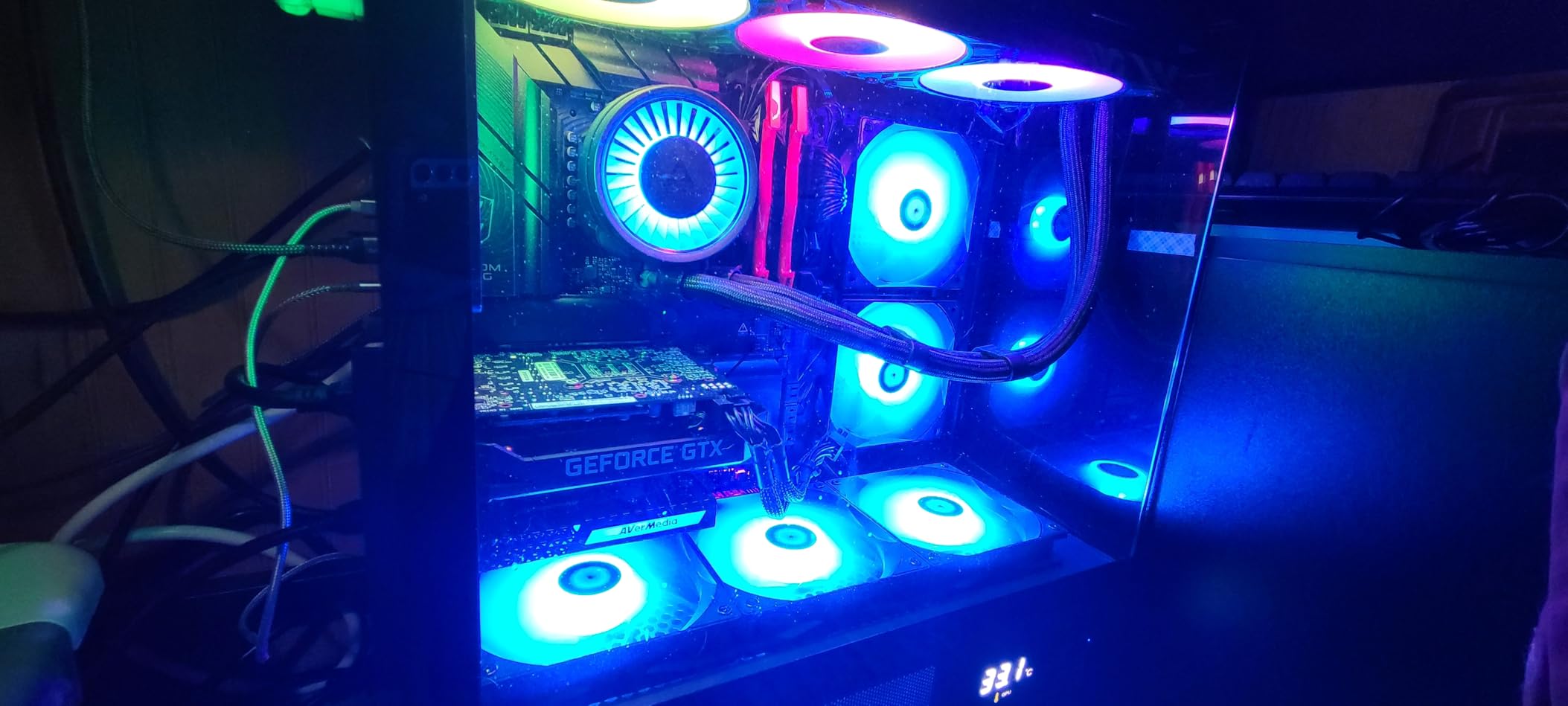
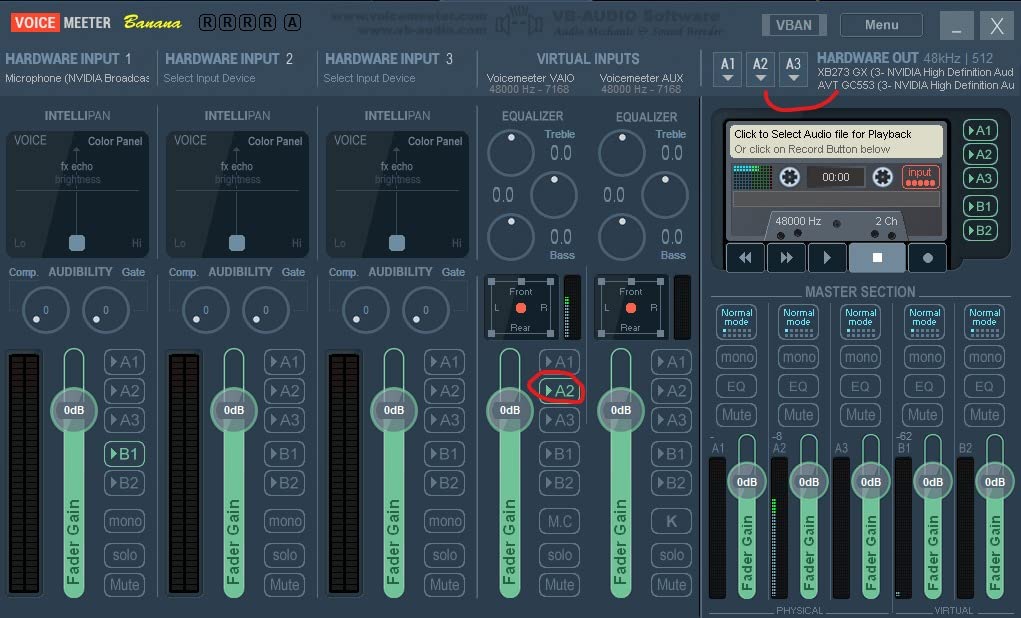
Two details matter before you commit. First, this is an HDMI 2.0 class card, so a console running 4K120 will not be detected, and if your plan involves 4K120 passthrough you need the Elgato 4K Pro instead. Second, you do need to grab a driver from AVerMedia before the first capture even though the card is UVC compliant, and the bundled RECentral utility is genuinely dated, so most people run OBS and ignore it.
A small number of owners report input capture freezing after a firmware update and needing to re-activate the card, so keep the AVerMedia utility around for recovery even if you do not use it for recording. The RGB lighting has three presets and that is all you get.
What you get with the GC573 that you do not get elsewhere
The reason this card wins on our list is not a single headline spec, it is the combination of an x4 interface, real 4K60 HDR10 capture, a 3 year manufacturer warranty and roughly a thousand owner reviews describing the same behaviour. That last point matters more than it sounds, because capture problems are usually software or firmware problems, and a large owner base means the fixes are already written down somewhere.
It also works with retro sources. Reviewers report reliable operation with the OSSC and RetroTink 5x, which is unusual for a card this new, and it handles high frame rate capture up to 1080p240 when your source can produce it.
When to skip the GC573
Skip it if your monitor or console runs 4K120 and you want that rate passed through untouched, since the HDMI 2.0 ceiling stops it. Skip it if your case is a compact small form factor build where a 5.9 inch card simply will not fit, and consider the smaller options further down. If you only capture at 1080p60, this is still a fine card, just an expensive one for the job.
2. DigitPro PCIe Video Capture Card – Budget Pick for Analog Tapes
PCIE Video Capture Card, HDMI Capture Card for Streaming, Gaming & Recording, HDMI Video Capture Board, Pass-Through with Ultra-Low Latency on Windows 8, 10, 11 & Linux
PCI Express x1
CVBS and S-video input
NTSC and PAL
1080p30 maximum
2 year warranty
Pros
- Driverless plug and play on Windows and Linux
- Very inexpensive way to digitize VHS Hi-8 MiniDV and S-VHS tapes
- Works with OBS and VLC out of the box
- Internal placement removes cable clutter
- Standard microphone level L/R audio input
Cons
- Not a true PCI capture chipset but a VIA USB hub with a MacroSilicon MS210x device
- Oversaturated and overbright video out of the box
- Picky about capture software and deinterlacing is poor
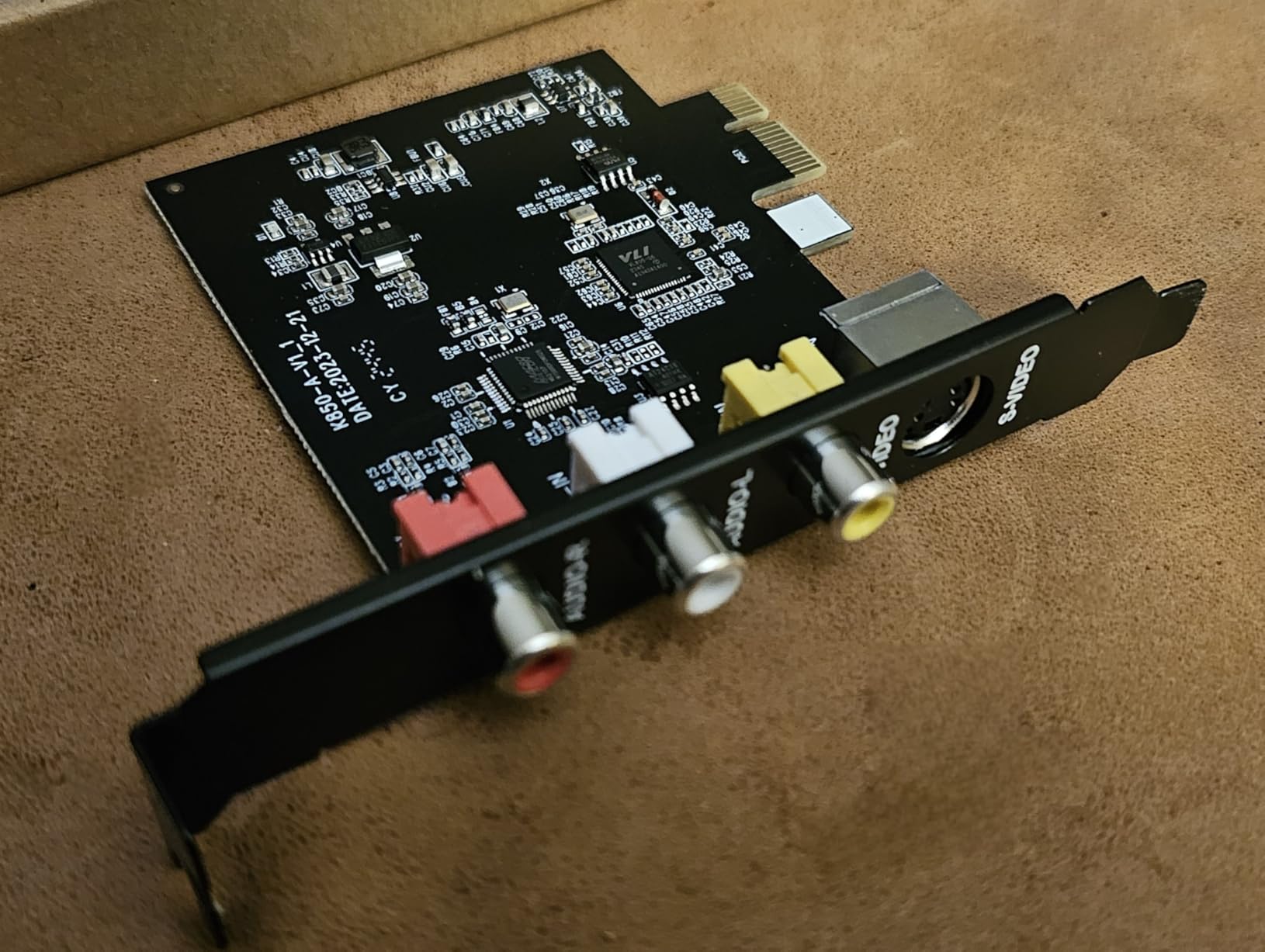
Be clear about what this card is. It is not a modern HDMI game capture device, it is an analog digitizer that lives inside your PC, and for the specific job of pulling VHS, Hi-8, MiniDV and S-VHS tapes into a file it does a genuinely useful job at a fraction of what a capture card normally costs. The maximum capture resolution is 1080p at 30Hz, delivered as MJPEG or YUV422, and the input side is composite or S-video with automatic NTSC and PAL recognition.
Installation is the easy part. It is a PCIe x1 card with no driver to install, and owners report it working with OBS on Windows 11 and with Linux Mint without special configuration, which is unusual in this category. The box contains an installation guide and nothing else, and the bracket is not included, so check whether your case needs a half height option before you commit.
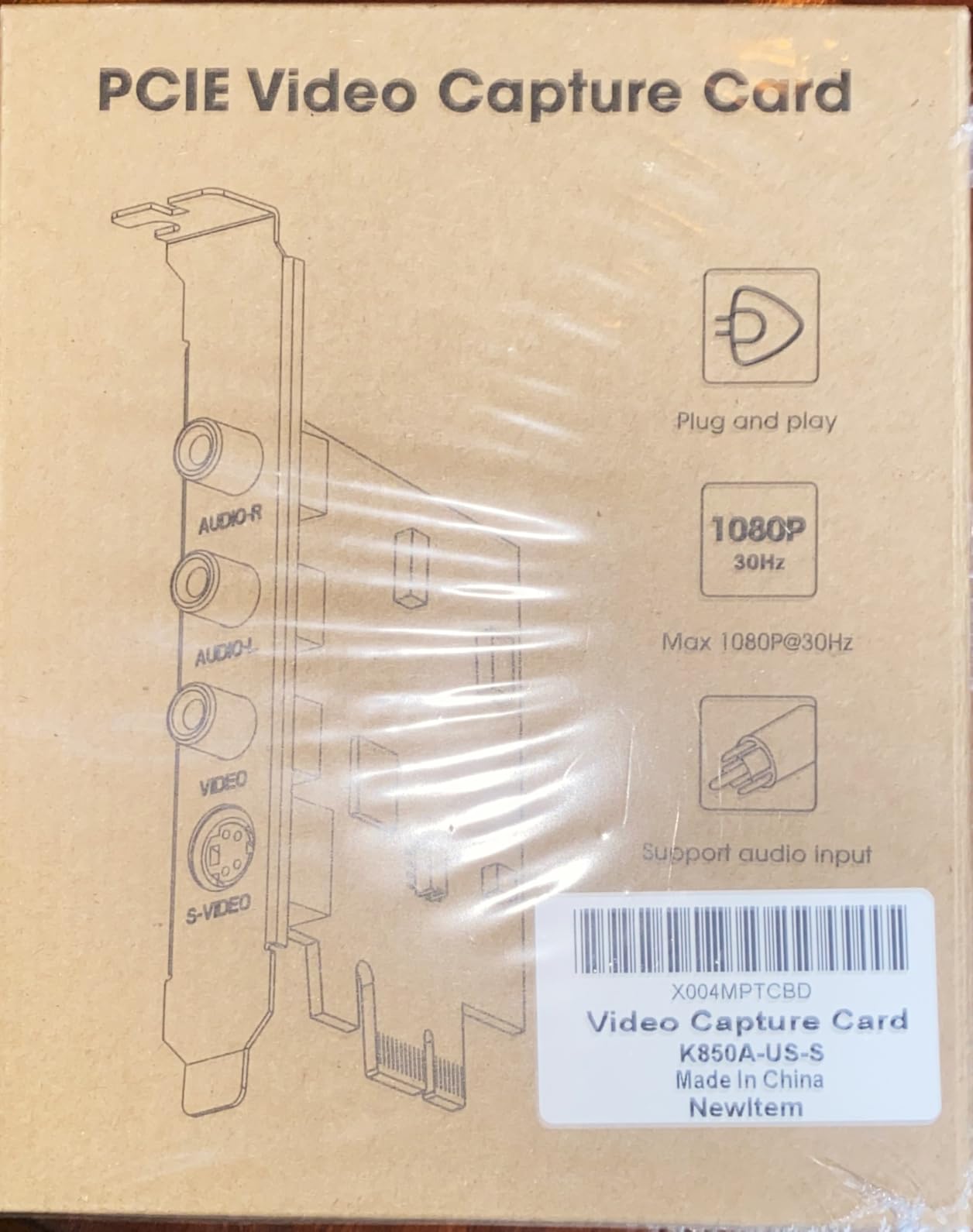
The compromises are real and you should read them before buying. The card is a VIA USB hub with a MacroSilicon MS210x device attached rather than a genuine PCI capture chipset, and the video comes out oversaturated and overbright until you correct it in software. It only outputs progressive video, deinterlacing interlaced sources is poor, and retro game sources show severe motion blur, which rules it out as a console or arcade card.
Software compatibility is inconsistent, with some buyers unable to get OBS or TVTime to lock onto the signal, and a few needing a separate device to capture audio on Linux. There is also a shutdown quirk: some systems will not power down cleanly unless ErP (S4 and S5) is switched on in the BIOS.
What this card is genuinely good at
Tape digitizing. If you have a shelf of camcorder tapes or an old VHS collection, this turns your PC into a capture rig without a separate box, a power supply and a USB port, and the driverless behaviour means a family member could plausibly do the work. The standard microphone level L and R audio input is described as reliable, which is the other half of any tape transfer.
It also suits anyone who wants to test whether they even enjoy digitizing before committing to a proper HDMI card. The internal placement keeps the back of the desk clean, which is a small but real benefit in a tidy build.
When to skip the DigitPro board
Skip it completely for console, PC or camera capture. The 1080p30 ceiling, the missing high frame rate modes and the weak deinterlacer make it the wrong tool for anything that moves fast on screen. If your goal is a stream or a video of gameplay, go straight to the 4K cards further down this list.
3. VIXLW K801-C 4K Internal Capture Card – Best Value for 4K60 Passthrough
4K Internal Capture Card, PCIe Capture Card, HDMI, 4K60 Passthrough, Ultra-Low Latency for Streaming & Recording, for PS4,PS5, Xbox, in OBS, YouTube, Single & Dual PC Setups, Black
4K60 passthrough
1080p240 capture
Near zero latency
Works in OBS
Black or carbon
Pros
- Recognised by Windows with no extra configuration
- Works cleanly with OBS for long recording sessions
- Holds up over long sessions without overheating
- Crisp stable capture with no audio sync drift
- Backed by a stated lifetime warranty with responsive support
Cons
- Driver and software guidance is unclear for less technical users
- Some Linux users needed a separate audio capture device
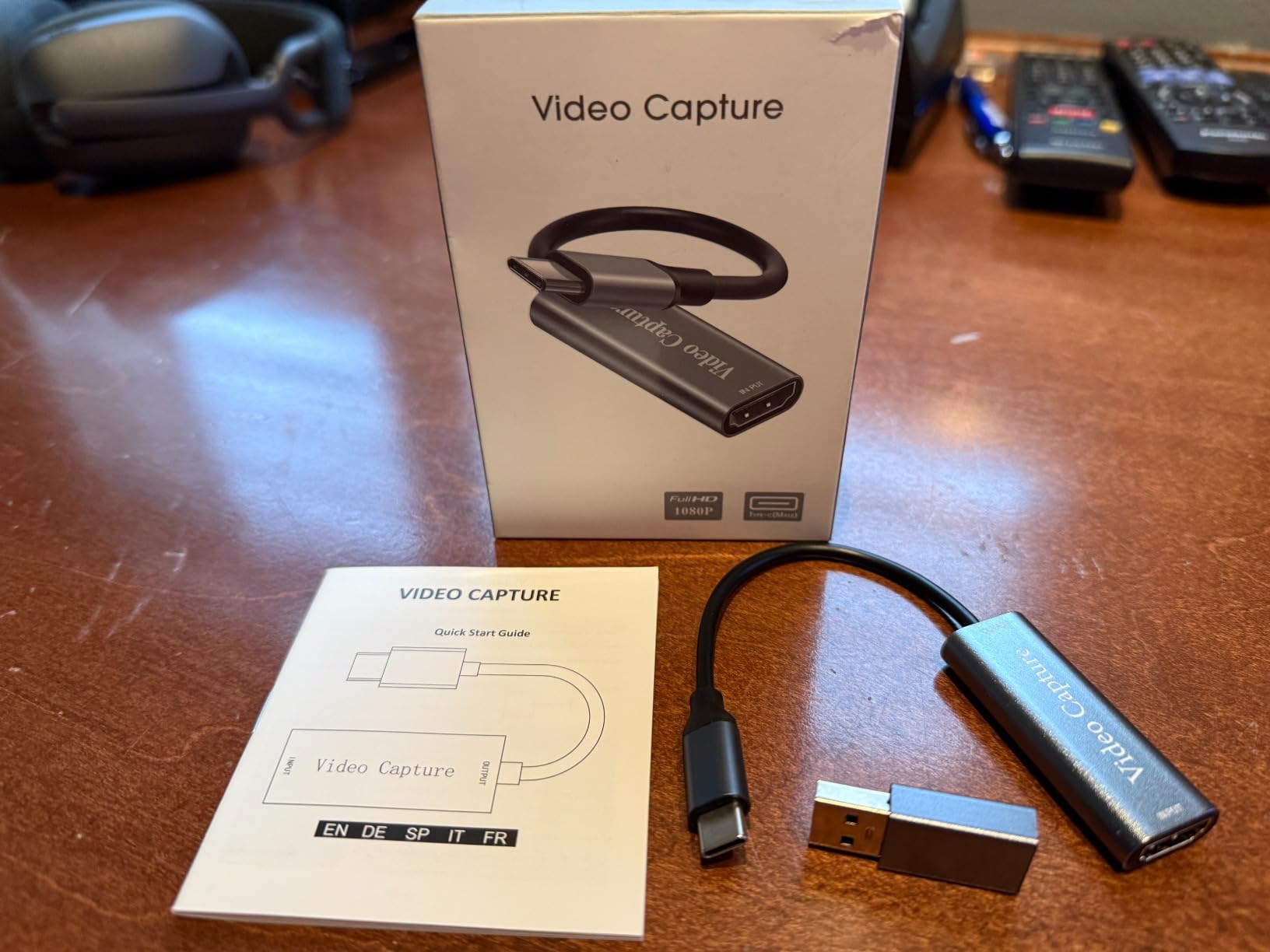
This is the card I recommend when someone wants 4K60 passthrough without stepping up to the Elgato tier. It passes the source through at 4K60 with near zero latency, records at up to 240fps at 1080p, and presents itself to Windows as a standard device that OBS picks up without extra configuration. Reviewers describe long capture sessions that stay stable with no dropouts and no audio sync problems, which is the single most important quality a capture card can have.
It also ranks in the top tier of its category for review volume, with more than six hundred ratings, and the manufacturer lists a lifetime warranty with 24 hour support. I do not treat a lifetime warranty as a deciding factor, but the support response does match what buyers describe.
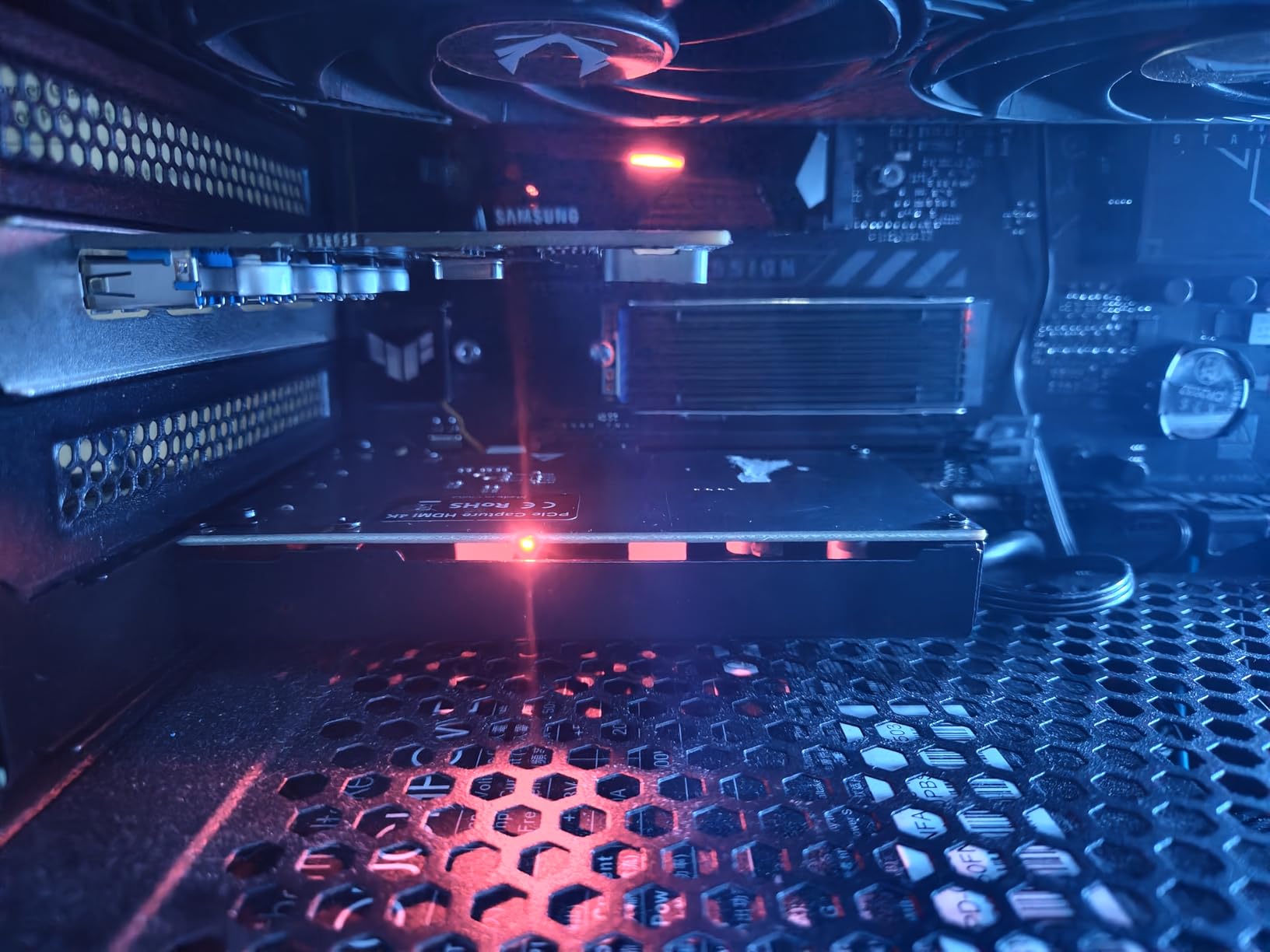
Where it needs care is the setup side. A small number of buyers found the driver and software guidance unclear if they are not already comfortable with capture software, and some Linux users needed a second device to bring audio into OBS. On Windows with OBS, the feedback is consistently that it just works, so this is primarily a caution for Linux users or first time streamers.
Available in black and carbon finishes, the card is sold for PS4, PS5, Xbox, single PC and dual PC setups and is described as working with OBS, YouTube, Zoom and Teams. It sits at number 14 in its internal capture category, which tells you how much traffic it sees.
Why this card is the value pick
The reason to take this over the GC573 is the price band, and the reason to take it over the cheapest HDMI board is that it does real 4K60 passthrough with a high frame rate capture mode. Reviewers consistently report plug and play behaviour, good image stability and clean long sessions, and none of the firmware freezing complaints that show up on older AVerMedia models.
For a dual PC rig, it fits neatly into the pattern where your gaming PC HDMI out feeds this card, the card passes through to your monitor and OBS on the same machine grabs the capture feed.
When to skip the VIXLW K801-C
Skip it if you need documented local recording to a microSD card, because this card sends everything to the host PC and stores nothing on itself. Skip it if you are on Linux and need HDMI audio in OBS, since a few buyers had to add a separate audio device. And skip it if you need VRR passthrough, which this card does not claim.
4. Elgato Game Capture 4K Pro – Best HDMI 2.1 and 8K60 Passthrough
Elgato 4K Pro Internal Capture Card, 8K60 Passthrough
8K60 passthrough
HDMI 2.1 in and out
4K60 HDR10 capture
Up to 1080p240
VRR passthrough
Pros
- 8K60 passthrough lets you play at 8K while capturing in 4K60
- HDMI 2.1 bandwidth supports capture up to 1080p240
- VRR passthrough removes screen tearing during play
- Works with OBS Streamlabs Twitch Studio Zoom and Teams
Cons
- The most expensive PCIe capture card in this guide
- Warranty terms are not listed in the product details
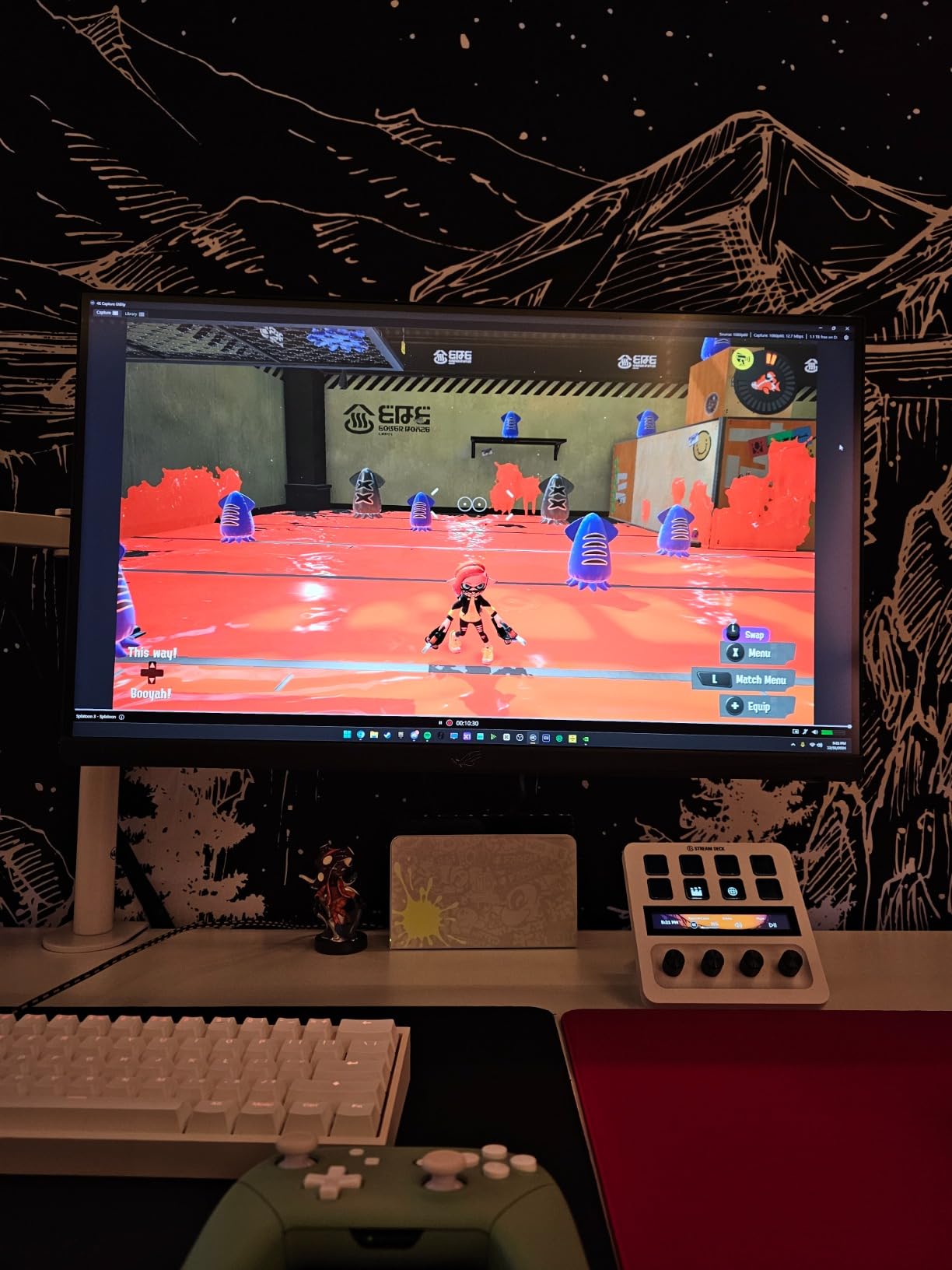
This is the only card here that passes through 8K60 while capturing 4K60, and the only one with real HDMI 2.1 bandwidth, which is why it takes the highest rating in the group at 4.5 stars. It is also the only card on this list with documented VRR passthrough, and if you game on a variable refresh rate monitor and care about screen tearing, that alone justifies it.
Physically it is compact, at 2.2 by 4.76 by 0.75 inches and 110g, which makes it far easier to fit than the AVerMedia cards. It is built for a dual PC setup and works with the full range of streaming software, including OBS, Streamlabs, Twitch Studio, Restream, Zoom and Teams.
Let us be honest about the trade. Reviewers rate the card very highly, with 78 percent of ratings at five stars, and the one reservation that comes up repeatedly is the price tier relative to other internal cards. Warranty terms are not listed in the product details, so if support matters to you, confirm that before you buy rather than assuming it matches the AVerMedia cards.
One data point worth knowing: the listed video capture resolution field says 1080p while the item highlight and feature set both state 4K60 HDR10 capture with up to 1080p240. Treat the feature set and highlight as the accurate description, which is how owners report using it.
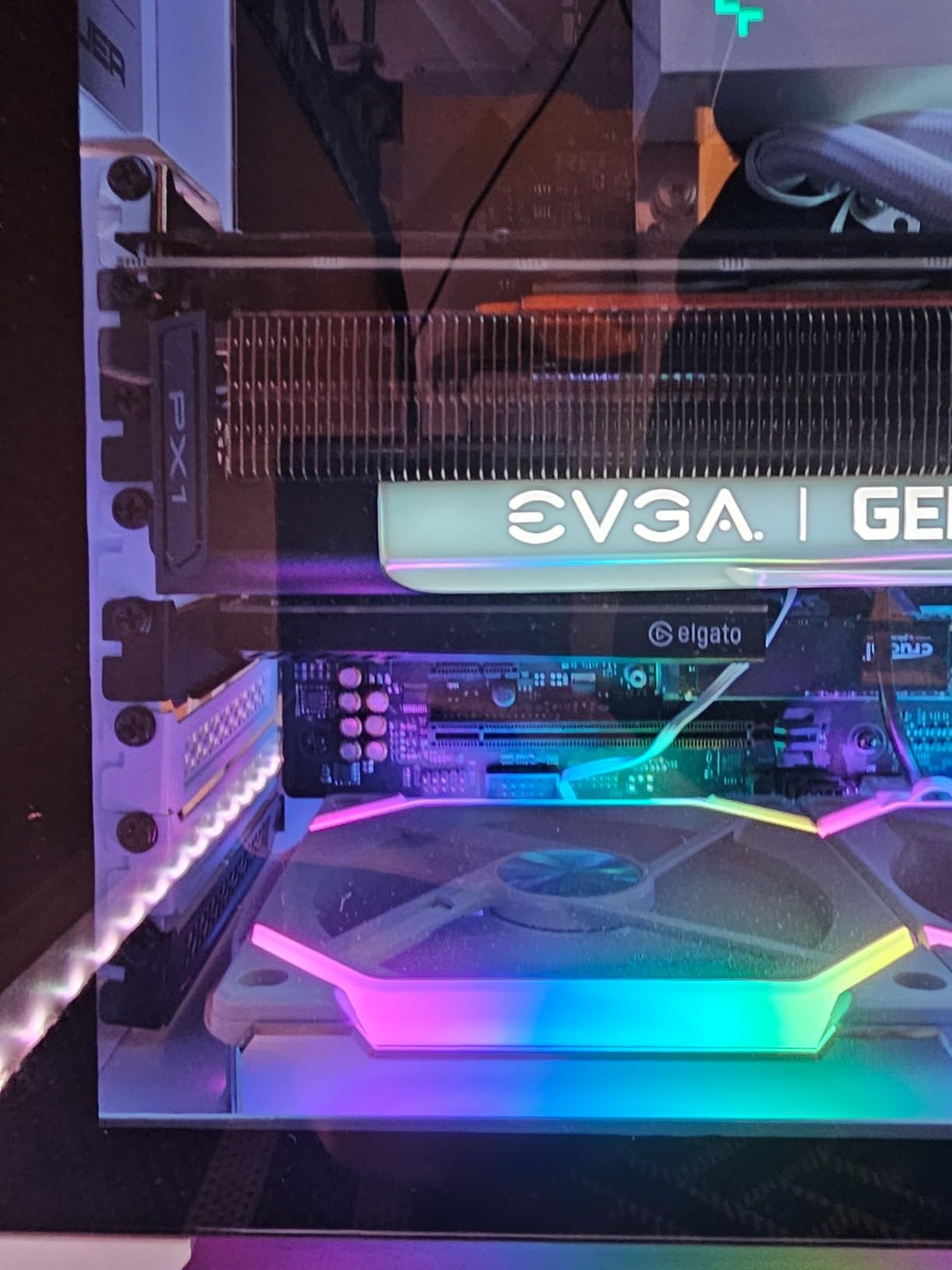
When the Elgato 4K Pro earns its cost
It earns its cost when your source can push more than 4K60, when you want HDR and VRR both intact on the desktop, or when you record 4K video for a channel rather than simply streaming. The 8K60 passthrough means a future console or PC upgrade does not immediately outgrow the card, which is a different kind of value from a discount on day one.
It is also the safest recommendation for someone who does not want to think about HDMI generations again for several years. A single HDMI 2.1 pipeline handles the high frame rate capture modes and the high refresh passthrough without compromise.
When to skip the Elgato 4K Pro
Skip it if you only ever capture 1080p60, because nothing in the image quality will change and you will be paying for capability you never touch. Skip it if you build in a small form factor case without a full height slot. And skip it if your budget is the deciding factor, since the value picks on this list deliver 4K60 passthrough for considerably less.
5. AVerMedia Live Gamer HD 2 GC570 – Best for Multiple Analog Audio Inputs
AVerMedia Live Gamer HD 2 – PCIe Internal Game Capture Card, HDMI and 3.5 mm, PassThrough, Ultra Low Latency,1080p60 Uncompressed Streaming Technology for PS4, Xbox, Switch Live Gamer – (GC570)
PCI Express x4
Uncompressed 1080p60
Zero lag passthrough
3.5mm L and R audio inputs
0.15 kg
Pros
- Genuinely zero input lag in passthrough
- True uncompressed 1080p60 with no compression artifacts
- Driver-free and works with Streamlabs and OBS
- Multiple 3.5mm L/R audio inputs for mixer sources
- Metal shroud acts as a heatsink during long streams
Cons
- OBS does not carry HDMI audio and the RECentral utility is required
- RECentral 4 interface is cluttered and screen hungry
- Some users report breakage or no signal after the Windows 11 24H2 update
This is an older design and it behaves like one in a specific, useful way. It captures true uncompressed 1080p60 over PCIe x4 with no visible compression artefacts, and the multiple 3.5mm L and R audio inputs let you feed audio from a mixer or a second analog source alongside the HDMI, which no other card in this guide offers. YUY2 colour space support is reported as producing sharper image and better contrast.
The metal shroud doubles as a heatsink, which is why owners running multi hour streams do not report thermal trouble, and the passthrough lag is described as genuinely imperceptible in fast paced games. It is driver free and works with Streamlabs and OBS out of the box, and multiple cards can be used in one system.
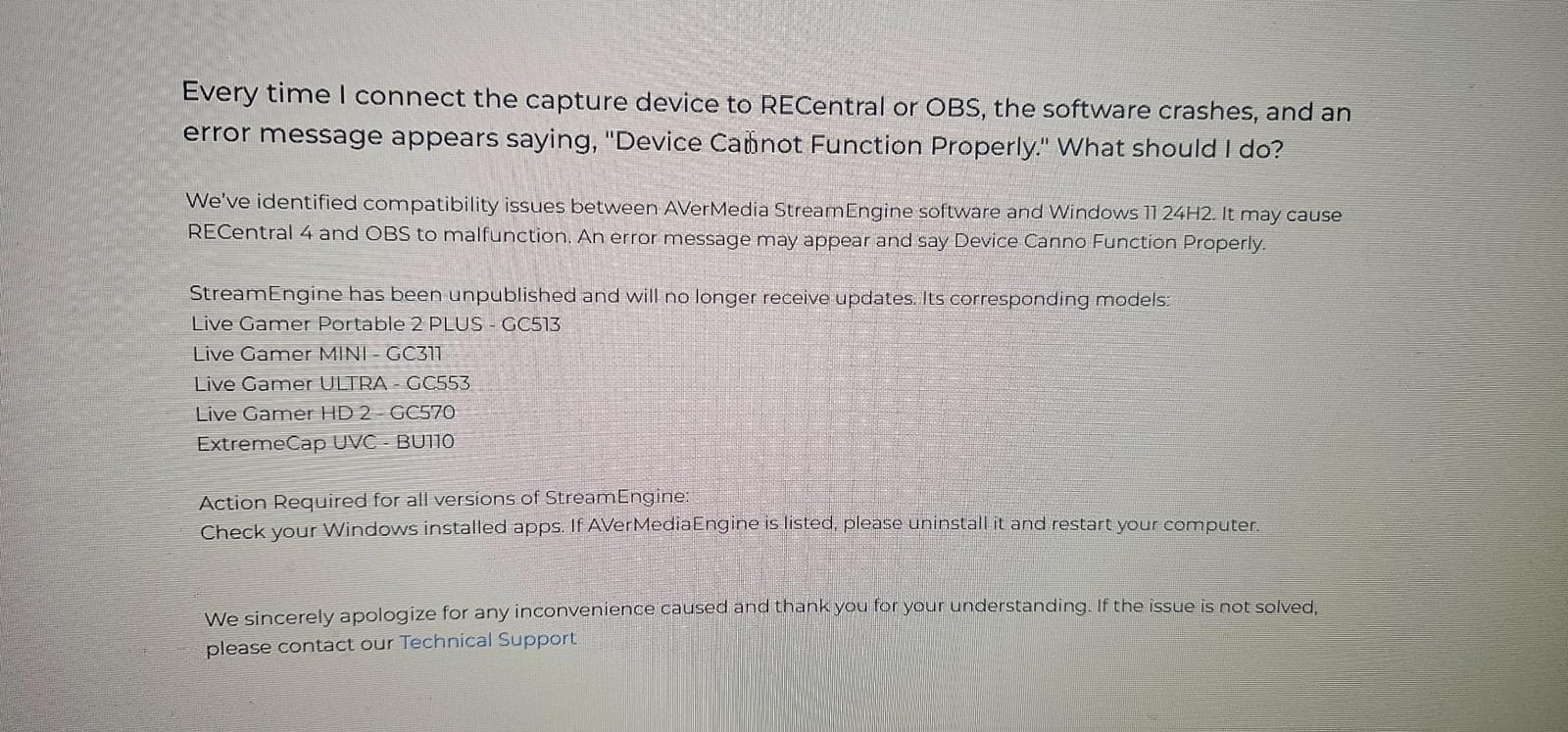
Now the warnings, because they are significant. OBS does not capture HDMI audio from this card, so you are dependent on the bundled AVerMedia RECentral software for audio, and owners describe that interface as cluttered and space hungry. Some users have to unplug and replug the source cable roughly weekly to resume working, and there are several reports of breakage or loss of signal after upgrading to Windows 11 24H2.
It also does not function on Linux, where the device reportedly resets constantly, and a few buyers feel a card of this age should be judged against a cheap external device. At 4.1 stars across 309 reviews it sits in the lower tier of this group for good reason.
Who should still consider the GC570
Anyone whose audio comes from analog sources rather than HDMI. If you run a mixer, a second PC with a line out, or a console with separate analog out, the multiple L and R inputs solve a routing problem that HDMI audio return cannot. It is also a proven choice for retro consoles and for anyone who wants uncompressed 1080p60 with no chroma subsampling compromises.
It suits long streaming sessions where the metal shroud keeps things cool and where 1080p60 is exactly the delivery resolution you need.
When to skip the GC570
Skip it if you run Windows 11 24H2 and cannot accept the compatibility risk, and skip it if you are on Linux, where it does not work properly. If audio over HDMI matters, note the RECentral dependency. And if you want 4K capture of any kind, this card tops out at 1080p.
6. AVerMedia Live Gamer Duo GC570D – Two HDMI Sources in One Slot
AVerMedia Live Gamer Duo. Dual HDMI 1080p PCIe Video Capture Card, Stream with 4k60 HDR and FHD 240fps Pass-Through, Work with DSLR, Xbox Series x/s, PS5, Nintendo Switch, Windows 11 (GC570D)
PCI Express x4
Dual HDMI inputs one slot
4K60 HDR passthrough
Onboard HDR to SDR
3 year warranty
Pros
- Two independent HDMI inputs in a single PCIe slot
- Onboard HDR to SDR tone mapping downscale and frame rate conversion
- Zero lag passthrough at up to 4K60 HDR or FHD 240fps
- Simultaneous uncompressed 1080p60 recording from both inputs
Cons
- Capture tops out at 1080p60 rather than 4K60
- Large 9 x 8 x 3 inch package needs a roomy case
The Duo exists to solve a specific problem: you want two angles from one PCIe slot. It has two independent HDMI inputs in a single x4 slot, so you can put a console on one and a DSLR or mirrorless camera on the other and record both simultaneously in uncompressed 1080p60. For a creator who wants a console feed plus a face or overhead camera, that is genuinely useful and no other card here does it.
The second thing it does well is onboard processing before the signal reaches the PC. It tone maps HDR to SDR, downscales 4K to 1080p and converts frame rate to 60fps, while leaving the passthrough signal untouched, so you can game at 4K60 HDR and stream clean 1080p60 SDR without exporting a filter chain.
Passthrough runs at up to 4K60 HDR or FHD 240fps with zero lag, it works with RECentral 4, Streamlabs, OBS, vMix and XSplit Broadcaster, and it carries a 3 year manufacturer warranty.
Why the onboard processing is the real feature
Most people who buy a 4K capture card end up streaming at 1080p60 anyway, and then spend time building a tone mapping filter in OBS. The Duo does the conversion in hardware before encoding, which saves CPU and removes a class of colour mismatch problems, and it does so without touching the passthrough your monitor sees.
Two simultaneous 1080p60 feeds also open up picture in picture layouts and picture in picture streams that a single input card cannot produce.
When to skip the Duo
Skip it if you need 4K60 recording files, because capture is 1080p60 only and the 4K capability applies to passthrough. Skip it if your case is tight, since the package measures 9 by 8 by 3 inches. And if you only ever capture one source, you are paying for a second input you will never touch, in which case the GC573 is the smarter spend.
7. MYPIN PCIe Game Capture Card – Best for Low-Profile Builds
Game Capture Card, HDMI PCI-E 4K 30fps Record
PCI Express x1
4K30 HDMI capture
YUY2 RGB and NV12 output
Zero delay loop-out
Low profile bracket
Pros
- Genuinely plug and play in a PCIe x1 slot
- Zero delay HDMI loop-out keeps gameplay responsive
- Appears as a UVC device for OBS vMix PotPlayer and VLC
- Works on Windows and Linux
- Low profile bracket included in the box
Cons
- Reports of capture stopping after a month with a connect error
- Metal shroud can foul a GPU fan in tight builds
- I/O panel screws not included
This is the card to look at when your case is the constraint. It is a PCIe x1 card that ships with a low profile bracket, and it fits x1, x4, x8 and x16 slots, so it will go into a machine where a full height x4 card never would. The included bracket matters more than it sounds, because half height brackets are frequently sold separately and buyers are caught out by that constantly.
It captures a single HDMI signal at 4K30, outputs YUY2, RGB and NV12, and the zero delay HDMI loop-out keeps your gameplay responsive on the main display. It needs no driver, presents itself as a UVC device, and works with OBS, vMix, PotPlayer and VLC on Windows and Linux, which owners specifically praise.
What to watch with this card
Durability is the dividing line in the reviews. Several owners report capture randomly stopping after about a month, with a connect error on screen while passthrough still works, and one unit failed after only 48 hours of recording. That is enough uncertainty that I would not build a production streaming rig on it, but for testing, for a second machine or for occasional console capture it is a reasonable tool.
Also note the metal shroud can foul a GPU fan in tight builds, the I/O panel screws are not included, and a few buyers see occasional flicker between loading screens. Customer support and the FAQ content are described as unhelpful, so do your research before buying rather than after.
When to skip the MYPIN card
Skip it if your stream depends on it running for months, because the failure reports cluster in that window. Skip it if you need 4K60 or high frame rate capture, since it tops out at 4K30. And if you have a full height slot and a normal sized card, a more robust 4K card is the better long term purchase.
Internal vs. External Capture Cards: What Actually Changes
Internal capture cards are better when you want maximum bandwidth, zero passthrough lag and no desk clutter. External USB cards are better when you want portability, a lower entry point and a laptop. The real difference is not image quality at 1080p60, where both are fine, it is headroom at high resolutions and how much delay sits between your input and your monitor.
The video path over PCIe is the core of the argument. A USB 3.0 connection is a shared bus with a fixed ceiling, and when you ask it for 4K60 or a high frame rate it has less room to work, which is where compression artefacts and the occasional dropped frame come from. A PCIe card is sitting on the same internal bus as your storage, so the headroom is a different order of magnitude.
Passthrough is the second difference, and it is the one you feel in a game. An internal card passes the signal straight through to your monitor with effectively no added delay, so input lag feels unchanged. Several external options add a measurable amount of lag, and forum threads on the topic of internal versus external capture cards keep coming back to exactly this point.
The third difference is practical. An internal card needs a free PCIe slot, a compatible bracket and a desktop case, which rules out laptops entirely, and the card disappears inside the machine so there is no box to sit next to the keyboard. A second PCIe card under a large GPU is not always possible, so check the physical fit before you buy, not after.
Internal cards are not automatically better. If you game and stream on the same machine, or you need to move your setup between a desktop and a laptop, a USB card is the more sensible purchase.
Do You Even Need an Internal Capture Card?
Most single PC streamers do not need one. If you game and stream on the same PC, OBS Game Capture or a hardware encoder already does the job without adding a card, a second cable or a second machine. An internal capture card earns its place when something else is generating the picture.
You genuinely want one if you run a dual PC streaming setup, where a gaming PC feeds a separate streaming PC and the streaming PC has a spare PCIe slot. You want one if you stream a console from a desktop streaming PC, and you want one if you record high refresh 4K or 1440p footage for video rather than live streaming.
You do not want one if you game on a laptop, because there is no slot to put it in. You do not want one if your only source is the PC you are streaming from, and you probably do not want one if you are still deciding whether you will stream at all.
On the question of frames: a capture card does not raise your FPS and it does not make your games run faster. It only removes the load of encoding from your gaming machine when you use a separate streaming PC. Forum users do report that software screen capture causes micro stutters and throttling on some systems, which is a real reason to use a card, but that is a case against encoding on the gaming PC, not a case for higher frames.
One honest alternative worth knowing: a standalone recorder that writes to microSD does the capture without a PC at all. If you want local recording of console footage and do not want a streaming PC, a standalone recorder may be all you need, and you can see how those compare in our full capture card roundup.
Compatibility Checklist: Will This Card Fit Your PC?
Most internal capture card returns are fit problems rather than signal problems, so work through these four checks before you order anything.
1. Do you have a free slot? Count the physical x16 and x1 slots on your motherboard, then look at your graphics card. A card that is two slots or three slots thick will block the slot or two beneath it, which is the most common reason an internal capture card cannot be fitted at all.
2. Does the lane width match? A card rated for PCIe x4 needs a slot with at least x4 lanes, though it will physically fit and function in a longer slot. The x1 cards on this list work in x1, x4, x8 and x16 slots, which makes them far easier to place. Generation matters much less than people expect: a Gen 3 x4 link carries more bandwidth than any of these capture rates require, so do not pay a premium for Gen 4 on spec sheets alone.
3. Is the bracket the right height? Full height cards will not fit in a small form factor case, and half height cards need the correct bracket. Check whether the bracket is included, because the DigitPro board and the MYPIN card differ here and several cards in this category ship without screws.
4. Is there clearance for the card body and the GPU? Card bodies vary from 2.2 inches on the Elgato 4K Pro to nearly 6 inches on the AVerMedia GC573, and a long card can foul a GPU fan in a compact build. Measure the gap between the GPU and the case panel, not just the slot layout.
Also confirm the operating system, since several cards here list Windows 10 or Windows 11 only and one has reported problems after the Windows 11 24H2 update. If you are building a small machine, our mini gaming PC guide covers the case size question in more detail.
How to Install an Internal Capture Card and Set It Up in OBS
Installing an internal capture card is a ten minute job if your case has a free slot, and the OBS side takes another ten. Here is the order that works.
1. Power down and open the case. Switch the PC off at the wall, hold the power button to drain residual power, then remove the side panel. Fit the card in the free slot and secure it with the bracket screw. If the card came with a full height bracket and your case is low profile, swap the bracket before you slide it in.
2. Wire the cables. Source HDMI out goes into the card HDMI IN. A second HDMI cable runs from the card HDMI OUT to your monitor, which is the passthrough path and is what removes the lag. If the card has analog audio inputs, connect those too, and this is the moment to do it rather than later.
3. Boot Windows and check the device appears. Power on, then open Device Manager and confirm the card shows under Cameras, Sound video and game controllers or as a UVC device. A clean UVC card should enumerate with no driver install. The GC573 is the exception here and needs its driver downloaded first.
4. Add it to OBS as a Video Capture Device. In OBS, open Sources, choose Video Capture Device, and pick the capture card from the device list. The difference between the two source types matters: Video Capture Device goes through the card and is what you want when a second machine or a console is feeding you. Game Capture records your own screen directly and is the right choice when you are streaming from the same PC you are playing on, with no card involved.
5. Add the audio, and this is the step everyone misses. Video Capture Device will not always bring HDMI audio with it. Open Audio Mixer in OBS, click the gear icon beside your source and choose Audio Input Capture, then select the card audio as the input device. This is the standard fix for the most common beginner complaint about internal cards, and it works far more reliably than trusting HDMI audio return.
Once it is running, set the output resolution to match what you actually stream at rather than what the source sends, and if you plan to record 4K files while streaming 1080p, that is where a second recording pass in OBS or the vendor utility earns its keep.
Troubleshooting Internal Capture Cards
Almost every internal capture card problem is one of five things, and all five are fixable without buying new hardware.
Black screen in OBS. Check the resolution and frame rate dropdowns first, because they often revert to a mode the source is not sending. Then confirm the passthrough path is live on your monitor, since a working passthrough but black OBS capture means the card is fine and the software side is wrong. If your monitor is HDR and the card cannot pass HDR through, you get an SDR image at best, which reads as a black or badly washed out preview.
The card does not appear in the device dropdown. Restart OBS after the boot rather than before, check Device Manager for an unknown device with a warning symbol, and confirm you installed into a slot that is actually wired to the chipset you think it is. A second slot fed by a chipset that your board does not route properly is a known cause. For the GC573 specifically, install the driver before the first capture.
No audio in OBS. Add an Audio Input Capture source as described above instead of relying on the HDMI source to carry audio. If you are on the GC570, be aware that the bundled RECentral software is the intended route for audio on that card. If you are on Linux, several owners report needing a separate audio device entirely.
HDR and SDR mismatch. When the card cannot pass HDR through and your monitor is HDR enabled, the output is tone mapped and can look flat or washed out. The fix is to disable HDR on the display for the capture path, or to use a card with true HDR passthrough, and on the Duo the onboard HDR to SDR conversion does this in hardware before encoding.
Dropped frames and encoding overload. Capture and encode are separate problems. Dropped frames during recording usually mean the disk cannot absorb the bitrate or the encoder is set to software, so switch the OBS encoder to NVENC or AMF, drop the recording bitrate, and check that your recording drive is not the same heavily loaded drive as your game. Streamlabs users report the same behaviour and the same fix.
How to Choose an Internal Capture Card
Decide by source and by slot before you decide by brand, because those two answers eliminate most of the list instantly.
Elgato vs AVerMedia head to head
Elgato owns the high end of the internal category with the 4K Pro, and its advantages are specific: 8K60 passthrough, real HDMI 2.1 bandwidth, 1080p240 capture and VRR passthrough. It is also the most expensive card here, and warranty terms are not listed in the product details, so confirm support before buying.
AVerMedia owns the breadth. The GC573 gives 4K60 HDR10 capture and 1080p240 with a 3 year warranty and far more owner feedback, the GC570 adds multiple analog audio inputs, and the GC570D adds a second HDMI input with onboard HDR to SDR conversion. If you want the widest set of capabilities per card, AVerMedia is the brand to shop. If you want the highest refresh ceiling and the cleanest gaming experience on a modern display, Elgato is the one.
The five things that actually matter
1. Match the passthrough ceiling to your monitor. There is no point buying a card for 8K60 passthrough if you run a 1440p display, and there is no point buying an HDMI 2.0 class card if you plan to run a console at 4K120.
2. Check lane width and slot availability. x1 cards are easier to place, x4 cards are better supplied for high rate capture, and a blocked slot ends the discussion entirely.
3. Treat warranty and support as a real criterion. Capture cards do need firmware attention, and a stated lifetime warranty with responsive support is worth something in this category.
4. Verify the audio path. Read whether the card carries HDMI audio into OBS or whether you need an Audio Input Capture source, a vendor utility, or analog inputs.
5. Ignore features you will not use. RGB lighting, channel editing and multi app claims do not affect stream quality, and they are the first things on the marketing sheet.
Console and camera compatibility
All the HDMI cards here work with modern consoles, and the GC573 is listed for PS5, Xbox Series X and S, Xbox One X and PS4 Pro, while the VIXLW K801-C is sold for PS4, PS5 and Xbox in both single PC and dual PC setups. The GC570 is listed for PS4, Xbox One, Xbox 360, Wii U, Nintendo Switch, HD cameras and PC. Our PS5 capture card guide covers console side details in more depth.
For a full PC build, the internal NVMe SSD roundup is worth a look too, since a fast internal drive is what makes simultaneous 4K recording and streaming painless.
Frequently Asked Questions
Are internal capture cards better than external USB ones?
Internal capture cards are better for bandwidth, passthrough lag and desk tidiness because the video path runs over PCIe instead of a shared USB bus. External cards are better for portability, lower cost and laptop use. At 1080p60 the image quality difference is small; at 4K60 and high frame rates the internal card has far more headroom.
Is Elgato or AVerMedia better for an internal capture card?
Elgato leads on refresh ceiling, with 8K60 passthrough, HDMI 2.1 bandwidth, 1080p240 capture and VRR passthrough on the Game Capture 4K Pro. AVerMedia leads on breadth and warranty, with 4K60 HDR10 capture and 1080p240 on the GC573, analog audio inputs on the GC570, and dual HDMI inputs with onboard HDR to SDR conversion on the GC570D.
Do gaming PCs have a built-in capture card?
No. A gaming PC can record its own screen through software such as OBS Game Capture or a hardware encoder, but that is not the same as a capture card. A capture card needs a separate source, such as a console or a second PC, connected by HDMI, and internal cards need a free PCIe slot, so they cannot be used in a laptop.
Does a capture card reduce lag or improve my FPS?
Neither, in the way most people expect. A capture card does not raise your frame rate. What it does is move the encoding load off your gaming PC when you stream from a separate streaming PC, which removes the micro stutters and throttling that some users see with software screen capture.
Why does my internal capture card not show up in OBS?
Usually the device has not been added as a source, or it enumerated after OBS started. Restart OBS, open Sources and choose Video Capture Device, then select the card from the device list. If it is still missing, check Device Manager for an unknown device, confirm the slot is properly wired, and install the driver if the card requires one.
Do internal capture cards work with a PS5, Xbox Series X and Switch?
Yes. The HDMI cards in this guide are sold for PS4, PS5, Xbox and Switch sources, and the AVerMedia GC573 is listed for PS5, Xbox Series X and S, Xbox One X and PS4 Pro. Note that HDMI 2.0 class cards will not accept a console running 4K120, so check the passthrough ceiling if you plan to use that mode.
Final Verdict for 2026
The AVerMedia Live Gamer 4K GC573 is the best internal capture card for gaming PCs in 2026. It captures 4K60 HDR10, handles up to 1080p240, passes through with effectively no lag, carries a 3 year warranty, and has more owner feedback behind it than any other card in this guide.
Step up to the Elgato Game Capture 4K Pro if you need 8K60 passthrough, HDMI 2.1 and VRR, and look at the VIXLW K801-C if you want 4K60 passthrough without the premium. Before you order any of them, count your free PCIe slots and check the bracket height, because that is the only part of this decision you cannot fix later.