
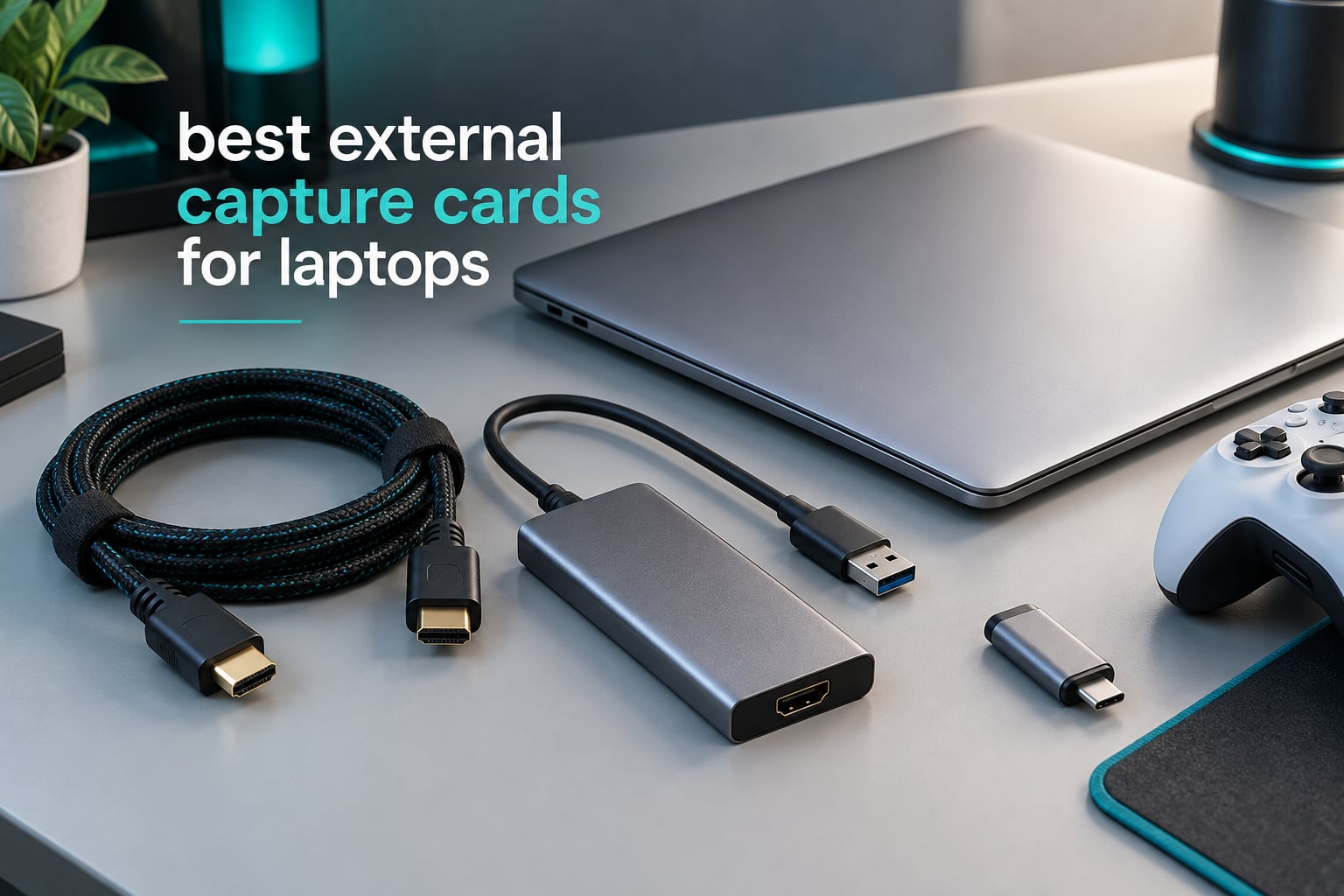
A capture card is the simplest way to turn a laptop into a recording and streaming rig, but only if you buy the right kind. A desktop has empty PCIe slots. A laptop has none, so the entire best external capture cards for laptops category narrows to USB devices that sit between your console, camera or second PC and your machine.
That constraint changes everything. Bandwidth is capped at the USB 3.0 link, the connection is often USB-C on a machine with two such ports, and one of the biggest traps in this category is that a card advertising 4K is very often only describing its HDMI input. I have read every spec sheet, rating and review theme behind the ten cards below so you do not have to.
One honest note first. A capture card removes the screen-recording tax on a thin laptop, because the encoding work happens on the card rather than in your CPU. It does not make a slow machine fast. If you are trying to fix choppy frame rates, a capture card is the wrong purchase and I explain why further down.
Table of Contents
Top 3 Picks: External Capture Cards for Laptops in 2026



Our wider guides cover the capture cards for streaming and recording in general and cards built for the PS5 specifically. This list is filtered down to what actually works when the host machine is a laptop.
Best External Capture Cards for Laptops (September 2026)
| Product | Specifications | Action |
|---|---|---|
| Guermok Capture Card |
|
Check Latest Price |
 VIXLW Capture Card VIXLW Capture Card |
|
Check Latest Price |
 Papeaso USB-C Card Papeaso USB-C Card |
|
Check Latest Price |
 XIIXMASK USB 3.0 XIIXMASK USB 3.0 |
|
Check Latest Price |
 Audio Express AXHDCAP Audio Express AXHDCAP |
|
Check Latest Price |
 Dcyfol 4K Card Dcyfol 4K Card |
|
Check Latest Price |
| Elgato 4K S |
|
Check Latest Price |
| UGREEN 2K Card |
|
Check Latest Price |
 PDAPTMAG 1080p60 PDAPTMAG 1080p60 |
|
Check Latest Price |
 Hagibis 100W PD Cable Hagibis 100W PD Cable |
|
Check Latest Price |
1. Guermok Capture Card – The All-Rounder With the Most Reviews
Guermok Video Capture Card, 4K USB3.0 HDMI to USB C, 1080P 60FPS & 2K 30FPS
1080p60 over USB 3.0
4K@30Hz HDMI input
USB-A and USB-C on one unit
30 g aluminium body
Pros
- Widest source list
- including Switch 2 Quest 3 PS5 Xbox and DSLR
- Metal housing sheds heat during long sessions
- Enumerates as UVC with no driver install
- Dual USB-C and USB-A covers modern and older laptops
Cons
- One-way signal only with no HDMI return
- Adapter sometimes negotiates a slower USB 2.0 link
- OBS needs a restart after audio setup
This is the card I keep coming back to for laptop work. With 3632 reviews behind it, there is more real-world evidence here than anywhere else in the group, and the 4.4 average holds up when you read the complaints.
It captures 1080p60 over USB 3.0 and accepts HDMI input up to 4K at 30Hz. The body is a 7.48 x 0.98 x 0.39 inch aluminium stick that weighs 30 g, so it disappears into a laptop bag.
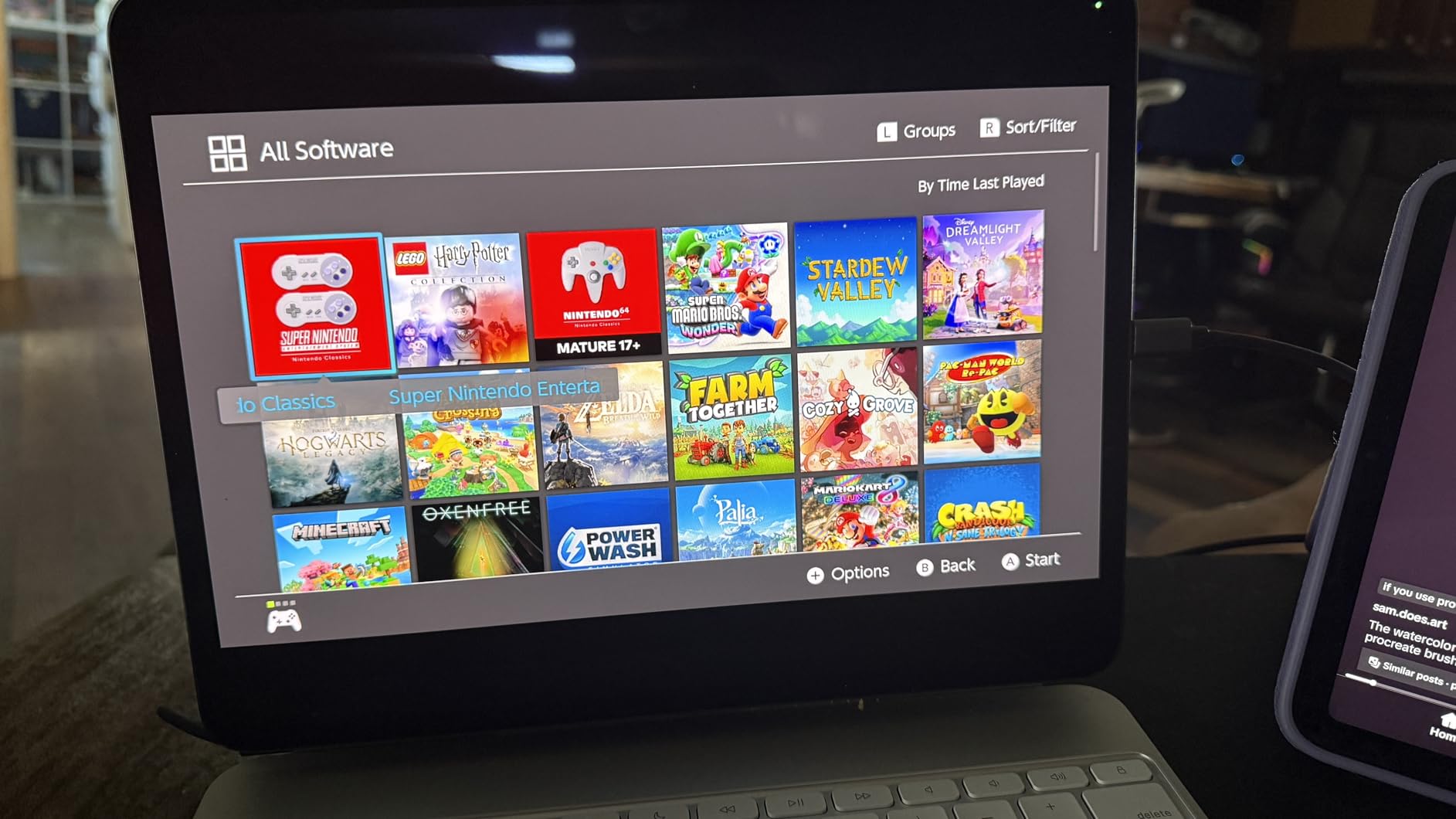
The catch is that it is one-way. There is no HDMI out, so you cannot play on a local screen while recording. If your workflow needs that, the VIXLW or XIIXMASK below will suit you better.
Reviewers also flag that the included adapter can be negotiated as USB 2.0, which quietly caps your output, and that OBS Studio must be restarted after you change the audio source. Both are configuration issues rather than hardware faults.

Check this before you buy
It lists Mac OS, Windows 10 and Windows 11 as supported, and the box includes a USB 3.0 to USB-C adapter plus the card. Confirm your laptop has a genuine USB 3.0 port, not just a USB-C port that runs at 5 Gbps in name only.
Where it falls short
Reviewers report heat after long unattended sessions, needing a reconnect after the laptop wakes from sleep, and confusion around that adapter negotiation. If you stream overnight unattended, keep an eye on the first hour.
2. VIXLW Capture Card – Best When You Play and Record at Once
Capture Card, 4K HDMI Video Capture Card, Game Capture Card, 1080P 60FPS Video Capture Device, HDMI to USB 3.0 Capture Card for Streaming, Work with Camera/Xbox/PS4/PS5/PC/OBS
1080p60 capture
HDMI loop-out with no added delay
Input up to 1080p144Hz
3.5mm mic-in
Pros
- Loop-out lets you play on a local display with no added delay
- Enumerates automatically as a webcam so setup is fast
- Accepts high refresh console input to 1080p144
- 3.5mm mic-in accepts a standard TRS headset
Cons
- USB output capped at 2K30 not 4K
- Warranty runs only 60 days
- No 4K120 or 4K144 input support
The reason this card sits near the top is its loop-out. You feed your console in, play on a local display through the HDMI pass-through, and the card records that same feed to the laptop. Nothing is routed through a splitter, so no sync drift.
Input handling is generous. It reads 4K30 and 4K60 sources as well as 1080p120 and 1080p144, so a high frame rate PC or console is captured without dropping frames.
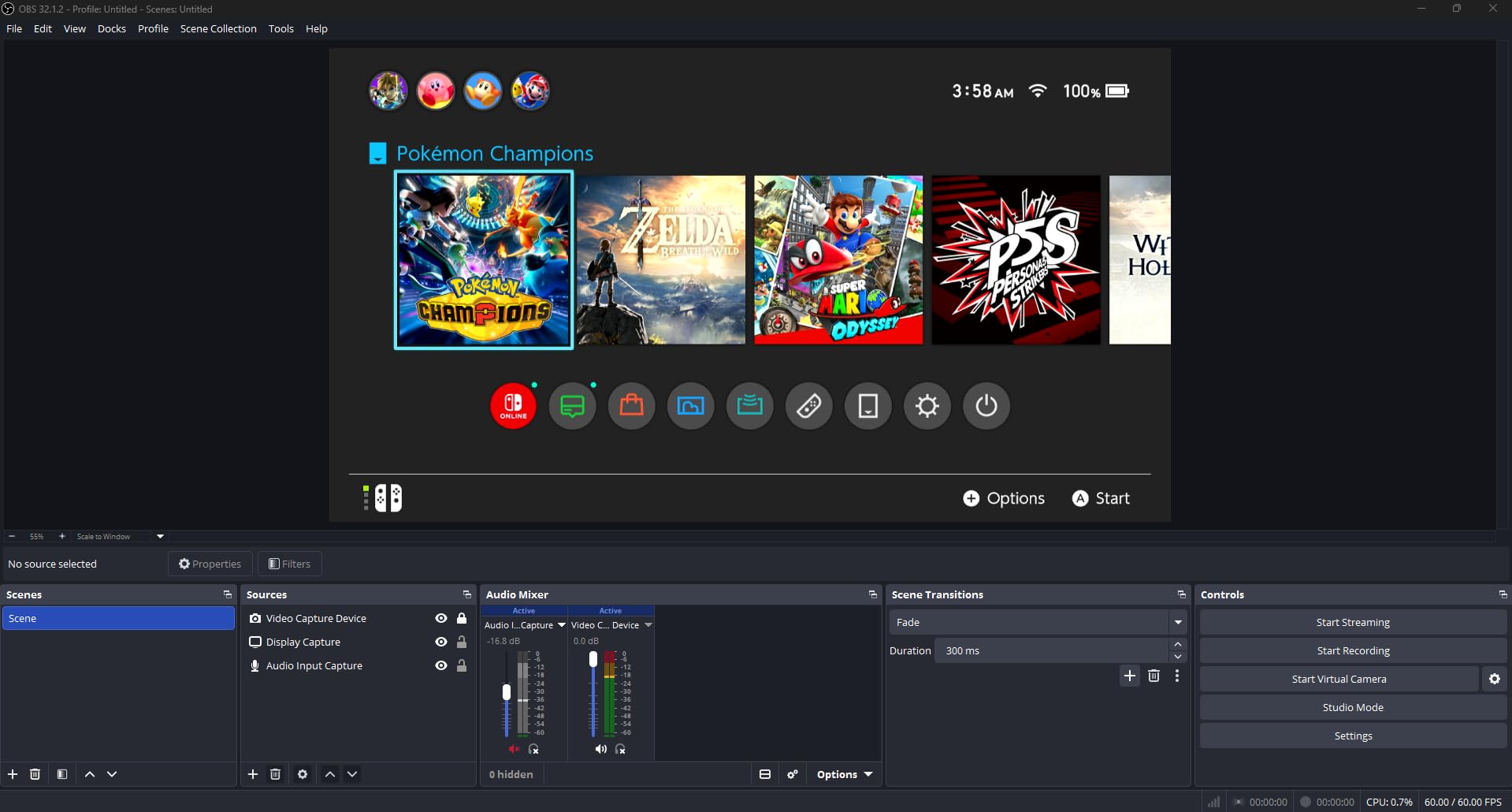
The trade is on the output side. USB capture tops out at 2K30, not 4K, and 4K120 or 144Hz input is explicitly not supported. For most streaming at 1080p60 that costs you nothing.
A 3.5mm TRS mic-in lets you add commentary over game audio, which is a genuinely useful feature on a laptop with no decent audio interface. The 60-day warranty is the shortest here and worth noting if you are buying as a long-term studio piece.
Check this before you buy
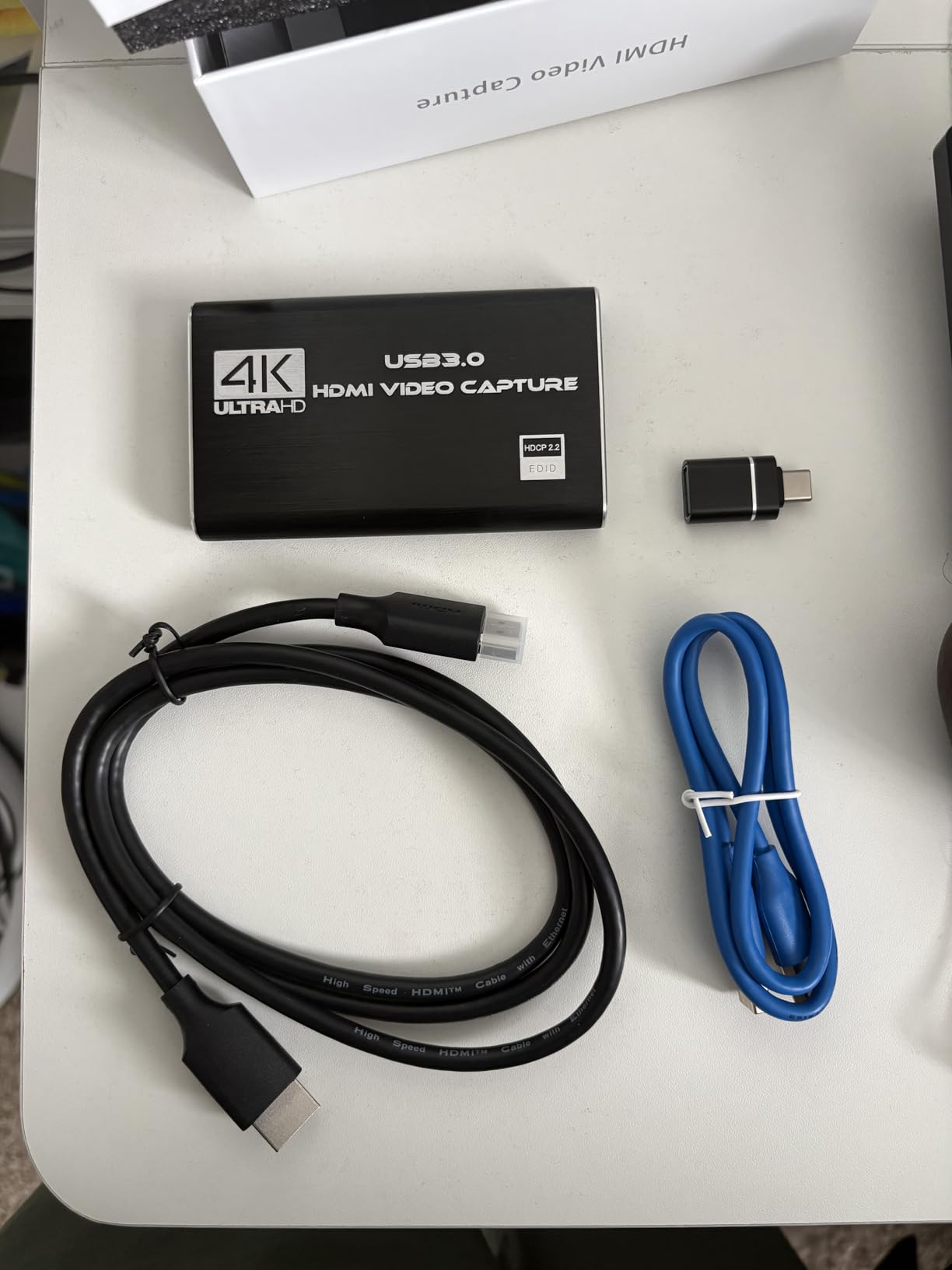
It measures 3 x 2 x 1 inches and weighs 0.18 kg, so it is chunkier than the Guermok stick. On a laptop with tightly spaced ports, budget for a short extension cable.
Where it falls short
Reviewers mention the 2K30 ceiling as the main limit, occasional freezing when capture settings are misconfigured, and the short warranty window. It lists Windows as its operating system but the bullet points confirm Mac OS works over USB 3.0.
3. Papeaso USB-C Capture Card – Best for Mac and Linux Laptops
Papeaso Video Capture Card, 4K Input HDMI to USB-C, 1080P 60FPS Capture
USB-C end with USB-A adapter
1080p60 recording
4K HDMI input
2-year warranty
Pros
- USB-C end plugs straight into modern laptops and an adapter is included
- Short cable design reduces strain on laptop ports
- Enumerates as UVC with no driver installation
- Two-year warranty with responsive seller support
Cons
- MJPEG transfer only so latency is higher than YUY2 cards
- Can overheat when left plugged in and idle
- Some reports of grainy output and weak colour balance
This is the one to look at if your machine is a MacBook or a Linux laptop. The listing names Windows, Linux and Mac OS as supported, and the short USB-C cable suits a chassis where the port sits tight against the hinge.
It records up to 1080p at 60fps and reads HDMI input up to 3840×2160. The box holds the card, a USB-C to USB-A adapter and an English manual.
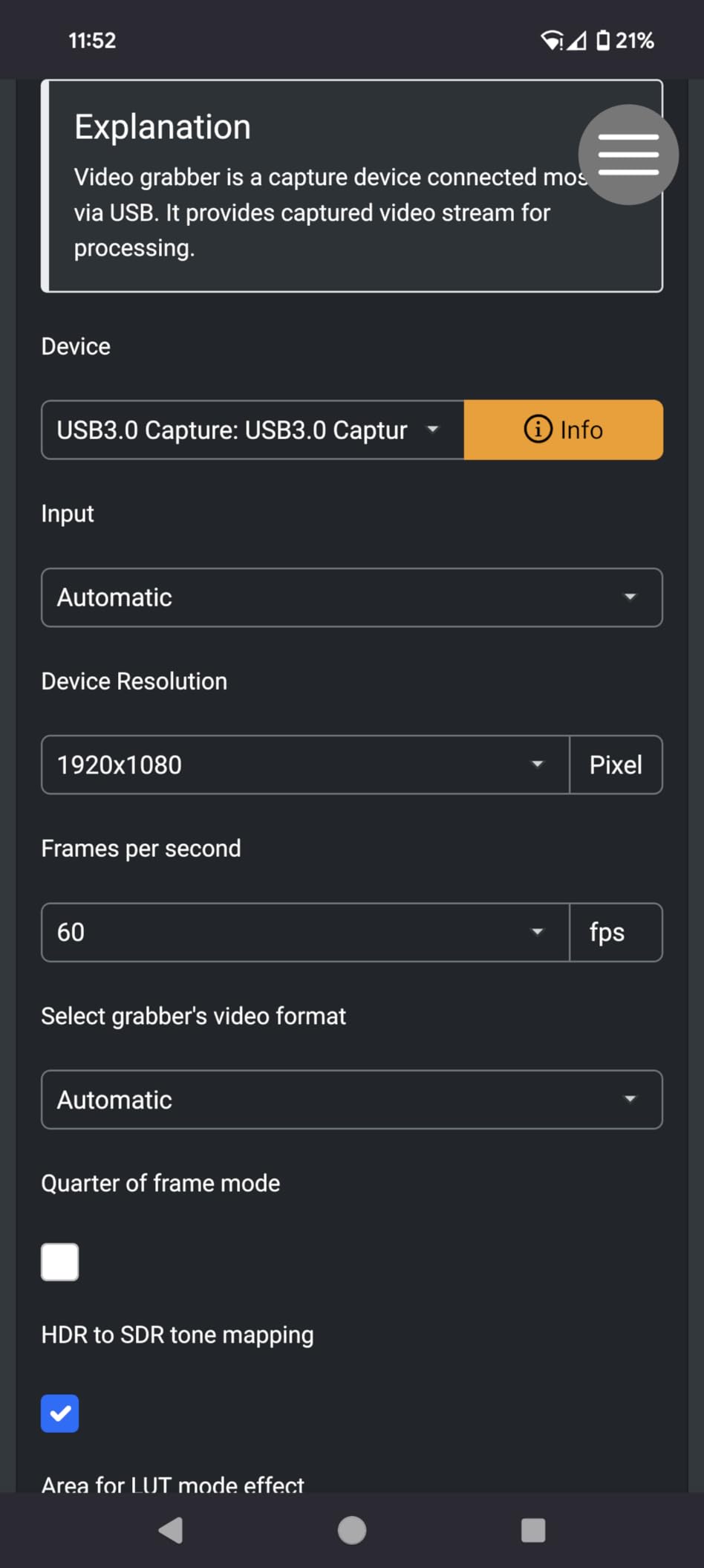
The honest weakness is the transfer format. It works in MJPEG only, which means more compression and more latency than a card offering YUY2. It is fine for recording, less good if you care about the gap between your input and your preview.
The two-year warranty is the best in this group and reviewers report the seller honoured a replacement months after purchase, which is a real point of difference at this end of the market.
Check this before you buy
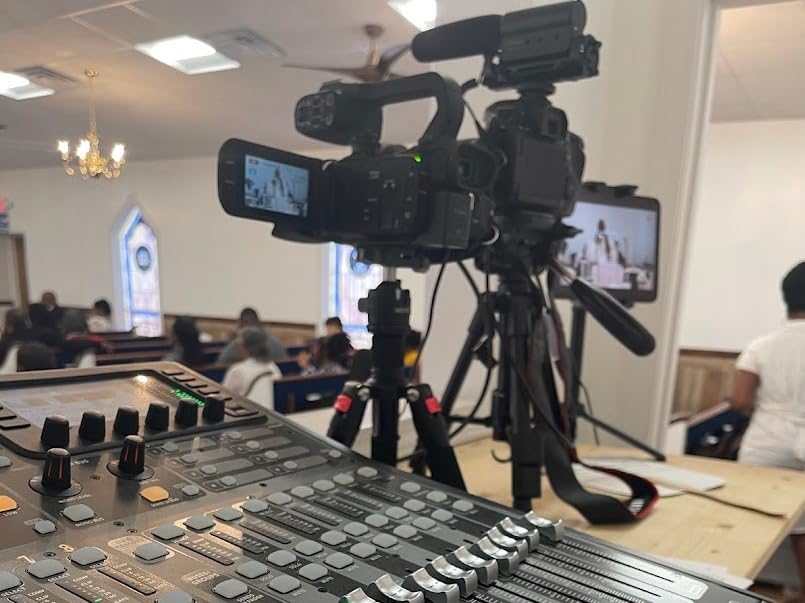
Reviewers use it successfully with OBS and QuickTime, and mention it handling HDR and SD frames for ambient-light projects. If your source is a modern console, read the HDCP section below before you commit.
Where it falls short
Failure after being left connected for weeks or overnight is the most repeated complaint, usually attributed to heat. A few reviewers also report grainy output and weak colour balance, and the odd unit arrives with a faulty wire connection.
4. XIIXMASK USB 3.0 Card – Best for Lower Input Delay
XIIXMASK USB 3.0 HDMI Capture Card, 1080P 60FPS Capture, 4K Pass-Through
YUY2 uncompressed output
4K60 input and 4K60 loop-out
1080p60 or 2K30 output
3.5mm mic-in
Pros
- YUY2 support gives lower latency than MJPEG-only budget cards
- 4K60 loop-out passes cleanly to a local display
- Dual USB-A and USB-C cable fits legacy and modern laptops
- Aluminium body runs cool
Cons
- USB output limited to 1080p60 or 2K30 despite 4K input
- System requirements list Windows only
- OBS needs a restart after audio configuration
Latency is where this card separates itself. Supporting YUY2 rather than only MJPEG means the frames arrive uncompressed, so there is less encoding delay between your input and the preview on the laptop.
It takes 4K60Hz HDMI input and passes 4K60Hz back out on loop-out, while the USB side delivers 1080p60 or 2K30. That is the split that trips people up: the 4K on the box is the loop, not the recording.
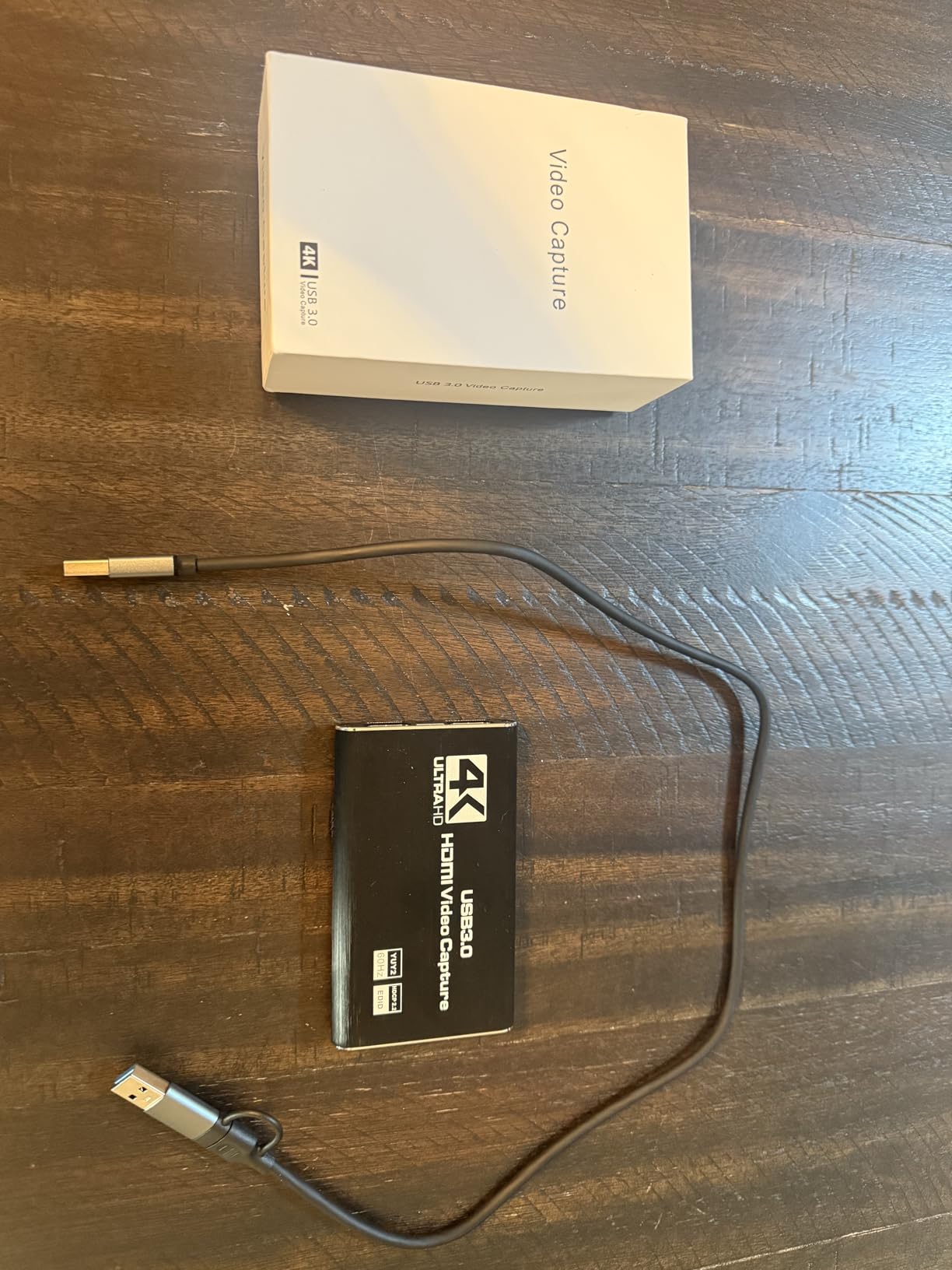
The included cable covers both USB-A and USB-C, which removes the adapter guessing game entirely. The aluminium housing with a revised cable layout is built for stability, and reviewers single out the cool-running body.
Mac users should read the requirements carefully. The listed minimum system requirements name Windows only, even though the compatibility notes say Mac works. The UGREEN below states cross-platform support far more clearly.
Check this before you buy
The 3.5mm input takes a headset or microphone for commentary over game audio, and reviewers note it will not capture in-game party chat. If you need chat audio, plan a separate mixer.
Where it falls short
The 1080p60 and 2K30 output ceiling is the recurring theme in reviews, along with audio dropouts that resolve after restarting OBS Studio. It is a strong 1080p60 card, not a 4K recorder.
5. Audio Express AXHDCAP – Budget Pick for Legacy Sources
Audio Express AXHDCAP 4K HDMI Video Capture Card, Cam Link Card Game Audio Adapter HDMI to USB 2.0 Record Capture Device for Streaming, Live Broadcasting, Video Conference, Teaching, Gaming
USB 2.0 interface
1080p30 USB output
4K@30Hz HDMI input
Lifetime warranty
Pros
- Carries a lifetime no-questions-asked warranty
- Handles VCR and RCA-to-HDMI sources at 720x480 60fps
- Driverless on Windows macOS and Linux with no external power
- Small 2.5 x 1.5 x 1 inch body
Cons
- Adds noticeable input delay
- USB plug sits loose and disconnects when nudged
- 1080p30 output over USB 2.0 only
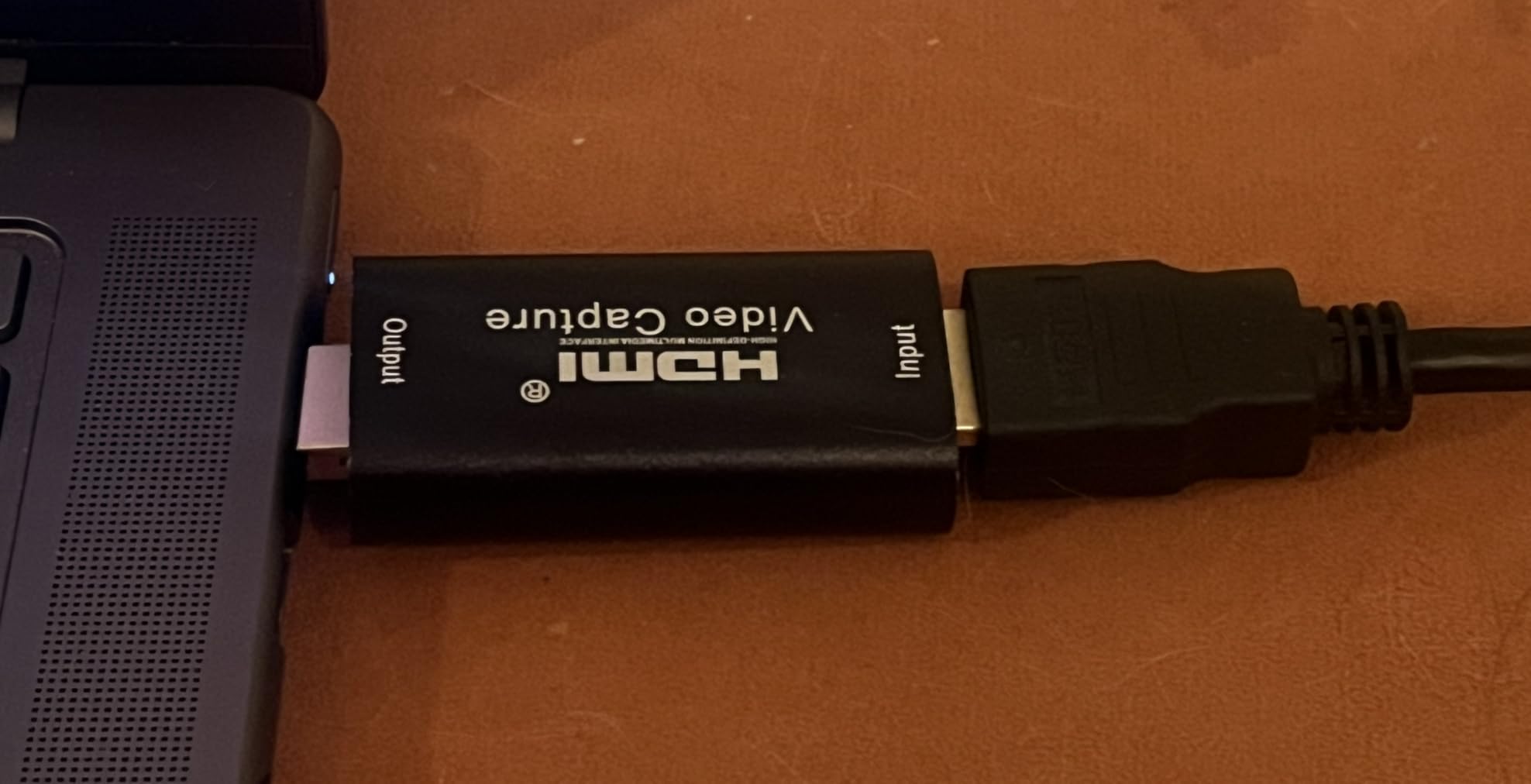
Not every capture job needs 1080p60. Digitising VHS tapes or a retro console feed through an RCA-to-HDMI adapter is the ideal use for this card, and reviewers confirm it handles 720×480 60fps sources well.
It reads HDMI input to 3840×2160 at 30Hz and outputs 1920×1080 at 30Hz over USB 2.0, in H.264 or MJPEG. It runs without drivers or external power on Windows, macOS, Linux and Android devices with OTG.
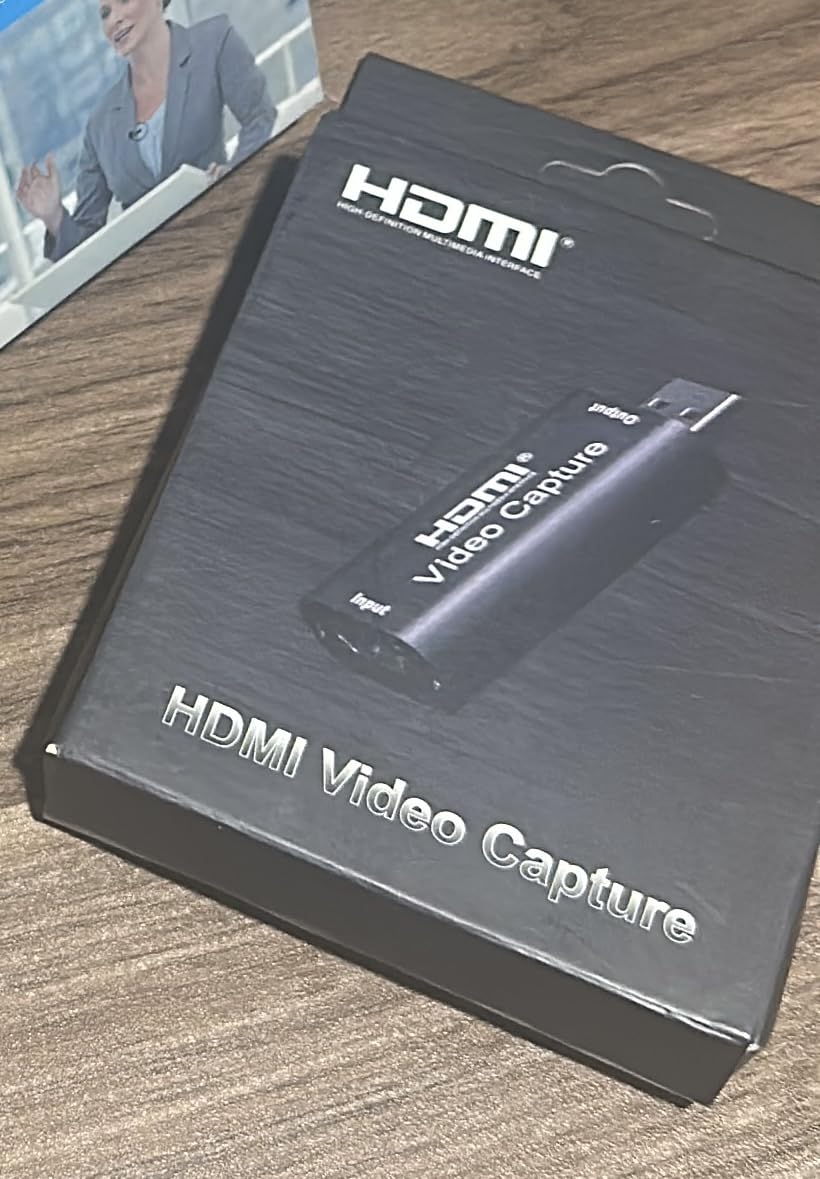
The lifetime no-questions-asked warranty is unusual at this price point and reviewers repeatedly mention good support alongside the card.
Latency is the honest drawback. There is perceptible delay through the device, though reviewers note it can be reduced by disabling the OBS buffer. It is not a card for a game where you play through it.
Check this before you buy
Its 2.5 x 1.5 x 1 inch size and low power draw mean it runs cool in a long unattended session, which is exactly how tape digitising tends to happen.
Where it falls short
Two complaints appear again and again: the USB connector sits loose enough to drop out if the card is nudged, and the added input delay is obvious. The listing also states it cannot add an HDMI output to a computer, since the signal is one way.
6. Dcyfol 4K Card – Best for Switch and PS5 Capture
Capture Card 4K HDMI Video Streaming to USB 3.0 1080P 60FPS Capture Device
1080p60 capture with 4K loop-out
YUY2 output
USB 3.0 driverless
Includes HDMI and USB-C cables
Pros
- Full metal housing feels more durable than typical plastic budget cards
- Bundled HDMI extension cable and USB-C adapter make it usable straight away
- Clean 1080p60 capture with colours close to the console output
- Clear audio with no crackling or echo reported
Cons
- USB connector is fragile and a nudge freezes the stream
- Fixed headphone output with no hardware volume control
- Some units negotiate a USB 2.0 link in practice
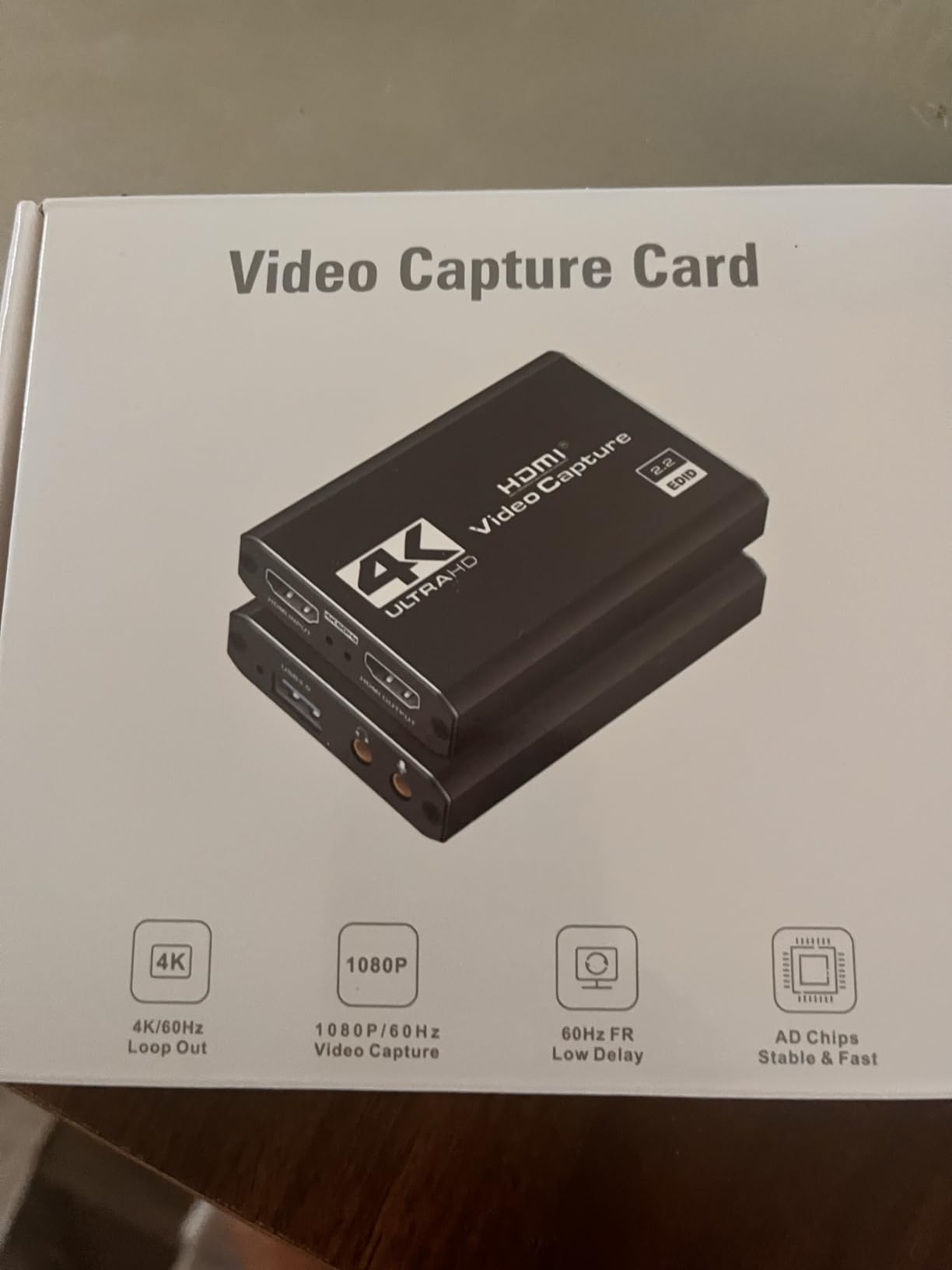
This is the card our streaming guide recommends for console work. It captures 1080p60 from a 4K HDMI source with a 4K loop-out, uses YUY2 output, and works driverless over USB 3.0.
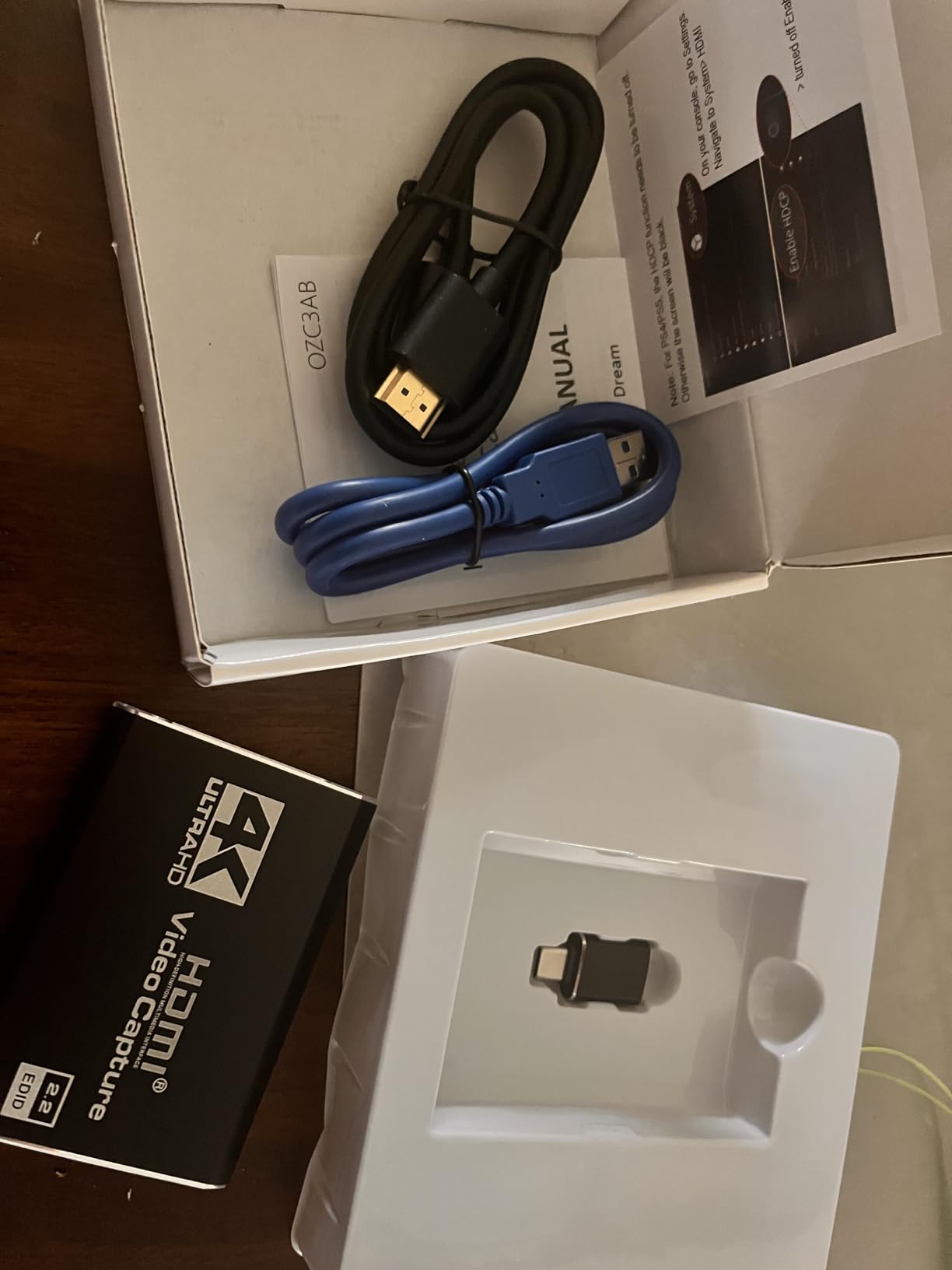
It is the most generously bundled option here. The box includes an HDMI extension cable, a USB to Type-C converter and a USB extension cable, so you are not hunting for adapters on the night you start recording.
Reviewers report stable long streaming sessions of 48 hours or more, accurate colour against the console output and clean audio. It lists MacBook and iMac among compatible devices alongside Switch, PS5 and Xbox Series X.
Set up in OBS Studio, Streamlabs or XSplit takes no extra software. That plug-and-play behaviour is what people in streaming communities look for first, and it delivers.
Check this before you buy
It measures 1 x 1 x 2.7 inches and weighs 0.21 kg, and it ships with a one-year warranty. A full metal housing is unusual among the budget cards and explains the cool running.
Where it falls short
The USB connector is the weak point. If the card shifts, the stream freezes and you need an OBS or app reset rather than a simple replug. One detailed review also claims the internal USB link is wired as USB 2.0 despite the labelling.
7. Elgato 4K S – The Only Real 4K60 Recorder Here
Elgato 4K S Capture Card for PS5, Xbox Series X/S, Switch 2
4K60 capture
1440p120 and 1080p240 input
HDR10 tone mapping
USB 3.0 Type-C
Pros
- Genuine 4K60 capture rather than a downscaled 1080p signal
- Handles 1440p120 and 1080p240 high frame rate sources
- HDR10 capture with tone mapping holds dark and bright detail
- USB-C connection suits modern laptops with no adapter
Cons
- Costs noticeably more than every generic card in this list
- HDR10 tone mapping is described as a Windows-only feature
- Requires Windows 11 or macOS 13 or later with a fairly modern CPU and GPU
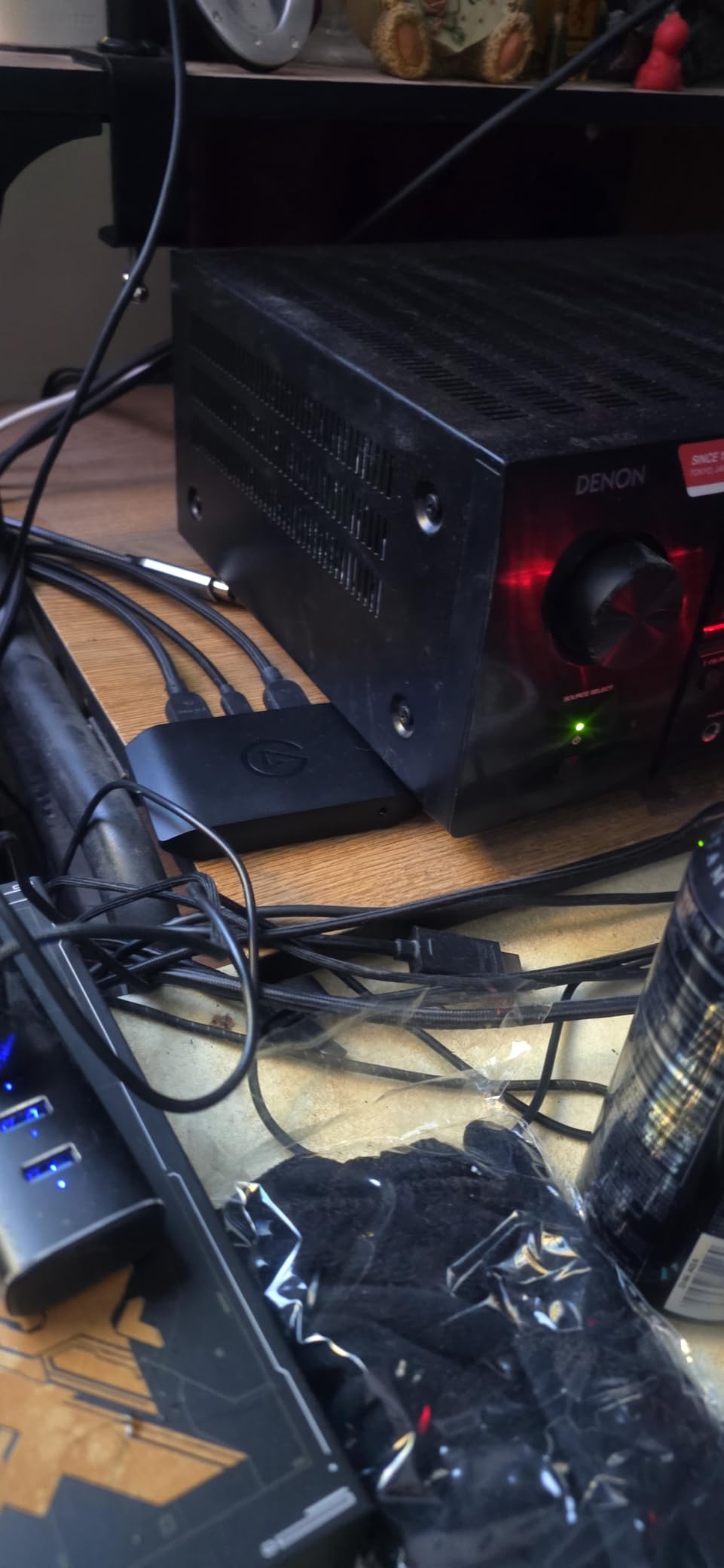
Everything else in this list records 1080p60 at best. The Elgato 4K S records 4K60, which matters if you are archiving footage or streaming in 4K rather than scaling down.
It also accepts high frame rate sources at 1440p120 or 1080p240, and captures HDR10 with tone mapping so dark and bright detail both survive the round trip. Passthrough is near zero latency.

The USB 3.0 Type-C connection plugs straight into a modern laptop with no adapter, and the body is a small 0.67 x 4.41 x 2.83 inch unit weighing 0.09 kg. A 3.5mm analog input handles in-game chat or commentary.
It carries a two-year manufacturer warranty, and the 4.5 average across 879 reviews reflects a device people bought deliberately rather than by accident.
Check this before you buy
Platform support is listed as Windows 11 and macOS Ventura 13 or later. It needs a reasonably modern CPU and GPU, so a low-spec laptop may become the bottleneck instead of the card.
Where it falls short
Cost is the acknowledged trade-off in every review that praises it, and the tone mapping feature is described as Windows-only. If you only stream at 1080p60, the extra spend buys you resolution you will not use.
8. UGREEN 2K Capture Card – Best for 2K Output and Clear Cross-Platform Support
UGREEN 2K@30Hz 1080P 60FPS Video Capture Card 4K Input HDMI to USB 3.0
2K@30Hz and 1080p60 output
4K@30Hz HDMI input
USB 3.0 at 5 Gbps
USB-A and USB-C on one unit
Pros
- Only card here offering genuine 2K@30Hz capture output
- USB-A and USB-C on one unit fits both older and modern laptops
- Aluminium body with thick tinned copper conductors in the built-in cable
- Backed by a 24-month UGREEN warranty with driver-free setup
Cons
- Unidirectional only with no HDMI return
- 2K output needs the source device to support 2K as well
- Consoles need HDCP disabled to capture
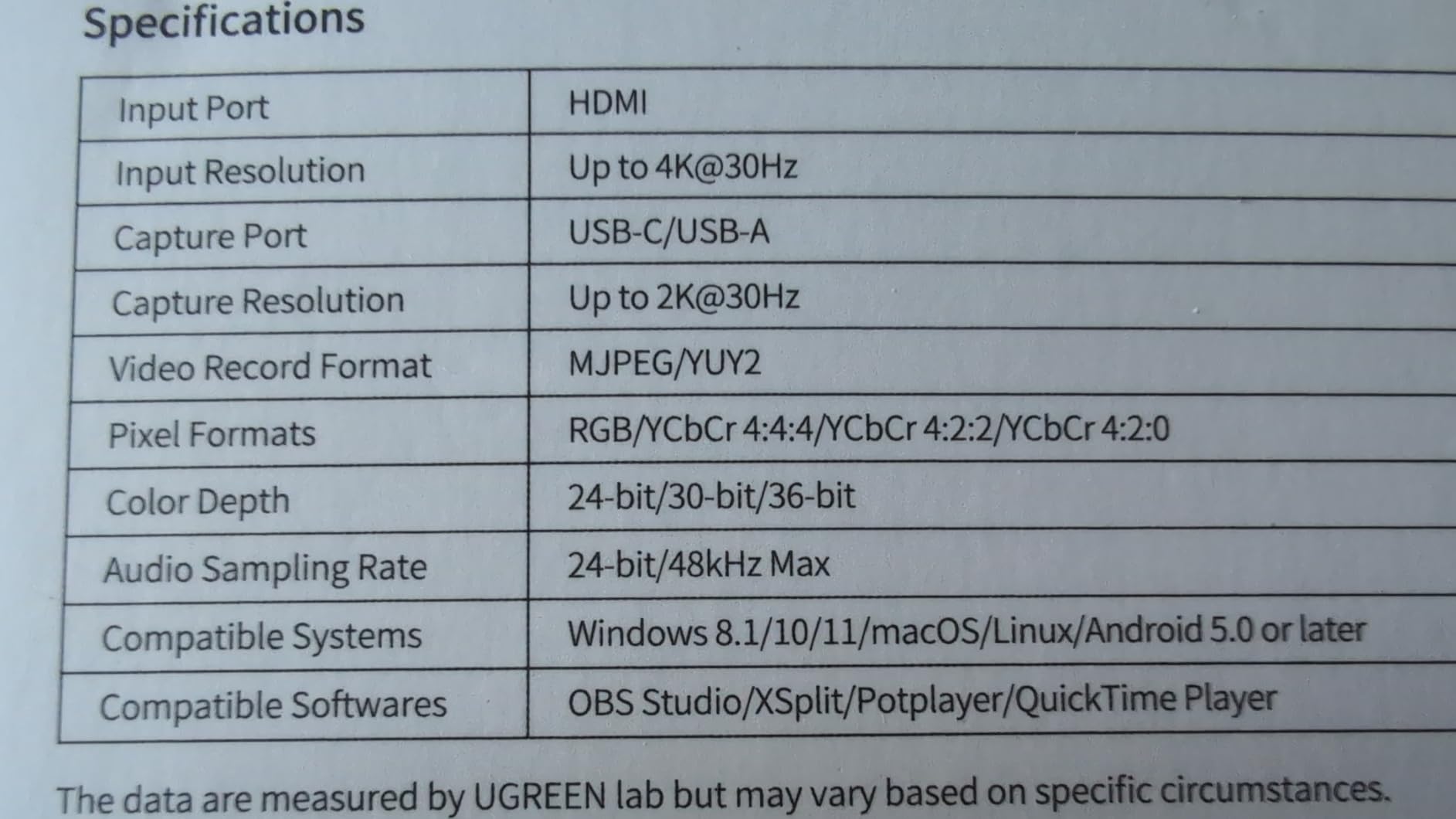
The UGREEN is the pick for anyone who wants more than 1080p60 without stepping up to the Elgato. Output runs at 2K@30Hz and 1080p60, with 4K@30Hz on the HDMI input.
Documentation clarity is a genuine strength. It names Linux, macOS and Windows 7 through 11 as supported, which removes the guesswork that trips up Mac owners on cheaper cards.
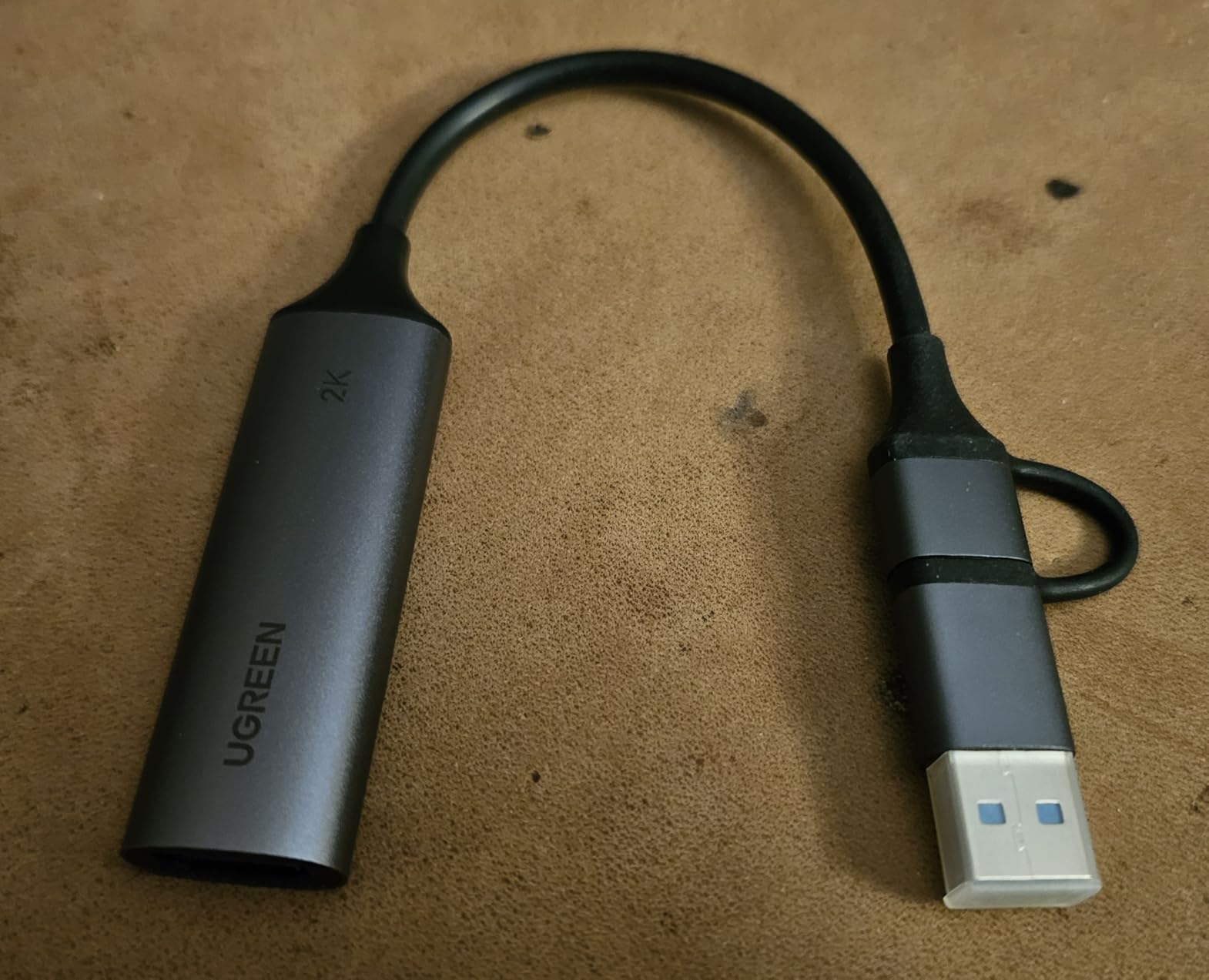
Both USB-A and USB-C are on the same unit, so one card covers a modern ultrabook and an older machine in the same bag. It works with OBS Studio, XSplit, PotPlayer and QuickTime with no driver install.
At 50 g and 5.91 x 3.94 x 0.67 inches it is a little larger than the stick-style cards, with a 24-month warranty behind it. Reviewers report the 2K mode and the dual interface as the standouts.
Check this before you buy
The listed compatible devices include laptops, iPads, Switch, Switch 2, Xbox Series X, PS5 and Meta Quest 3, though iPad use needs iPadOS 17 or later. Consoles must have HDCP disabled to capture.
Where it falls short
Signal flow is one way, HDMI in and USB out, so it cannot give your laptop an HDMI output. And 2K@30Hz only appears if the source device also supports 2K, which rules out a lot of consoles.
9. PDAPTMAG 1080p60 Card – Best for Screen Sharing and Meetings
4K Video Capture Card, HDMI to USB Capture Card 1080P for Streaming, Recording, Gaming, Compatible with Nintendo Switch, PS5, Xbox
1080p60 capture
USB 2.0 high-speed
HDMI video and audio on one channel
Driverless
Pros
- Lowest-cost usable option for screen sharing and presentation capture
- Driverless plug and play across Windows macOS and Linux
- Light enough to carry for outdoor broadcasting
- 30-day returns plus lifetime technical support
Cons
- Bulkier than most cards which is awkward on closely spaced laptop ports
- Audio and video can drift out of sync
- Listing overstates iPhone compatibility
Not every laptop owner is streaming gameplay. This card is built for screen sharing, presentations and meeting rooms, and reviewers use it for exactly that, including driving a church camera through HDMI.
It captures 1080p60 from a single channel of HDMI video and audio over USB 2.0, in YUV format, with no driver installation. Windows, macOS and Linux are all listed as supported.
It weighs 0.02 kg, which makes it easy to carry for indoor or outdoor broadcasting, and it comes with a 12-month warranty plus a 30-day return window.
Treat it as a utility purchase rather than a streaming card. The listed minimum system requirements, an i5-3400 or equivalent with 4 GB of RAM, suggest a modest laptop can run it without strain.
Check this before you buy
Reviewers confirm it works as advertised with OBS and third-party software, and that it is genuinely portable for indoor and outdoor broadcasting. There is no customer photo set for this listing, so the listing images are your only reference.
Where it falls short
The body is bulky relative to other cards here, which is awkward when laptop ports sit close together. Audio and video can drift out of sync, and reviewers note the listing overstates iPhone compatibility.
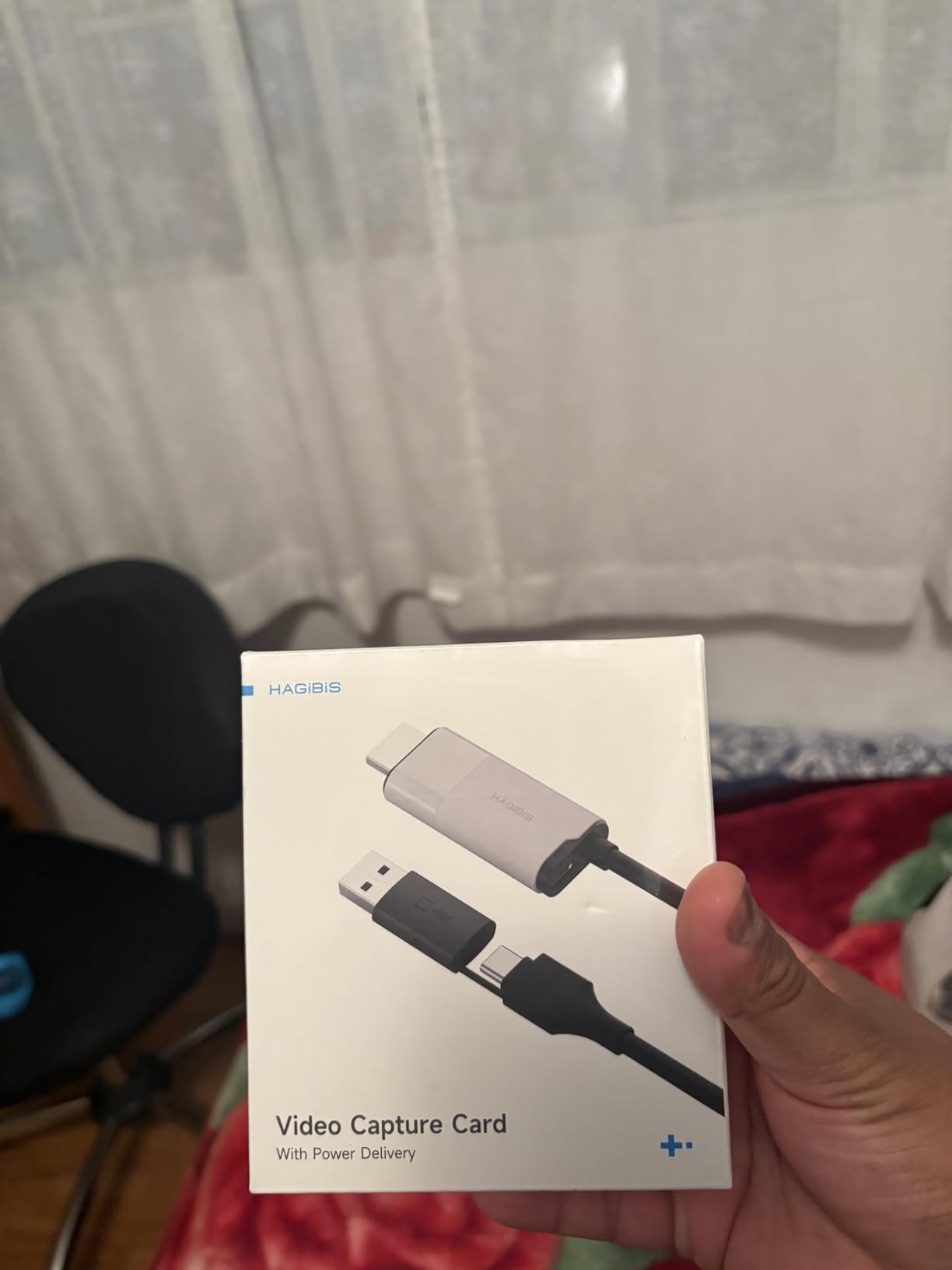
10. Hagibis 100W PD Cable – Best for Quest and Other VR Headsets
Hagibis USB3.0 Video Capture Card with 100W PD, HDMI to USB A/USB C Capture Cable 1080P@60fps YUY2 MJPEG MS2130 for Quest 3 2 Pro VR Switch2 PS4/5 Live Broadcast, Gaming, Streaming, Recorder
100W Power Delivery passthrough
USB-A and USB-C
1080p60 output from 4K60 input
YUY2 and MJPEG
Pros
- 100W PD passthrough keeps a laptop or VR headset charged during long sessions
- Dual USB-A and USB-C on the same cable fits essentially any device
- True 1080p60 with both YUY2 and MJPEG for a choice of latency and quality
- Records rather than passes through so the source device uses no GPU
Cons
- Lowest average rating here with a 12 percent one-star share
- USB-C cable has a preferred orientation and may not register until reseated
- Short cable and output limited to 1080p60
This is a cable rather than a box, and the reason to buy it is power. It carries 100W Power Delivery 3.0 passthrough, so a laptop or Quest headset keeps charging while you record.
It reads 4K@60Hz HDMI input and outputs up to 1920×1080 at 60Hz, supporting both YUY2 and MJPEG so you can trade latency against quality. USB-A and USB-C are both present on the same cable.
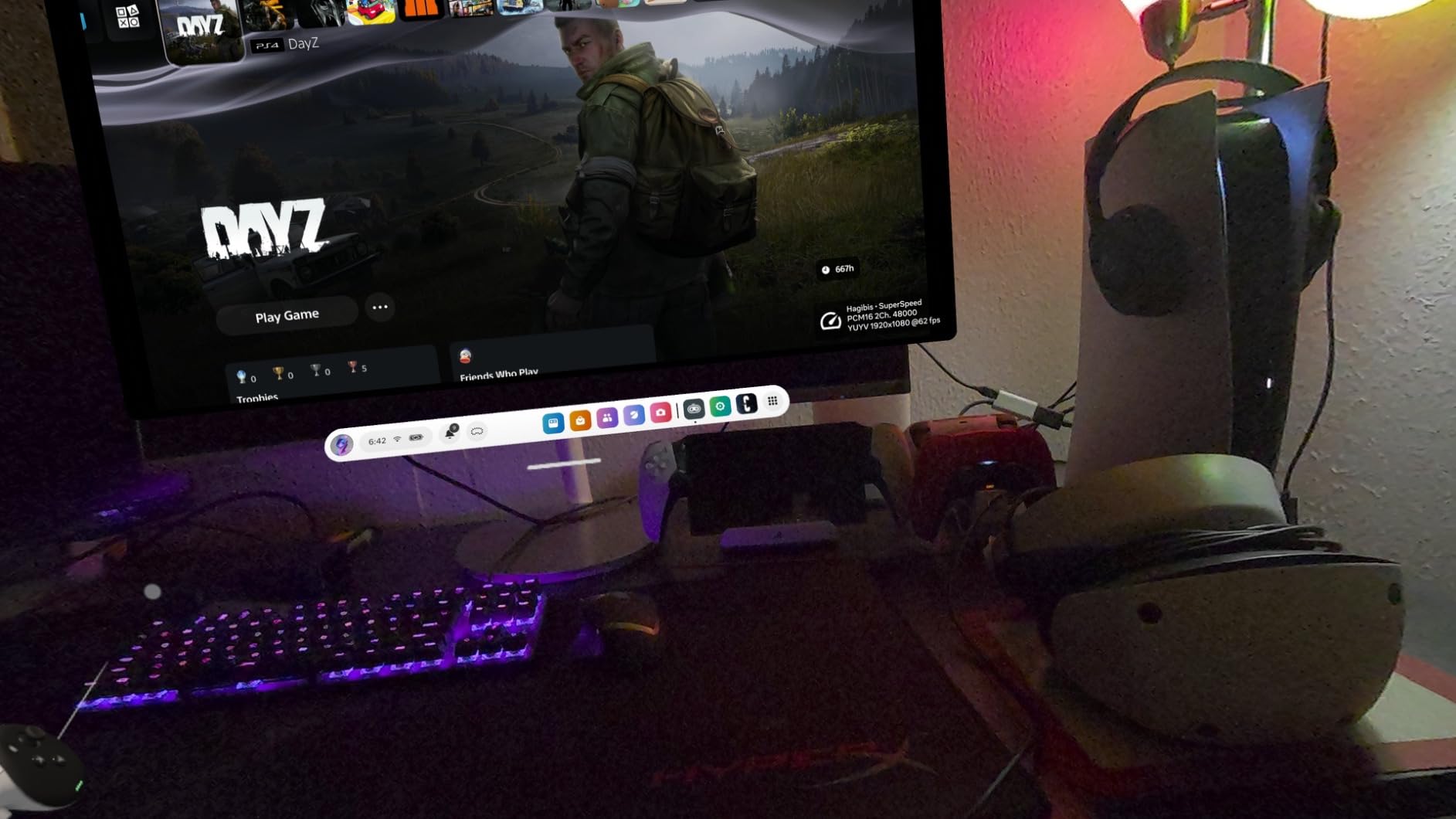
Because it records rather than passes through, the source device uses no GPU or CPU during capture, which is a genuine advantage on a laptop with a modest chip. It works with OBS, XSplit, PotPlayer and QuickTime with no driver and no external power supply.
Reviewers who bought it for VR rate it highly. The 3.7 ounce weight and one-year warranty make it a natural travel companion.
Check this before you buy
Check the orientation of the USB-C connector before you record. It is sensitive, and a connection that has not fully seated produces no signal at all.
Where it falls short
This is the lowest-rated card in the group at 4.1 with a 12 percent one-star share, and the complaints concentrate on connector seating, the short cable, and a small number of units failing within weeks. It also cannot drive a Nintendo Switch from handheld mode, because the Switch USB-C port is not a true HDMI output.
How to Choose an External Capture Card for a Laptop
Start with the port, because it rules out more options than the spec sheet does. Look at what your laptop actually has. A USB-A port gives you the widest compatibility with these cards, while a USB-C-only ultrabook means you need either a card with a USB-C end or the small adapter that most of these products include.
Next, separate passthrough from capture, because this is the most confused spec in the category. A 4K passthrough figure describes the loop-out that feeds your monitor, not the file your laptop records. Every budget card below records 1080p60 or 1080p30; only the Elgato 4K S records 4K60.
Then check the interface itself. USB 2.0 caps you at 1080p30 and adds delay, USB 3.0 at 5 Gbps is the practical minimum for 1080p60, and the compression format matters more than most buyers expect. YUY2 sends uncompressed frames with lower latency, while MJPEG-only cards compress and add delay.
On brands, Elgato is the reference point for 4K60 capture and near zero latency passthrough, and AVerMedia is frequently the recommendation on Mac. Other names in this market include Razer, Magewell, Blackmagic Design, Epiphan, Genki and AJA, which target broadcast and multi-source work rather than a single laptop port.
Finally, work out whether you need a card at all. If you are recording PC games running on that same laptop, OBS Studio display capture or a GPU encoder does the job at no hardware cost, which is why capture card guides for desktops exist. A card earns its place when the source is a console, a camera, or a second machine, or when your laptop is too slow to screen-record.
Troubleshooting: Black Screen, No Audio and Driver Glitches
Most capture card problems on a laptop come down to one of four causes, and all four have a fix you can try in a couple of minutes.
Black screen from a console. HDCP is content protection, and protected streams cannot be captured. On a PS5 or Switch, disable HDCP in system settings, or capture from a game mode that is not protected.
No audio in OBS. Restart OBS Studio after you configure the audio source, a step several cards in this list explicitly call for. Then check that the card is selected as an audio device rather than relying on automatic detection.
Dropped frames or scaled output. The card has probably negotiated a USB 2.0 link. Move it to a different port, and on machines that charge through the same port, use a port that shares data rather than power.
Card disappears after a Windows update. Replug the device, then reinstall the capture source in your streaming software. If the card is missing entirely, uninstall it in Device Manager and reconnect so it enumerates again.
Two more worth knowing. If a capture card stops showing anything after your laptop sleeps, unplug and reconnect it, and disable USB selective suspend in your power settings. And if a source is protected but you are capturing your own gameplay, route it through a capture card in the first place rather than screen capture, which is the point of the hardware.
Frequently Asked Questions
What is the best video capture card for a laptop?
For most laptop users the Guermok capture card is the best all-rounder, because it records 1080p60 over USB 3.0, accepts HDMI input up to 4K at 30Hz, and works as a UVC device with no driver install on Windows, macOS and Linux. If you need true 4K60 recording, step up to the Elgato 4K S.
Do capture cards work on laptops?
Yes. Laptops have no PCIe expansion slot, so external USB capture cards are the only viable type. Check that your laptop has a genuine USB 3.0 port, since USB 2.0 limits output to 1080p30. A USB-C-only ultrabook works with a card that has a USB-C end or the included adapter.
Is Elgato or AVerMedia better?
Elgato is the stronger choice for 4K60 capture, high frame rate input and HDR10 tone mapping. AVerMedia is more often recommended on Mac because of its macOS support history. On a budget laptop recording at 1080p60, the difference matters far less than whether your ports and drivers behave.
Why does my capture card show a black screen?
The most common cause is HDCP, the content protection scheme that blocks capture of protected video from consoles and streaming services. Disable HDCP in your console settings, or capture a source you own. Other causes include a card that negotiated a slower USB 2.0 link, an input the card cannot read, or a missing restart of OBS Studio after changing audio sources.
Does a capture card reduce game FPS?
A capture card does not reduce your frame rate on the console, because the console sends the same signal whether or not anything is recording. On the laptop, encoding happens on the card rather than in your CPU, which is exactly why a card helps a thin machine. It will not fix a laptop that is already struggling to play the game.
Our Verdict for 2026
For most people, the Guermok capture card is the right first buy. It handles 1080p60, spans the widest range of sources, and carries more real-world reviews than anything else in this guide, which is why it is our pick among the best external capture cards for laptops in 2026.
Pick the VIXLW if you need to play on a local screen while recording, the XIIXMASK if input delay is what bothers you, the UGREEN if you want genuine 2K output and clear cross-platform documentation, and the Elgato 4K S if you are recording in 4K60 and can justify the spend.
Whichever you choose, check your port first, and read the passthrough-versus-capture line before you trust a 4K label. If you want the wider picture, our capture card roundup and streaming-specific picks cover desktop setups as well, so check the current listing before you buy.