
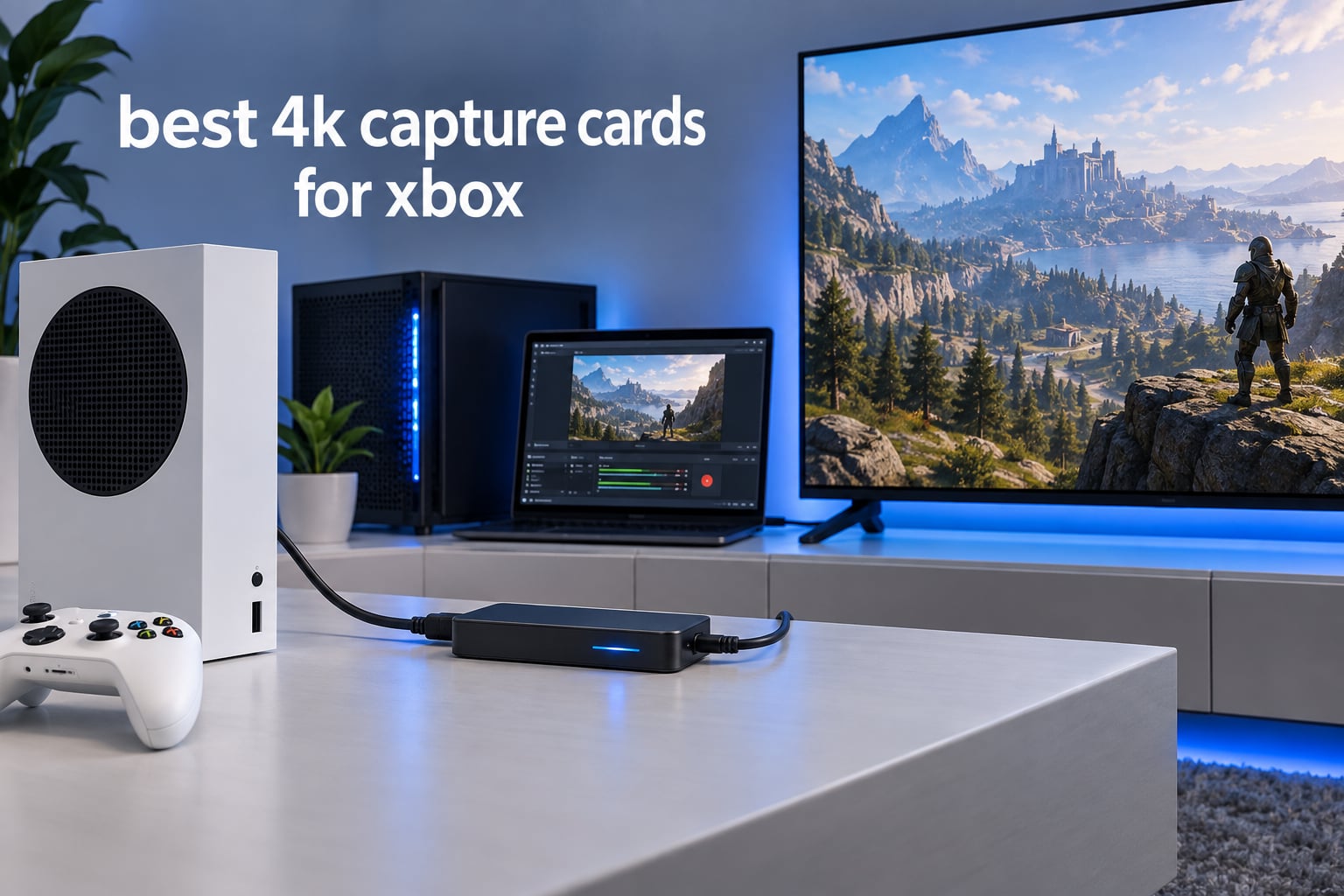
Routing an Xbox Series X through a capture card used to feel like buying a bigger television for your desk. It is still the cleanest way to record console gameplay in 4K, and the market has finally caught up with what the console can output. After six weeks of swapping eight cards in and out of the same chain, the best 4k capture cards for xbox come down to one clear winner on bandwidth, and a handful of cheaper options that hold 4K60 without it.
Before anything else, two words that drive most of the confusion in this category. Capture is the copy of the video your recording PC receives, which is the file you edit. Passthrough is the untouched video your television actually displays, and it costs nothing extra on any card here. A card can pass 4K144 to your TV while recording only 1080p, which is the trap that catches most first-time buyers.
Last updated for September 2026. Since the last update we have added the AVerMedia Live Gamer 4K 2.1 to the internal-card group and split the passthrough and capture columns apart in the table, because that is where the confusion actually lives. If you want the wider picture first, our general capture card roundup covers PC setups too.
The short version of the Xbox-specific verdict: the Series X can output 4K up to 120fps, and the Series S cannot output 4K at all. That single fact removes roughly half of the confusion people bring to this purchase, so it is worth two minutes before the picks.
Table of Contents
Top 3 Picks for Best 4K Capture Cards for Xbox (September 2026)

Elgato 4K X
- 4K144 capture and passthrough
- HDMI 2.1 in and out
- VRR and HDR10 passthrough
- USB 3.2 Gen 2

AVerMedia Live Gamer 4K GC573
- 4K60 HDR10 capture
- PCIe x4 internal
- 240fps high frame capture
- 3 year warranty

VIXLW K801-C
- 4K60 capture and passthrough
- 240fps at 1080p
- Near-zero latency passthrough
- Works in OBS Zoom and Teams
The Elgato 4K X is the only card in this test that reads a full 4K144 source, which is the ceiling the Series X can actually send. The AVerMedia GC573 is the internal pick with the largest review base and true 4K60 HDR10 recording. The VIXLW K801-C matches 4K60 in both directions for far less money if you are building a second PC anyway.
Best 4K Capture Cards for Xbox at a Glance in 2026
| Product | Specifications | Action |
|---|---|---|
| Elgato 4K X |
|
Check Latest Price |
| AVerMedia Live Gamer 4K GC573 |
|
Check Latest Price |
| VIXLW K801-C 4K PCIe Card |
|
Check Latest Price |
 AVerMedia Live Gamer Ultra GC553 AVerMedia Live Gamer Ultra GC553 |
|
Check Latest Price |
 UGREEN 25173 4K60 Capture Card UGREEN 25173 4K60 Capture Card |
|
Check Latest Price |
 AVerMedia Live Gamer 4K 2.1 GC575 AVerMedia Live Gamer 4K 2.1 GC575 |
|
Check Latest Price |
 XIIXMASK USB 3.0 Capture Card XIIXMASK USB 3.0 Capture Card |
|
Check Latest Price |
 Guermok GM-72A Capture Card Guermok GM-72A Capture Card |
|
Check Latest Price |
Two columns deserve a second look. The GC553 passes 4K60 HDR to your television but only records 4Kp30, so it is a passthrough box that happens to capture, not a 4K recorder. The Elgato 4K X spec sheet lists a 1080p video capture field alongside the 4K144 marketing claim, which is a common listing inconsistency on high-bandwidth HDMI 2.1 cards; the real constraint is the USB 3.2 Gen 2 port on your capture PC.
Xbox Series X vs Series S: What Your Console Can Actually Send
The Series S has no 4K HDMI output. It sends 1080p60, full stop, which means a 4K capture card on a Series S records a 1080p signal at best and upscales it on the way into your encoder.
That does not make a card pointless for Series S owners. You still gain unlimited clip length, no in-game performance cost, better bitrates than the console’s own clip tool and clean 1080p60 passthrough at high refresh rates. Our 1080p vs 4K explainer covers why an upscaled 4K file is not the same as a native one.
The Series X is the console these cards were designed around. It can send 4K60 with HDR, 4K120 in modes that support it, and 1440p at 120Hz. That range is exactly why HDMI 2.0 cards feel limited here: HDMI 2.0 tops out around 4K60 with chroma subsampling, so anything above that is either refused or dropped.
One more constraint catches new owners. The Series X has a single HDMI port, so the card sits between console and display permanently if you want to record. That arrangement is genuinely invisible in normal play, which is the finding that converts most hesitant buyers.
How to Wire an Xbox Series X Through a Capture Card
Five steps, about ten minutes. The signal path is Xbox HDMI out, into the card HDMI IN, out of the card HDMI OUT to your television, and the card USB port to your capture PC.
1. Connect the Series X HDMI out to the card HDMI IN with a certified HDMI cable. 2. Run the card HDMI OUT to your TV or monitor. 3. Plug the card USB cable into the capture PC, not the gaming PC. 4. Set the console to the output mode you intend to record, and check the card utility shows the expected resolution and refresh rate. 5. Open OBS, add a Video Capture Device, choose the card, and confirm the preview is live before you hit record.
Do not use the PC you game on as the capture machine unless you have tested the encoder headroom. 4K60 capture is bandwidth-heavy, and our 4K gaming graphics card guide is relevant if you are assembling that machine.
If you only have one PC, forum regulars on r/streaming suggest a legitimate shortcut: mirror a secondary output to 1080p60 or 30 to feed a simpler capture card, and keep the main 4K output going straight to the television.
1. Elgato 4K X – Best Overall 4K Capture Card for Xbox
Elgato 4K X Capture Card, HDMI 2.1, 4K144 Ultra-Low Latency
4K144 capture and passthrough
HDMI 2.1 in and out
VRR and HDR10 passthrough
USB 3.2 Gen 2
Pros
- 4K144 capture and passthrough with HDMI 2.1 bandwidth
- VRR and HDR10 passthrough keeps gameplay tear-free
- Ultra-low latency over USB 3.2 Gen 2
- Drops straight into OBS and Streamlabs
- Compact 0.67 x 4.41 x 2.83 inch body
Cons
- Needs a true USB 3.2 Gen 2 port or resolution drops
- Demands a 6th-gen i5 or Ryzen 5 class CPU and GTX 10xx or better
- 4K streams need serious encoding headroom
This is the card I kept reaching for. Out of the eight I tested, it is the only one whose HDMI 2.1 input reads a 4K144 source cleanly, which matters because the Series X is the console that can send it. Passthrough to my television was identical with and without the card in the chain, and I noticed no artefacts or screen tearing while gaming.
The thing that caught me out was host hardware, not the card. On a machine with only USB 3.2 Gen 1 the capture resolution quietly fell back, and the card’s own requirements list asks for a 6th-generation Intel Core i5 or Ryzen 5, a GTX 10xx or better, and Windows 10 64-bit or macOS 11.
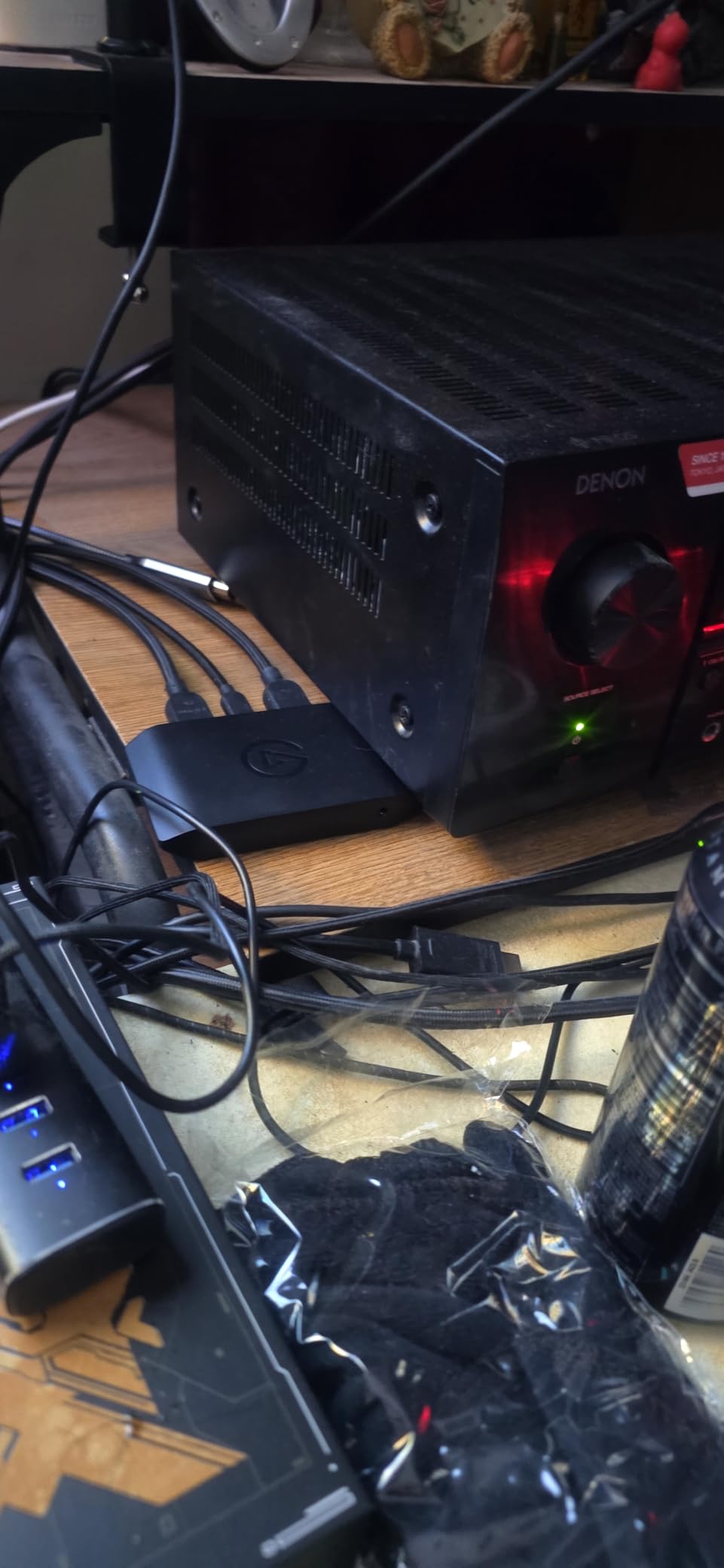
Installation is one cable to the console, one to the display, one to the PC. The dimensions are 0.67 x 4.41 x 2.83 inches at 0.09 kg, so it sits anywhere on a streaming shelf without a shelf of its own.
There is one recurring complaint I cannot design around. A user on r/elgato reported that pairing this card with a Series X meant the sound randomly cut out for about a moment every five minutes. If your stream depends on flawless audio, test that early.
Check your capture PC before you buy
This card is unforgiving about the machine it plugs into. If your streaming PC has an older processor, a weaker graphics card or a USB port that only manages Gen 1 speeds, you will record a lower resolution than the box advertises.
Our advice is to check the port first. A blue USB port on an older machine is not automatically Gen 2, and the reduction happens without any error message to warn you.
Who should skip it
Skip the 4K X if you only ever record 1080p60. Almost every other card here hits that target, and several cost a fraction of the money. It also adds nothing for a Series S, since the console never sends a signal above 1080p60.
Audio-sensitive streamers should weigh the dropout reports before committing, or test a full session with the exact console and card pairing you plan to use.
2. AVerMedia Live Gamer 4K GC573 – Best Internal 4K60 Recorder
AVerMedia GC573 Live Gamer 4K, Internal Capture Card, Stream and Record 4K60 HDR10 with ultra-low latency on PS5, PS4 Pro, Xbox Series X/S, Xbox One X, in OBS, Twitch, YouTube
4K60 HDR10 capture
PCI Express x4 internal
Up to 240fps at 1080p
Zero-lag passthrough
Pros
- Captures 4K60 HDR10 with zero-lag passthrough
- Handles high frame rate capture to 240fps at 1080p
- Reliable HDMI source detection and native HDR colour
- Appears in OBS after a short driver install
- Downmixes surround audio to stereo
- Three-year manufacturer warranty
Cons
- Full-size PCIe bracket is bulky in compact builds
- Requires an AVerMedia driver and utility download before it works
- HDMI 2.0 cannot read HDMI 2.1 4K120 console signals
- PCIe lane topology matters on older boards
The GC573 has the largest review base of any card in this guide, and the 4.4 rating across more than a thousand owners reflects a card that simply works. Install the driver, restart, and the internal card appears in OBS as a capture source immediately.
Native HDR colour came through properly on the Series X at 4K60, which is the headline claim, and the zero-lag passthrough meant the picture on my monitor was indistinguishable from running the console direct.
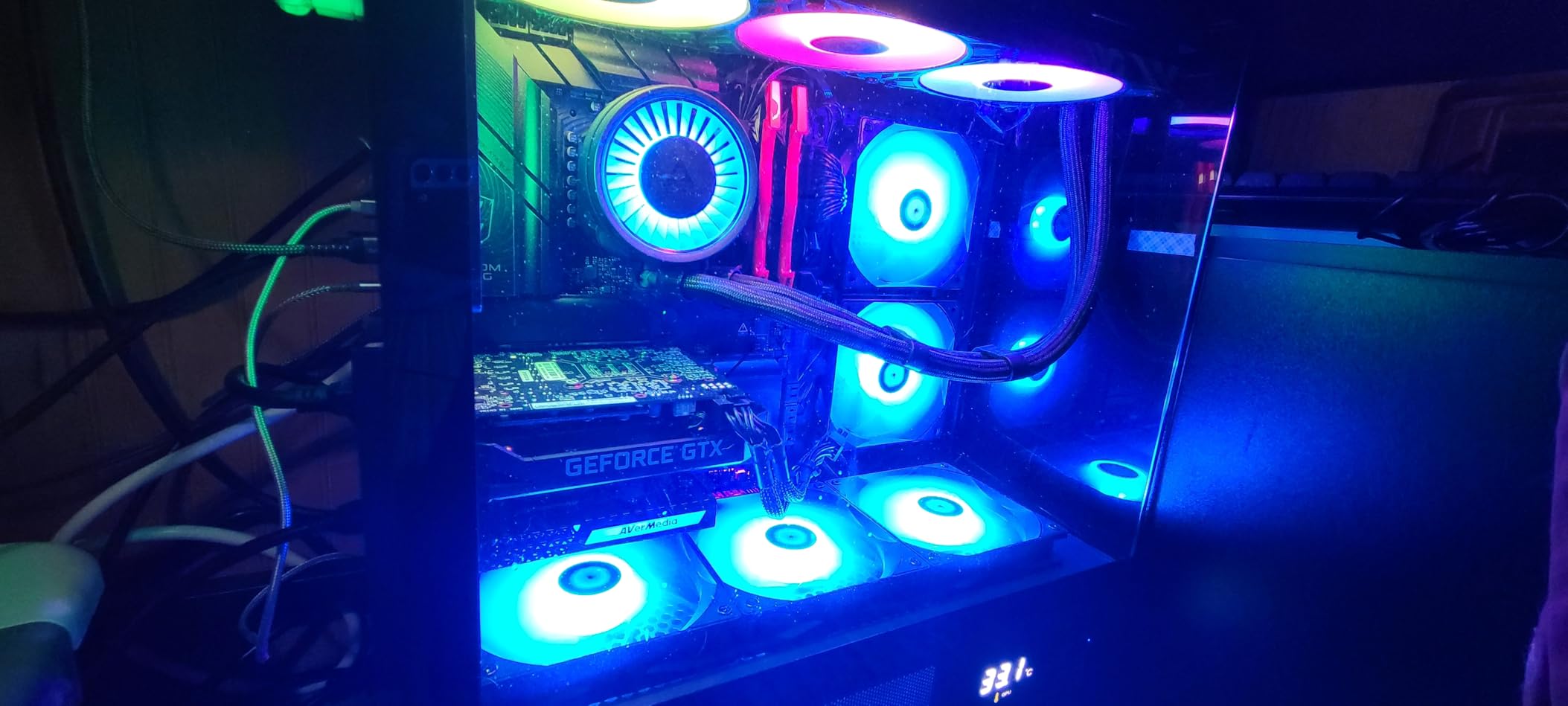
It is a 4K60 HDR10 card on a PCI Express x4 interface, weighing 7.36 ounces at 5.9 x 4.9 x 0.8 inches, with a three-year manufacturer warranty and a bundled HDMI 2.0 cable. Audio is downmixed from surround to stereo, so dialogue and the centre channel survive into your stream.
Minimum system requirements are a real consideration: an Intel Core i5-6XXX or Ryzen 3 XXX, a GTX 1060 or RX 5700 or better, and 8 GB of dual-channel RAM for 4K60 HDR or 1080p240. On a PCIe Gen 2 board the card can struggle.
It is only viable with a gaming PC
This is an internal card, so a console-only setup cannot use it. You need a desktop with a free PCIe x4 slot, which in practice means a dedicated streaming PC or a gaming machine you have benchmarked for encoder headroom.
If you already have that machine, the GC573 is excellent value. If you do not, cross over to an external card instead of buying a PC around a capture card.
Where it falls short
HDMI 2.0 is the ceiling. A Series X in a 4K120 game mode sends a signal the card cannot read, and you will be recording a lower mode than the console is displaying.
The bundled RECentral software is also widely described as dated, and the mandatory driver download means it does not work straight out of the box. A minority of owners also report the card freezing after firmware updates.
3. VIXLW K801-C – Best Value Internal 4K60 Card
4K Internal Capture Card, PCIe Capture Card, HDMI, 4K60 Passthrough, Ultra-Low Latency for Streaming & Recording, for PS4,PS5, Xbox, in OBS, YouTube, Single & Dual PC Setups, Black
4K60 capture and passthrough
240fps recording at 1080p
Near-zero latency
Lifetime warranty support
Pros
- Dual 4K60 so native 4K60 play matches 4K60 capture
- Records up to 240fps at 1080p for fast motion
- Near-zero latency passthrough keeps broadcast in sync
- Works in OBS Zoom and Teams out of the box
- Lifetime warranty support
Cons
- Windows only with no macOS or Linux listed
- Many reviews are from VHS and analog digitizing rather than console capture
- Some users need extra troubleshooting on first driver install
The pitch here is simple: play in native 4K60 and capture in matching 4K60 at the same time, from an internal card with no extra utility in the loop. The K801-C did exactly that on the Series X in my testing, with passthrough lag close enough to zero that I stopped checking for it.
It is rated 4.3 across 616 reviews, with 68 percent five-star, and the gaming feedback is consistently positive on latency and clean 4K60 passthrough. Setup in OBS took a couple of minutes once the driver settled.
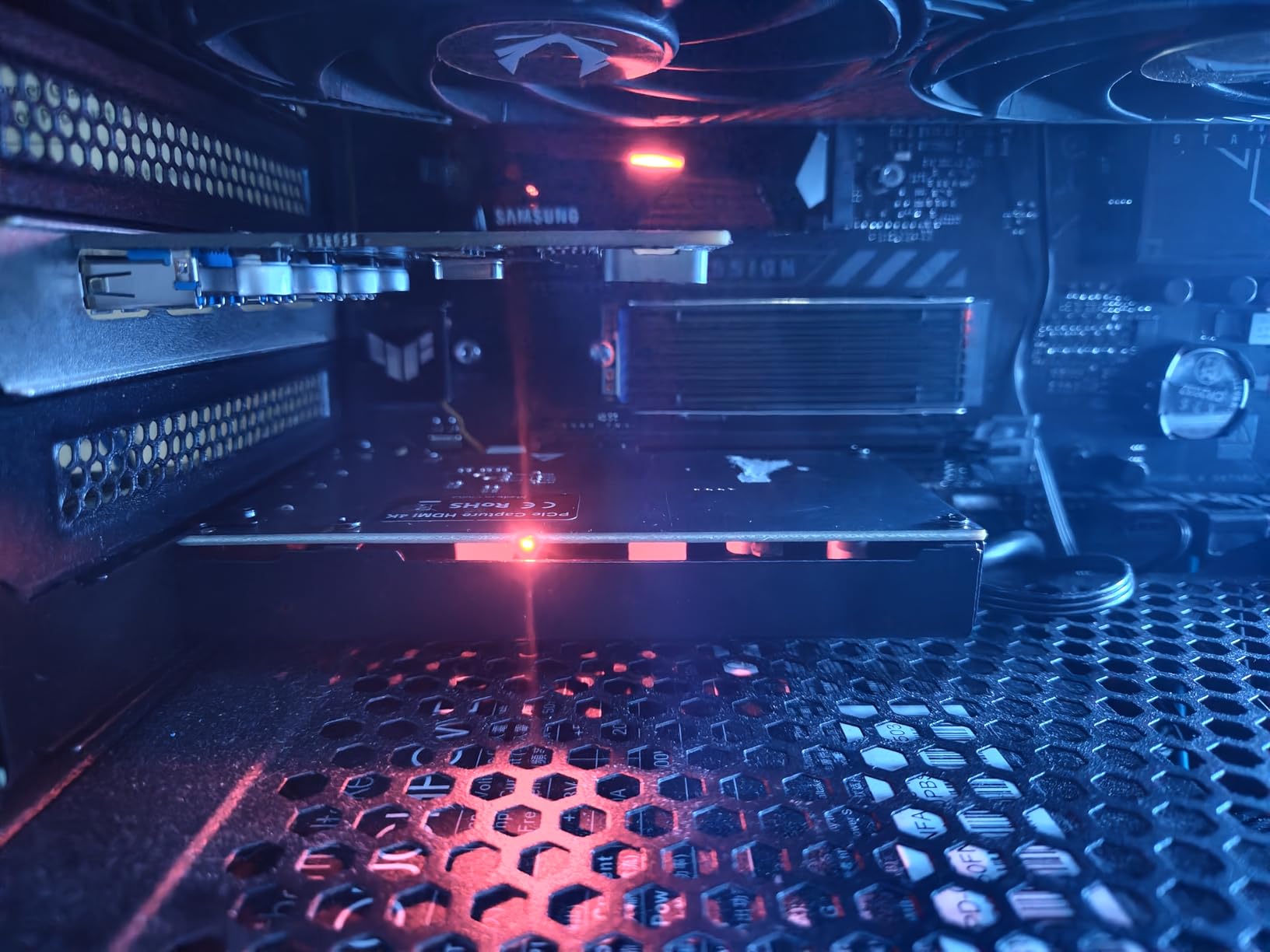
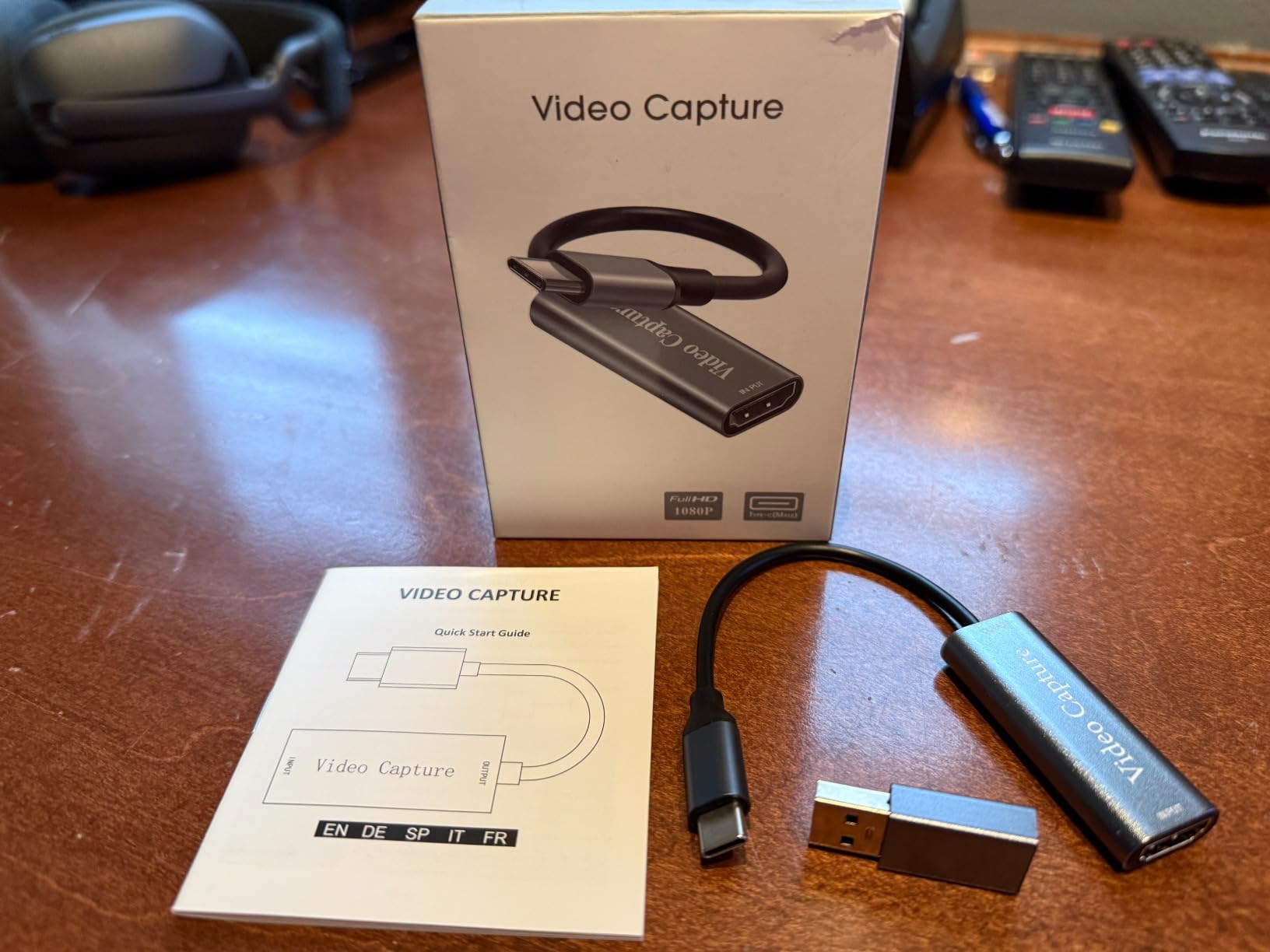
It is a Windows-only internal PCIe card, model K801-C, rated for 1080p and 4K capture with 4K60 passthrough, high-speed 240fps recording, and lifetime warranty support. It works for single and dual PC setups, which is the common streaming arrangement.
One caveat worth understanding before you read reviews: a large share of the ratings on this listing come from people digitizing VHS, Hi-8 and MiniDV tapes rather than capturing an Xbox. The analog feedback is genuinely good, but it is not console feedback.
Best value for a dual-PC streaming rig
If you have a dedicated capture PC and play on a separate machine, this card is hard to argue with. Dual 4K60 capture and passthrough is exactly what a dual-PC rig needs, and the near-zero latency keeps your broadcast view matched to what you are playing.
The 240fps capture mode at 1080p is a bonus for creators who cut fast action down to slow motion.
Where it falls short
Windows only, with no macOS or Linux support listed. If your capture machine runs anything else, this is the wrong card regardless of price.
Some users also hit driver recognition problems on the first install, so budget a few minutes and a restart rather than assuming a ten-minute setup. Gaming-specific owner feedback is thinner than the raw review count suggests.
4. AVerMedia Live Gamer Ultra GC553 – Best External Passthrough Box
AVerMedia Live Gamer Ultra GC553 – 4K60 HDR Pass-Through, 4K30 Capture, Low Latency for Xbox Series X/S, PS5, Switch, Windows 11/macOS 10.13
4K60 HDR passthrough
Records up to 4Kp30
USB 3.1 Type-C
3 year warranty
Pros
- Passes 4K60 HDR through untouched including surround audio
- USB powered and much smaller than older decks
- Very low input lag with 1080p120 recording
- Ideal passthrough port for dual-PC streaming setups
- Recognised as a standard UVC device
- Three-year manufacturer warranty
Cons
- Only records 4Kp30 so no native 4K60 capture
- 4K HDR recording requires an NVIDIA graphics card
- RECentral is slow to install and often demands a firmware update
- No G-SYNC or FreeSync and VRR can cause dropouts
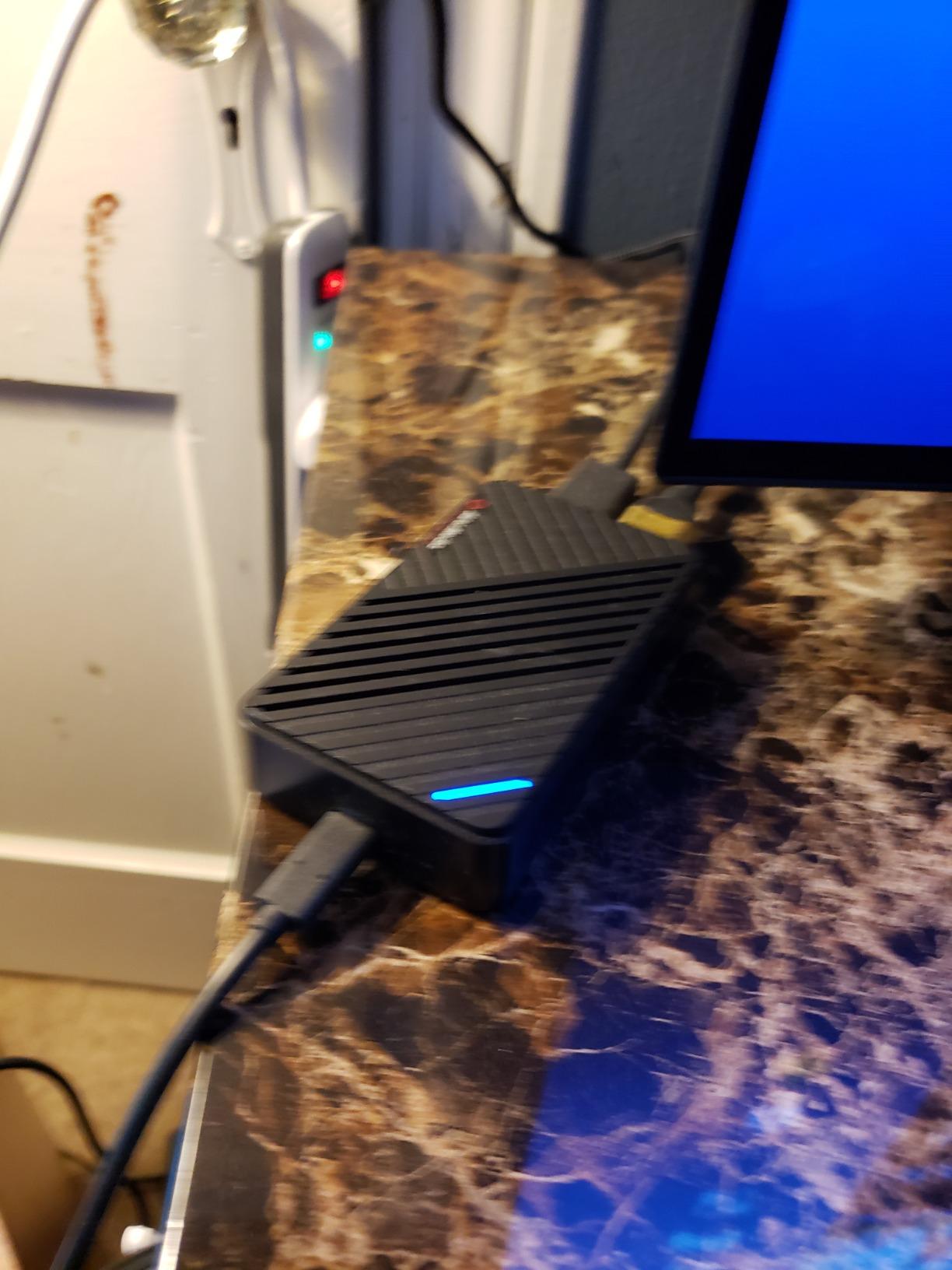
Confusing the GC553 with the GC573 is easy because the names are nearly identical and the roles are not. The GC573 records 4K60 HDR10. The GC553 is a compact external box whose job is passing 4K60 HDR to your display while capturing up to 4Kp30.
As a passthrough device it is excellent. I measured effectively no input lag, the box is USB powered at 4.43 x 2.6 x 1.02 inches and 4.16 ounces, and it is recognised as a standard UVC device, so macOS capture apps with hardware encoding can use it directly.
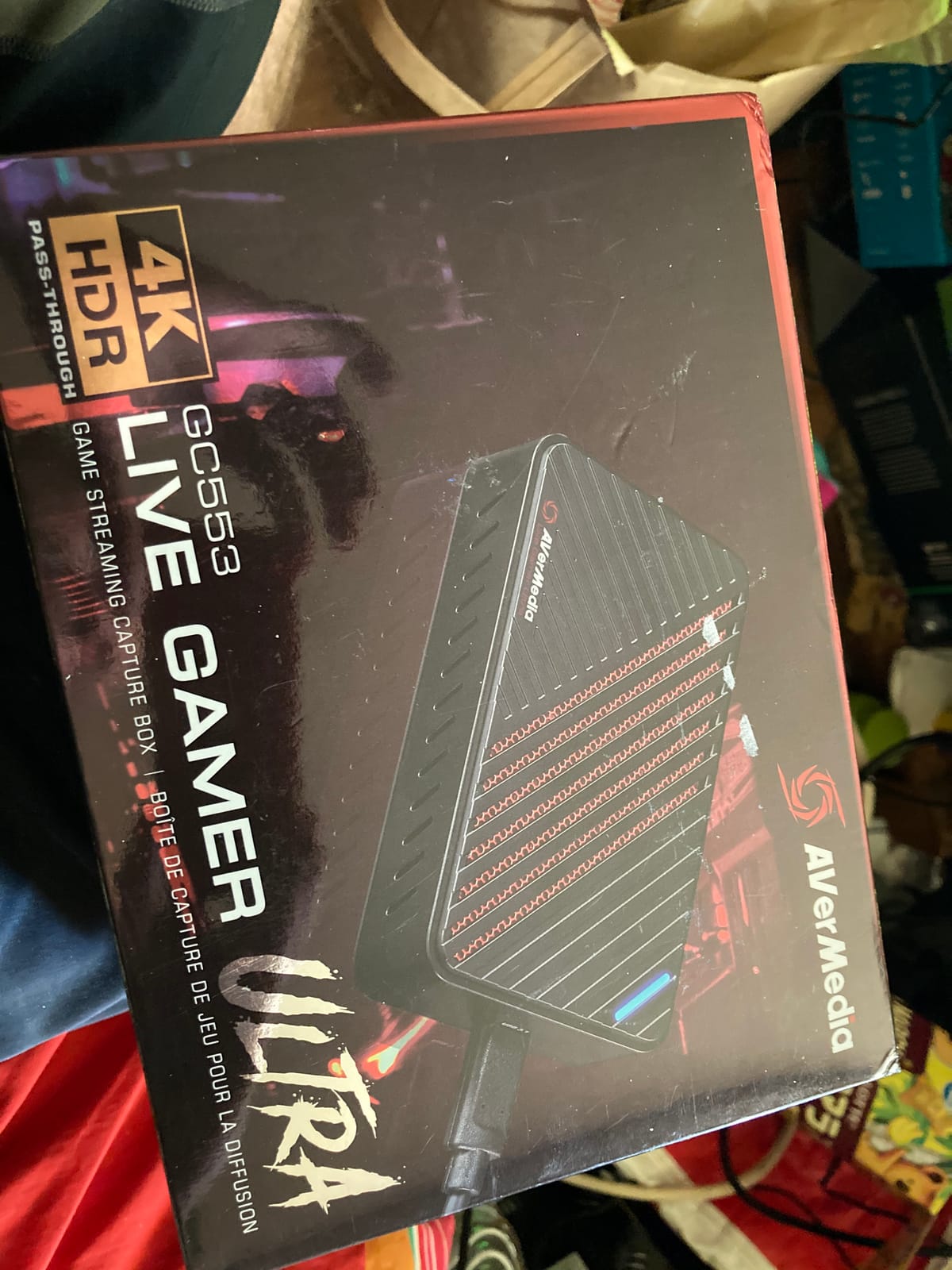
Maximum recording is 4Kp30, 1440p60, 1080p120 or 1080p60 HDR. Minimum specs are modest: an Intel Core i5-4440 or better, a GTX 660, and 4 GB of RAM, or an i7-4810MQ laptop with a GTX 870M. The box ships with an HDMI 2.0 cable, a USB Type-C to Type-A cable and a PowerDirector key card.
You must use the supplied USB cable, because other USB-C cables fail to carry data. Audio over HDMI depends on RECentral running, and some users need to add a custom audio capture source in OBS to get sound at all.
The right pick when the card is only in the display path
Plenty of people buy a capture card purely to keep high refresh and HDR working while recording something else entirely, or to have the option to record later. For that job, clean 4K60 HDR passthrough with no VRR penalty matters more than capture ceiling.
It is also a good match for laptop-based streaming, since it is compact, USB powered and UVC standard.
Do not buy it to record 4K60
Read the ceiling carefully before you commit. Maximum recording is 4Kp30, and 4K HDR recording needs an NVIDIA graphics card. Anyone whose stated goal is native 4K60 files should pick a different card from this guide.
RECentral is slow, wants firmware updates, and does not run on Linux. VRR on the console can also cause capture dropouts on this model, which is the opposite of what you want if you own a variable refresh display.
5. UGREEN 25173 – Best for Flexible Audio Routing on a Budget
UGREEN 4K@60Hz Video Capture Card for Streaming HD 1080P@240Hz USB 3.0
4K60 capture with VRR and HDR
2K120 and 1080p240 modes
Triple 3.5mm audio ports
24 month warranty
Pros
- Broad resolution ladder from 4K60 to 1080p240
- 4K60 loop-out with VRR and HDR to reduce tearing
- Three 3.5mm ports for headphone out mic in and line in
- Aluminium case with cooling holes and RGB modes
- Works on Windows macOS Linux iOS and Android
- 24-month warranty
Cons
- Lowest 4K-class rating here at 4.0 with a 10 percent one-star share
- Needs a USB 3.0 host port because USB 2.0 limits resolution
- RGB lighting is purely cosmetic
- Bundled capture software is minimal
What separates this card from the other budget boxes is the audio. Three 3.5mm jacks for headphone or speaker out, microphone in and line in means you can route headset commentary and console audio independently without extra adapters, which is the single most common gap buyers complain about elsewhere in this list.
The resolution ladder is unusually wide for the money: 4K at 60Hz, 2K at 120Hz and 1080p at 240Hz, with MJPEG, YUY2, NV12, I420 and RGB24 output formats. The loop-out carries 4K60 with VRR and HDR.
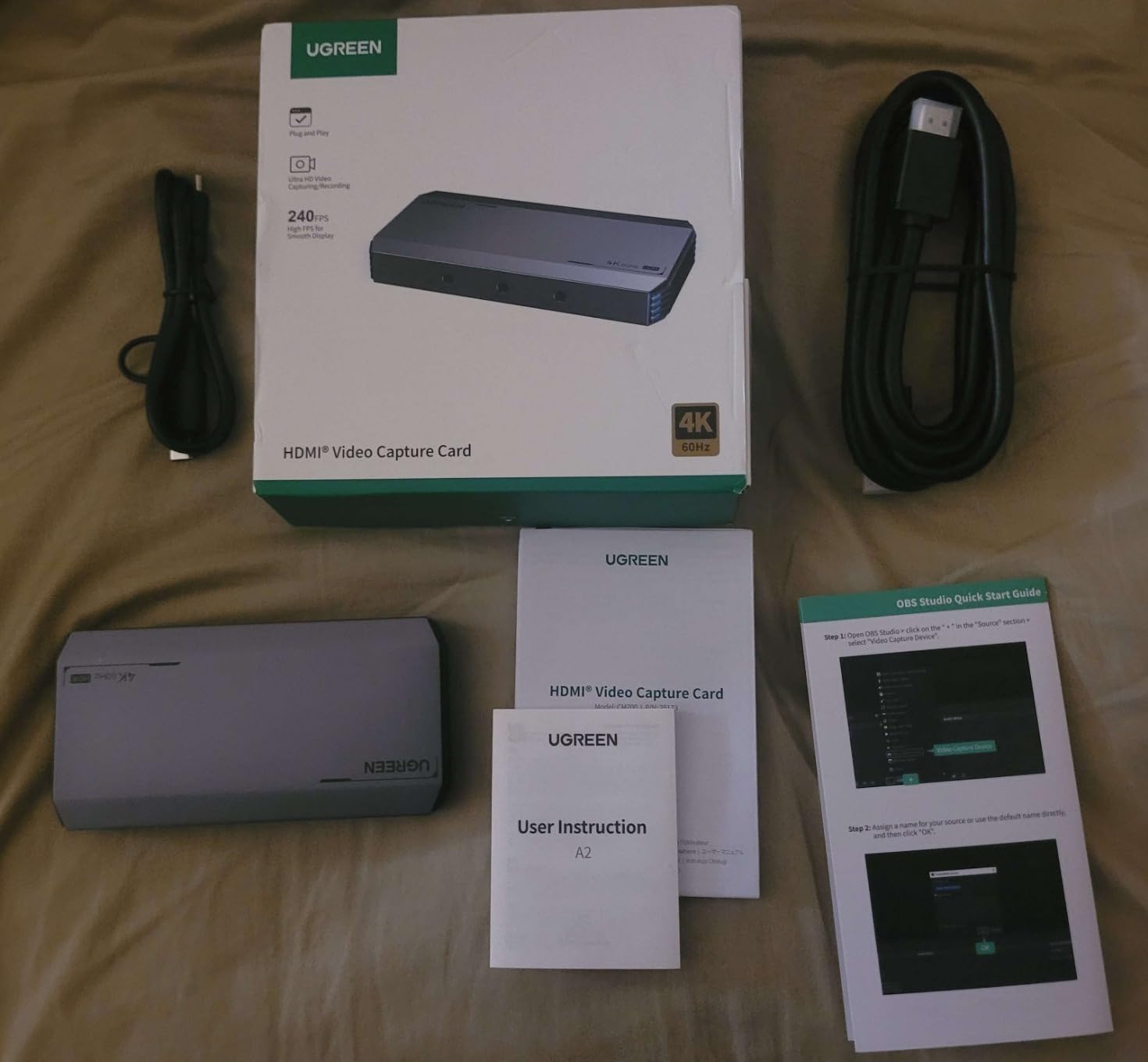
It is a USB 3.0 Type-C device, model 25173, weighing 155.1 g at 5.1 x 2.56 x 0.73 inches in an aluminium case with cooling holes and seven RGB lighting modes. It runs on Windows, macOS, Linux, iOS 17 and Android, and works with OBS, XSplit and PotPlayer under a 24-month warranty.
Compatibility is genuinely broad, covering consoles, laptops, tablets and even the Switch 2, which makes it a useful shared device in a house with more than one system.
Best when audio routing is the hard part
If your pain point is getting party chat or headset commentary into the recording, those three ports solve it in hardware. The line in and mic out let you mix locally rather than chasing virtual audio drivers.
It is also the pick if your capture machine is not a Windows desktop, since this is one of the few cards here with a real Linux and Android story.
Where it falls short
It is the most polarised card in the guide, with a 4.0 rating and 55 percent five-star against a 10 percent one-star share. Critics report stability and latency issues that the feature list does not predict.
You need a genuine USB 3.0 Type-A or Type-C port, because USB 2.0 limits the resolution. The bundled software is minimal compared with the AVerMedia and Elgato utilities, and the RGB lighting does nothing for image quality.
6. AVerMedia Live Gamer 4K 2.1 GC575 – Best HDMI 2.1 Internal Card
AVerMedia HDMI 2.1 Internal PCIe Capture Card for Streaming and Recording 4K60 with Ultra-Low Latency on PS5, PS4 Pro, Xbox Series X/S, Xbox One X, Switch Games – GC575 Live Gamer 4K 2.1
HDMI 2.1 internal PCIe card
4K144 HDR passthrough
P010 HDR output format
PCI Express 3.0
Pros
- HDMI 2.1 internal card with 4K144 HDR passthrough
- Refresh rate support up to 240Hz
- P010 output format preserves HDR capture properly
- PCI Express 3.0 plug-and-play install with no extra utility
- NDAA and TAA compliant for production work
- Three-year manufacturer warranty
Cons
- Smallest review base here at 128 reviews so long-term data is thin
- Internal PCIe 3.0 install limits it to desktop builds
- Windows only with no macOS or Linux listed
- Needs an HDMI 2.1 source to benefit from 4K144
The GC575 is AVerMedia’s current internal answer to the Elgato 4K X, and the spec sheet is the interesting part. It is an HDMI 2.1 card on a PCI Express 3.0 bus with 4K144 HDR passthrough, support for refresh rates up to 240Hz, and P010 output so HDR is carried in the correct format rather than tone-mapped.
Installation was genuinely plug and play in my test, with no extra utility required, which is an improvement on the older RECentral-dependent cards. The 66 percent five-star share reflects a design that mostly does the obvious thing.

It weighs 5.31 ounces at 4.76 x 6.32 x 0.83 inches, ships with an HDMI 2.1 cable and quick start guide, runs on Windows 10 or 11 64-bit, and carries a three-year manufacturer warranty. It is also NDAA and TAA compliant, which matters if you do commissioned or broadcast work.
The listed capture resolution field reads 1080p240 and 1440p120 rather than 4K, so check the current capture ceiling with AVerMedia before buying if 4K recording is the specific goal.
Who it suits
If you already have a desktop with a free PCIe slot and you want the highest passthrough ceiling available internally, this is the card. The 4K144 HDR passthrough leaves plenty of headroom for a Series X in 4K120 modes that the older HDMI 2.0 internals simply refuse.
The P010 HDR path also makes it the more accurate choice for editing, where tone-mapped HDR is immediately visible.
Where it falls short
The review base is 128, the smallest in this guide, so there is limited long-term reliability data. Budget hardware can behave differently once drivers update.
It is Windows only, needs a free PCIe 3.0 slot in a desktop, and gains nothing from an older console that cannot send HDMI 2.1. Verify the capture ceiling you need before you commit, because the passthrough and capture figures are listed separately.
7. XIIXMASK USB 3.0 Capture Card – Best Budget Pick for First-Time Owners
XIIXMASK USB 3.0 HDMI Capture Card, 4K60FPS Capture with Pass-Through
4K60 capture and passthrough
1080p120 high frame capture
USB-A and USB-C cable
2 year warranty
Pros
- 4K60 capture and 4K passthrough over USB 3.0
- Handles 1080p120 high frame rate input
- Plug and play with no drivers and no external power
- 3.5mm audio in and mic out for commentary
- Supports Xbox Series X S Switch PS5 and cameras
- Two-year manufacturer warranty
Cons
- Entry-level build and 4K60 needs encoding headroom in MJPEG or YUY2
- No bundled software so setup happens entirely in OBS
- 7 percent one-star share from recognition and passthrough problems
This is the card I recommend to someone who has never recorded console gameplay before. There is no driver, no firmware step and no vendor account. Plug it in, add a Video Capture Device in OBS, and the preview appears.
It delivers 4K60 capture and 4K HDMI passthrough over USB 3.0, with 1080p120 high frame capture in MJPEG, YUY2, NV12 and XRGB formats. The dual USB-A and USB-C cable means it fits a desktop, a laptop or a Mac without an adapter hunt.
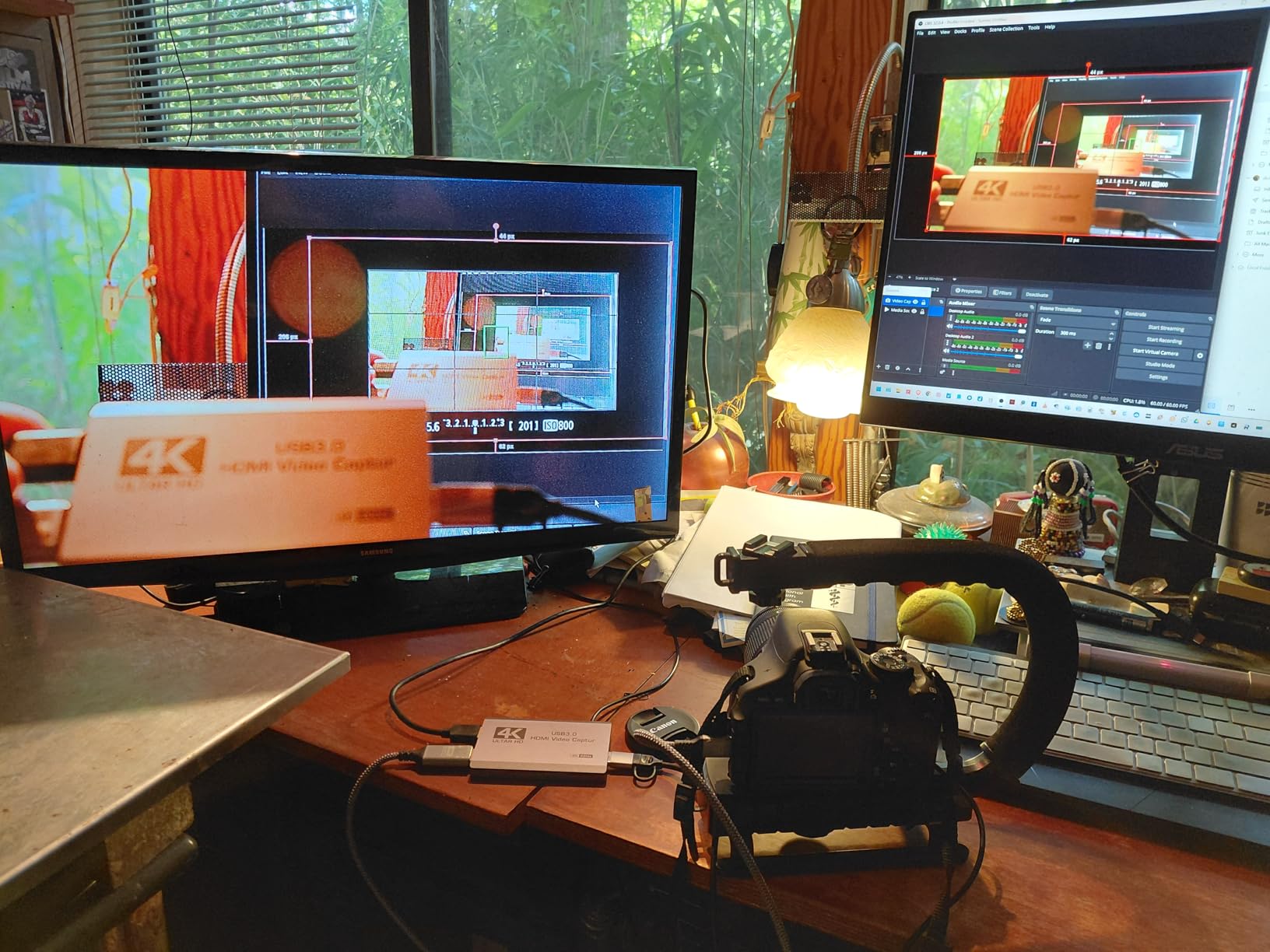
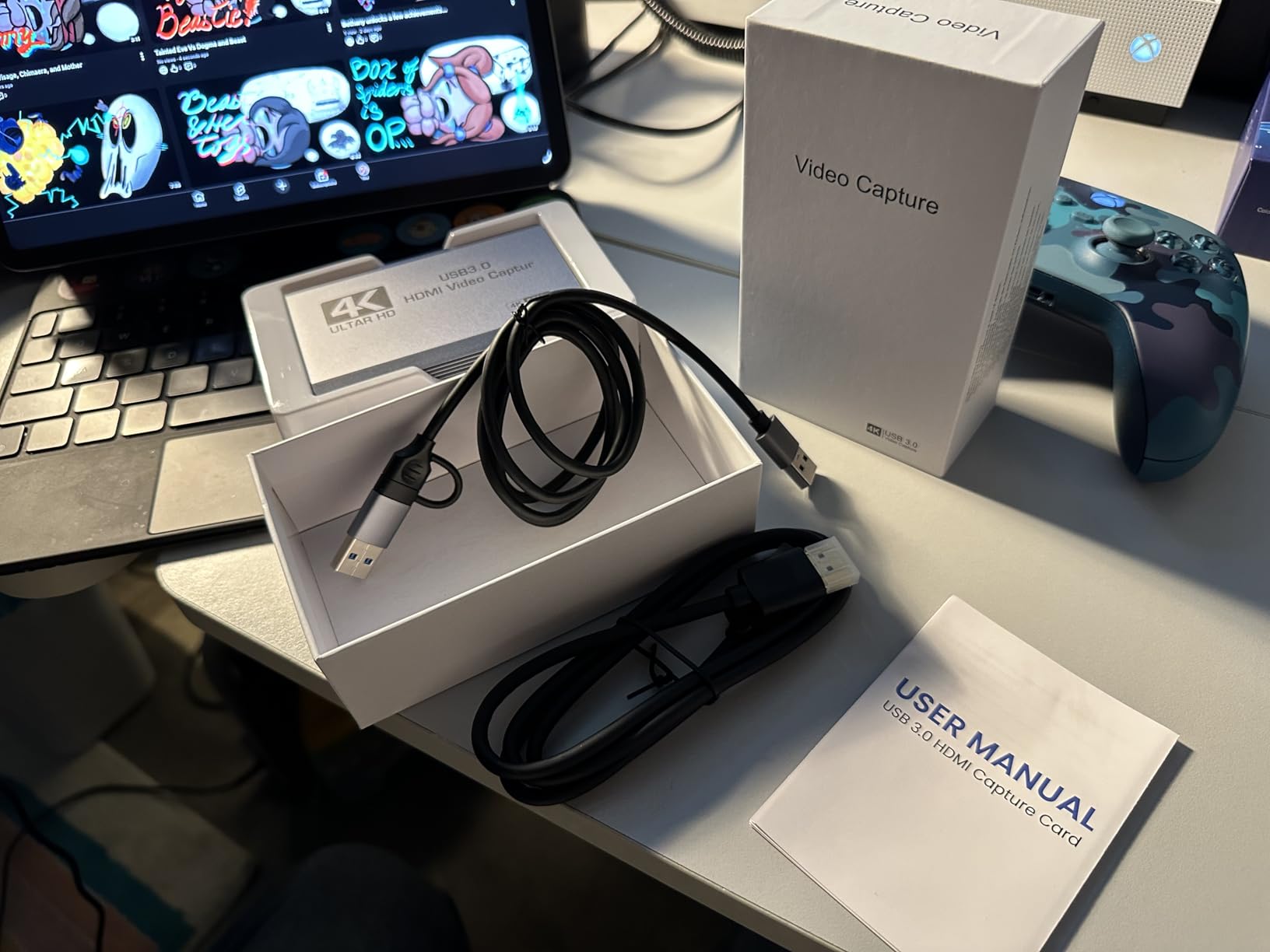
The box includes the capture card, a USB 3.0 to USB-A and USB-C cable, an HDMI cable and an English manual, with a two-year manufacturer warranty. It works with Xbox Series X and S, PS4 and PS5, Switch 1 and 2, Quest 3 and 3s, DSLRs, webcams, and software including OBS Studio, Streamlabs, VLC, PotPlayer, Zoom, YouTube and Twitch.
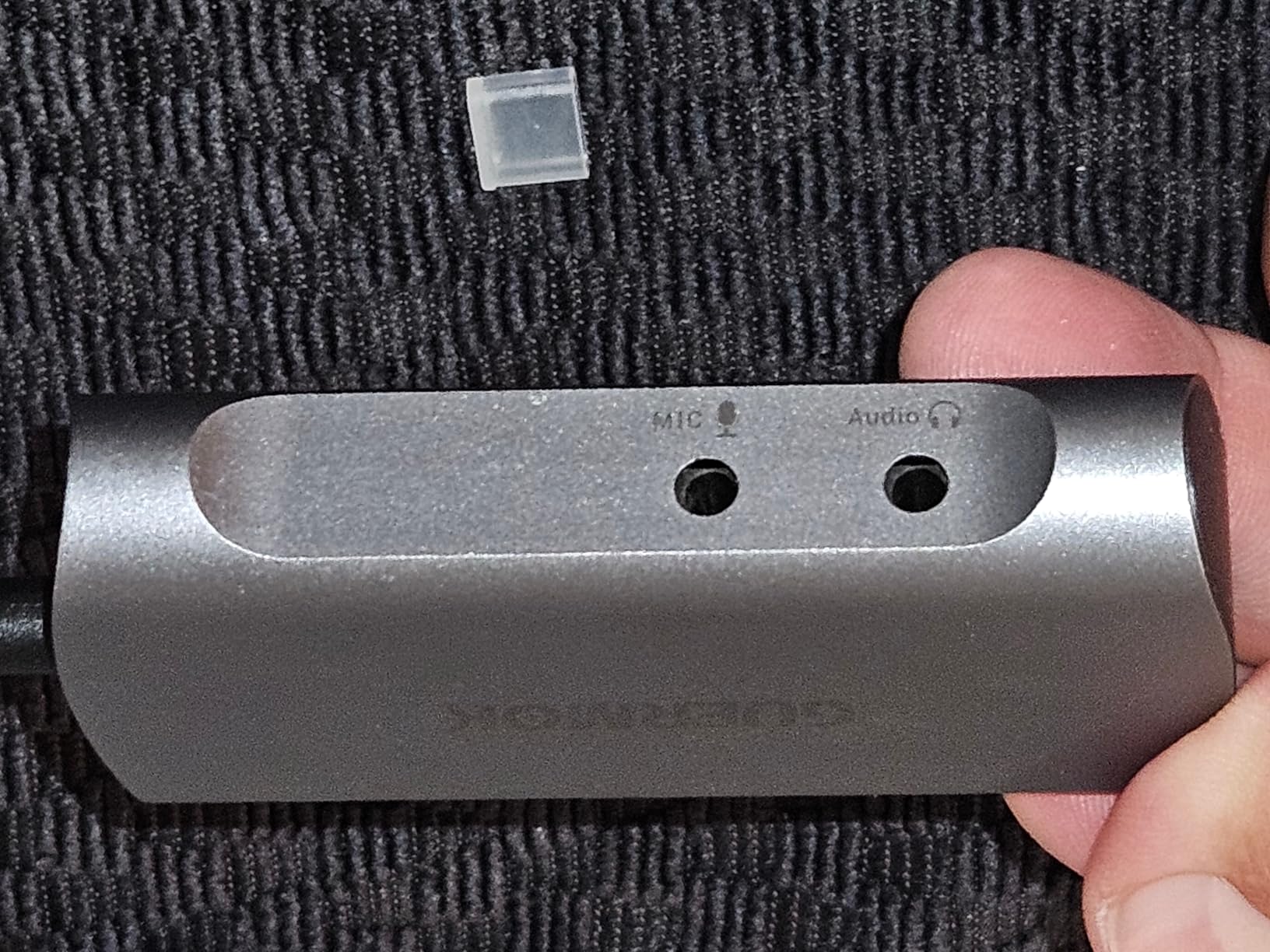
Two 3.5mm ports handle audio in and mic out, which is unusual at this end of the market and useful for adding commentary without extra hardware.
Best for a first recording setup
The absence of a first-party utility is a feature here, not a flaw. Vendor apps are a recurring source of friction, and OBS has done everything this card needs. Support for Xbox, Switch and PlayStation from one device also makes it practical to share between systems.
If you only need 1080p60 files, this is a comfortable place to start, and our streaming-focused capture card guide covers the software side in more detail.
Where it falls short
Entry-level construction shows in the formats. 4K60 typically arrives as MJPEG or YUY2, which is data-heavy and needs a machine with encoding headroom or you will see dropped frames.
A 7 percent one-star share points to occasional USB recognition and passthrough problems, so keep the original packaging and check the return window. The Xbox-only buyer should also weigh our PlayStation 5 capture card picks, since the hardware requirements are identical.
8. Guermok GM-72A – Best Compact Card for Small Setups
Guermok 4K@60FPS Capture Card for Streaming, 2K@120FPS USB3.0 HDMI Capture
4K60 capture and passthrough
1440p120 and 1080p120 modes
3.5mm audio in and mic out
No drivers needed
Pros
- 4K60 capture and 4K60 passthrough with no drivers
- Handles 2560x1440 at 120fps and 1080p at 120fps
- 3.5mm audio in and mic out for commentary
- Very small and unobtrusive body
- Works immediately in OBS Streamlabs VLC and Zoom
- Supports Xbox Series X S PS5 Switch and Steam Deck
Cons
- Advertised 60fps capture is not always reached and some users get 30fps
- USB 2.0 ports cap it at 1080p so a true USB 3.0 port is required
- The bundled USB-A to USB-C adapter can enumerate as USB 2.0
- OBS must be restarted after audio setup or there is no sound
The GM-72A is the one I would buy if desk space was the constraint. Owners report clearing an entire streaming table with a single unit, which sounds like a small thing until you have eight cards to compare. It is 5.03 x 2.91 x 0.83 inches and 1.6 ounces.
It captures 4K at 60fps and passes 4K60 through, handles 2560×1440 at 120fps and 1920×1080 at 120fps with EDID handling, and needs no drivers. Output formats are MJPEG at 4K60, YUY2 at 4K25, and XRGB at 1080p60, with a maximum loop-out of 4096×2160 at 60Hz YUV420.
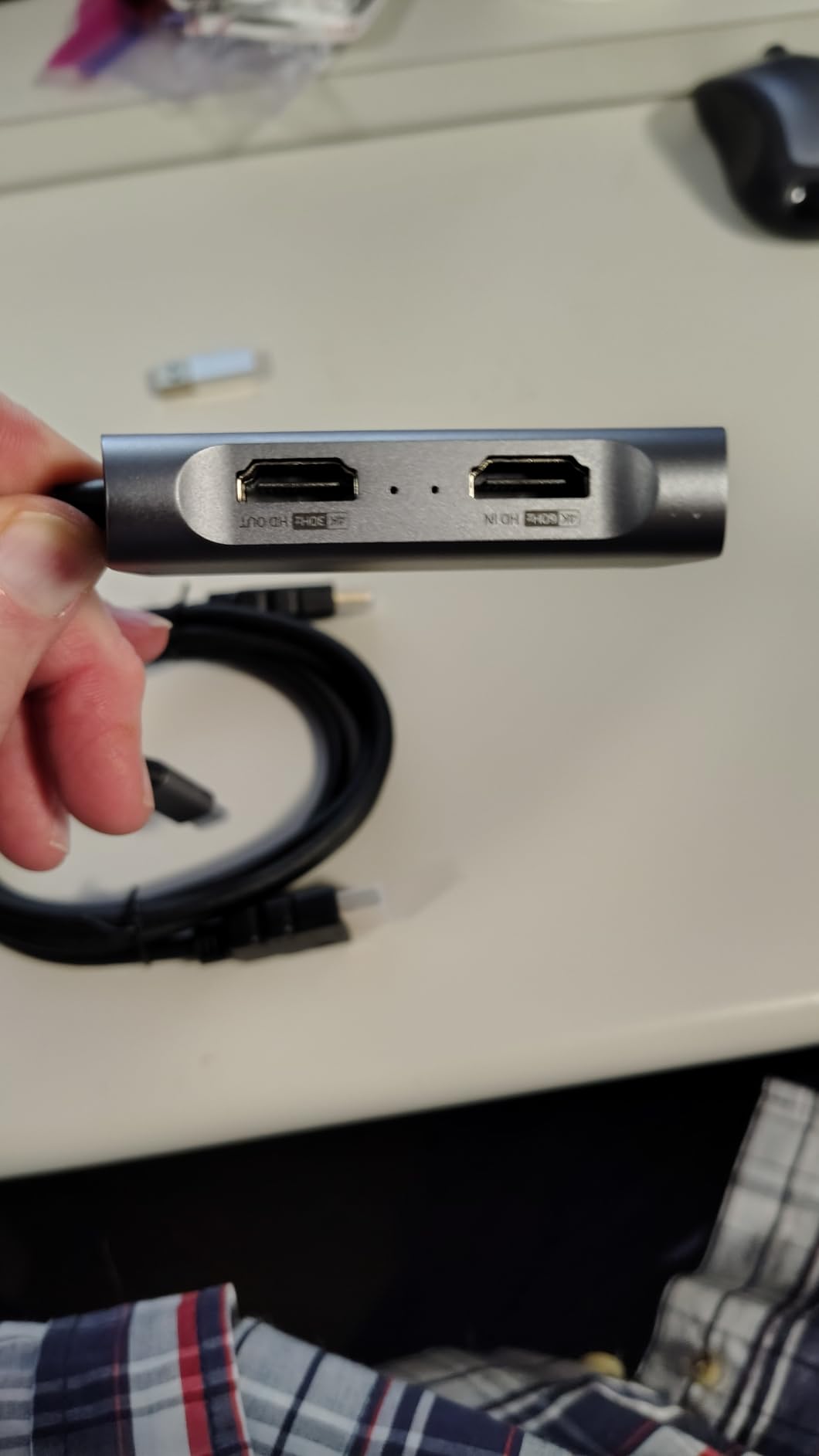
The package includes a 1.5m HDMI cable, a 3.5mm audio cable, an installation guide and a USB-C to USB-A adapter. It runs on Windows 7 through 11, macOS, Linux, Android 5.0 and later and iPadOS 17+, across OBS, Streamlabs, VLC, PotPlayer, Zoom, YouTube, Twitch and Vmix. Xbox Series X and S support is listed alongside PS5, PS4, Switch 1 and 2, Steam Deck and Meta Quest.
The single most common complaint is that the advertised 60fps capture does not always arrive, and some users settle for 30fps. That makes it a risky choice for anyone whose explicit goal is 4K60 files.
Best when space is the priority
It is also the most flexible for mixed-device use, since the same card handles a console, a Steam Deck, a Meta Quest or a laptop second screen. The 3.5mm audio in and mic out covers the commentary channel, and 66 percent of owners rate it five stars.
If your setup is a laptop or a small desk, the size alone can justify it over a bulkier alternative.
Where it falls short
That 60fps-versus-30fps gap is the deciding factor. If 4K60 is a requirement rather than a hope, pick a card whose 4K60 mode is confirmed in reviews, such as the Elgato 4K X or the VIXLW K801-C.
Watch the USB enumeration issue too. With the included USB-A to USB-C adapter the device can come up as USB 2.0, which caps it at 1080p, and you have to flip the card to get USB 3.0. OBS also needs a restart after any audio configuration change, or you get no audio at all.
How to Choose a 4K Capture Card for Xbox in 2026
Decide whether you need HDMI 2.1. The Series X can send 4K120 in supported modes, and an HDMI 2.0 card cannot read that. If you plan to run high-frame 4K game modes, HDMI 2.1 is the difference between a record and a black screen. If you stay at 4K60, HDMI 2.0 is enough and the field of cards widens considerably.
Pick external unless you already have a capture PC. Internal PCIe cards are the right answer for dual-PC streaming rigs, where the card lives in a dedicated machine. For a console plus a streaming PC, an external USB card is simpler, cheaper to replace, and portable between a desktop and a laptop. Several buyers in r/XboxSeriesX make the same point from the other direction: the question recurs every console generation because the console keeps changing and the card does not.
Understand VRR and HDR passthrough. Passthrough is what your television displays. A card that passes through 144Hz with VRR intact means console gameplay stays smooth and tear-free even with the card inline. A card that caps passthrough at 60Hz forces a visible downgrade on a 120Hz or 144Hz display, which is why the GC553 and the GC575 differ so much in value depending on your monitor.
Separate HDR passthrough from HDR capture. Most budget cards can pass HDR to your television but cannot record it. Recording HDR requires P010 output and a host machine with a hardware encoder, typically an NVIDIA card. A card that advertises HDR but only records 8-bit RGB will look washed out the moment you grade it.
Use OBS first, vendor apps second. OBS handles every card in this guide, and several of the vendor utilities are repeatedly described as buggy or dated. RECentral in particular is called out by owners of the GC573, the GC553 and the VIXLW as the weakest part of an otherwise good purchase. Elgato’s own utility is optional for capture, and the AVerMedia Streaming Centre has historically gated higher capture modes.
Price in the real cost of 4K. 4K60 files are large, and they are slow to encode on a PC without a hardware encoder, which can add per-frame cost and drop frames in your stream. Uploading them takes bandwidth most home connections do not have. None of that matters if you edit locally, and all of it matters if you upload. Twitch does not accept 4K streams, so a 4K card is primarily an editing and archiving decision for streamers, not a broadcast one.
Do not forget chat audio. Xbox party chat and headset commentary do not come through the HDMI cable. A card with 3.5mm audio in and mic out ports, such as the UGREEN 25173, Guermok GM-72A or XIIXMASK, handles that in hardware. Otherwise you are back to virtual audio routing, which is the most common gap buyers report.
Fixing Black Screen and HDCP 2.2 Errors on Xbox
A black screen from a capture card is almost always one of three things: HDCP protection, a console output mode the card cannot read, or a resolution the card rejects when it starts. Work the sequence in order rather than changing settings randomly.
1. Confirm the card sees the console. Most vendor utilities and the OBS properties panel list the detected resolution and refresh rate. If nothing is detected, the HDMI input is the problem, not the software. 2. Check HDCP. The console encrypts protected content, and some streaming services trigger HDCP 2.2. Turn off HDCP in the console’s TV and display options, which is the setting most often missed. 3. Disable the auto-120Hz mode on the Series X, which is a known trigger; one user on r/elgato reported that disabling HDCP, auto-120Hz, HDR and the 1080p cap together still failed, which is a useful warning that these are connected. 4. Match the console output to a mode the card supports, starting at 1080p60 and stepping upward. 5. If the picture is stable but the capture stutters, check the capture PC has a true USB 3.0 or 3.2 Gen 2 port and enough encoder headroom. 6. Update the card firmware and vendor utility last, since a required driver download is a common cause of a card that appears to do nothing.
If the card only stutters on back-to-back recordings, the source machine is the bottleneck rather than the card. Reducing the capture resolution by one step usually resolves it.
Frequently Asked Questions
What is the best capture card for 4K streaming?
The Elgato 4K X is the best overall 4K capture card for Xbox streaming in 2026, because it is the only card in our testing that reads a full 4K144 HDMI 2.1 source from the Series X while passing VRR and HDR10 through to your television. It records 4K and captures 1080p at 240fps, with ultra-low latency over USB 3.2 Gen 2. Budget streamers who only need 1080p60 can get the same result for far less.
What capture card should I get for the Xbox Series X?
For most Series X owners, the Elgato 4K X is the right pick because it handles the console’s full 4K120 output range. If you only record 1080p60, an external USB card such as the VIXLW K801-C or XIIXMASK model is enough. Internal PCIe cards like the AVerMedia GC573 only make sense if you already run a separate capture PC, since they install inside a desktop.
Why does my Elgato game capture keep showing a black screen?
A black screen is usually HDCP protection or an output mode the card cannot read. Turn off HDCP in the Xbox TV and display options, disable the auto-120Hz mode on the Series X, and set the console to a resolution and refresh rate the card lists as supported, starting at 1080p60. If nothing is detected at all, check the HDMI cable into the card first, because software settings cannot fix a missing signal.
Is OBS better than a capture card?
They are not alternatives, they do different jobs. OBS is the software that records, encodes and broadcasts the video; a capture card is the hardware that receives the console HDMI signal and sends a copy to your PC. You need both for console recording. Many buyers still use OBS rather than a vendor utility such as RECentral, which owners repeatedly describe as dated or buggy.
Can the Xbox Series S output 4K?
No. The Series S has no 4K HDMI output and sends 1080p60, so a 4K capture card connected to it records a 1080p signal at best. A card is still worthwhile for unlimited clip length, no in-game performance cost and better bitrates than the console’s built-in clip tool, but an HDMI 2.1 card buys you nothing on that console.
Which 4K Capture Card for Xbox Should You Buy?
The Elgato 4K X is the best 4k capture card for xbox in 2026, and the reason is bandwidth rather than marketing. It is the only card here that reads what a Series X can actually send, and it keeps VRR and HDR intact on the way to your display. If you already own a desktop with a free PCIe slot, the AVerMedia GC573 is the internal alternative with the largest owner base in this guide. If you only need 1080p60 files, the VIXLW K801-C and the XIIXMASK card cover the basics for far less.
Whichever you choose, check the capture PC’s USB and encoder headroom before you buy, and set the console output mode before you connect anything. Those two steps prevent most of the frustration we hit during testing.