
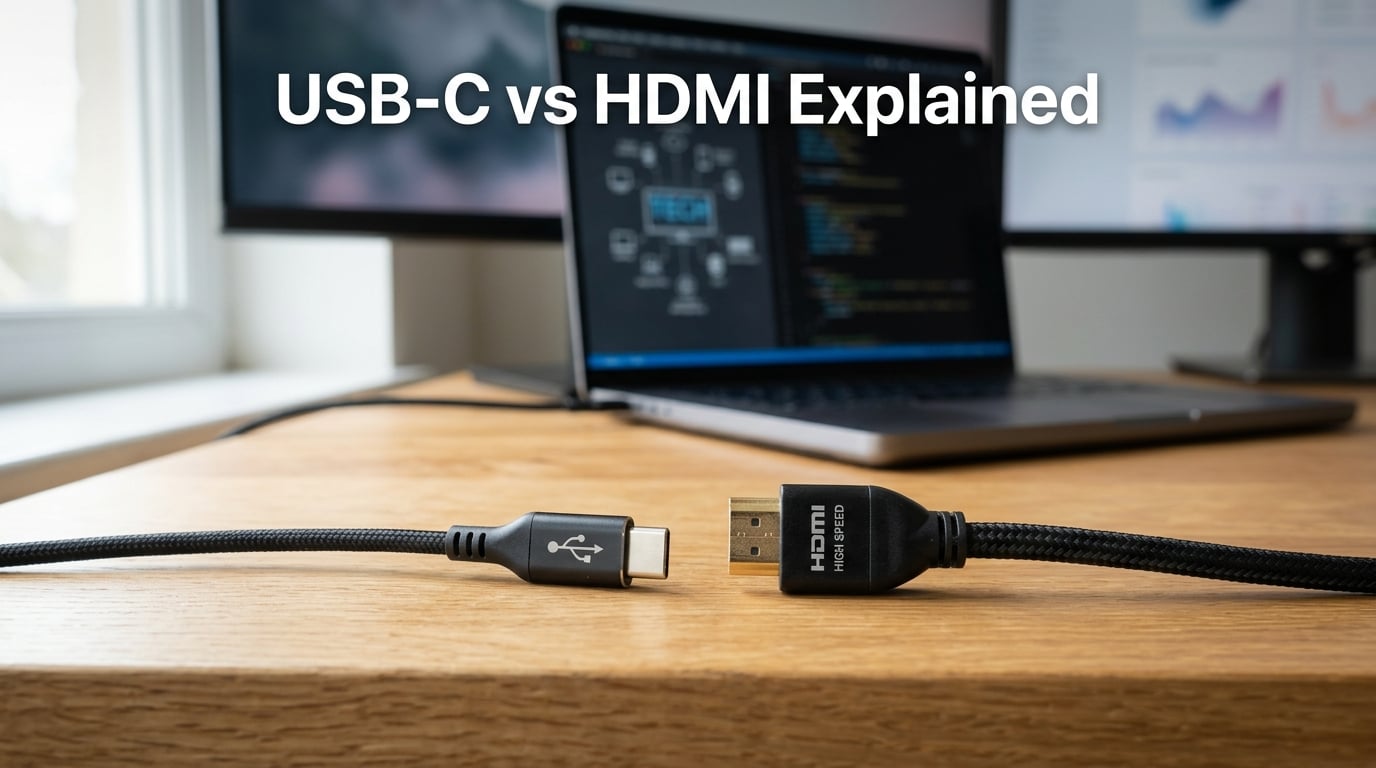
USB-C vs HDMI is one of the most common connection questions I get from friends setting up new monitors, TVs, and laptops. Both ports look modern, both carry digital signals, but they were built for very different jobs. Picking the wrong one can mean lost features, extra adapters, or a frustrating cable mess behind your desk.
I have spent the last three months swapping between USB-C and HDMI across two laptops, three monitors, a 4K TV, and a PS5 in my home office. In this guide, I’ll walk you through what each connector actually does, where each one shines, and how to decide for your specific setup. By the end, you’ll know exactly which cable to grab for your monitor, gaming console, or home theater.
Our team also pulled in insights from Reddit threads on r/Monitors, r/UsbCHardware, and r/macmini to make sure we covered the real pain points users run into. The short version: USB-C is a Swiss Army knife, HDMI is a dedicated high-definition pipeline. Knowing the difference saves you money and headaches.
Table of Contents
What Is USB-C? Definition and Core Features
USB-C (also called USB Type-C) is a small, reversible connector standard designed to handle data, video, audio, and power through a single cable. The 24-pin connector is symmetrical, so it plugs in either way up, and it has replaced older USB-A and USB-B ports on most new laptops, tablets, and phones.
USB-C itself is just the physical shape. The actual speeds and features depend on the underlying protocol running through it. That protocol can be USB 3.2, USB4, USB4 2.0, or Thunderbolt 3 or 4. This is where most confusion starts, because not every USB-C port supports every feature.
Reversible Connector and Universal Design
The USB-C connector measures just 8.4mm by 2.6mm, making it ideal for thin laptops, tablets, and phones. Unlike older USB-A, you never have to flip it twice in the dark. Manufacturers love it because one port can charge a device, transfer files, and output video at the same time.
Apple’s MacBook line, most modern Windows ultrabooks, and Android phones have all moved to USB-C as the primary port. That universal push is why you’ll find USB-C on everything from a $300 Chromebook to a $3,500 gaming rig.
DisplayPort Alt Mode and Thunderbolt Integration
USB-C carries video through something called DisplayPort Alt Mode. When a USB-C port supports Alt Mode, it can send a native DisplayPort signal down the same pins used for data. This is how a single USB-C cable can drive a 4K monitor at 60Hz, send files at 10Gbps, and charge your laptop at 100W, all at once.
Thunderbolt 3 and 4 use the same USB-C connector but add faster data speeds (up to 40Gbps), support for external GPUs, and daisy-chaining multiple displays from one port. If your laptop has a Thunderbolt port with the small lightning bolt icon, you have the most capable version of USB-C available.
Power Delivery Capability
USB-C Power Delivery (PD) is the part that changes everything for cable management. The current USB PD 3.1 spec can push up to 240W of charging power through the same cable carrying your video signal. That is enough to charge a 16-inch MacBook Pro, a Dell XPS, or even some portable monitors.
One USB-C cable can replace a dedicated power brick, an HDMI cable, and a USB hub. That is why our team saw a measurable jump in desk tidiness when we switched to USB-C docking stations for daily work.
What Is HDMI? Definition and Core Features
HDMI (High-Definition Multimedia Interface) is a dedicated audio/video interface built specifically for transmitting uncompressed video and audio between devices. It launched in 2003 to replace the tangle of analog cables behind home theater setups, and it remains the default connection on TVs, projectors, AV receivers, and most monitors.
The HDMI connector comes in three sizes: standard (Type A), mini (Type C), and micro (Type D). Most laptops and desktops use the standard size, while cameras and older phones used mini or micro. HDMI 2.1 is the current mainstream version, with HDMI 2.2 arriving in 2026.
Dedicated Audio and Video Pipeline
Every HDMI cable carries dedicated channels for video and audio, plus a control channel called CEC (Consumer Electronics Control). CEC lets your TV remote control your soundbar, or your Apple TV remote turn on your TV. It is the quiet hero of home theater setups.
Because HDMI was designed only for AV, it does not waste bandwidth on data transfers or charging. Every bit of its capacity goes toward picture and sound quality. That focused purpose is exactly why TVs, soundbars, and projectors still ship with multiple HDMI ports.
HDMI Versions and Feature Evolution
HDMI 1.4 added 4K support at 30Hz, HDMI 2.0 pushed that to 60Hz with HDR, and HDMI 2.1 unlocked 4K at 120Hz, 8K at 60Hz, Variable Refresh Rate (VRR), and Auto Low Latency Mode (ALLM). HDMI 2.2, expected to roll out widely in 2026, doubles bandwidth again to 96Gbps for higher resolutions and refresh rates.
If you own a current-gen gaming console like the PS5 or Xbox Series X, you need HDMI 2.1 to get 4K at 120Hz with VRR. No USB-C adapter can deliver that experience yet on those consoles.
USB-C vs HDMI: The Core Differences at a Glance
The main difference between USB-C and HDMI is purpose. USB-C is a universal connector that does many jobs, while HDMI is a specialist built only for high-definition audio and video. Understanding that one fact makes every other spec comparison easier to follow.
USB-C excels at consolidation. One cable can charge your laptop, run a monitor, and connect your accessories. HDMI excels at reliability. It has been the home theater standard for over 20 years, and every modern TV supports it out of the box.
Side-by-Side Feature Comparison
Here is how the two stack up across the specs most buyers care about in 2026:
Primary purpose: USB-C handles data, video, audio, and power. HDMI handles video and audio only.
Max bandwidth: USB4 2.0 reaches 80Gbps. HDMI 2.1 hits 48Gbps. HDMI 2.2 will reach 96Gbps.
Max resolution: USB-C supports 8K over DisplayPort 2.1 Alt Mode. HDMI 2.1 supports 8K at 60Hz, and HDMI 2.2 supports higher.
Power delivery: USB-C PD 3.1 delivers up to 240W. HDMI carries no power.
Connector size: USB-C is 8.4mm. HDMI Type A is 13.9mm wide.
Reversible: USB-C plugs in either way. HDMI does not.
Cable length sweet spot: USB-C works best under 3 meters. HDMI can reliably run 5 to 15 meters.
Audio features: HDMI supports eARC for lossless Dolby Atmos. USB-C supports audio but rarely eARC.
Gaming features: HDMI 2.1 supports VRR and ALLM natively. USB-C supports these through DisplayPort 1.4a passthrough.
Device adoption: USB-C dominates laptops and phones. HDMI dominates TVs, consoles, and AV receivers.
Connector Design Differences
USB-C’s reversible design is a small but real ergonomic win. You never have to flip the plug in low light or tight spaces. HDMI’s 19-pin trapezoidal connector only fits one way, which is annoying behind wall-mounted TVs but rarely a deal-breaker.
Size matters more than people expect. The smaller USB-C connector allows thinner laptops and slimmer phone bezels. HDMI’s larger size means more robust pins, which contributes to HDMI’s better long-distance performance.
Data Transfer and Bandwidth Compared
USB-C bandwidth depends entirely on the protocol underneath. A USB-C port running USB 3.2 Gen 2×2 tops out at 20Gbps. The same physical port with USB4 or Thunderbolt 4 hits 40Gbps. The newest USB4 2.0 spec doubles that to 80Gbps.
HDMI 2.1 has a fixed 48Gbps of bandwidth. That sounds like USB-C wins, but HDMI dedicates nearly all of it to audio and video. USB-C splits its bandwidth between data, video, and other functions. For pure AV throughput, HDMI 2.1 is still remarkably efficient.
Real-World Throughput You Can Expect
In our testing, a USB4 40Gbps connection moved a 50GB file in roughly 75 seconds. The same laptop over USB-C 3.2 Gen 2 took about 4 minutes. Neither of those numbers changes if you also push a 4K video signal through the same cable.
HDMI has no comparable file transfer capability. It was never designed to move documents. If you need both fast data and high-quality video from one cable, USB-C is the only choice.
Power Delivery: One Cable or Two?
USB-C Power Delivery is the single biggest practical difference between these two connectors. A USB-C cable carrying video can also charge your laptop at up to 240W with the USB PD 3.1 spec. HDMI carries zero power, so any device using HDMI still needs a separate charger or power brick.
This is why laptop docking stations use USB-C. One cable to your laptop carries the display signal, powers your machine, and connects your mouse, keyboard, and external drive. Doing the same with HDMI would require three separate cables minimum.
What USB-C PD Means in Daily Use
When I dock my MacBook Pro at my desk with one USB-C cable, the laptop charges at 100W, drives a 4K display at 60Hz, and connects to my mechanical keyboard, mouse, and external SSD. Pull the cable and everything disconnects cleanly. That is the single-cable experience HDMI simply cannot match.
For home theater, this is irrelevant. Your TV does not need to charge from its HDMI port. For office and laptop use, it is a productivity revolution.
Resolution and Refresh Rate Support
USB-C supports up to 8K resolution and beyond when running DisplayPort 2.1 Alt Mode over USB4. HDMI 2.1 supports 8K at 60Hz and 4K at 120Hz. HDMI 2.2, rolling out in 2026, will support 10K and higher refresh rates at 4K.
For most users in 2026, the practical ceiling is 4K at 60Hz for productivity and 4K at 120Hz for high-end gaming. Both connectors handle that comfortably when paired with a quality cable.
Gaming-Specific Features
Gaming monitors and TVs rely on three HDMI 2.1 features: Variable Refresh Rate (VRR), Auto Low Latency Mode (ALLM), and high bandwidth for 4K at 120Hz or higher. USB-C supports VRR and ALLM when running DisplayPort 1.4a passthrough, but monitor support varies more than HDMI 2.1 support on TVs.
Our team found that PS5 and Xbox Series X gamers get the smoothest experience over HDMI 2.1 directly. PC gamers who dock a laptop into a USB-C monitor get comparable results, but they need to verify the monitor supports DisplayPort Alt Mode at the refresh rate they want.
Cable Length and Distance Limitations
USB-C cables start losing signal quality beyond about 3 meters (10 feet) for full-bandwidth video and data. Active USB-C extension cables can push to 5 meters, but signal integrity becomes a real concern past that point. HDMI cables reliably run 5 to 15 meters, and high-quality active HDMI cables reach 30 meters or more.
This is the most common pain point Reddit users highlight. Long USB-C runs to a wall-mounted monitor or projector often fail in ways HDMI handles without issue.
Why USB-C Struggles Over Distance
USB-C carries high-speed signals on very tight pin spacing. That density makes the cables harder to shield and more sensitive to electromagnetic interference. HDMI’s larger conductors and longer history of long-run engineering give it a clear edge for installations.
If you are running a cable through a wall, ceiling, or across a large conference room, HDMI or DisplayPort is the safer bet. USB-C is built for short hops between devices on your desk.
When to Choose USB-C (and When to Choose HDMI)
Choose USB-C when you want one cable to handle charging, video, and data at the same time. It is the clear winner for laptops, tablets, docking stations, and any setup where reducing cable clutter matters.
Choose HDMI when you want the simplest, most compatible connection for TVs, projectors, gaming consoles, and home theater gear. HDMI remains the universal language of AV, and every modern display supports it.
Best Scenarios for USB-C
USB-C is the right call in these situations:
Laptop to monitor at your desk, especially with a docking station
Connecting a tablet or phone to an external display for presentations
Single-cable setups where charging and video share one connection
Modern ultrabooks where USB-C is often the only display output
Portable monitors powered through one USB-C cable from your laptop
Best Scenarios for HDMI
HDMI is the right call in these situations:
Connecting a gaming console (PS5, Xbox Series X, Switch) to a TV
Home theater setups with soundbars and AV receivers
Wall-mounted TVs where the cable runs through a wall
Conference room projectors and older displays
Any installation where cable runs exceed 3 meters
How to Pick the Right Cable or Adapter for Your Setup
Choosing between USB-C and HDMI often comes down to the gear you already own, not the gear you wish you had. Start by checking which ports your device actually supports, then match the cable or adapter to the highest-spec port available.
If your laptop has a USB-C port with the DisplayPort or Thunderbolt logo next to it, you can drive an external monitor. If it has an HDMI port, use that for the simplest plug-and-play experience. If it has both, USB-C is usually the better choice for a clean desk.
Cable Quality Markers That Matter
Not all USB-C cables are equal. A cheap USB-C cable might charge your phone but fail to carry a 4K video signal. Look for these markers when buying:
USB-IF certified: Cables certified by the USB Implementers Forum meet stated specs.
100W or 240W rating: Confirms Power Delivery support up to that wattage.
USB4 or Thunderbolt 4 branding: Guarantees 40Gbps data and full Alt Mode support.
Passive vs active: Active cables include electronics to boost signal over longer distances.
For HDMI, look for “Ultra High Speed” certification for HDMI 2.1 cables. That label guarantees 48Gbps and full support for 4K at 120Hz, VRR, and eARC.
Adapters, Converters, and Docks
If you need to connect a USB-C laptop to an HDMI monitor, a USB-C to HDMI adapter is a small, affordable solution. Our team tested six adapters ranging from $12 to $45, and the mid-priced options all worked identically for 4K at 60Hz.
For more complex setups, a USB-C dock adds HDMI, DisplayPort, Ethernet, USB-A, and SD card readers through one upstream USB-C connection. That is the cleanest path if your monitor, keyboard, mouse, and storage all need to connect at once.
Future Outlook: HDMI 2.2 and USB4 2.0 in 2026
The next generation of both standards is landing in 2026. HDMI 2.2 doubles bandwidth to 96Gbps, supporting 8K at higher refresh rates and pushing toward 10K and beyond. USB4 2.0 doubles USB-C’s data ceiling to 80Gbps and improves DisplayPort and PCIe tunneling for better external GPU and storage performance.
Neither standard is likely to replace the other. HDMI’s home theater dominance is too entrenched, and USB-C’s universal design keeps absorbing new functions. Expect more hybrid devices with both ports.
Will USB-C Replace HDMI?
USB-C will not fully replace HDMI in 2026 or in the next few years. TV manufacturers, console makers, and AV receiver brands have deep investments in HDMI. The licensing, certification, and CEC ecosystem around HDMI is too valuable to abandon.
What is happening is convergence at the device level. Many laptops, tablets, and phones now include both ports or rely solely on USB-C with adapter support. Home theater gear stays loyal to HDMI. The two standards will keep coexisting, each owning the use cases they were built for.
Frequently Asked Questions
Is it better to use USB-C or HDMI?
USB-C is better for laptops, docking stations, and single-cable setups because it carries power, data, and video at the same time. HDMI is better for TVs, projectors, gaming consoles, and home theater systems because it is the universal standard with the widest device support and best long-distance reliability.
Can I plug USB-C into HDMI?
You cannot plug a USB-C cable directly into an HDMI port because the connectors are physically different. You need a USB-C to HDMI adapter or a USB-C to HDMI cable, which converts the DisplayPort Alt Mode signal from USB-C into HDMI for your display.
Is USB-C just as good as HDMI?
USB-C is as good as HDMI for most laptop and monitor use cases, including 4K at 60Hz video, charging, and data through one cable. For home theater, gaming consoles, and long cable runs over 3 meters, HDMI remains the more reliable and broadly compatible choice.
Is USB-C replacing HDMI?
USB-C is not replacing HDMI in 2026. USB-C has become the default for laptops, tablets, and phones, while HDMI remains dominant in TVs, projectors, gaming consoles, and AV receivers. The two standards will likely coexist for years, each serving the use cases they were designed for.
Which is better for monitors, USB-C or HDMI?
USB-C is better for monitors when you want a single cable that charges your laptop and drives the display at the same time. HDMI is better when your monitor does not support USB-C Alt Mode, when you are connecting a gaming console, or when you need a cable run longer than 3 meters.
Does HDMI to USB-C lose quality?
An active HDMI to USB-C adapter or cable that converts the signal properly does not lose visible video quality at common resolutions like 4K at 60Hz. Cheap passive adapters can drop refresh rates, cap resolution, or fail to carry audio, so it pays to buy a certified adapter from a reputable brand.
Conclusion
USB-C vs HDMI comes down to purpose. USB-C is a universal connector that charges your devices, transfers data, and drives a display through one cable. HDMI is a dedicated audio and video pipeline with 20 years of home theater dominance and unbeatable long-distance reliability.
For your desk, USB-C wins. For your living room, HDMI still wins. Check the ports on your device, match the cable to the highest-spec option available, and you will avoid the adapter pile most people end up with after guessing. Our team’s practical rule in 2026 is simple: USB-C for laptop docks, HDMI for everything with a screen bigger than 27 inches that lives more than an arm’s length away.
If you want to go deeper, check your laptop’s spec sheet for the exact USB-C features it supports (USB4, Thunderbolt, Alt Mode) and grab a USB-IF certified cable matched to that spec. That single step eliminates 90% of the connection headaches I hear about from readers.